

Edit Text Files from the Command Line on RHEL aims to provide essential knowledge of how to edit text files on Linux. We’re using Red Hat Enterprise Linux to provide the examples; however, you can use any Linux flavor for that. There are many text editors, so we’ll focus on “vim” in this article.
What is Vim?
- Vim (short for Vi IMproved) is a powerful and highly configurable text editor used on Unix-like systems (Linux, macOS, and BSD) and even on Windows.
- It’s an improved version of the older vi editor, adding many modern features.
- It’s popular among system administrators, developers, and power users because it’s fast, lightweight, and works directly in the terminal.
Key Features of Vim
- Modal editing: Vim works in different modes, making it more efficient once learned.
- Extensibility: Supports plugins, scripting, and custom configuration.
- Ubiquitous: Pre-installed on most Unix/Linux systems.
- Powerful navigation: Move around text quickly without using a mouse.
- Search & Replace: Advanced text manipulation with regular expressions.
- Syntax highlighting: Useful for programming and configuration files.
Installing Vim
As we mentioned earlier, Vim is already installed on most Unix/Linux systems. However, if necessary, installing Vim is a very straightforward task.
With the vim-minimal package, you might install the vi editor with core features. This lightweight installation includes only the core features and the basic vi command. You can open a file for editing by using the vi command:
vi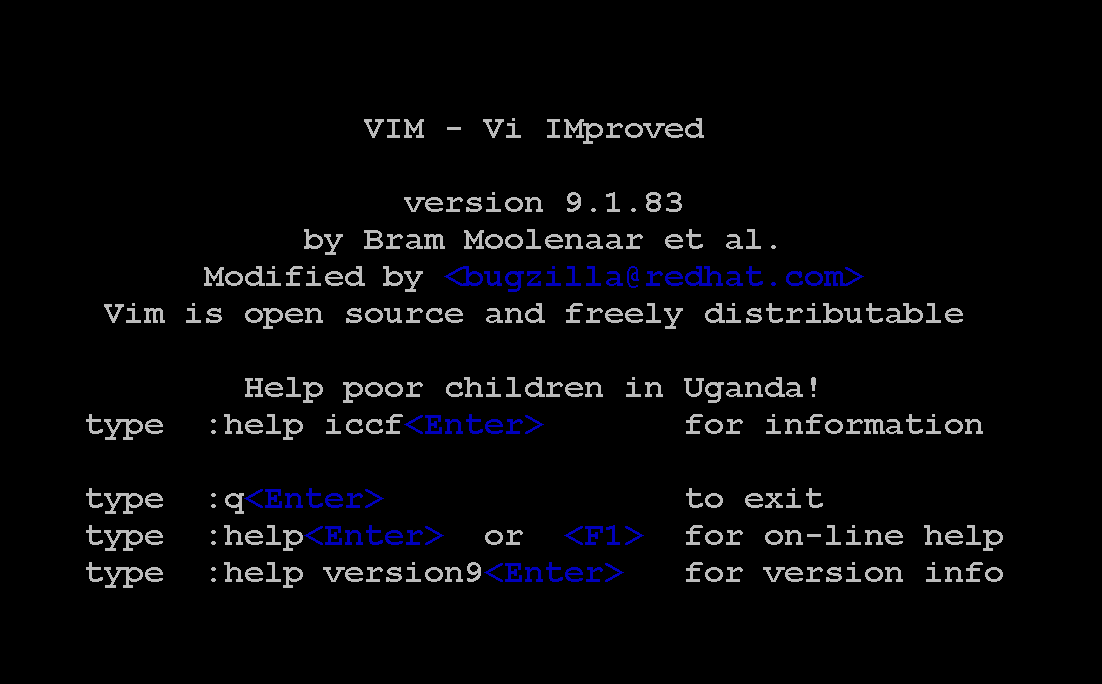
Alternatively, you can use the vim-enhanced package to install the Vim editor. This package provides a more comprehensive set of features, an online help system, and a tutorial program. Use the vim command to start Vim in this enhanced mode:
vim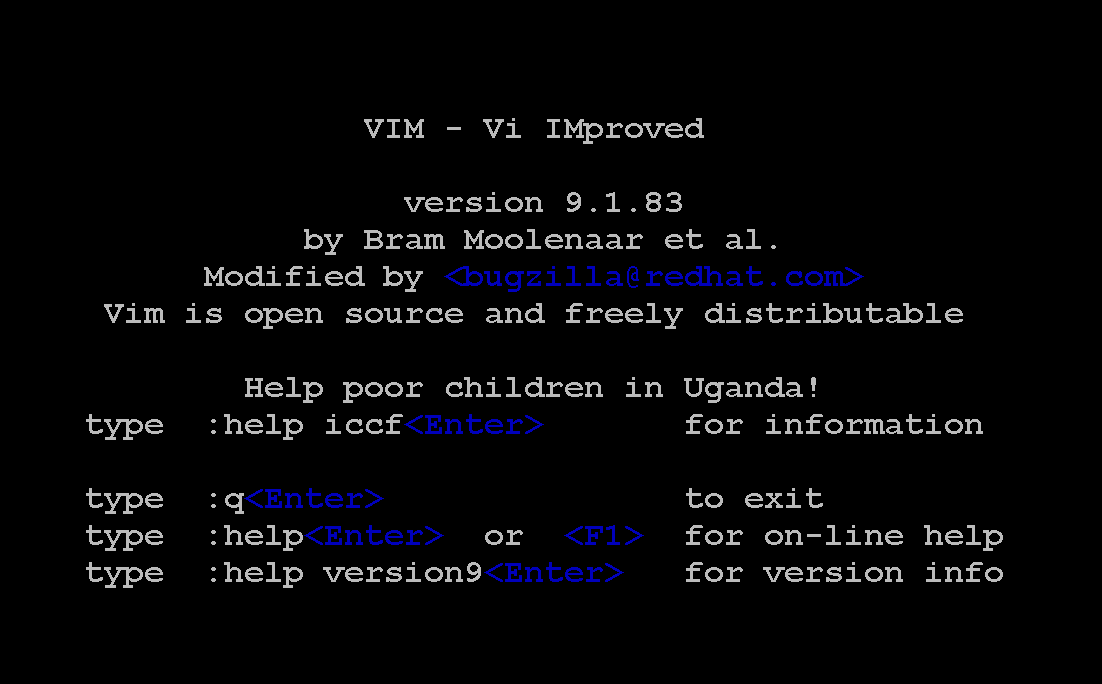
Note: The core features of the Vim editor are available in both commands. If vim-enhanced is installed, then a shell alias is set so that if regular users run the vi command, then they automatically get the vim command instead.
Vim Operating Modes
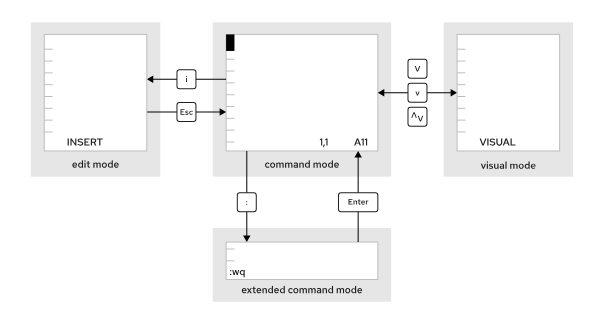
The Vim editor offers various modes of operation, such as command mode, extended command mode, edit mode, and visual mode. As a Vim user, always verify the current mode, because the effect of keystrokes varies between modes.
When you first open Vim, it starts in command mode, which is used for navigation, cut and paste, and other text modification:
| Mode | Purpose | How to Enter |
|---|---|---|
| Command mode (or Normal mode) | Navigation, editing commands (default mode) | Press Esc |
| Insert mode | Insert text like a regular editor | Press i, a, or o |
| Visual mode | Select text (for copying, cutting, etc.) | Press v |
| Command-line mode (or Extended command mode) | Execute commands (save, quit, search) | Press : from Normal mode |
Basic Syntax and Commands
To create a file or edit an existing one, the basic syntax is:
vim <filename>Here are some essentials to get started:
| Action | Command |
|---|---|
| Enter Insert mode | i |
| Save file | :w |
| Quit Vim | :q |
| Save and quit | :wq or ZZ |
| Quit without saving | :q! |
| Move cursor (Normal mode) | h (left), l (right), j (down), k (up) |
| Copy (yank) a line | yy |
| Paste | p |
| Delete a line | dd |
| Undo | u |
| Redo | Ctrl + r |
Vim Configuration Files
The /etc/vimrc and ~/.vimrc configuration files alter the behavior of the Vim editor for the entire system or for a specific user, respectively. With these configuration files, you can specify behavior such as the default tab spacing, syntax highlighting, color schemes, and more.
Modifying the behavior of the Vim editor is particularly useful when working with languages such as YAML, which have strict syntax requirements. Consider the following ~/.vimrc file, which sets the default tab stop (denoted by the ts characters) to two spaces when editing YAML files.
The file also includes the set number parameter to display line numbers when editing any file.
Learning with vimtutor
vimtutoris a built-in, interactive tutorial that comes with Vim.- It’s basically a text file with instructions you open in Vim itself, so you learn by doing rather than just reading.
- Almost all Linux/Unix systems with Vim installed also have
vimtutoravailable.
How to use vimtutor:
- Open your terminal.
- Type:
vimtutor - Press Enter.
You’ll see an instructional text file open in Vim. Each section explains a concept (like moving around, editing text, saving, quitting) and then asks you to practice the commands right there:
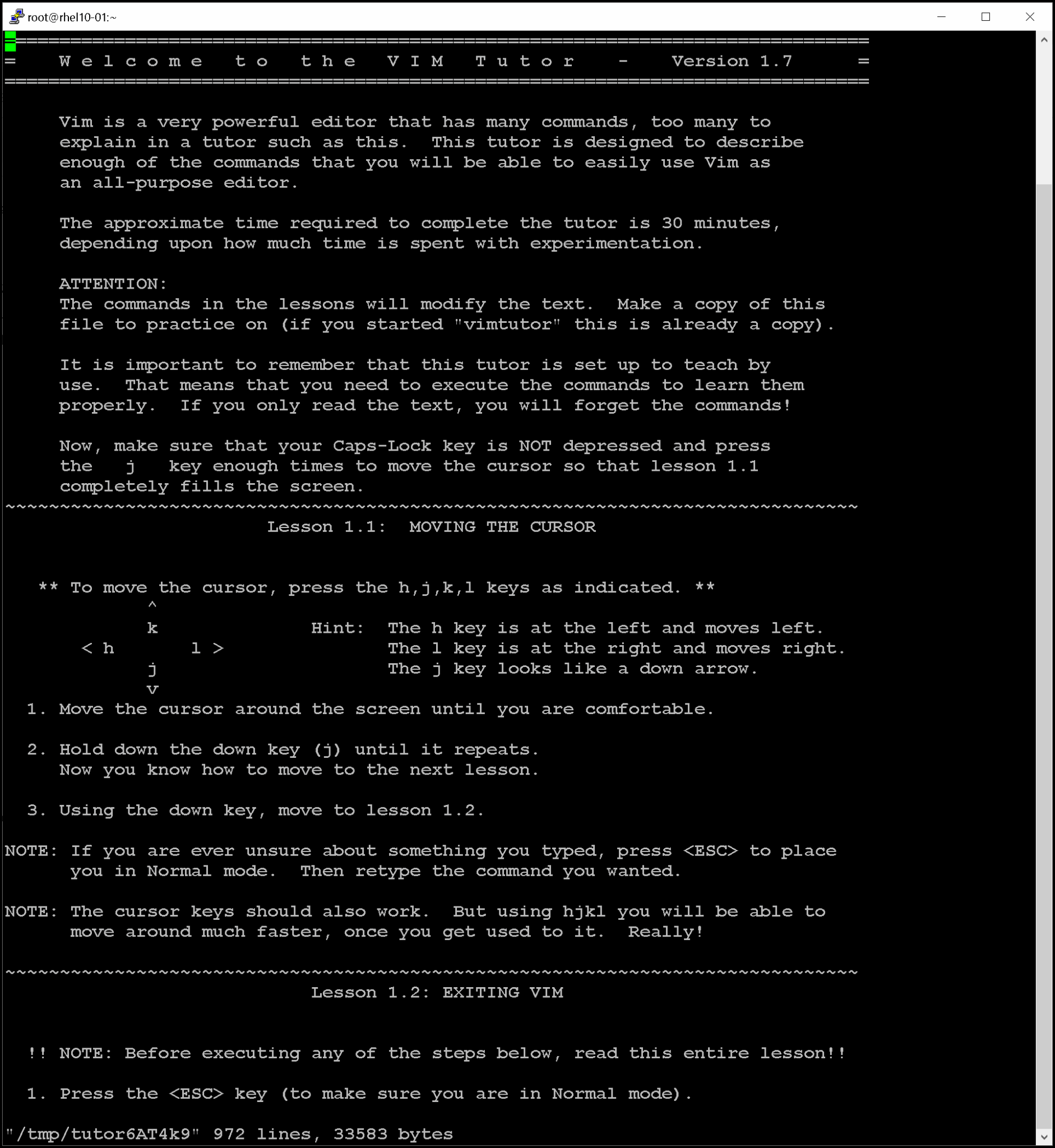
Structures of vimtutor:
- Starts with the basics (navigation, insert mode, saving files).
- Gradually moves to more advanced commands (search, replace, copy/paste, etc.).
- Designed to take about 30 minutes to complete.
Our recommendation is to read and execute all lessons provided by vimtutor!
That’s it for now 🙂
