

A planned PowerFlex node shutdown or reboot requires more than powering off the server. If the node hosts the Primary MDM, move MDM ownership to an eligible peer first. If it hosts an SDS, place that SDS in the appropriate maintenance mode and wait for the operation to complete before taking the node offline.
This walkthrough demonstrates a planned maintenance workflow in PowerFlex Manager: check the MDM cluster, switch ownership when needed, enter the SDS into Protected Maintenance Mode, perform the maintenance, restore the node, and verify cluster health before returning the Primary MDM role. Follow the procedure for the PowerFlex release and node role in your environment. This guide covers a node that hosts an SDS; a PowerFlex Manager management node may require a different workflow.
For a broader overview of the PowerFlex components involved in this procedure, read Getting Started with Dell PowerFlex: Architecture and Key Components.
Check and Move Primary MDM Ownership
1- If the node being shut down or rebooted hosts the Primary MDM, switch ownership to an eligible peer before taking the node offline. First, connect to the Primary MDM management IP and authenticate to SCLI. The --management_system_ip value is the PowerFlex management-system ingress address or DNS name; do not confuse it with the MDM IP used to direct subsequent SCLI commands.
When prompted, enter the password interactively rather than adding it to the command line:
scli --login --management_system_ip pfmp.lab.local --username admin
scli --query_cluster
As we can see in the following picture, the Primary MDM node has the name “MDM01”:
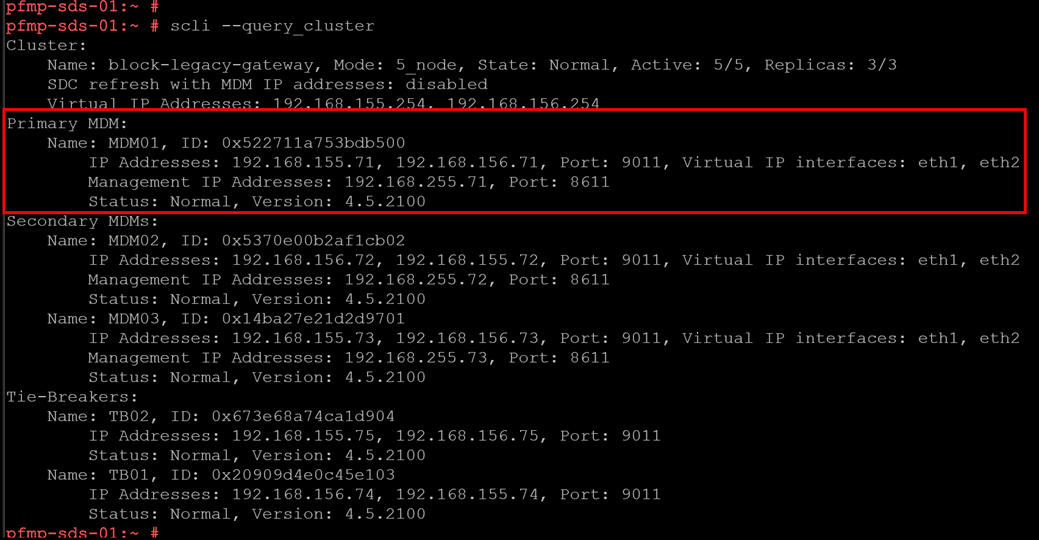
Check the output and confirm that the node planned for maintenance is the current Primary MDM. If it is, select a healthy, eligible secondary MDM as the new primary:
scli --switch_mdm_ownership --new_primary_mdm_name MDM02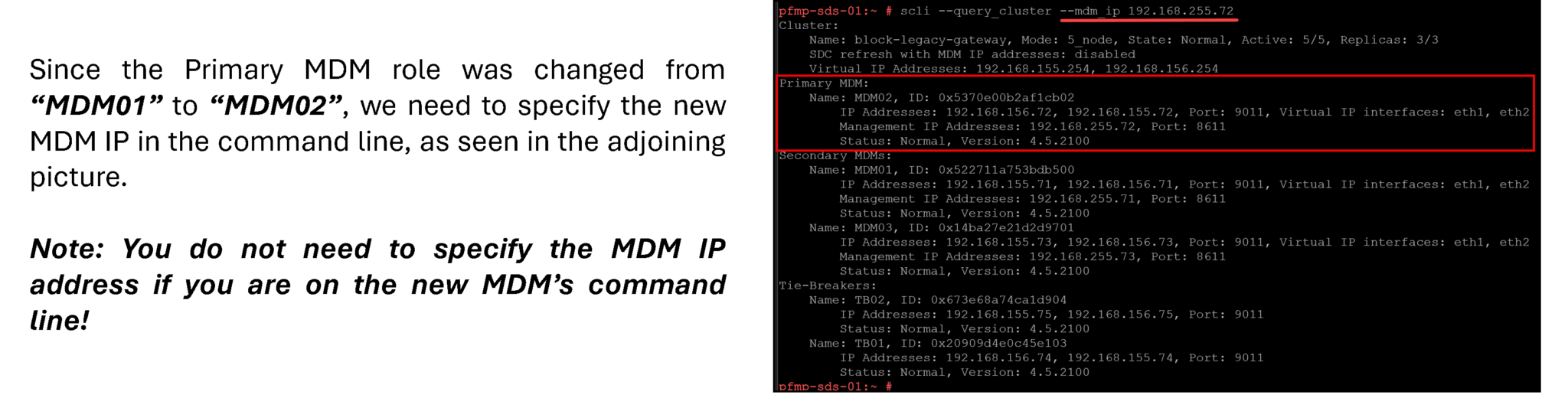
Before starting maintenance, confirm that the cluster is healthy and that no unrelated rebuild, rebalance, or other maintenance operation is in progress. Check capacity and the condition of the remaining SDSs. Move or stop applications and virtual machines on the node according to the hypervisor or operating-system procedure for your environment. Do not shut down a node that still hosts workloads that must remain available.
2- Go to the PowerFlex Manager UI –> Block –> SDSs –> Select the node (in this case, SDS01) –> More Actions –> Enter Maintenance Mode:
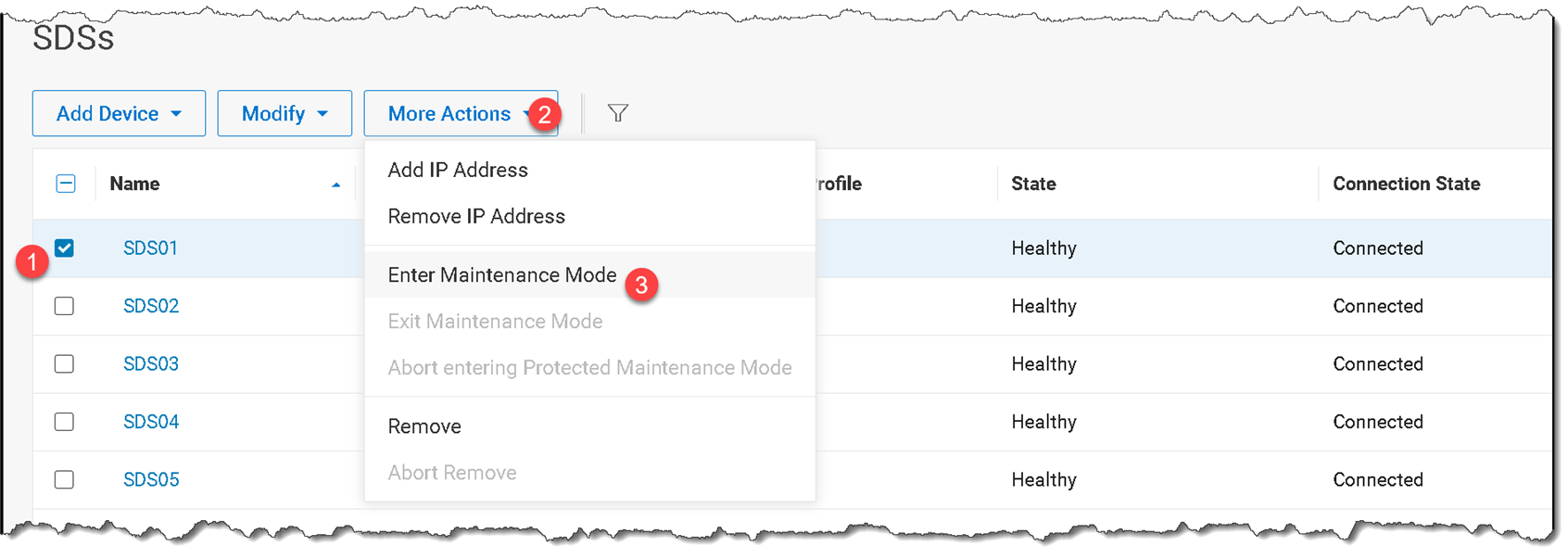
For this procedure, select Protected if the cluster has enough available capacity and the operation can wait for the protection task to complete.
Protected Maintenance Mode creates an additional data copy before the SDS is taken offline, which can provide protection against a further SDS failure during the maintenance window. It consumes additional capacity, may take time, and can be aborted if the system needs that capacity for higher-priority I/O or rebuild work.
It improves protection for this maintenance operation, but should not be described as an unconditional guarantee against data loss or every failure scenario:
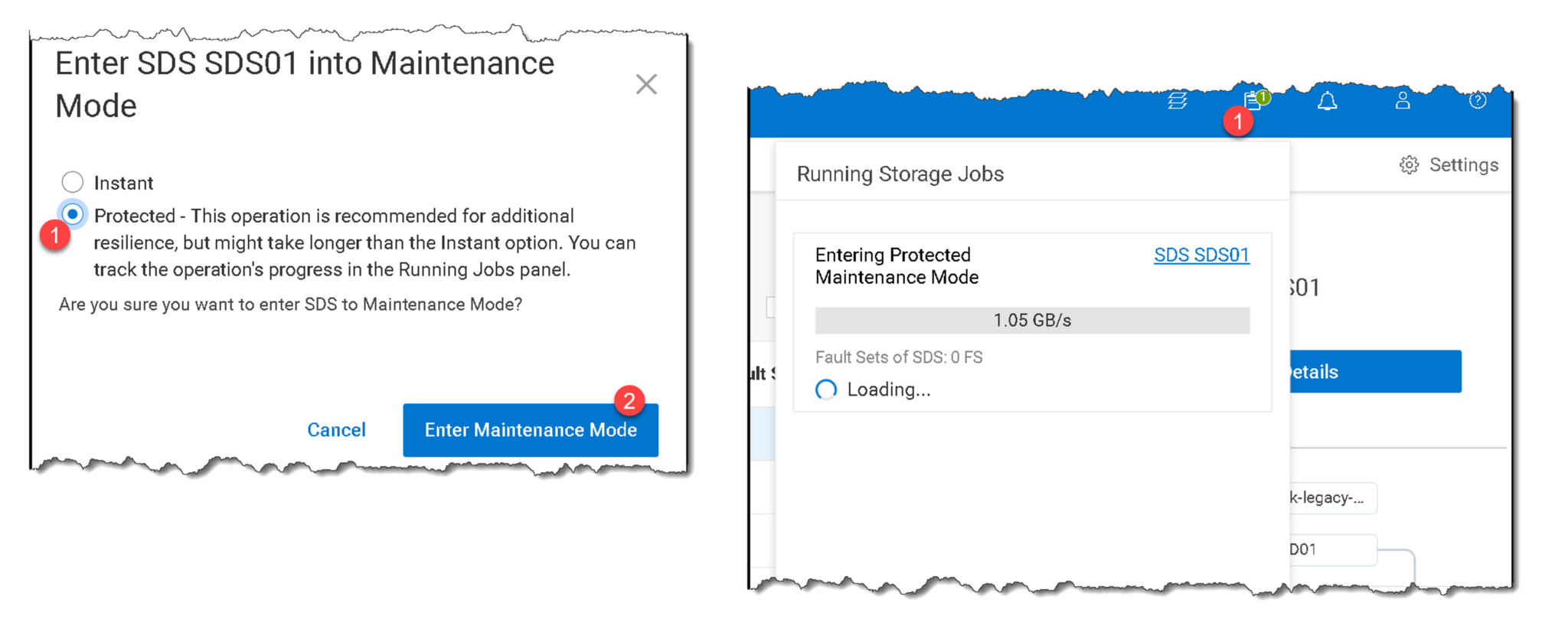
During the task execution to enter the SDS into maintenance mode, the node’s status is “Setting Maintenance.” After it is done, its status is “Maintenance,” as we can see in the following pictures:
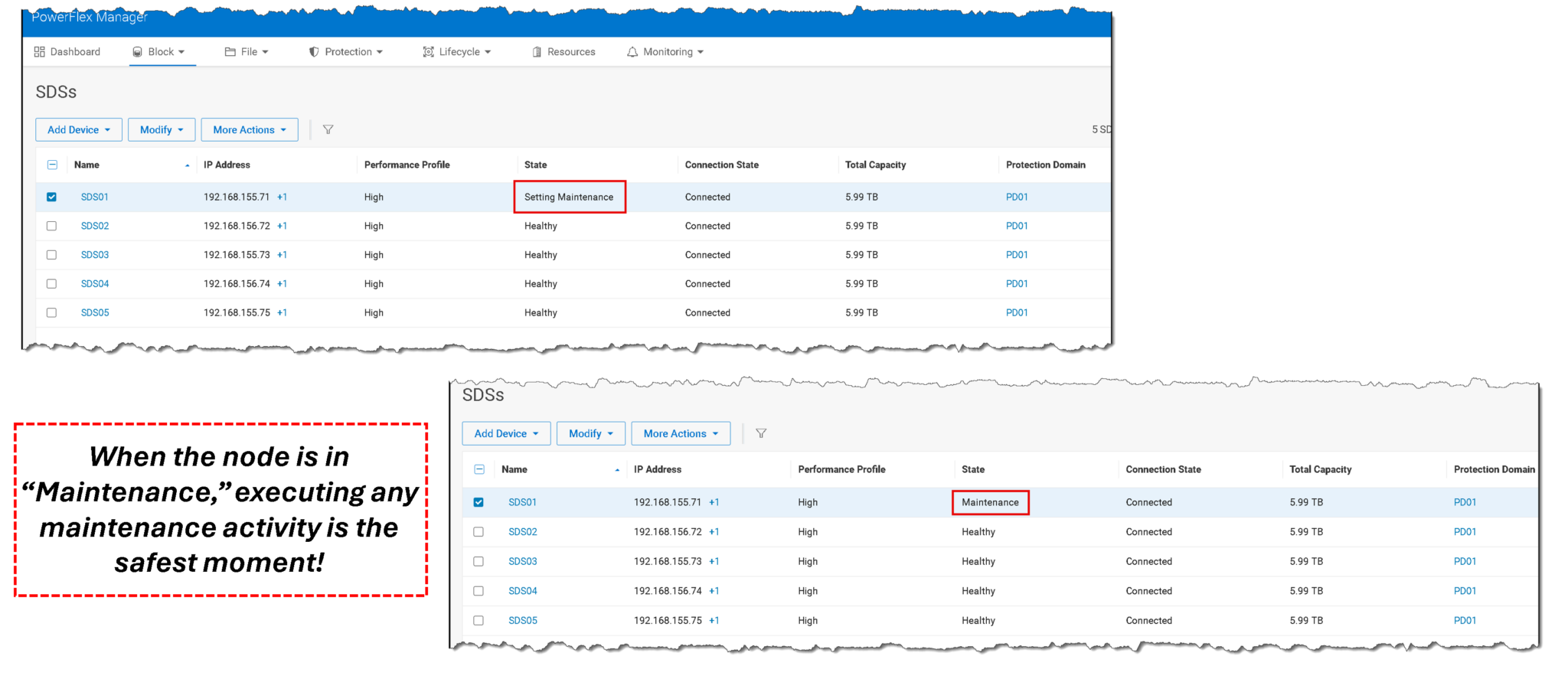
Wait until PowerFlex Manager reports that the SDS has fully entered the selected maintenance mode before shutting down or rebooting the node. When issuing an operating-system shutdown or reboot command, do not use the
-foption; Dell explicitly warns against forcing the operation.
Restore the Node and Exit Maintenance Mode
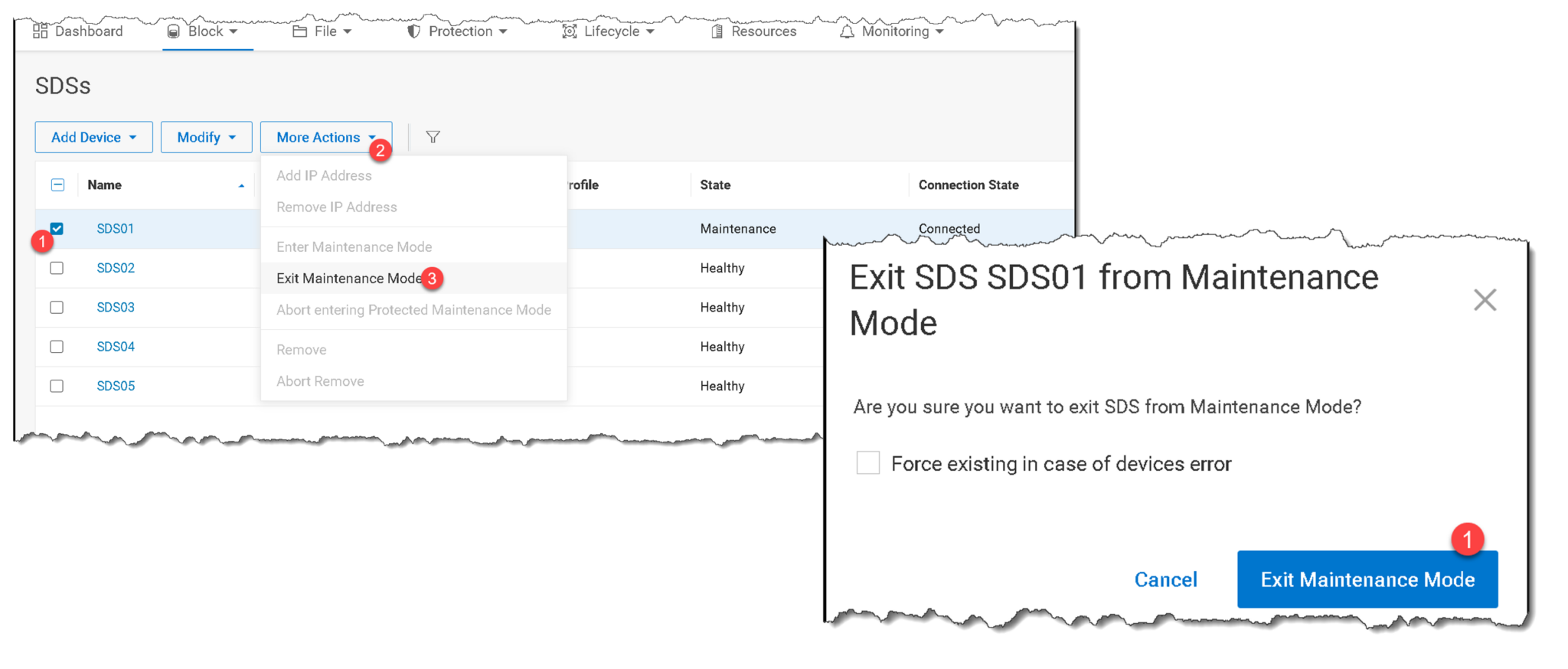
3- After the maintenance task is complete, power on or reboot the node and wait for the operating system and PowerFlex services to start. In PowerFlex Manager, select the SDS and choose More Actions > Exit Maintenance Mode. Wait for the task to finish successfully.
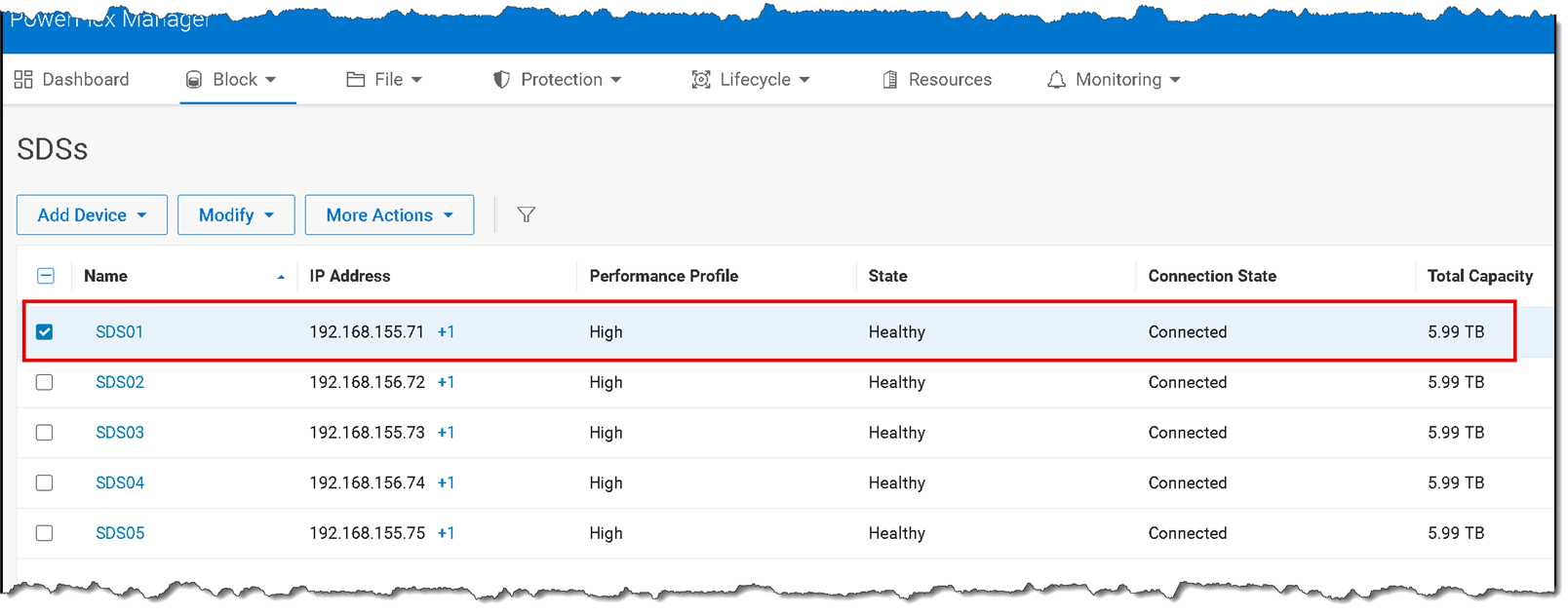
Verify that the SDS is healthy and that PowerFlex Manager shows no outstanding alerts or maintenance task for the node. Also run scli --query_cluster and review the overall cluster state. Do not switch MDM ownership back while the SDS is still recovering or the cluster is reporting an unresolved issue:
After that, the node status should be “Healthy”:
Return Primary MDM Ownership (If Needed)
4- If the original node was the Primary MDM and the maintenance procedure temporarily moved ownership to another MDM, return ownership only after the node is back online, its SDS has exited maintenance mode, and the cluster checks are satisfactory.
Direct SCLI to the correct MDM IP if the CLI is not running on the MDM server:
scli --login --management_system_ip pfmp.lab.local --username admin --mdm_ip 192.168.255.72
scli --switch_mdm_ownership --new_primary_mdm_name MDM01 --mdm_ip 192.168.255.72 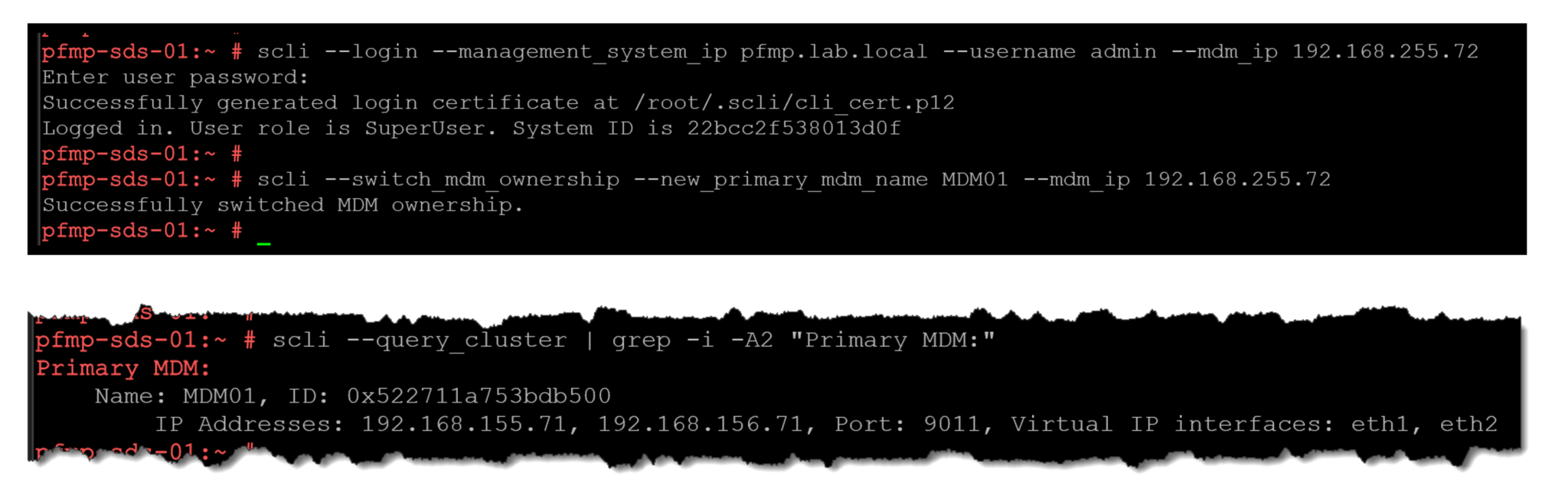
Verify the Cluster Before Closing the Maintenance Window
A node is not ready to return to normal service merely because it has powered on. Confirm that the SDS has exited maintenance mode, its status is healthy, and the cluster has no unresolved alerts or protection tasks. If MDM ownership was moved, verify its final role with scli --query_cluster.
These checks complete the planned single-node maintenance workflow. For production systems, use the Dell procedure for the exact PowerFlex release and node role, and do not proceed while the cluster reports an unresolved condition.
For an example of the PowerFlex 4.5.2 cluster topology that underlies this procedure, see Deploying a New PowerFlex Cluster. That deployment walkthrough provides cluster context; follow the maintenance steps and release-specific Dell guidance in this article when taking an individual node offline.
External References
- Dell — Gracefully Shut Down or Reboot a Node PowerFlex 4.5.x procedure covering Primary MDM ownership, workload relocation, SDS maintenance mode, and planned node shutdown or reboot.
- Dell — How to Log In to SCLI on PowerFlex 4.x Explains how to connect to the Primary MDM management IP and authenticate SCLI through the PowerFlex management-system ingress address.
- Dell — Accessing SCLI PowerFlex 4.5.x CLI reference for authentication, command execution, and specifying an MDM address when needed.
- Dell — Place an SDS in Maintenance Mode Describes placing a Storage Data Server into maintenance mode using the PowerFlex administration workflow.
- Dell — Protected Maintenance Mode Explains how the mode creates an additional data copy before maintenance and notes its capacity cost and the possibility of auto-abort.
- Dell — Exit an SDS from Maintenance Mode Documents the steps to return an SDS to normal production after maintenance and verify that the operation completed successfully.
- Dell — Switch MDM Ownership PowerFlex 4.5.x CLI reference for transferring Primary MDM ownership to another eligible MDM.
