Setting Up a Slurm Cluster in a Lab Environment shows, step-by-step, how to deploy and configure a Slurm cluster.
Previously, we’ve written an article introducing HPC and Slurm. You can check this article by clicking here.
First and foremost, I’m not an expert on HPC or Slurm (I’m a learner). So, as I advance on it, I’ll create new articles on this fantastic subject!
Let’s Talk About Our Lab Topology
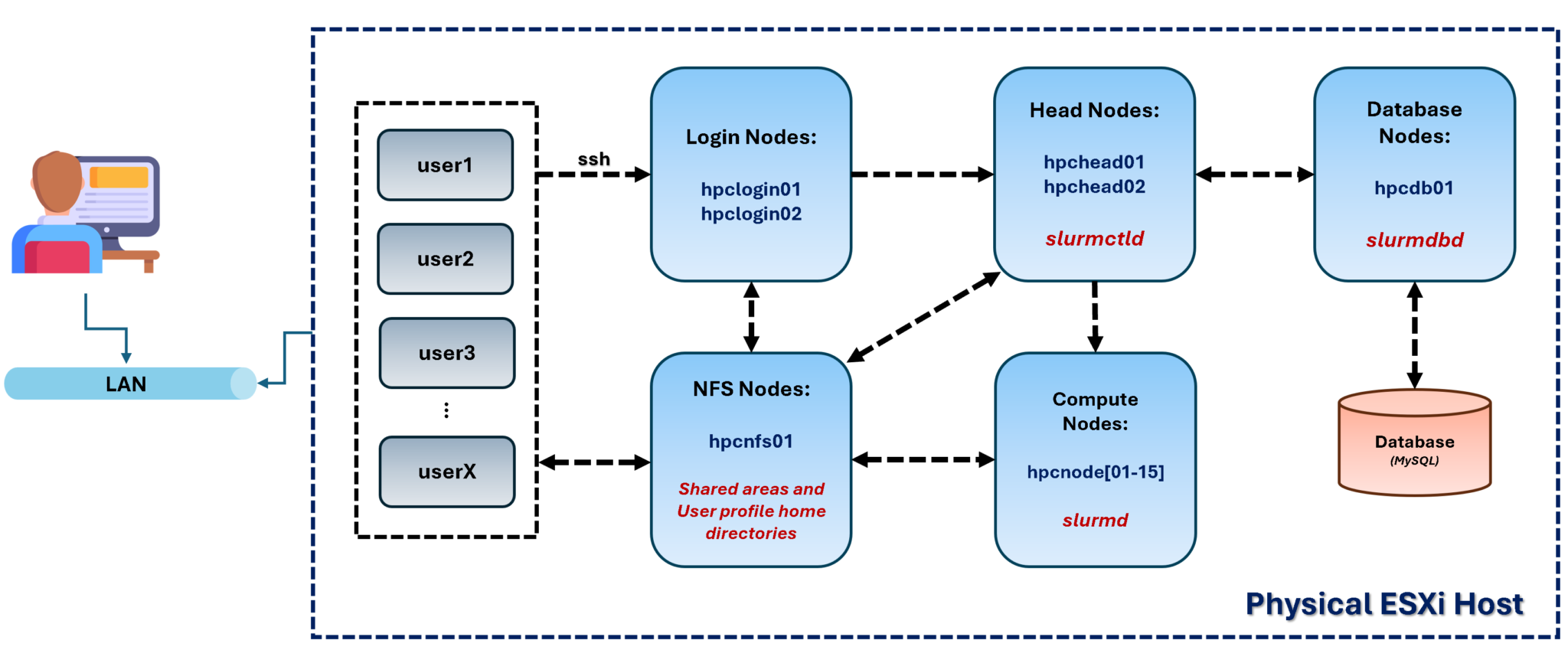
A real HPC cluster uses many powerful physical servers (nodes). Since we don’t have access to those physical servers (we’re in a lab, with limited resources), we’ll create our lab using virtual machines (VMs) in a nested environment.
First of all, we have a physical server running VMware ESXi, and all virtual machines of our Slurm cluster are Red Hat Enterprise Linux 8.10. All VMs are on the same network (using the same ESXi Port Group).
So, in the following picture, we can see our lab topology:
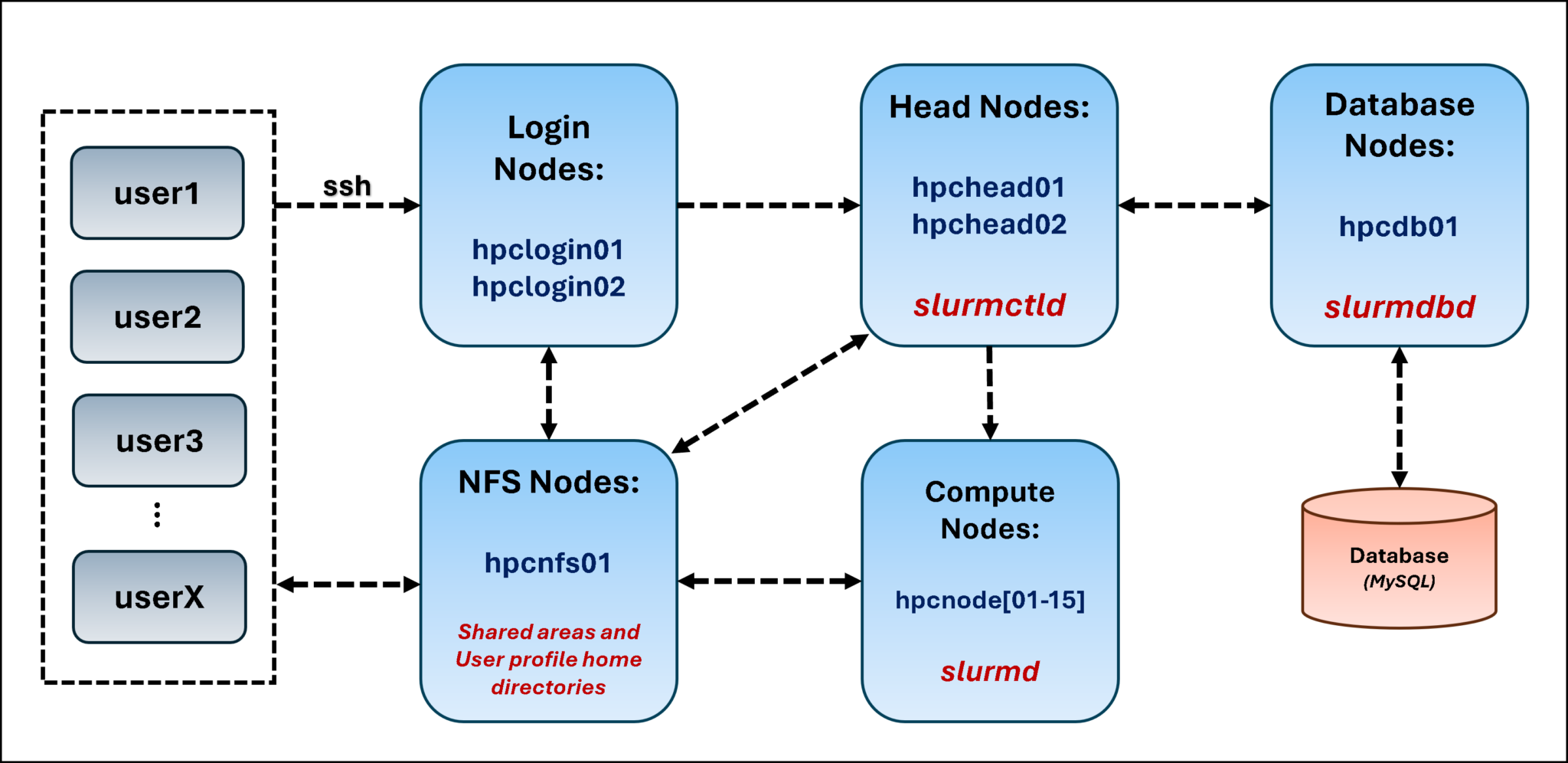
From left to right:
- Users are the focus of that, because they use the cluster. So, they can start an SSH connection to the login nodes. Basically, the login nodes are responsible for handling users’ connections and serve as a “bridge” that allows users to reach the Slurm cluster to submit jobs.
- The NFS node is our NFS server, providing NFS shares for the entire topology. Basically, we have two main shares on it: one NFS share used by the head nodes (to share their states) and another NFS share used to host the home directory of all users (this NFS share is mounted on /home on all nodes).
- The head nodes are the management plane of the Slurm cluster. Both nodes run the “slurmdctld” daemon, with one elected as the primary and the other as the secondary (we have both head nodes for high-availability purposes). Both head nodes mount an NFS share to share their states (for high availability to work as expected).
- The head nodes received jobs from users and sent them to compute nodes.
- In this case, we’re using another node to run the “slurmdbd” daemon. This is the Slurm database, which stores account information for jobs, users’ data, etc.
- The compute nodes are nodes with the “slurmd” daemon. These daemons are connected to the head nodes and are responsible for doing the “hard work” – they receive the submitted jobs and execute them.
After this brief overview of our topology, the first step is to create the virtual machines. In our case, for instance, one virtual machine was created using RHEL 8.10, and we’ve used this VM as a “template” to create the other VMs. We’ve written an article explaining how you can do that. Just click here to access the article (you can use this article as an example to create your VMs).
Considering that all VMs have been created and are working fine (no DNS issues, SSH passwordless access, etc.), we can proceed to the next steps.
Setting Up the Slurmdbd Server
Access the Slurm database node and execute the following commands (we’re adding repositories, installing the required Slurm packages, installing the MariaDB server, and enabling the MariaDB daemon):
dnf install -y https://dl.fedoraproject.org/pub/epel/epel-release-latest-8.noarch.rpm
dnf repolist | grep epel
subscription-manager repos --enable codeready-builder-for-rhel-8-x86_64-rpms
dnf install -y slurm slurm-slurmd slurm-slurmctld slurm-slurmdbd
dnf install -y mariadb-server
systemctl enable --now mariadb
systemctl status mariadb
Afterward, execute the following command to set up the database – during the “mysql_secure_installation”, we accepted the default options for all configurations, and we defined a root password for the database:
mysql_secure_installationAccess the database:
mysql -u root -pAnd create the Slurm database:
CREATE DATABASE slurm_acct_db;
CREATE USER 'slurm'@'%' IDENTIFIED BY 'strongpassword';
GRANT ALL ON slurm_acct_db.* TO 'slurm'@'%';
FLUSH PRIVILEGES;
Notes:
- The database name is “slurm_acct_db”.
- The “slurm” user has privileges on this database.
- And “strongpassword” is the password of the “slurm” user – change the password to your password.
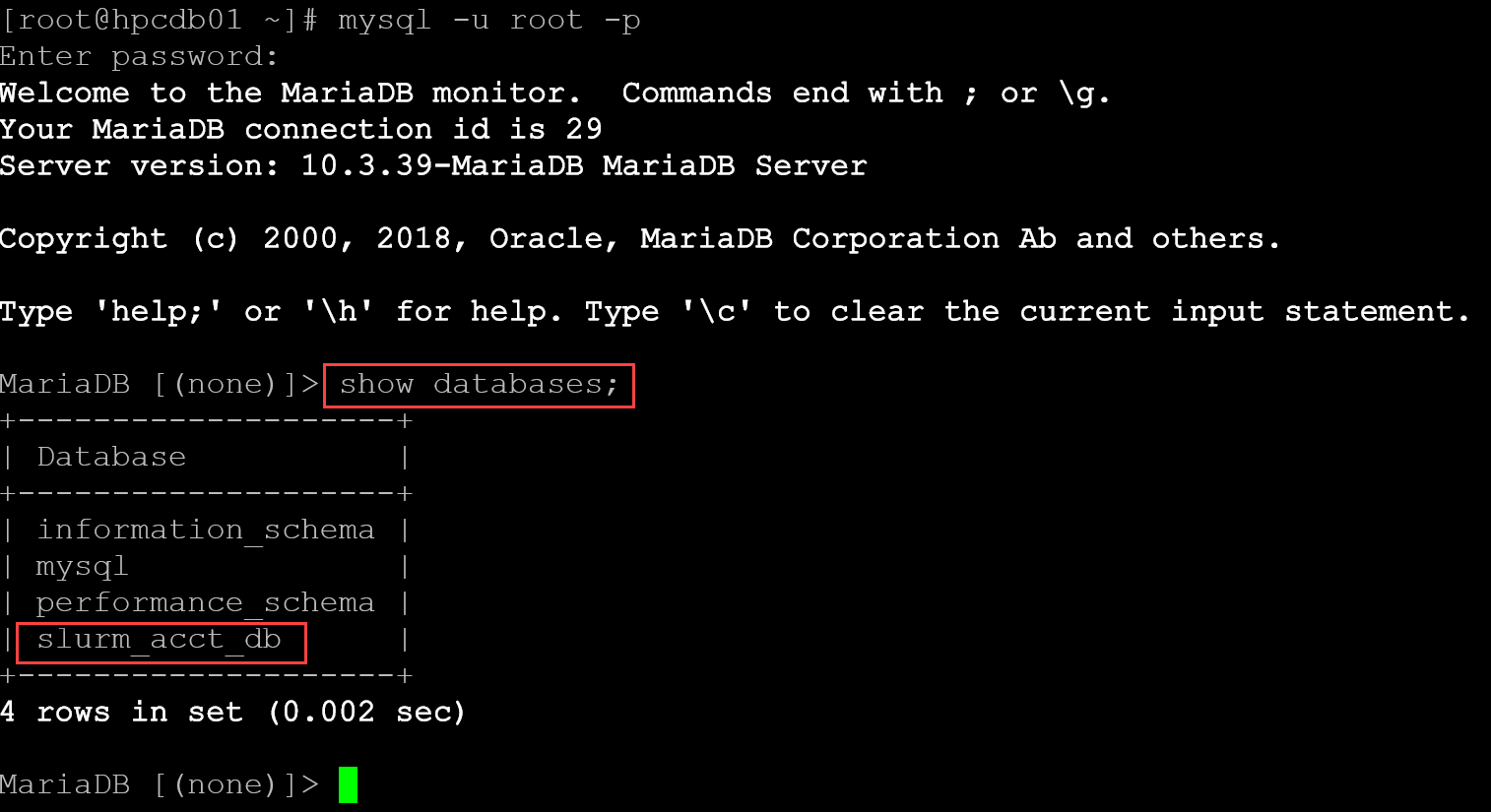
To confirm if everything worked as expected, access the database:
mysql -u root -pApply the following command:
show databases;We must see the Slurm database:
We can also access the Slurm database directly, using the “slurm” username:
mysql -u slurm -p slurm_acct_dbAnd apply a command, for example, to see all tables inside the database:
show tables;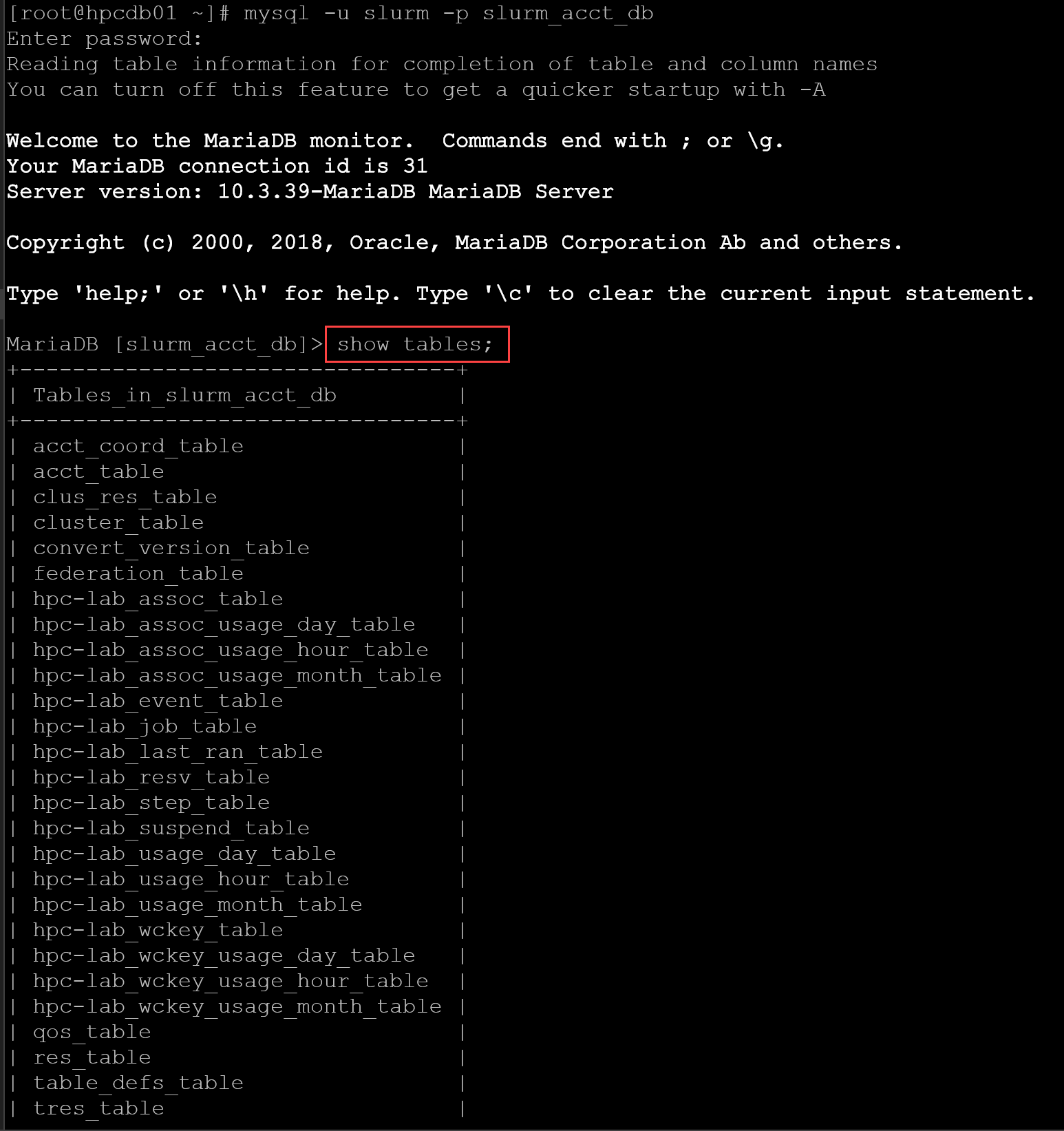
The next step is to create the Slurmdbd configuration file. First, create a backup of the current configuration file:
cp -p /etc/slurm/slurmdbd.conf /etc/slurm/slurmdbd.conf.backupAnd, create a new configuration file using the following content – we highlighted in red the parameters that you need to change to your values:
AuthType=auth/munge
DbdHost=hpcdb01
DbdPort=6819
SlurmUser=slurm

StorageType=accounting_storage/mysql
StorageHost=localhost
StorageUser=slurm
StoragePass=strongpassword
StorageLoc=slurm_acct_db

LogFile=/var/log/slurmdbd.log
PidFile=/run/slurmdbd.pid
Create the service user used by Slurm and adjust the permissions of the Slurmdbd configuration file:
useradd -r -M -s /sbin/nologin slurm
id slurm
chown slurm:slurm /etc/slurm/slurmdbd.conf
chmod 600 /etc/slurm/slurmdbd.conf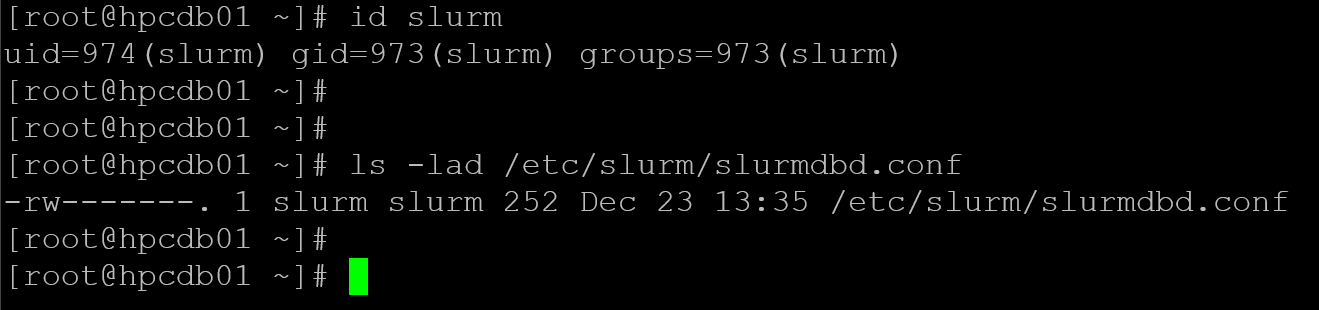
All nodes in the Slurm clusters must communicate securely with one another. To achieve this goal, the munge package is used. Basically speaking, a munge key is created and shared among all nodes in the cluster. Only one node can talk with another one if both share the same munge key.
We’ll create the munge key on the database node, then copy the generated munge key to the other nodes in the Slurm cluster.
Install the munge package and generate the munge key:
dnf install -y munge
/usr/sbin/create-munge-key
Adjust the file permissions and start the munge service:
chown munge:munge /etc/munge/munge.key
chmod 400 /etc/munge/munge.key
systemctl enable --now munge
systemctl status munge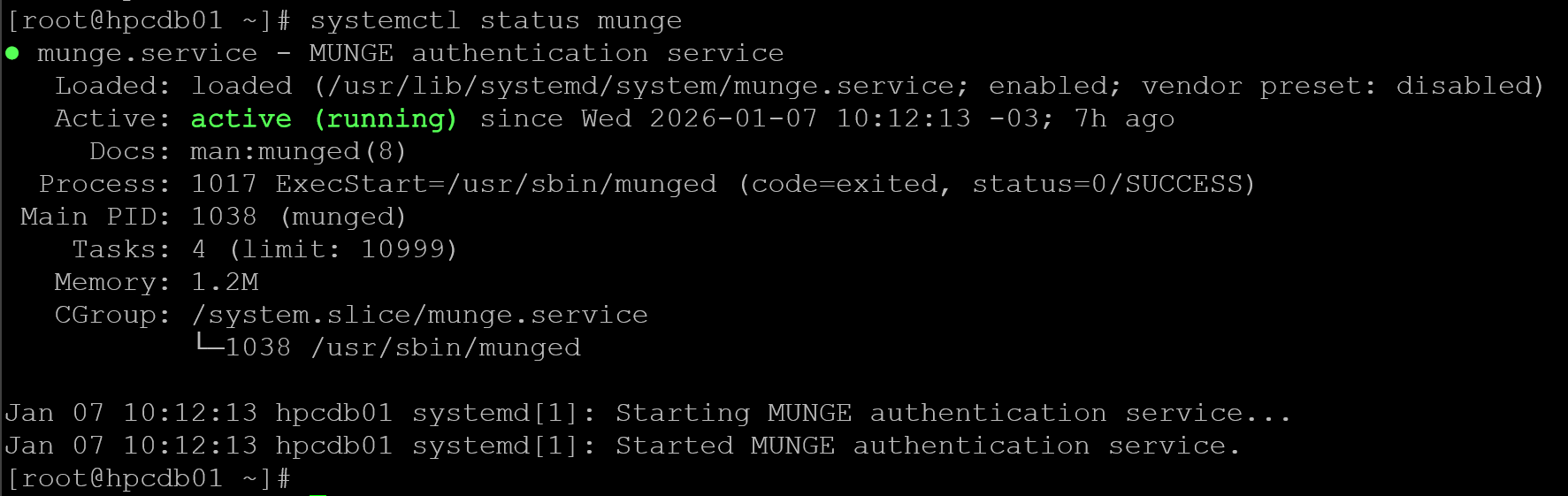
Test the munge on the database node:
munge -n | unmunge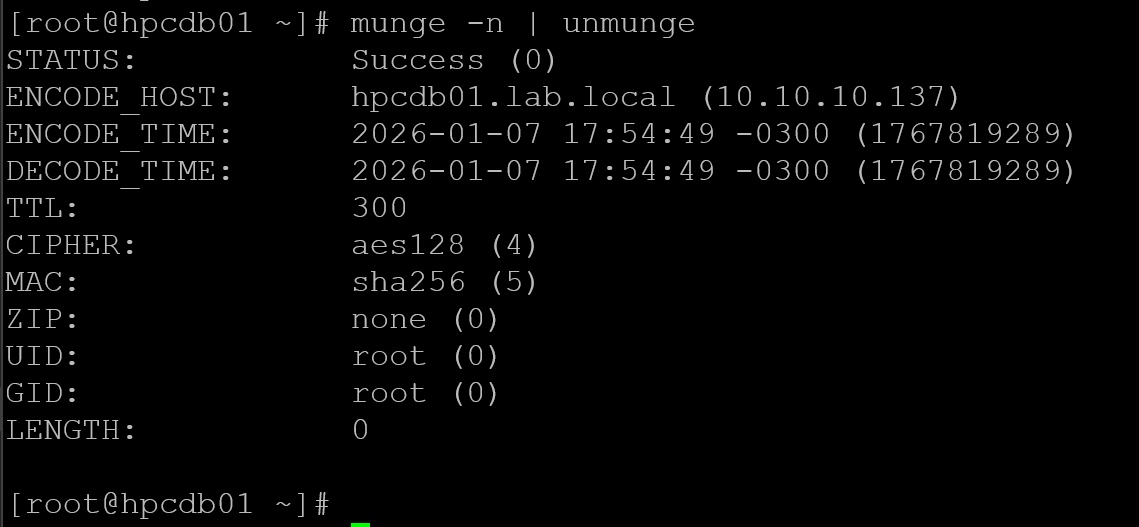
And enable/start the Slurmdbd daemon:
systemctl enable --now slurmdbd
systemctl status slurmdbd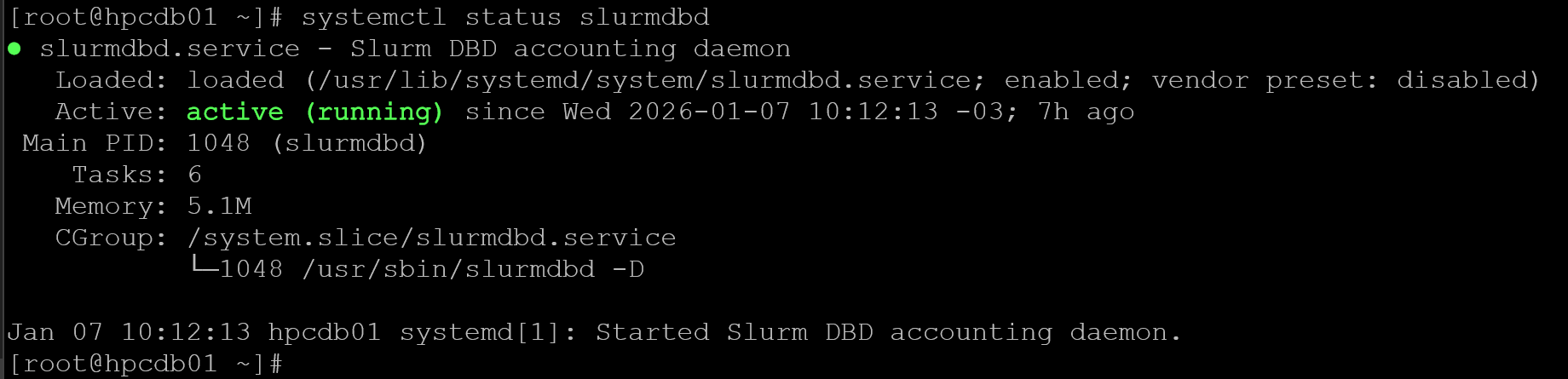
The Slurmdbd daemon must be listening on port 6819:
ss -lntp | grep 6819
If you’re using an active firewall, remember to allow the port on the firewall:
firewall-cmd --permanent --add-port=6819/tcp
firewall-cmd --permanent --add-port=6819/udp
firewall-cmd --reload
Setting Up the NFS Server
Let’s set up the NFS server. First, create the Slurm user:
useradd -r -M -s /sbin/nologin slurm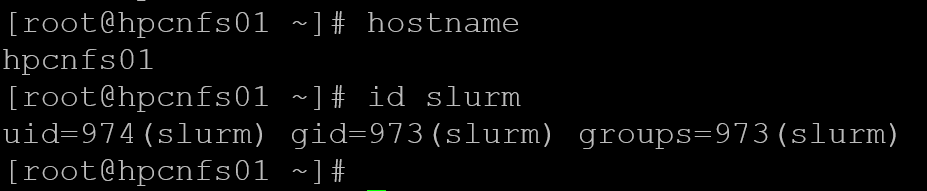
Install the NFS package, create the state dir, and adjust its permissions. To recap, the state dir will be used by head nodes:
dnf install -y nfs-utils
mkdir -p /srv/slurm/state
chown slurm:slurm /srv/slurm/state
Afterward, add the NFS share in the /etc/exports – Basically, this file is used to specify what directories will be shared through NFS:
echo "/srv/slurm/state hpchead01(rw,sync,no_root_squash) hpchead02(rw,sync,no_root_squash)" > /etc/exportsLook that both head nodes (hpchead01 and hpchead02) have read and write access to this NFS share. After editing this file, we need to export the NFS shares by using the following command:
exportfs -raEnabling the services:
systemctl enable --now nfs-server rpcbind
systemctl status nfs-server
systemctl status rpcbind
And allowing NFS on the firewall, if used:
firewall-cmd --permanent --add-service=nfs
firewall-cmd --permanent --add-service=mountd
firewall-cmd --permanent --add-service=rpc-bind
firewall-cmd --reload
We can use the “showmount” command to inspect what NFS shares are being exported:
showmount -e hpcnfs01 | grep -i state
Setting Up the Head Nodes (Controllers)
As we showed you, we have two head nodes in our lab (hpchead01 and hpchead02). So, the configurations must be done on each one.
Let’s get started. In the following commands, we’re doing:
- Installing the NFS package.
- Creating the Slurm user.
- Creating the directory /var/spool/slurmctld and adjusting its permissions.
- Mounting the NFS state share on the created directory /var/spool/slurmctld.
dnf install -y nfs-utils
useradd -r -M -s /sbin/nologin slurm
mkdir -p /var/spool/slurmctld
chown -R slurm:slurm /var/spool/slurmctld
chmod 755 /var/spool/slurmctld
mount hpcnfs01:/srv/slurm/state /var/spool/slurmctld
At this point, we must be able to see the NFS state share mounted:

To persist this mounting through reboots, edit the /etc/fstab configuration file and add the following entry:
hpcnfs01:/srv/slurm/state /var/spool/slurmctld nfs defaults,_netdev 0 0Install munge:
dnf install -y mungeGo to the database node (in our case, hpcdb01), and copy the munge key to the head nodes. The following commands must be executed while logged into the database nodes:
scp /etc/munge/munge.key hpchead01:/etc/munge/
scp /etc/munge/munge.key hpchead02:/etc/munge/
Afterward, go back to the head nodes to adjust munge key permissions and start the service:
chown munge:munge /etc/munge/munge.key
chmod 400 /etc/munge/munge.key
systemctl enable --now munge
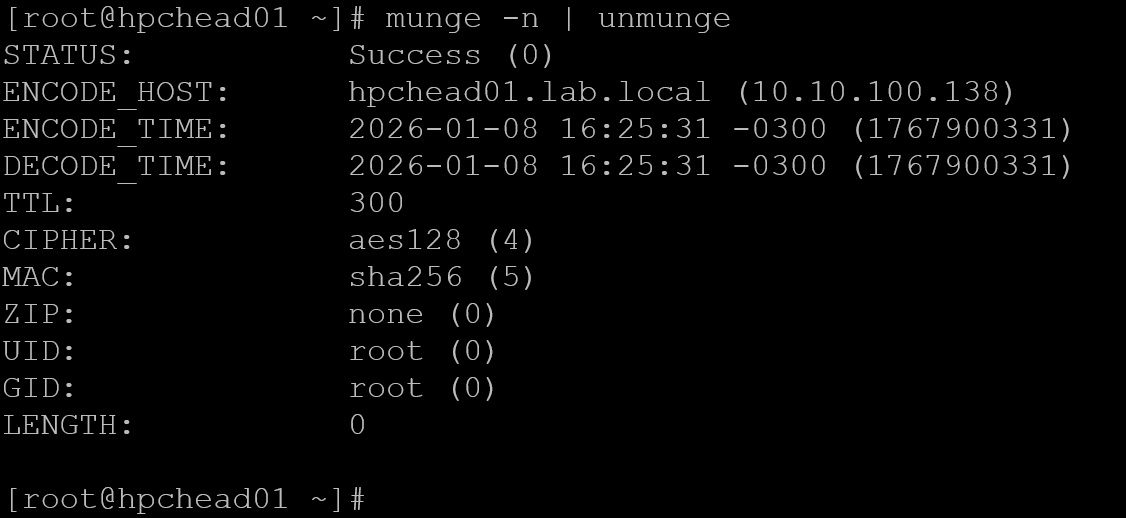
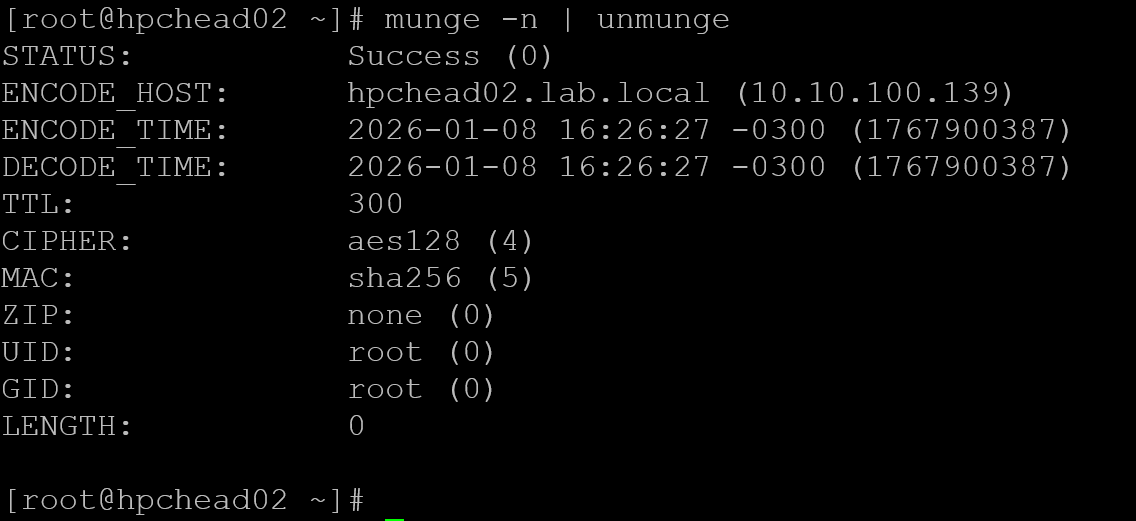
munge -n | unmunge
Munge test on hpchead01:
Munge test on hpchead02:
Install Slurm packages and enable the slurmctld daemon:
dnf install -y https://dl.fedoraproject.org/pub/epel/epel-release-latest-8.noarch.rpm
dnf repolist | grep epel
subscription-manager repos --enable codeready-builder-for-rhel-8-x86_64-rpms
dnf install -y slurm slurm-slurmctld
systemctl enable --now slurmctld
systemctl status slurmctld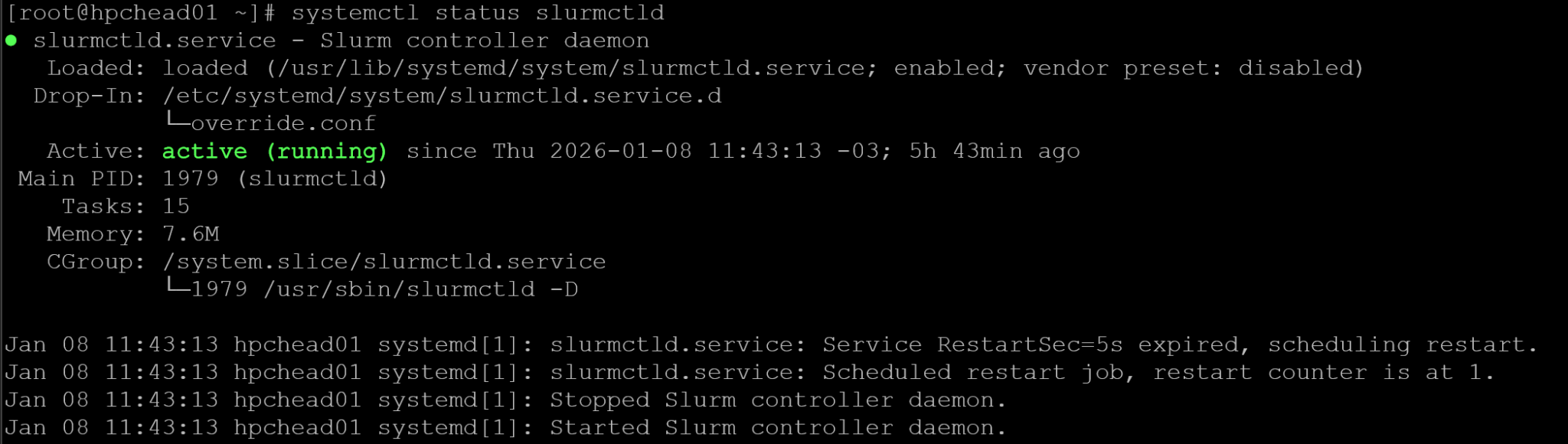
Allow firewall ports (if firewall is enabled):
firewall-cmd --permanent --add-port=6817-6818/tcp
firewall-cmd --permanent --add-port=48000-48005/tcp
firewall-cmd --permanent --add-port=48000-48005/udp
firewall-cmd --permanent --add-port=32768-60999/tcp
firewall-cmd --reload
Setting Up the Compute Nodes
To execute the same command on multiple hosts, I’ve installed “pdsh” on my personal machine to help me set up the Slurm cluster. To remember, my Slurm cluster is based on virtual machines running on a physical ESXi server. So, to access this virtual environment, I use a physical machine to administer it:
Installing “pdsh”:
dnf install pdsh pdsh-rcmd-sshTo execute the “uptime” command on all hosts using one command line using pdsh:
pdsh -R ssh -w hpcnode[01-15] "uptime"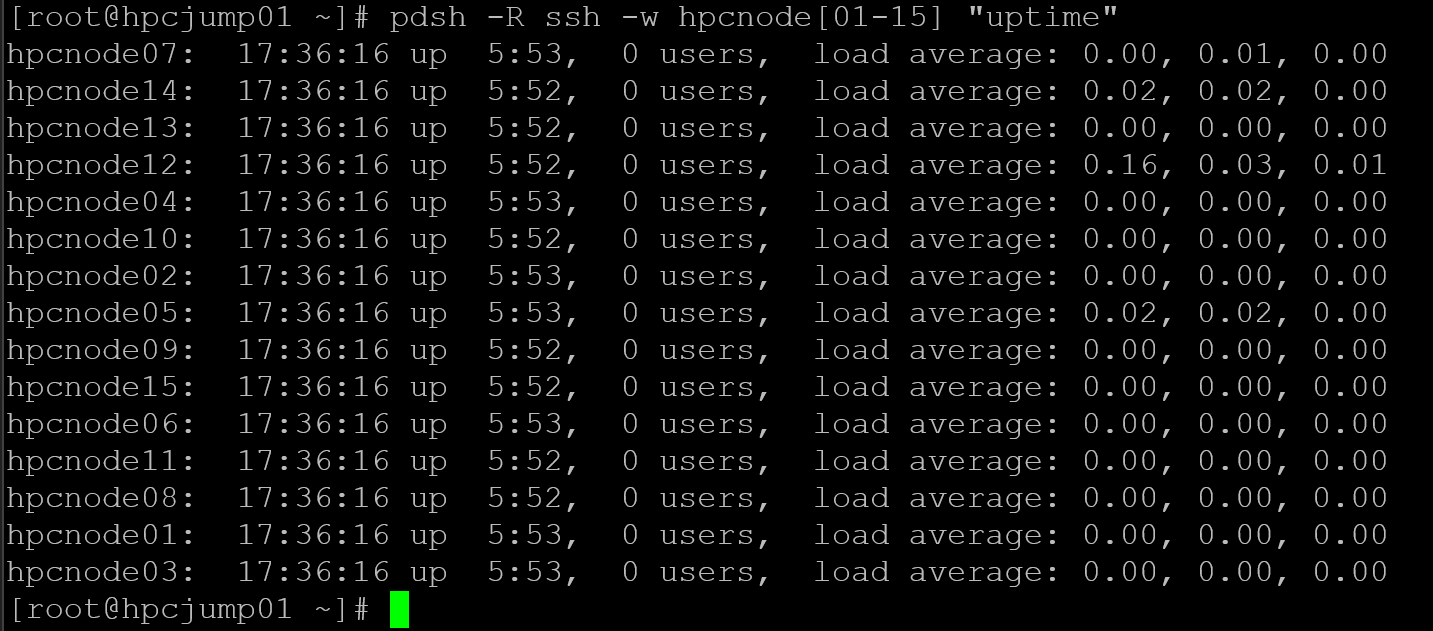
Note: “pdsh” is optional. But I use it to help me and automate some things (feel free to use it or not)!
So, let’s prepare our compute nodes. The following commands install Slurm on all compute nodes and start the Slurm daemon. I highly recommend executing one command at a time, starting with the “#1” command, then wait for it to finish, then move on to “#2”, and wait for it to finish….
#1
pdsh -R ssh -w hpcnode[01-15] 'subscription-manager repos --enable codeready-builder-for-rhel-8-x86_64-rpms'

#2
pdsh -R ssh -w hpcnode[01-15] 'dnf install -y https://dl.fedoraproject.org/pub/epel/epel-release-latest-8.noarch.rpm'

#3
pdsh -R ssh -w hpcnode[01-15] 'dnf install -y slurm slurm-slurmd'

#4
pdsh -R ssh -w hpcnode[01-15] 'systemctl enable --now slurmd'

#5
pdsh -R ssh -w hpcnode[01-15] 'systemctl status slurmd'
Allow the slurmd dameon on firewall, if enabled:
#1
pdsh -R ssh -w hpcnode[01-15] 'firewall-cmd --permanent --add-port=6818/tcp'

#2
pdsh -R ssh -w hpcnode[01-15] 'firewall-cmd --reload'
Install munge:
pdsh -R ssh -w hpcnode[01-15] 'dnf install -y munge munge-libs'Now, we need to copy the munge key to all compute nodes. In my case, I’ve copied the munge.key file from the database node to my physical computer and sent it to all compute nodes using a “for” loop. You can do the same or not (you can use your own way to copy the munge.key to all compute nodes):
for i in {01..15}; do scp munge.key root@hpcnode$i:/etc/munge/munge.key; doneThe next commands will adjust munge.key permissions and start the munge daemon on all compute nodes (remember to execute one command at a time to avoid problems):
#1
pdsh -R ssh -w hpcnode[01-15] 'chown munge:munge /etc/munge/munge.key'

#2
pdsh -R ssh -w hpcnode[01-15] 'chmod 400 /etc/munge/munge.key'

#3
pdsh -R ssh -w hpcnode[01-15] 'systemctl enable --now munge'

#4
pdsh -R ssh -w hpcnode[01-15] 'systemctl restart munge'

#5
pdsh -R ssh -w hpcnode[01-15] 'systemctl status munge'
Now, let’s create the slurm.conf. In my case, I created the slurm.conf configuration file on hpchead01, copy it to my physical machine, and then send it to all other nodes in the Slurm cluster. Again, you don’t need to do the same; you need to ensure that all nodes in the Slurm cluster have the same slurm.conf file (that’s a must).
The following is our slurm.conf file:
ClusterName=hpc-lab

# Controllers (ORDER MATTERS)
SlurmctldHost=hpchead01
SlurmctldHost=hpchead02

SlurmUser=slurm
AuthType=auth/munge

StateSaveLocation=/var/spool/slurmctld
SlurmdSpoolDir=/var/spool/slurmd

SlurmctldPort=6817
SlurmdPort=6818

AccountingStorageType=accounting_storage/slurmdbd
AccountingStorageHost=hpcdb01

RebootProgram="/usr/sbin/reboot"

# Nodes
# CPUs= is the number of CPUs of each compute node
# RealMemory= is the amount of RAM memory of each compute node
# In this lab, all compute nodes have the same CPU and memory configurations
NodeName=hpcnode[01-15] CPUs=1 RealMemory=1536 State=UNKNOWN

# Partitions
PartitionName=cpu Nodes=hpcnode[01-15] Default=YES MaxTime=INFINITE State=UP
From my physical machine, copying the slurm.conf to all Head and Compute nodes:
for i in {01..02}; do scp slurm.conf root@hpchead$i:/etc/slurm/; done

for i in {01..15}; do scp slurm.conf root@hpcnode$i:/etc/slurm/; done
Creating the Slurm user and adjusting the slurm.conf permissions:
#1
pdsh -R ssh -w hpcnode[01-15] 'useradd -r -M -s /sbin/nologin slurm'

#2
pdsh -R ssh -w hpcnode[01-15] 'chmod 644 /etc/slurm/slurm.conf'

#3
pdsh -R ssh -w hpcnode[01-15] 'chown slurm:slurm /etc/slurm/slurm.conf'
Restart the slurmd daemon and check its status:
#1
pdsh -R ssh -w hpcnode[01-15] 'systemctl restart slurmd'

#2
pdsh -R ssh -w hpcnode[01-15] 'systemctl status slurmd'Note: If the slurmd daemon is not running, go to each head node and check the slurmctld daemon. Ensure that the slurmctld daemon is running on both head nodes:
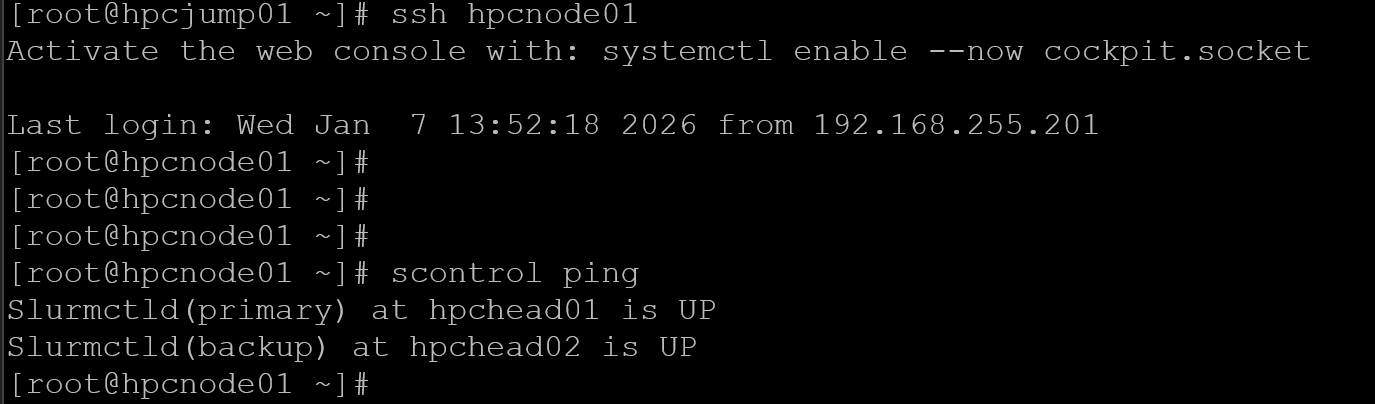
systemctl status slurmctldThe “scontrol ping” must show both controllers up:
scontrol ping
If you need to restart the slurmctld daemon on both head nodes, and it is now running, restart the slurmd daemon on all compute nodes. Afterward, you must be able to execute the same command from a compute node, for example:
Setting Up the Login Nodes
Since we have two login nodes, we need to execute the steps on both:
dnf install -y https://dl.fedoraproject.org/pub/epel/epel-release-latest-8.noarch.rpm
subscription-manager repos --enable codeready-builder-for-rhel-8-x86_64-rpms
dnf install -y slurm
useradd -r -M -s /sbin/nologin slurm
dnf install -y munge
scp hpchead01:/etc/munge/munge.key /etc/munge/
chown munge:munge /etc/munge/munge.key
chmod 400 /etc/munge/munge.key
systemctl enable --now munge
munge -n | unmunge
scp hpchead01:/etc/slurm/slurm.conf /etc/slurm/
chown slurm:slurm /etc/slurm/slurm.conf
chmod 644 /etc/slurm/slurm.conf
Allow firewall ports, if enabled:
firewall-cmd --permanent --add-port=6817/tcp
firewall-cmd --permanent --add-port=6818/tcp
firewall-cmd --permanent --add-port=6819/tcp
firewall-cmd --permanent --add-port=48000-48005/tcp
firewall-cmd --permanent --add-port=48000-48005/udp
firewall-cmd --permanent --add-port=32768-60999/tcp
firewall-cmd --reload
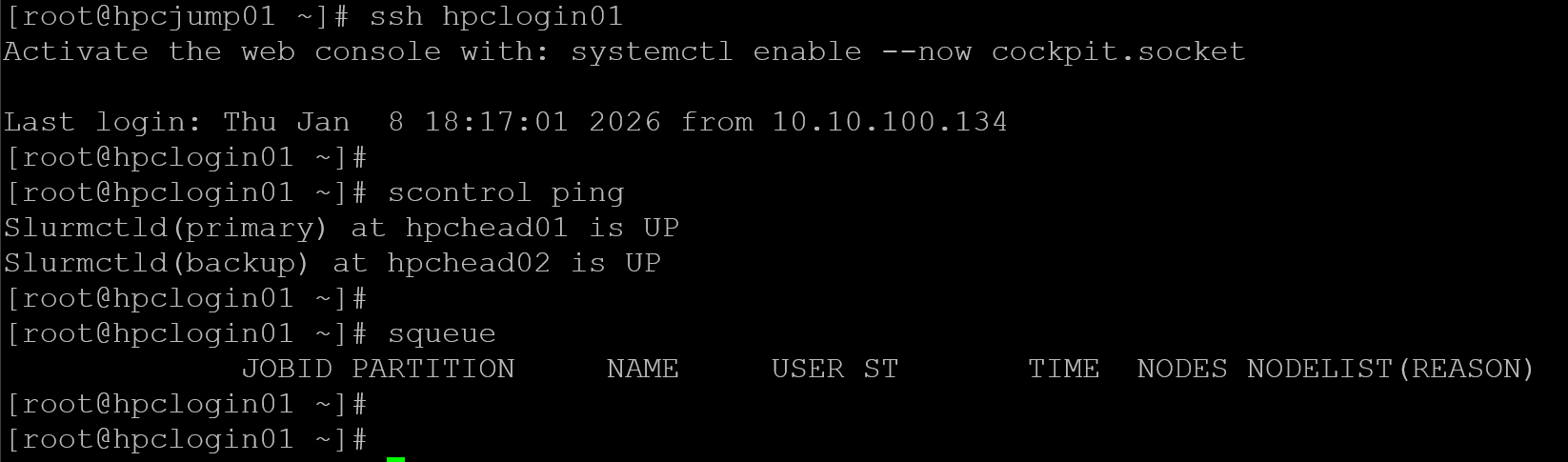
If everything is ok, we can execute some Slurm commands from the login nodes:
Creating the Users
In our lab, we have a central repository for users’ home directories. It is our NFS server.
On the NFS server, create the directory to store the users’ home directories:
mkdir -p /srv/nfs/home
chown root:root /srv/nfs
chmod 755 /srv/nfs
And adjust the /etc/exports file, adding the following entry:
/srv/nfs/home hpcjump01(rw,sync,no_root_squash) hpchead01(rw,sync,no_root_squash) hpchead02(rw,sync,no_root_squash) hpclogin01(rw,sync,no_root_squash) hpclogin02(rw,sync,no_root_squash) hpcnode*(rw,sync,no_root_squash)Note: Look that all nodes in the Slurm cluster have permission to mount this NFS share!
Apply the NFS exports:
exportfs -ravNow, we’re creating some users (from user01 to user15) and configuring their home directories to be on /srv/nfs/home (the previous directory we created and shared via NFS). Look at how we’re specifying the user ID (UID) for each user:
for i in {01..15}; do useradd -m -u 100$i -d /srv/nfs/home/user$i -s /bin/bash user$i; done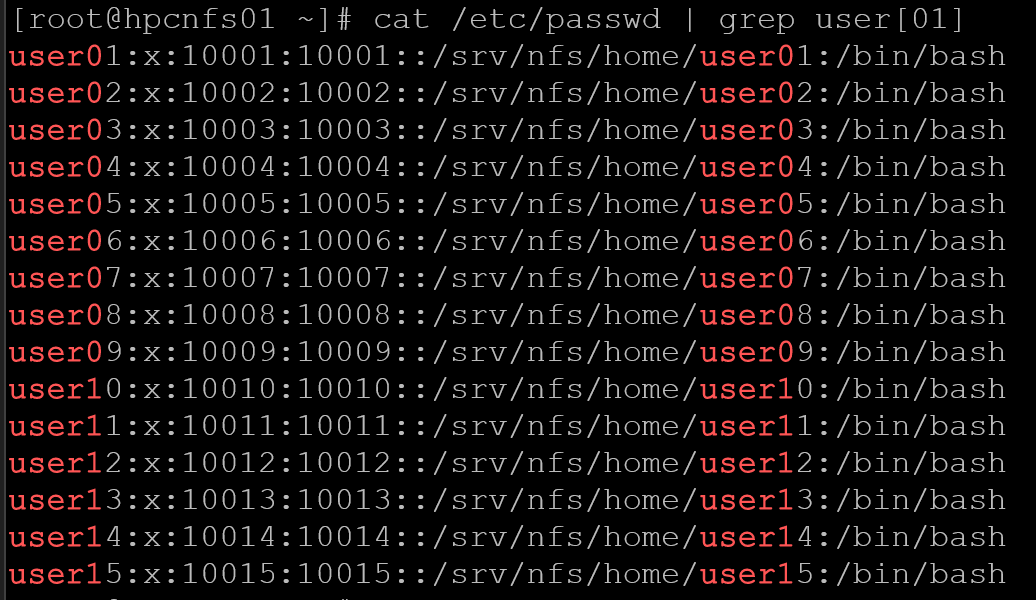
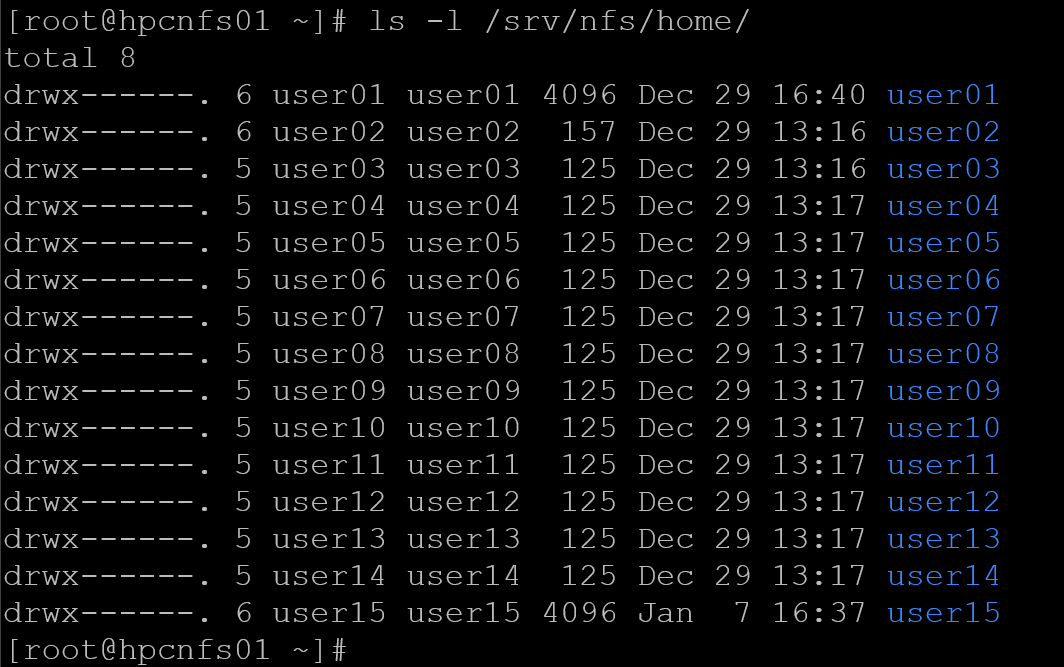
The next commands install NFS on all compute and login nodes and configure them to mount the home directory from the NFS server. Additionally, we mount the share on the head nodes:
#1
pdsh -R ssh -w hpcnode[01-15] 'dnf install -y nfs-utils'

#2
pdsh -R ssh -w hpclogin[01-02] 'dnf install -y nfs-utils'

#3
pdsh -R ssh -w hpclogin[01-02],hpchead[01-02],hpcnode[01-15] mount -t nfs hpcnfs01:/srv/nfs/home /home

#4
pdsh -R ssh -w hpclogin[01-02],hpchead[01-02],hpcnode[01-15] 'echo "hpcnfs01:/srv/nfs/home  /home  nfs  defaults,_netdev  0  0" >> /etc/fstab'

#5
pdsh -R ssh -w hpclogin[01-02],hpchead[01-02],hpcnode[01-15] umount /home

#6
pdsh -R ssh -w hpclogin[01-02],hpchead[01-02],hpcnode[01-15] mount -a

#7
pdsh -R ssh -w hpclogin[01-02],hpchead[01-02],hpcnode[01-15] df /home
Access the head nodes, login nodes, and compute nodes to create the users using the same UserID (UID).
Execute it locally on each node:
for i in {01..15}; do useradd -m -u 100$i -s /bin/bash user$i; doneOr, execute with “pdsh”:
# for compute nodes:
pdsh -R ssh -w hpcnode[01-15] \
'for i in {01..15}; do useradd -m -u 100$i -s /bin/bash user$i; done'

# for head nodes:
pdsh -R ssh -w hpchead[01-02] \
'for i in {01..15}; do useradd -m -u 100$i -s /bin/bash user$i; done'

# for login nodes:
pdsh -R ssh -w hpclogin[01-02] \
'for i in {01..15}; do useradd -m -u 100$i -s /bin/bash user$i; done'
Now the head nodes, login nodes, and compute nodes all use home directories centrally on the NFS server.
Testing a Job Submission
The following commands do:
- Create an account named “users”.
- Create a user named “user01′ and associate it with the account “users”.
- Show details of user01.
sacctmgr add account users Description="Default users" Organization="HPC"
sacctmgr add user user01 Account=users
sacctmgr show user user01
sacctmgr show users withassoc user01
To test a job submission:
1. Access the login node.
2. Change to a user shell – in this case, for instance, we’re changing to user01’s shell:
su – user01
3. Execute a Slurm command to submit a job to the cluster – in this example, “srun” is a command to submit jobs to the cluster. The command “hostname” will be executed on one compute node through the Slurm cluster:
srun hostname
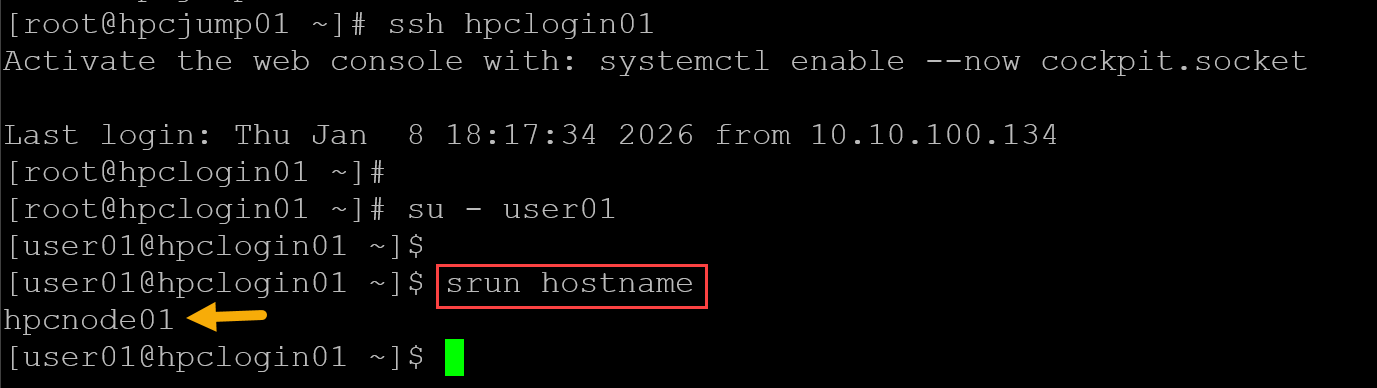
As we can see, the command “srun hostname” is a Slurm command and was executed using the first Compute Node. That’s it for now 🙂