This is a simple article that demonstrates an error when submitting a job to a Slurm cluster, outlines the details of the error, and explains how to fix it.
First and foremost, I’d like to share two articles related to this topic. The first is an introduction to HPC and Slurm (click here to access the article), and the second is a step-by-step guide to setting up a Slurm cluster in a lab environment (click here to access the article).
Let’s Talk About the Error
So, I was testing my Slurm cluster submiting some jobs, and I got the following error:

As we can see:
- I was logged in as root into the login node (hpclogin01).
- I changed to “user15” from root.
- And I used the “srun” command to submit a job.
From the login node, the user can submit a job to the cluster. In the following picture, we can see our Slurm cluster topology:
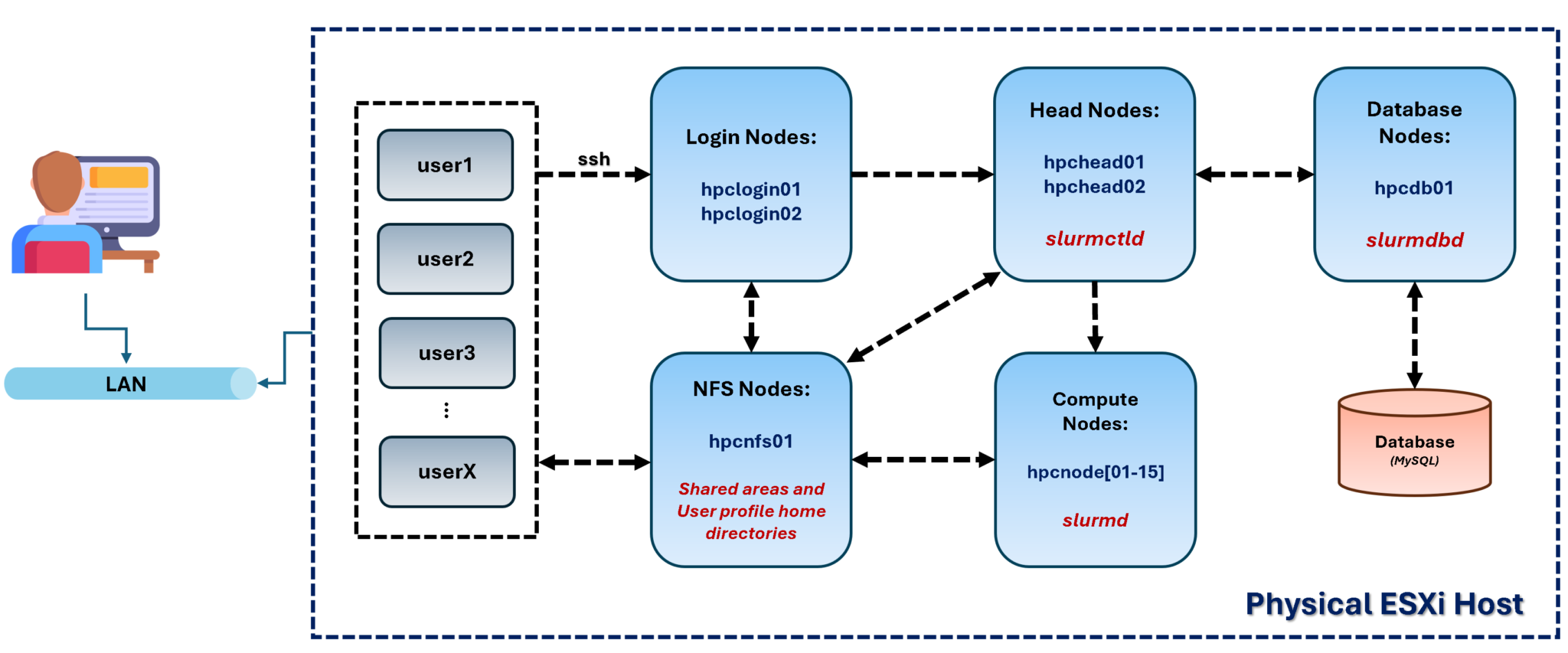
Based on the error, “user15” could not submit jobs to the cluster due to an invalid account or account/partition combination.
Checking the User and Home Directory
This troubleshooting focuses on our lab topology. Since all home directories are on the NFS server (and all users must be created there first), the head nodes, login nodes, and compute nodes must have the users locally (with the same User ID to maintain consistency across the entire cluster).
Checking if “user15” exists on all compute nodes – we’re executing this command from our physical machine:
for i in {01..15}; do echo -n hpcnode$i- && ssh hpcnode$i "id user15"; done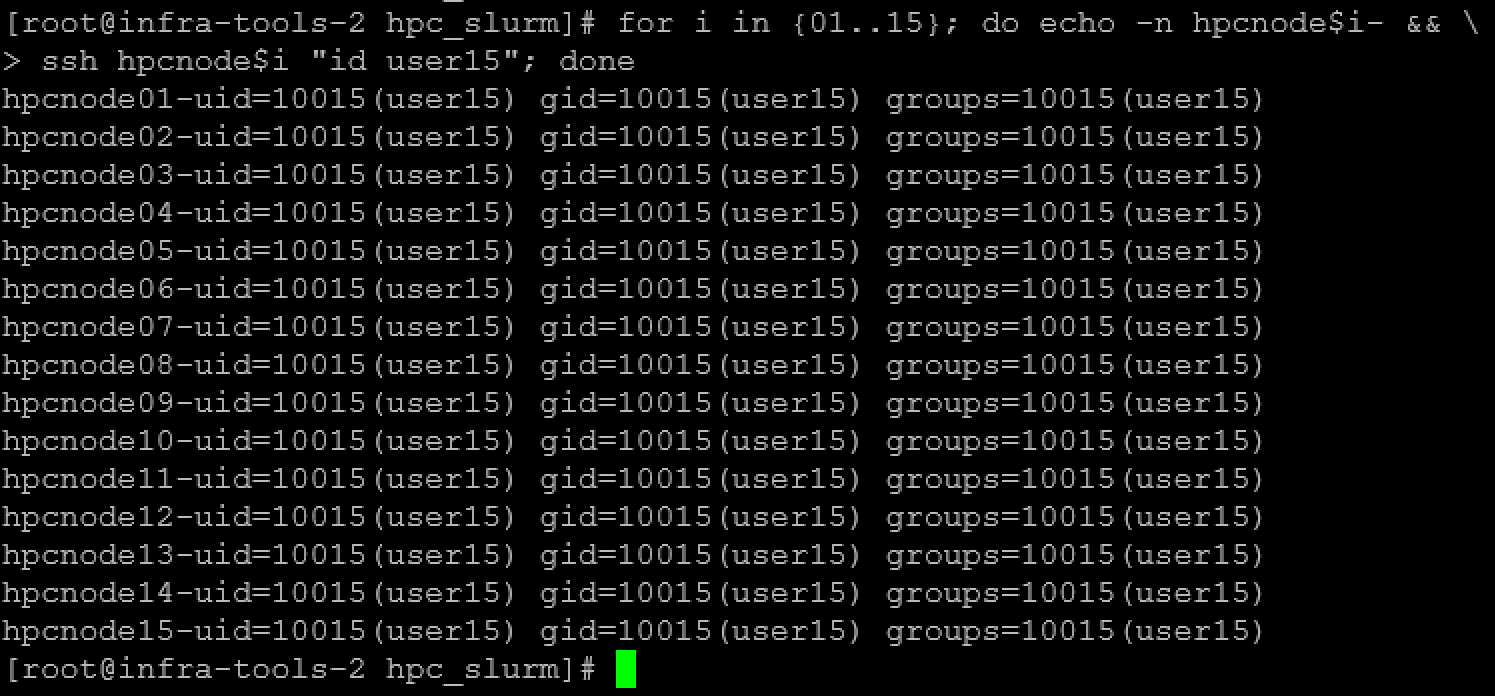
Doing the same on the head and login nodes:
for i in {01..02}; do echo -n hpchead$i- && ssh hpchead$i "id user15"; done

for i in {01..02}; do echo -n hpclogin$i- && ssh hpclogin$i "id user15"; done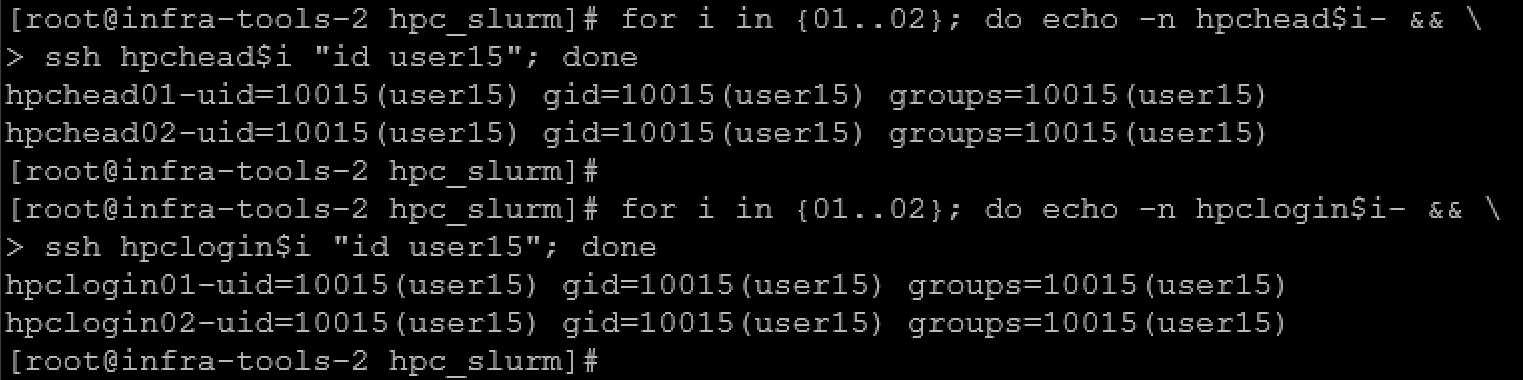
Note: As we can see, all nodes have the “user15”!
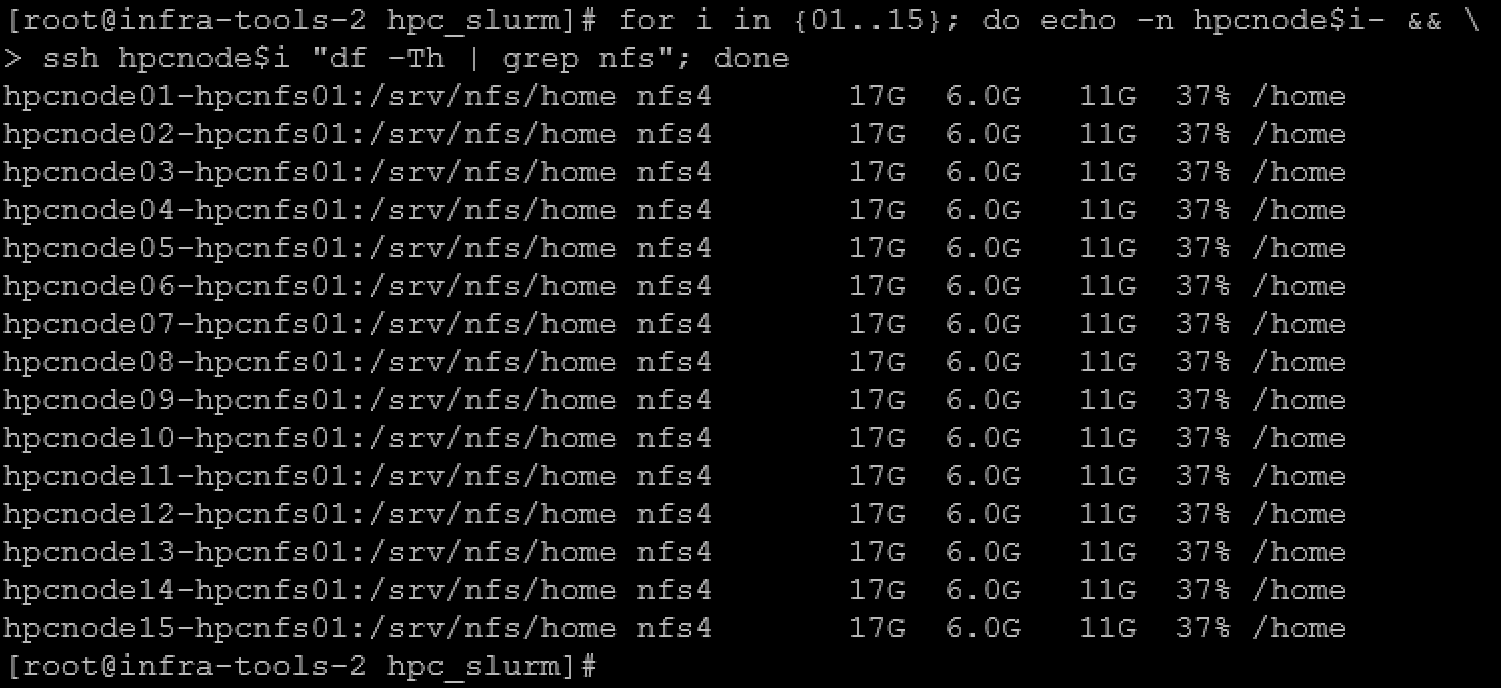
Going forward, let’s check if all nodes have the NFS share “/srv/nfs/home” – To remember, this NFS share contains the home directory for all users:
# checking the compute nodes:
for i in {01..15}; do echo -n hpcnode$i- && \
> ssh hpcnode$i "df -Th | grep nfs"; done

# checking the head nodes:
for i in {01..02}; do echo -n hpchead$i- && \
> ssh hpchead$i "df -Th | grep nfs"; done

# checking the login nodes:
for i in {01..02}; do echo -n hpclogin$i- && \
> ssh hpclogin$i "df -Th | grep nfs"; done
Compute nodes:
Head nodes:

Login nodes:

Note: As we can see, all nodes have the NFS share “/srv/nfs/home” mounted on /home!
Inspecting Users with sacctmgr
sacctmgr is used to view or modify Slurm account information. The account information is maintained within a database with the interface being provided by slurmdbd (Slurm Database daemon).
Slurm account information is recorded based on four parameters that form what is referred to as an “association”. These parameters are:
- user: is the login name.
- cluster: is the name of a Slurm-managed cluster as specified by the “ClusterName” parameter in the slurm.conf configuration file.
- partition: is the name of a Slurm partition on that cluster.
- account: is the account for a job.
To get the cluster name with sacctmgr:
sacctmgr show clusters
To list all users with sacctmgr, we can execute the following command (in this case, we’re executing this command on the first head node):
sacctmgr show users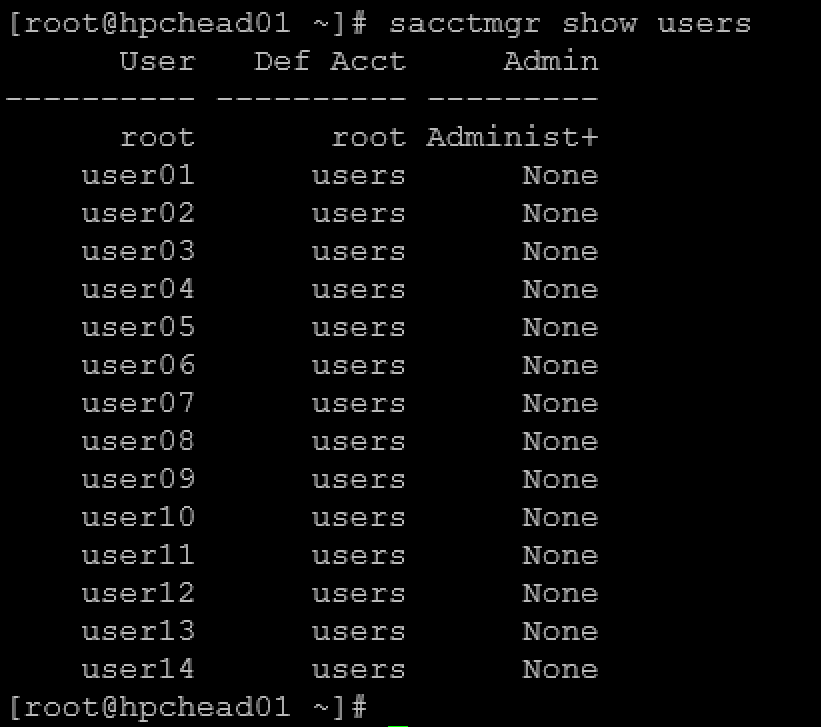
As we can see, “user15” is not on the list of users!
Adding a User with sacctmgr
Before adding the “user15” into the Slurm database, let’s check the accounts:
sacctmgr show accounts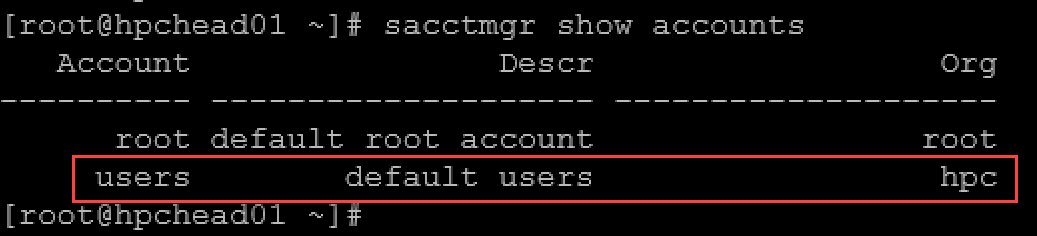
As we can see, in our lab, the “users” is the default account. So, we’ll create the “user15”, associating it with the “users” account:
sacctmgr add user user15 Account=users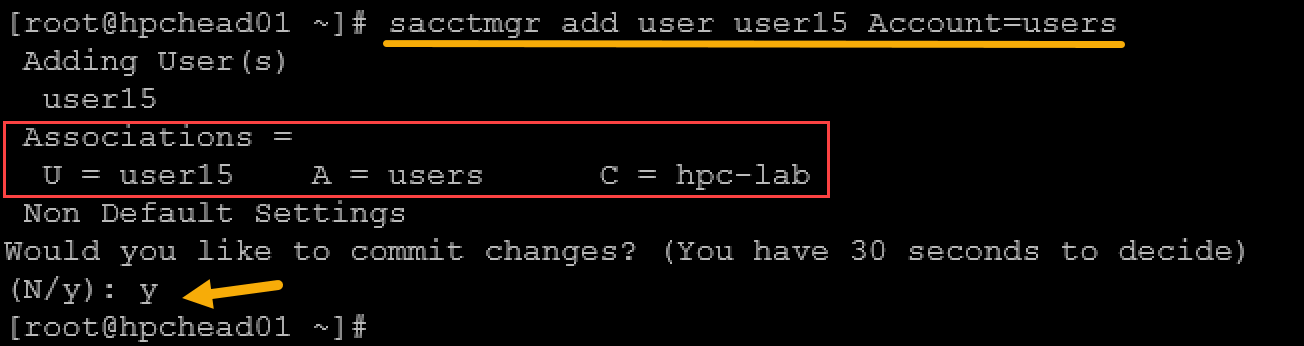
To confirm the “user15” association:
sacctmgr show users withassoc user15
Now, go back to the login node and test a job submission with “user15”:
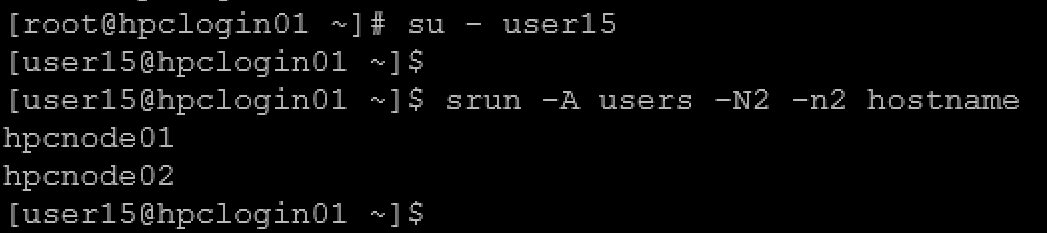
As we can see, it worked successfully 🙂
To Wrap This Up
Several Slurm configuration parameters must be set to support archiving information in SlurmDBD. If you don’t set the configuration parameters that begin with “AccountingStorage”, then accounting information will not be referenced or recorded.
From the head node, we can show the Slurm configuration parameters that begin with “AccountingStorage”:
scontrol show config | grep AccountingStorage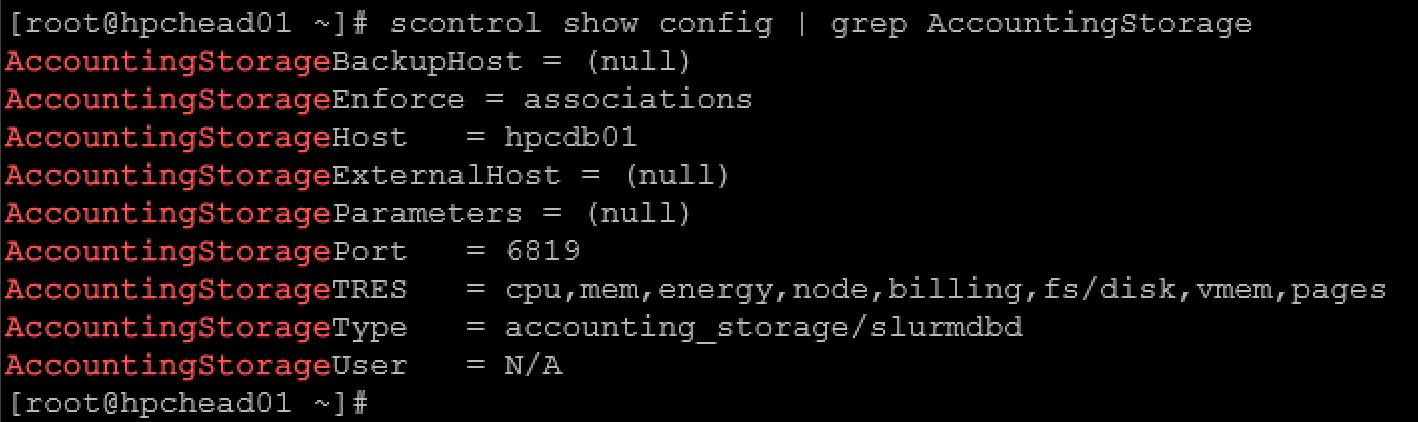
Let’s discuss the parameter “AccountingStorageEnforce”. This option contains a comma-separated list of options you may want to enforce. The valid options are any comma-separated combination of (from the Slurm documentation):
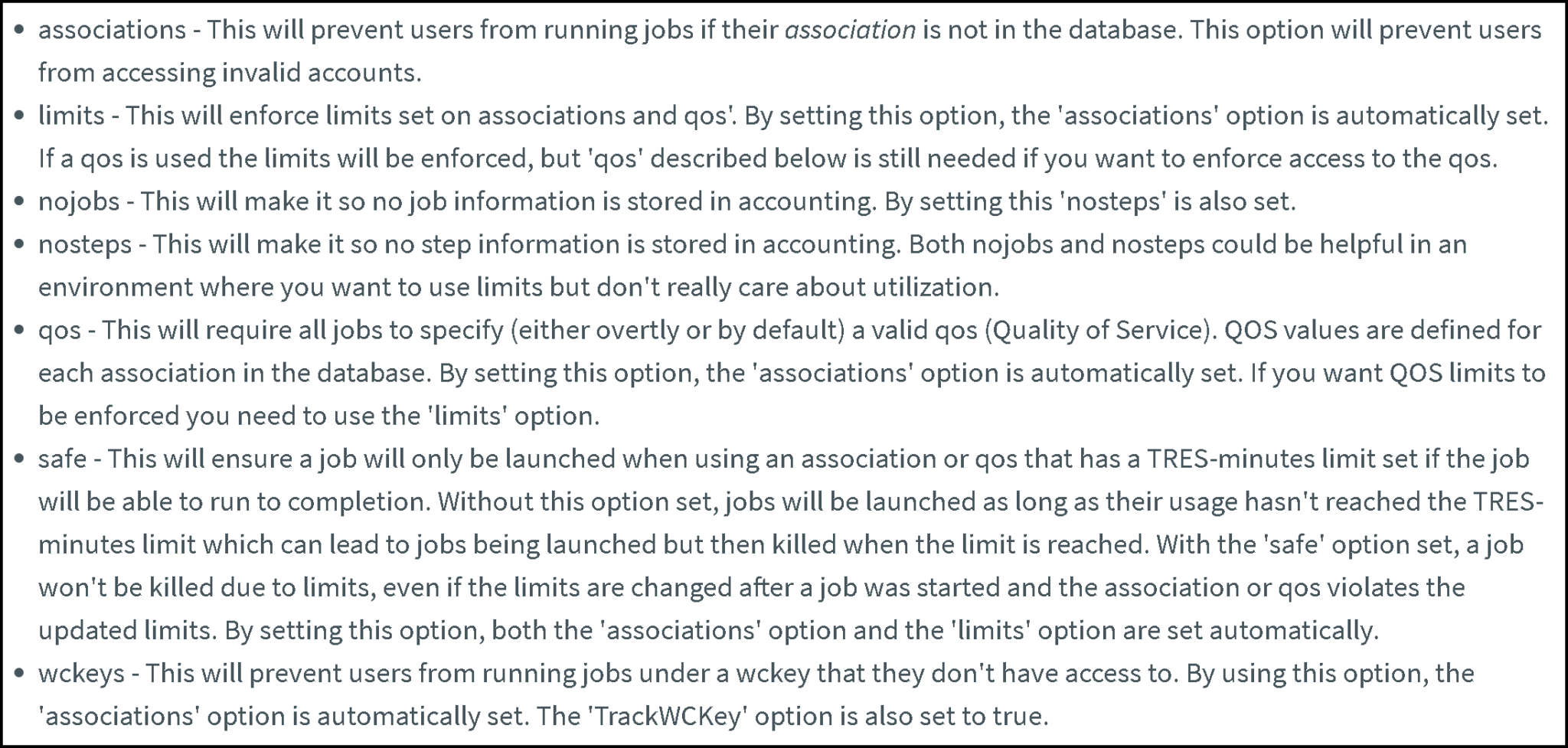
So, since we’re using:
AccountingStorageEnforce = associations
This will prevent users from running jobs if their association is not in the database. This option will prevent users from accessing invalid accounts. It explains why “user15” could not submit jobs earlier!
Note: The default value for AccountingStorageEnforce is none. With this default value, jobs run even if:
- User is not in the accounting DB.
- Account is missing.
- Slurmdbd is down.
The parameter “AccountingStorageEnforce” controls whether jobs are executed. Jobs are REJECTED unless:
- User exists in Slurm DB.
- User is associated with an account.
- Account is allowed on a partition.
- Limits are respected.