View Information About Slurm Nodes and Partitions displays details of partitions and nodes for a Slurm system.
First and foremost, if you’re new to HPC and Slurm (like me), I’d recommend some articles that we’ve written about this subject:
Let’s Explore High Performance Computing
Setting Up a Slurm Cluster in a Lab Environment
So, let’s get started!
sinfo
Definitely, the “sinfo” command is one of the most important and useful commands for any Slurm administrator. This command displays partitions and node states:
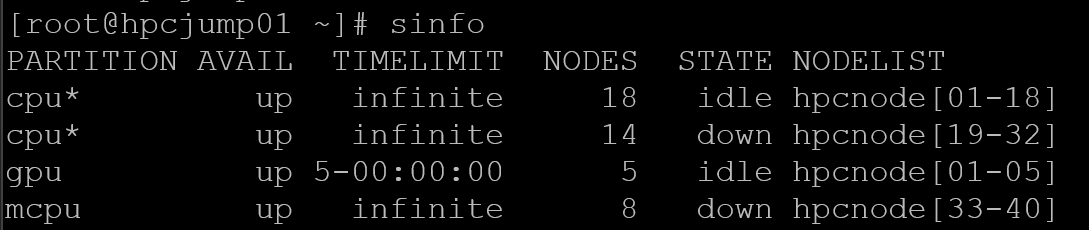
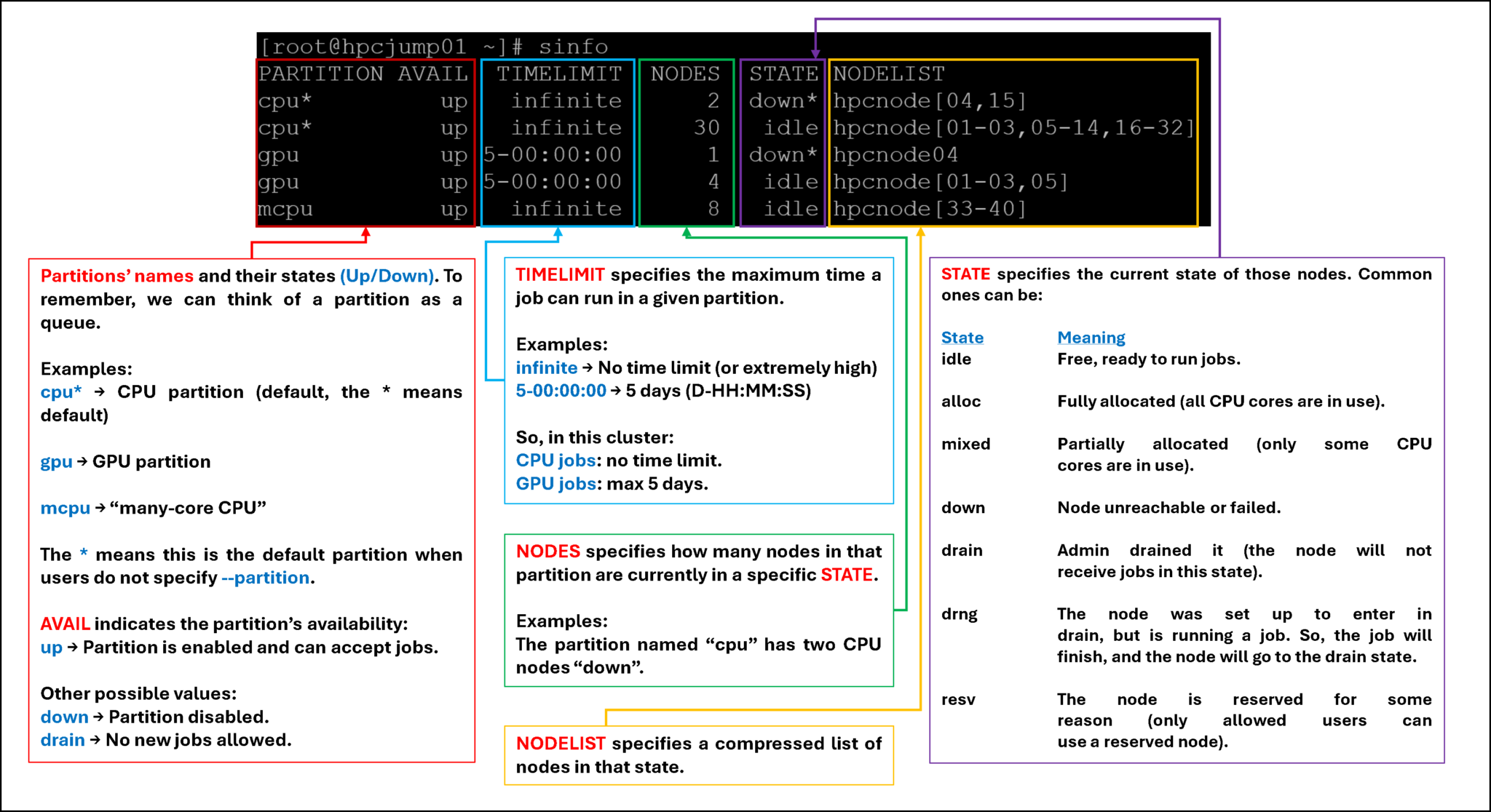
As we can see, the “sinfo” command displays extensive information about the existing Slurm partitions. So, let’s break it down to provide more details:
sinfo -R (or –list-reasons)
As we showed earlier, the “sinfo” command (without any options) displays the partitions and node states. This includes all possible states (good or bad, from the Slurm administrator’s perspective :-)).
The “slurm -R” command lists reasons nodes are in the down, drained, fail, or failing state. When nodes are in these states, Slurm supports the inclusion of a “reason” string by an administrator. This option will display the first 20 characters of the reason field and a list of nodes with that reason for all nodes that are, by default, down, drained, draining, or failing.
Let’s explore a possible situation that a Slurm administrator can face:
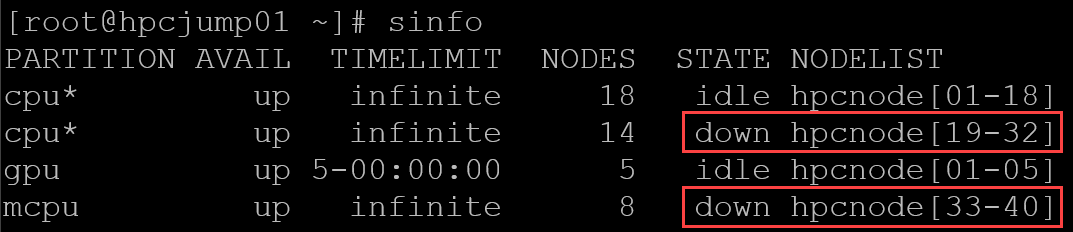
- As shown in the following image, the “sinfo” command reports many nodes in a “down” state.
- These nodes are in a “down” state and are distributed (or part of two partitions: cpu and mcpu).
- But, we cannot see the reason why the nodes are in “down”:
So, with “sinfo -R”, we can see the field “reason”, indicating the reason for the nodes is in the current state:

Note: To remember, by default, the field “reason” displays only the first 20 characters. To customize the number of characters to see, we can use the “sinfo -R” with the option “-o”, as we can see in the following picture:

So, now the field “reason” is readable, and we can see the full reason message!
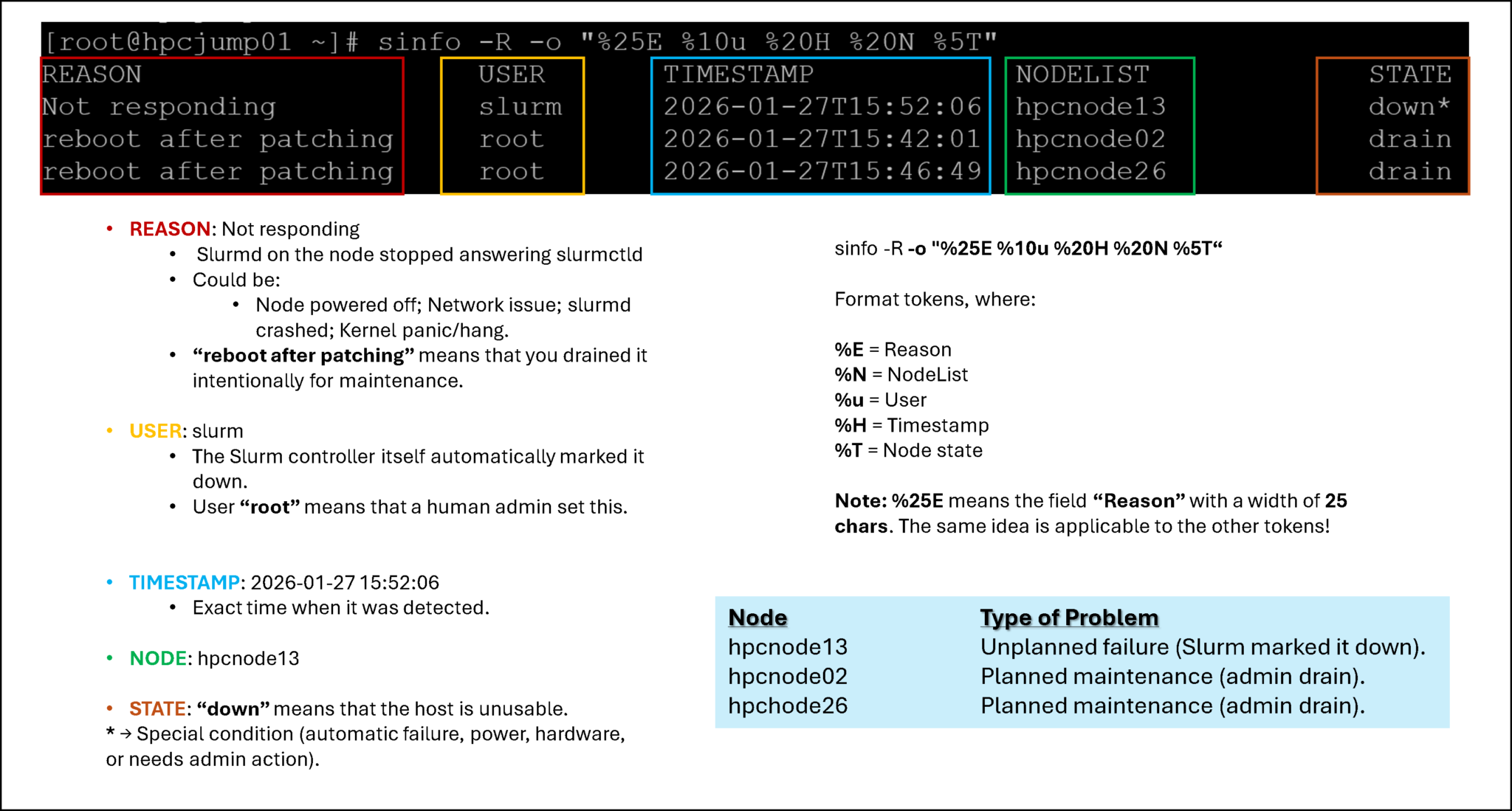
Let’s break the used command down:
sinfo -R -o "%30E %10u %20H %40N %5T"Format tokens, where:
%E = Reason
%u = User
%H = Timestamp
%N = NodeList
%T = Node state
Note: %30E means the field “Reason” with a width of 30 chars. The same idea is applicable to the other tokens!
Let’s break the “sinfo-R” down:
Basic Troubleshooting for “Node unexpectedly rebooted”
Previously, the “sinfo -R” command showed some nodes with the reason “Node unexpectedly rebooted” – as we can confirm again in the following picture:

How can we troubleshoot it?
What steps can we perform to make those nodes available to Slurm?
Let’s provide some possible steps on how to fix it:
1- Check if the node is available on the network – A simple ICMP test (ping) can be performed:
ping -c4 hpcnode40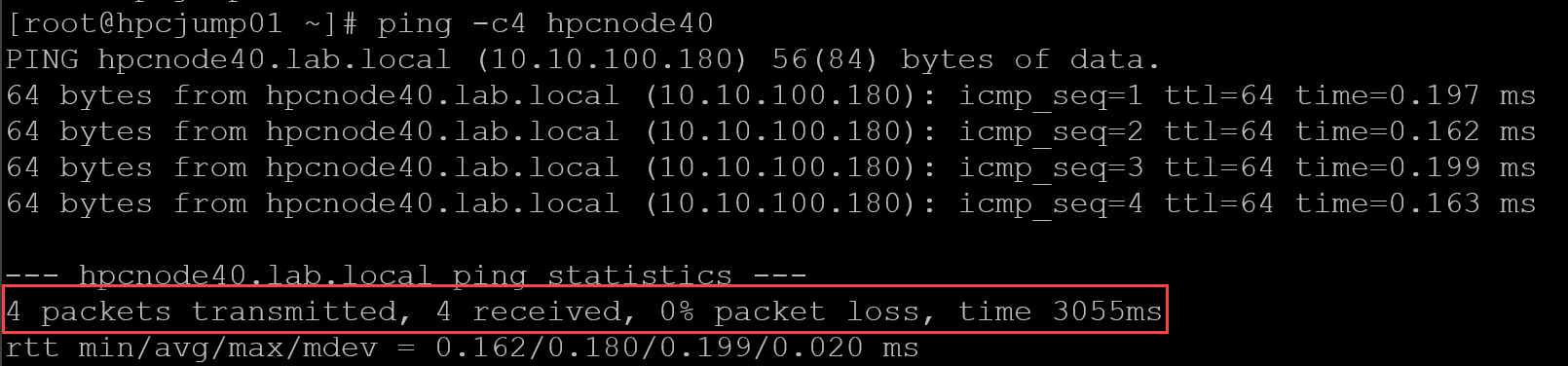
2- Access the node by SSH and check the status of the following services:
- munge
- slurmd
systemctl status munge
systemctl status slurmd
Both services must be running:
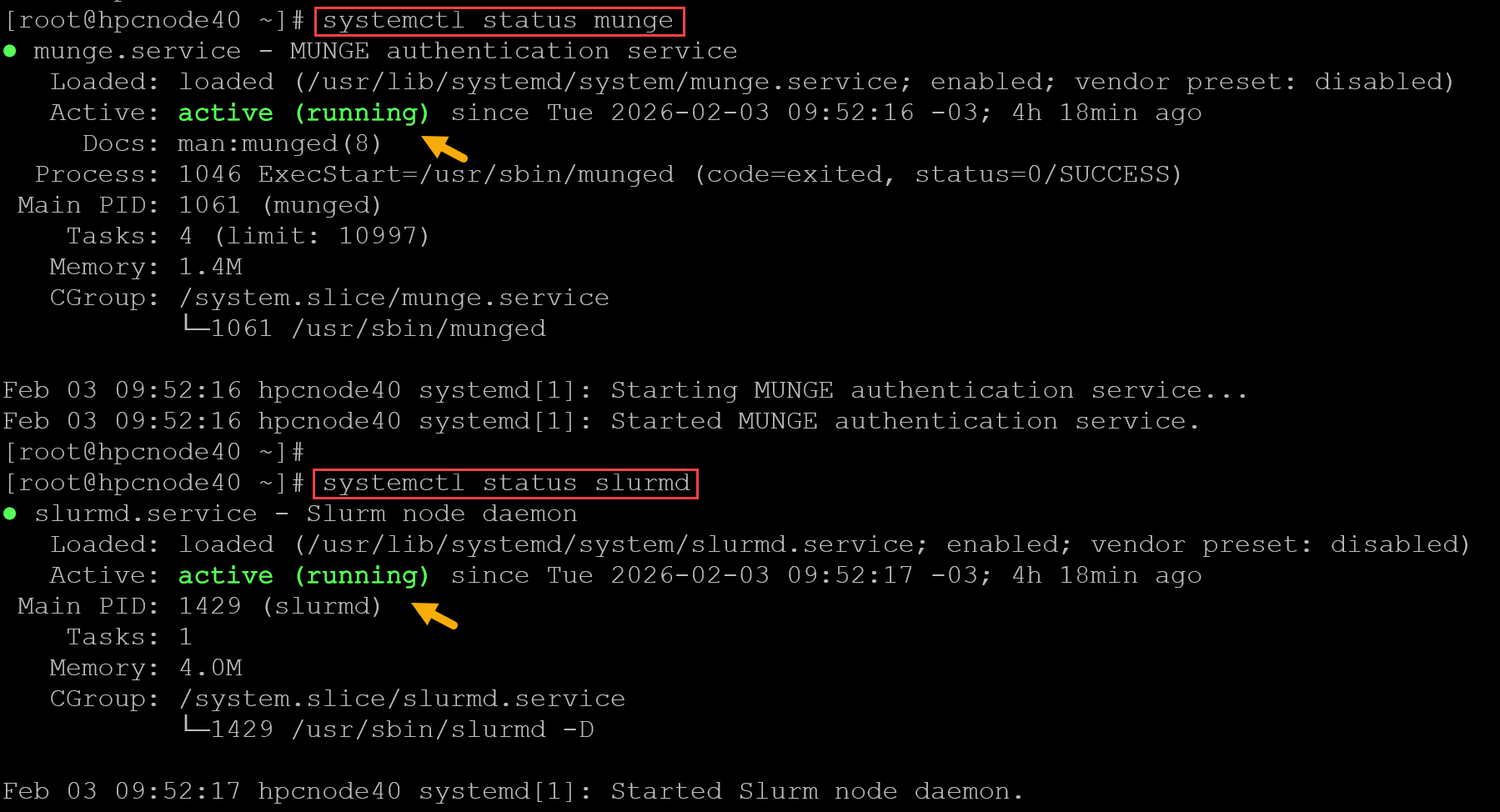
If the services are not running, check the latest log messages of each one:
journalctl -u munge
journalctl -u slurmd
To restart the services:
systemctl restart munge
systemctl restart slurmd
3- On the affected node, check if the Slurm Head Node/Controller (Slurmctld) is reachable:
scontrol pingSince there are two Head Nodes/Controllers, we can see the following output (….” is UP” means the controller is reachable):

4- Afterward, we can bring the node back to Slurm (to remember, the node is “down” and in this state, Slurm will not send jobs to it). The “scontrol” command can be used, as we can see below:
scontrol update nodename=hpcnode40 state=resumeThe state “resume” indicates that Slurm will attempt to bring the node back online and make it available to accept jobs. To inspect the node details:
scontrol show node hpcnode40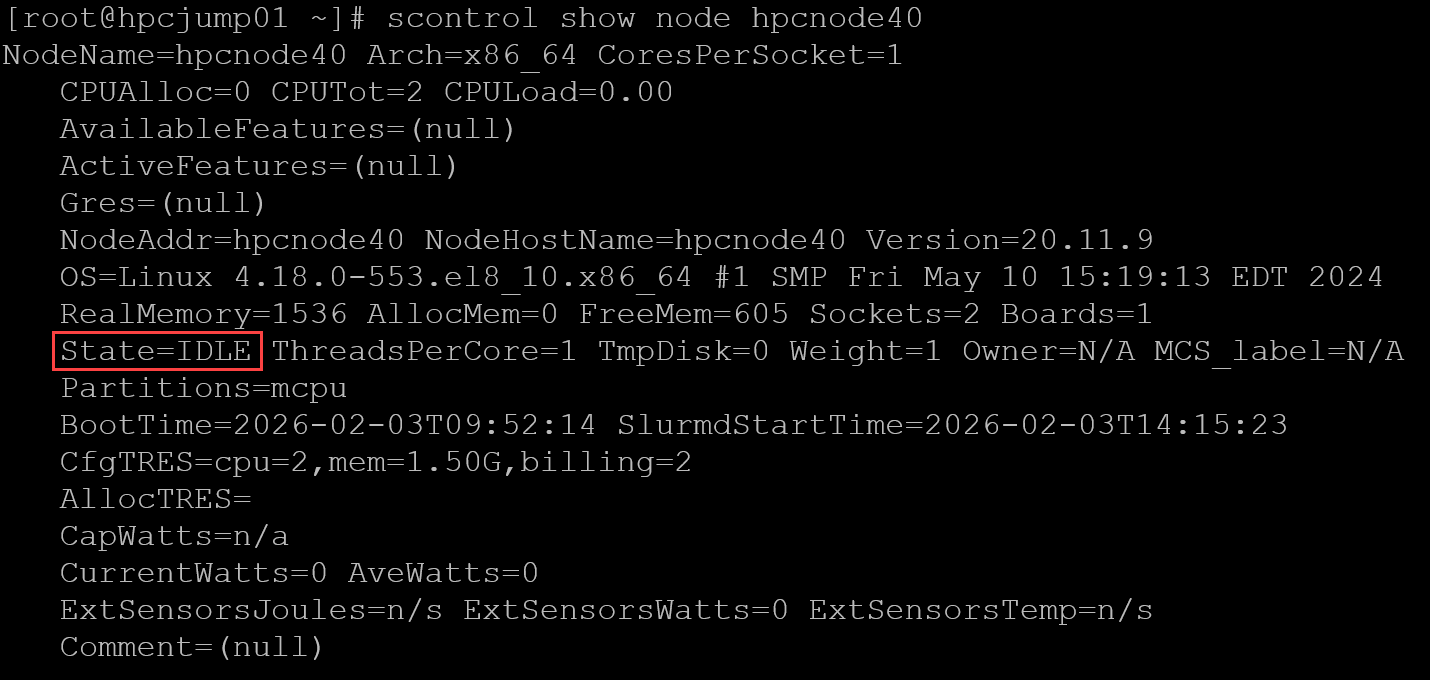
The node state is “IDLE,” meaning it is available to receive jobs (i.e., the node is on Slurm and waiting for new jobs).
We can apply the same steps to each node that is “down” with the reason “Node unexpectedly rebooted.” Be honest with you, these steps can be used for most reasons. There are essential steps to verify that the node and its daemon are ready to join a Slurm cluster!
That’s it for now 🙂