
A file-based backup can be one of the most valuable recovery options when a vCenter Server Appliance becomes unavailable or must be rebuilt.
In this lab, I restore a vCenter Server Appliance from an existing file-based backup using the graphical VCSA installer. The restore workflow deploys a new appliance first and then imports the configuration and data stored in the backup.
This article is based on a lab environment originally tested with vCenter Server 7.0.3.01600. The general two-stage restore workflow is still used in newer vCenter releases, but screens, prerequisites, supported protocols, and recovery considerations may change between versions.
Before performing a restore in production, always review the documentation for the exact vCenter version and build you are recovering.
Lab Environment Used in This Guide
The restore shown in this article was performed with:
- vCenter Server: 7.0.3.01600
- Backup type: vCenter file-based backup
- Backup repository: SFTP server
- Installer: VCSA graphical installer on Windows
- Authentication: vSphere Single Sign-On
- Environment: Lab
The backup used in this guide had already been created and stored on the SFTP repository.
If you still need to configure the backup process, see my guide on Creating a Backup of vCenter Data.
How a vCenter File-Based Restore Works
A file-based restore is not simply a database import into the existing appliance.
The restore workflow has two major stages:
Stage 1 – Deploy a new vCenter Server Appliance
The installer deploys a new appliance to an ESXi host or another supported target.
Stage 2 – Restore the backup data
The installer retrieves the backup from the repository and restores the configuration, inventory data, identity information, and other backed-up components into the newly deployed appliance.
Broadcom continues to document file-based backup and restore as a supported recovery mechanism for vCenter Server.
Before Starting the Restore
Before beginning, verify the following:
- The file-based backup completed successfully.
- The backup repository is reachable.
- You know the backup repository credentials.
- You have the correct vCenter installation media.
- DNS resolution is working correctly.
- The original failed appliance will not conflict with the restored appliance on the network.
- You understand whether the vCenter participates in Enhanced Linked Mode.
- You have the required Single Sign-On credentials.
For recovery scenarios, I also recommend confirming the exact vCenter version and build associated with the backup.
Broadcom maintains an official list of vCenter versions and build numbers that can be useful when matching installation media to an environment.
Stage 1 – Deploy the New vCenter Server Appliance
Mount the VCSA ISO on the administrative workstation. In my lab, I used the Windows installer located under:
vcsa-ui-installer\win32\installer.exe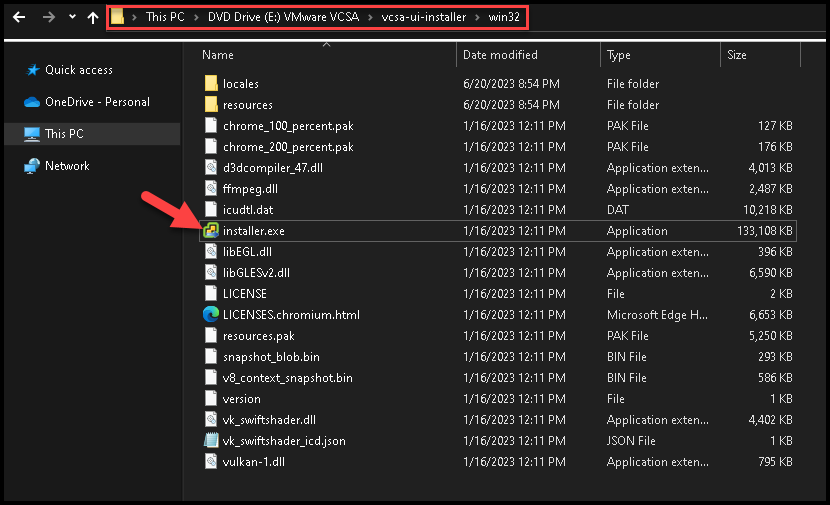
Launch the installer.
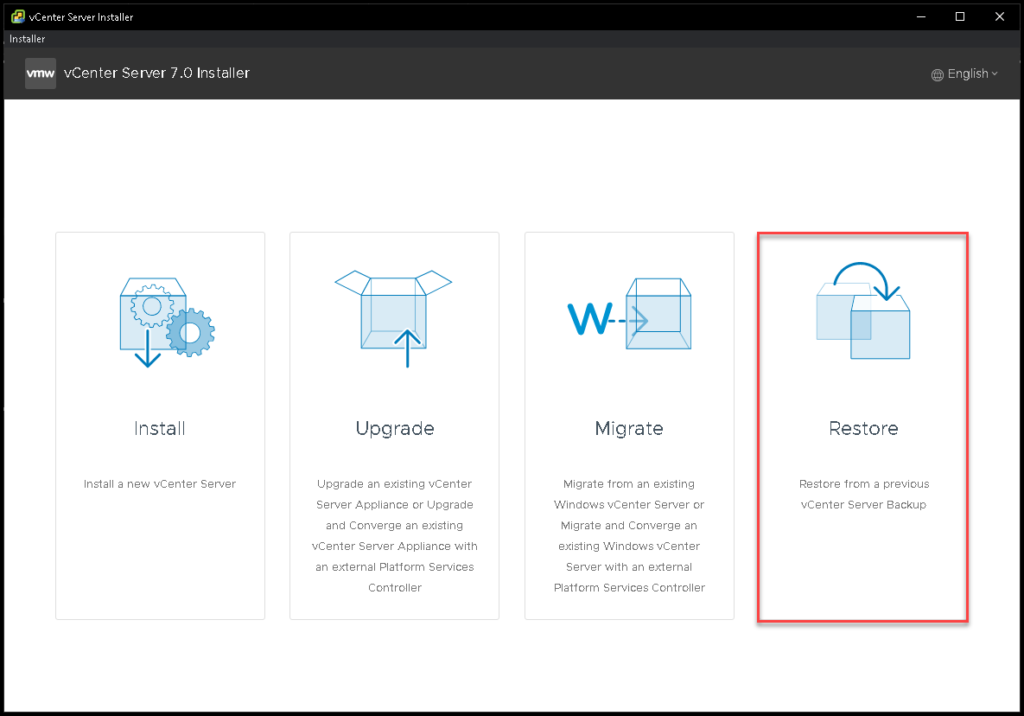
The vCenter Server Installer displays several operations, including:
- Install
- Upgrade
- Migrate
- Restore
Select Restore.
The installer explains that the recovery consists of two stages.
Stage 1 deploys the new appliance, while Stage 2 restores the data contained in the backup.
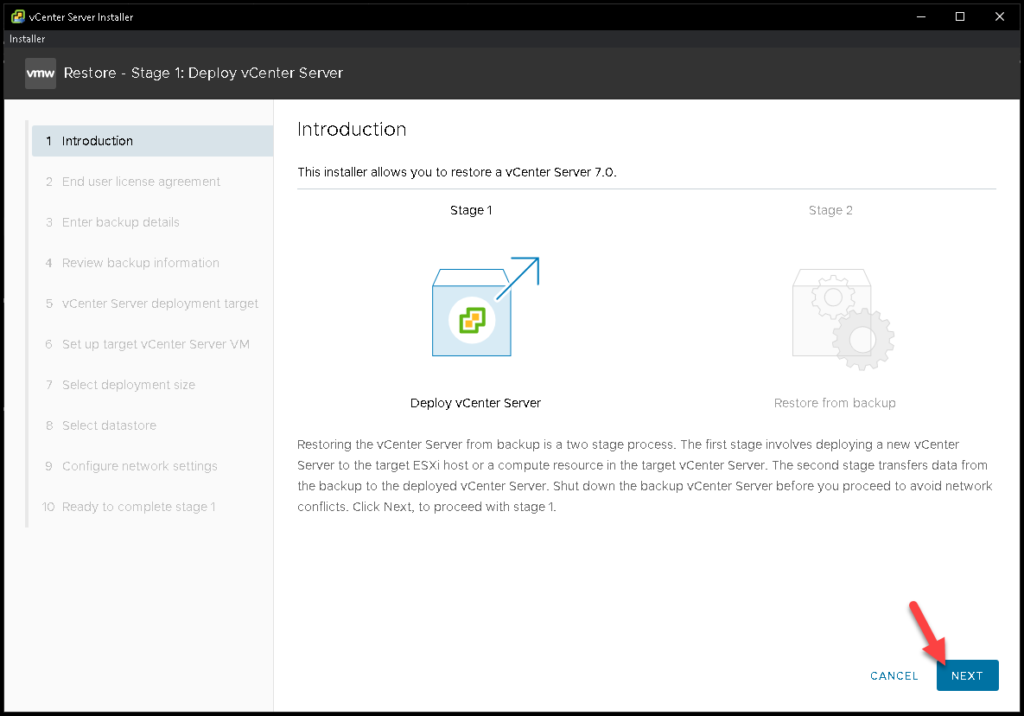
Proceed through the deployment wizard and provide the destination ESXi host, appliance VM name, deployment size, datastore, and network settings required by your environment.
One important consideration is network identity. The restore wizard warns that the original vCenter should not remain active on the same network when the restored appliance begins using the same identity.
Avoid IP, hostname, or service conflicts between the old appliance and the restored instance. Once Stage 1 completes successfully, continue to Stage 2.
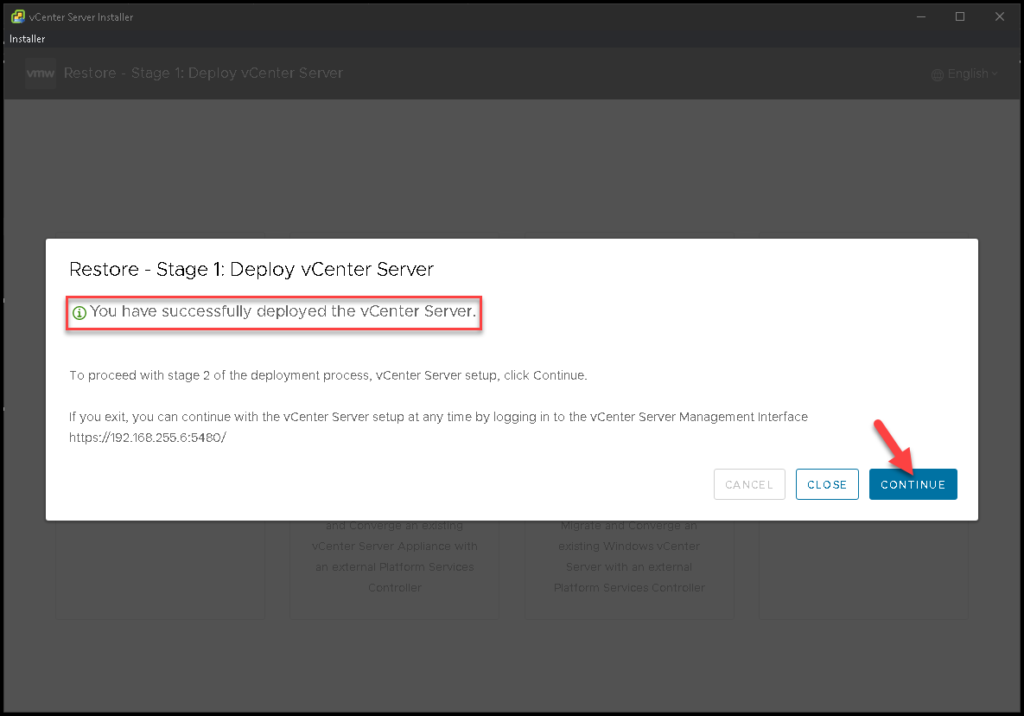
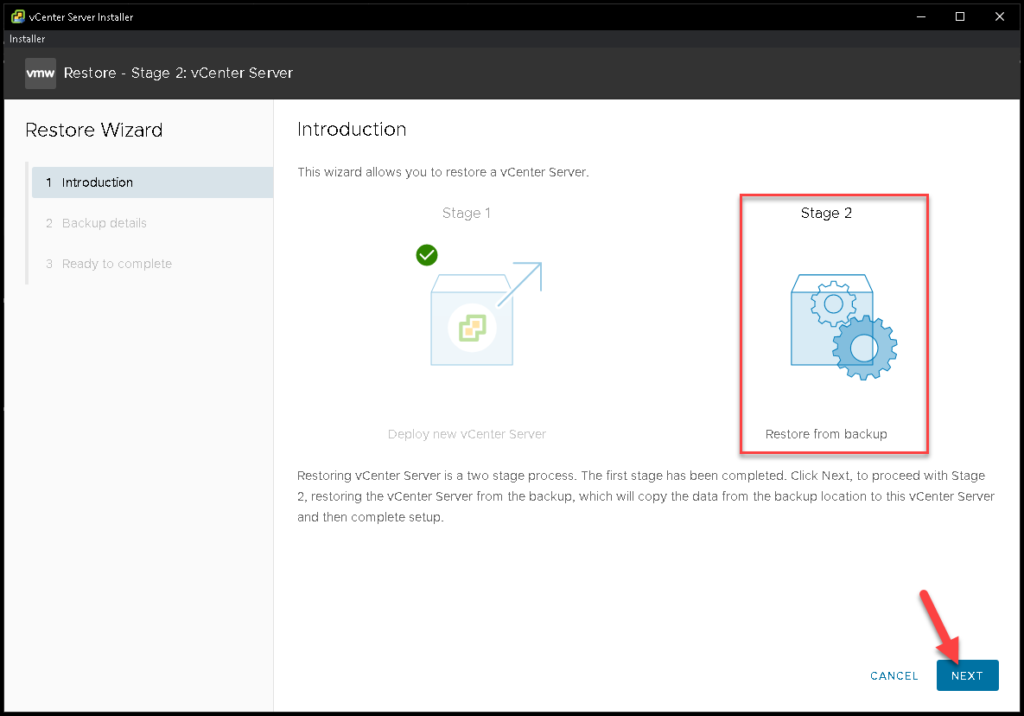
Stage 2 – Restore Data from the Backup
Stage 2 retrieves the saved data from the backup repository and imports it into the newly deployed appliance:
Provide the Backup Location
Enter the location of the file-based backup. In my lab, the backup was stored on an SFTP server:
sftp://192.168.255.5/mnt/BACKUP-POOL/VCENTER/vCenter/sn_vcsa01.lab.local/S_7.0.3.01600_20231016-124008_This path is specific to my lab and should not be reused directly. Enter the username and password required to access your backup repository.If the backup was encrypted, provide the encryption password as well.
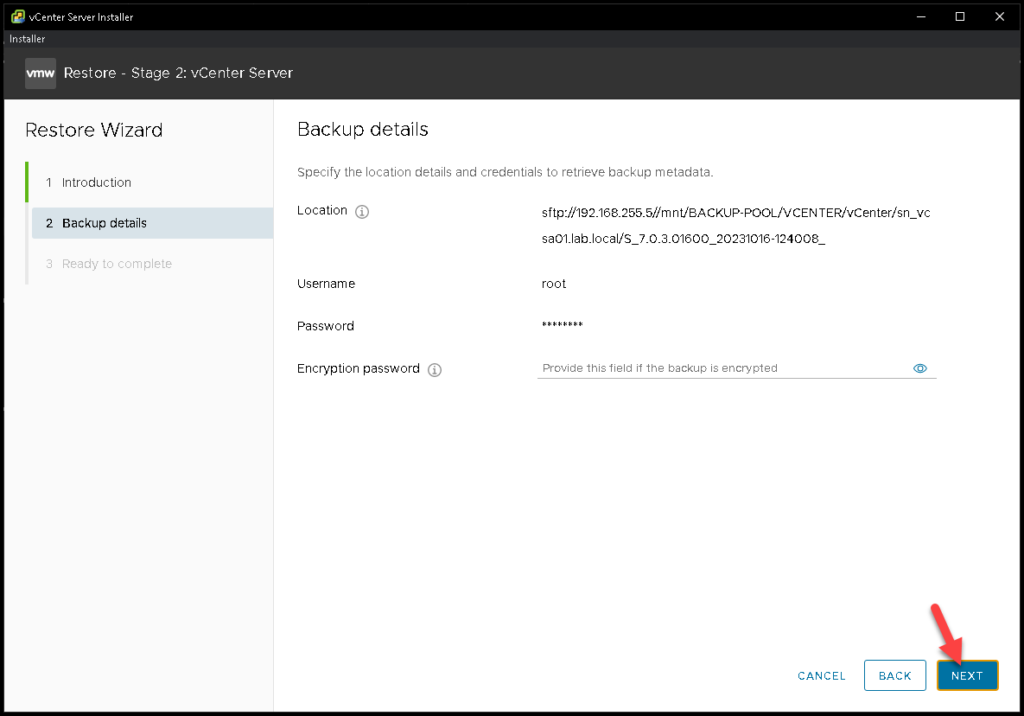
For production environments, review the security configuration of the backup repository. Broadcom documents additional options for certificate or SSH host validation when using secure backup and restore protocols.
Provide the Single Sign-On Credentials
The wizard then requests the Single Sign-On administrator credentials required to validate and restore the environment:
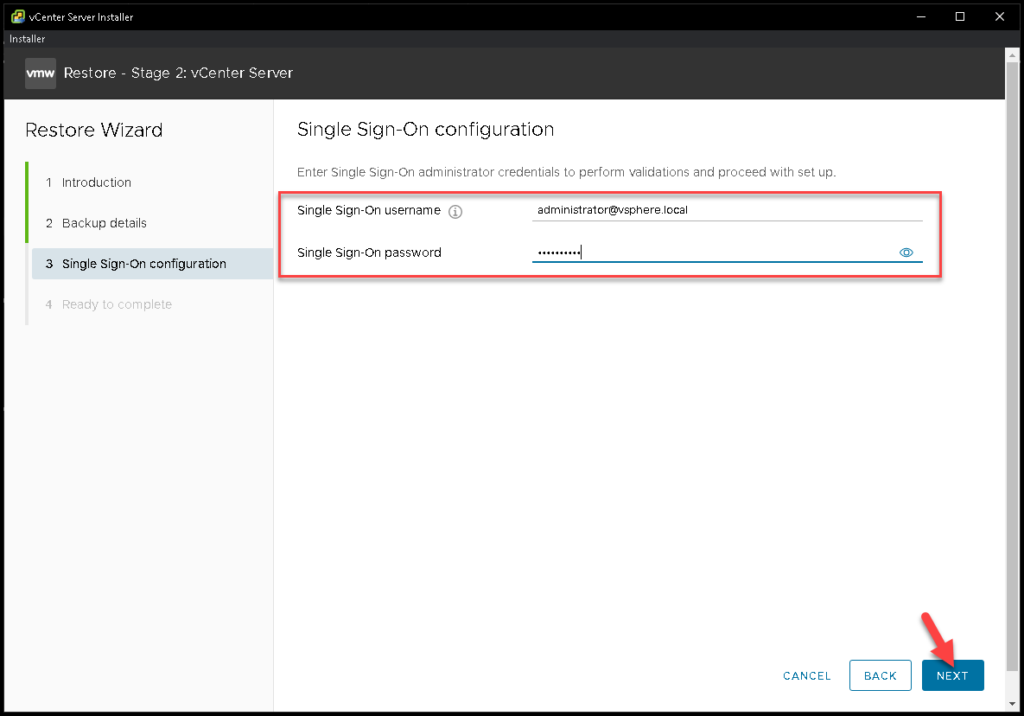
Enter the credentials for the SSO domain associated with the backup.
Important: Enhanced Linked Mode Warnings
This is one of the most important parts of the restore process.
In my original lab, the installer detected that the vCenter belonged to a Linked Mode configuration and displayed a warning because its replication partners were not reachable:
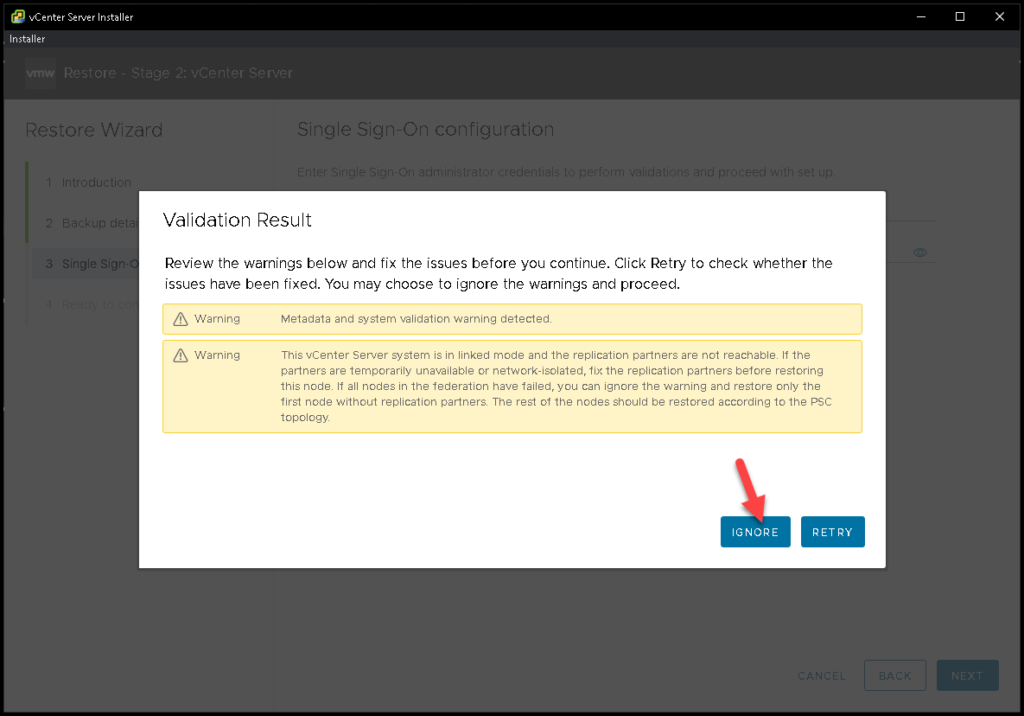
Do not automatically click Ignore whenever this warning appears.
The correct action depends on the state and topology of the entire SSO domain.
For example, the warning itself indicates that ignoring the missing partners can be appropriate in specific recovery conditions, such as when the federation has failed and the first node is being restored before the remaining nodes are recovered according to the topology.
That does not mean the warning is safe to ignore in every environment.
Enhanced Linked Mode vCenters replicate shared identity and configuration information between members of the SSO domain. Restoring nodes independently or to inconsistent points in time can create replication and database consistency problems. Broadcom specifically documents precautions for recovery and snapshot operations in ELM environments.
Before continuing in production, verify:
- Which vCenter Servers belong to the SSO domain.
- Which members are still operational.
- Whether replication partners are reachable.
- Whether multiple nodes must be recovered.
- The correct recovery sequence for your topology.
If you are uncertain, stop the restore and validate the recovery plan before proceeding.
Review the Restore Configuration
The wizard displays the backup and restore information before starting the data transfer.
Review:
- Backup repository
- vCenter version
- Backup timestamp
- System name
- SSO information
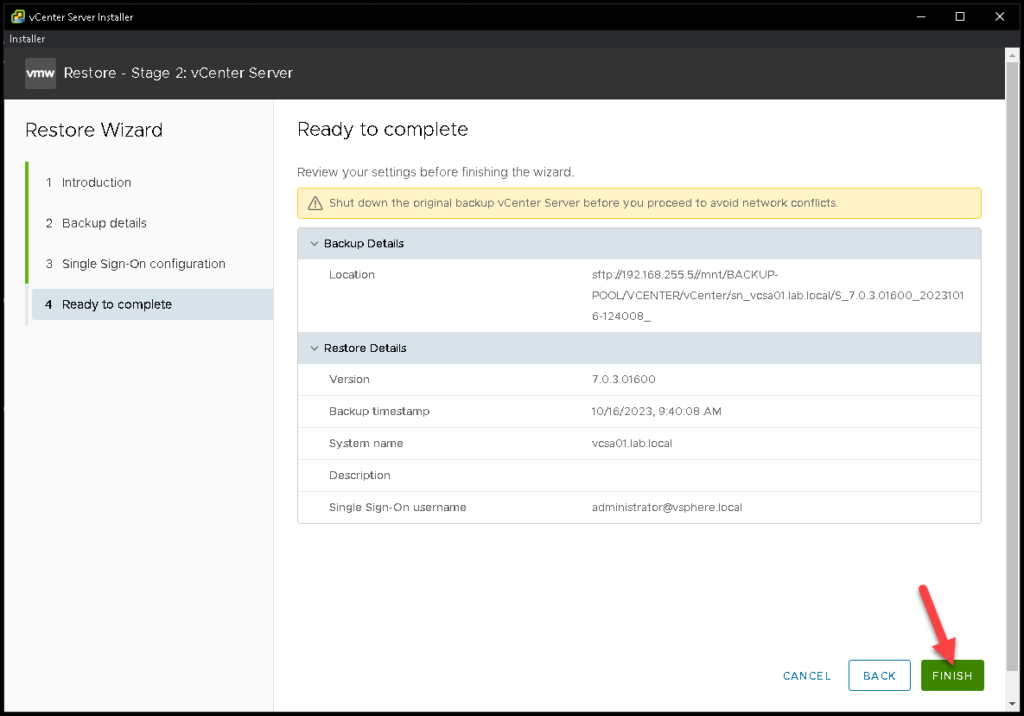
Also notice the warning reminding you to shut down the original vCenter Server before proceeding if it could create a network conflict.
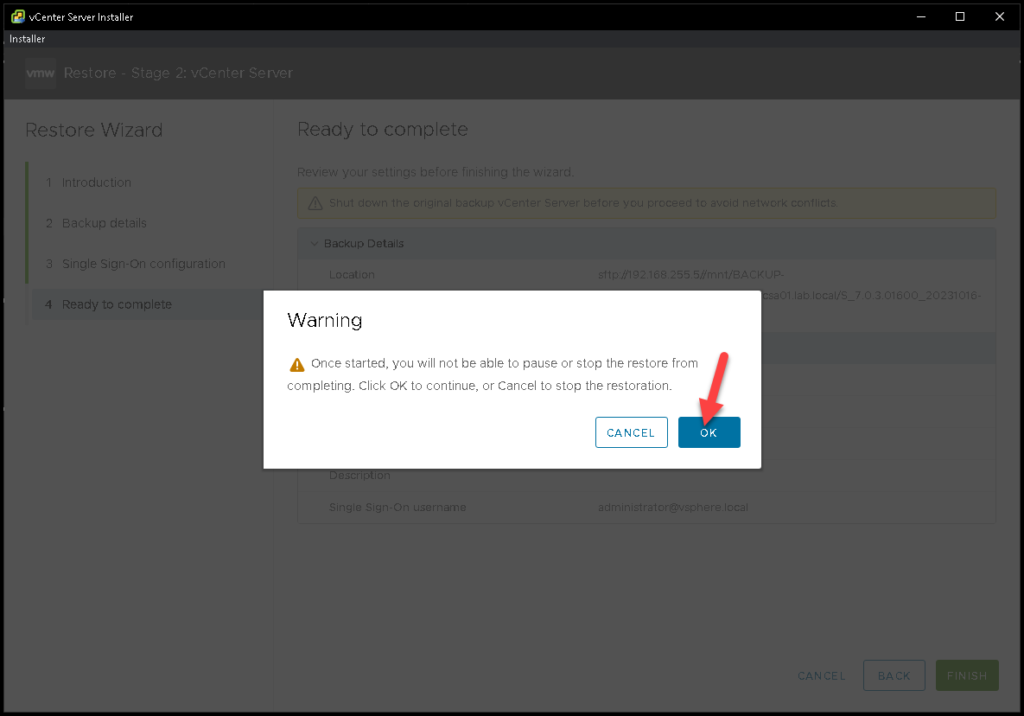
Once you have reviewed the information and confirmed that the recovery plan is correct, start the restore.
The installer warns that the operation cannot be paused once it begins:
Monitor the Restore Process
The installer begins transferring the saved configuration and data into the new appliance:
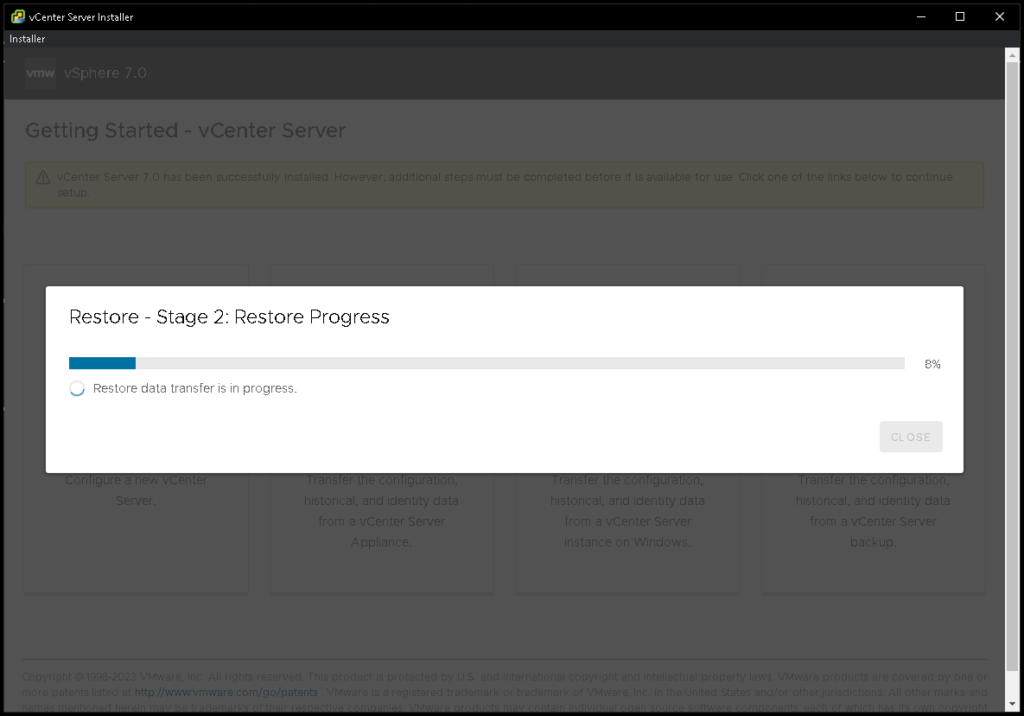
Depending on the amount of data and the performance of the backup repository and network, this process can take some time.
Avoid interrupting the appliance or the connection to the backup repository while the recovery is in progress.
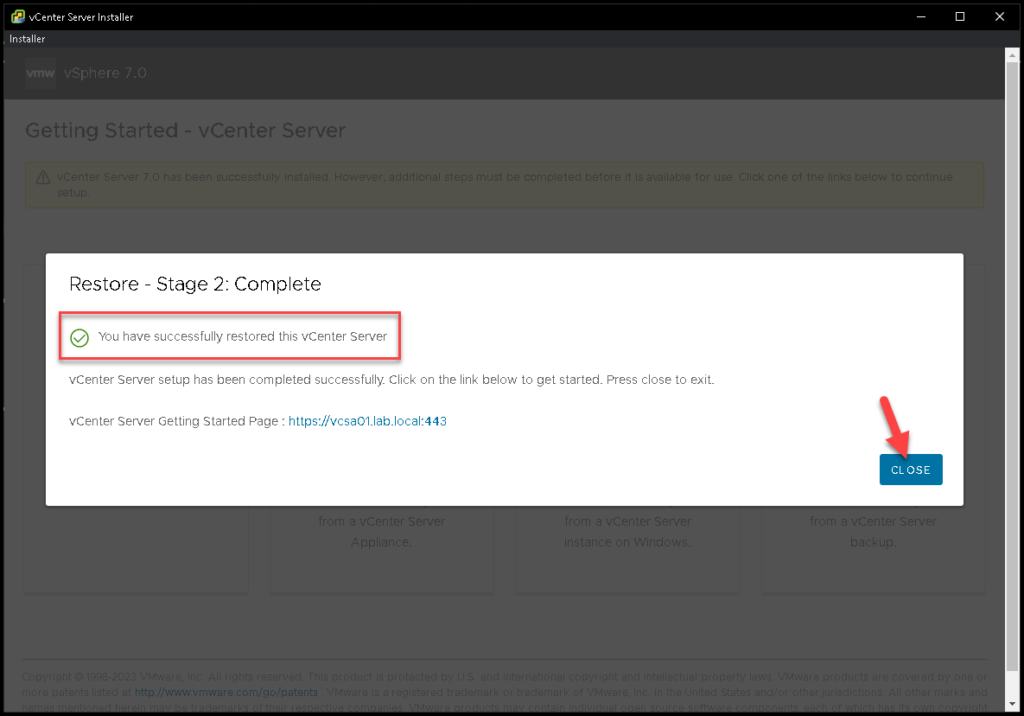
When the restore completes, the installer displays a success message:
Verify the Restored vCenter Server
A successful installer message is not the end of the recovery process.
The restored environment should still be validated before considering the incident closed.
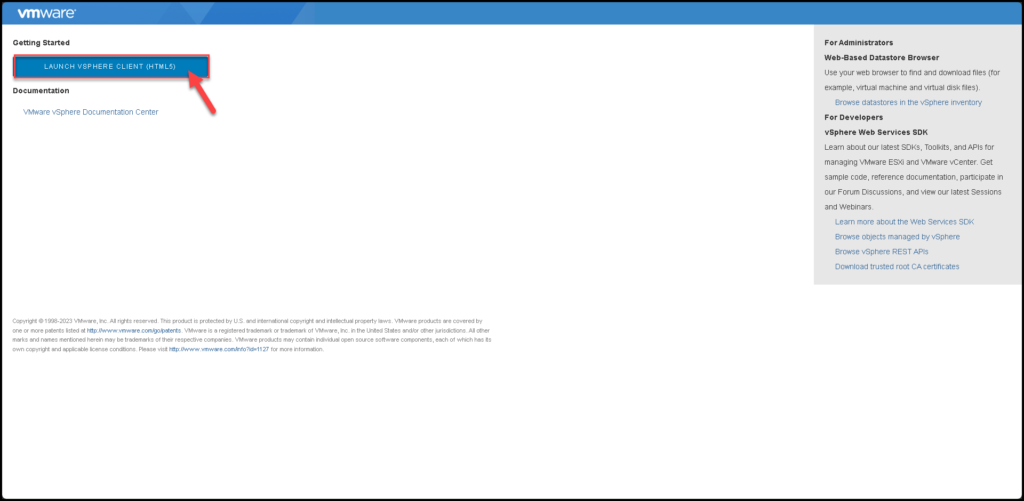
Start by opening the vSphere Client:
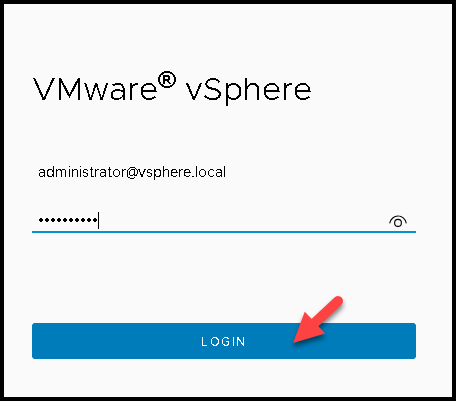
Log in with the expected Single Sign-On credentials:
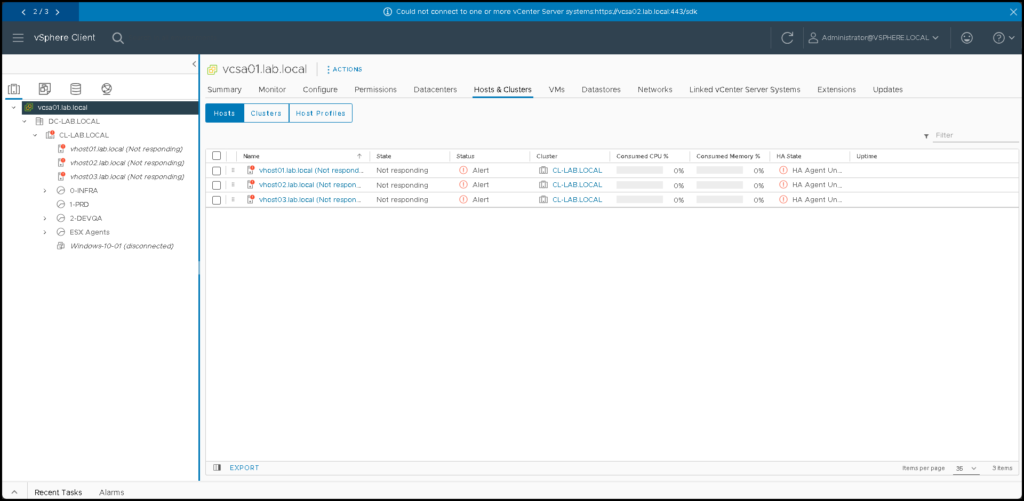
Then review the restored inventory:
Post-Restore Validation Checklist
After restoring a vCenter Server, verify at least:
- vSphere Client access
- vCenter services
- ESXi host connectivity
- Datacenters and clusters
- Datastores
- Networking objects
- Permissions and roles
- SSO authentication
- Certificates
- DRS configuration
- HA configuration
- vSAN health, if applicable
- Backup schedule
- Monitoring integrations
- External authentication sources
- Enhanced Linked Mode replication, if applicable
Remember that a restore returns vCenter configuration and data to the state captured by the backup.
Changes made after that backup may therefore be missing or inconsistent with the current infrastructure state.
Broadcom also notes that restores can affect areas such as cluster configuration, storage policies, vSAN state, and patches applied after the backup.
Verify the vCenter Services
If necessary, connect to the restored appliance over SSH and check the service state:
service-control --status --allYou should investigate any services that remain stopped unexpectedly.
You can also verify the appliance through the vCenter Server Management Interface:
https://<vcenter-fqdn>:5480Check the appliance health, database status, disks, and backup configuration.
Check the Backup Configuration Again
After recovery, confirm that your backup process is still functioning.
Do not assume that the existence of an old backup means the environment is currently protected.
The official Broadcom data integrity guidance recommends maintaining valid vCenter backups and scheduling backup operations when the appliance is not under heavy load.
A recovery procedure is only useful when the backup itself is recent, valid, and accessible.
Common Restore Problems
If the restore wizard cannot access the backup repository, verify:
- Network connectivity
- DNS
- Routing
- Firewall rules
- Repository credentials
- SFTP/FTPS/HTTPS configuration
- SSH host keys or certificates when validation is enabled
For SFTP repositories specifically, remember that outbound connectivity from the appliance to the SFTP server must be available. Broadcom documents failures caused by routing or firewall blocks on SFTP connections.
If a restore fails because the backup itself is damaged, try another known-good backup rather than repeatedly attempting recovery from corrupt data.
Final Thoughts
A vCenter file-based backup is valuable because it gives administrators a supported way to rebuild the appliance and restore its configuration and data after a serious failure.
The process itself is straightforward in a simple lab:
Validate the backup
        ↓
Deploy a new VCSA
        ↓
Connect to the backup repository
        ↓
Restore the data
        ↓
Validate vCenter services and infrastructure
The complexity increases when the environment includes Enhanced Linked Mode, vCenter HA, vSAN, external integrations, or other dependencies.
That is why a restore should be treated as a recovery workflow, not simply as a wizard where every warning can be ignored.
Testing this process in a lab before a real incident is one of the best ways to understand what information, credentials, installation media, and backup infrastructure will actually be required when recovery becomes necessary.
External References
- Overview of Backup and Restore Options in vCenter Server Broadcom overview of supported file-based and image-based backup and restore methods for vCenter Server.
- vCenter Server Appliance Data Integrity Best Practices Broadcom recommendations for vCenter backups, snapshots, appliance health, and data integrity.
- Enabling Secure Backup and Restore in the vCenter Server Appliance Guidance for certificate and SSH host validation when using secure file-based backup and restore protocols.
- VMware vCenter Server Versions and Build Numbers Official reference for identifying vCenter Server releases and build numbers.
- Enhanced Linked Mode Snapshot and Recovery Best Practices Important guidance for maintaining consistency across vCenter Servers that share an SSO domain.
