

PowerFlex Manager can authenticate users against an external directory such as Microsoft Active Directory, while its role mappings determine what those users can do after sign-in. This lets administrators manage account membership in Active Directory and assign PowerFlex Manager permissions to directory groups, instead of creating a separate local account for every user.
This walkthrough uses PowerFlex Manager 4.5.2 and Active Directory on Windows Server 2022 in a nested lab. It covers adding the directory service, mapping two Active Directory groups to PowerFlex Manager roles, and testing access with a member of each group. The exact directory names and search paths depend on your Active Directory structure; replace the examples with values from your environment.
If you are setting up the management platform first, see Deploy Dell PowerFlex Manager on Linux: A Step-by-Step Guide. For the broader PowerFlex 4.5.2 cluster deployment workflow, see Dell PowerFlex 4.5.2 Deployment: From Initial Setup to a Working Cluster.
Add Active Directory as a Directory Service
1- Sign in to PowerFlex Manager with a local administrator account. In this lab, the built-in local username is admin; its password was set during deployment. Keep a securely stored local administrator account available for emergency access, and do not rely on the directory connection as the only way to administer the system.
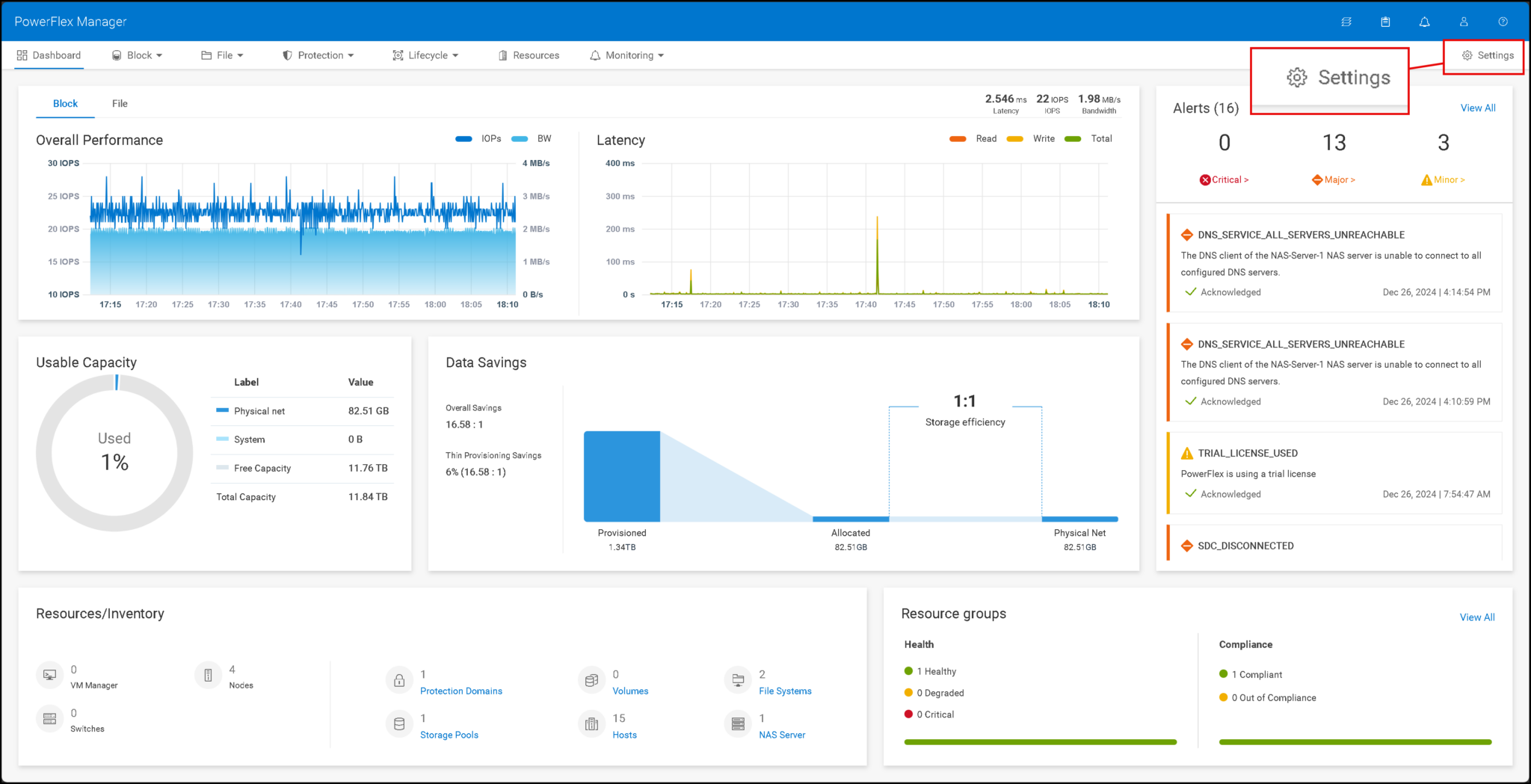
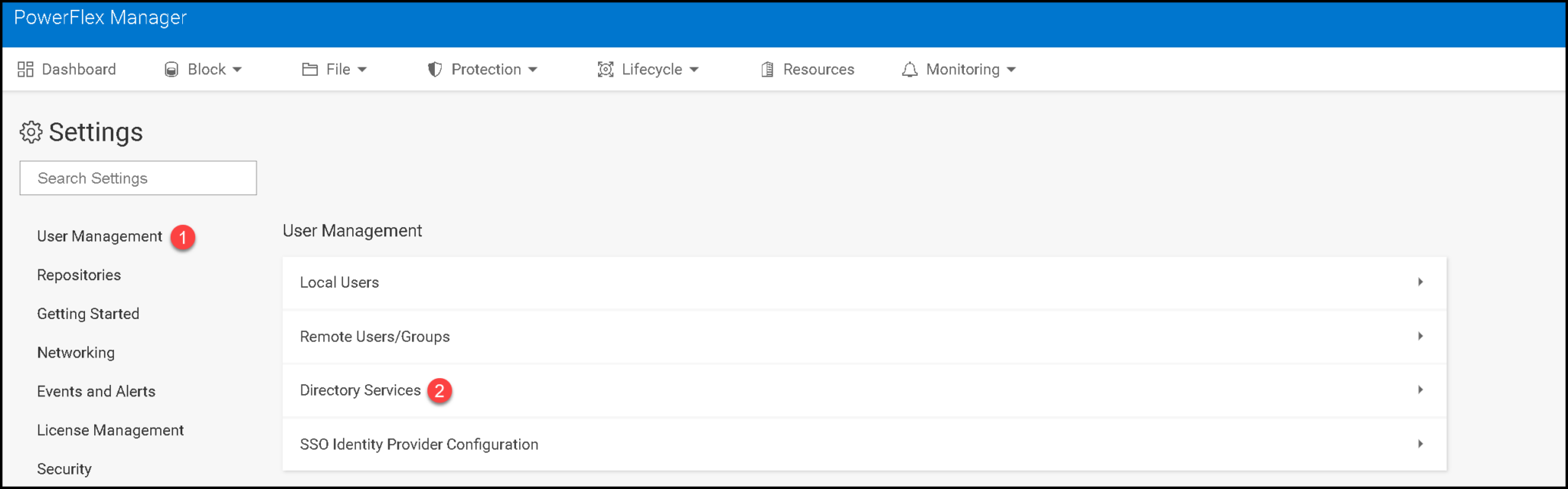
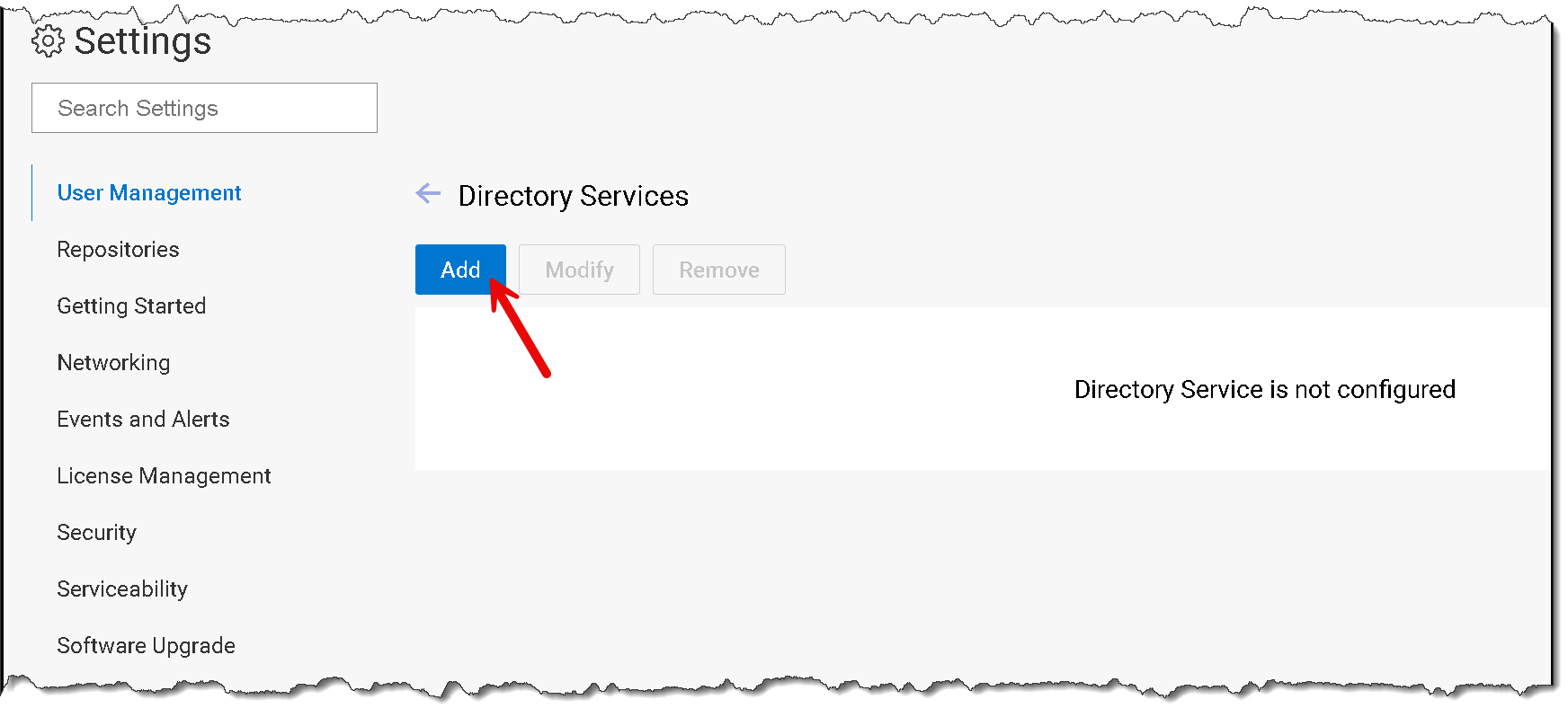
Open Settings > User Management > Directory Services, select Add, and configure the LDAP connection. In the Address field, enter the Active Directory server using the format required by the UI.
For example, a secure LDAP endpoint may look like ldaps://dc01.example.com:636. Use a hostname and port that are valid in your environment and configure the required certificate trust for TLS. Avoid sending bind credentials over an unencrypted LDAP connection:
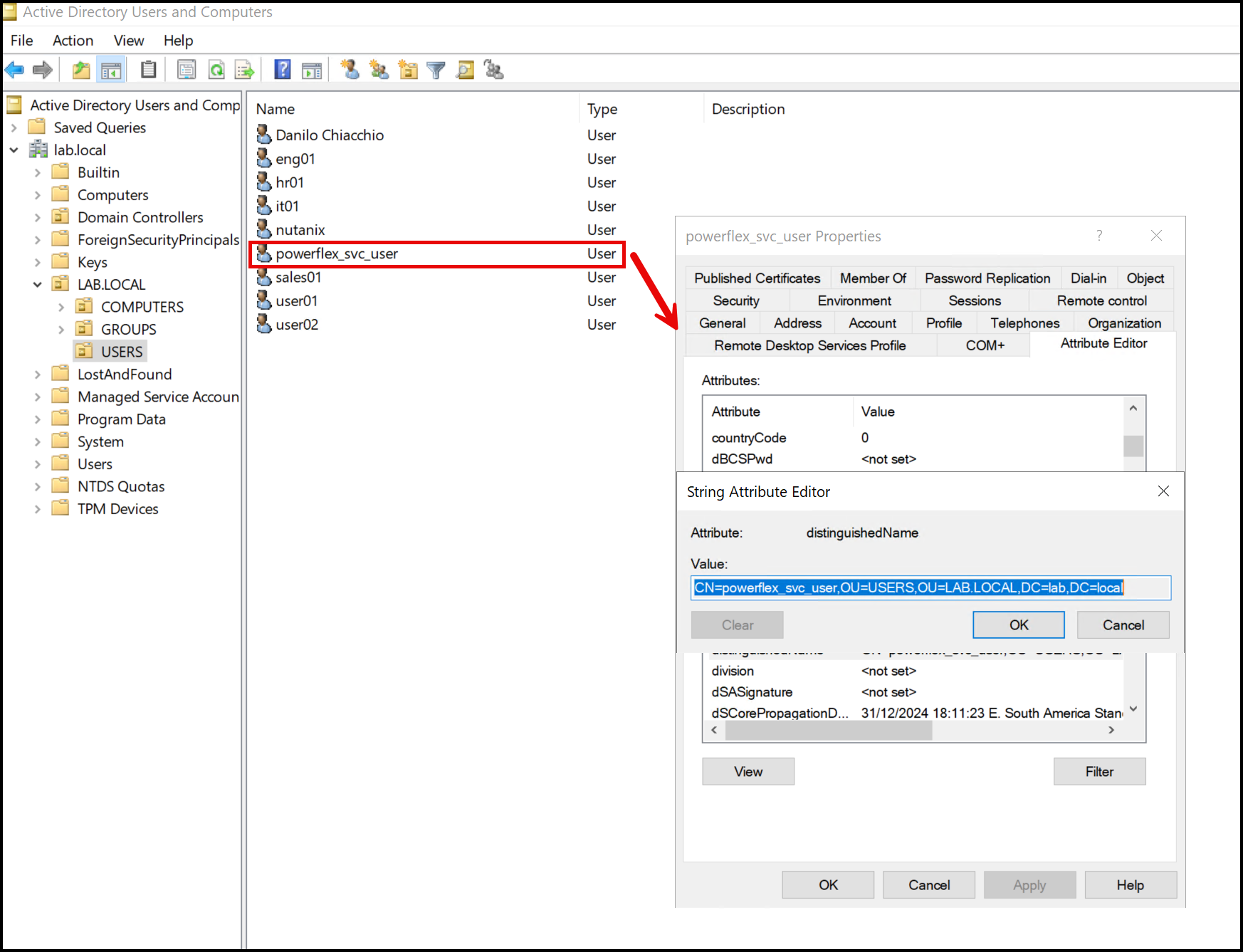
Enter the Bind DN and password for a dedicated Active Directory service account. The Bind DN identifies the account PowerFlex Manager uses to search the directory; it is not the username that every PowerFlex administrator must use to sign in. Grant this service account only the directory read permissions it needs to locate the configured users and groups. Do not use a Domain Admin account for routine directory lookups.
Configure the user and group search settings to match your Active Directory layout. For a typical Active Directory user lookup, the username attribute may be sAMAccountName. The user search path should point to the directory subtree containing the accounts that will use PowerFlex Manager. For groups, common Active Directory values include member for the member attribute, cn for the group ID attribute, and group for the group object class. Confirm the exact attribute names and search paths with your directory design; these examples are not universal.
Select Test Connection. A successful result (shown as Good in this lab) indicates that PowerFlex Manager can connect using the supplied directory settings. It does not by itself confirm that a particular user will authenticate or receive the intended PowerFlex role. Correct any connection or search errors before selecting Submit:
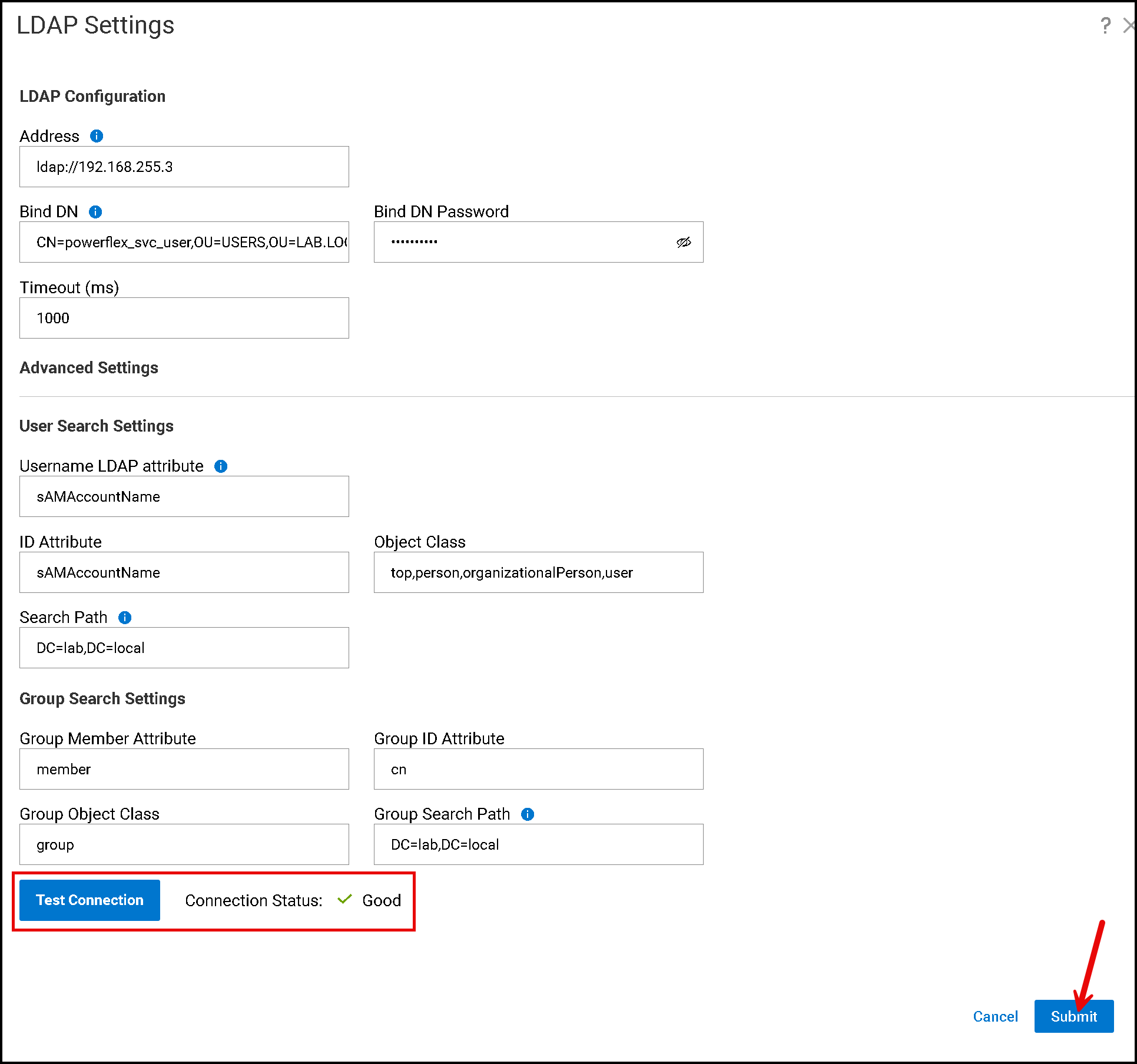

Note: Under the “Bind DN,” we need a specific Active Directory username with minimal permission to reach the Active Directory users and groups. The PowerFlex Manager uses this account to talk with the Active Directory servers:
Map Active Directory Groups to PowerFlex Roles
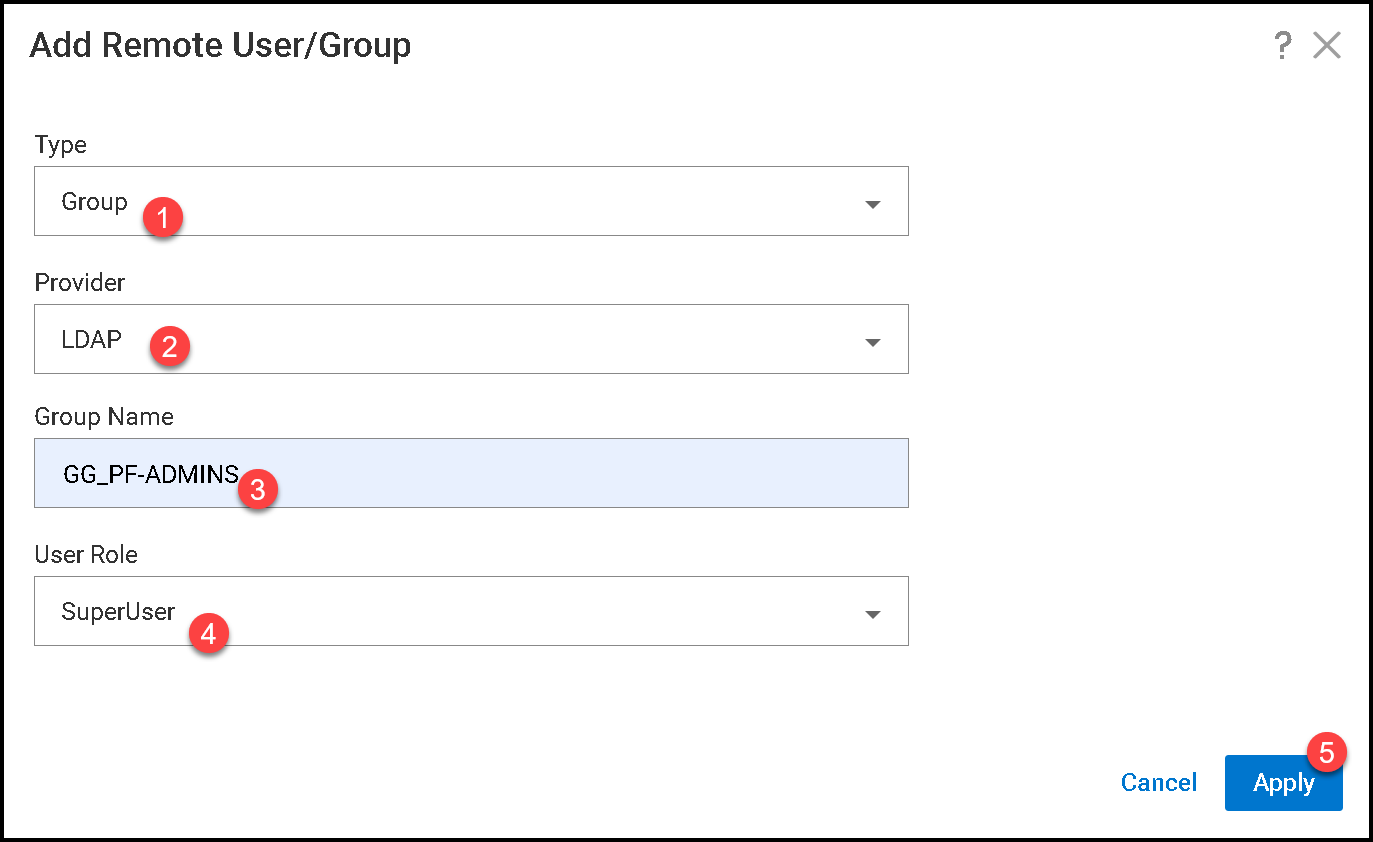
2- After adding the directory service, open Settings > User Management > Remote Users/Groups and select Add. Choose Group as the type and select the configured LDAP directory service as the provider.
Add each Active Directory group using the group name configured in the directory, then assign the corresponding PowerFlex Manager role:
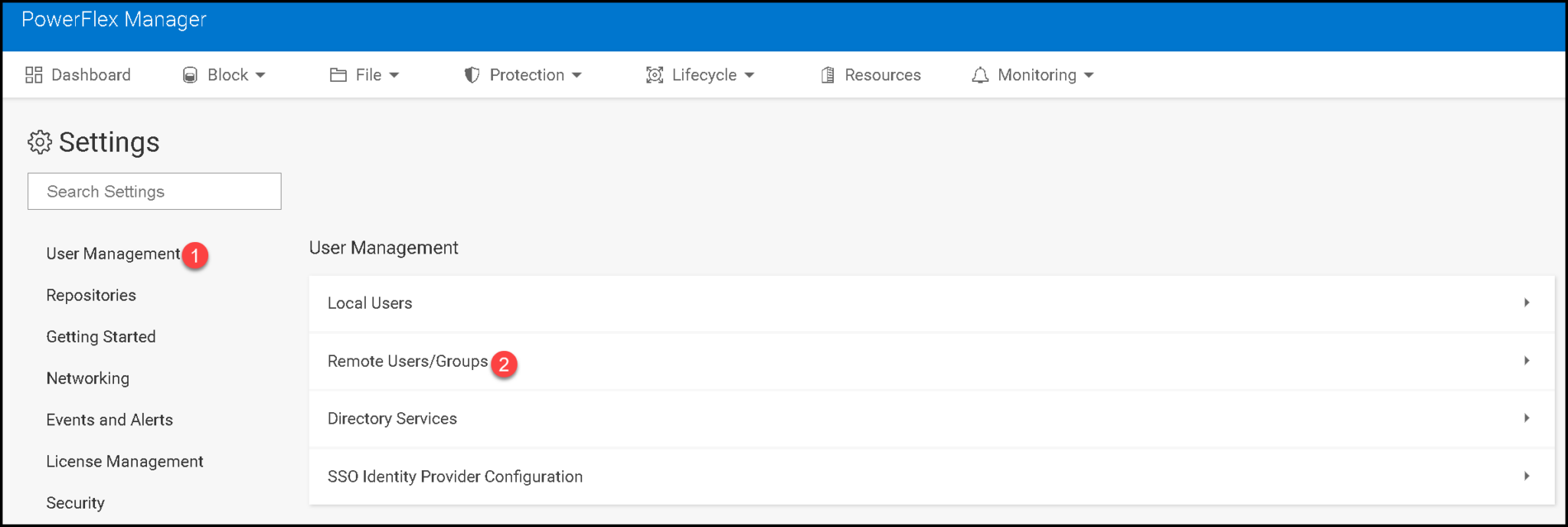
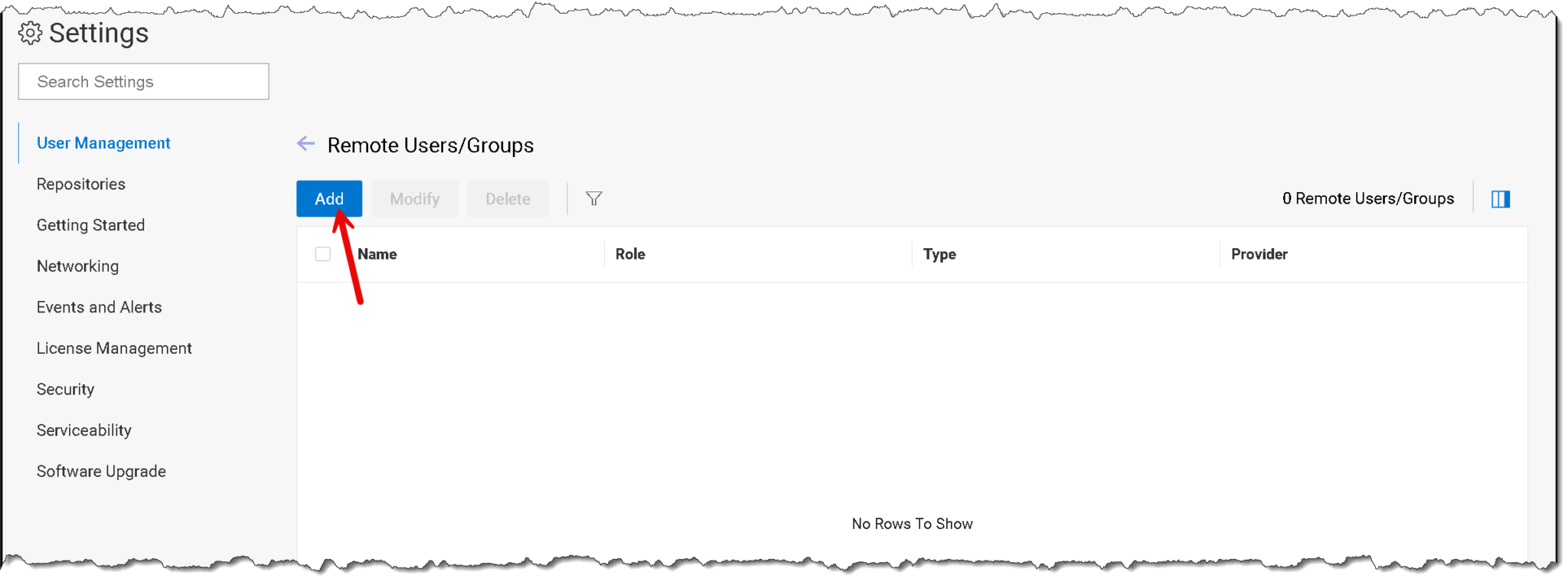
Click “Add”:
In this lab, the mappings are:
GG_PF-ADMINS→SystemAdminGG_PF-MONITOR→Monitor
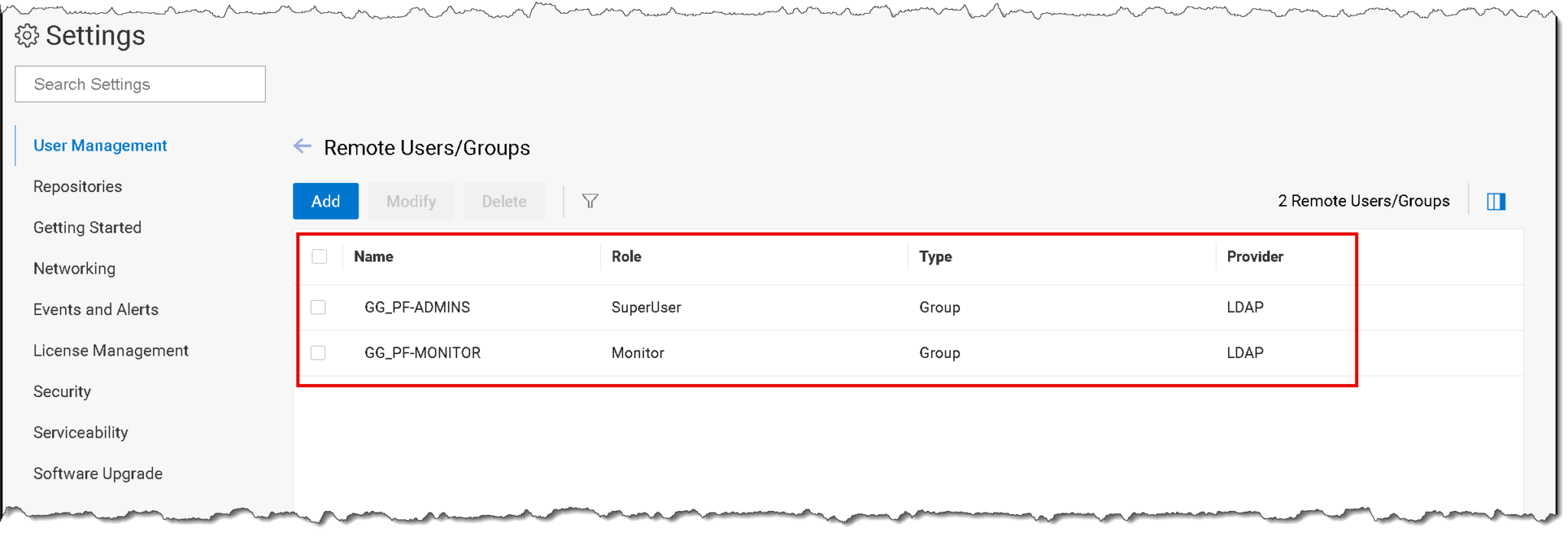
Note: The Active Directory groups and their memberships must already exist in the directory. PowerFlex Manager maps those remote groups to application roles; it does not create the directory groups. Assign administrative roles only to groups whose membership is controlled appropriately, and use the least-privileged role that meets each team’s needs.
Test Login and Role-Based Access
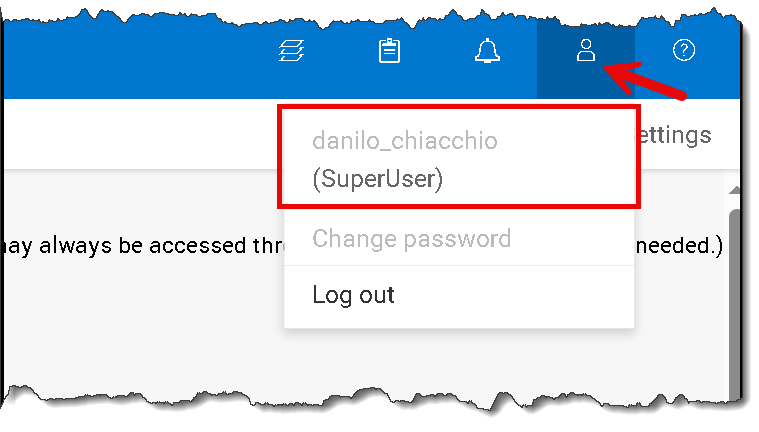
3- Sign out of the local administrator session and test with a directory user who belongs to GG_PF-ADMINS. Confirm that the user can sign in and that the available permissions match the SystemAdmin role.
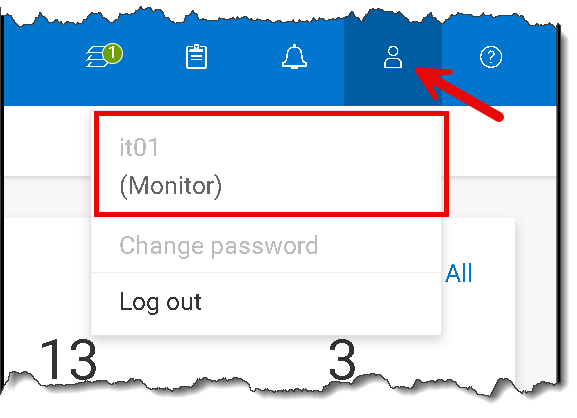
Sign out again and test with a separate directory user who belongs to GG_PF-MONITOR. Confirm that the user can sign in and has the expected monitoring-only access. Testing with separate accounts makes it easier to verify both group mappings and helps avoid unintentionally testing with a user who belongs to multiple mapped groups.
If authentication fails, check the LDAP connection test, the Bind DN credentials, the user and group search paths, the configured username attribute, and the user’s actual Active Directory group membership. If login succeeds but the permissions are wrong, review the remote group name and its assigned PowerFlex role. Keep the local administrator account available while troubleshooting.
Accessing the PowerFlex Manager UI with an AD user in the group “GG_PF-MONITOR”:
Validate Authentication and Permissions
With the directory service connected and both group mappings tested, PowerFlex Manager can use Active Directory for user authentication while applying its own roles for authorization.
Before using the configuration beyond the lab, verify encrypted LDAP connectivity, protect the bind account credentials, and confirm that the mapped groups have only the access their members need.
External References
- Dell — PowerFlex 4.5.x Administration Guide: Add a Directory Service Documents the PowerFlex Manager workflow for adding an LDAP directory, including the server address, Bind DN, user search settings, group search settings, and connection test.
- Dell — PowerFlex 4.5.x Administration Guide: Add Remote Users or Groups Explains how to associate LDAP users or groups with PowerFlex Manager roles, including SystemAdmin and Monitor.
- Dell — PowerFlex 4.5.x Administration Guide: Directory Services Describes directory services in PowerFlex Manager and the LDAP configuration, user-search, and group-search information displayed in the interface.
