

The Dell PowerFlex Storage Data Client (SDC) lets a Windows server access block volumes presented by a PowerFlex cluster. This guide covers the manual SDC installation, verifies the connection to the MDM cluster, and shows how to map and prepare a PowerFlex volume for use in Windows Disk Management.
The examples come from a nested lab using Windows Server 2022 Standard and PowerFlex 4.5.2. Dell’s support matrix lists Windows Server 2022 for the SDC with PowerFlex 4.5.2, but always confirm the exact SDC package, Windows build, and any matrix footnotes for your deployment before using the procedure in production. Dell supports the SDC component on Windows; do not interpret this guide as support for deploying other PowerFlex components on Windows. Installing the SDC requires a Windows server reboot, so schedule the installation accordingly.
For a comparable SDC setup on VMware ESXi, see Connecting VMware ESXi to PowerFlex: A Step-by-Step SDC Installation Guide. If you need more context on creating and mapping a volume, see PowerFlex on Linux: Create and Map a Volume to an SDC; the PowerFlex mapping workflow is similar, though the steps to prepare a disk differ between Windows and Linux.
Install the PowerFlex SDC on Windows Server
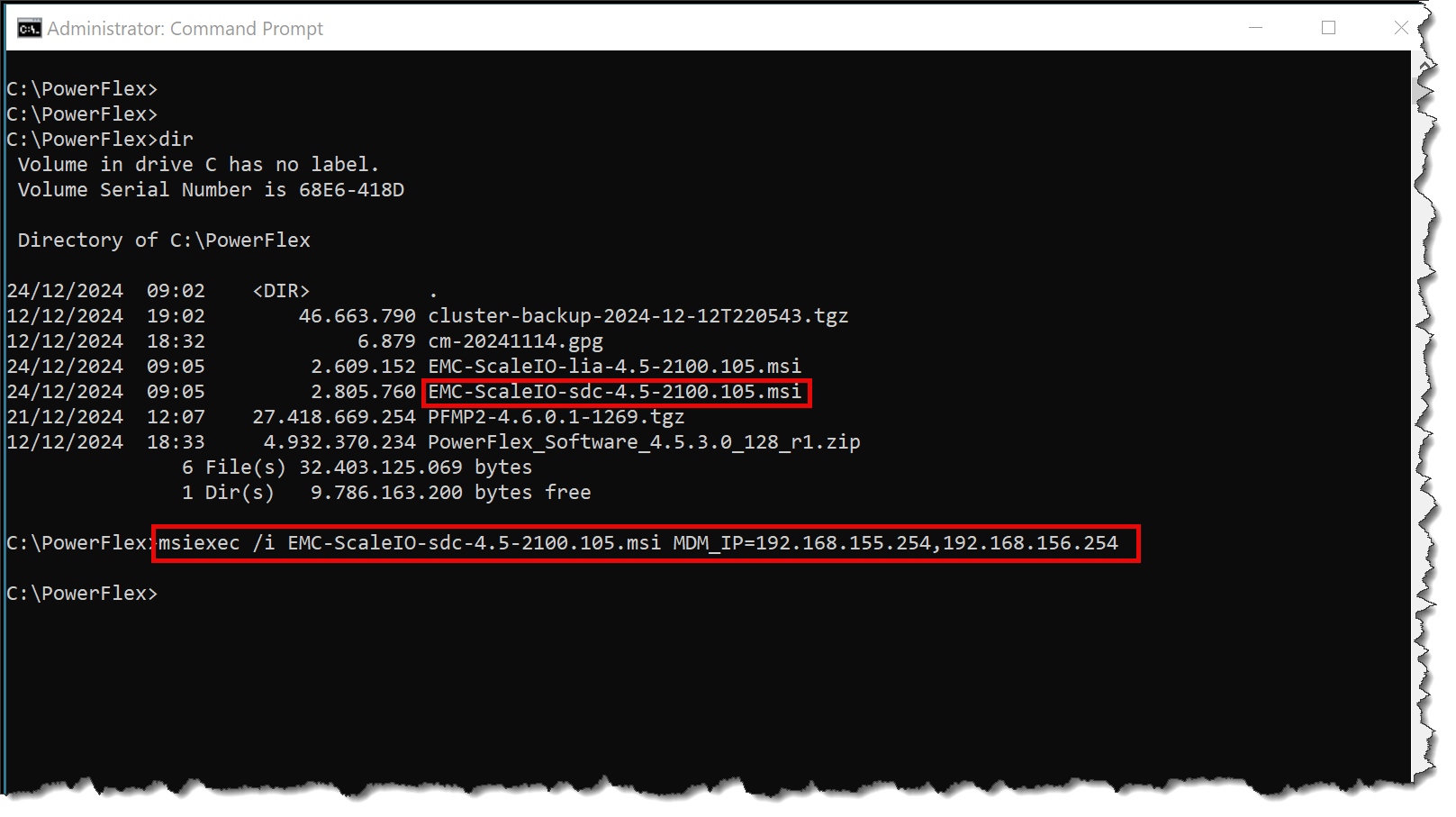
1- Copy the SDC MSI package approved for your PowerFlex release to the Windows server. The filename below is the one used in this lab; do not assume the same installer build is correct for every cluster. Open Command Prompt as Administrator, change to the package directory, and run the installer with the MDM address or addresses:
cd C:\PowerFlex
msiexec /i EMC-ScaleIO-sdc-4.5-2100.105.msi MDM_IP=192.168.155.254,192.168.156.254
Replace the sample addresses with the MDM configuration for your cluster. Dell’s installer accepts either the MDM virtual IP address or a comma-separated list of the MDM manager IP addresses. Do not include tiebreaker addresses in this list.
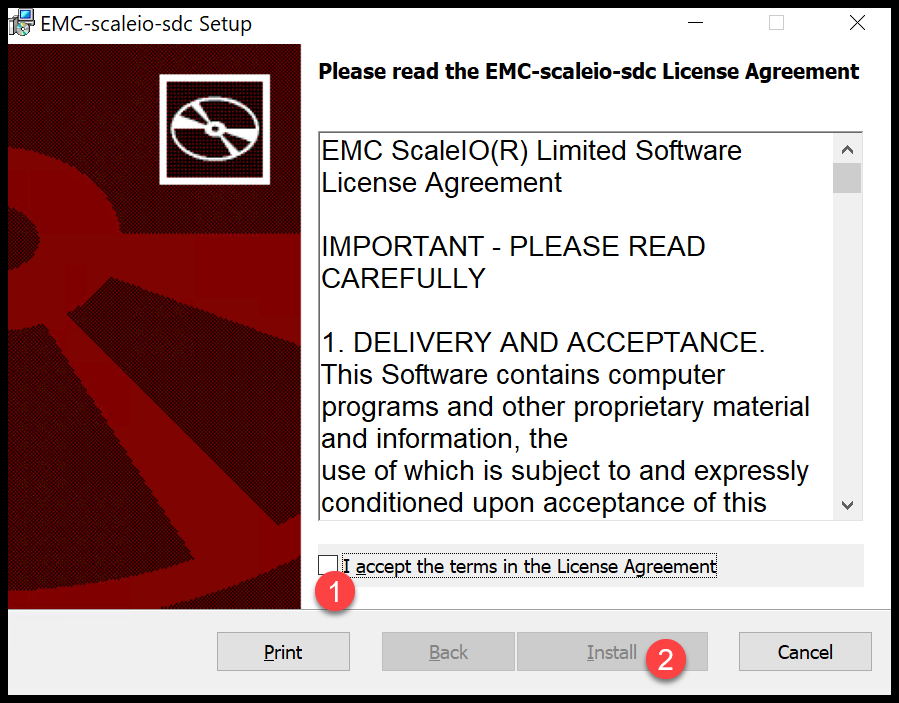
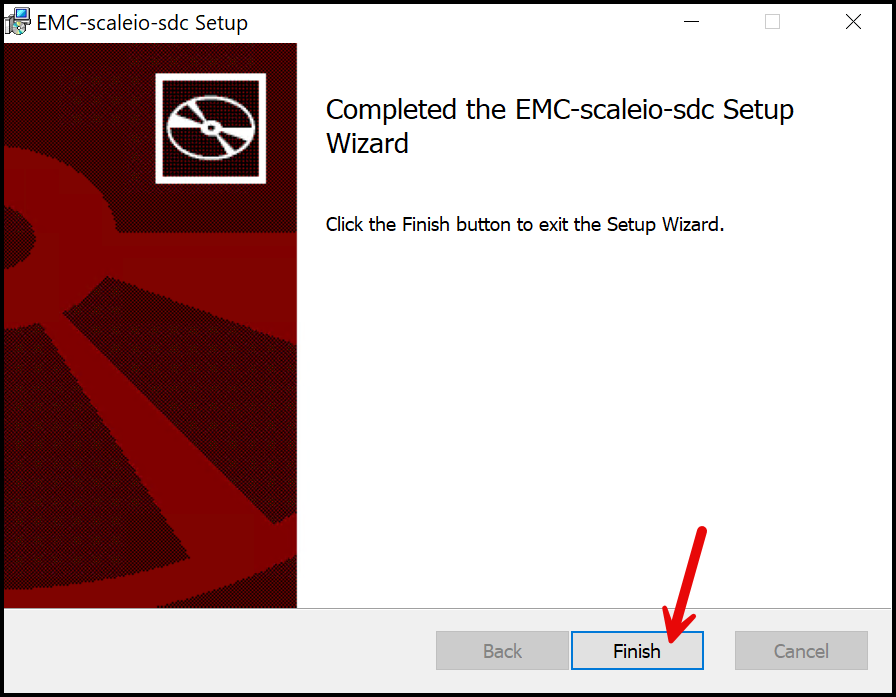
Complete the MSI installation and reboot the server. The reboot loads the SDC driver. Because this interrupts the Windows host, obtain the required maintenance window before restarting a production system:
Verify the SDC Installation and MDM Connection
2- After Windows restarts, open an elevated Command Prompt and run the SDC utility from its installation directory:
cd /d "C:\Program Files\EMC\scaleio\sdc\bin"

drv_cfg.exe --query_version
drv_cfg.exe --query_mdms
--query_version reports the SDC version. --query_mdms reports the MDM information known to the SDC. Check that the version is the expected one and that the MDM addresses match the PowerFlex cluster.
3- The SDC configuration is also visible in the Windows registry. To inspect the parameters without changing them, run:
reg query HKEY_LOCAL_MACHINE\SYSTEM\CurrentControlSet\services\scini\Parameters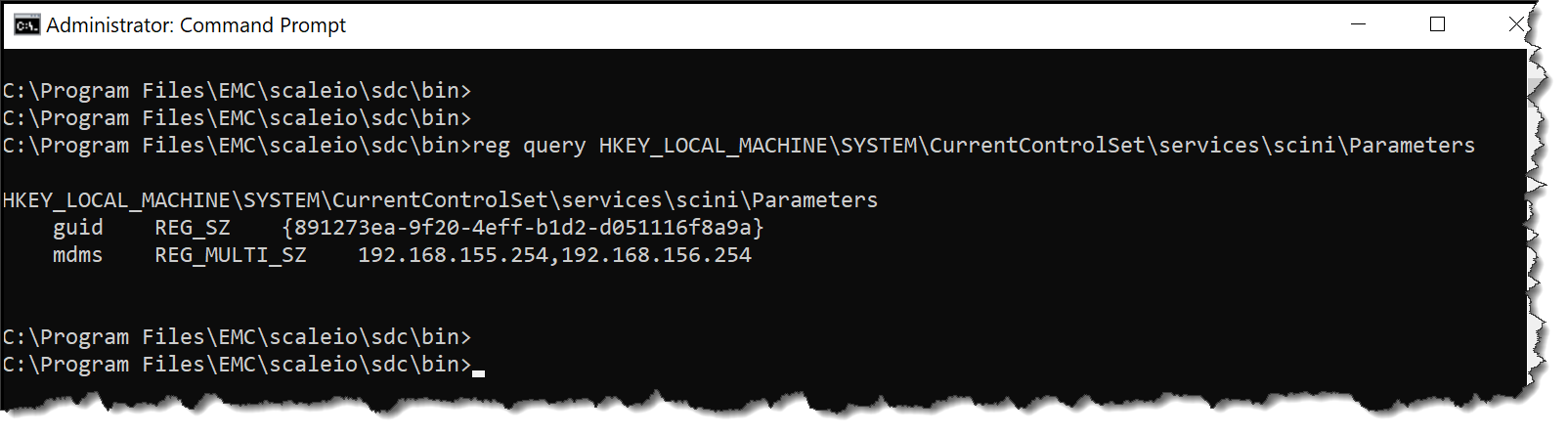
Important: Treat this as a read-only check. Do not edit the SDC registry values manually unless Dell documentation or support instructions for your version explicitly require it.
Confirm the Host Is Registered in PowerFlex Manager
4- In PowerFlex Manager, open Block -> Hosts and confirm that the Windows server appears as an SDC. In this lab, the host was identified by the SDC’s IP address, 192.168.255.3. Your host address will differ.
Before mapping a volume, confirm that the intended host is selected. A volume mapped to another host will not appear in this SDC’s volume list.
Check for Mapped PowerFlex Volumes
5- Checking available volumes from the Windows SDC:
C:\Program Files\EMC\scaleio\sdc\bin>drv_cfg.exe --query_volsIf no PowerFlex volumes are mapped to this SDC yet, an empty result is expected. The command reports active volume objects known to the SDC, including their PowerFlex volume IDs.
In this case, since we do not have volumes mapped to this SDC, it is normal to see no volumes here:

Go to the PowerFlex Manager –> Block –> Hosts and check if you see the new SDC. In this case, for instance, the SDC has the IP 192.168.255.3:

Create and map a new volume to this SDC:
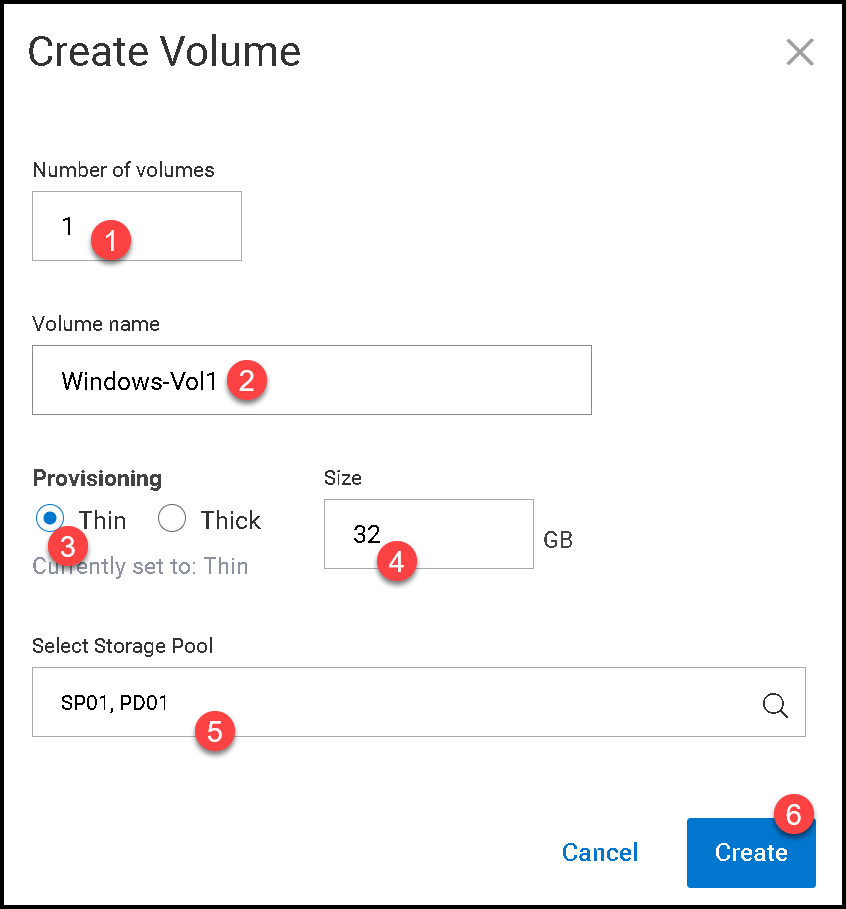
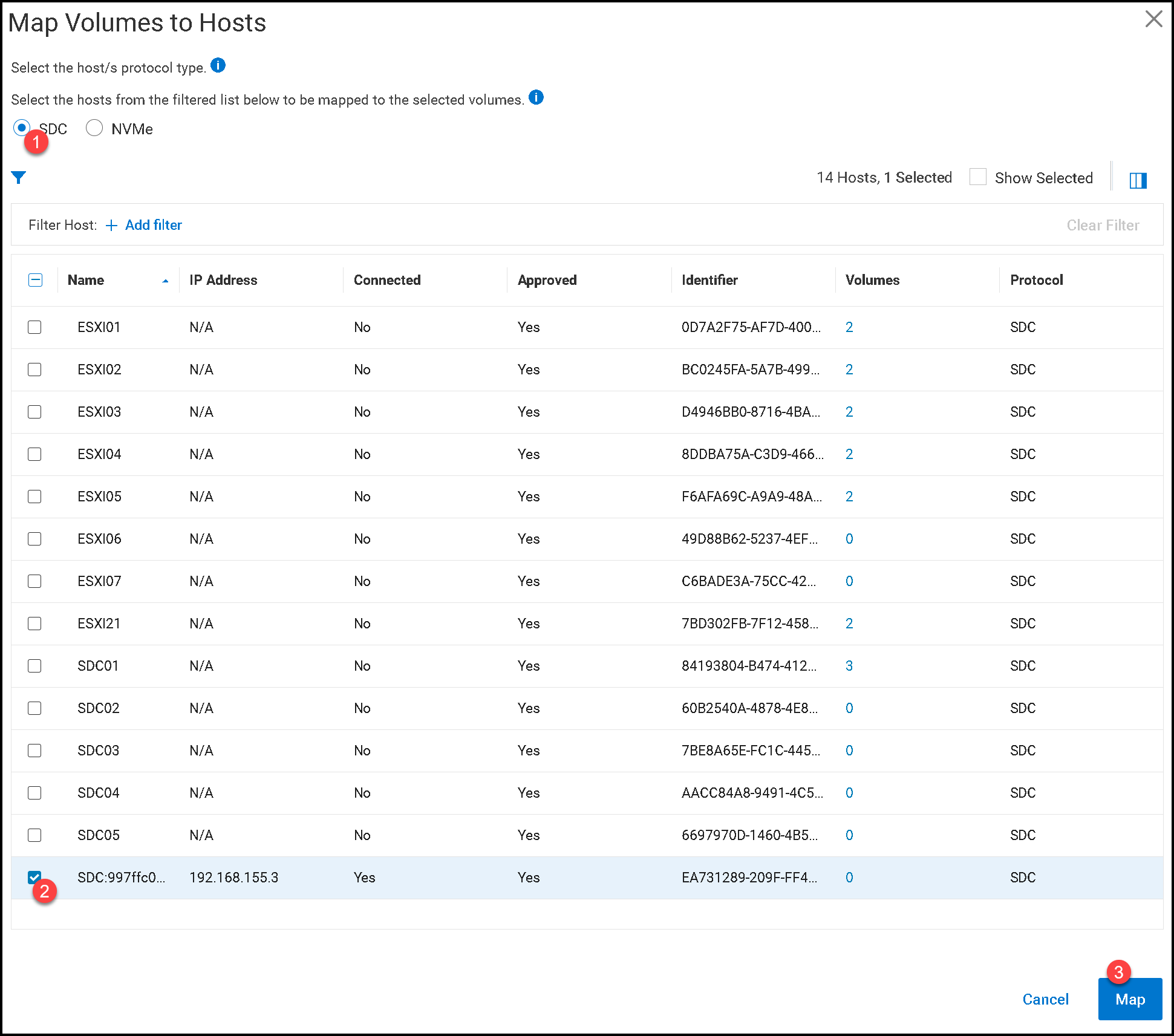
At the Windows (SDC) command line, check for available volumes:
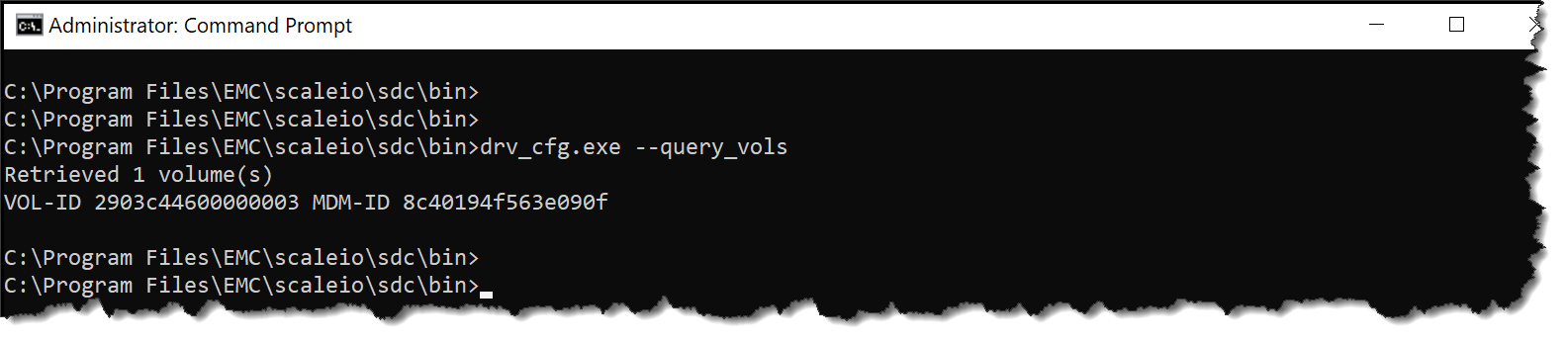
C:\Program Files\EMC\scaleio\sdc\bin>drv_cfg.exe --query_volsConfirm that the expected volume ID appears. If it does not appear immediately, verify the mapping target and SDC connectivity in PowerFlex Manager, then allow the SDC to detect the new volume and query again. Do not initialize a different disk based only on its position or size in Disk Management; match it to the volume you intended to map:
Prepare the New Disk in Windows Disk Management
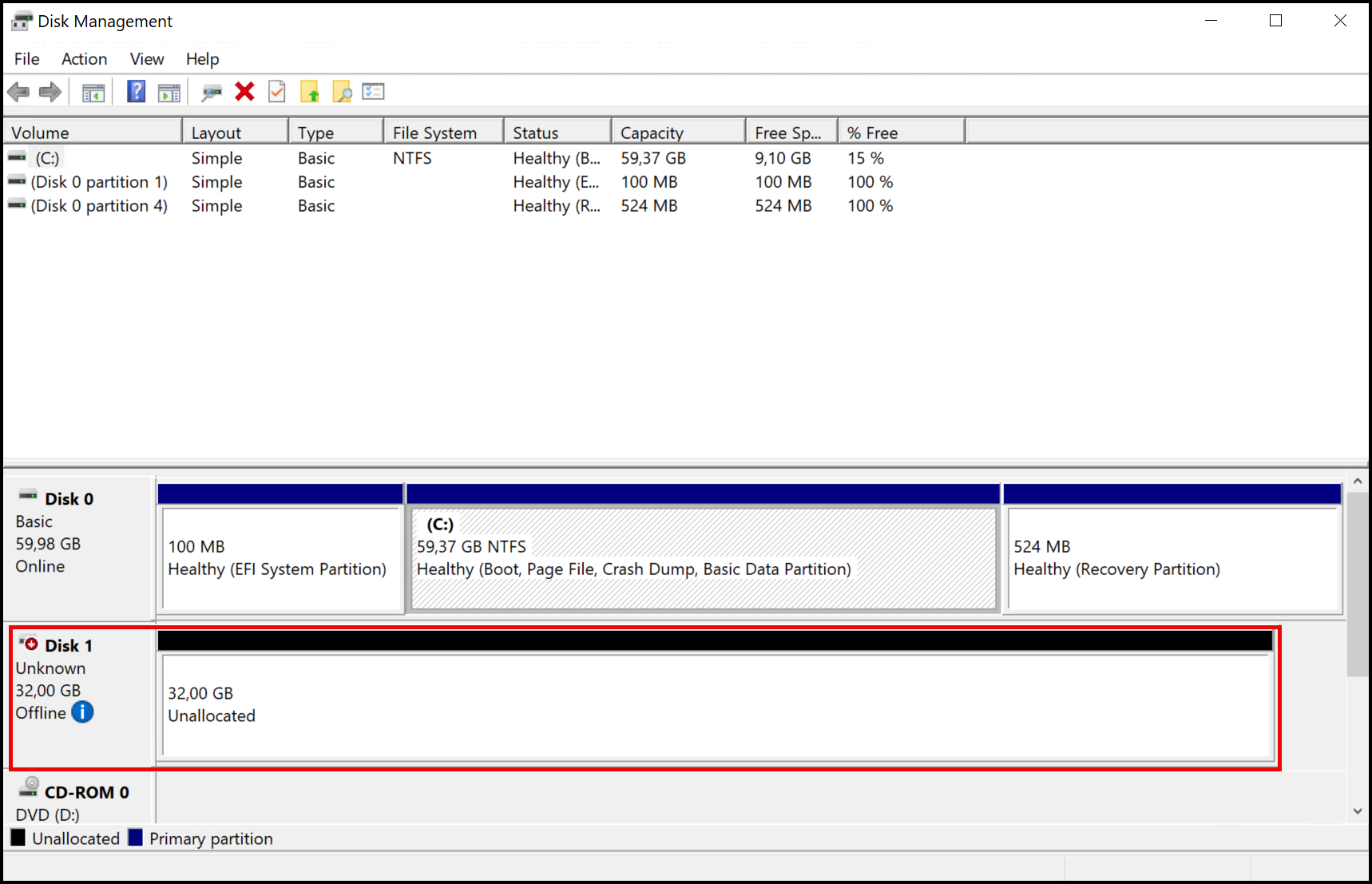
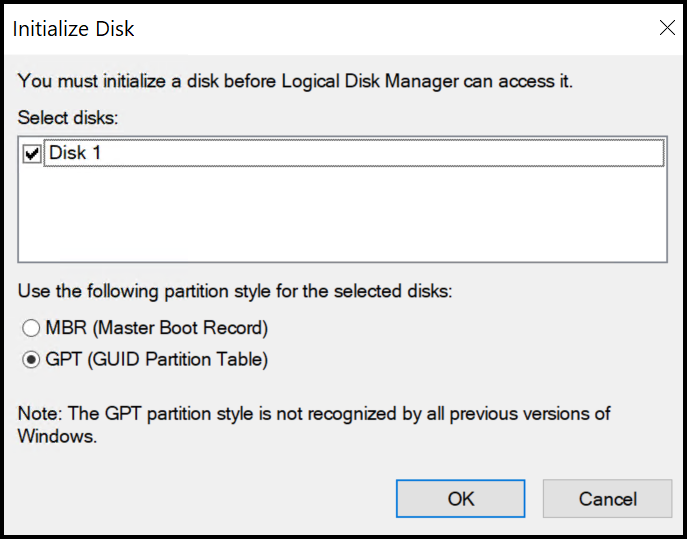
6- Open Disk Management with Administrator permissions. Locate the newly presented PowerFlex disk and verify that it is the correct disk before making changes.
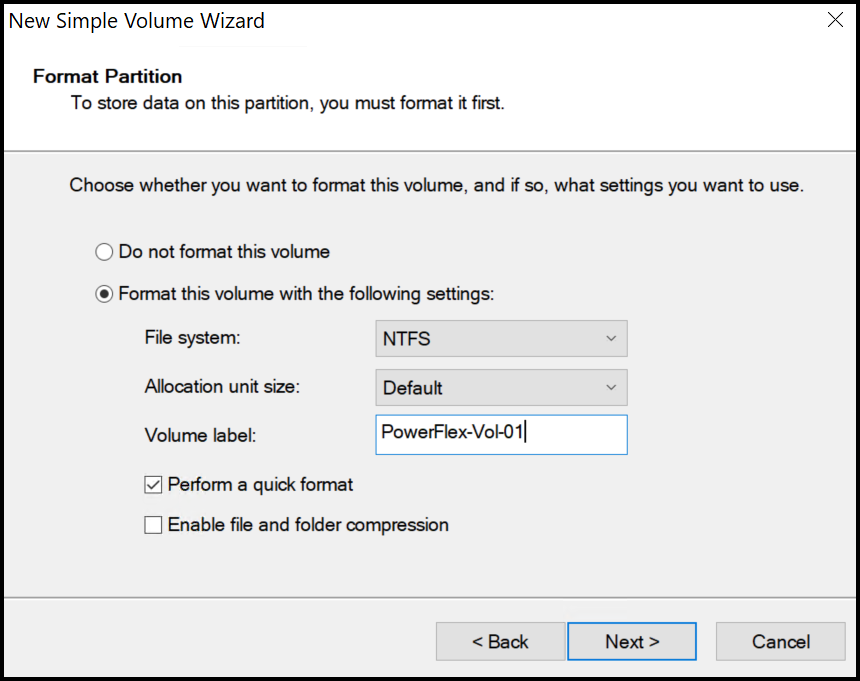
If the disk is a new, uninitialized volume with no data to preserve, bring it online if necessary, initialize it, and create a partition. GPT is the usual partition style for modern Windows systems and is required for disks larger than 2 TB. Create a new volume, assign a drive letter or mount path, and format it with the filesystem selected for your workload. In the lab, this step made the PowerFlex volume available to Windows.
Data-loss warning: Initializing a disk that already contains data can erase access to that data. If Windows reports that a disk already in use is uninitialized or asks you to initialize an unexpected disk, stop and verify the volume identity and its existing partition table before proceeding.

Confirm the Windows SDC Can Use the Volume
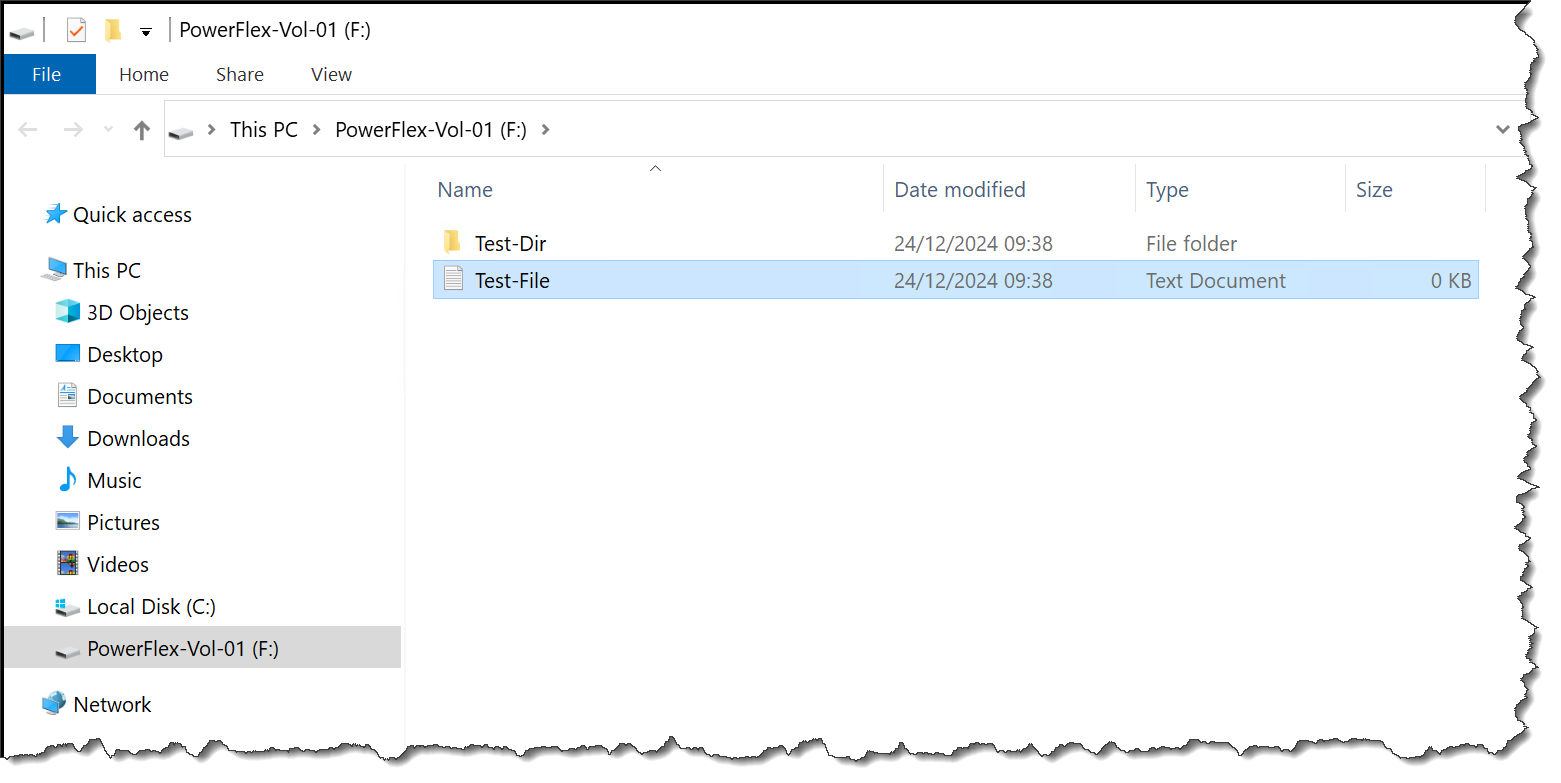
The installation is ready for the next step when drv_cfg.exe --query_mdms shows the expected MDM configuration, drv_cfg.exe --query_vols lists the mapped volume, and Disk Management shows the intended disk and its Windows volume.
In the lab, Windows Server 2022 Standard connected to a PowerFlex 4.5.2 cluster in a nested environment. For production, verify the exact SDC package and platform combination against Dell’s support matrix, protect any data already on the target disk, and schedule the reboot required for initial SDC installation.
External References
- Dell — PowerFlex 4.5.x Install and Upgrade Guide: Install SDC on a Windows-Based Server Provides the prerequisites and manual MSI command for connecting a Windows SDC to an existing PowerFlex system, and notes that the server must be rebooted to load the driver.
- Dell — PowerFlex 4.5.x CLI Reference Guide: Install a Windows SDC and Connect It to PowerFlex Confirms the MDM IP parameter format, the reboot requirement, and the next step of mapping volumes to a newly installed SDC.
- Dell — PowerFlex 4.5.x CLI Reference Guide: Query Volumes Using drv_cfg Describes how `drv_cfg` reports active volume objects known to the SDC and identifies the Windows utility location.
- Dell — PowerFlex 4.5.x CLI Reference Guide: Detecting New Volumes Explains that PowerFlex periodically scans for mapped volumes and that administrators can initiate a scan on an SDC to check for newly exposed volumes.
- Dell — PowerFlex Operating-System Support Matrix Lists supported operating-system and PowerFlex component combinations. Check the current entry and footnotes for the exact Windows Server release and SDC version.
- Microsoft Learn — Initialize New Disks Explains how to initialize a new disk, select GPT or MBR, create a volume, and assign a drive letter. It warns that initializing a disk already in use can erase its data.
