

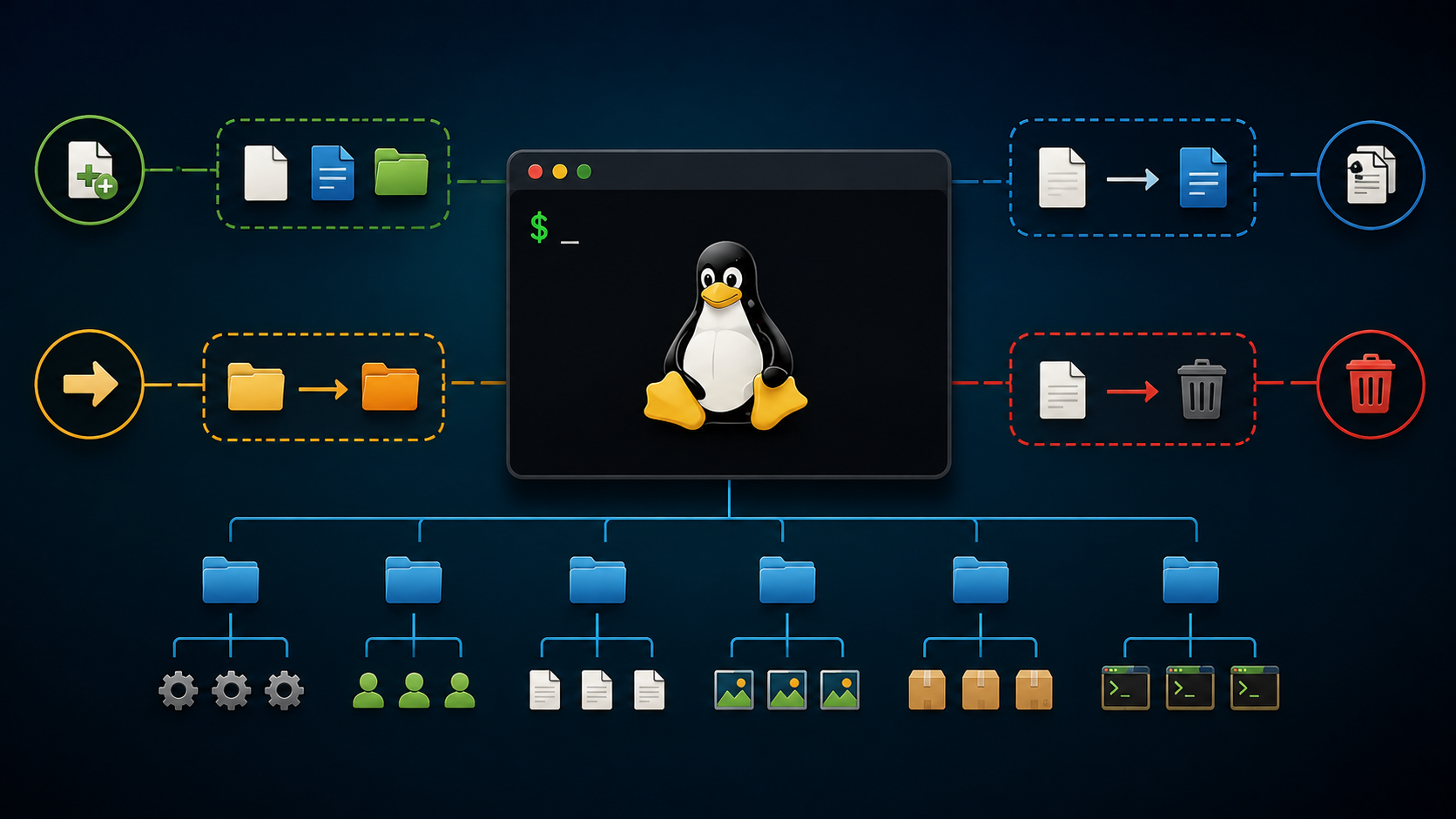
Managing Files from the Command Line provides an introduction to managing files using the command line on a Linux system. We’re using Red Hat Enterprise Linux (RHEL) 10; however, all instructions are compatible with any Linux distribution.
Creating, copying, moving, and removing files and directories are common and essential operations for a Linux system administrator. We will provide some examples of how to complete each task effectively.
Creating Files
In any Linux system, there are many ways to create a file. We will pinpoint some examples of that:
- Use the command cat or echo to redirect the output to a file.
- Use a command-line text editor, such as vi, vim, or nano.
- Alternatively, use the command touch (note that touch is used to update the file timestamp; if the file does not exist, it creates an empty file).
Examples:
1- Creating files using the cat and echo commands, redirecting the commands’ output to a new file:
cat /etc/passwd > /root/passwd.txt
echo "myfile" > /root/myfile.txt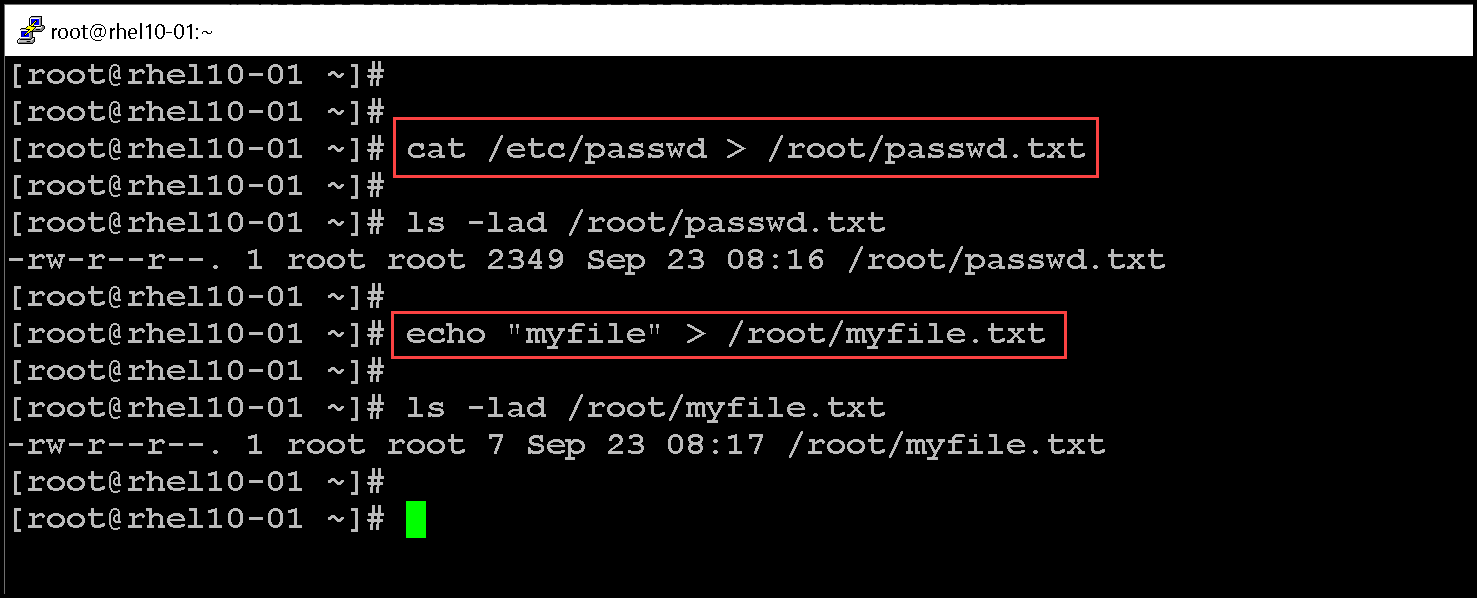
2- Creating a file using the command-line text editor vi:
vi /root/vi-file.txt
<type the file content here>
ESC :wq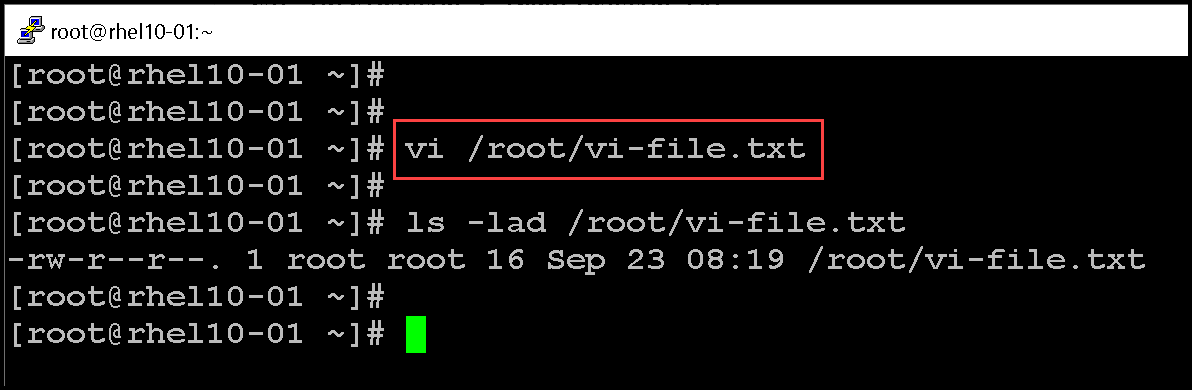
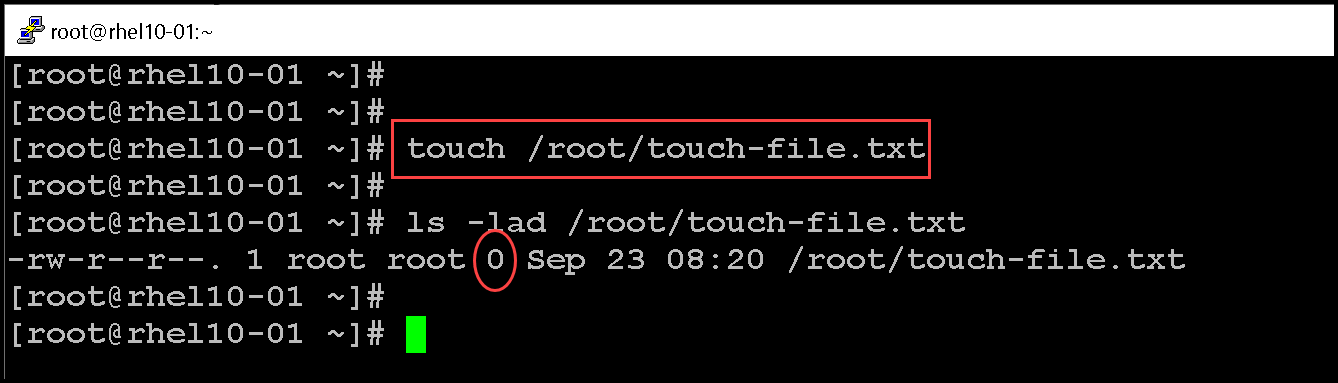
3- Creating an empty file using the touch command:
touch /root/touch-file.txtLook at the file size (it’s 0, because the file is empty):
Creating Directories
The mkdir command is used to create directories and subdirectories. Let’s provide some examples:
1- Create a directory under the root’s home directory:
mkdir test-dir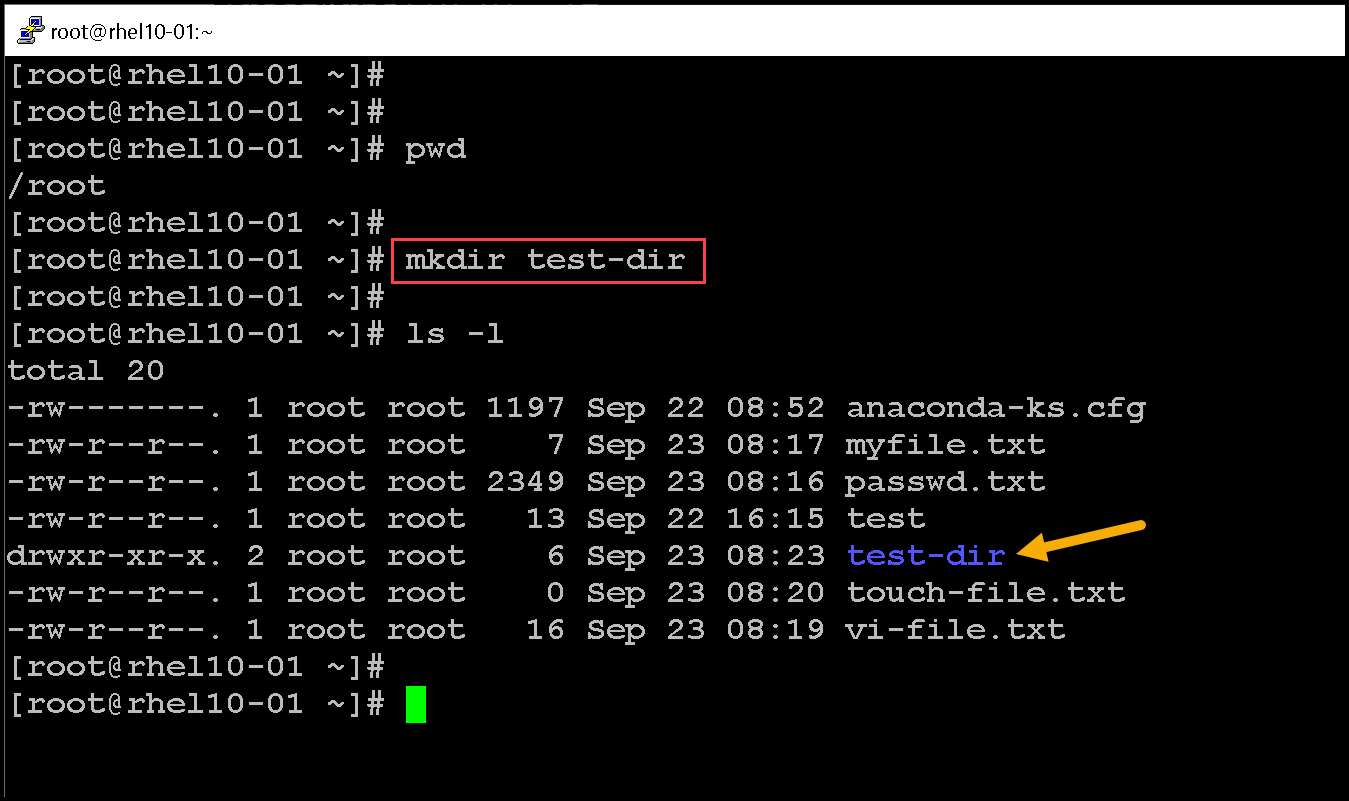
As we can see, the “test-dir” directory was created successfully.
Before proceeding, I believe it’s essential to address a crucial point. Analyzing the “ls -l” output, each directory is represented by the letter “d” in the first column in the permission section. In the same way, a normal file is defined by the character “-“ in the first column in the permission section.
Let’s take a look at the following example:
- The “test-dir” is a directory.
- The “touch-file” is a file.
drwxr-xr-x. 2 root root    6 Sep 23 08:23 test-dir
-rw-r--r--. 1 root root    0 Sep 23 08:20 touch-file.txt
2- Creating multiple directories using one command:
mkdir dir1 dir2 dir3 dir4 dir5 dir6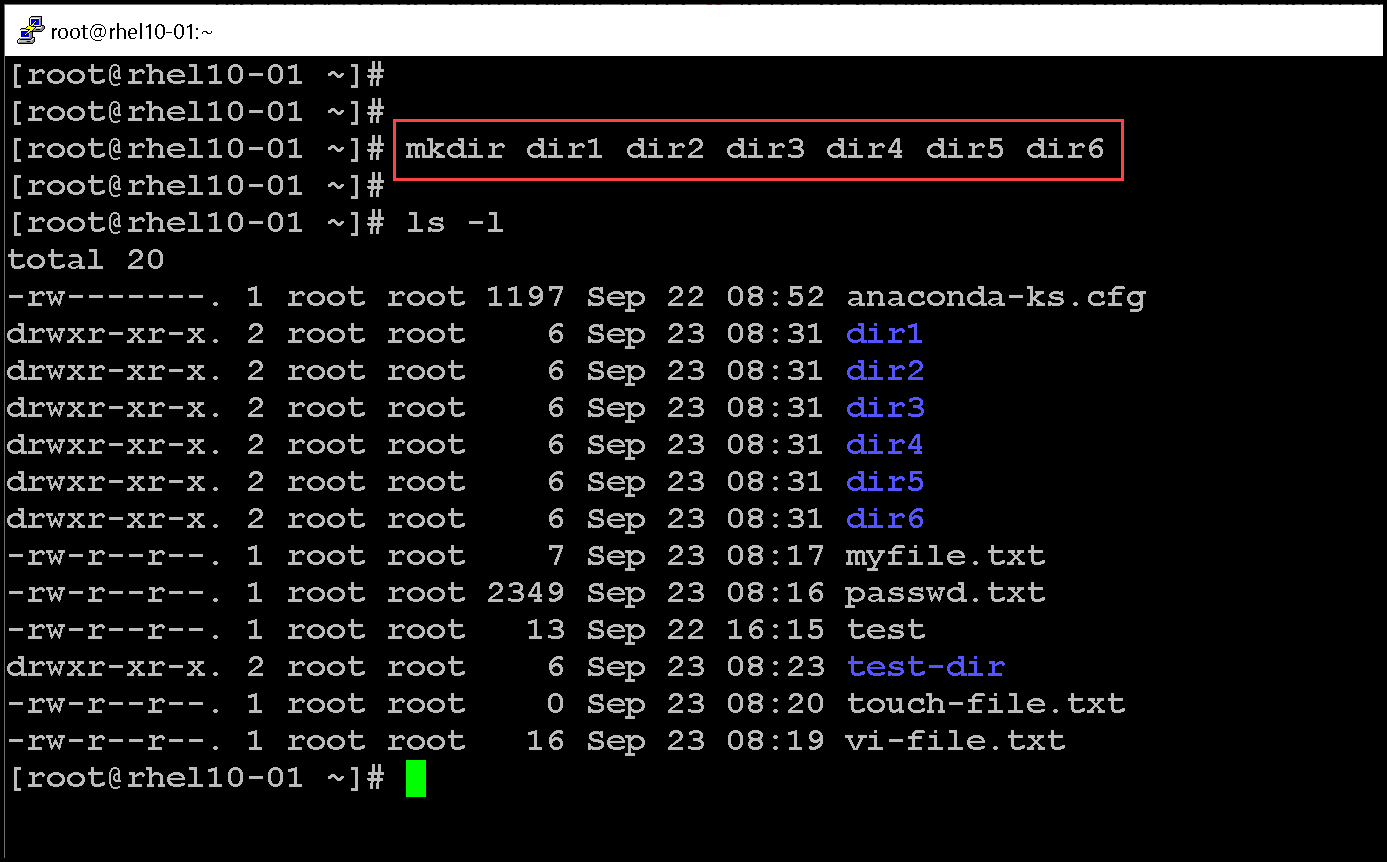
If you try to create an existing directory, the mkdir command will fail, and an error will be shown:

3- Creating a new directory with a lot of new subdirectories.
To accomplish it, we must use the option “-p” (parent) – this option will tell mkdir to create the parent directory if it does not exist:
mkdir -p dir10/subdir1/subdir2/subdir3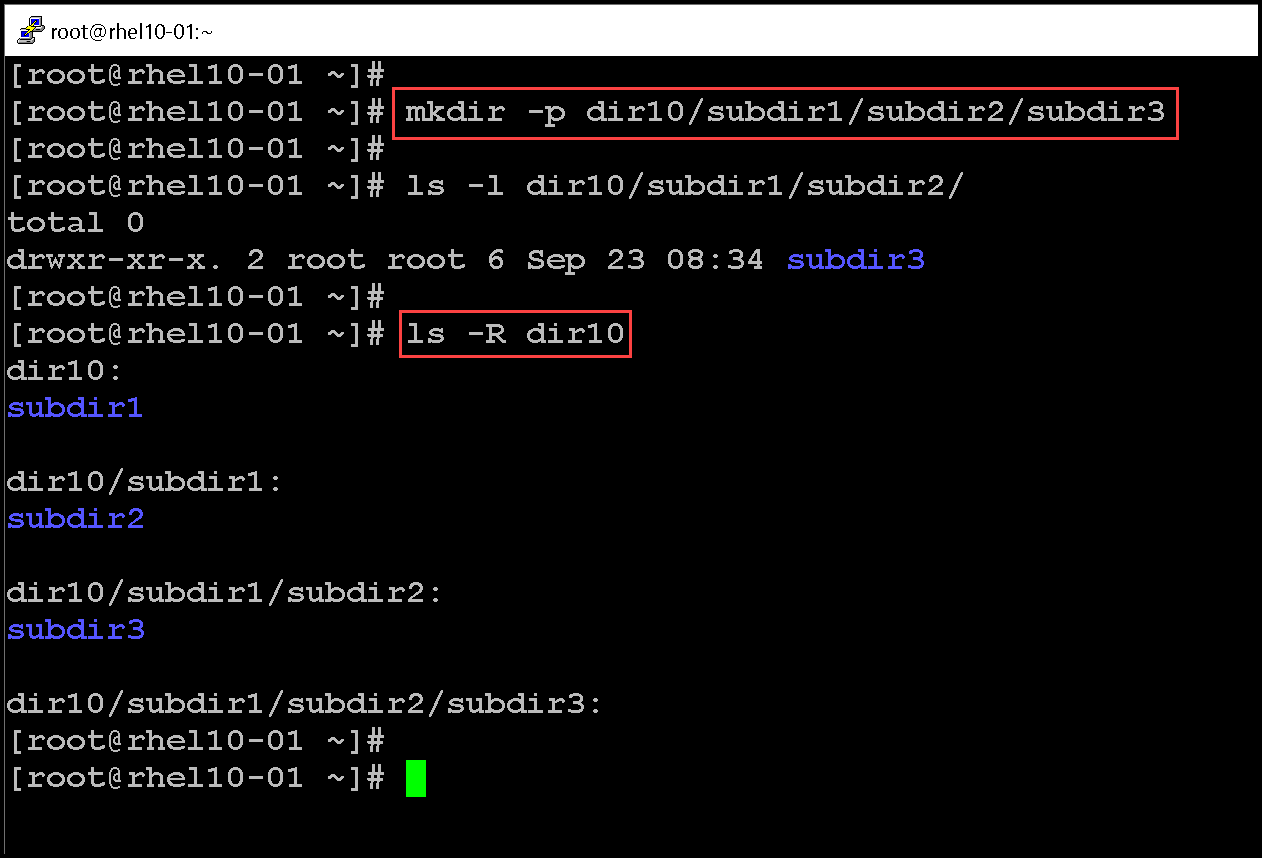
Copying Files and Directories
The cp command copies a file and creates a new file in either the current directory or a specified directory. Let’s provide some examples:
1- Creating a test.txt file in the root home directory and copying it to the /tmp directory:
touch test.txt
cp test.txt /tmp/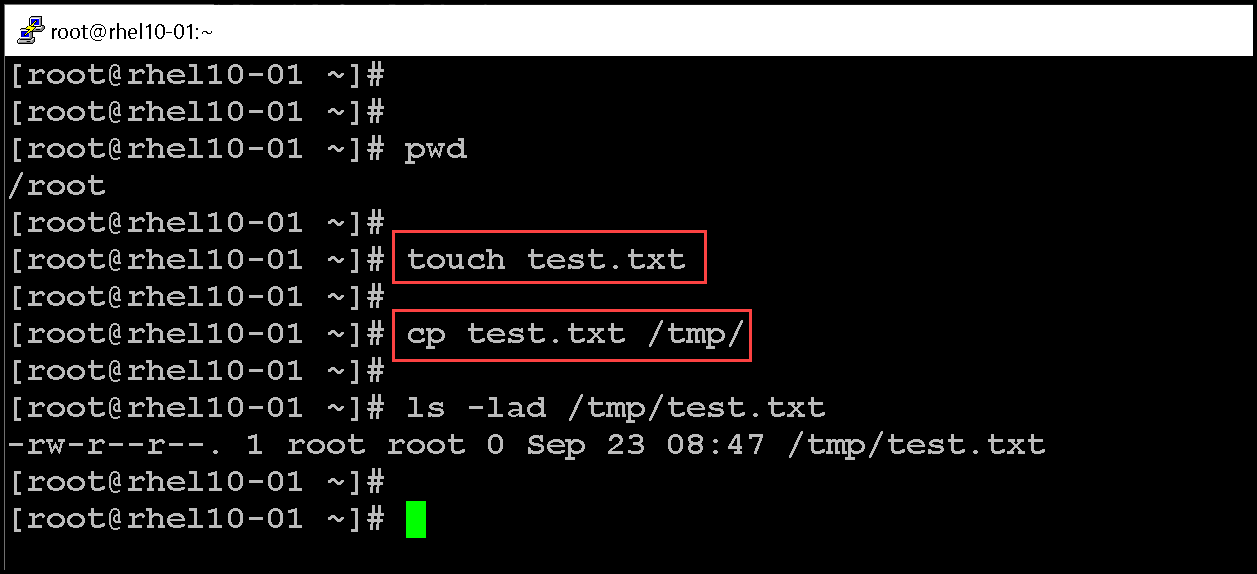
2- The cp command can be used to copy multiple source files to a destination directory.
Let’s create multiple files and copy them to the /tmp directory:
touch test1.txt test2.txt test3.txt
cp test1.txt test2.txt test3.txt /tmp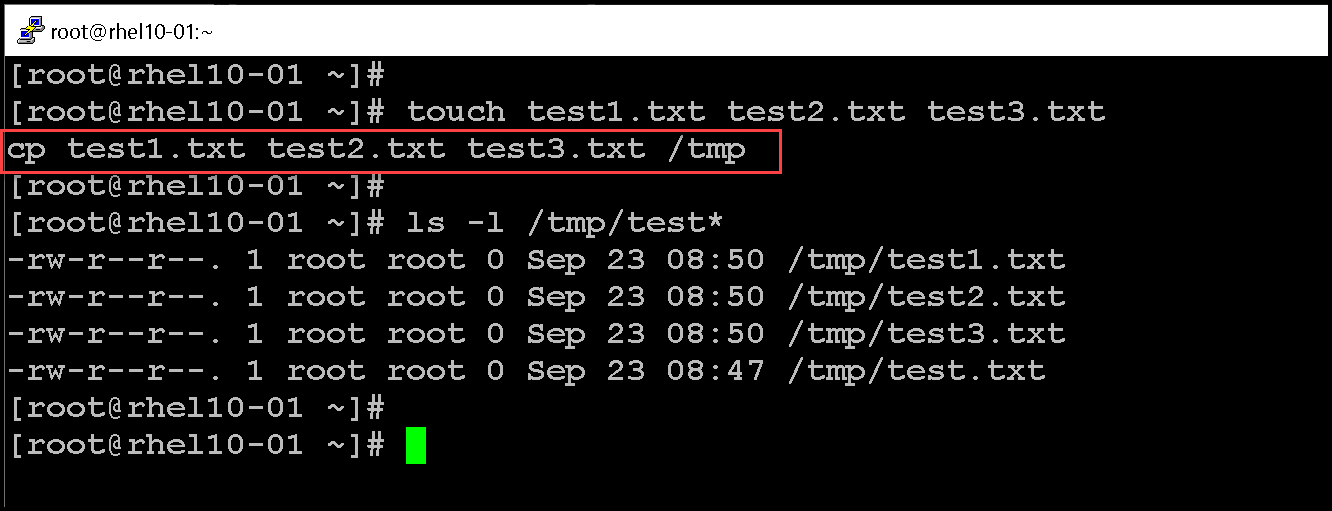
3- With the cp command, we can copy a file to the same directory:
cp test1.txt test1-copy.txt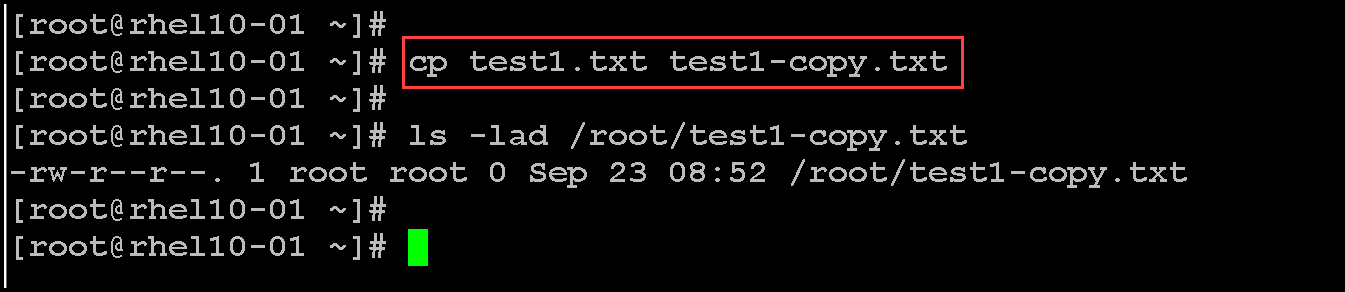
Note: By default, the cp command does not copy directories; it ignores them.
4- We can copy directories and their contents by using the cp command with -r option. Keep in mind that you can use the . and .. special directories in command combinations. In the following example, the Dir1000 directory and its contents are copied to the /tmp directory:
mkdir Dir1000
touch Dir1000/test1.txt Dir1000/test2.txt Dir1000/test3.txt
cp -r Dir1000/ /tmp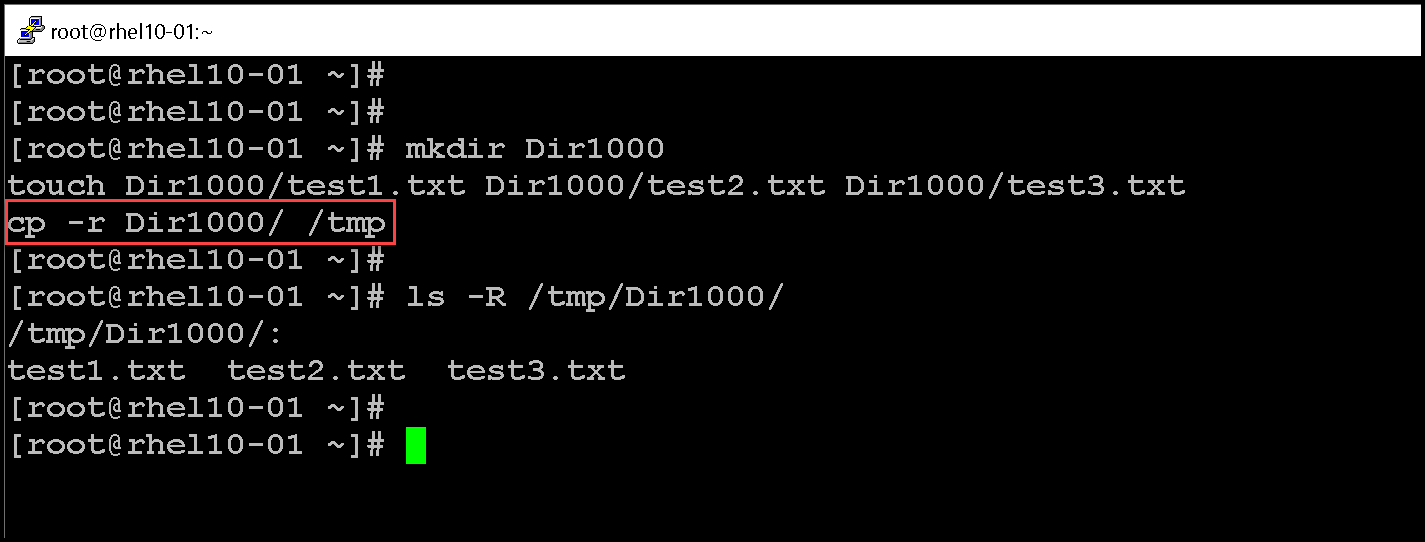
Renaming and Moving Files and Directories
If you think of the absolute path to a file as its full name, then moving a file is effectively the same as renaming a file. The mv command moves files from one location to another. The contents of the files that are moved remain unchanged. Also, we can use the mv command to rename a file.
1- Let’s rename the file test1.txt to test1-renamed.txt in the same directory:
mv test1.txt test1-renamed.txt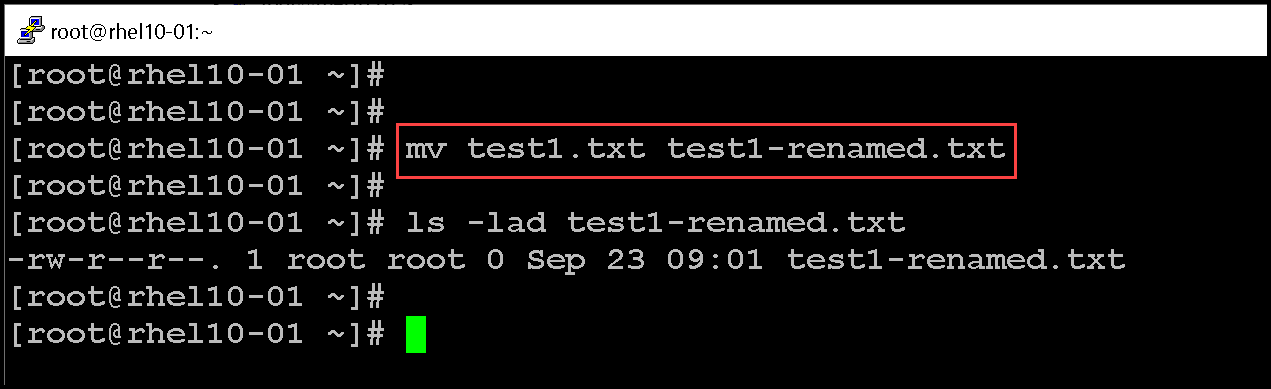
2- Let’s move the file test1-renamed from the root home directory to /tmp:
mv test1-renamed.txt /tmp/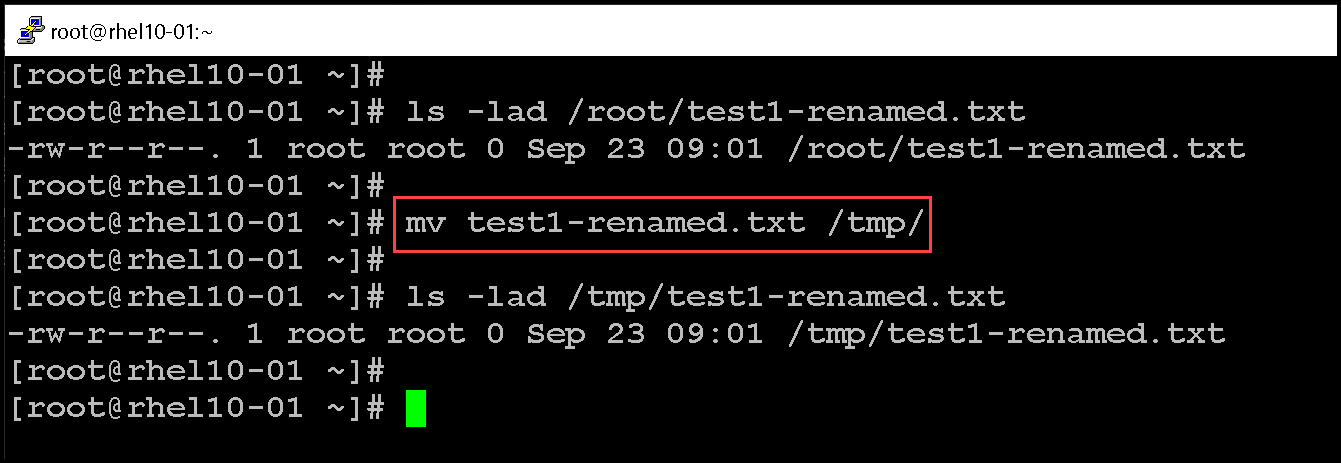
Removing Files and Directories
The rm command removes files. By default, rm does not remove directories. You can use the rm command with -r option or the --recursive option to enable the rm command to remove directories and their contents. The rm -r command traverses each subdirectory first and individually removes their files before removing each directory.
1- Let’s remove the file test1-copy.txt. By default, a confirmation will be asked before removing the file – we must type “yes” to confirm the file removal:
rm test1-copy.txt
2- To remove a file without being asked for some confirmation, we need to use the “-f” option:
rm -f myfile.txt
3- To remove a directory and its content, we need to use the option “-r”. Let’s provide an example:
rm -rf Dir1000/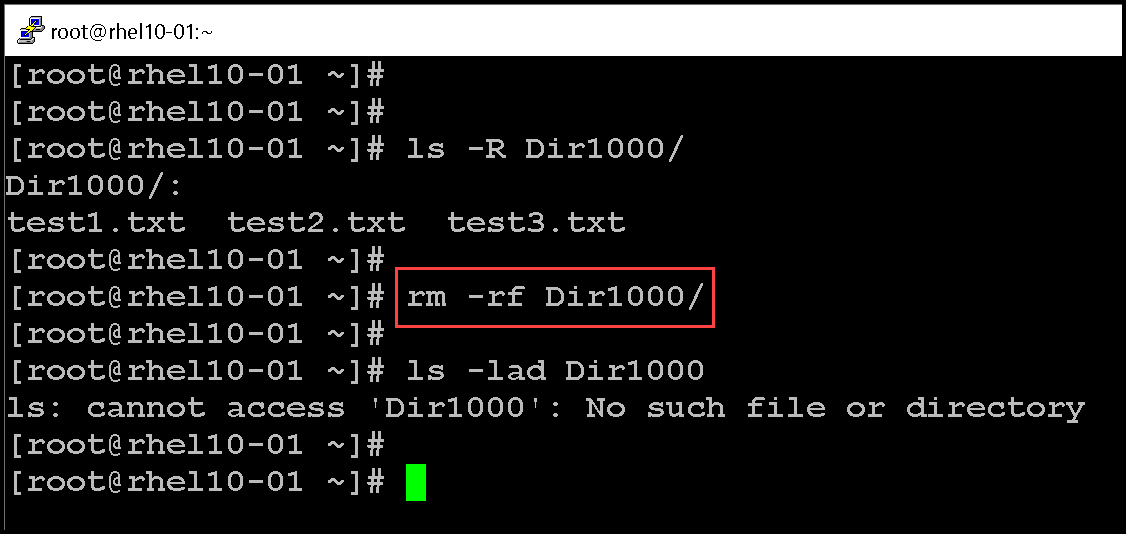
Important: Be careful with the “rm” command. Red Hat Enterprise Linux and other Linux distributions do not offer a way to undo deletions, nor a “trash bin” from which you can restore files held for deletion. A trash bin is a component of a desktop environment such as GNOME, but is not used by commands that are run from a shell.
That’s it for now 🙂
