

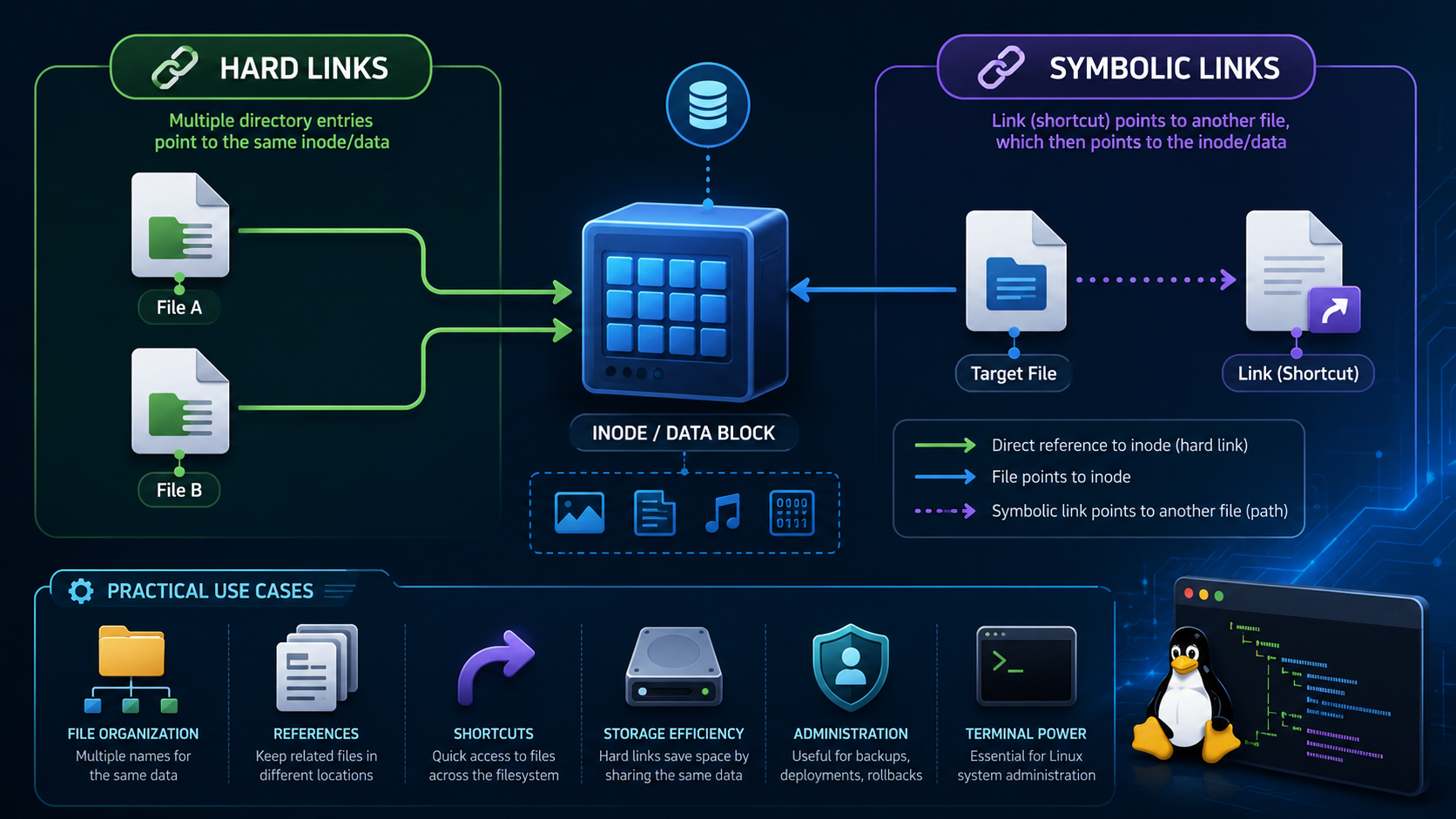
Creating links between files in Linux is an important task for system administrators who need to manage files efficiently. This article explains how hard links and symbolic links work, including their differences and practical usage examples.
All examples in this guide are demonstrated using Red Hat Enterprise Linux 10, but the concepts and commands can be applied to any Linux distribution. Understanding file links helps administrators organize data and manage file references more effectively.
In Linux, a link is an additional file name that points to existing data stored on the file system. There are two main types of links: hard links and symbolic links, also known as soft links, and each one has specific characteristics and use cases.
First and foremost: What is a link?
We can create multiple file names that point to the same file. These file names are called links. We can create two types of links:
- A hard link or a symbolic link (sometimes called a soft link).
- Each type of link is valid for different use cases.
What are Hard Links?
Every file starts with a single hard link, from its initial name to the data on the file system. When we create a hard link to a file, we create another name that points to that same data. The new hard link acts exactly like the original file name. After the link is created, we cannot distinguish between the new hard link and the original file name.
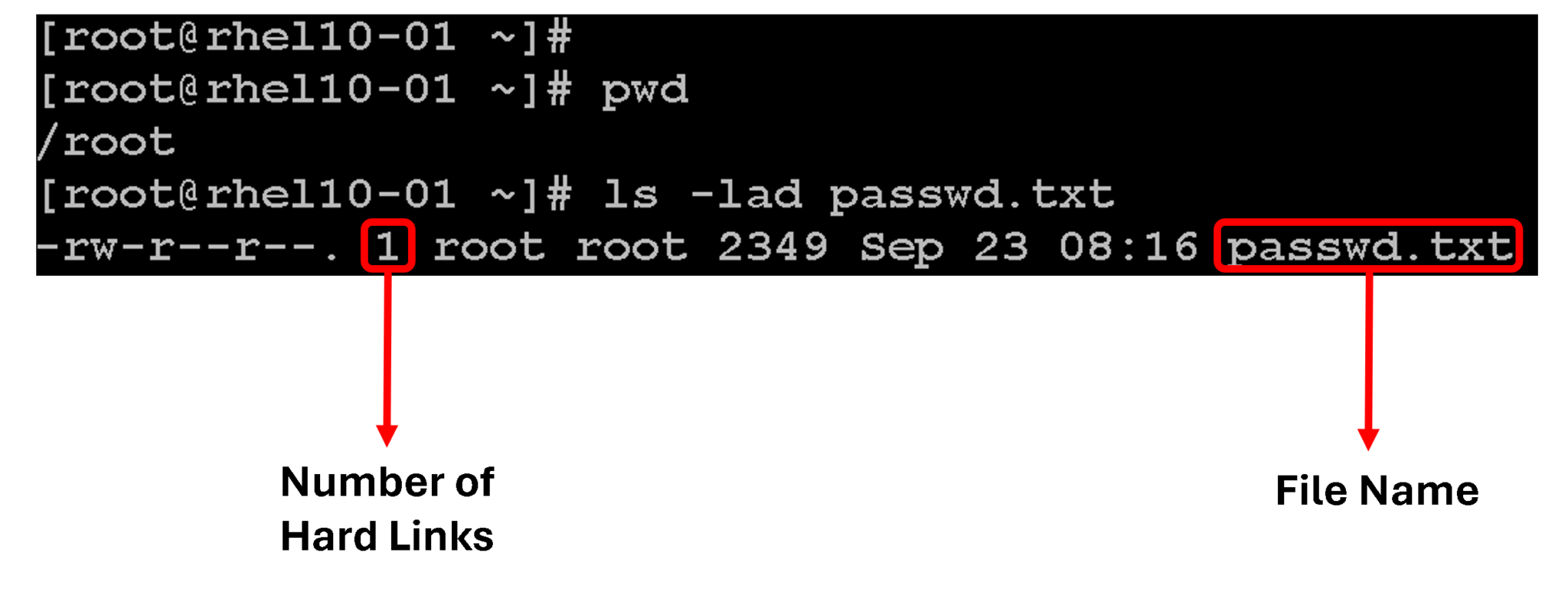
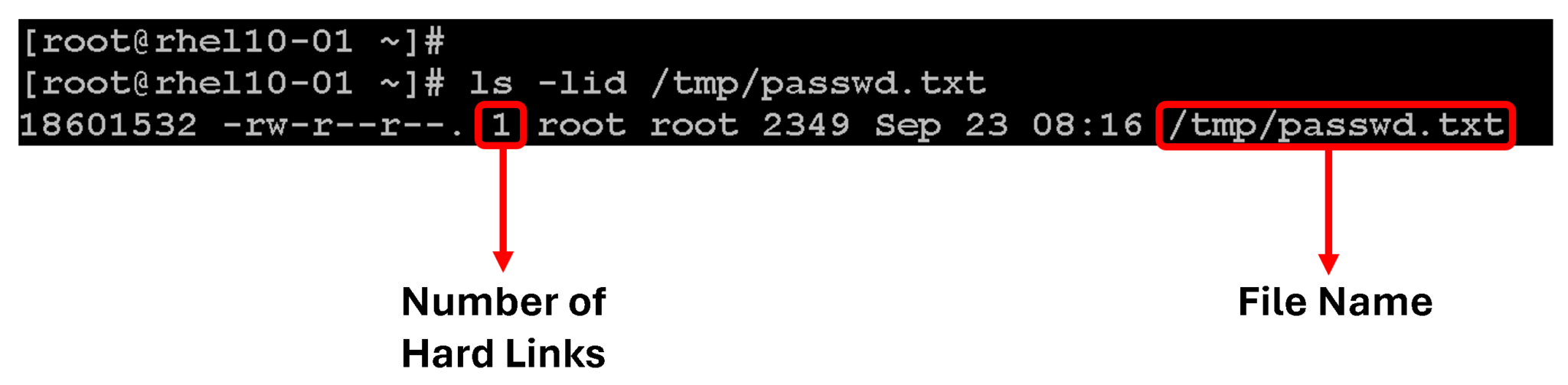
We can determine whether a file has multiple hard links by using the “ls -l” command. Let’s take a look at the following example – the file “passwd.txt” has one hard link, as we can show in the following picture:
We can use the ln command to create a hard link (another file name) that points to an existing file. The command needs at least two arguments: a path to the existing file, and the path to the hard link that you want to create.
Let’s provide an example:
- The passwd.txt is the original file.
- The /tmp/passwd.txt is the hard link created from the passwd.txt file.
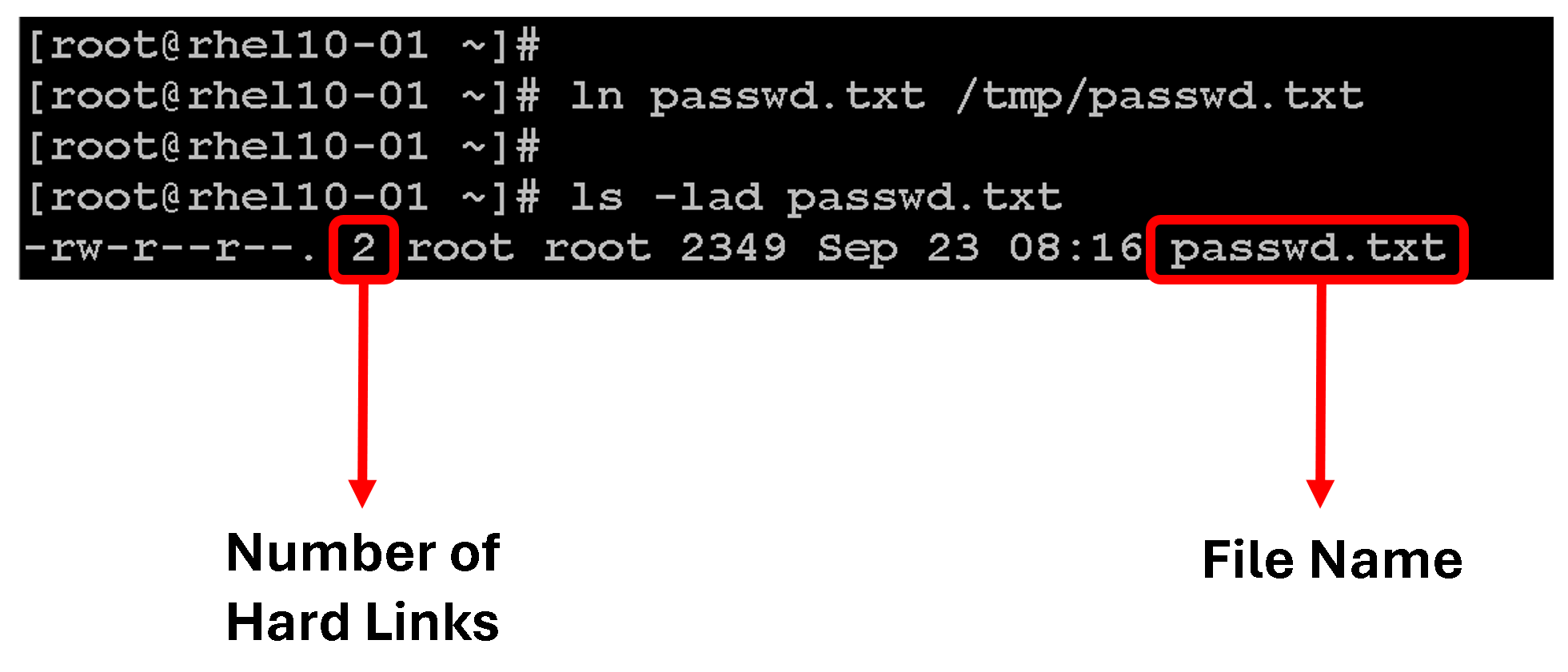
ln passwd.txt /tmp/passwd.txtAfter creating the hard link, we can confirm that the original file has two hard links, as we can see in the following example:
To determine whether two files are hard-linked, use the ls command -i option to list each file’s inode number. If the files are on the same file system and their inode numbers are the same, then the files are hard links that point to the same data file content.
In the following example, you can verify that the passwd.txt and the /tmp/passwd.txt files share the 18601532 inode number in the first column of the ls -il command:
ls -ldi passwd.txt /tmp/passwd.txt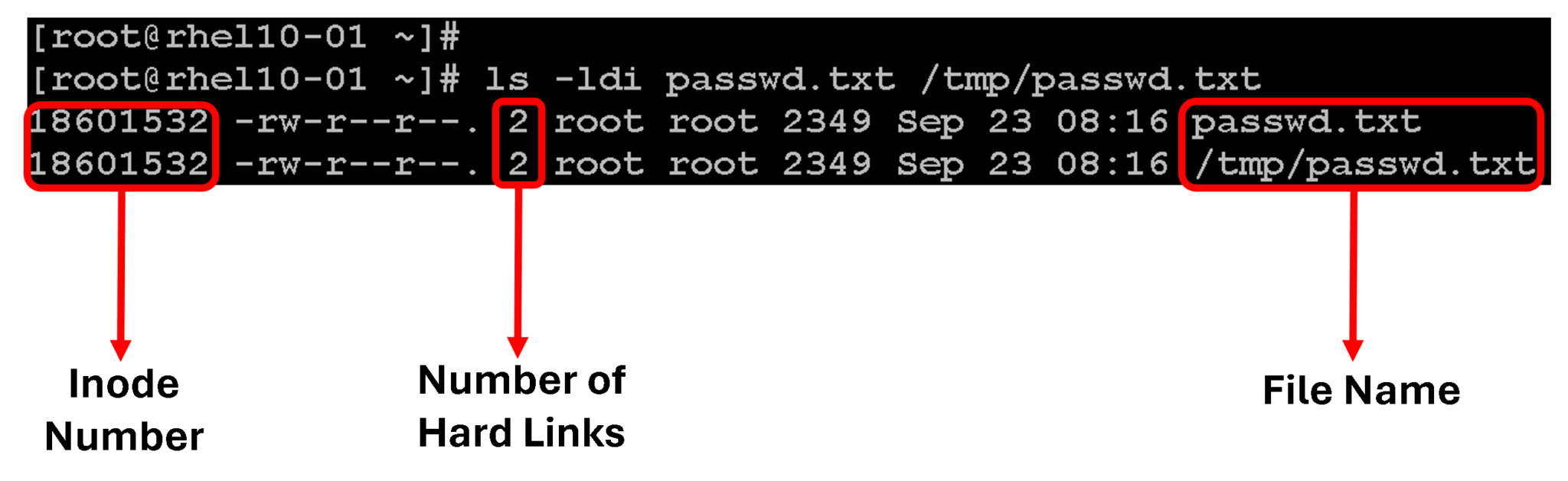
Important:
Hard links that reference the same file share the inode structure with the link count, access permissions, user and group ownership, time stamps, and file content.

When that information is changed for one hard link, the other hard links for the same file also show the new information. This behavior is because each hard link points to the same data on the storage device!
Even if the original file is deleted, we can still access its contents, provided that at least one other hard link exists. Data is deleted from storage only when the last hard link is deleted, which makes the file contents unreferenced by any hard link.
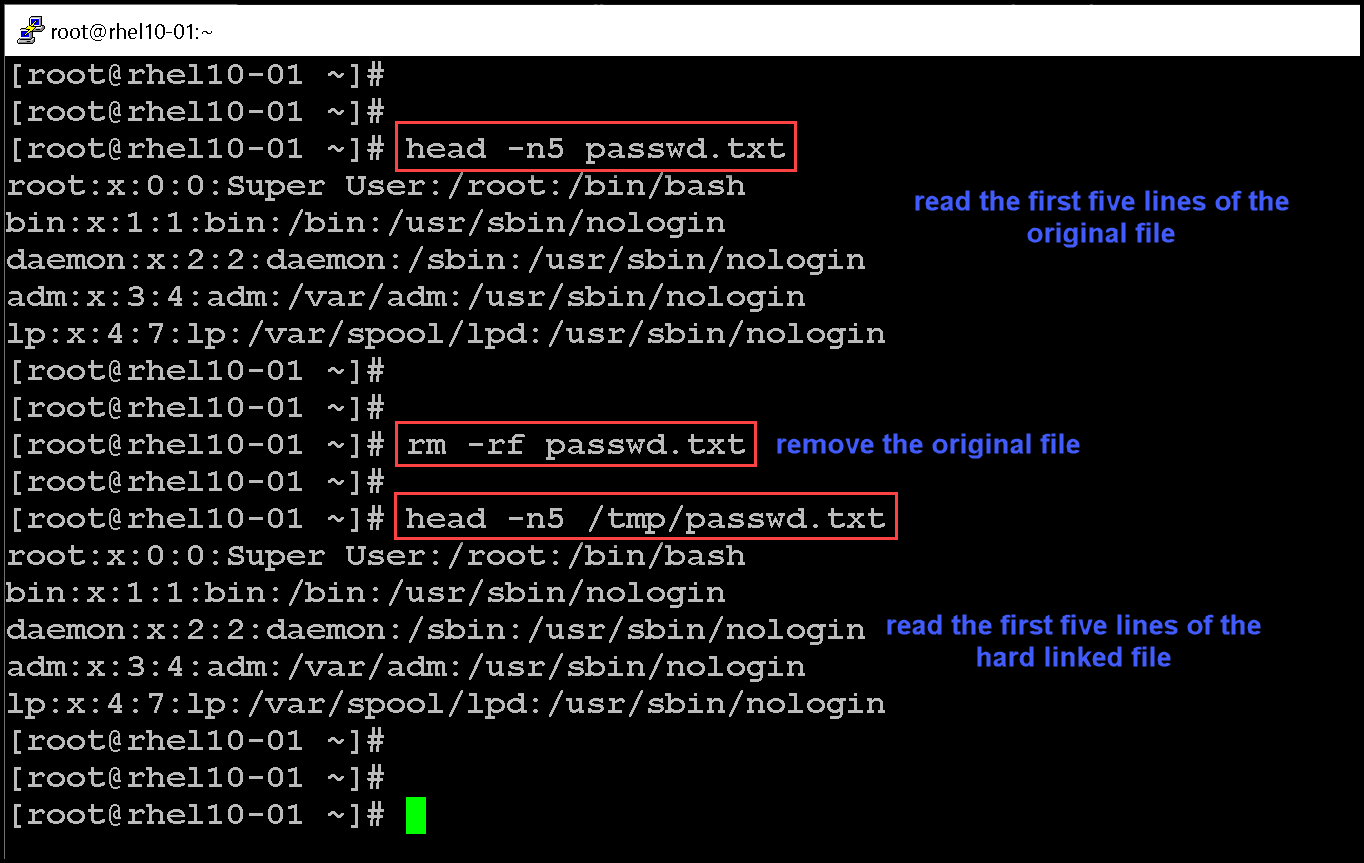
So, using our previous example, if we delete the original file passwd.txt, we continue accessing the file’s content by using the hard link file:
After removing the original file, we can confirm that the hard-linked file has the same inode number and the number of hard links is one:
Limitations of Hard Links
- Hard links can only be used with regular files. We cannot use the ln command to create hard links pointing to directories or special files.
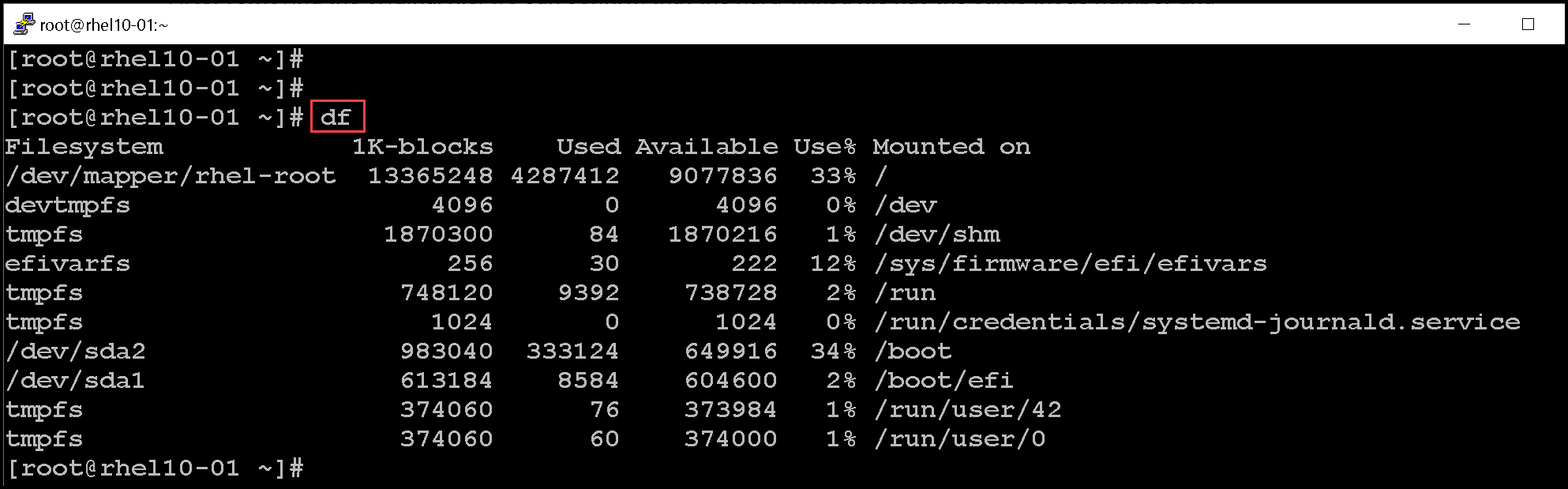
- Hard links can only be created if both files are located on the same file system. The “df” command can be used to list all file systems and their mount points:
If we try to create a hard link using different file systems, we will receive an error like the following:

What are Symbolic or Soft Links?
The ln command -s option creates a symbolic link, which is also called a soft link. A symbolic link is not a regular file. It is a special type of file that points to an existing file or directory.
Symbolic links have some advantages over hard links:
- Symbolic links can link two files on different file systems.
- Symbolic links can point to a directory, a special file, or a regular file.
In the following example, the ln -s command creates a symbolic link for the /root/passwd.txt file. The name for the symbolic link is /tmp/passwd-symlink.txt:
ln -s /root/passwd.txt /tmp/passwd-symlink.txtTo confirm the soft link:
ls -l /tmp/passwd-symlink.txt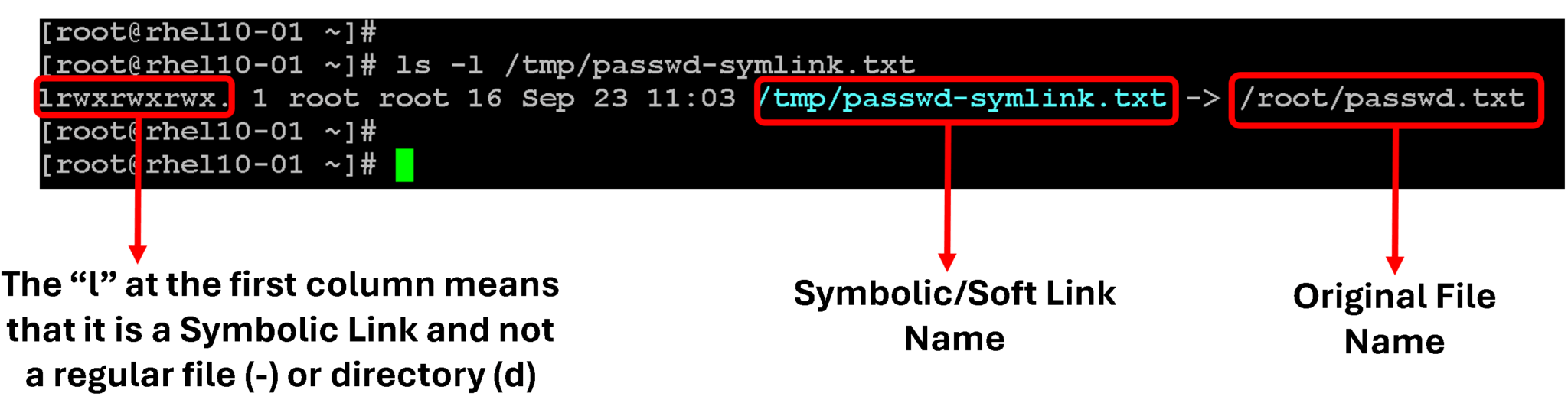
When the original regular file is deleted, the symbolic link still points to the file, but the target file is no longer accessible. A symbolic link that points to a file that no longer exists is called a dangling symbolic link:
rm -f /root/passwd.txt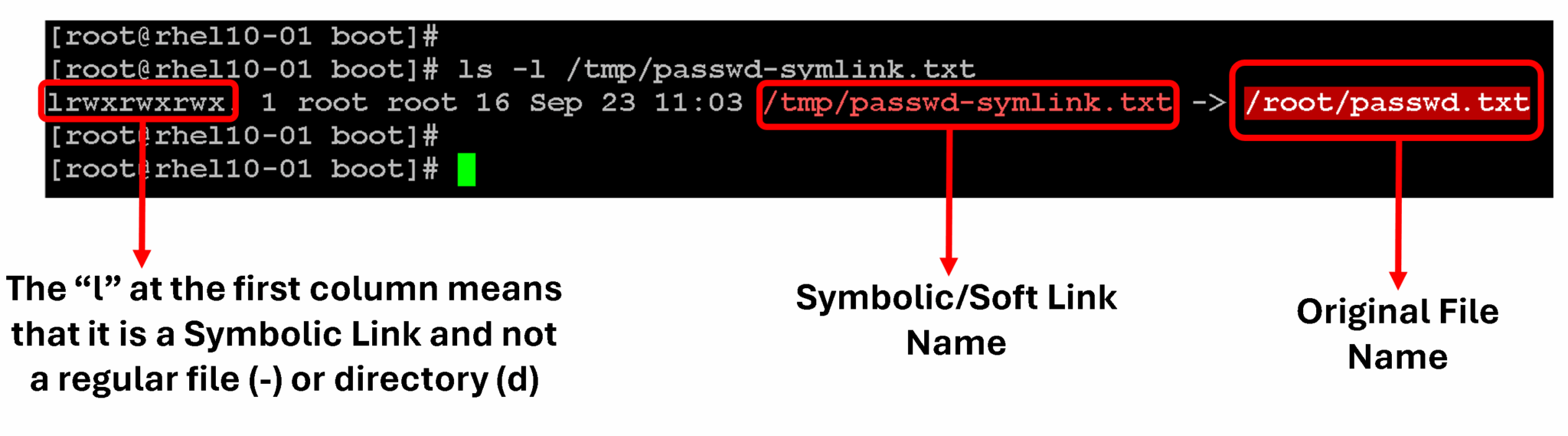
Consider the following way to compare hard links and symbolic links, to understand how they work:
- A hard link points a name to data on a storage device.
- A symbolic link points a name to another name, which points to data on a storage device.
As we mentioned earlier, a symbolic link can point to a directory. The symbolic link then acts like the directory. If you use the cd command to change to the symbolic link, then the current working directory becomes the linked directory. Some tools might track that you followed a symbolic link.
For example, by default, the cd command updates your current working directory by using the name of the symbolic link rather than the name of the actual directory. If you want to update the current working directory by using the name of the actual directory, then you can use the -P option.
The following example creates a symbolic link named /home/user/configfiles that points to the /etc directory:
user@host:~$ ln -s /etc /home/user/configfiles
user@host:~$ cd /home/user/configfiles
user@host:~/configfiles$ pwd
/home/user/configfiles
user@host:~/configfiles$ cd -P /home/user/configfiles
user@host:/etc$ pwd
/etc
That’s it for now 🙂
