
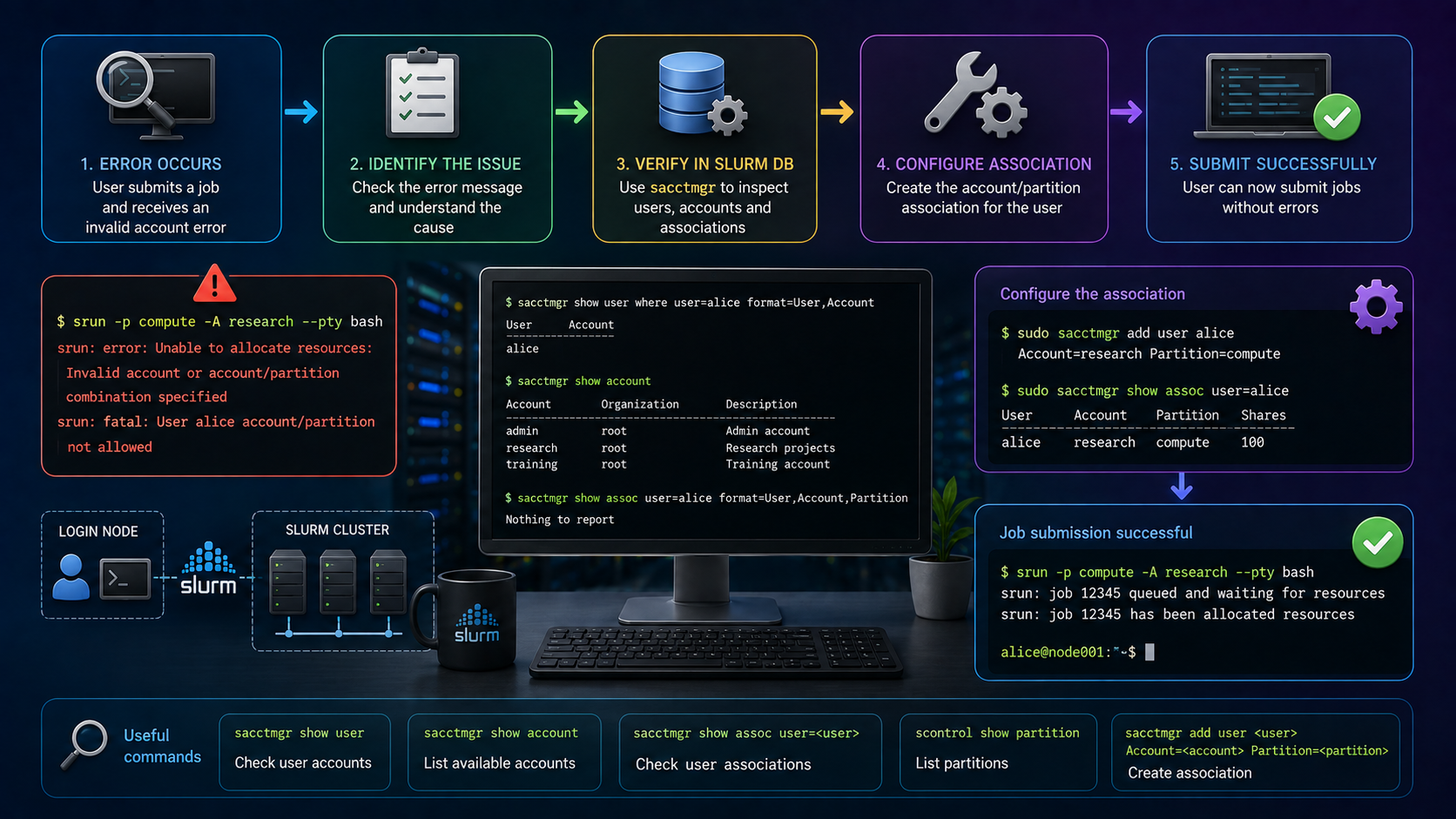
The Slurm Invalid account or account/partition combination specified error usually means that the user submitting the job does not have a valid Slurm accounting association for the requested cluster, account, and, when applicable, partition.
I encountered this problem while testing job submission in my Slurm lab. The Linux user existed normally on the login and compute nodes, and the shared home directory was available, but srun still rejected the job.
The problem was not the Linux account itself. The user was missing from the Slurm accounting associations managed through slurmdbd.
In this guide, I will show how to identify the association used by a job, inspect the user and account configuration with sacctmgr, create the missing association, and verify why AccountingStorageEnforce=associations causes Slurm to reject invalid account combinations.
If you are still getting familiar with srun, sbatch, and salloc, see “Slurm Job Submission: Practical Guide to srun, sbatch, and salloc“.
Let’s Talk About the Error
So, I was testing my Slurm cluster submiting some jobs, and I got the following error:

As we can see:
- I was logged in as root into the login node (hpclogin01).
- I changed to “user15” from root.
- And I used the “srun” command to submit a job.
From the login node, the user can submit a job to the cluster. In the following picture, we can see our Slurm cluster topology:
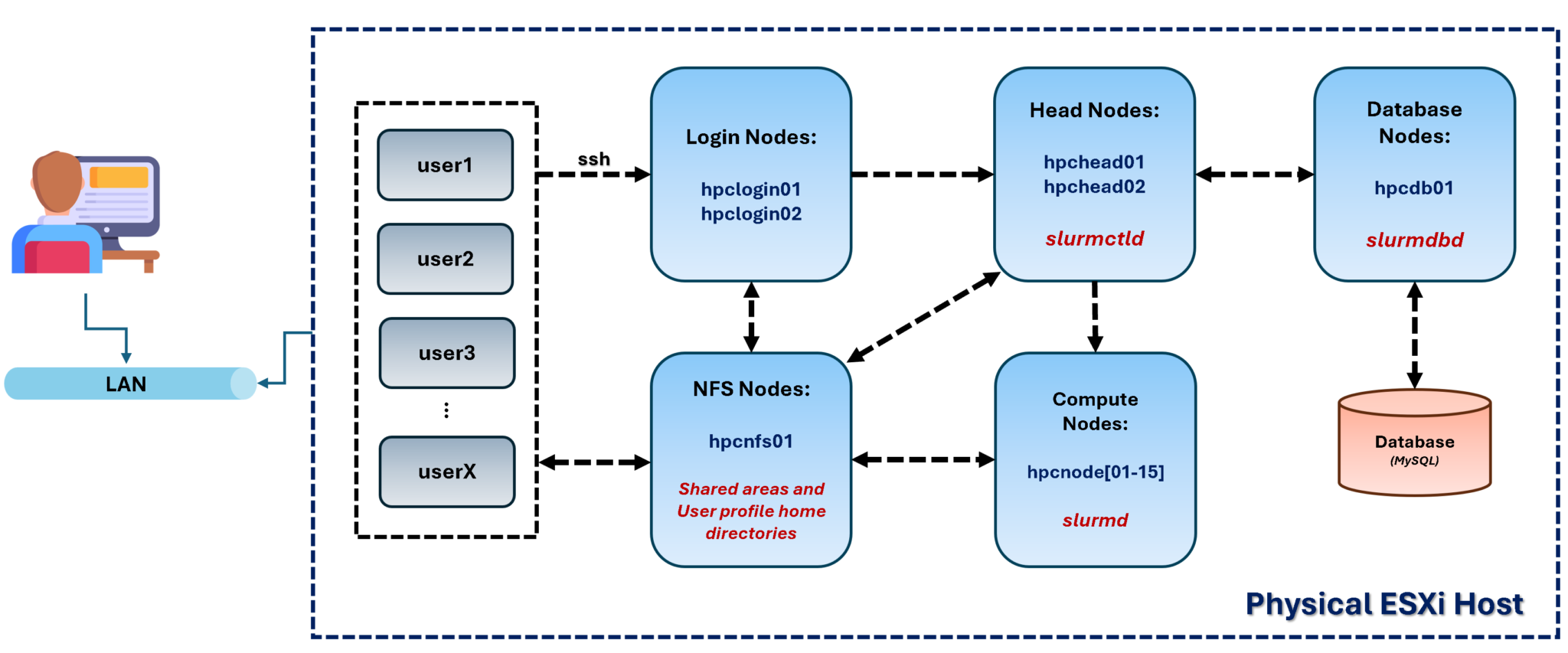
Based on the error, “user15” could not submit jobs to the cluster due to an invalid account or account/partition combination.
Understand the Slurm Association
Slurm does not determine job-account permissions only from the Linux username.
When Slurm accounting is enabled, scheduling policies can be associated with a combination of:
Cluster
   +
Account
   +
User
   +
Partition (optional)
For example:
Cluster:   hpc-lab
Account:   users
User:      user15
Partition: <not restricted>Important: If AccountingStorageEnforce=associations is enabled, the job must use a valid association stored in the accounting database
Checking the User and Home Directory
This troubleshooting focuses on our lab topology. Since all home directories are on the NFS server (and all users must be created there first), the head nodes, login nodes, and compute nodes must have the users locally (with the same User ID to maintain consistency across the entire cluster).
Checking if “user15” exists on all compute nodes – we’re executing this command from our physical machine:
for i in {01..15}; do echo -n hpcnode$i- && ssh hpcnode$i "id user15"; done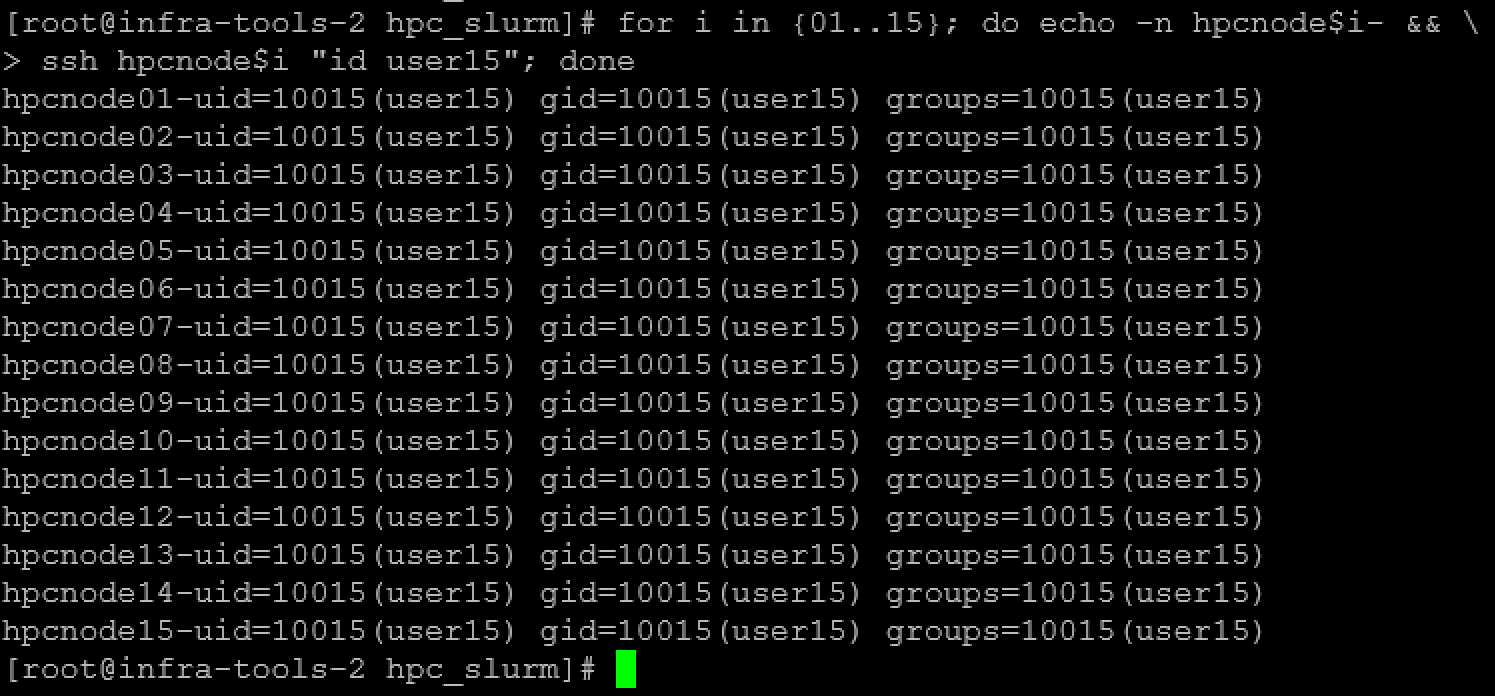
Doing the same on the head and login nodes:
for i in {01..02}; do echo -n hpchead$i- && ssh hpchead$i "id user15"; done

for i in {01..02}; do echo -n hpclogin$i- && ssh hpclogin$i "id user15"; done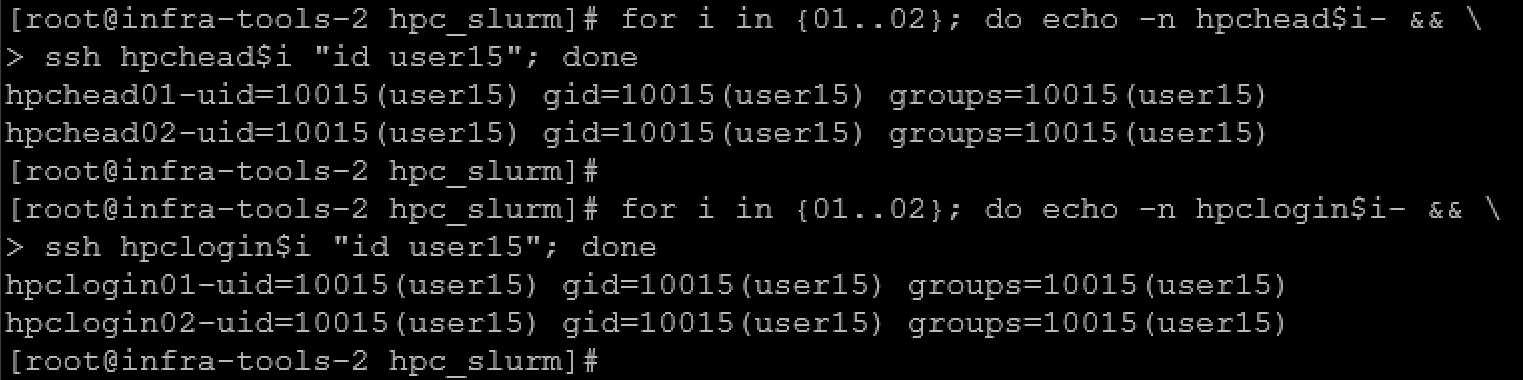
Note: As we can see, all nodes have the “user15”.
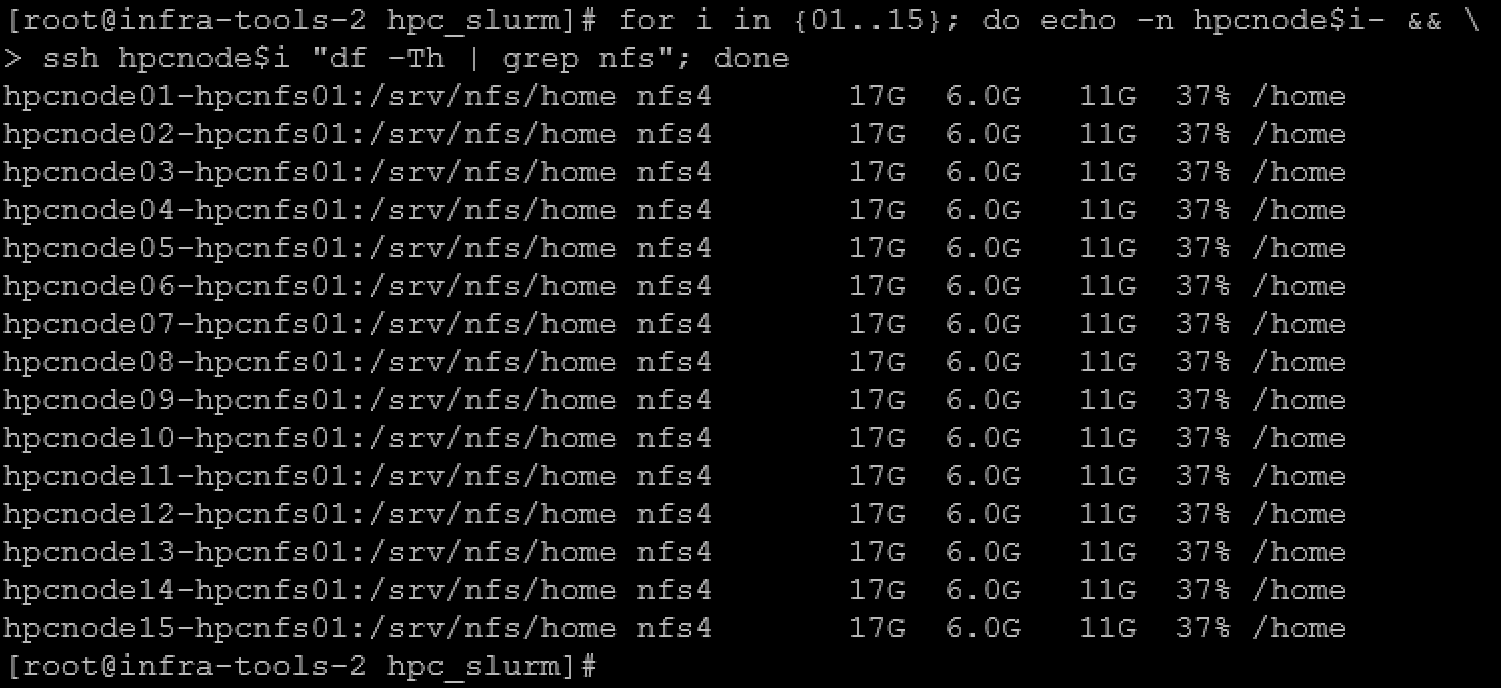
Going forward, let’s check if all nodes have the NFS share “/srv/nfs/home” – To remember, this NFS share contains the home directory for all users:
# checking the compute nodes:
for i in {01..15}; do echo -n hpcnode$i- && \
> ssh hpcnode$i "df -Th | grep nfs"; done

# checking the head nodes:
for i in {01..02}; do echo -n hpchead$i- && \
> ssh hpchead$i "df -Th | grep nfs"; done

# checking the login nodes:
for i in {01..02}; do echo -n hpclogin$i- && \
> ssh hpclogin$i "df -Th | grep nfs"; done
Compute nodes:
Head nodes:

Login nodes:

Note: As we can see, all nodes have the NFS share “/srv/nfs/home” mounted on /home!
Inspecting Users with sacctmgr
sacctmgr is used to view or modify Slurm account information. The account information is maintained within a database with the interface being provided by slurmdbd (Slurm Database daemon).
Slurm account information is recorded based on four parameters that form what is referred to as an “association”. These parameters are:
- user: is the login name.
- cluster: is the name of a Slurm-managed cluster as specified by the “ClusterName” parameter in the slurm.conf configuration file.
- partition: is the name of a Slurm partition on that cluster.
- account: is the account for a job.
To get the cluster name with sacctmgr:
sacctmgr show clusters
To list all users with sacctmgr, we can execute the following command (in this case, we’re executing this command on the first head node):
sacctmgr show users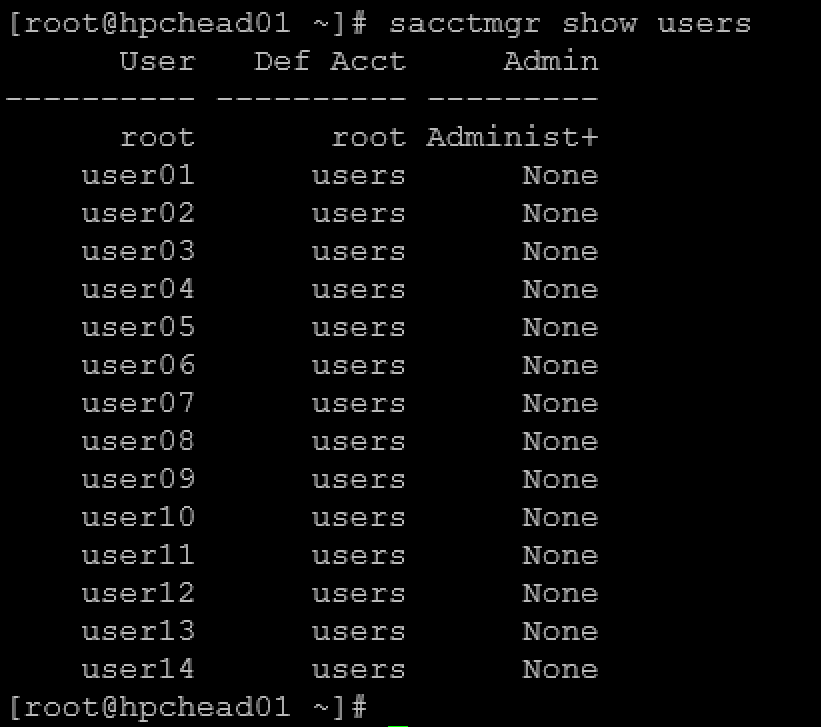
As we can see, “user15” is not on the list of users. Additionaly:
sacctmgr show assoc \
  where user=user15 cluster=hpc-lab \
  format=Cluster,Account,User,Partition
If no association is returned for the required cluster and account, Slurm does not have a valid accounting relationship for that job submission.
Adding a User with sacctmgr
Before adding the “user15” into the Slurm database, let’s check the accounts:
sacctmgr show accounts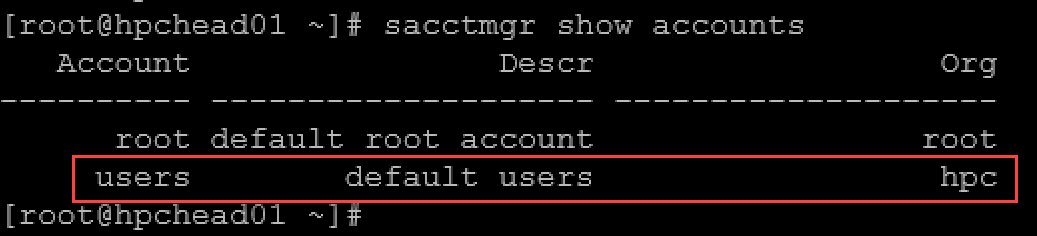
As we can see, in our lab, the “users” is the default account. So, we’ll create the “user15”, associating it with the “users” account:
sacctmgr add user user15 Account=users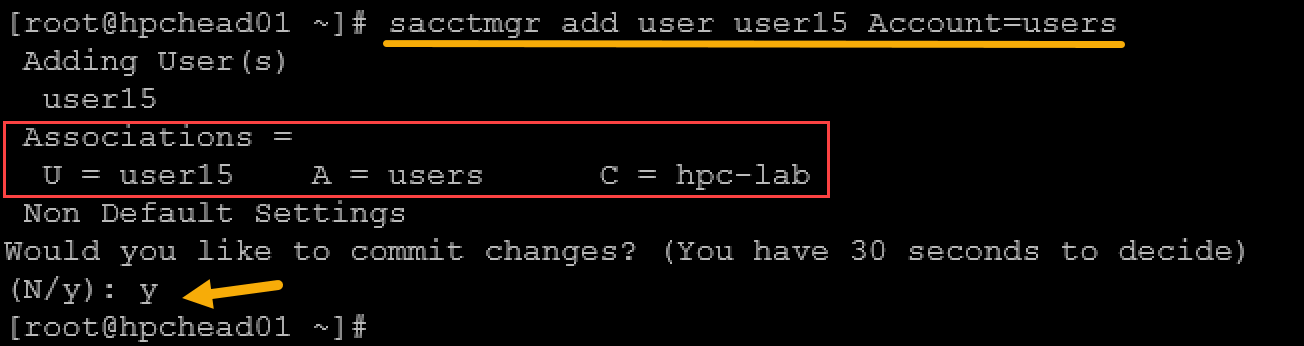
Note: For a Slurm environment with a lot of clusters, it’s recommend to specify the cluster name in the command line, for example:
sacctmgr add user \
  name=user15 \
  cluster=hpc-lab \
  account=users
To confirm the “user15” association:
sacctmgr show users withassoc user15
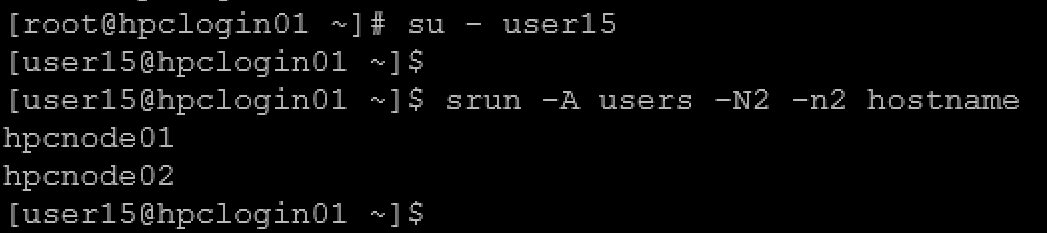
Now, go back to the login node and test a job submission with “user15”:
What If the User Already Exists in Slurm?
A user can exist in the Slurm database and still receive the same error if the requested account is not part of that user’s associations.
For example:
srun --account=research hostnamemay fail even if:
sacctmgr show usersshows the username.
Inspect:
sacctmgr show assoc \
  where user=user15 \
  format=Cluster,Account,User,Partition
If the user is associated only with:
usersthen requesting:
researchis invalid until the required association is created.
Check for Partition-Specific Associations
Slurm associations can optionally be restricted to a partition.
Check:
sacctmgr show assoc \
  where user=user15 \
  format=Cluster,Account,User,Partition
For example:
Cluster   Account   User     Partition
--------  --------  -------  ----------
hpc-lab   gpu       user15   gpu
In this case, the association can be valid for:
srun --account=gpu --partition=gpu hostnameSlurm AccountingStorage Option
Several Slurm configuration parameters must be set to support archiving information in SlurmDBD. If you don’t set the configuration parameters that begin with “AccountingStorage”, then accounting information will not be referenced or recorded.
From the head node, we can show the Slurm configuration parameters that begin with “AccountingStorage”:
scontrol show config | grep AccountingStorage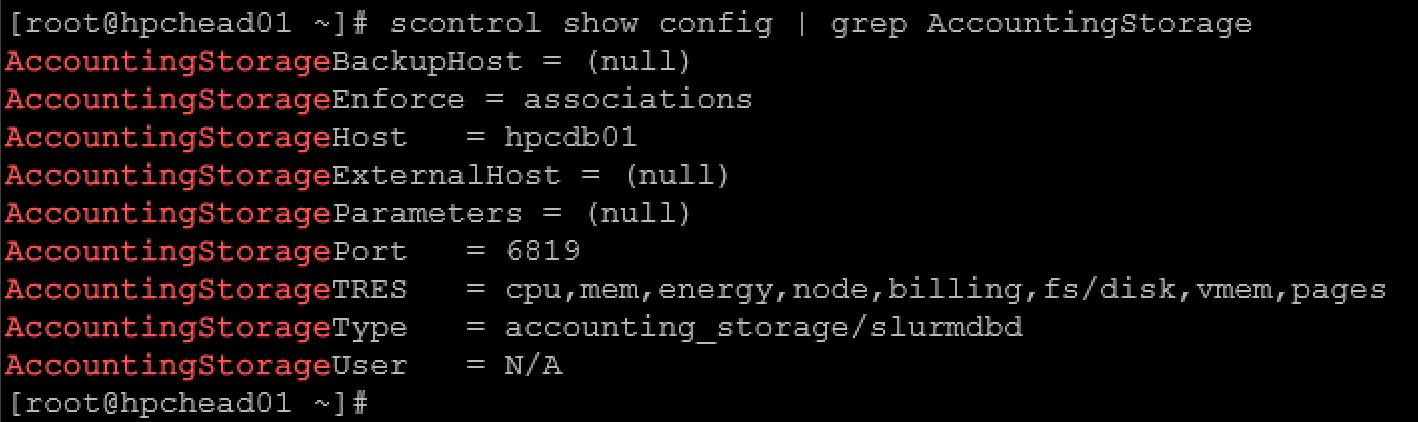
If AccountingStorageEnforce is not configured, which is the default, Slurm does not enforce accounting associations as a scheduling requirement. Jobs are then executed according to the scheduling policies configured locally on the cluster.
If the associations are correct but accounting commands cannot reach the database service, see “SlurmDBD Is Down: What Continues Working and What Does Not“ for a separate SlurmDBD outage workflow.
What the Invalid Account Error Really Tells You
The Invalid account or account/partition combination specified error is primarily an accounting-association problem, not evidence that the Linux user or home directory is missing.
Slurm associations connect a user to an account on a specific cluster and, optionally, a specific partition. When AccountingStorageEnforce=associations is enabled, that relationship must exist before the job can run.
The most useful troubleshooting sequence is therefore to identify the cluster and requested account, inspect the user’s associations with sacctmgr, create only the missing relationship, and then retest the job with the account explicitly specified.
If submission succeeds but the job remains pending afterward, the investigation has moved to a different stage of the scheduler workflow and the pending reason should be inspected separately.
An invalid account is normally rejected during job submission. If the job is accepted but remains queued in PENDING, see “Why Is My Slurm Job Pending? How to Decode Every Common Reason“ instead.
External References
- Slurm sacctmgr Documentation Official SchedMD reference for managing Slurm users, accounts, clusters, and associations. It explains how a user association is formed from the cluster, account, username, and optional partition.
- Slurm Accounting and Resource Limits Official guidance for SlurmDBD accounting, user and account associations, default accounts, partition-specific associations, and AccountingStorageEnforce behavior.
- Slurm Resource Limits SchedMD reference explaining association-based scheduling policies and how AccountingStorageEnforce controls the enforcement of valid users, accounts, limits, and QOS.
- slurm.conf Configuration Reference Official configuration reference for accounting storage, SlurmDBD connectivity, AccountingStorageEnforce, partitions, and other scheduler settings involved in account validation.
