

Close Menu
DPC Virtual Tips
    Read More

    How to Troubleshoot Packet Drops on an ESXi Host

    August 16, 2026

    SlurmDBD Is Down: What Continues Working and What Does Not

    August 15, 2026

    How to Investigate Jobs Stuck in COMPLETING State on Slurm

    August 14, 2026
    • Home
    • About Us
    • Contact
    • Cookie Policy
    • Comment Policy
    • Privacy Policy
    • Terms of Use
    • Disclaimer
    Tuesday, August 25
    DPC Virtual Tips
    • Home
    • Operating Systems
    • PowerFlex
    • HPC
    • Virtualization
    • About the Author
    • About Us
    • Contact
    DPC Virtual Tips
    Home » Installing Docker Compose on Debian
    Operating Systems

    Installing Docker Compose on Debian

    DaniloBy DaniloDecember 27, 2023Updated:July 30, 2026No Comments2 Mins Read
    Facebook Twitter Pinterest LinkedIn Tumblr Email
    Installing Docker Compose on Debian
    Share
    Facebook Twitter LinkedIn Pinterest Email

    Installing Docker Compose on Debian is an article that shows all the necessary steps to install the Docker Compose on Debian.

    In this example, we are using the Debian 11!

    First and Foremost, what is the Docker Compose?

    Docker Compose is a tool for defining and running multi-container Docker applications. With this tool, we can use a YAML file to configure our application services. Then, with a single command, we can create and start all the services (containers) from our configuration.

    YAML is a language used to represent data. It is a very popular language used in a lot of places, like system configurations, codes, and so on.

    You can check more details of Docker Compose in the following link:
    https://docs.docker.com/compose/

    In simple words (using my simple words), with the Docker Compose we can start our containers simply and logically. If you have a 3-Tier application, for instance, you can specify in a doc ker-compose.yml file all the necessary steps to start each application.

    Just to share with you, here we can see an example of a docker-compose.yml file that I am working on at the moment.

    Here, we can see all services (db, app, and web) that will be started by the Docker Compose tool. Look that this file has been written using the YAML language:

    root@debian11:~/3-tier_compose# cat docker-compose.yml
    services:
     db:
      image: db-image
      ports:
      - 3306:3306
      environment:
        MYSQL_ROOT_PASSWORD: Hjajxkkkakk87juaJlllaaxa3
      volumes:
      - /docker/volumes/db:/var/lib/mysql
     app:
      image: app-image
      ports:
      - 5001:80
     web:
      image: web-image
      ports:
      - 8080:80

    Let’s Get Started: Install Docker Engine

    Firstly, we need to install the Docker Engine on Debian. We have written an article explaining all the necessary steps for that. You can access this post at the following link:
    https://dpcvirtualtips.com/installing-docker-engine-on-debian/

    Install Docker Compose

    By default, the Docker Compose is not available in the Debian 11 default repository. So, we need to download it binary from GitHub:

    curl -s https://api.github.com/repos/docker/compose/releases/latest | grep browser_download_url | grep -i docker-compose-Linux-x86_64 | cut -d '"' -f 4 | wget -qi -

    The curl command will download the binary file for the Docker Compose. This file has 57 MB approximately, as we can see in the picture below:
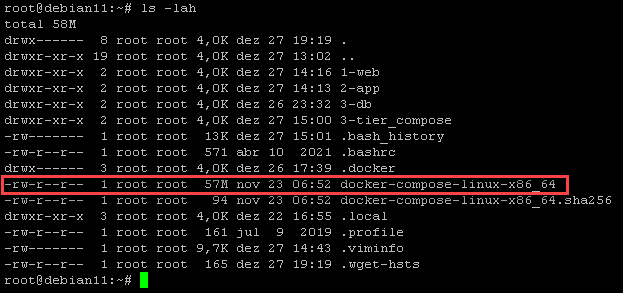
    Change the file permission add the execute permission and move it to the correct directory:

    chmod +x docker-compose-linux-x86_64
    mv docker-compose-linux-x86_64 /usr/bin/docker-compose

    Run the command “docker-compose version” to check the version installed:

    docker-compose version

    This image has an empty alt attribute; its file name is image-185.png

    Now, the Docker Compose is installed and ready to be used 🙂

    Share. Facebook Twitter Pinterest LinkedIn Tumblr Email
    Previous ArticleInstalling Docker Engine on Debian
    Next Article Installing Linux CentOS 7
    Danilo

    Infrastructure Engineer with experience in Virtualization, Linux, Windows Server and learning automation using Python. DPC Virtual Tips was created to share practical tutorials, lab experiences and troubleshooting guides focused on enterprise infrastructure technologies.

    Related Posts

    Linux Server Has Free Memory but Is Swapping: Why?

    August 13, 2026

    How to Determine Whether Packet Loss Is Local or Network Related on Linux

    August 12, 2026

    How to Investigate TCP Retransmissions on Linux

    August 11, 2026

    Comments are closed.

    Search
    Categories
    • HPC (12)
    • Operating Systems (85)
    • PowerFlex (22)
    • Virtualization (130)
    Read More
    Virtualization

    How to Troubleshoot Packet Drops on an ESXi Host

    By DaniloAugust 16, 20260
    HPC

    SlurmDBD Is Down: What Continues Working and What Does Not

    By DaniloAugust 15, 20260
    HPC

    How to Investigate Jobs Stuck in COMPLETING State on Slurm

    By DaniloAugust 14, 20260
    Operating Systems

    Linux Server Has Free Memory but Is Swapping: Why?

    By DaniloAugust 13, 20260
    Operating Systems

    How to Determine Whether Packet Loss Is Local or Network Related on Linux

    By DaniloAugust 12, 20260
    Latest Posts

    How to Troubleshoot Packet Drops on an ESXi Host

    August 16, 2026

    SlurmDBD Is Down: What Continues Working and What Does Not

    August 15, 2026

    How to Investigate Jobs Stuck in COMPLETING State on Slurm

    August 14, 2026
    Images from Gallery
    hpc main commands
    linux commands
    install rock linux
    lustre fs
    shell scripting
    vSAN Trace Files
    Categories
    • HPC
    • Operating Systems
    • PowerFlex
    • Virtualization
    • Home
    • About Us
    • Contact
    • Cookie Policy
    • Comment Policy
    • Privacy Policy
    • Terms of Use
    • Disclaimer
    Copyright © 2026, DPC Virtual Tips. All rights reserved.

    Type above and press Enter to search. Press Esc to cancel.

    We use cookies to ensure your best experience on our website. If you continue using our website, we'll assume you agree to our cookie policy