

Scheduling tasks on Red Hat Enterprise Linux is an essential skill for system administrators who need to automate maintenance activities, scripts, and recurring operations. RHEL provides two powerful tools for this purpose: at for one-time scheduled jobs and cron for recurring tasks.
In this guide, we will explore how to use at and cron on RHEL, including daemon configuration, job management commands, and practical scheduling examples. These tools allow administrators to automate processes without requiring manual execution.
When you need to automate tasks on Red Hat Enterprise Linux, you have two go-to tools:
atfor one-off, one-time jobs.cron(viacrontab) for recurring schedules.
The “at” command
at queues single-run jobs to be executed once, at a specified future time.
Key Concepts:
- Jobs are stored in
/var/spool/at(job files) and/var/spool/at/jobs. - The
atddaemon must be running (systemctl status atd). - Each job gets an ID you can list, remove, or view.
Common Subcommands
Schedule a command or script:
echo "/path/to/script.sh" | at 02:30 pm tomorrowInteractive scheduling:
at now + 1 hour
at> /usr/bin/backup.sh
at> <EOT>     # press Ctrl+D to end
List pending jobs:
atqRemove a job by its ID:
atrm 5Time Specifications
You can use a variety of formats:
HH:MM(24-hour) orh:mm am/pm- Relative:
now + 45 minutes,now + 2 days - Named:
noon,midnight, teatime (4 pm)
The “cron” Daemon and the “crontab”
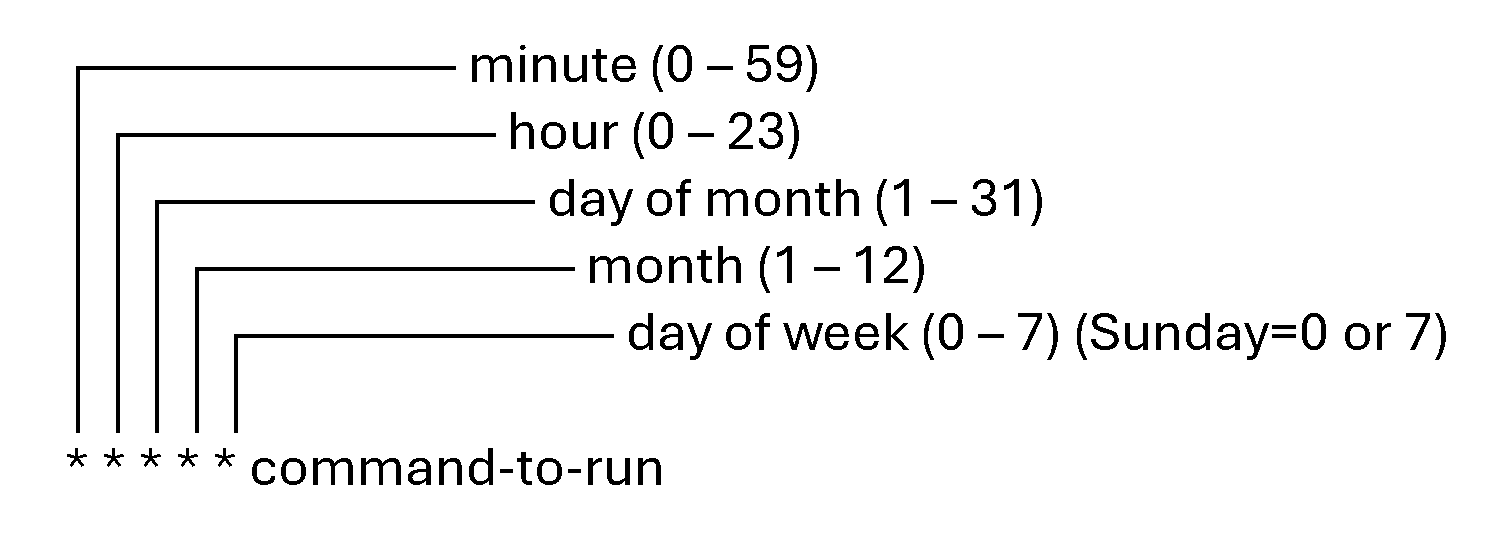
cron runs jobs on a recurring schedule defined by fields in a crontab file.
Anatomy of a Crontab Entry
Managing Crontabs
Edit your user’s crontab:
crontab -eList your scheduled jobs:
crontab -lEdit a crontab for a specific user – Considering, for instance, that the username is “thor”:
crontab -e -u thorRemove all your jobs:
crontab -rList and remove jobs for a particular username, respectively:
crontab -l -u thor
crontab -r -u thor
System-wide schedules live in:
/etc/crontab/etc/cron.d/(drop-in files)/etc/cron.hourly,/etc/cron.daily,/etc/cron.weekly,/etc/cron.monthly
Special Strings to use on crontab
Instead of five fields, you can use shortcuts:
| Shortcut | Equivalent |
|---|---|
@reboot | Run once at system boot |
@yearly | 0 0 1 1 * |
@monthly | 0 0 1 * * |
@weekly | 0 0 * * 0 |
@daily | 0 0 * * * |
@hourly | 0 * * * * |
Comparison: at vs. cron
Here is a basic comparison between at and cron:
| Feature | at | cron |
|---|---|---|
| Frequency | Once | Repeating |
| Configuration file | atq queues; /var/spool/at job files | crontab -e; /etc/cron.* |
| Use case | Ad hoc, immediate scheduling | Regular, periodic maintenance and jobs |
| Removal | atrm <jobID> | crontab -r (user) or edit crontab |
Scheduling Jobs with “at”
Firstly, check if the daemon “atd” is running:
systemctl status atd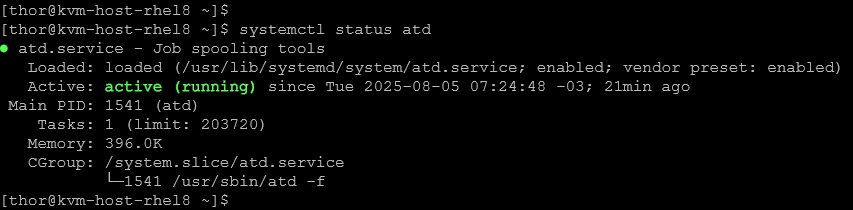
If the “atd” daemon is not running, enable and start it:
systemctl enable --now atdLet’s provide an example of using “at” to schedule a one-time job:
echo "hello world" > greetings.txt | at 07:36 amAs we can see, the command “echo” was scheduled to run at a specific time:

As a result, the file “greetings.txt” was created correctly:

To see the “at” job queue (jobs pending to be executed):
atqIn this case, for instance, the job ID “3” is pending execution:

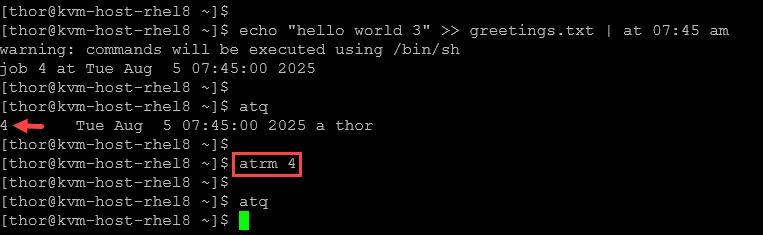
To remove a pending job:
atrm <JOB_ID>In this example, the job ID “4” was removed successfully:
Scheduling Jobs with “cron”
Before starting, check if the “crond” daemon is running:
systemctl status crond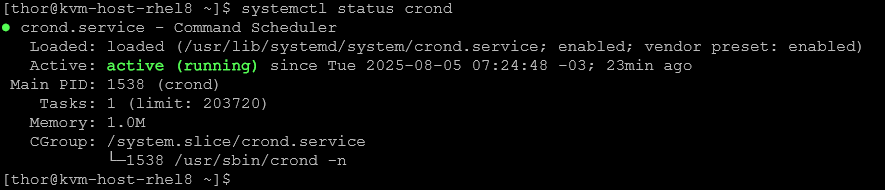
If the daemon is not running, enable and start it first:
systemctl enable --now crondLet’s create a crontab entry considering that the current user is “thor”:
crontab -e

# Add the following entry:
*/2 * * * * /home/thor/jobs/scripts/hello_world.sh >> /home/thor/jobs/logs/hello_world.log 2>&1
Where:
*/2 –> Runs every 2 minutes
/home/thor/jobs/scripts/hello_world.sh –> Script to be executed
/home/thor/jobs/logs/hello_world.log –> Log file, in case of errors or something that is not expected
To inspect the user’s crontab:
crontab -l
To remove the user’s crontab:
crontab -r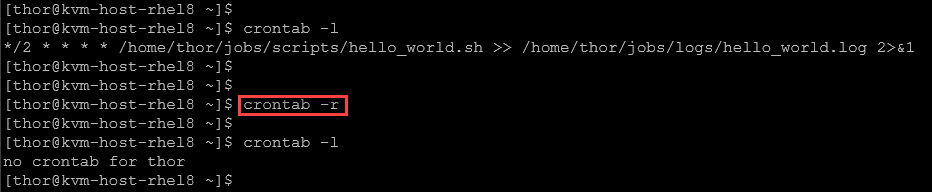
Common Cron Examples
1- Run a script every day at midnight:
0 0 * * * /home/user/backup.sh2- Run a command every 15 minutes:
*/15 * * * * /usr/bin/php /var/www/html/cron.php3- Run a job every Monday at 8 AM:
0 8 * * 1 /home/user/monday_report.sh4- Run a job on the 1st day of every month at 5 AM:
0 5 1 * * /home/user/monthly_cleanup.sh5- Run a job only in December at 10 AM:
0 10 * 12 * /home/user/holiday_script.sh6- How do you schedule a cron job to run every Sunday at 3 AM?
0 3 * * 0 /path/to/your/script.sh

0 3: At 3:00 AM
* *: Every day and every month
0: Sunday (can also use 7)
7- What does */10 * * * * mean?
*/10 * * * * /path/to/your/script.shThis runs the job every 10 minutes.
*/10: Every 10 minutes- The remaining
* * * *means every hour, every day, every month, and every day of the week.
8- How do you redirect the output of a cron job to a log file?
0 0 * * * /home/user/script.sh >> /home/user/script.log 2>&1>>: Appends standard output to the log file2>&1: Redirects standard error to the same log file
This ensures both output and errors are logged.
9- How do you ensure a cron job runs only on weekdays?
0 9 * * 1-5 /path/to/your/script.sh1-5: Monday to Friday0 9: At 9:00 AM
This skips weekends entirely.
10- How do you check if your cron job ran?
grep CRON /var/log/syslog       # Debian/Ubuntu
grep CRON /var/log/cron         # CentOS/RHEL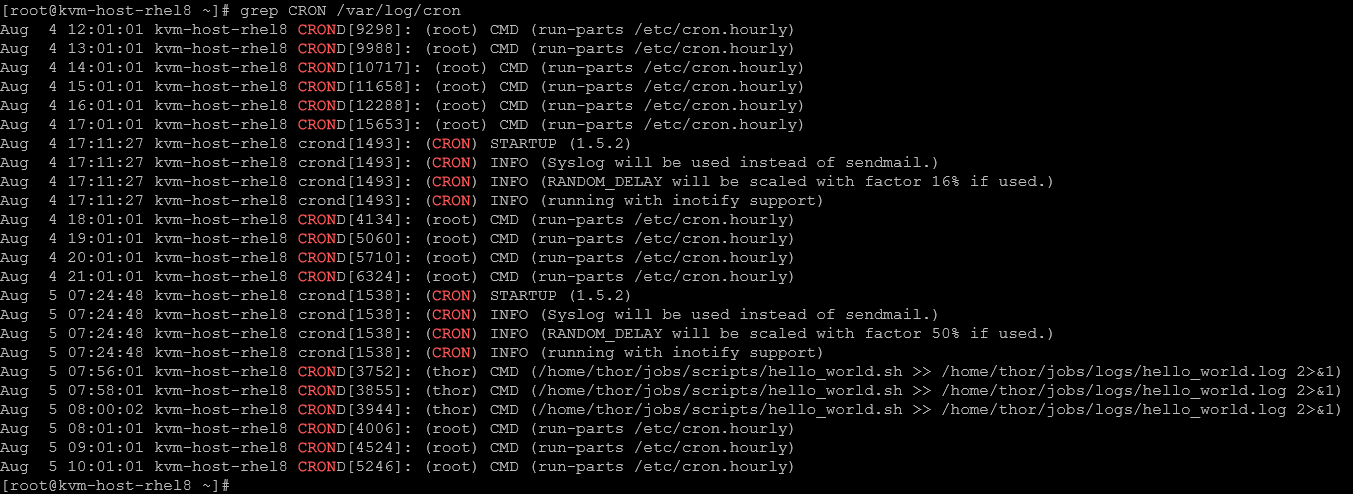
That’s it for now 🙂
