Close Menu
DPC Virtual Tips
    Read More

    How to Troubleshoot Packet Drops on an ESXi Host

    August 16, 2026

    SlurmDBD Is Down: What Continues Working and What Does Not

    August 15, 2026

    How to Investigate Jobs Stuck in COMPLETING State on Slurm

    August 14, 2026
    • Home
    • About Us
    • Contact
    • Cookie Policy
    • Comment Policy
    • Privacy Policy
    • Terms of Use
    • Disclaimer
    Tuesday, August 25
    DPC Virtual Tips
    • Home
    • Operating Systems
    • PowerFlex
    • HPC
    • Virtualization
    • About the Author
    • About Us
    • Contact
    DPC Virtual Tips
    Home » Creating a Network Install Server on RHEL 8
    Operating Systems

    Creating a Network Install Server on RHEL 8

    DaniloBy DaniloAugust 4, 2025Updated:August 1, 2026No Comments2 Mins Read
    Facebook Twitter Pinterest LinkedIn Tumblr Email
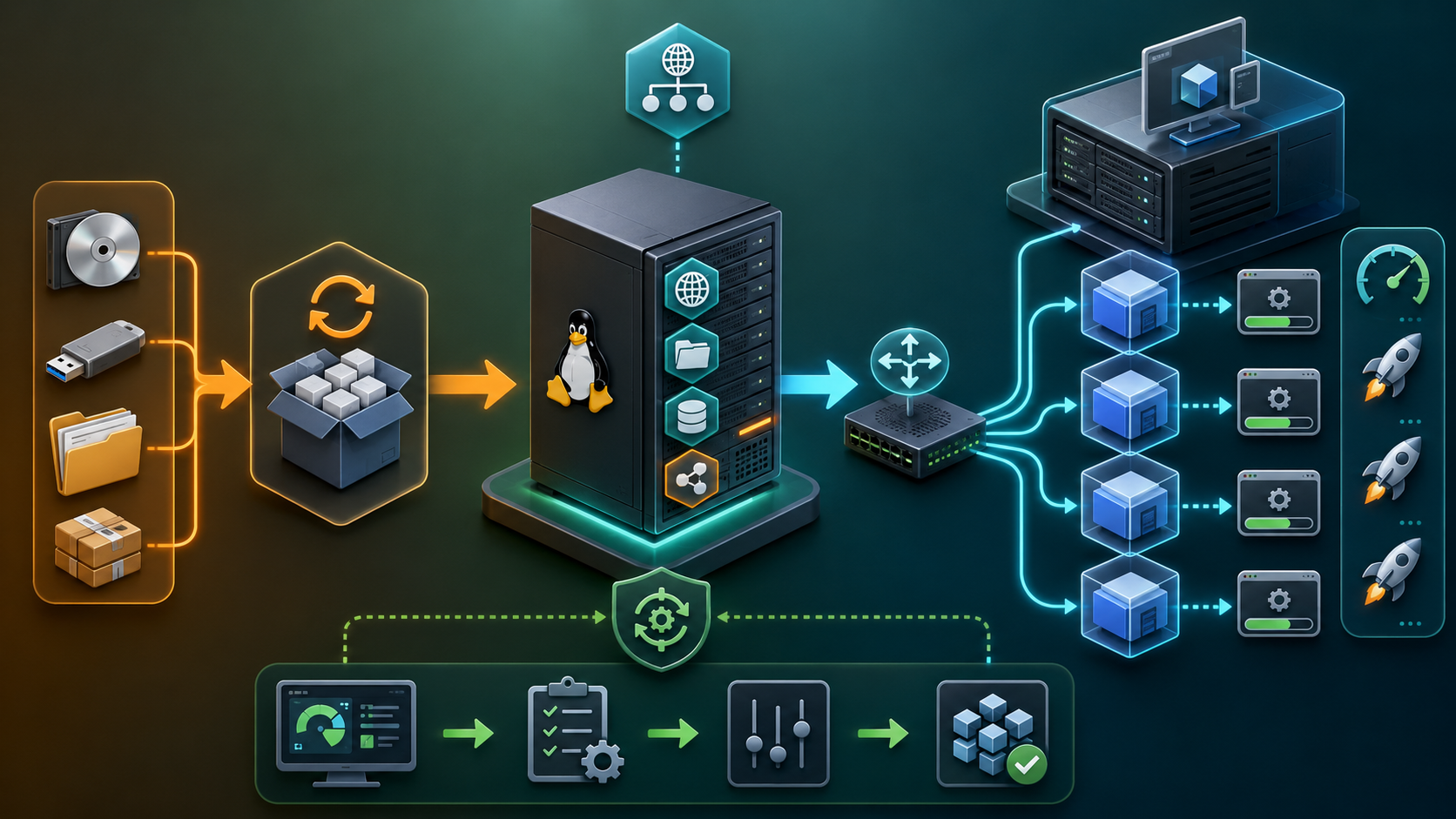
    Network Install Server on RHEL 8
    Share
    Facebook Twitter LinkedIn Pinterest Email

    Creating a Network Install Server on RHEL 8 allows administrators to provide operating system installation files over the network instead of relying on local ISO media. This approach is especially useful in virtualization environments where multiple virtual machines need to be deployed efficiently.

    In this guide, we will demonstrate how to configure an HTTP-based Network Install Server using Apache (httpd) on Red Hat Enterprise Linux 8. The server will host the RHEL installation files and make them available for virtual machine installations managed through KVM and virt-manager.

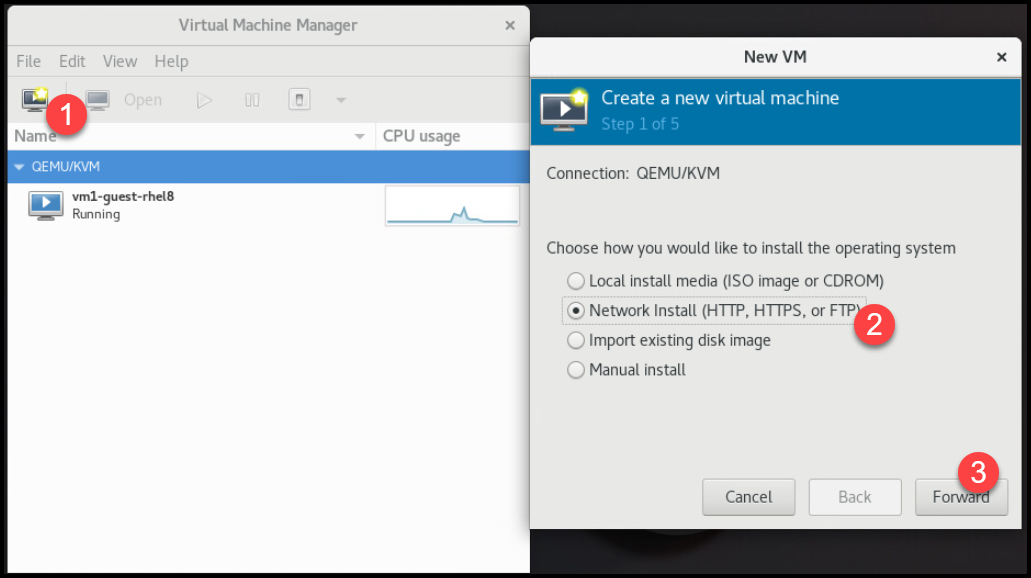
    If you’re using KVM with virt-manager to manage your virtual machines, there are basically two ways to install the Guest OS:

    • Using a Local Media (ISO image or CD/DVD).
    • Using a Network Install Server (via HTTP, HTTPS, or FTP).

    We’ve written an article explaining all the necessary steps to install KVM on RHEL 8 – https://dpcvirtualtips.com/running-vms-on-rhel-8/.

    Step-by-step to create the HTTP Server

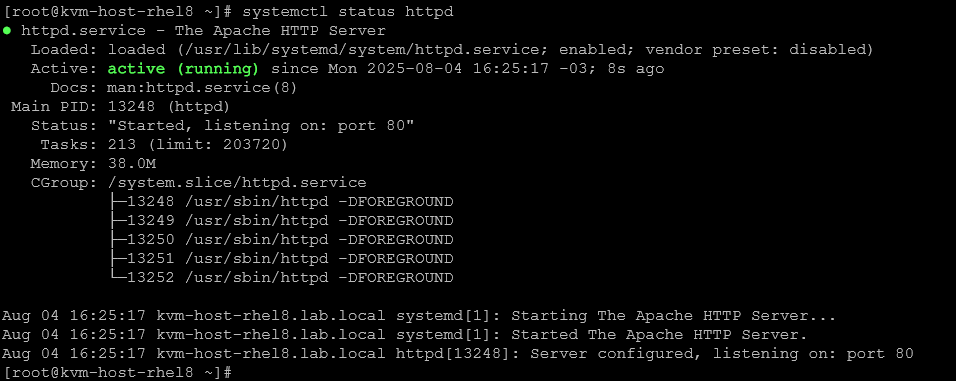
    1- Install Apache (httpd) and enable/start the httpd daemon:

    dnf install -y httpd
    systemctl enable --now httpd
    systemctl status httpd
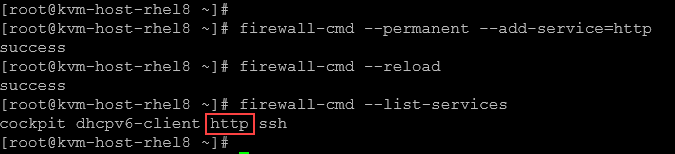
    2- Add a firewall rule to allow external access to the httpd daemon:

    firewall-cmd --permanent --add-service=http
    firewall-cmd --reload
    firewall-cmd --list-services
    3- Create a local directory in /var/www/html to store all RHEL 8 installation files.
    We need to mount the installation ISO and copy all content to the created directory. Let’s do that:

    # Create the directory "rhel8-install":
    cd /var/www/html/
    mkdir rhel8-install
    
    # Create a temp dir to mount the DVD ISO:
    mkdir /mnt/ISO
    mount -o loop /ISOs/rhel-8.10-x86_64-dvd.iso /mnt/ISO/
    
    # Copy the entire content to the destination dir:
    cp -r /mnt/ISO/.* /var/www/html/rhel8-install/
    
    # Unmount the ISO:
    umount /mnt/ISO
    
    # Remove the httpd welcome file and restart the httpd daemon:
    mv /etc/httpd/conf.d/welcome.conf /etc/httpd/conf.d/welcome.conf.old
    systemctl restart httpd

    4- The next step is to create a virtual host file for our Red Hat installation directory.
    Create the configuration file “/etc/httpd/conf.d/rhel8-install.conf” and add the following content:

    <VirtualHost *:80>
        ServerAdmin webmaster@example.com
        ServerName rhel8-install.lab.local
        DocumentRoot /var/www/html/rhel8-install
    
        <Directory /var/www/html/rhel8-install>
            Options Indexes FollowSymLinks
            AllowOverride None
            Require all granted
        </Directory>
    
        ErrorLog /var/log/httpd/rhel8-install-error.log
        CustomLog /var/log/httpd/rhel8-install-access.log combined
    </VirtualHost>

    Afterward, restart the httpd daemon:

    systemctl restart httpd

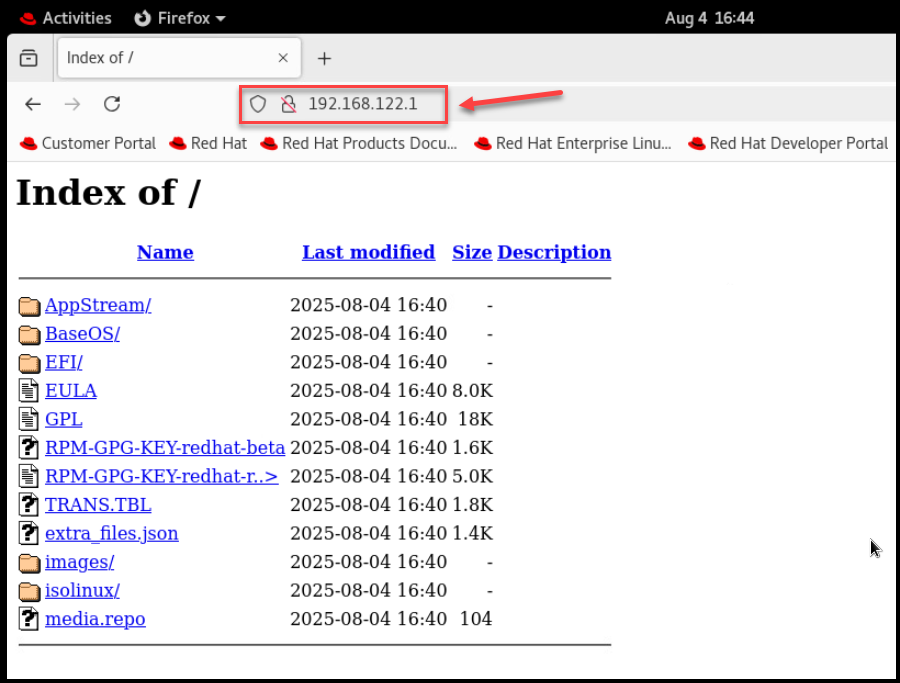
    5- Add a firewall rule allowing HTTP access through the NAT interface (192.168.122.1) used by the KVM:

    firewall-cmd --zone=libvirt --add-service=http --permanent
    firewall-cmd --reload

    6- In the KVM hypervisor, open Firefox and access the http page using the IP 192.168.122.1:
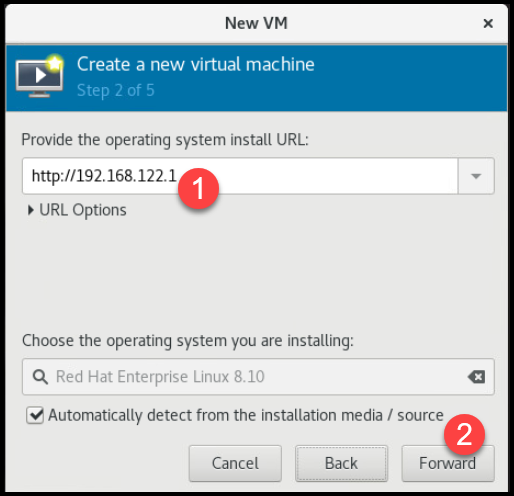
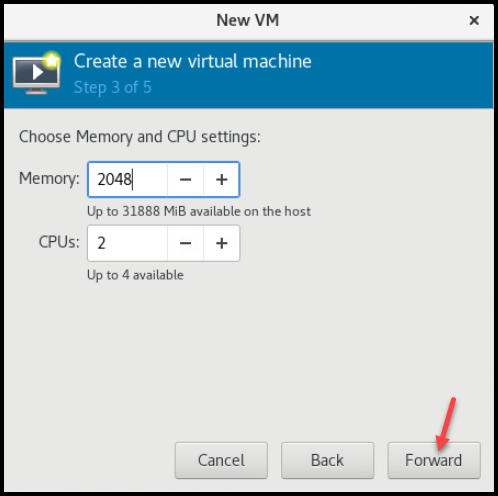
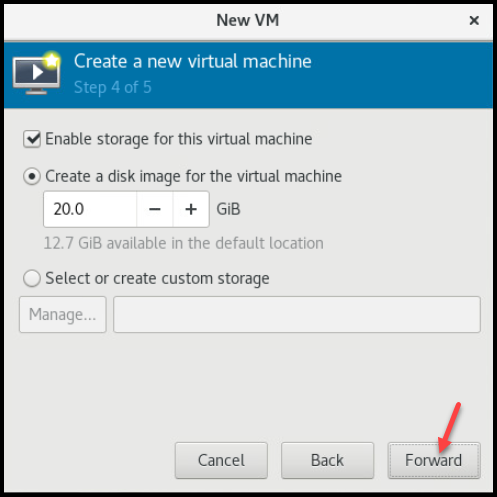
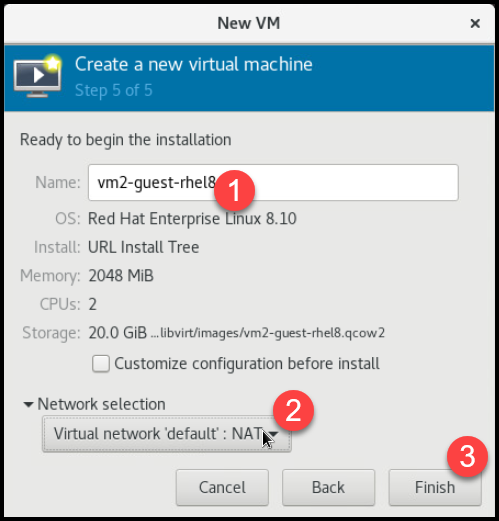
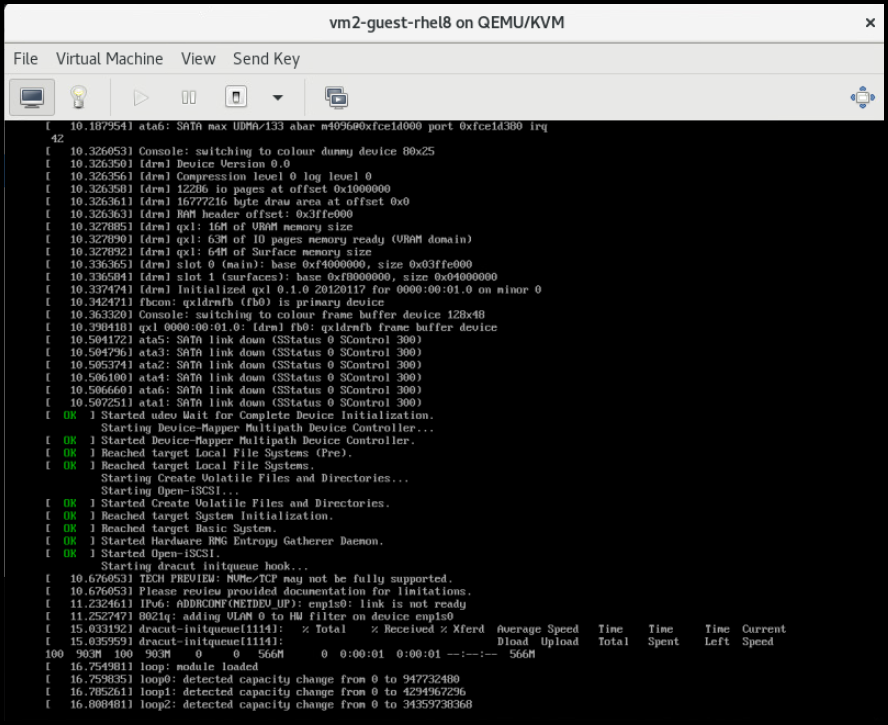
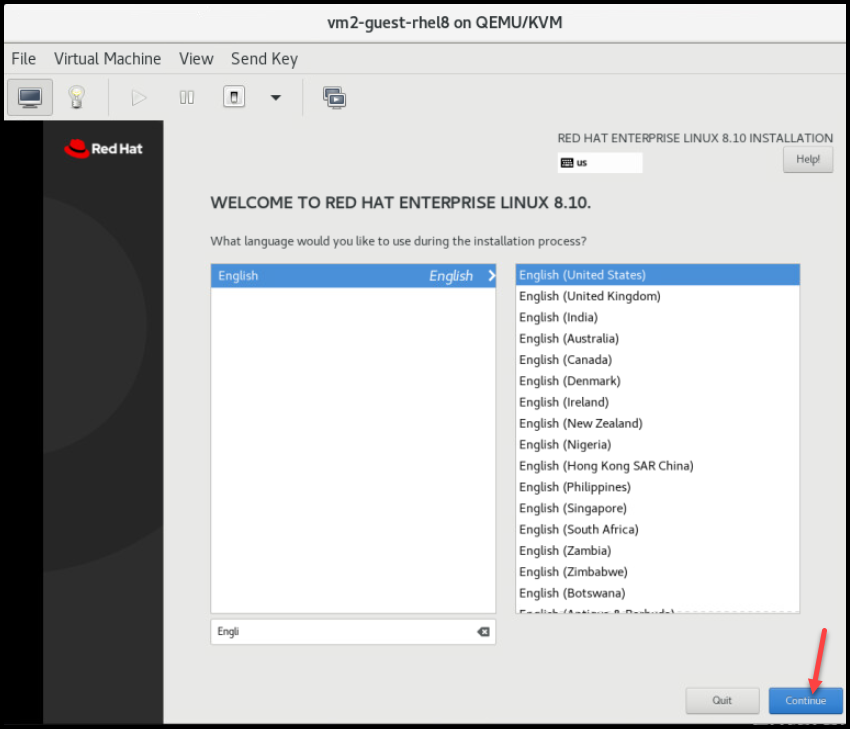
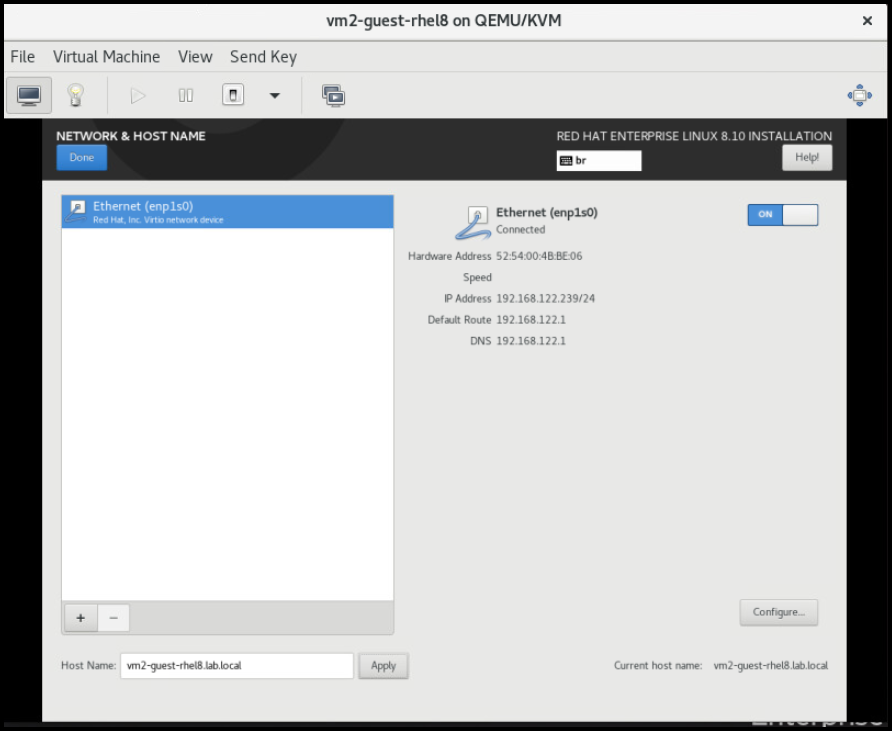
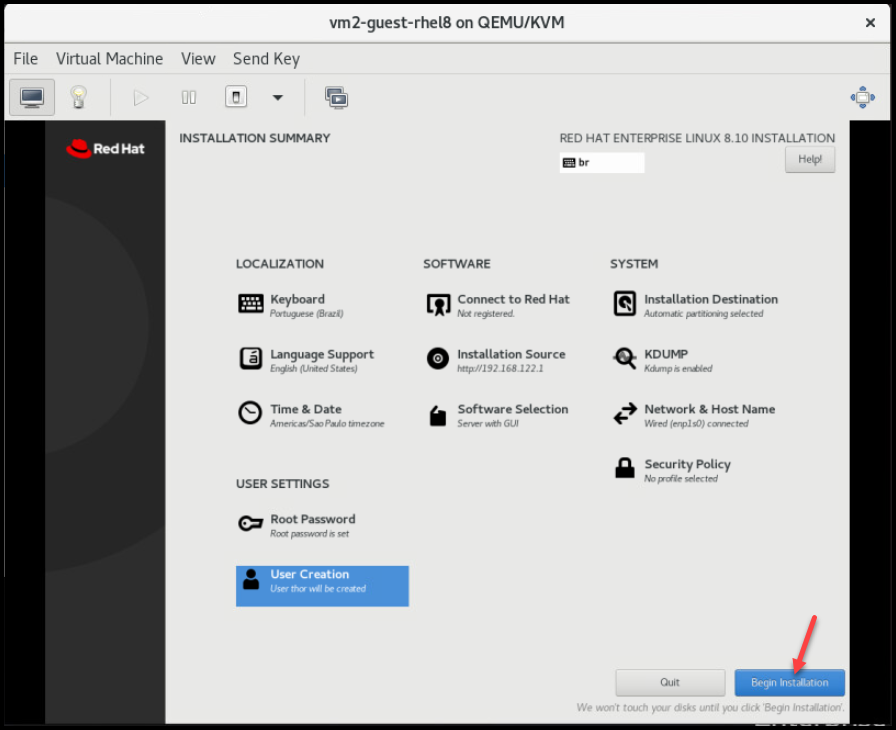
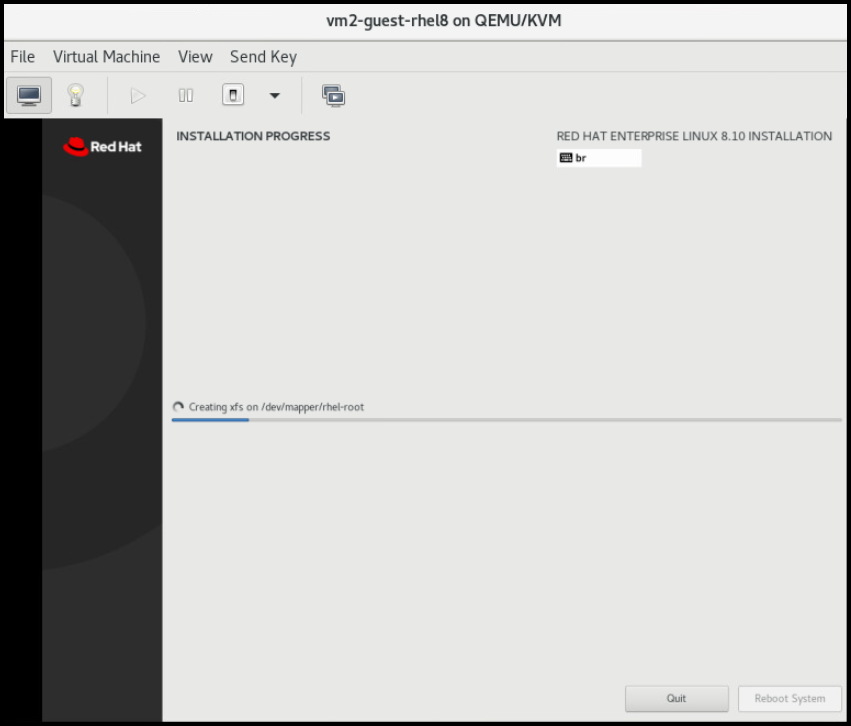
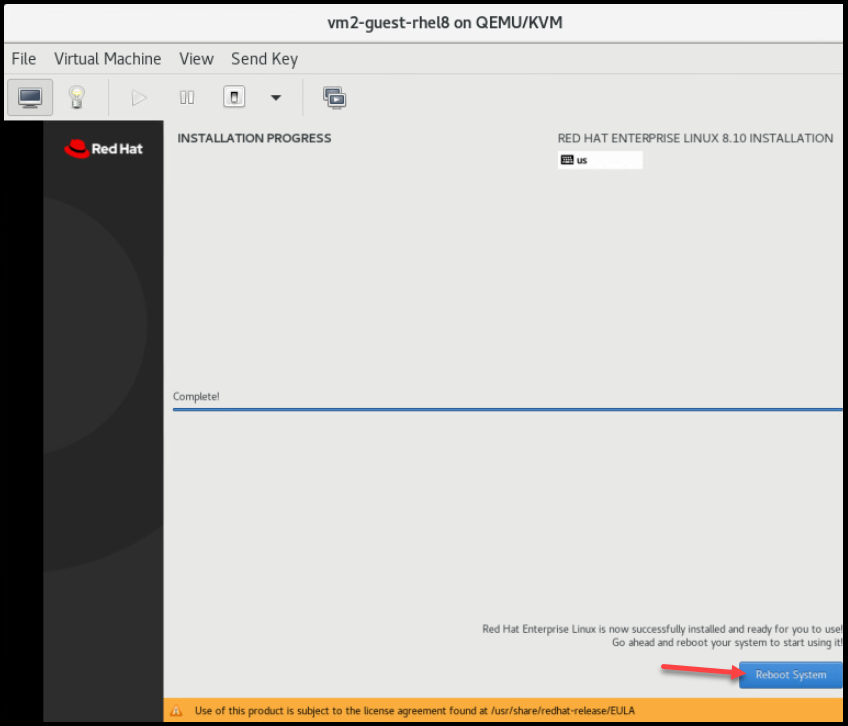
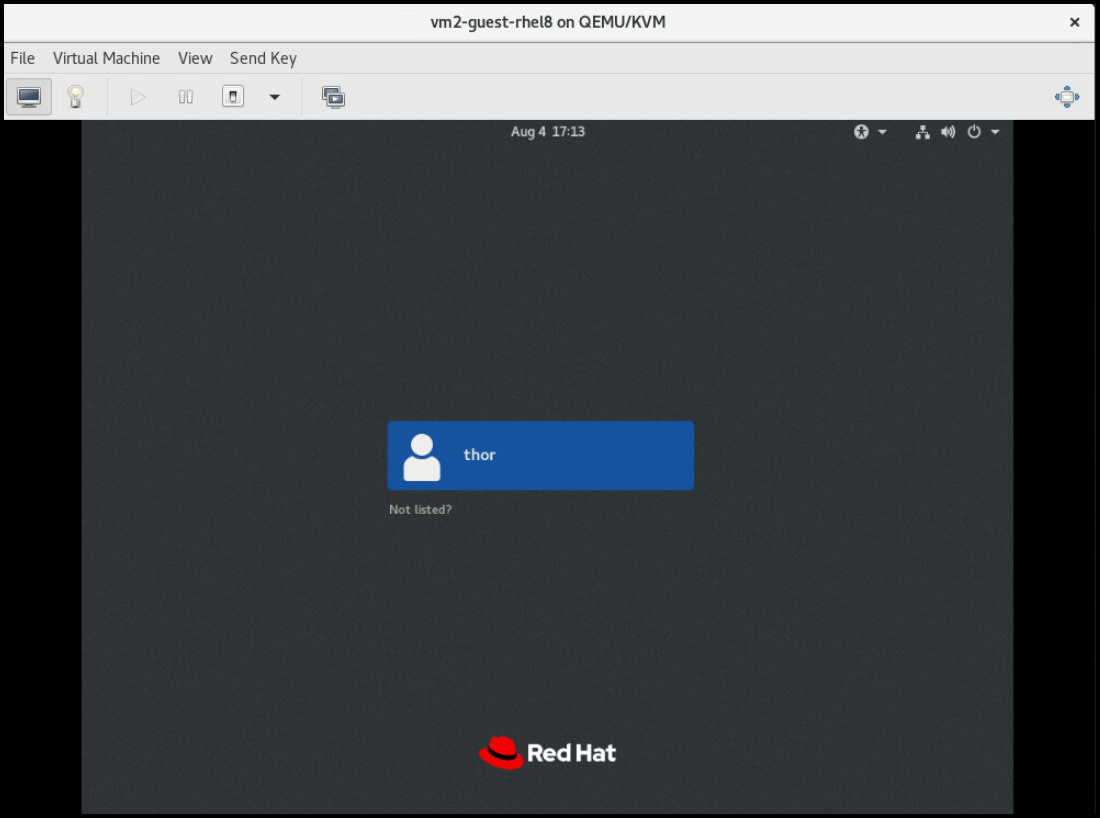
    7- Execute the virt-manager and create a new virtual machine:
    That’s it for now 🙂

    Share. Facebook Twitter Pinterest LinkedIn Tumblr Email
    Previous ArticleRunning VMs on RHEL 8
    Next Article Scheduling with at and cron on RHEL
    Danilo

    Infrastructure Engineer with experience in Virtualization, Linux, Windows Server and learning automation using Python. DPC Virtual Tips was created to share practical tutorials, lab experiences and troubleshooting guides focused on enterprise infrastructure technologies.

    Related Posts

    Linux Server Has Free Memory but Is Swapping: Why?

    August 13, 2026

    How to Determine Whether Packet Loss Is Local or Network Related on Linux

    August 12, 2026

    How to Investigate TCP Retransmissions on Linux

    August 11, 2026

    Comments are closed.

    Search
    Categories
    • HPC (12)
    • Operating Systems (85)
    • PowerFlex (22)
    • Virtualization (130)
    Read More
    Virtualization

    How to Troubleshoot Packet Drops on an ESXi Host

    By DaniloAugust 16, 20260
    HPC

    SlurmDBD Is Down: What Continues Working and What Does Not

    By DaniloAugust 15, 20260
    HPC

    How to Investigate Jobs Stuck in COMPLETING State on Slurm

    By DaniloAugust 14, 20260
    Operating Systems

    Linux Server Has Free Memory but Is Swapping: Why?

    By DaniloAugust 13, 20260
    Operating Systems

    How to Determine Whether Packet Loss Is Local or Network Related on Linux

    By DaniloAugust 12, 20260
    Latest Posts

    How to Troubleshoot Packet Drops on an ESXi Host

    August 16, 2026

    SlurmDBD Is Down: What Continues Working and What Does Not

    August 15, 2026

    How to Investigate Jobs Stuck in COMPLETING State on Slurm

    August 14, 2026
    Images from Gallery
    hpc main commands
    linux commands
    install rock linux
    lustre fs
    shell scripting
    vSAN Trace Files
    Categories
    • HPC
    • Operating Systems
    • PowerFlex
    • Virtualization
    • Home
    • About Us
    • Contact
    • Cookie Policy
    • Comment Policy
    • Privacy Policy
    • Terms of Use
    • Disclaimer
    Copyright © 2026, DPC Virtual Tips. All rights reserved.

    Type above and press Enter to search. Press Esc to cancel.

    We use cookies to ensure your best experience on our website. If you continue using our website, we'll assume you agree to our cookie policy