

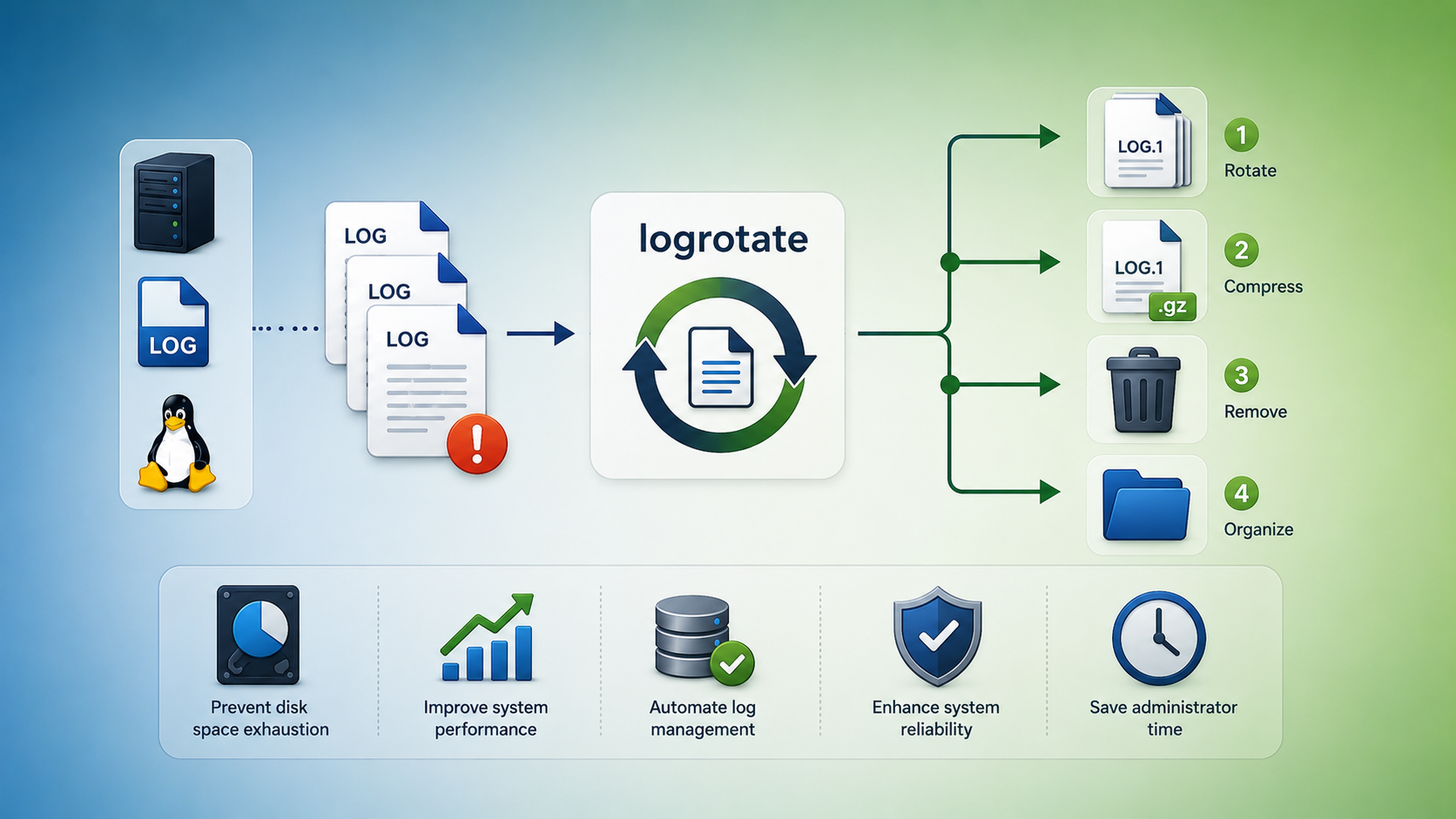
Logrotate on RHEL 8 is an essential tool for Linux system administrators who need to manage large volumes of log files efficiently. It automates the process of rotating, compressing, removing, and organizing logs to prevent uncontrolled disk usage.
Log files generated by system services and applications can grow continuously over time. Using Logrotate, administrators can define rotation policies based on time intervals or file size, ensuring that logging remains available while keeping storage usage under control.
In this guide, we will explore how Logrotate works on RHEL 8, understand its configuration structure, create custom rotation rules, perform manual rotations, and troubleshoot common configuration issues.
So…. Why Use Logrotate?
- Keeps log files at manageable sizes.
- Automatically compresses or removes old logs.
- Ensures continuous logging without manual intervention.
- Executes custom scripts before or after rotation.
How does Logrotate work?
1- Scheduler: A daily cron job (/etc/cron.daily/logrotate) invokes logrotate:
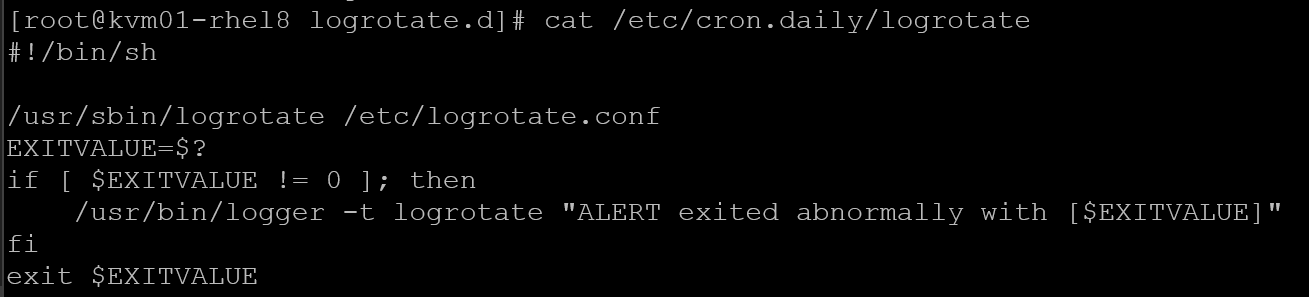
2- Main Configuration: Reads /etc/logrotate.conf for global defaults.
3- Service-Specific Rules: Loads additional configs from /etc/logrotate.d/, one file per service or application. Example for the Apache (httpd) daemon:
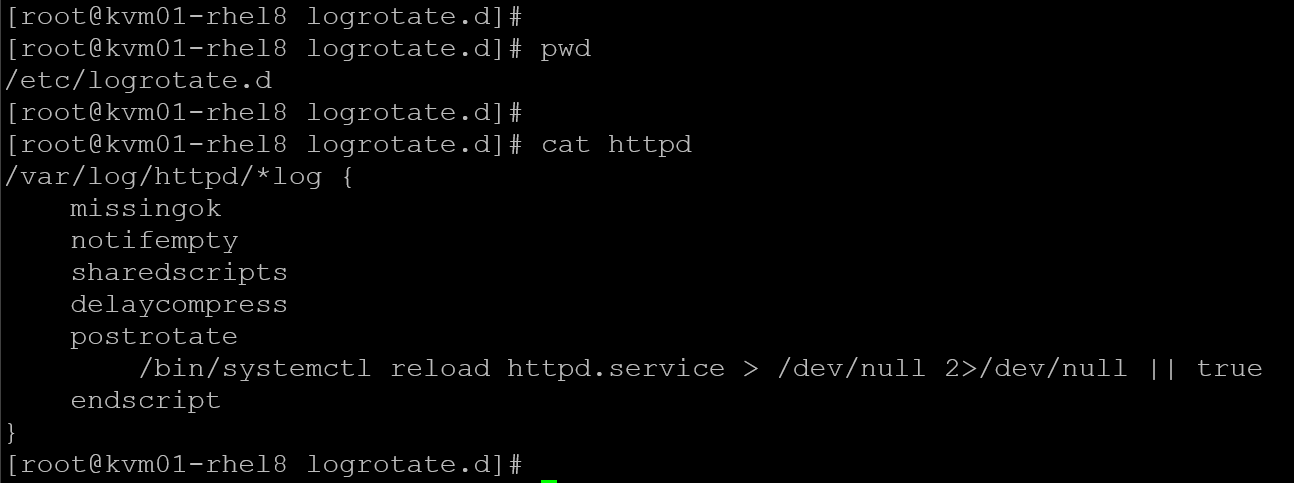
4- Rotation Process: For each log file matching a rule, it:
- Checks age or size criteria.
- Renames the current log (e.g.,
app.log→app.log.1). - Optionally compresses rotated logs (e.g.,
app.log.1.gz). - Creates a new, empty log file.
- Runs any pre- or post-rotate scripts.
Key Configuration Directives
rotate <count>: Quantity of rotated logs to keep on disk.daily|weekly|monthly: Rotation interval.size <size>: Rotate when log exceeds specified size.compress/delaycompress: Compress rotated logs immediately or one cycle later.missingok: Don’t fail if the log file is missing.notifempty: Skip rotation if the log is empty.create <mode> <owner> <group>: Permissions and ownership for the new log file.postrotate/endscript: Shell commands to run after rotating (e.g., reload a service).
Example of Log Rotation
Let’s provide an example of rotating the log file /var/log/messages:
1- Under the /etc/logrotate.d, create the file named “messages” with the following content:
vi /etc/logrotate.d/messages

/var/log/messages {
    rotate 4
    weekly
    compress
    delaycompress
    missingok
    notifempty
    create 0640 root adm
    sharedscripts
    postrotate
        /usr/bin/systemctl reload rsyslog.service > /dev/null 2>&1 || true
    endscript
}
This configuration will do:
- Keeps four weeks of weekly logs.
- Compresses old files, but delays compression by one cycle.
- Reloads rsyslog so it writes to the new
/var/log/messages.
Note: Since logrotate runs daily via cron, no action is required to restart or take any other steps. However, we can do a manual invocation of the created file:
logrotate /etc/logrotate.d/messagesTo force the log rotation (execute right now):
logrotate --force /etc/logrotate.d/messagesAfter executing the previous command, we can check on the file “/var/lib/logrotate/logrotate.status” to see what the last rotation was for the configuration file “/etc/logrotate.d/messages”:
cat /var/lib/logrotate/logrotate.status | grep messages
And, under the “/var/log”, we can confirm that the messages file was rotated (a file messages.1 was created and a new empty messages file was created as well):

To check the config syntax:
Debug Logrotate
To find errors in the main logrotate configuration file (/etc/logrotate.conf) or errors in one of the individual files in the “/etc/logrotate.d” directory, you can:
logrotate --debug /etc/logrotate.conf

logrotate --verbose /etc/logrotate.conf
In our case, after executing the logrotate with debug, an error was found related to the “/var/log/messages” – It was found a duplicate entry for this file:
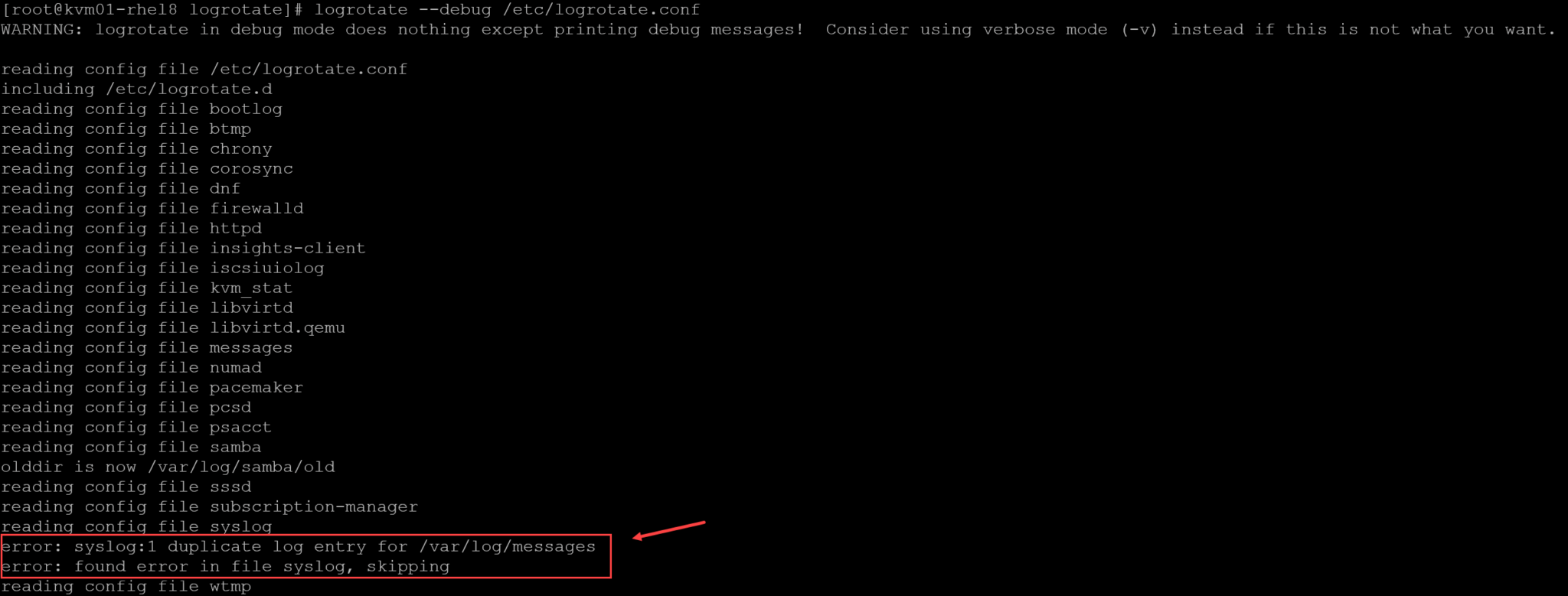
We can use the grep command to find what files are related to this error:
# The grep -R will read all files under a directory recursively:
grep -R "/var/log/messages" /etc/logrotate.d
In case, for instance, the log file “/var/log/messages” was referenced in two logrotate configuration files (syslog and messages). To fix this issue, keep only one entry for it (remove the entry from the syslog file or remove the configuration file /etc/logrotate.d/messages).
That’s it for now 🙂
