

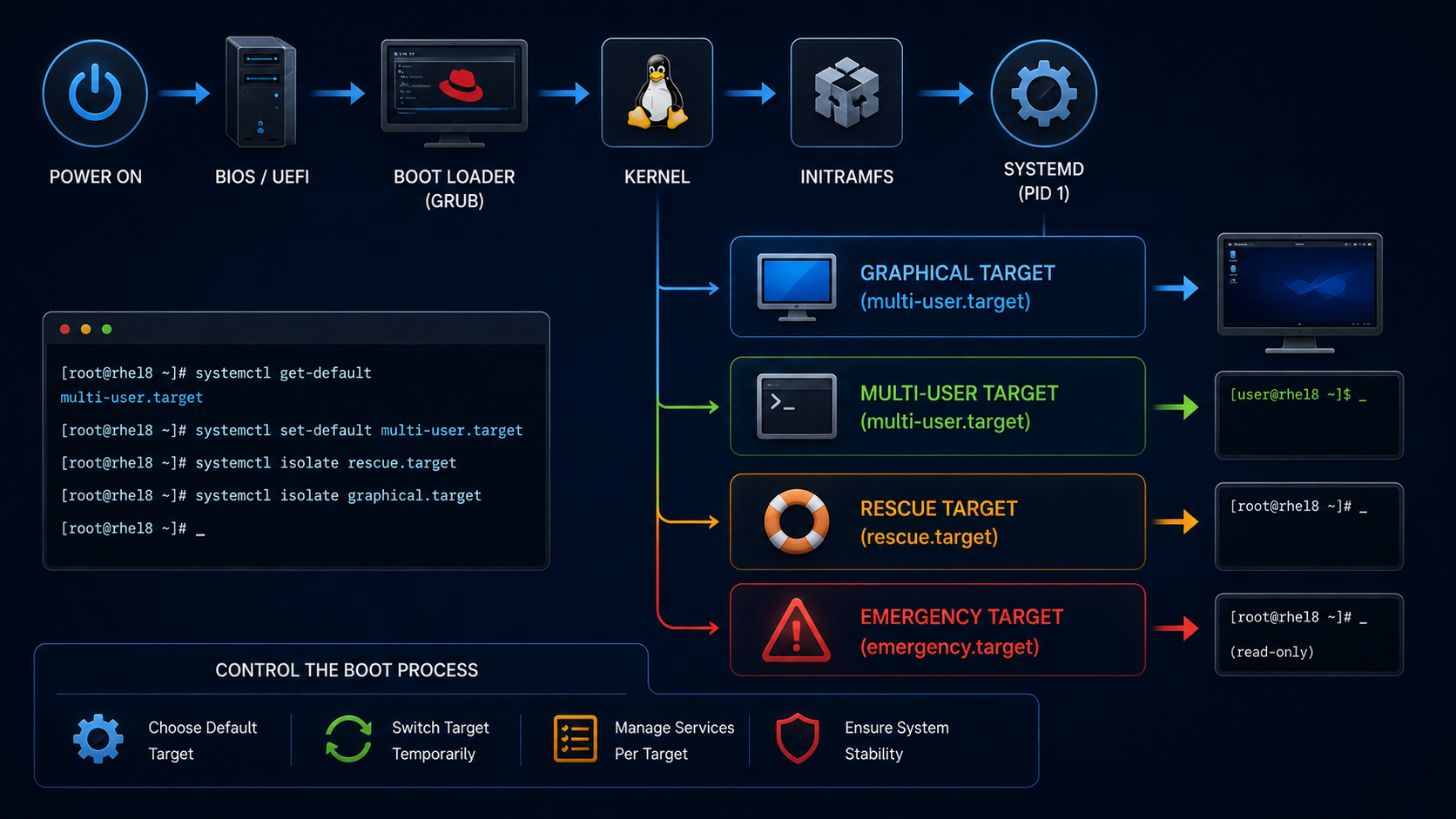
Handling Target System State on RHEL 8 shows how to control the boot process of RHEL 8 and define the state you want your system to boot into.
First and foremost: What is “systemd”?
Serving as a system and service manager for Linux operating systems, the systemd software suite provides tools and services for controlling, reporting, and system initialization. Key features include:
- Parallel start of system services during boot
- On-demand activation of daemons
- Dependency-based service control logic
The basic object that systemd manages is a systemd unit, which represents system resources and services. A systemd unit consists of a name, type, and a configuration file that defines and manages a particular task. You can use unit files to configure system behavior. See the following examples of various systemd unit types:
- Service: Controls and manages individual system services
- Target: Represents a group of units that define system states
- Device: Manages hardware devices and their availability
- Mount: Handles file system mounting
- Timer: Schedules tasks to run at specific intervals
Target Unit Files
Targets in systemd are groups of related units that act as synchronization points during the start of your system. Target unit files, which end with the .target file extension, represent the systemd targets. The purpose of target units is to group various systemd units through a chain of dependencies.
Note: Targets are similar to runlevels from the old SysV init system (such as runlevel 3 or 5), but offer more flexibility. Each target group has a set of services and configurations.
Here are the most common targets in RHEL:
| Target | Description | Old Runlevel |
|---|---|---|
| graphical.target | Full graphical multi-user system (GUI) | Runlevel 5 |
| multi-user.target | Multi-user mode without GUI (CLI only) | Runlevel 3 |
| rescue.target | Single-user mode with basic services | Runlevel 1 |
| emergency.target | Minimal system, no services, no network | Runlevel 0 |
| poweroff.target | Shuts down the system | Runlevel 0 |
| reboot.target | Reboots the system | Runlevel 6 |
| default.target | The default target the system boots into | – |
Changing the Default Target to boot into
1- What is the default Target?
We can use the following command to check what the default target is:
systemctl get-default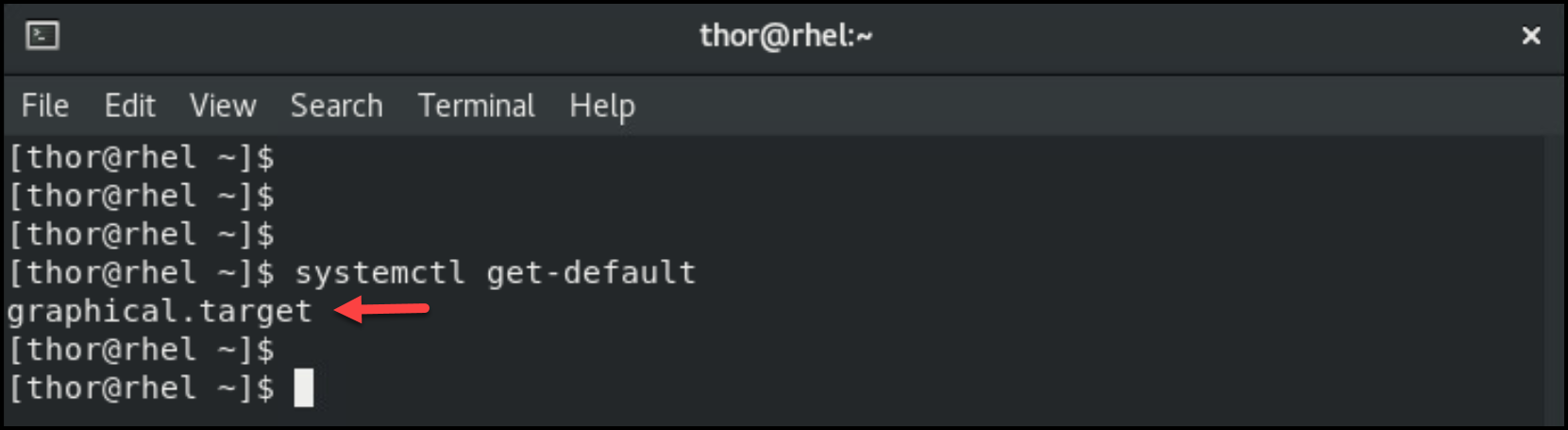
2- List the currently loaded targets:
systemctl list-units --type target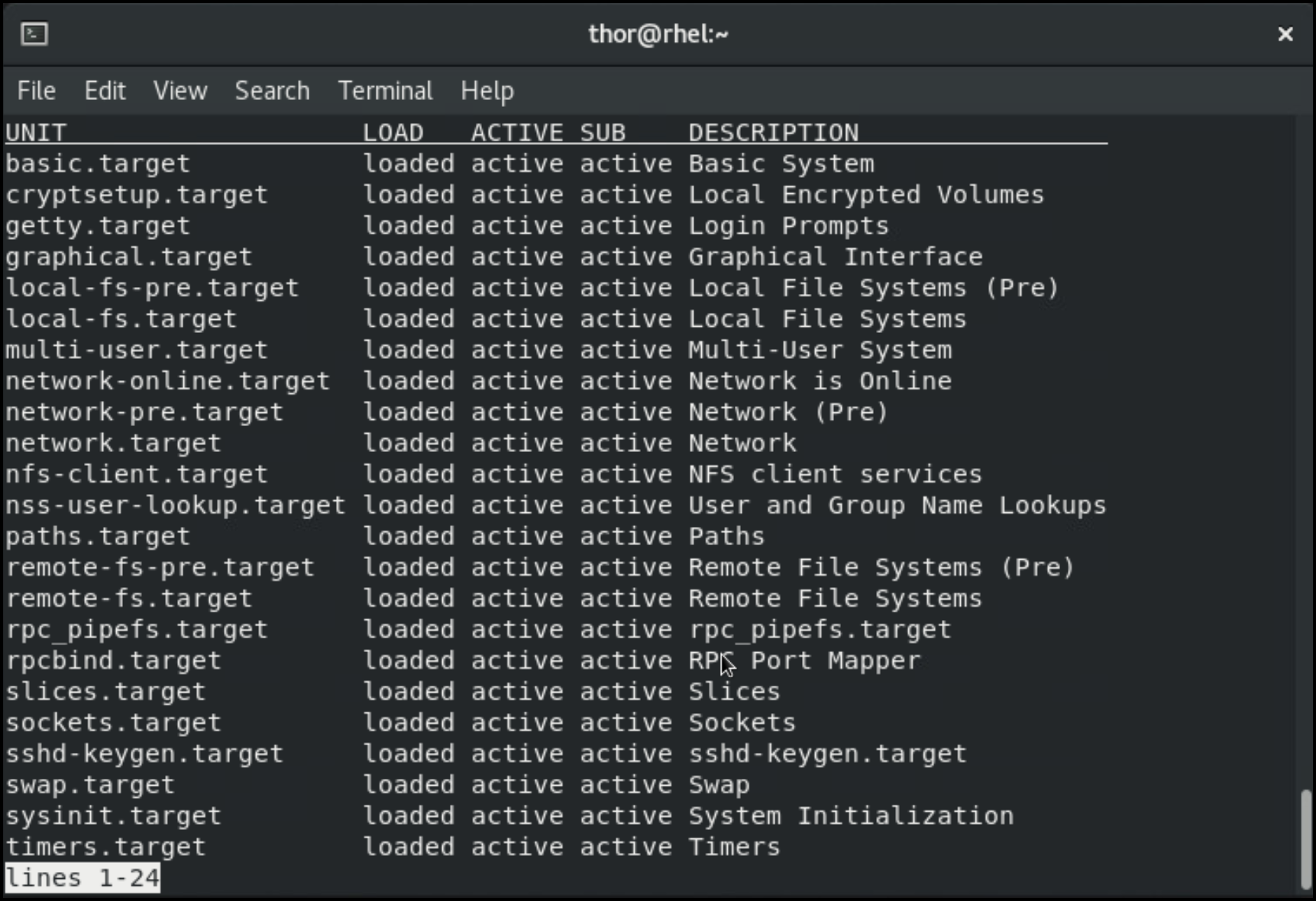
3- As we can see, our system is using the “graphical.target” as a default target.
If we need, for example, to define a new default target (multi-user.target), we need to execute the following command:
systemctl set-default multi-user.target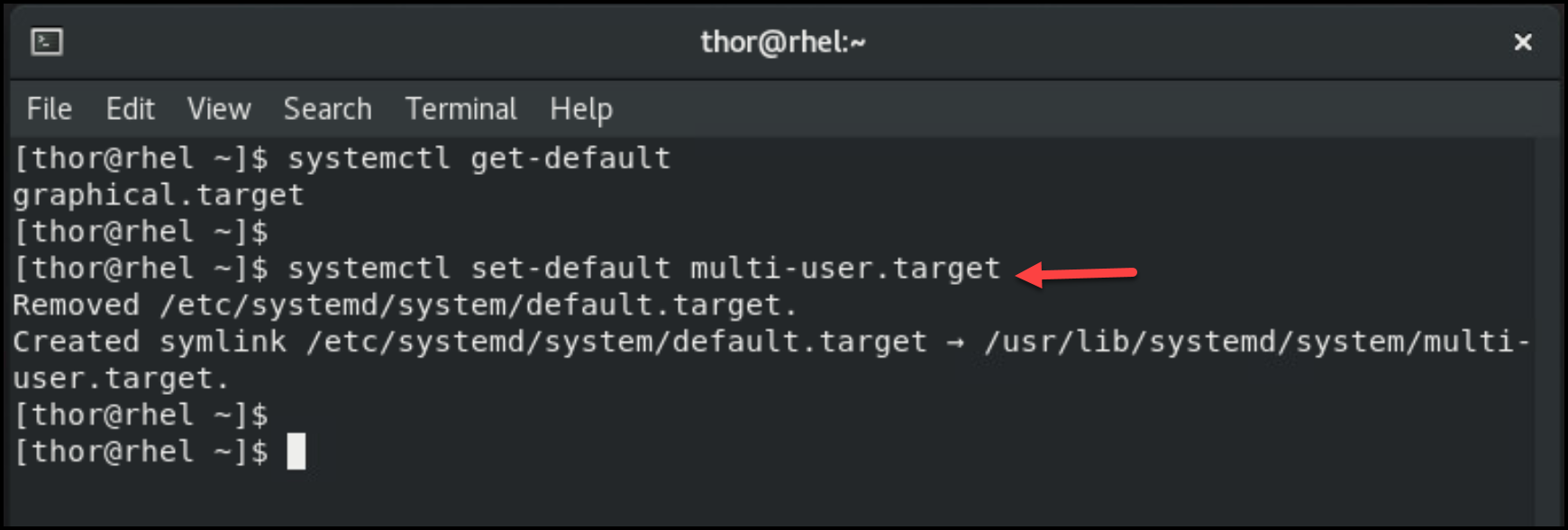
4- Check again what the default target is – look that the default target has been changed successfully to “multi-user.tager”:
systemctl get-default
5- Reboot the system!
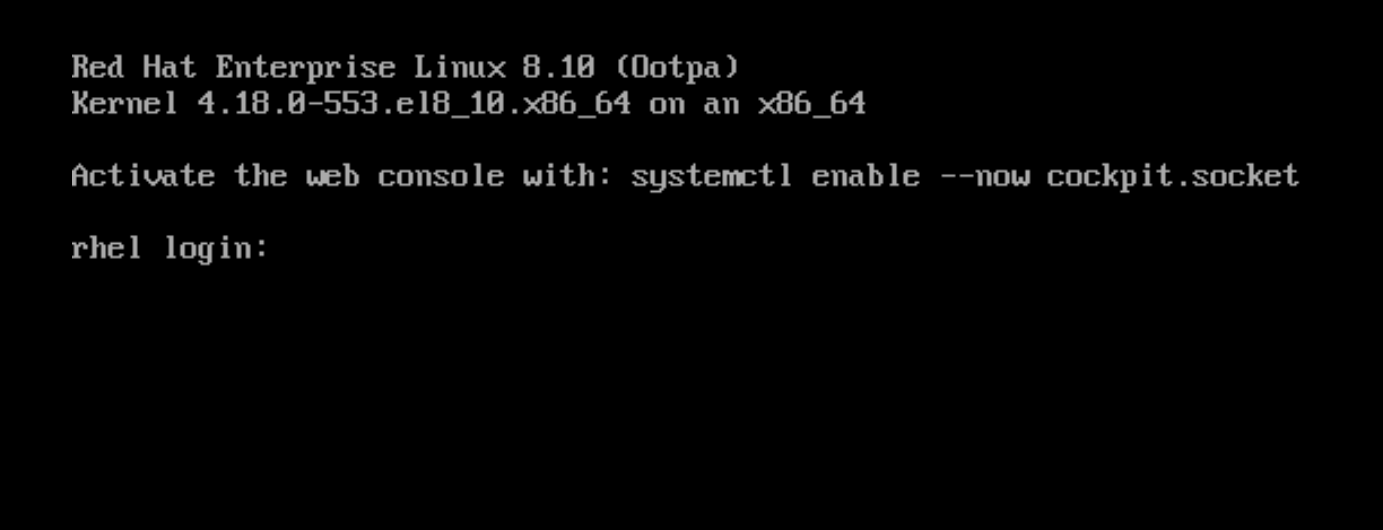
After rebooting the system, since the target “graphical.target” was not the default target, the graphical interface was not loaded – the “multi-user.target” does not provide the graphical interface:
6- If you want to switch to the “graphical.target”, we can do that with the following command:
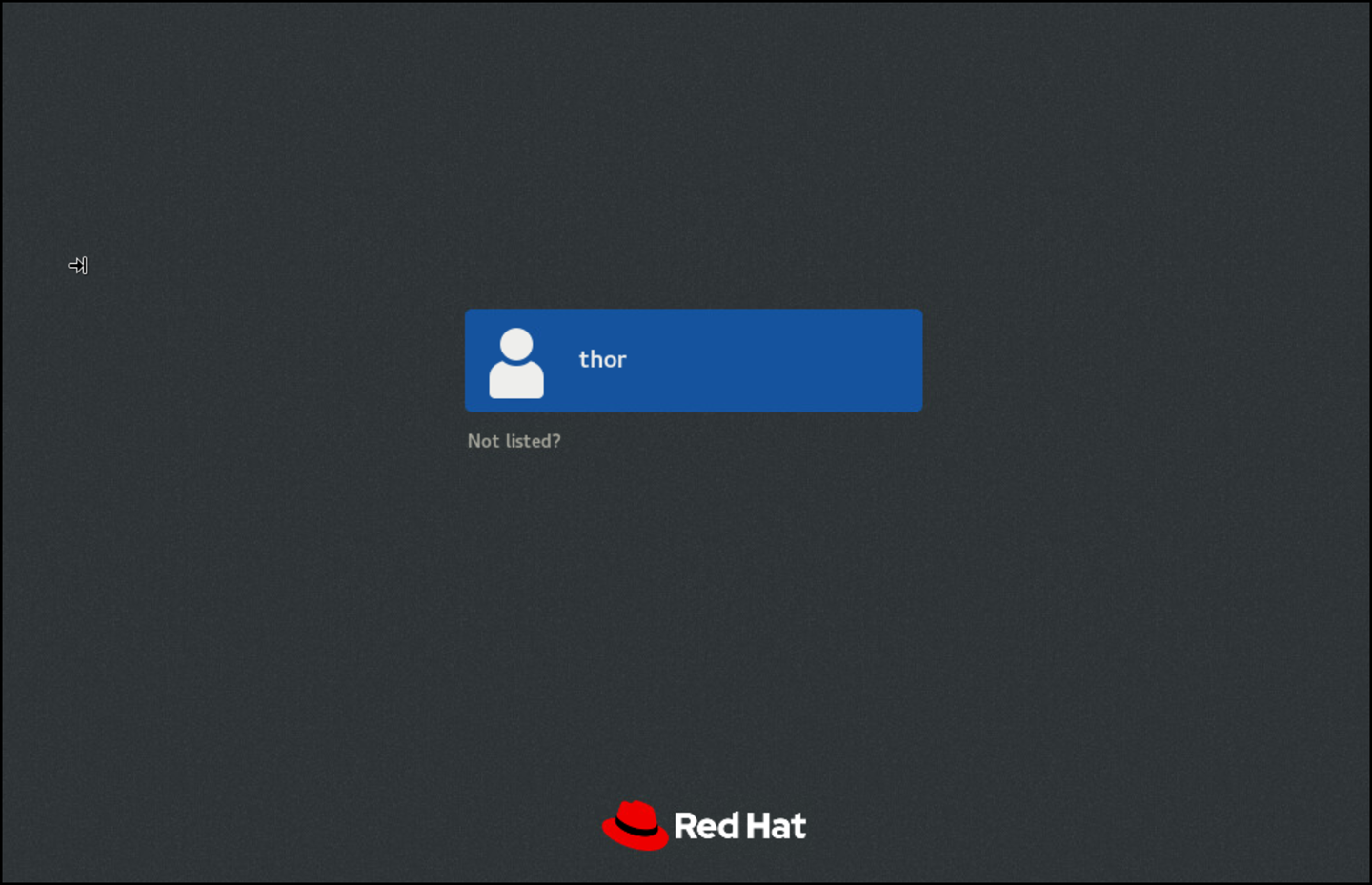
systemctl isolate graphical.targetDoing it, the target will change immediately – In this example, we are on “multi-user.target” and switch to the “graphical.target” in real time, without rebooting the system:
Note: However, even using the “graphical.target”, if you reboot the system, the default target will be used to boot the system!
Rescue Mode
You can boot into rescue mode, which provides a single-user environment for troubleshooting or repair if the system cannot reach a later target and the regular booting process fails. In rescue mode, the system attempts to mount all local file systems and start certain essential system services, but it does not activate network interfaces.
Note: To access rescue mode, you need root access.
To enter the rescue mode, change the current target in the current session:
systemctl rescue
After working on rescue mode, you can….
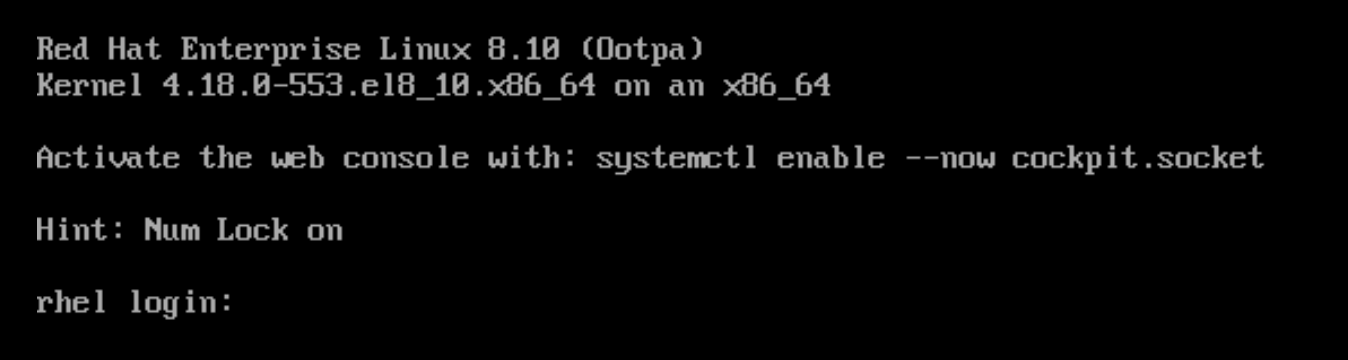
systemctl default…. to boot into default target mode:
Note: rescue mode is not the same thing as emergency mode!
Emergency Mode
As a system administrator, you can select a non-default target at boot time to troubleshoot the boot process. Changing the target at boot time affects only a single boot. You can boot to emergency mode, which provides the most minimal environment possible.
Note: In emergency mode, the system mounts the root file system only for reading, does not attempt to mount any other local file systems, does not activate network interfaces, and only starts a few essential services!
Procedure:
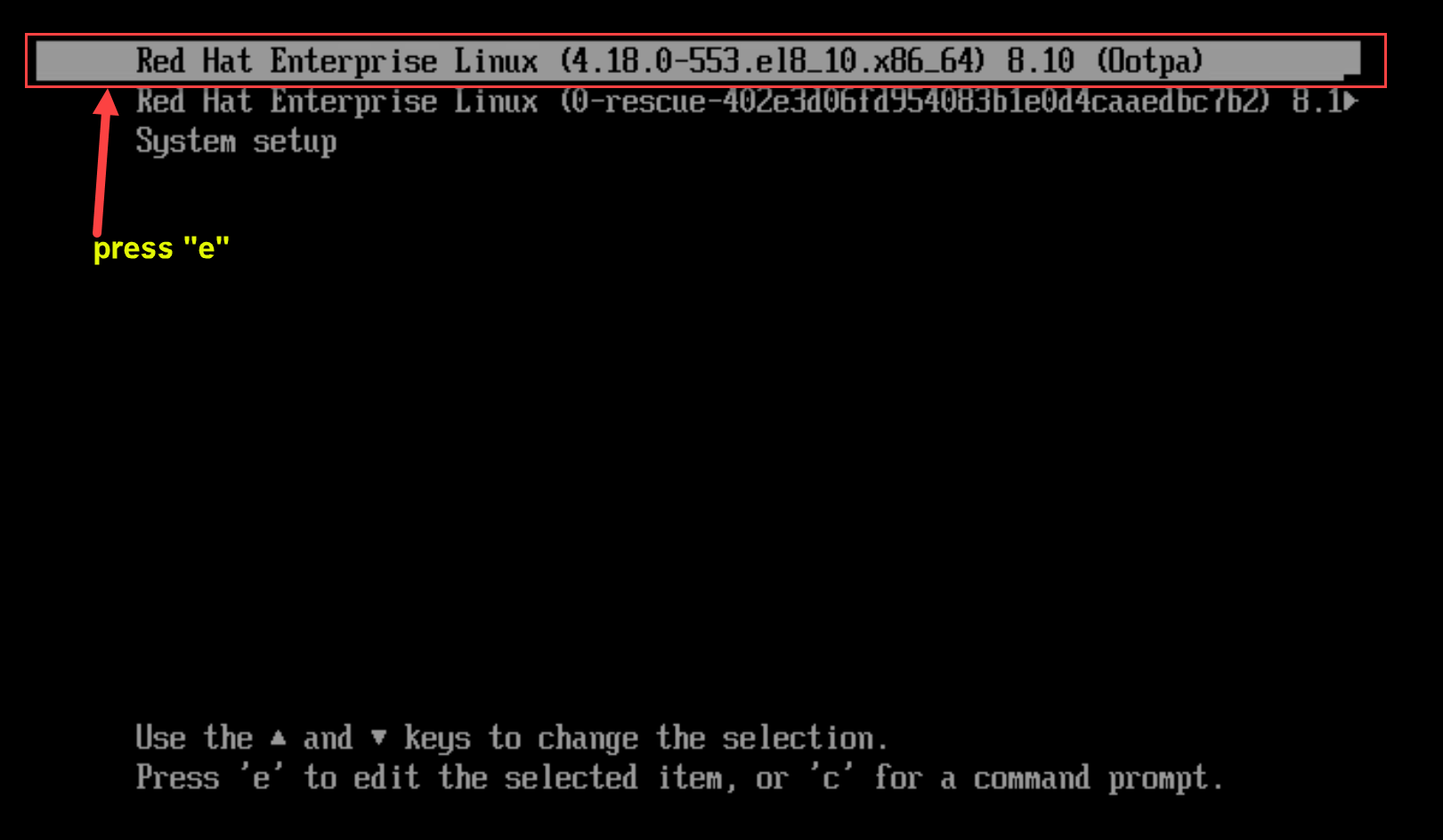
1- Reboot the system, and interrupt the boot loader menu countdown by pressing any key except the Enter key, which would initiate a normal boot. Press the “e” key to edit the current entry:
2- Move to the end of the line that starts with linux and press Ctrl+E to jump to the end of the line:
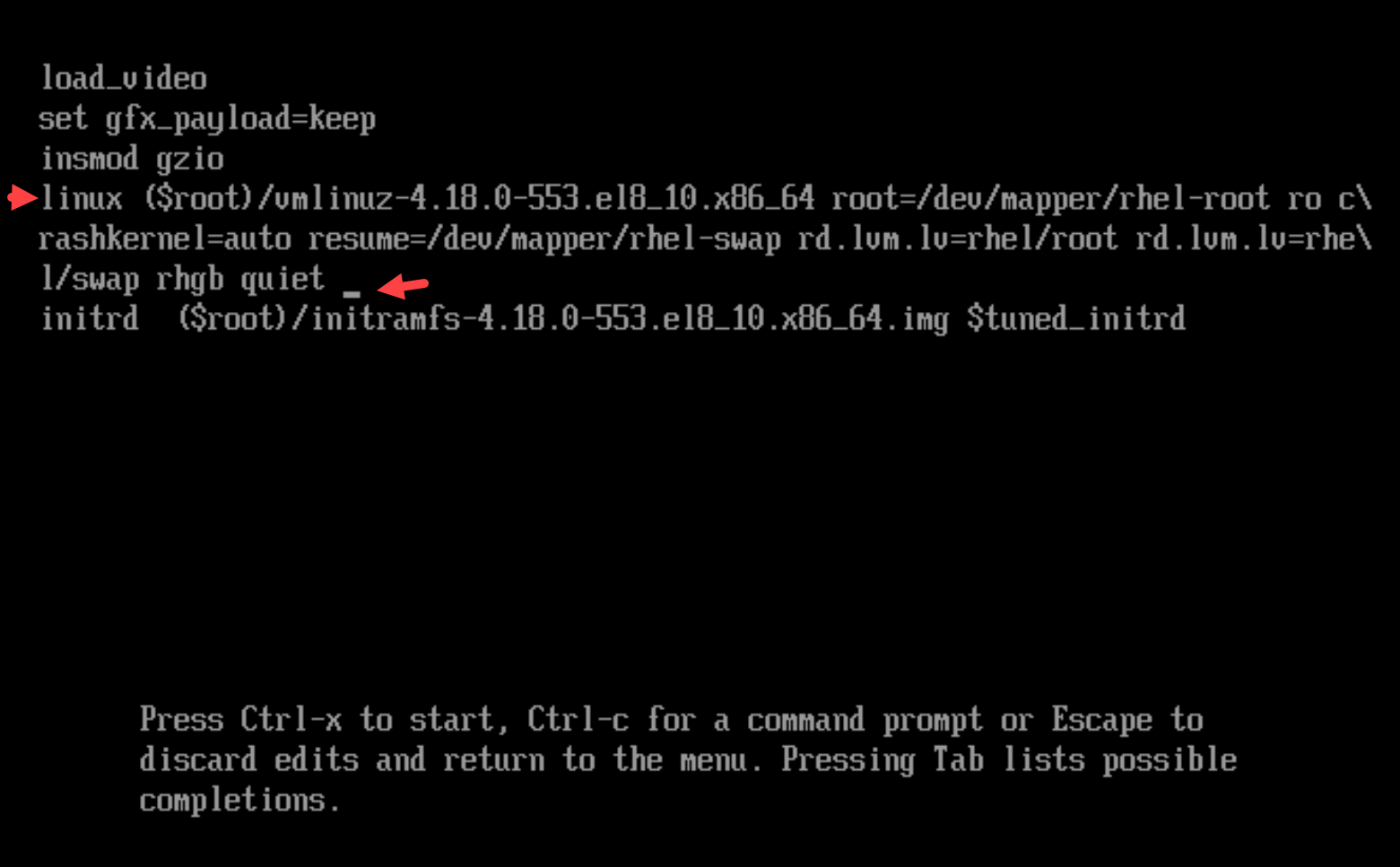
3- To choose an alternate boot target, append the systemd.unit= parameter to the end of the line that starts with linux.
We need to type “systemd.unit=emergency.target”:
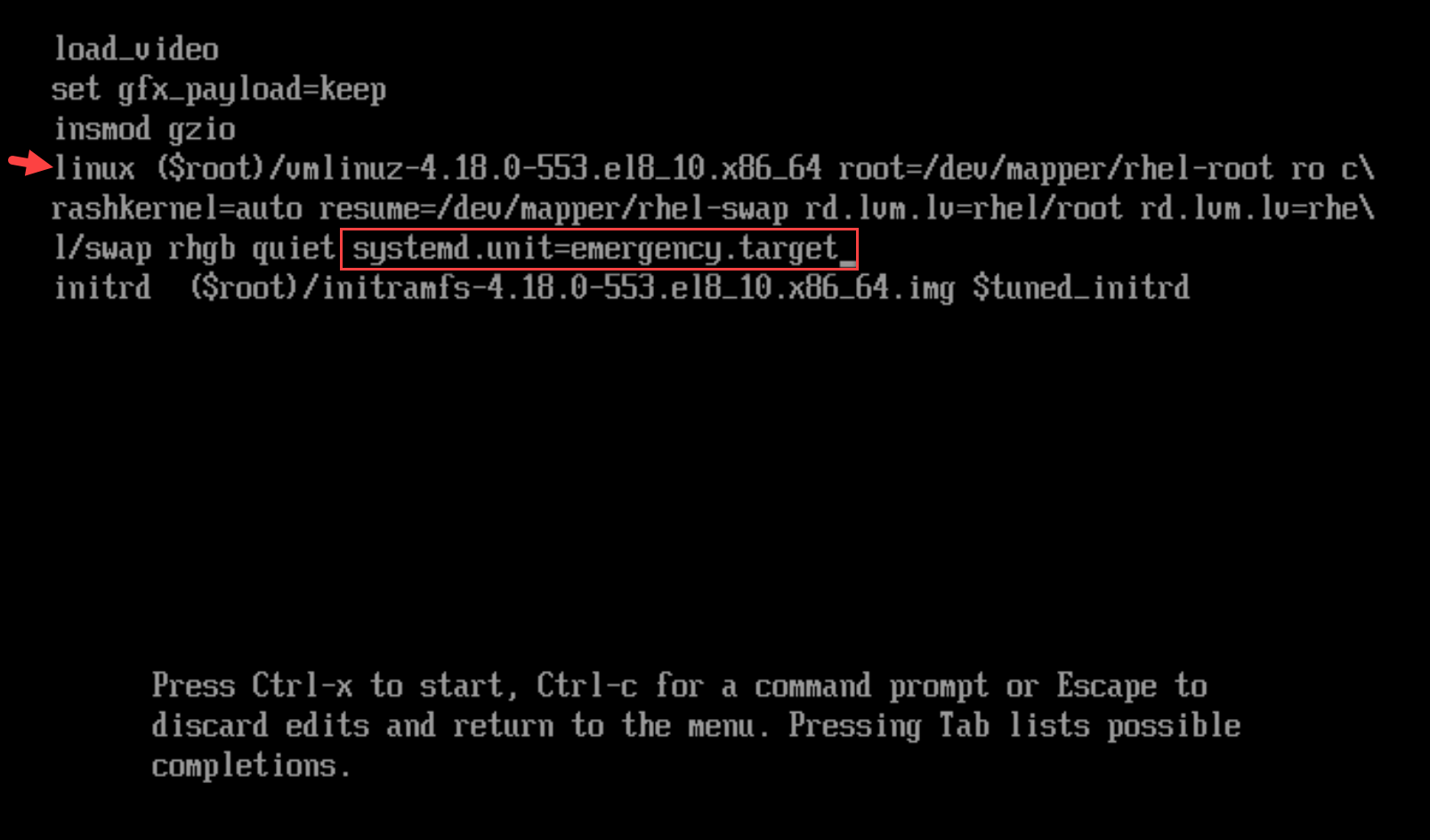
4- Press Ctrl+X to boot with these settings:

That’s it for now 🙂
