Close Menu
DPC Virtual Tips
    Read More

    How to Troubleshoot Packet Drops on an ESXi Host

    August 16, 2026

    SlurmDBD Is Down: What Continues Working and What Does Not

    August 15, 2026

    How to Investigate Jobs Stuck in COMPLETING State on Slurm

    August 14, 2026
    • Home
    • About Us
    • Contact
    • Cookie Policy
    • Comment Policy
    • Privacy Policy
    • Terms of Use
    • Disclaimer
    Monday, August 24
    DPC Virtual Tips
    • Home
    • Operating Systems
    • PowerFlex
    • HPC
    • Virtualization
    • About the Author
    • About Us
    • Contact
    DPC Virtual Tips
    Home » How to Install RHEL 8 on Lab
    Operating Systems

    How to Install RHEL 8 on Lab

    DaniloBy DaniloJuly 24, 2025Updated:August 1, 2026No Comments3 Mins Read
    Facebook Twitter Pinterest LinkedIn Tumblr Email
    Install RHEL 8
    Share
    Facebook Twitter LinkedIn Pinterest Email

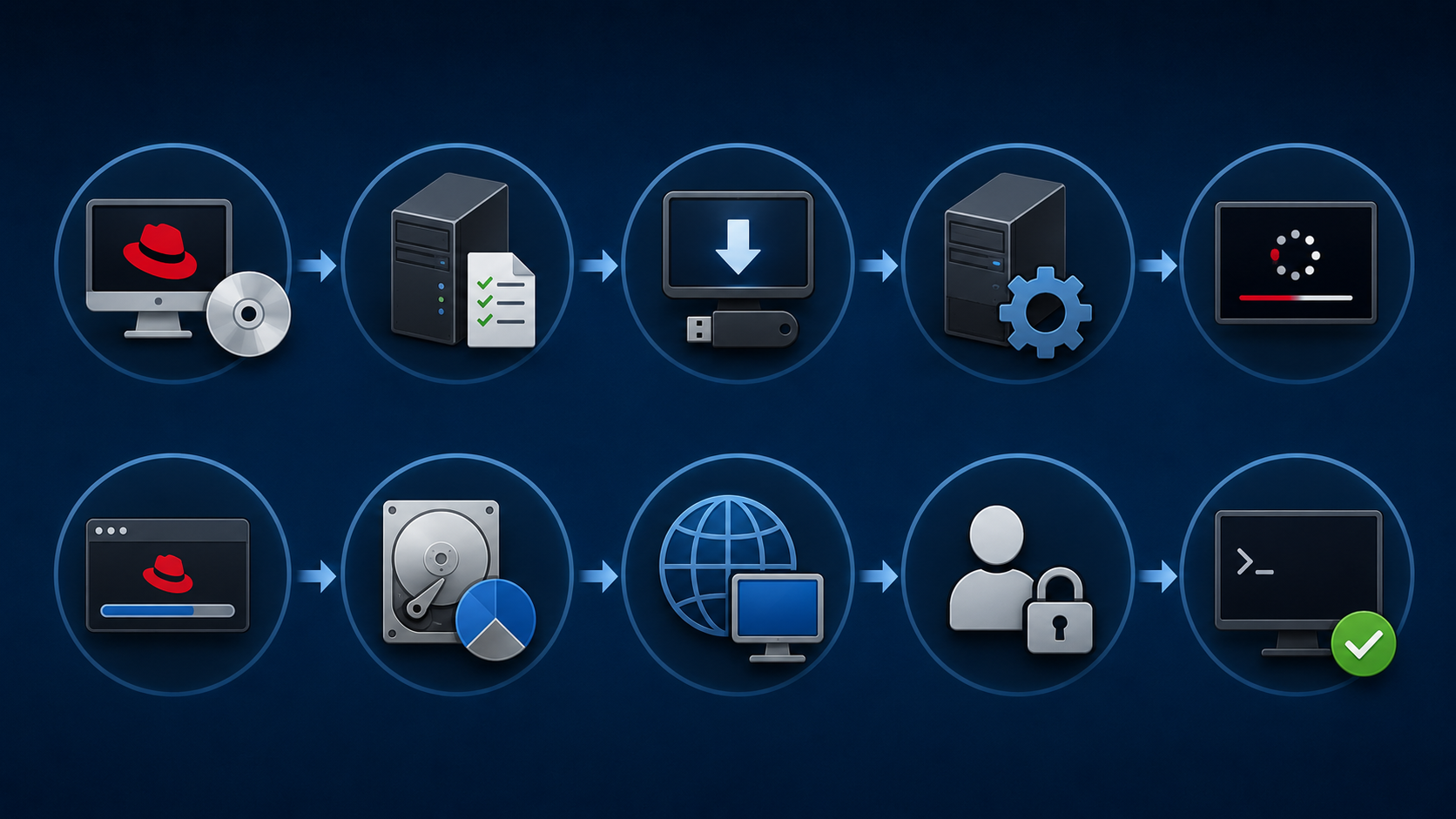
    How to Install RHEL 8 on Lab shows all the necessary steps to install Red Hat Enterprise Linux 8 on a lab environment.

    Downloading the Installation File (.iso)

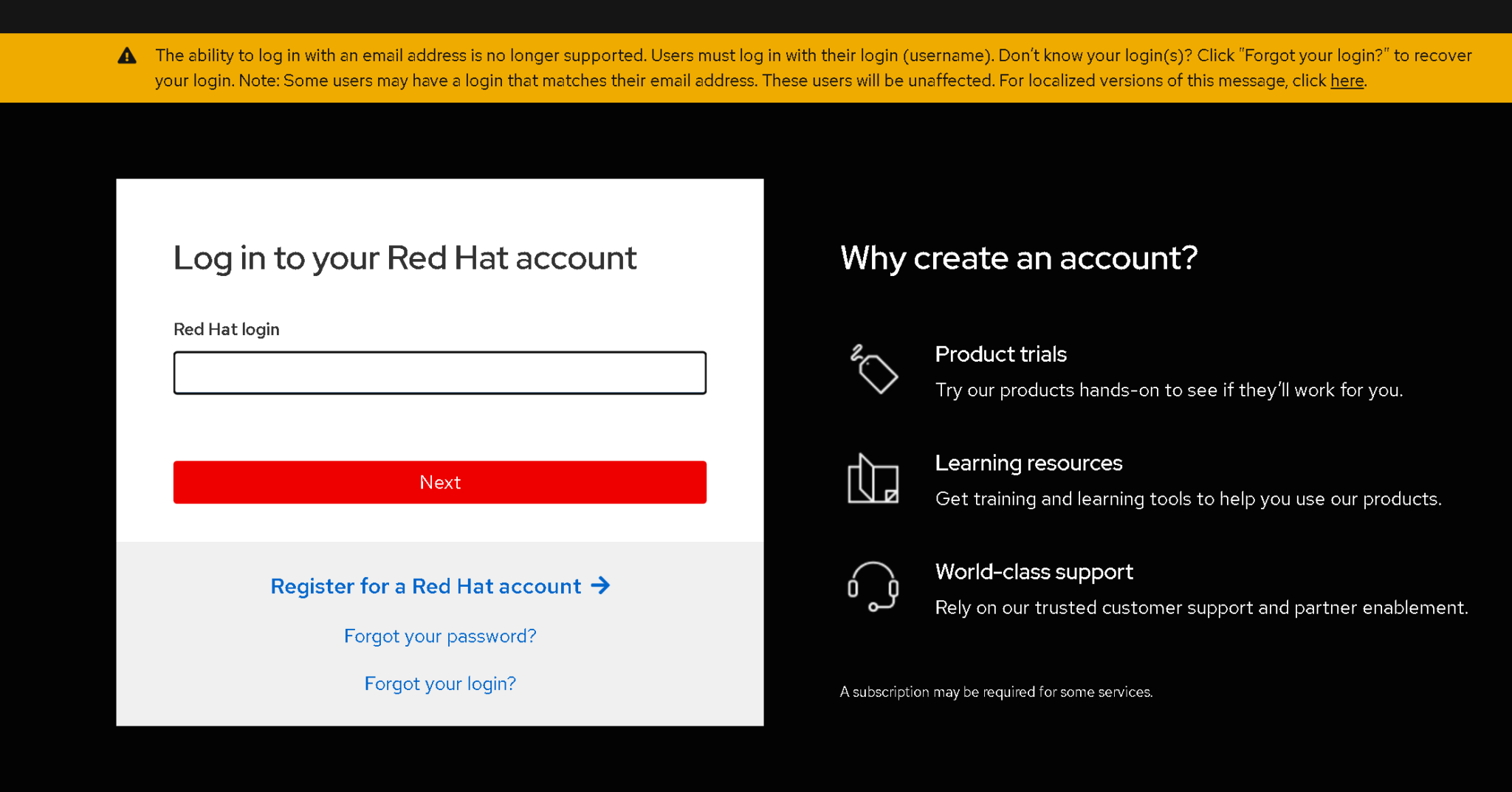
    First and foremost, access http://access.redhat.com/ and create an account if you have not yet:
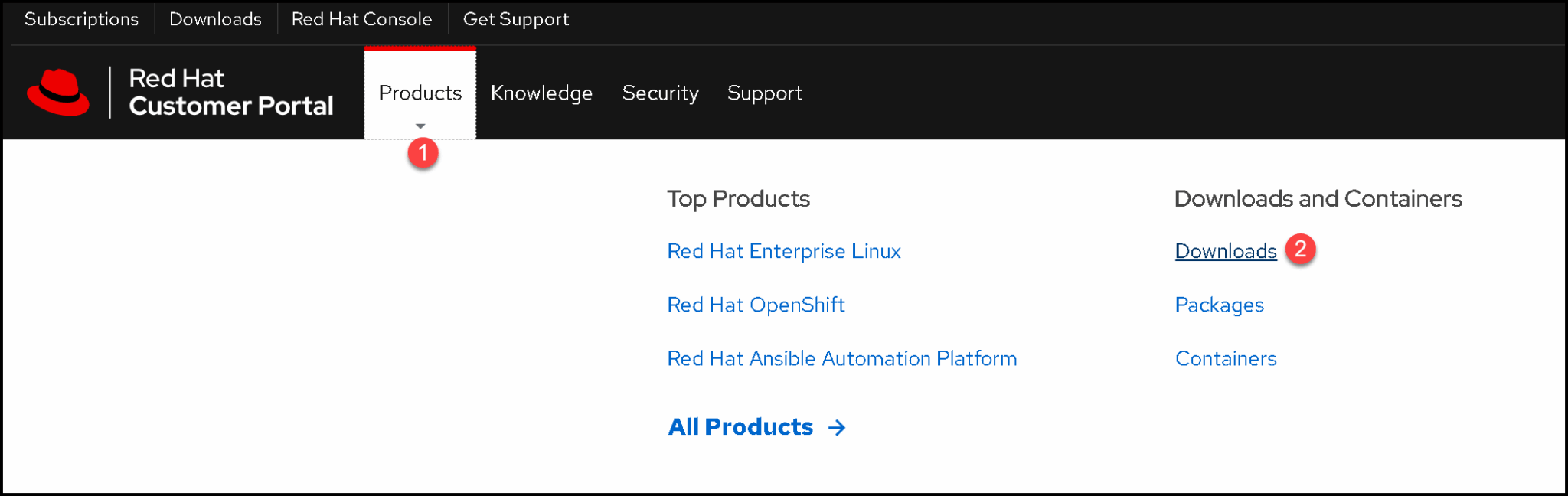
    After accessing your account, go to Products –> under Downloads and Containers, click on Downloads:
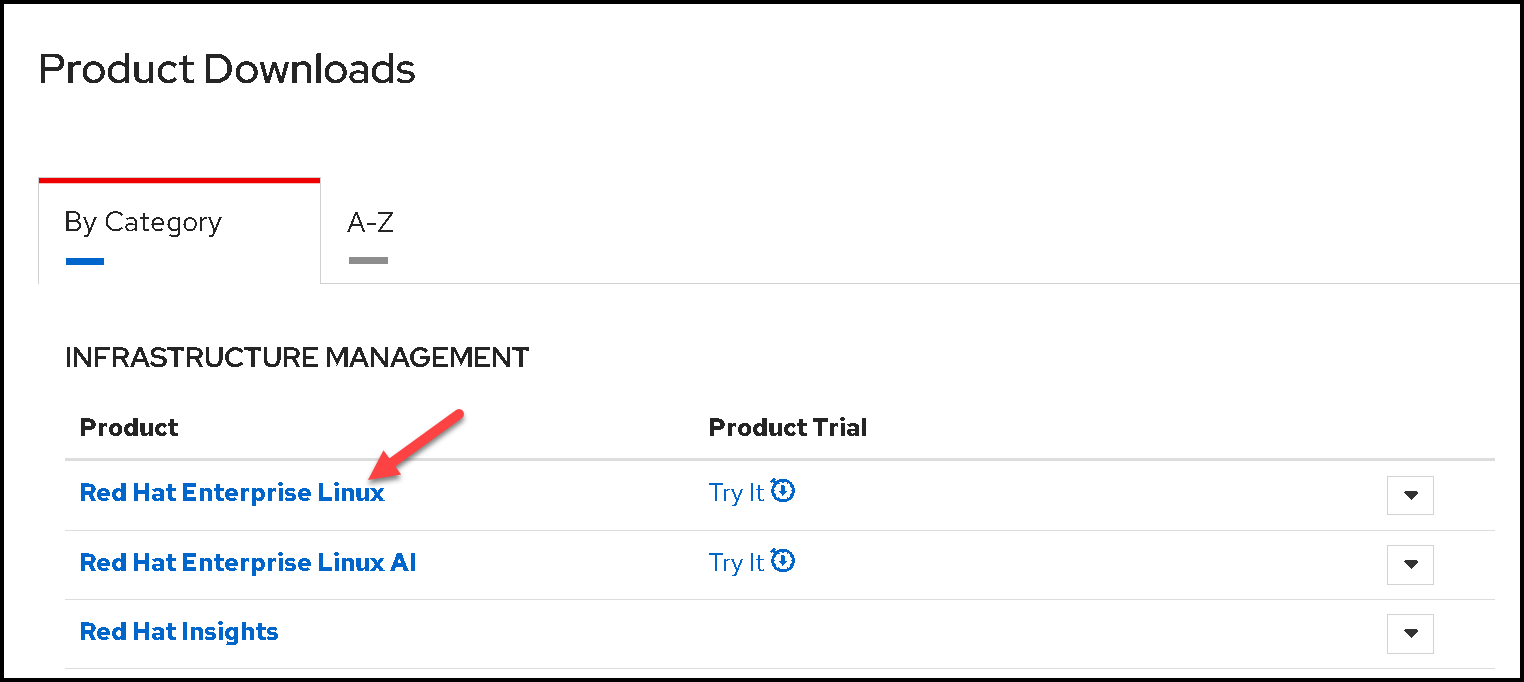
    All available downloads will be shown, segmented by category. Click on “Red Hat Enterprise Linux”:
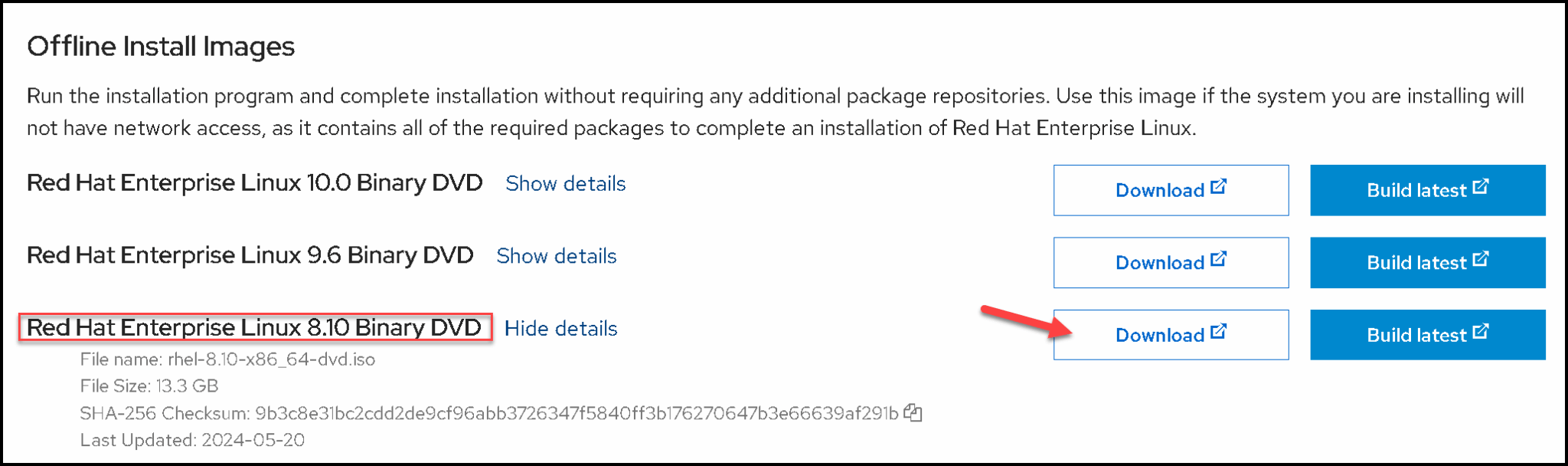
    For this lab, we’re using RHEL 8.10 – Feel free to use another version:
    Booting with Installation File

    We created a VM and set it up to boot from the installation file (.iso):
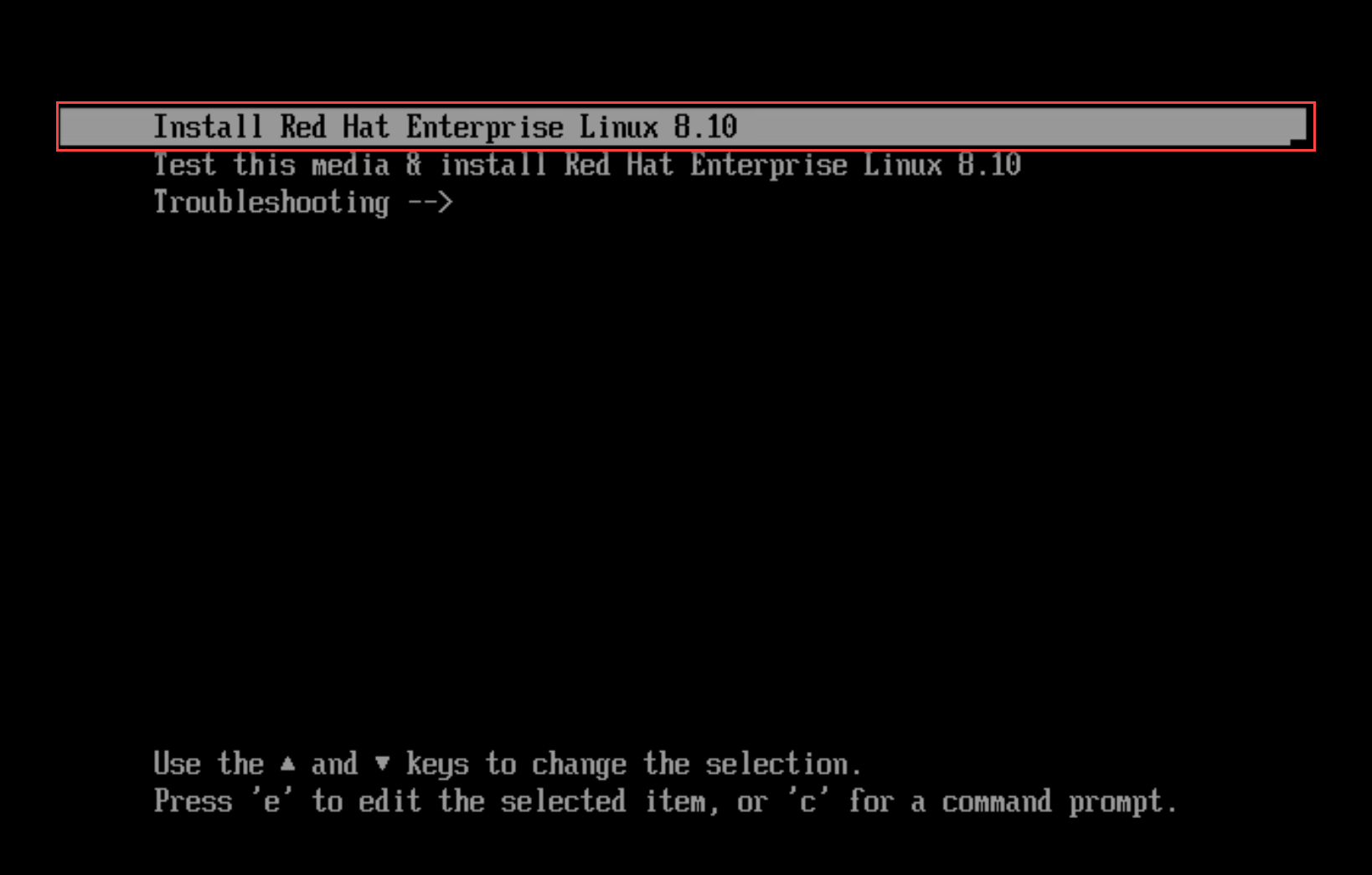
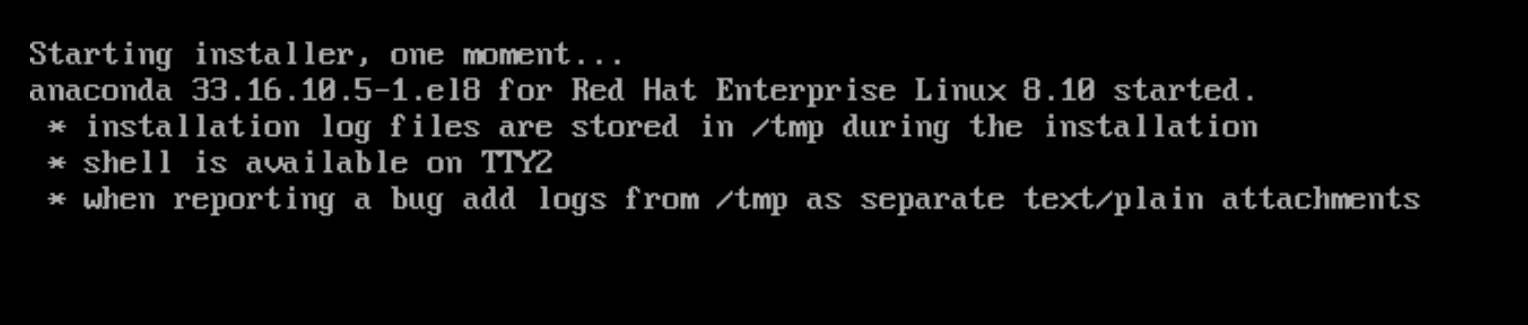
    After some moments, the installer wizard will be available:
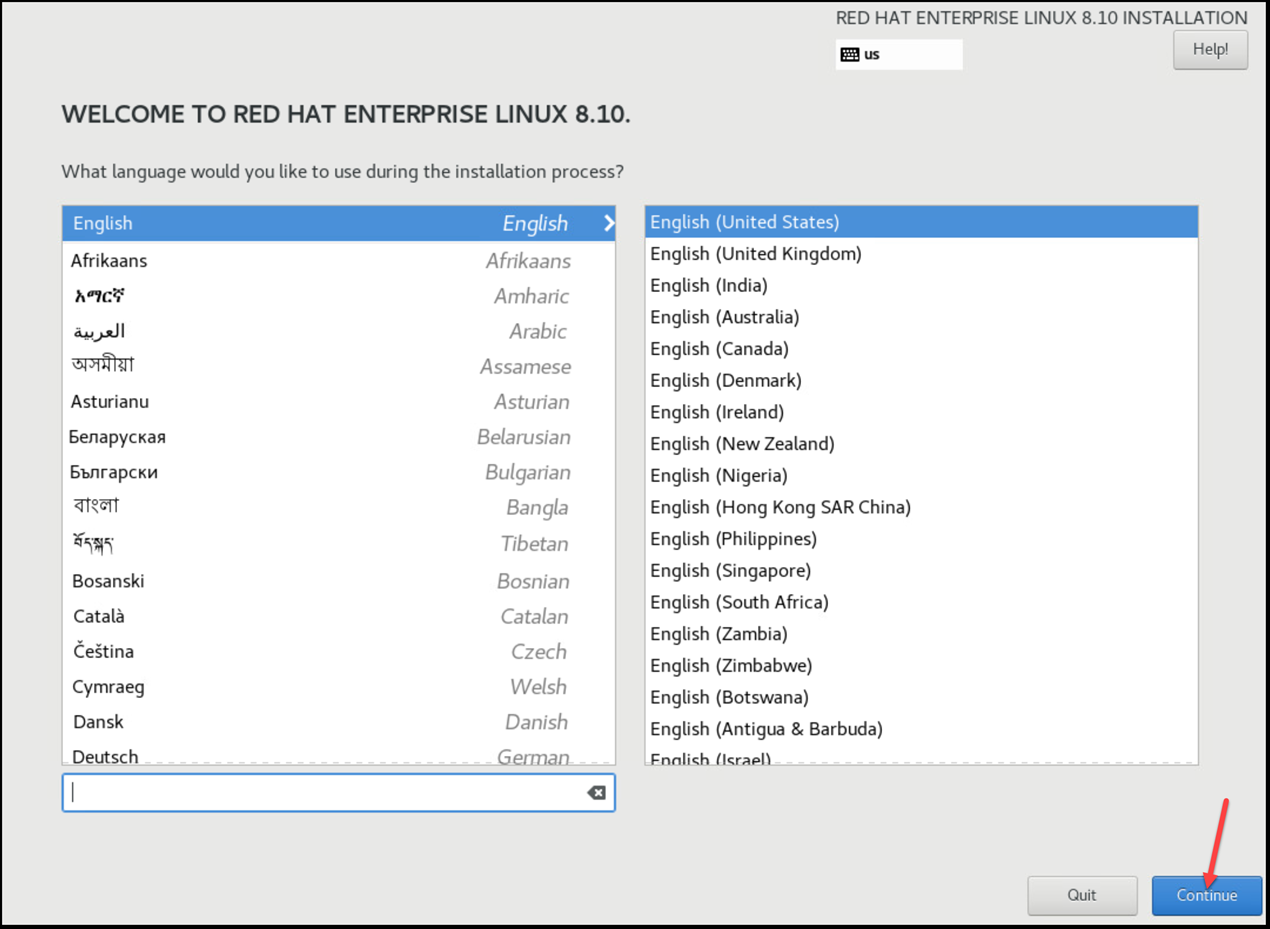
    You can configure the language to use during the installer wizard:
    The installation summary screen contains all the options for the RHEL installation.
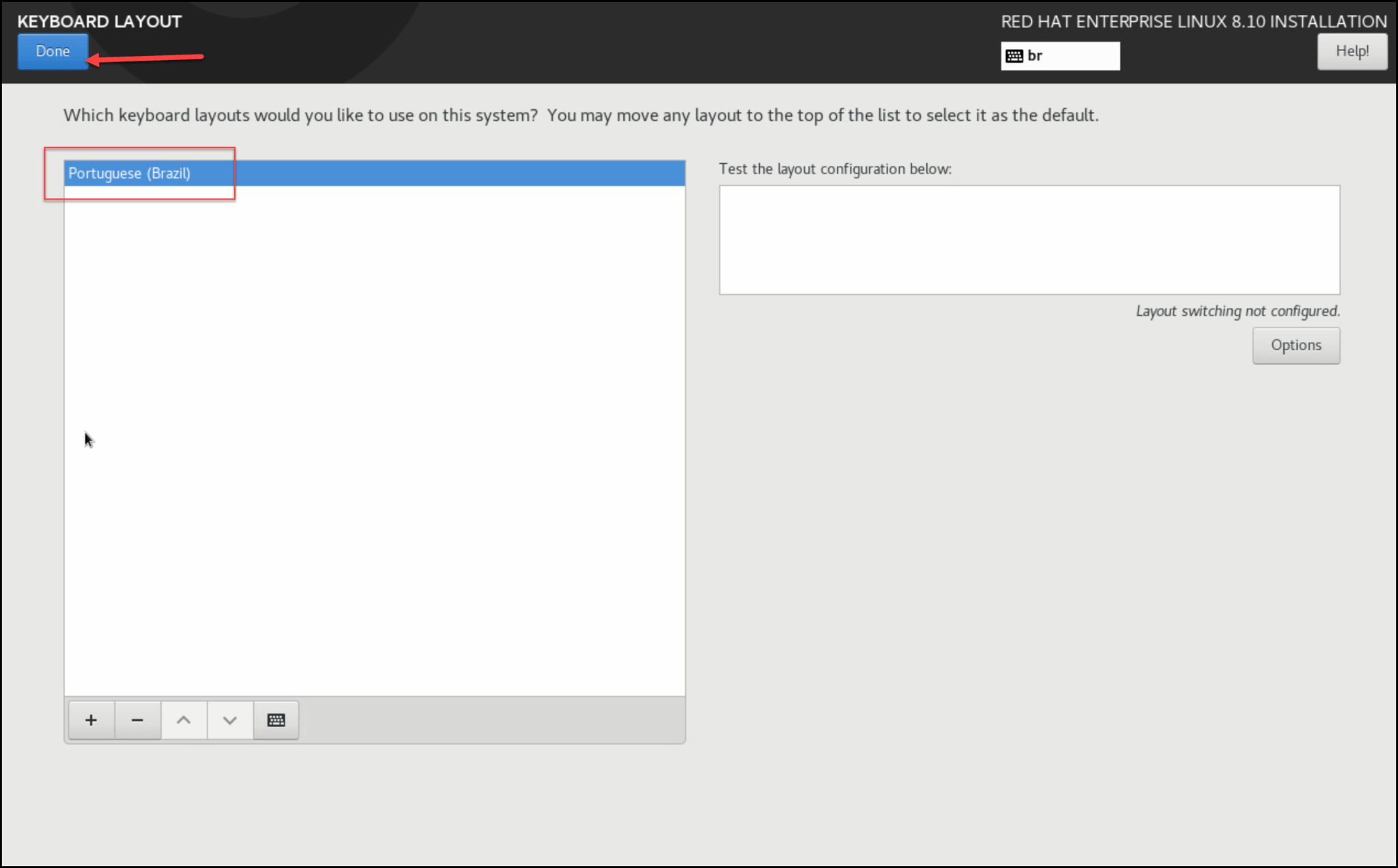
    The first one to adjust is the keyboard layout. In our case, for instance, the keyboard layout is defined as English (US). To change it or add more keyboard layouts, click on it and adjust as you need:
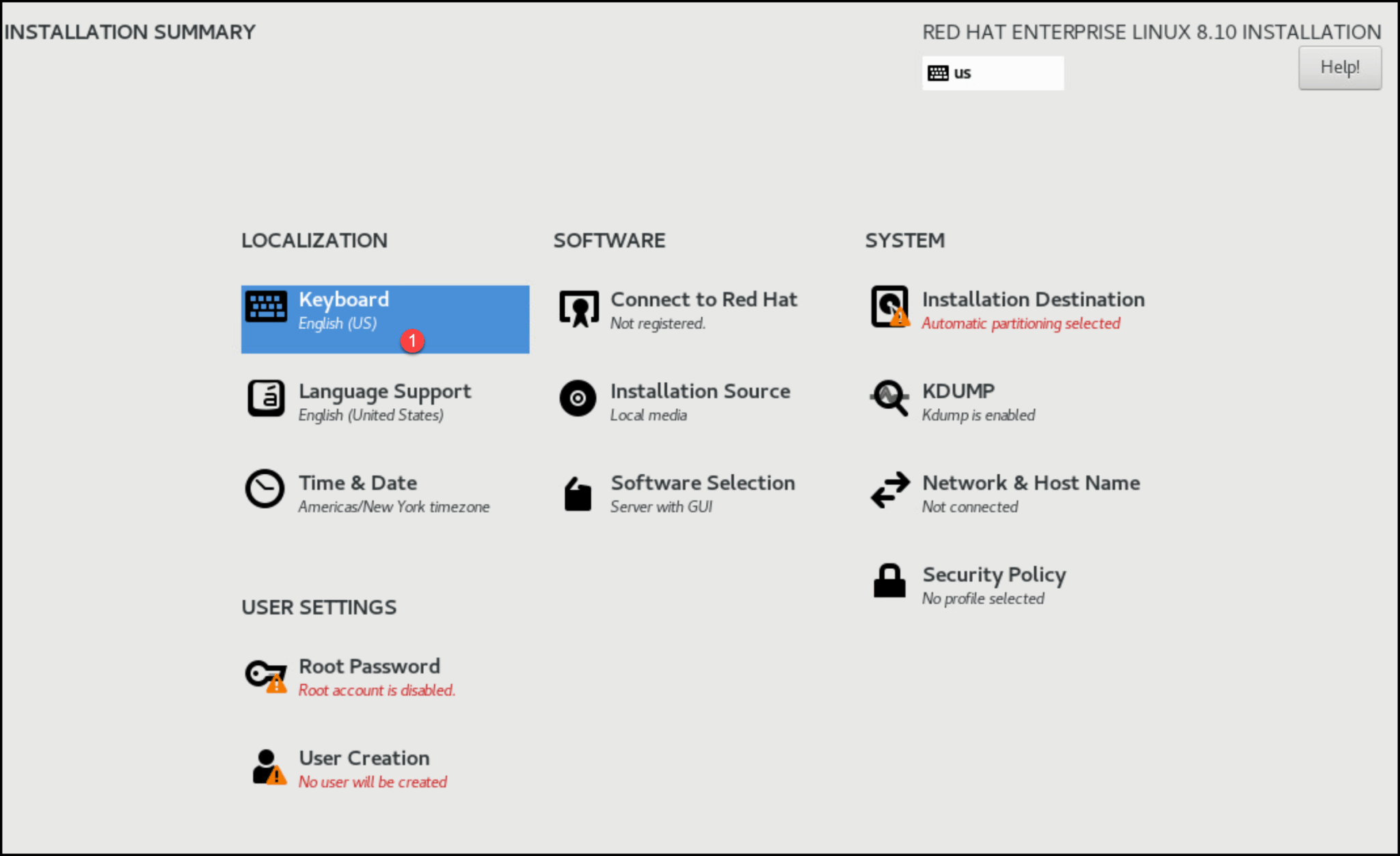
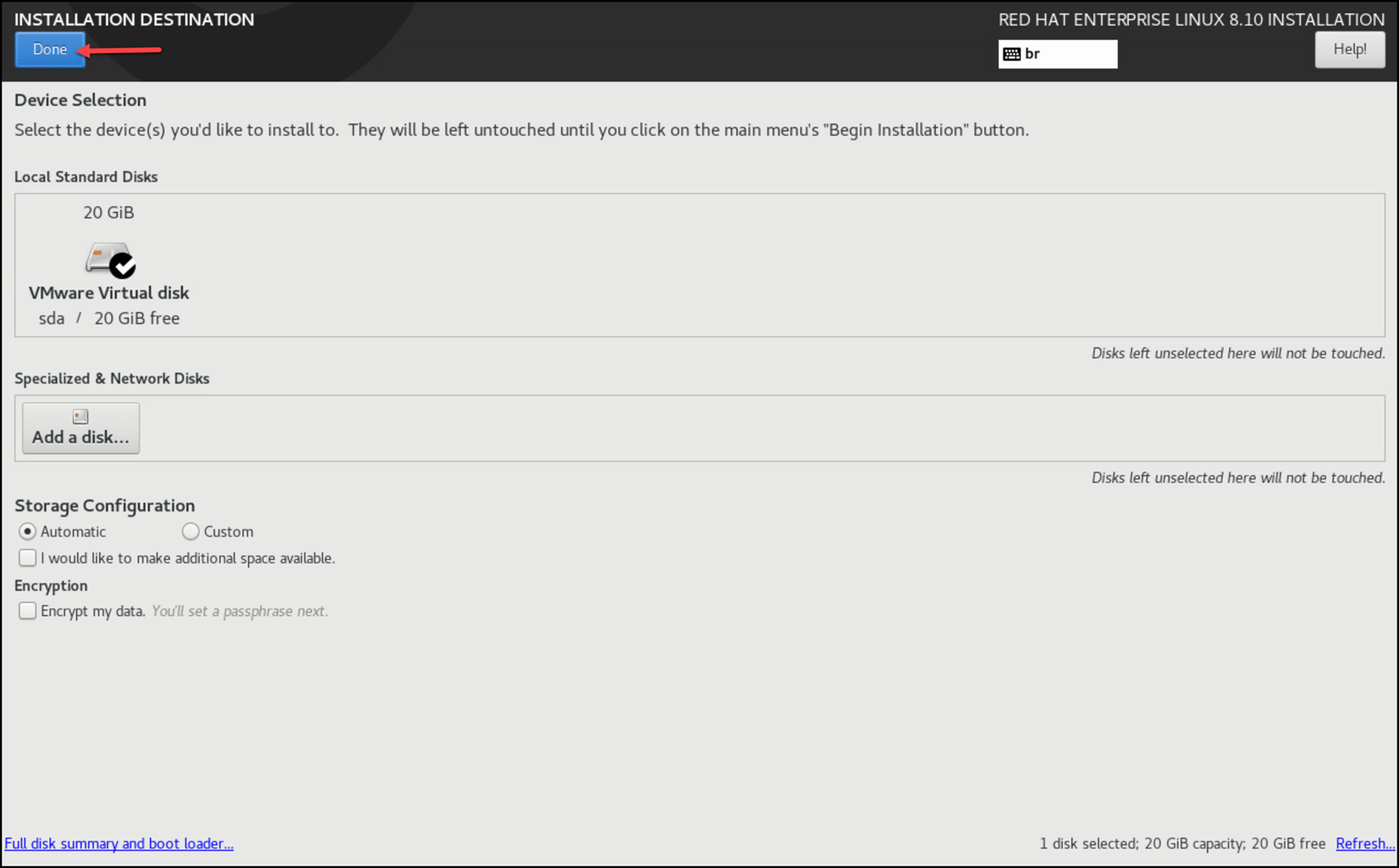
    Afterward, click on “Installation Destination”. Under this page, you can manually create the partitions to satisfy your needs – or simply keep the default for automatic storage configuration and click on “Done”:
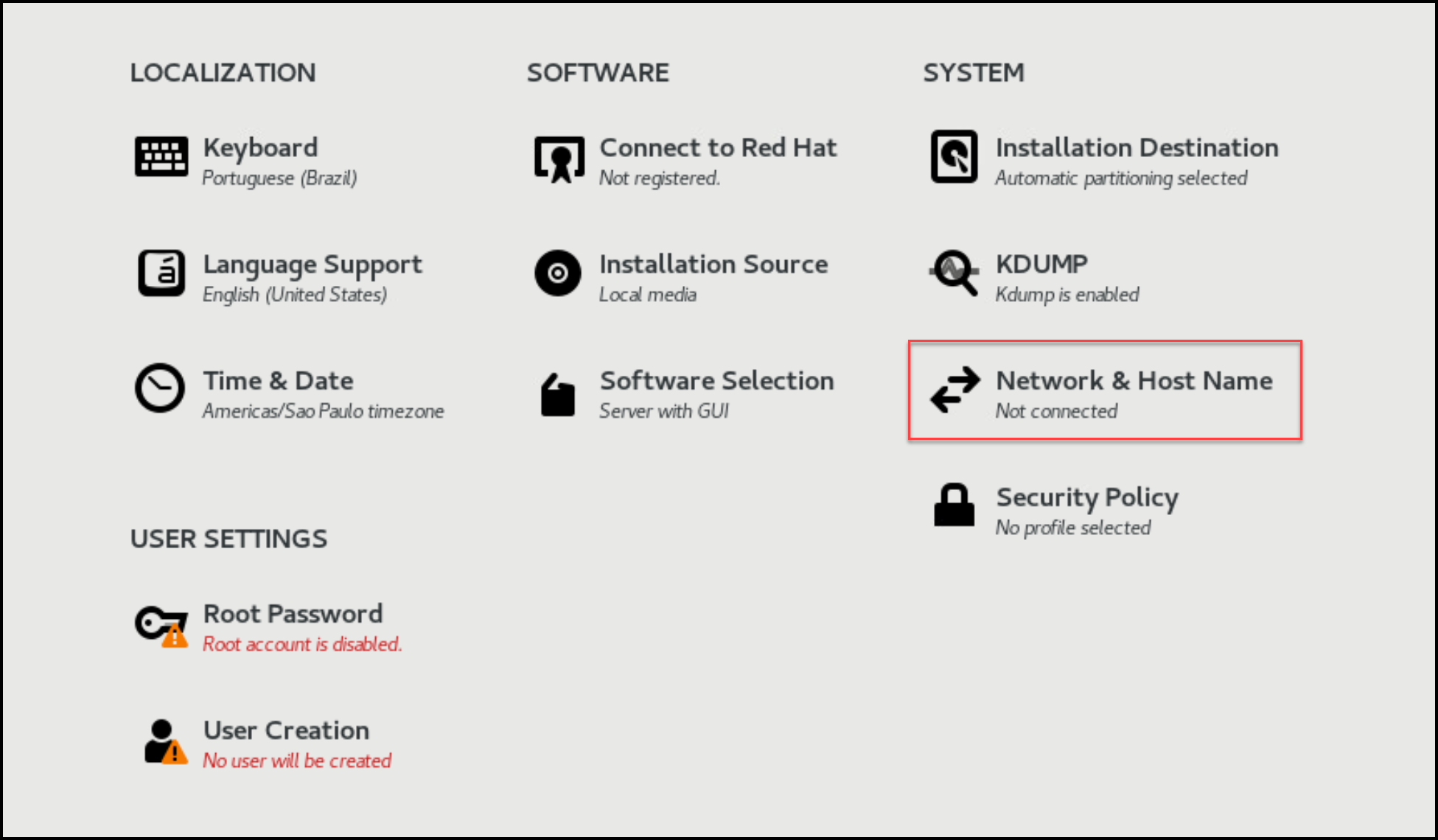
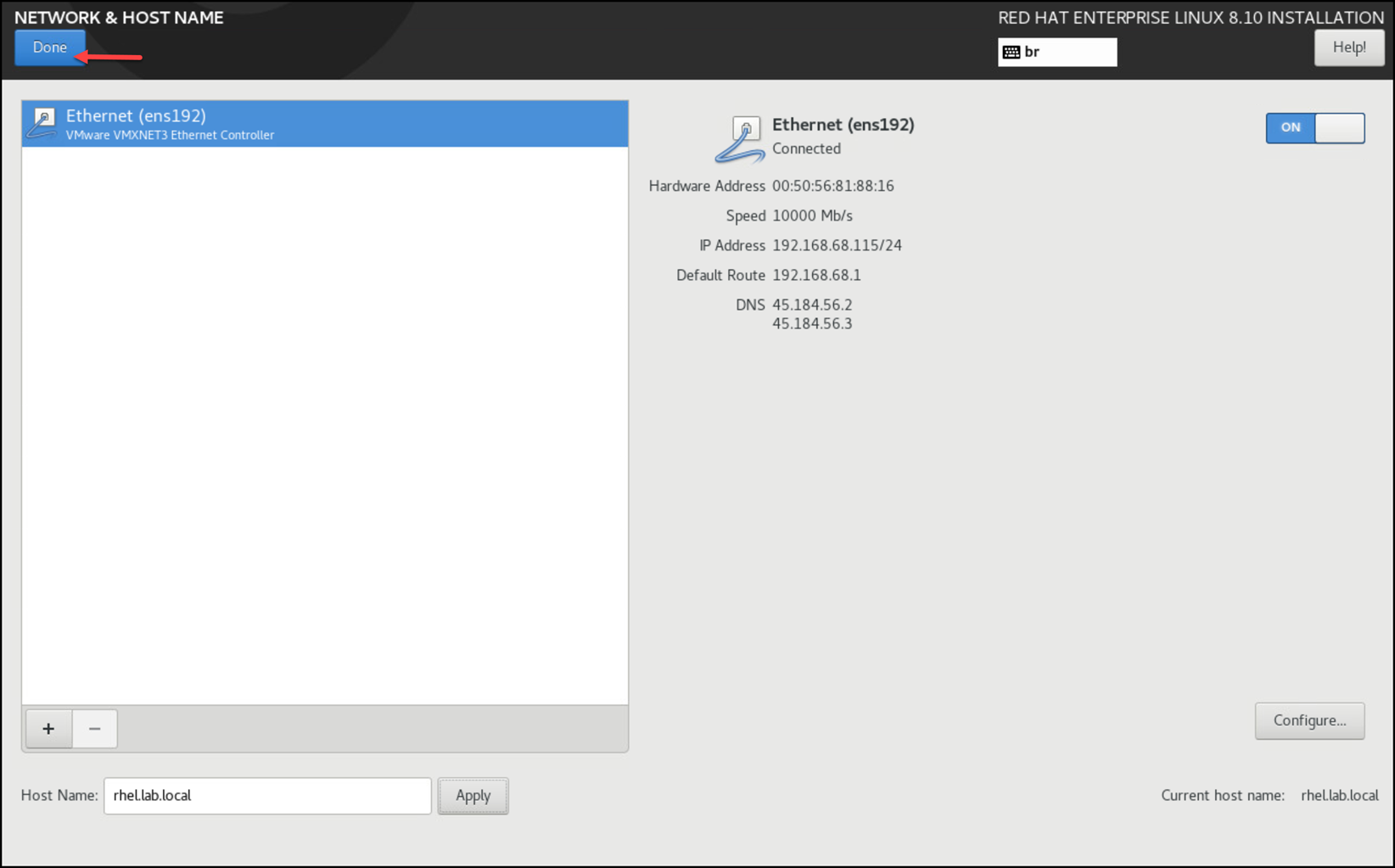
    The following recommendation is to set up the network. Click on “Network & Host Name”:
    Define the hostname and click on apply.
    By default, when you turn on the network interface, it will attempt to acquire an IP address from the DHCP server. If you want to use a static IP configuration, click on configure and set it up:
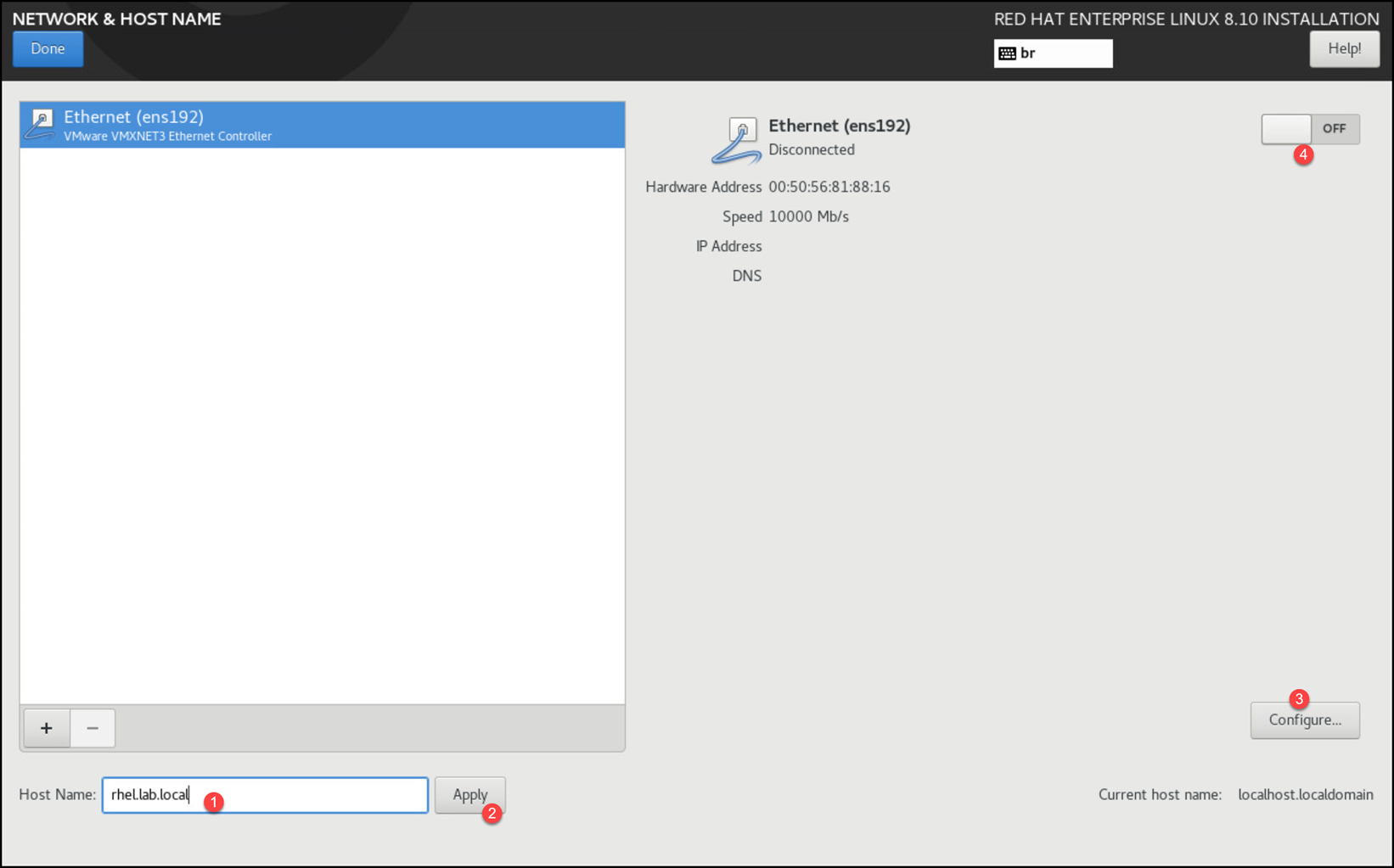
    In our case, for instance, we keep the network interface configured to acquire IP configuration via DHCP protocol:
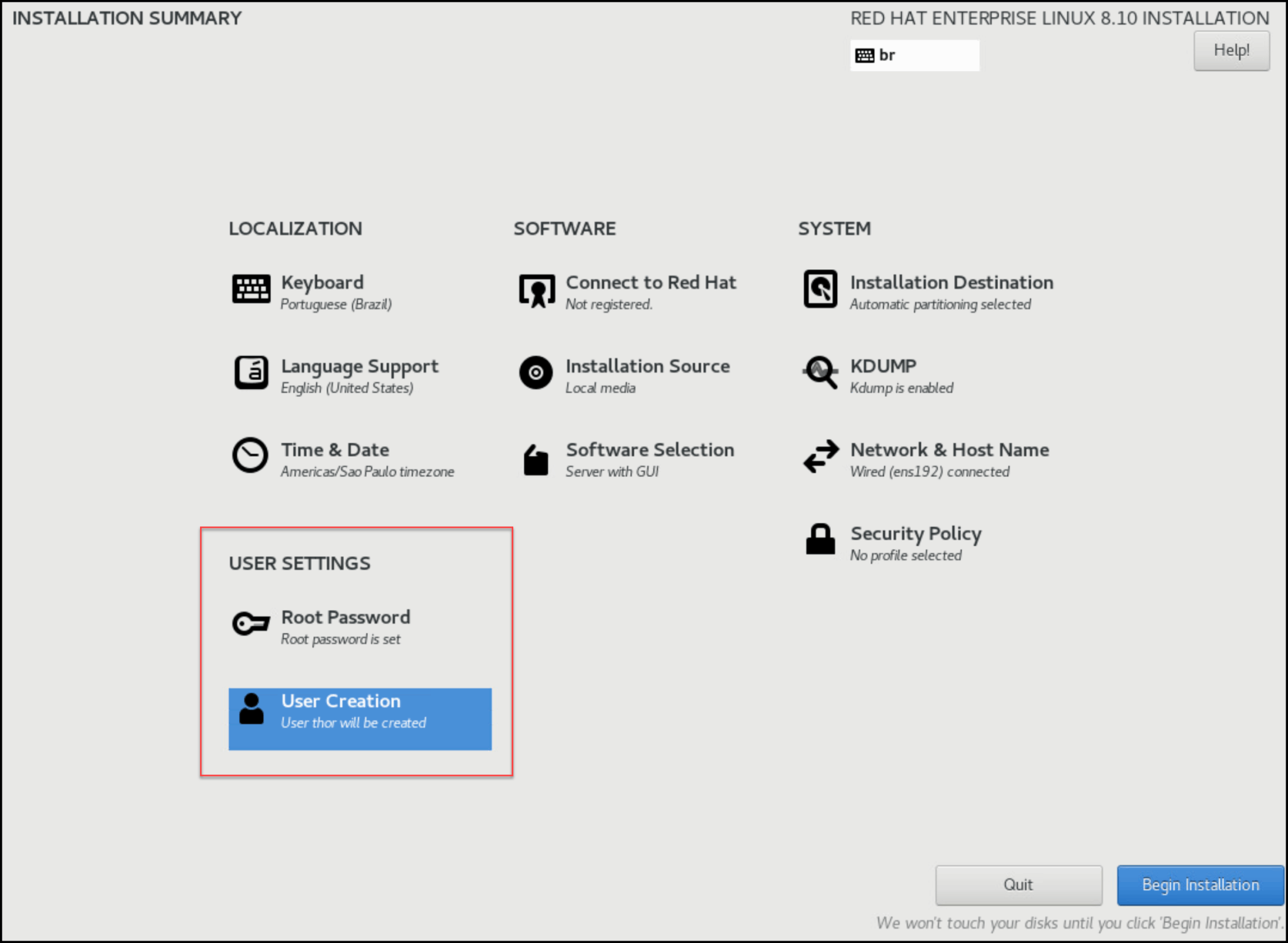
    Under “User Settings”, define the password for the root user. Additionally, if you want to add a regular user, click “User Creation” and do that – in this case, we’re creating a regular user named “thor”:
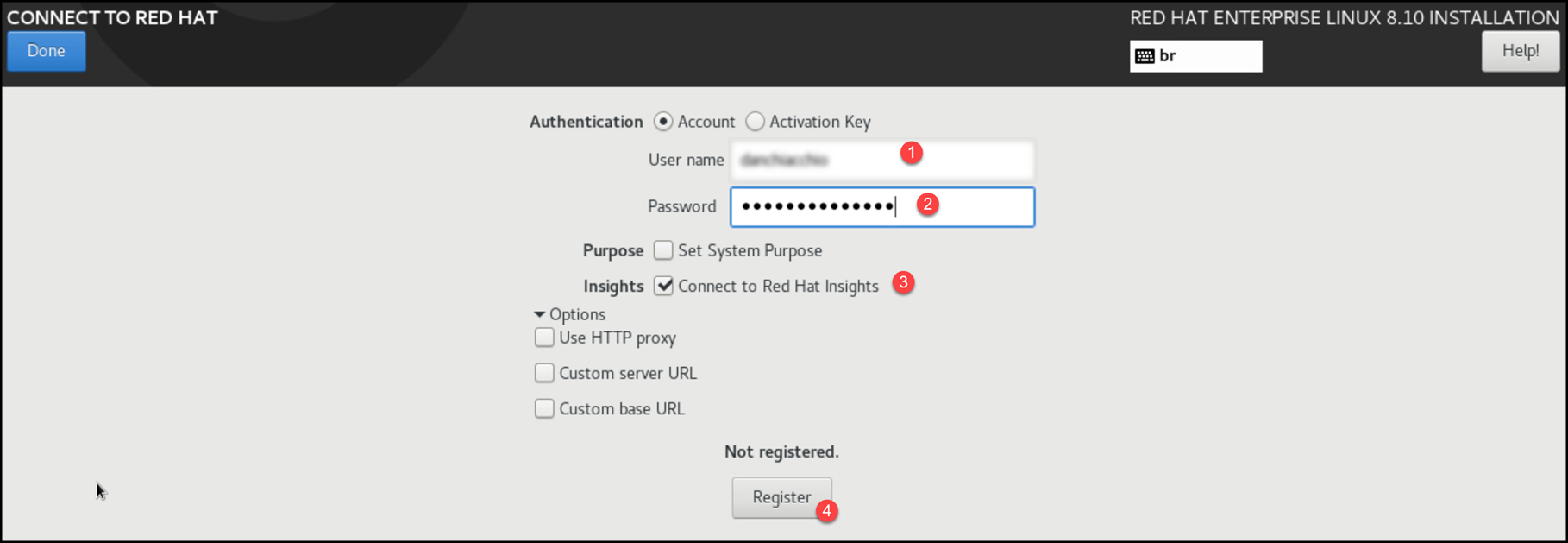
    Another recommendation is to connect the system to the Red Hat cloud.
    To do it, click on “Connect to Red Hat” and type your Red Hat username and password:
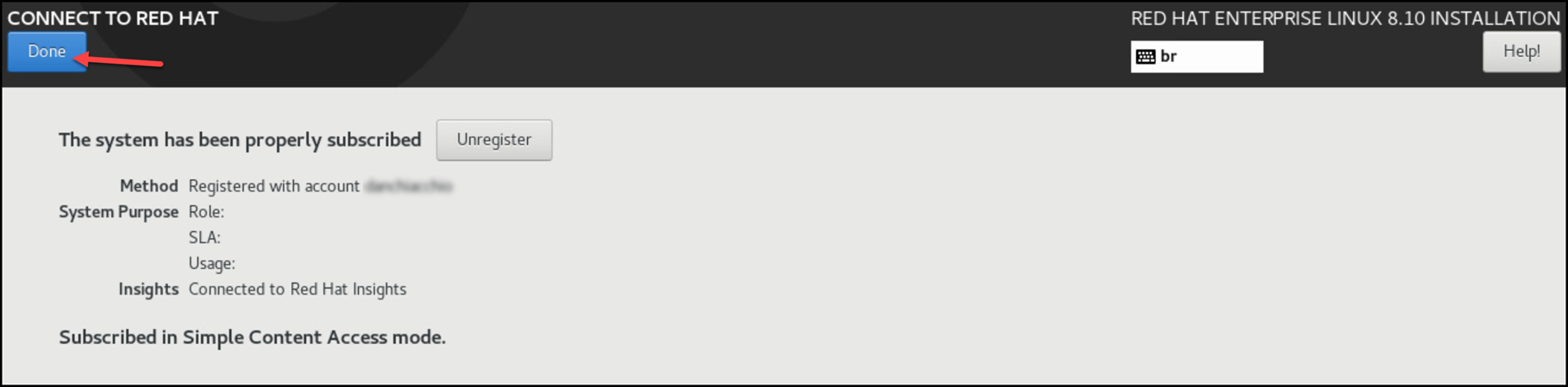
    If the system has an Internet connection and your Red Hat account is okay, you should see something like this:
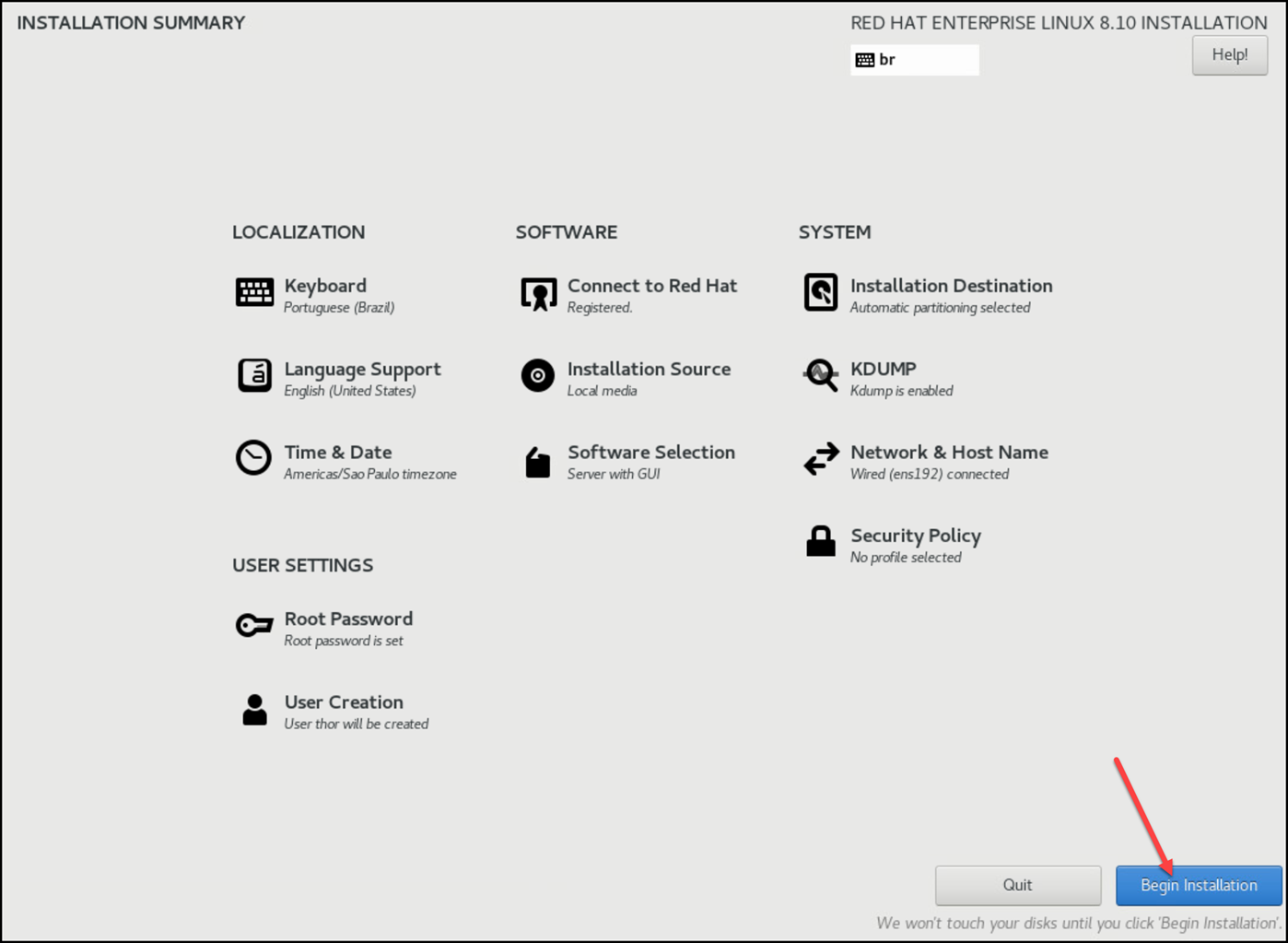
    After configuring all required items under the Installation Summary page, click on “Begin Installation” to start the installation process:
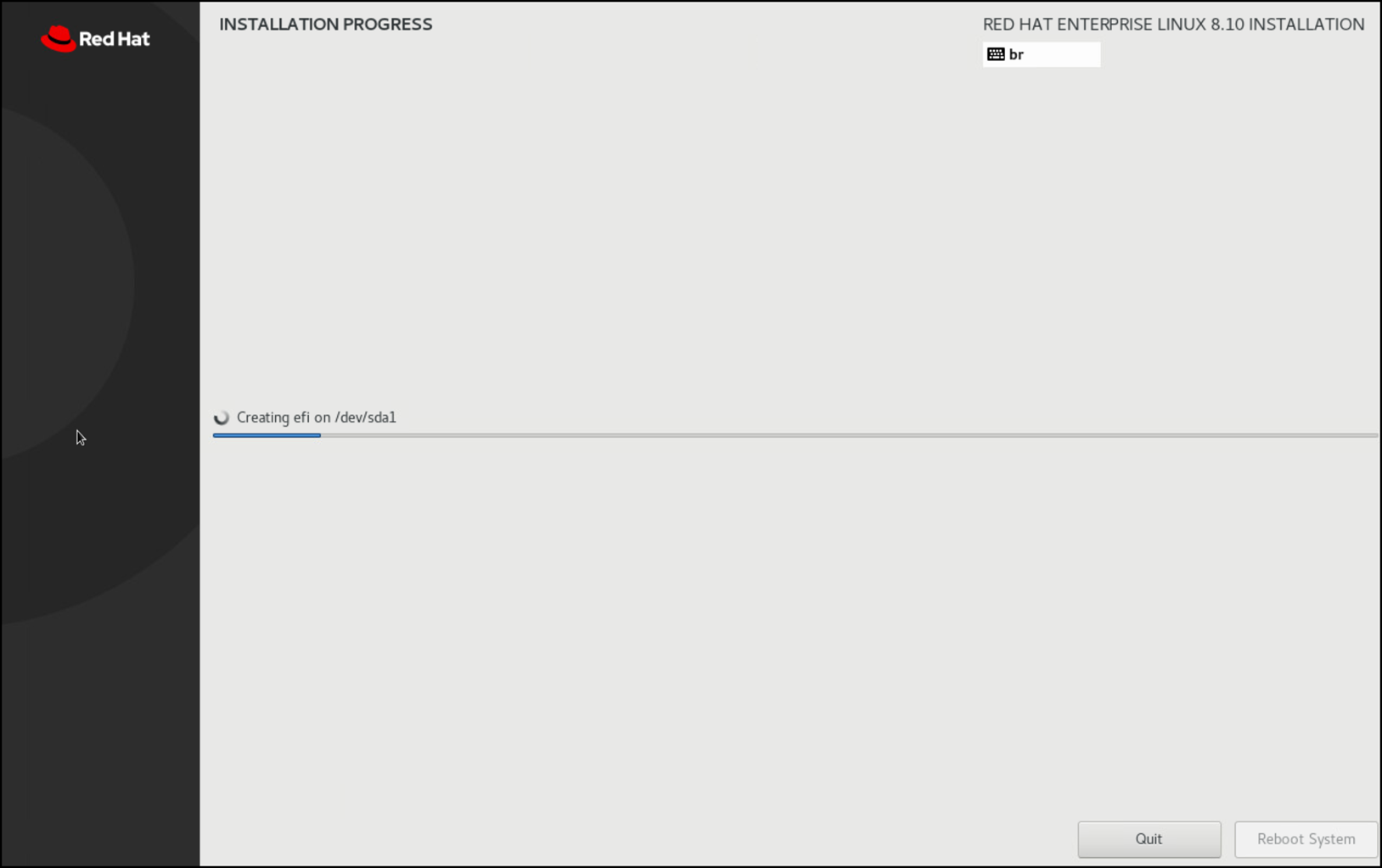
    The installation process takes a while to complete – even running in a lab environment:
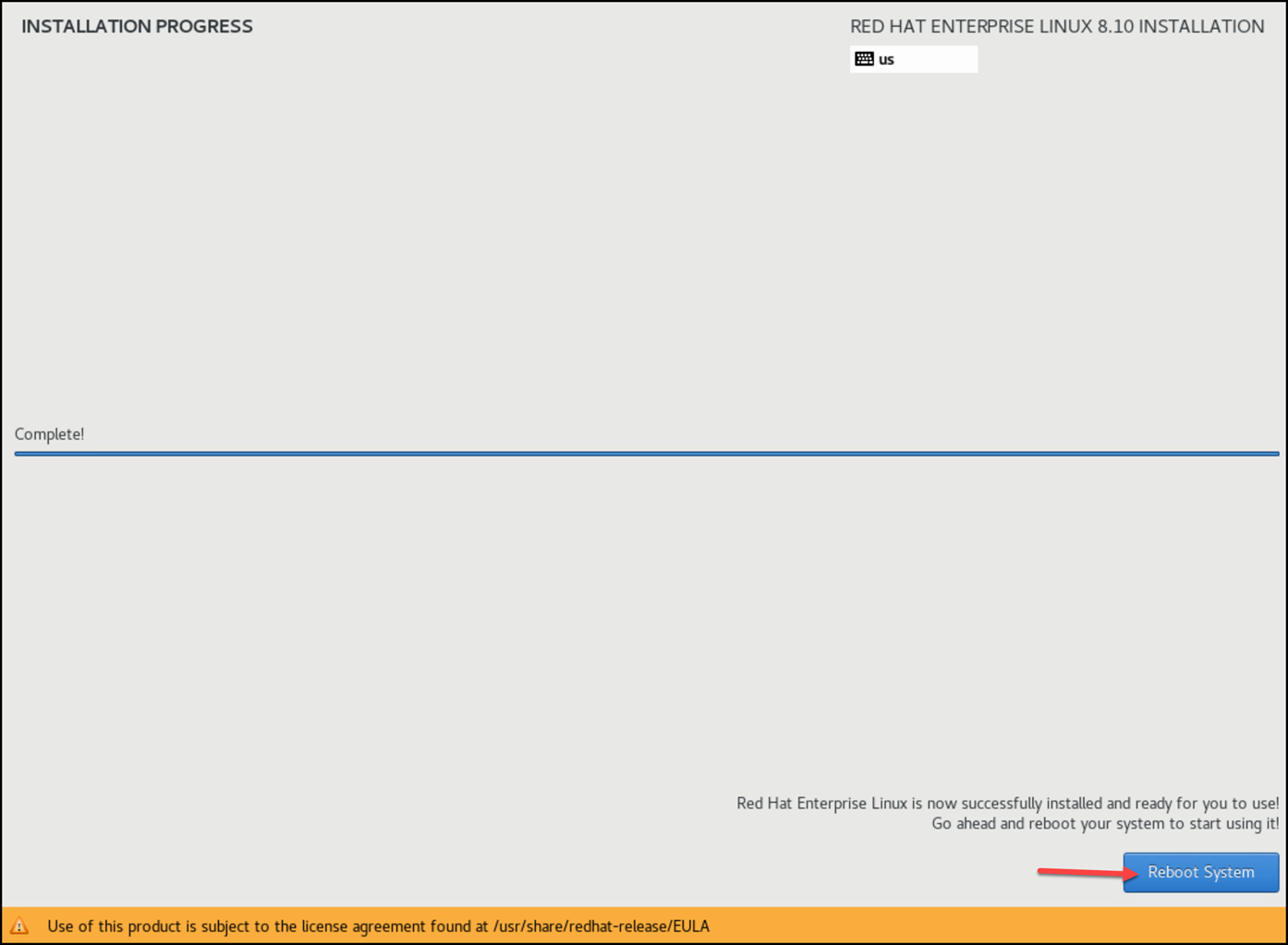
    When it finishes, click on “Reboot System”:
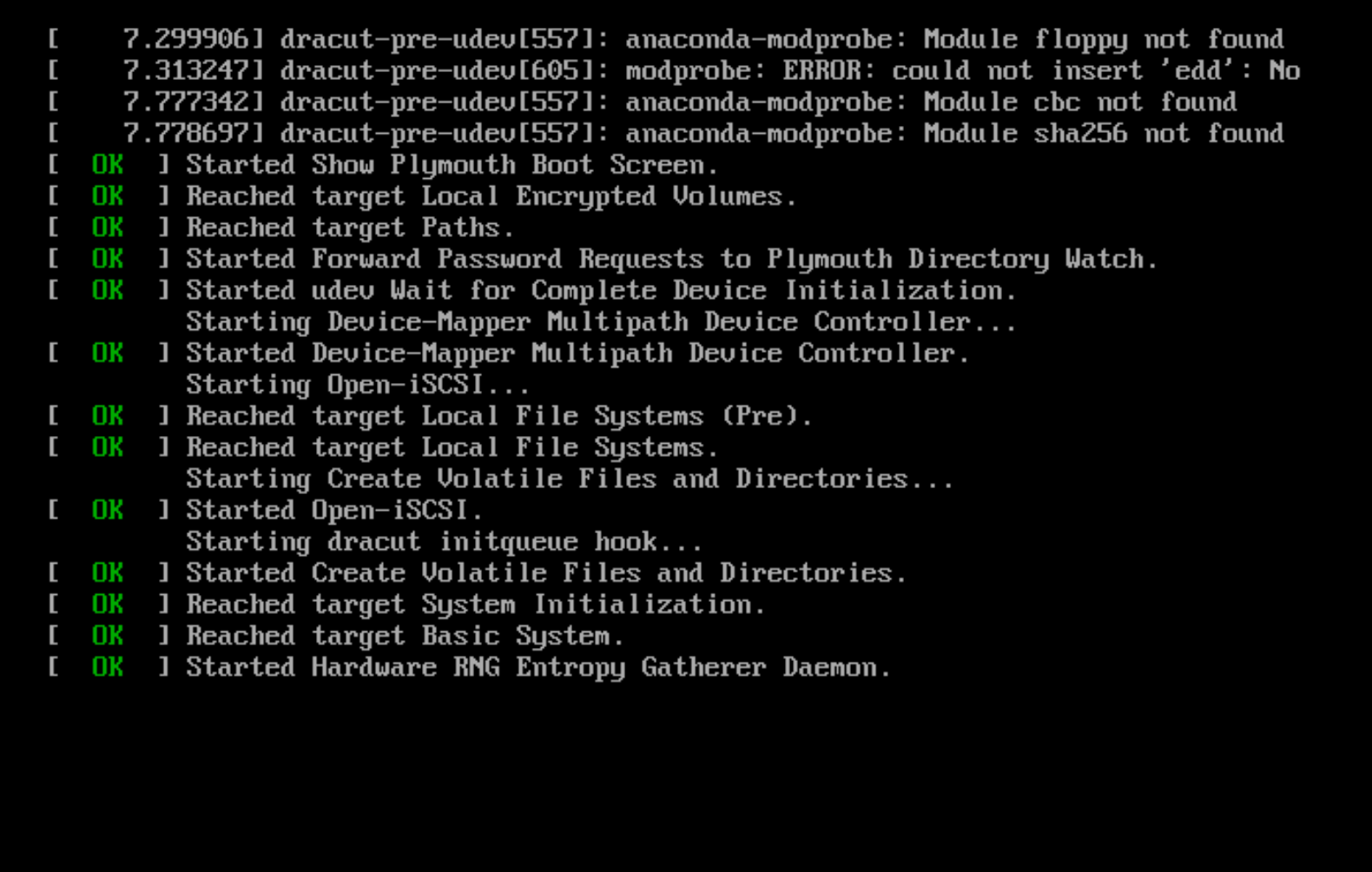
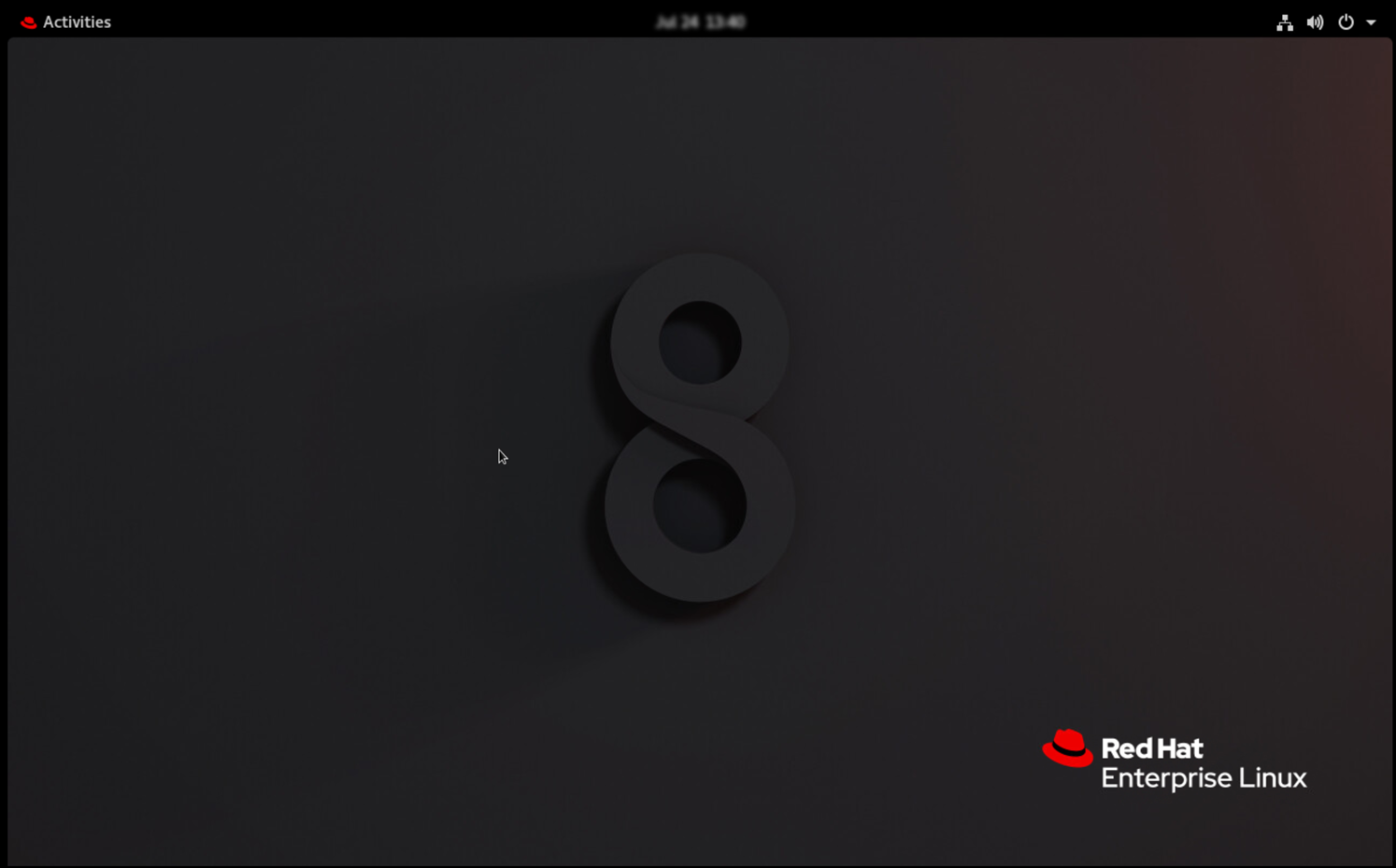
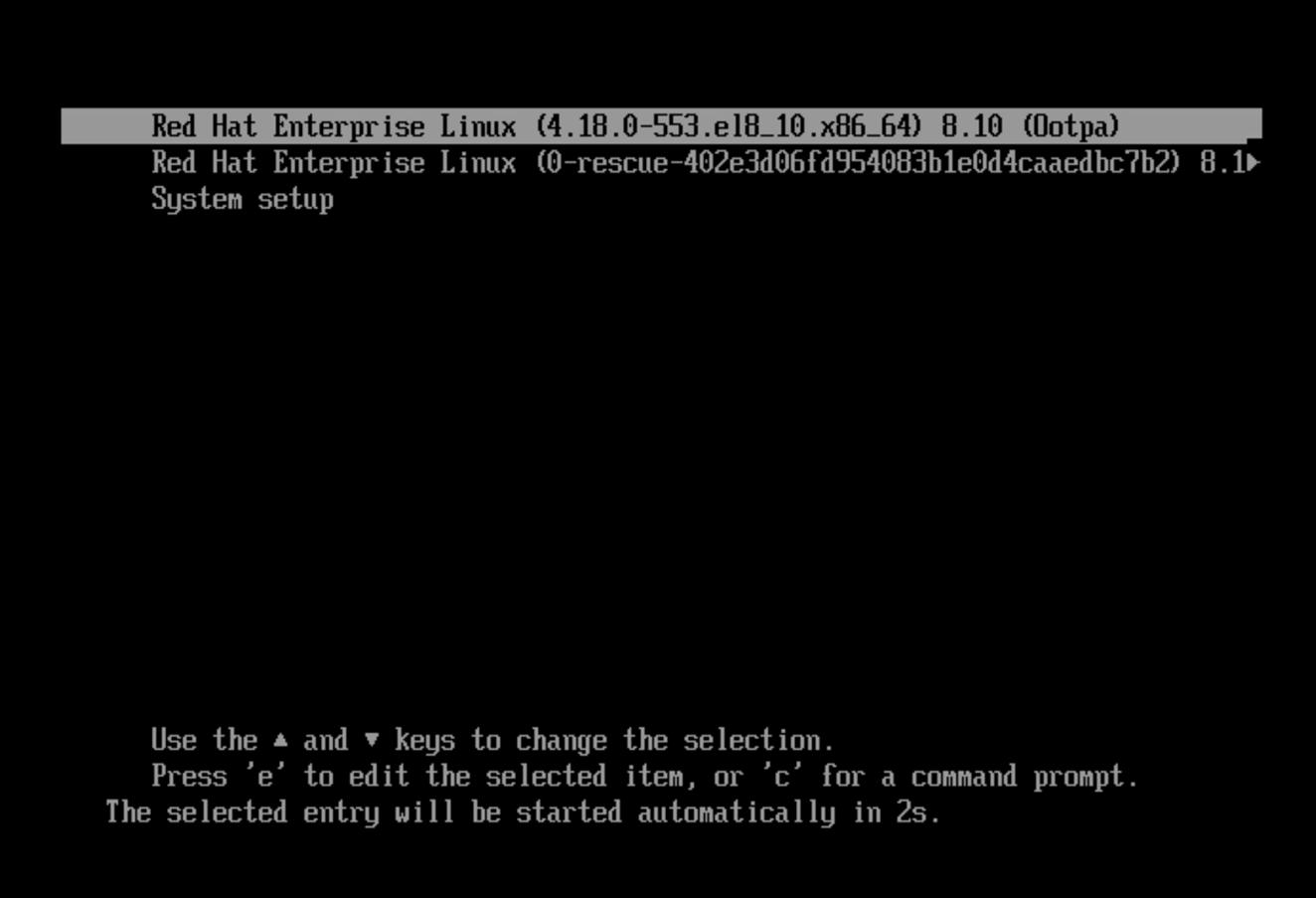
    The system will reboot and boot with the installation on disk:
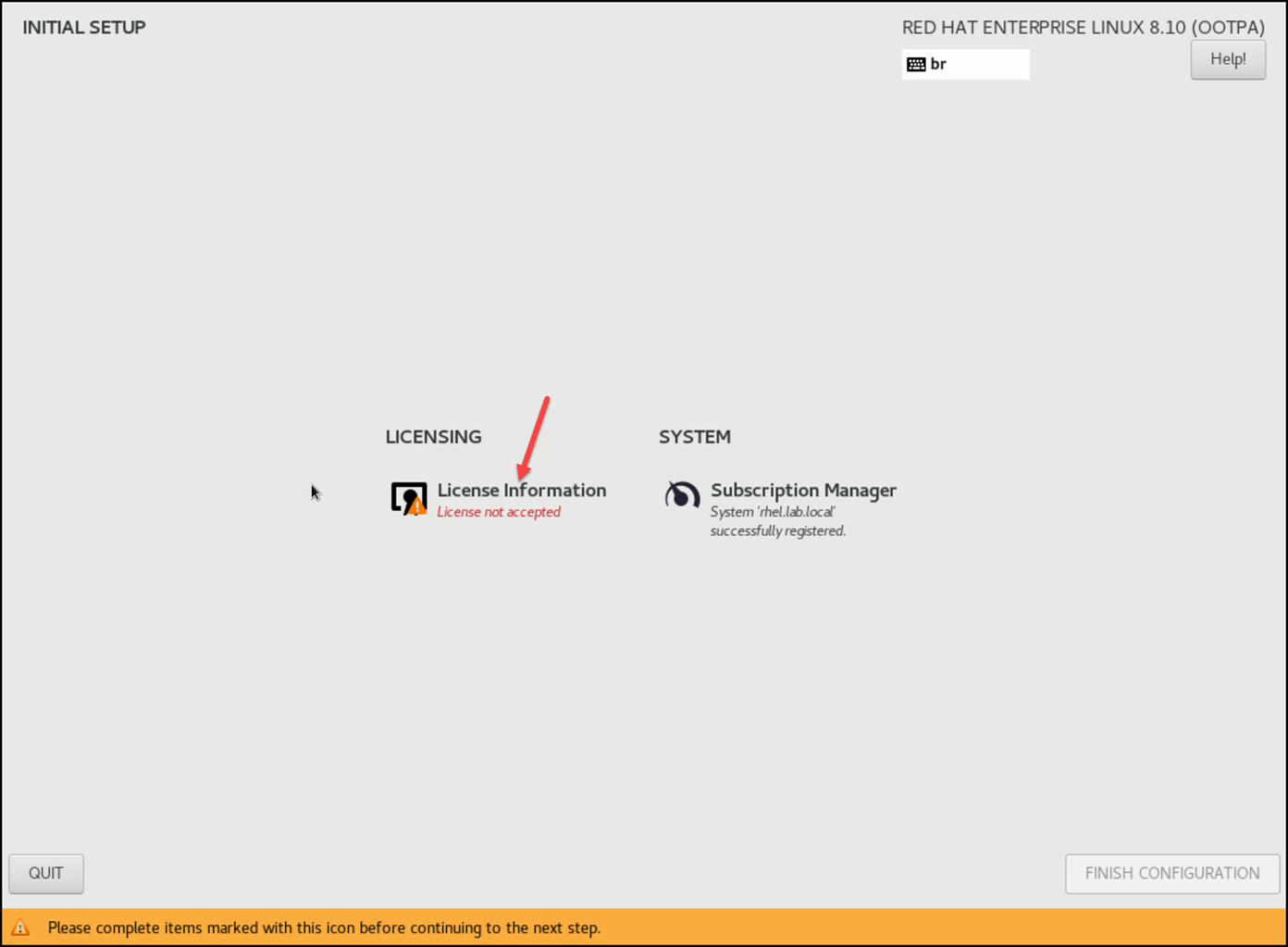
    At the first boot, it’s normal to see that the License is not accepted. Click on it to accept the license:
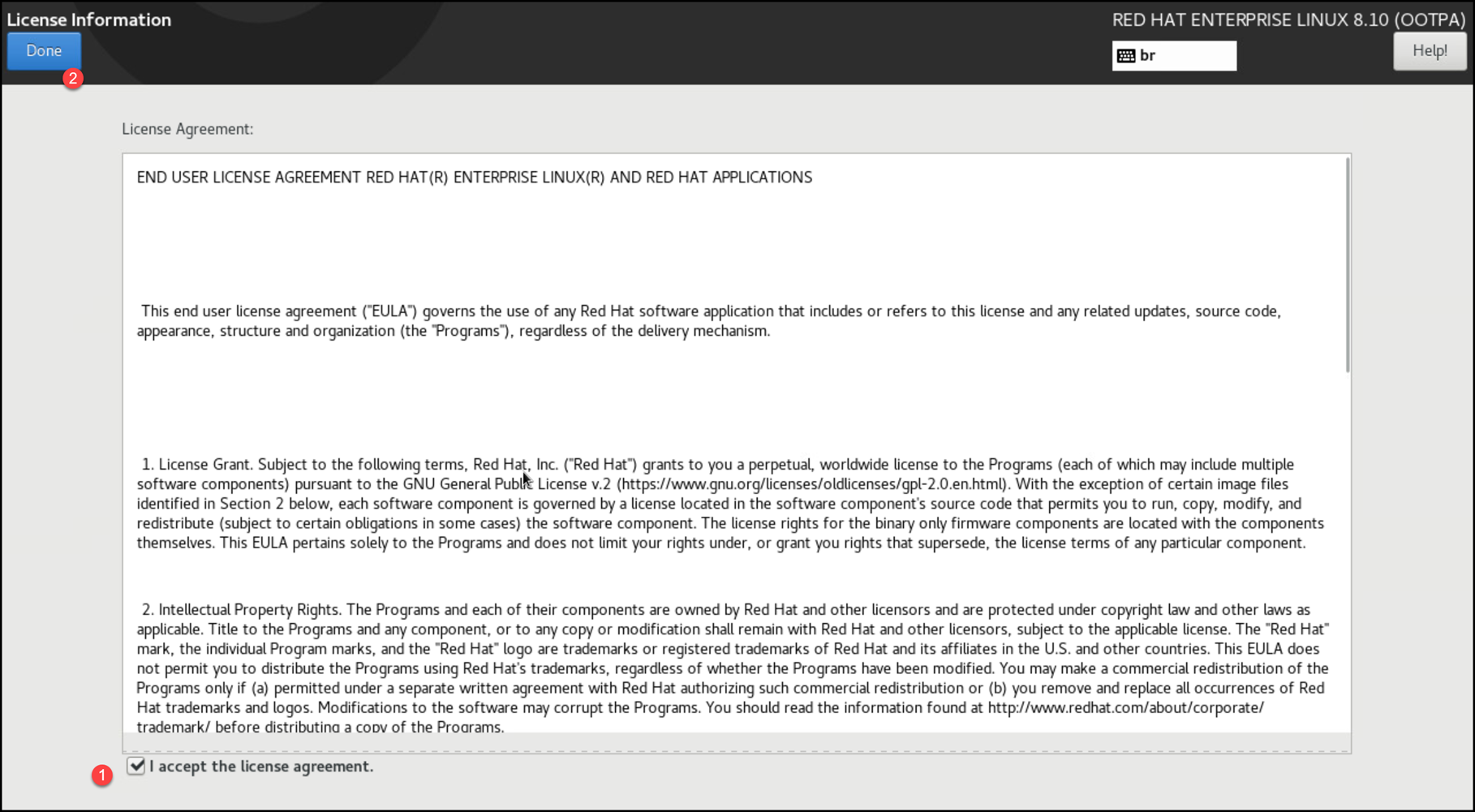
    Click on “Finish Configuration”:
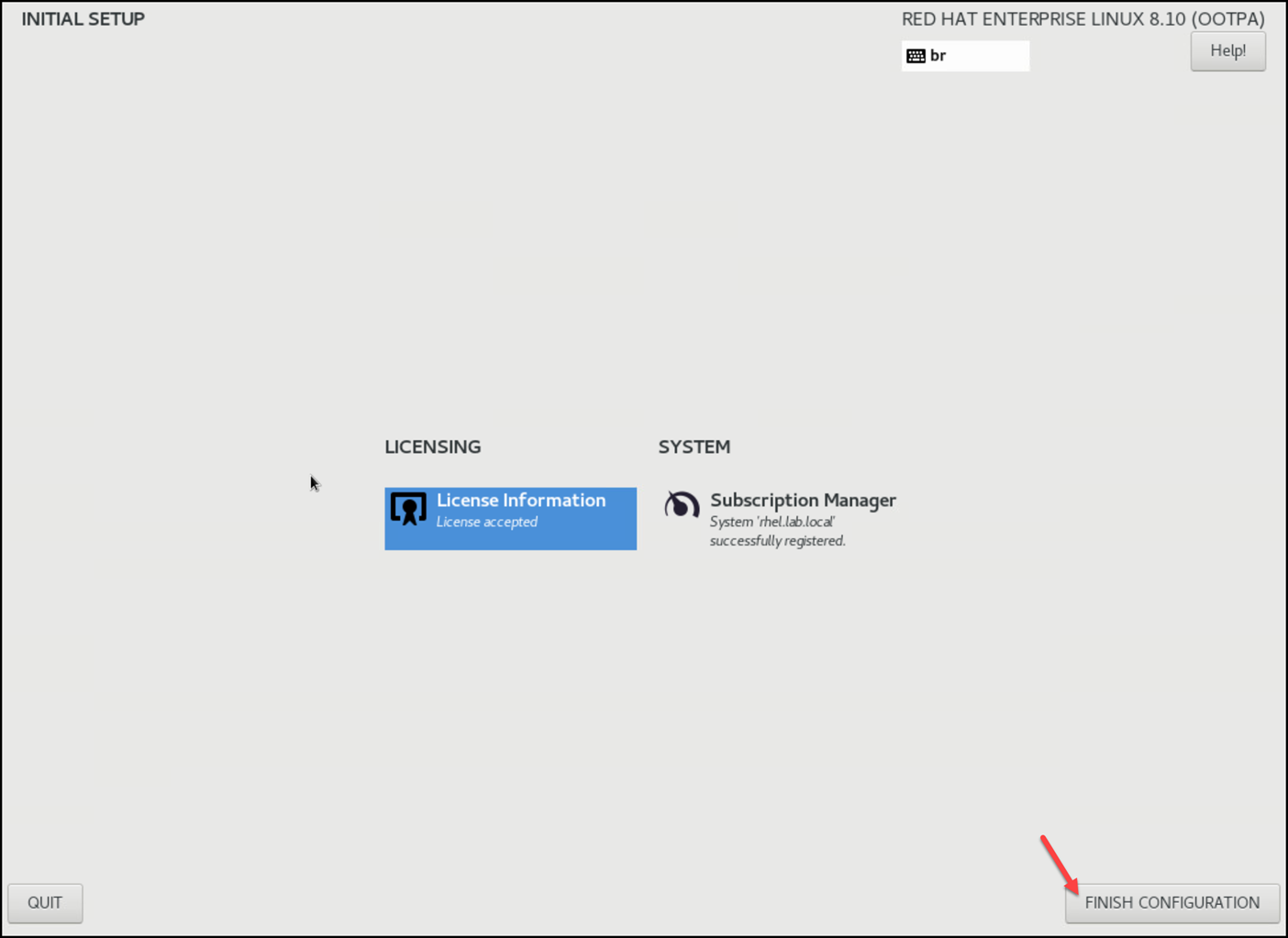
    And that’s it, our RHEL is done 🙂
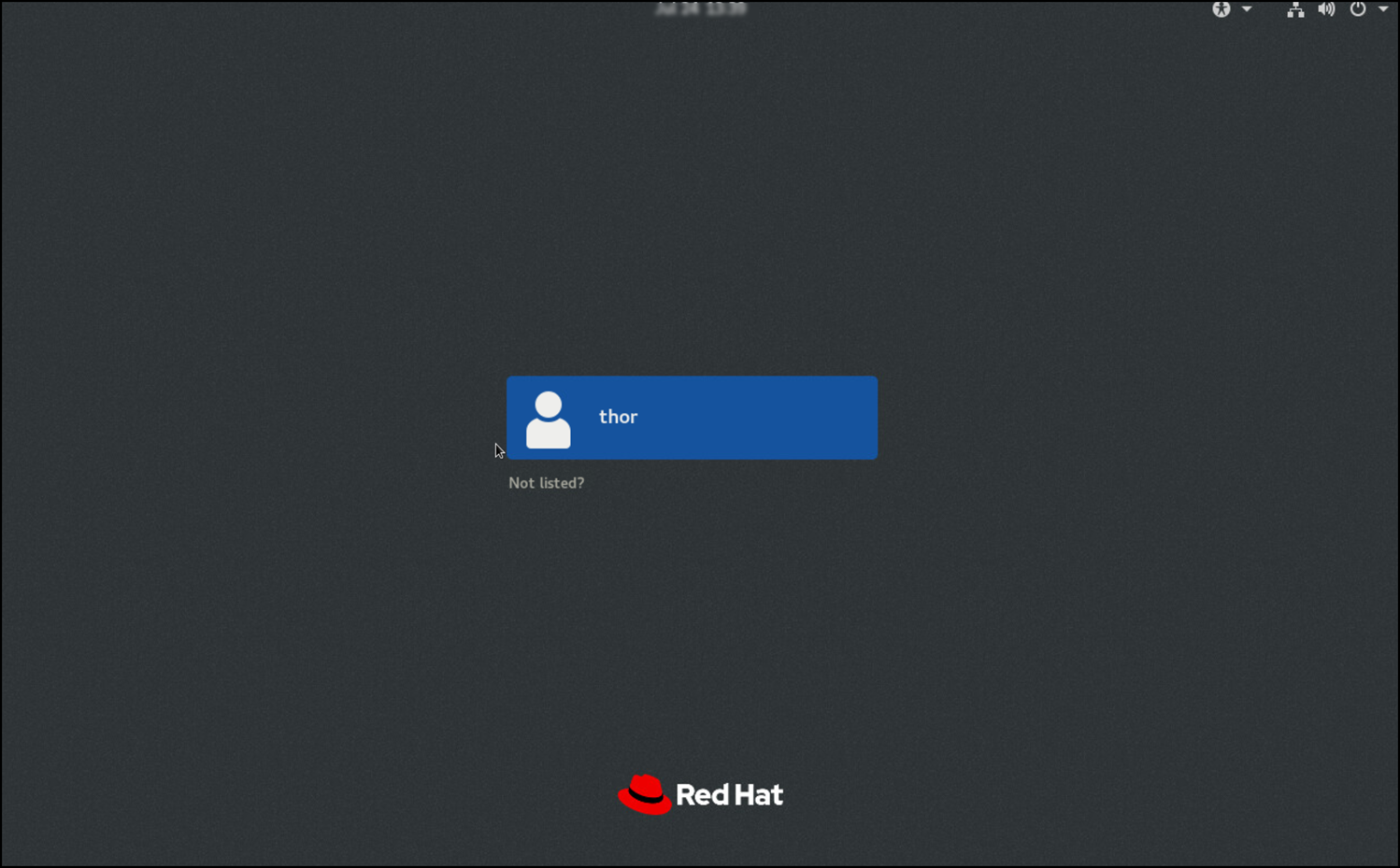
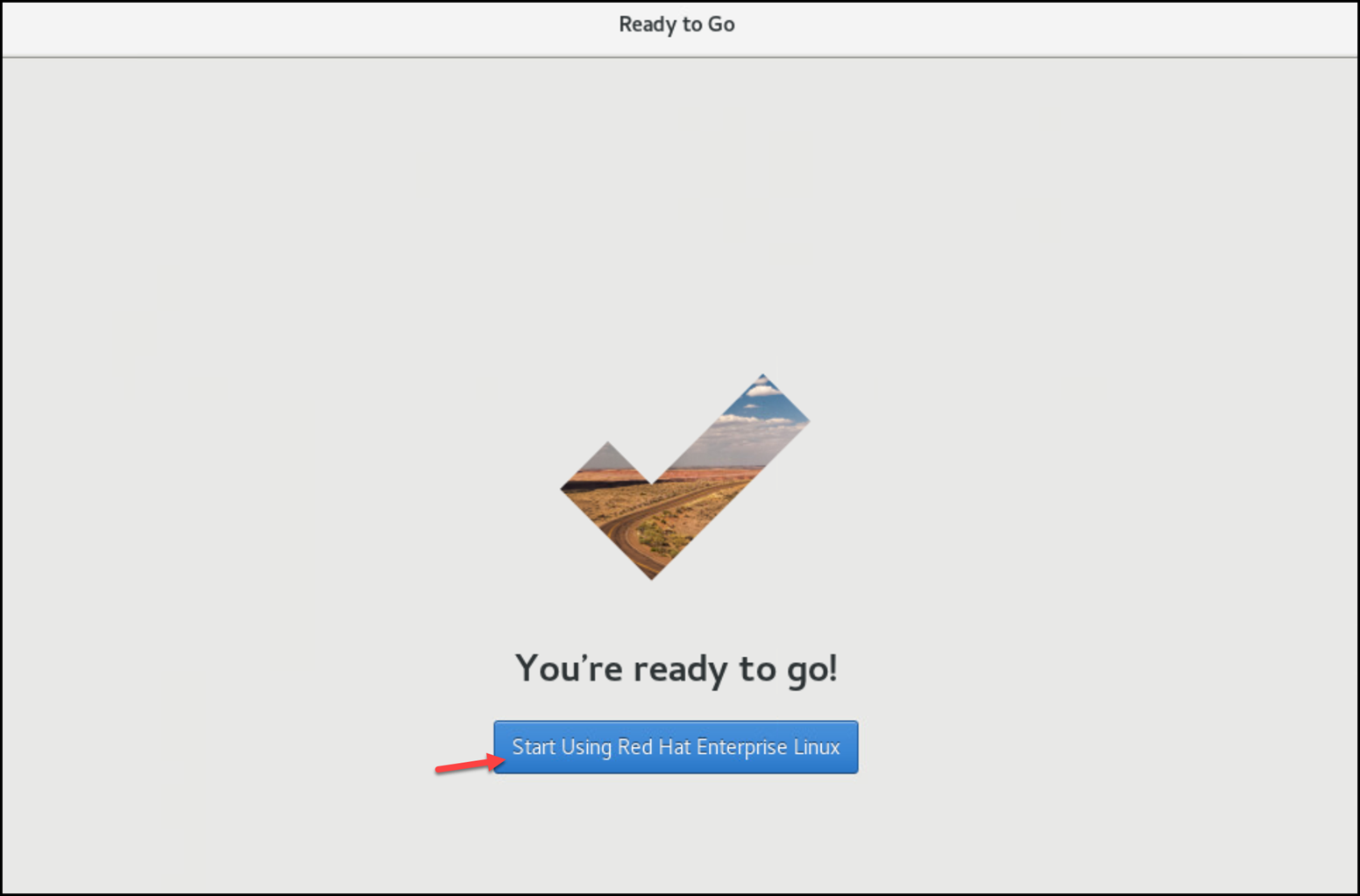
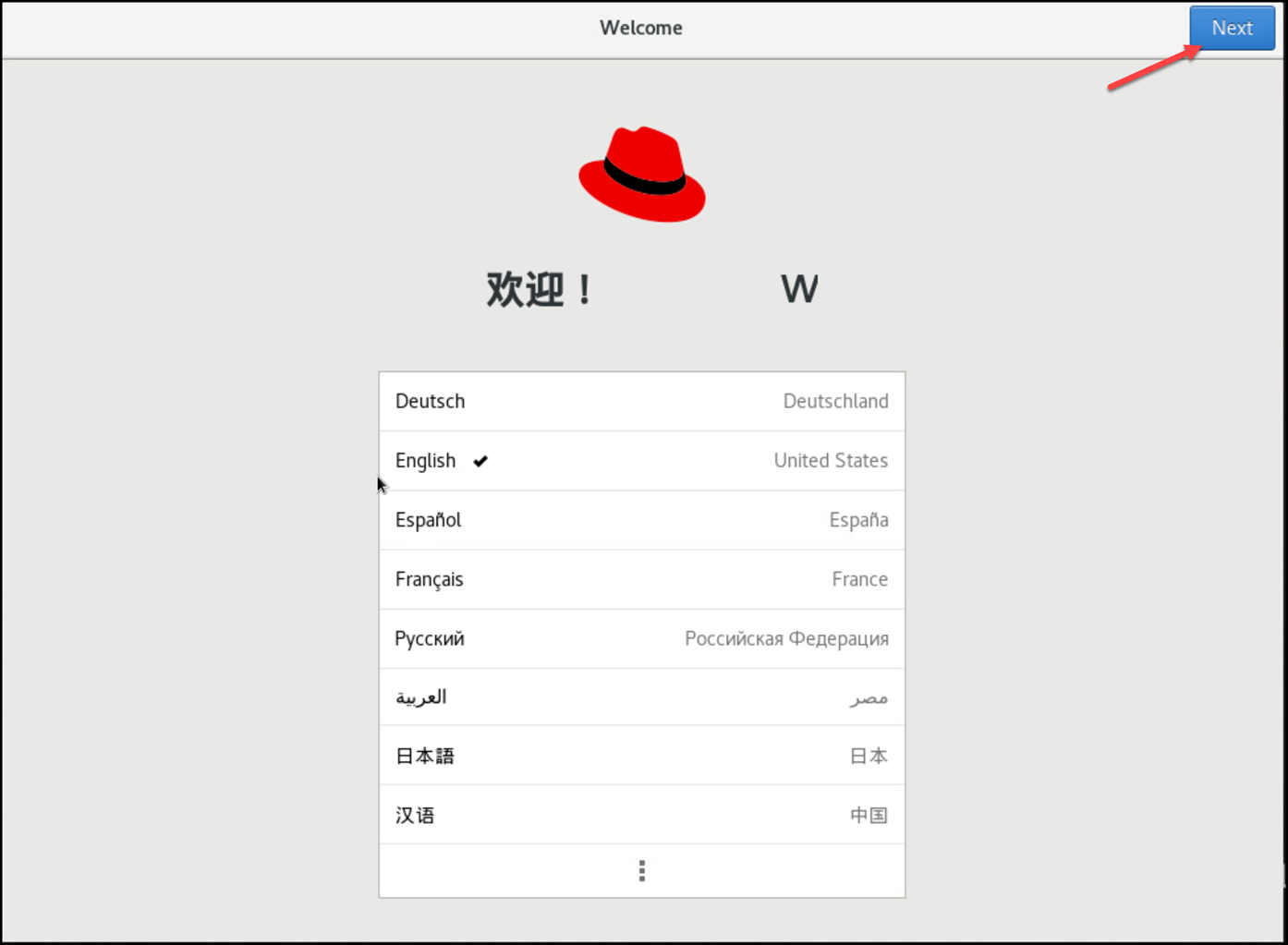
    After the first login, it’s expected to see the “Welcome” wizard.
    With this wizard, you can confirm the language, keyboard, and other settings. Just follow it:
    That’s it for now 🙂

    Share. Facebook Twitter Pinterest LinkedIn Tumblr Email
    Previous ArticleVM Replication with vSphere Replication and Site Recovery Manager
    Next Article Handling Target System State on RHEL 8
    Danilo

    Infrastructure Engineer with experience in Virtualization, Linux, Windows Server and learning automation using Python. DPC Virtual Tips was created to share practical tutorials, lab experiences and troubleshooting guides focused on enterprise infrastructure technologies.

    Related Posts

    Linux Server Has Free Memory but Is Swapping: Why?

    August 13, 2026

    How to Determine Whether Packet Loss Is Local or Network Related on Linux

    August 12, 2026

    How to Investigate TCP Retransmissions on Linux

    August 11, 2026

    Comments are closed.

    Search
    Categories
    • HPC (12)
    • Operating Systems (85)
    • PowerFlex (22)
    • Virtualization (130)
    Read More
    Virtualization

    How to Troubleshoot Packet Drops on an ESXi Host

    By DaniloAugust 16, 20260
    HPC

    SlurmDBD Is Down: What Continues Working and What Does Not

    By DaniloAugust 15, 20260
    HPC

    How to Investigate Jobs Stuck in COMPLETING State on Slurm

    By DaniloAugust 14, 20260
    Operating Systems

    Linux Server Has Free Memory but Is Swapping: Why?

    By DaniloAugust 13, 20260
    Operating Systems

    How to Determine Whether Packet Loss Is Local or Network Related on Linux

    By DaniloAugust 12, 20260
    Latest Posts

    How to Troubleshoot Packet Drops on an ESXi Host

    August 16, 2026

    SlurmDBD Is Down: What Continues Working and What Does Not

    August 15, 2026

    How to Investigate Jobs Stuck in COMPLETING State on Slurm

    August 14, 2026
    Images from Gallery
    hpc main commands
    linux commands
    install rock linux
    lustre fs
    shell scripting
    vSAN Trace Files
    Categories
    • HPC
    • Operating Systems
    • PowerFlex
    • Virtualization
    • Home
    • About Us
    • Contact
    • Cookie Policy
    • Comment Policy
    • Privacy Policy
    • Terms of Use
    • Disclaimer
    Copyright © 2026, DPC Virtual Tips. All rights reserved.

    Type above and press Enter to search. Press Esc to cancel.

    We use cookies to ensure your best experience on our website. If you continue using our website, we'll assume you agree to our cookie policy