

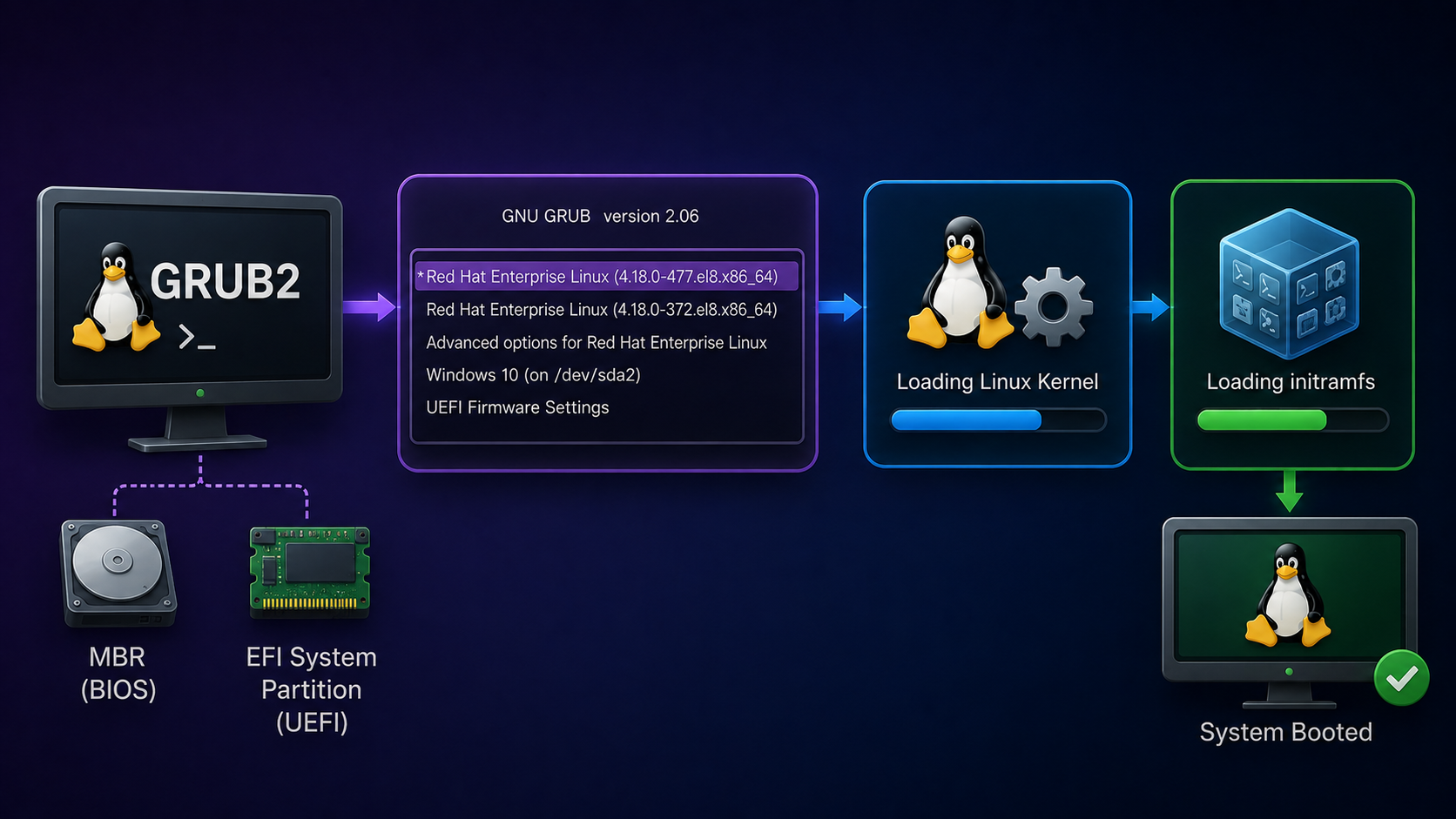
GRUB2 (GRand Unified Bootloader version 2) is the default boot loader on most Linux flavors. It resides in the Master Boot Record (BIOS systems) or the UEFI System Partition (UEFI systems) and is responsible for:
- Loading the Linux kernel into memory – To remember, the kernel is the “heart” of the operating system, allowing users to interact with the hardware.
- Loading the initramfs (initial RAM filesystem) that contains essential drivers and tools needed during early boot.
- Presenting a menu interface to select between multiple kernels or operating systems.
How does GRUB2 work?
Basically, we can pop up some GRUB2 stages:
Stage 1: Installed in the MBR or EFI partition, this tiny stub locates the rest of GRUB2.
Stage 1.5 (with BIOS only): Optional modules that allow GRUB2 to understand filesystems on /boot.
Stage 2: Reads the configuration file (grub.cfg), displays the menu, and loads the selected kernel and initramfs:
- As we told you, the kernel is the core of the OS and interacts directly with hardware.
- And the initramfs is a minimal root filesystem containing modules (e.g., LVM, SCSI) required to mount the real root filesystem.
Configuration Files and Layout
The following table shows us the principal GRUB2 files and directories:
| File or Directory | Purpose |
|---|---|
/etc/default/grub | Main settings file for timeout, default entry, kernel parameters, etc. |
/etc/grub.d/ | Scripts that generate menu entries (00_header, 10_linux, 20_linux_xen, 30_os-prober). |
/boot/grub2/grub.cfg | Auto-generated configuration on BIOS systems. |
/boot/efi/EFI/<distro>/grub.cfg | Auto-generated configuration on UEFI systems. |
Common GRUB2 Settings
GRUB2 configurations must only be changed in the configuration file /etc/default/grub or the custom scripts under the directory /etc/grub.d/.
Let’s provide an example of /etc/default/grub and talk about some interesting configuration entries:
GRUB_TIMEOUT=5
GRUB_DISTRIBUTOR="$(sed 's, release .*$,,g' /etc/system-release)"
GRUB_DEFAULT=saved
GRUB_DISABLE_SUBMENU=true
GRUB_TERMINAL_OUTPUT="console"
GRUB_CMDLINE_LINUX="crashkernel=auto resume=/dev/mapper/rhel-swap rd.lvm.lv=rhel/root rhgb quiet"
GRUB_DISABLE_RECOVERY="true"
GRUB_ENABLE_BLSCFG=true
The essential entries that we must be aware of are:
- GRUB_TIMEOUT: Seconds to wait before default entry boots.
- GRUB_DEFAULT: Which menu entry to boot (
0,saved, or entry name). - GRUB_CMDLINE_LINUX: Kernel parameters passed at boot.
- GRUB_ENABLE_BLSCFG: Use Boot Loader Specification for entries (RHEL 8+).
Note: As you can see, the /etc/default/grub file does not contain much information. The most essential part that it configures is the GRUB_CMDLINE_LINUX option. This line includes boot arguments for the kernel on your server.
Tip: If you want to know immediately if something does not work out well. To accomplish this, it is a good idea to remove the rhgb and quiet boot options. Without these, you will not have to guess why your server takes a long time after a restart; you’ll just be able to see.
How to Check the System’s Boot Mode (BIOS vs UEFI)?
Before changing the GRUB2 configuration, it’s essential to know whether our system boots via BIOS or UEFI because generating the GRUB2 configuration is different for each type of boot process. So, let’s provide some tips to check it before anything:
1- Method 1: Check for UEFI Firmware Directory
ls /sys/firmware/efi- If this directory exists, your system is booted in UEFI mode.
- If it does not exist, you’re using legacy BIOS mode.
Example:

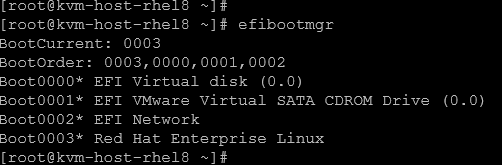
2- Method 2: Use efibootmgr (UEFI Only)
efibootmgr- If this command returns boot entries, you’re in UEFI mode.
- If it says command not found or EFI variables are not supported, you’re likely in BIOS mode.
Example:
3- Method 3: Check GRUB2 Location
| Boot Mode | GRUB2 Config Location |
|---|---|
| BIOS | /boot/grub2/grub.cfg |
| UEFI | /boot/efi/EFI/redhat/grub.cfg (or similar) |
- You can inspect your
/bootand/boot/efidirectories to confirm.
Regenerating the GRUB2 Configuration
As we told you, all modifications must be performed on the configuration file /etc/default/grub or in the custom scripts under /etc/grub.d Don’t forget that!
After modifying /etc/default/grub or any script in /etc/grub.d/, regenerate the actual boot config:
# On BIOS systems
grub2-mkconfig -o /boot/grub2/grub.cfg

# On UEFI systems
grub2-mkconfig -o /boot/efi/EFI/redhat/grub.cfg
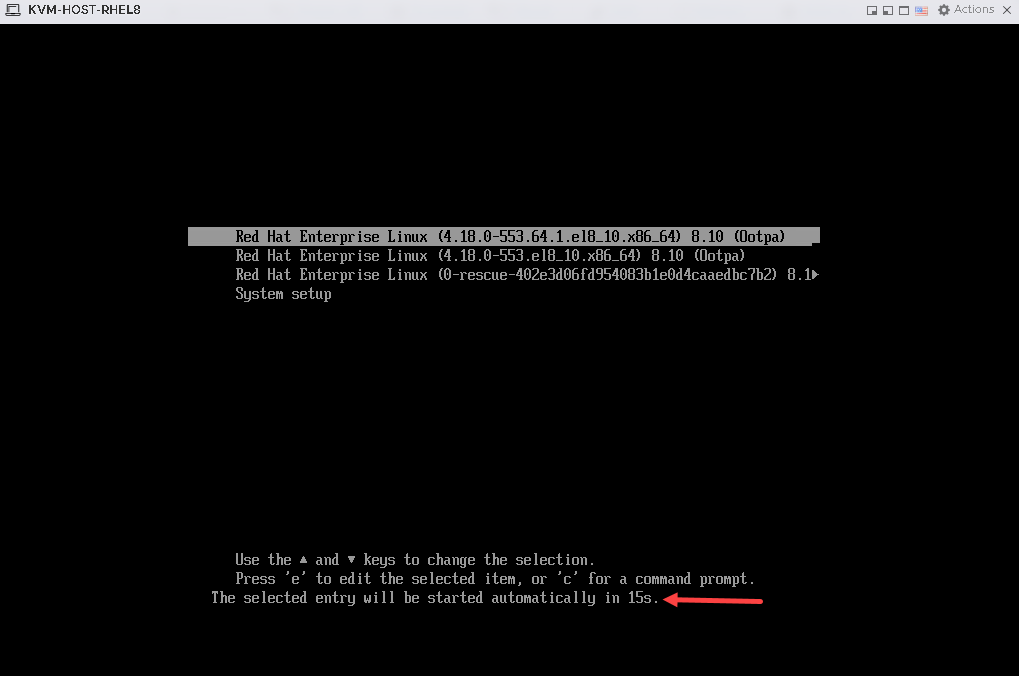
In this case, for instance, we changed the “GRUB_TIMEOUT” on /etc/default/grub and we’re generating the new GRUB configuration file:

We’ve changed the “GRUB_TIMEOUT” from 5 to 15 seconds. If we reboot the system, we can confirm that the new timeout value is in place:
That’s it for now 🙂
