Close Menu
DPC Virtual Tips
    Read More

    How to Troubleshoot Packet Drops on an ESXi Host

    August 16, 2026

    SlurmDBD Is Down: What Continues Working and What Does Not

    August 15, 2026

    How to Investigate Jobs Stuck in COMPLETING State on Slurm

    August 14, 2026
    • Home
    • About Us
    • Contact
    • Cookie Policy
    • Comment Policy
    • Privacy Policy
    • Terms of Use
    • Disclaimer
    Tuesday, August 25
    DPC Virtual Tips
    • Home
    • Operating Systems
    • PowerFlex
    • HPC
    • Virtualization
    • About the Author
    • About Us
    • Contact
    DPC Virtual Tips
    Home » Accessing the root privileged mode from the NSX CLI
    Virtualization

    Accessing the root privileged mode from the NSX CLI

    DaniloBy DaniloJanuary 30, 2024Updated:July 30, 2026No Comments3 Mins Read
    Facebook Twitter Pinterest LinkedIn Tumblr Email
    NSX CLI root access
    Share
    Facebook Twitter LinkedIn Pinterest Email

    Accessing the root privileged mode from the NSX CLI is an article that shows how to change from admin to root shell in the NSX Manager Appliance.

    First and foremost, we wrote some articles related to the NSX. The first one is an introduction to NSX-T. You can access this article by the following link:
    Introduction to NSX-T – DPC Virtual Tips

    Another one has all the necessary steps to deploy the NSX Manager Cluster:
    NSX Manager Deployment Steps – DPC Virtual Tips

    A little introduction of NSX Manager users

    By default, during the NSX Manager deployment, we need to set up the password for the following users:

    • admin
    • root
    • audit –> Opcional user

    The “admin” user is the administrator username. We can access the NSX Manager by SSH or by GUI with this user to perform admin tasks like adding other Manager Controllers or creating a segment, for example.
    The “root” user is the administrator for the Manager Appliance. We can access the NSX Manager Appliance with this user and perform tasks like seeing service status, checking file logs, etc.

    For each user, a Role can be assigned. This role has the user’s permission into the NSX Manager Cluster. In the following picture we can see the users and their roles:
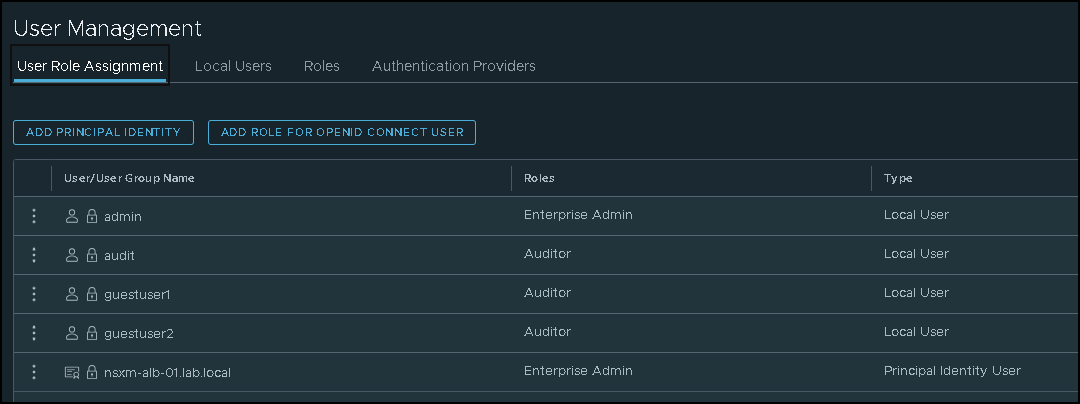
    Note: The role “Auditor” assigned to the “audit” user provides the “read-only” access to the user audit”

    Accessing the NSX Manager Appliance by SSH

    As we told you before, we can access the NSX Manager appliance by SSH. It is an excellent way to perform some troubleshooting or do some analysis.

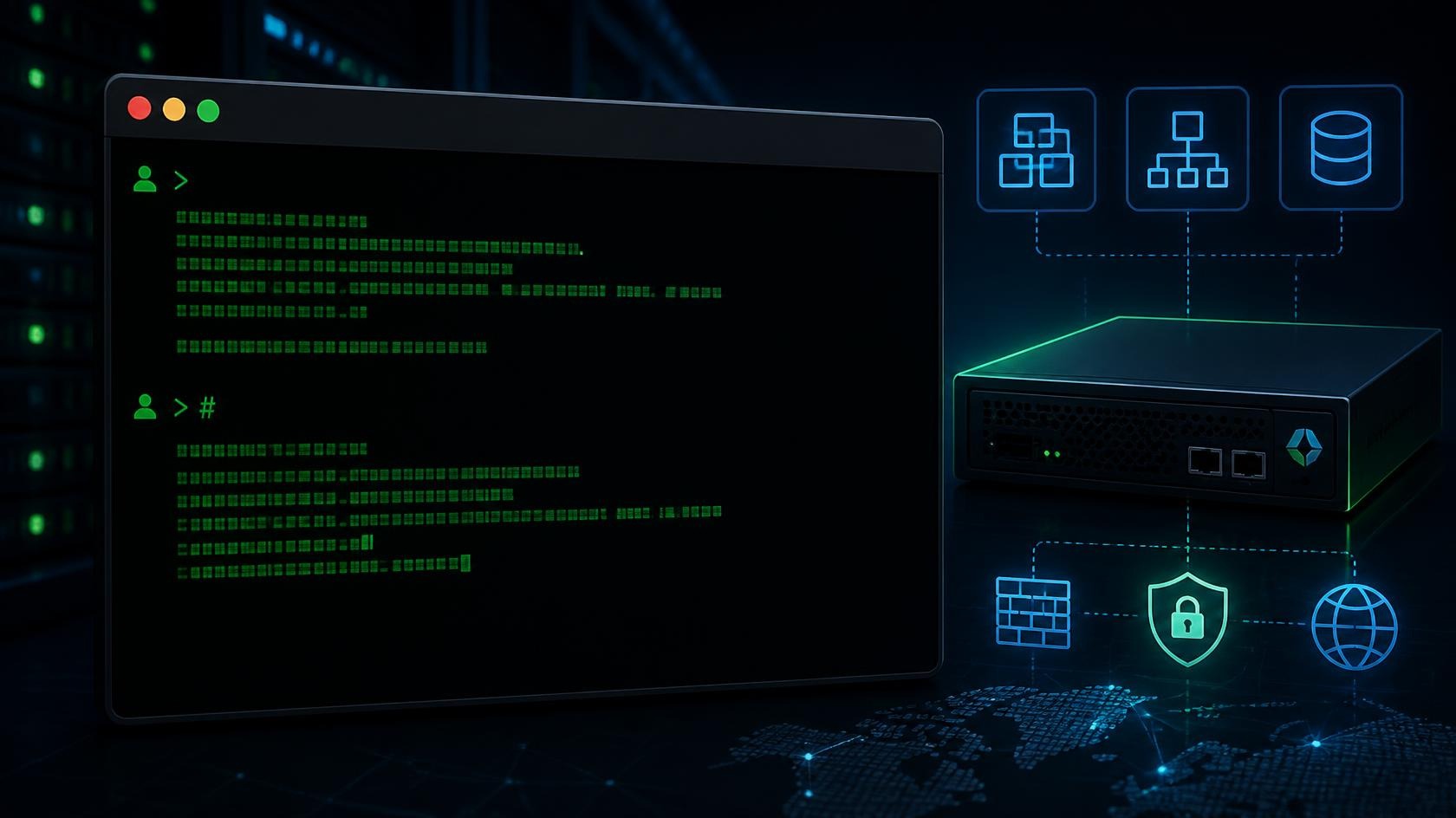
    After accessing the NSX Manager by SSH with the “admin” username, the command prompt that we will see is similar to the following picture:

    The character “>” indicates that we are logged in with the “admin” username.

    If we need to access the NSX Manager appliance with the “root” username, the command prompt that we will see is similar to the following picture:
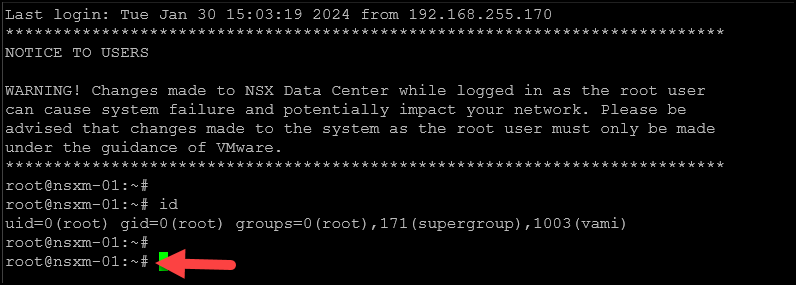
    The character “#” indicates that we are logged in with the “root” username.

    Changing from the “admin” to the “root” privileged mode

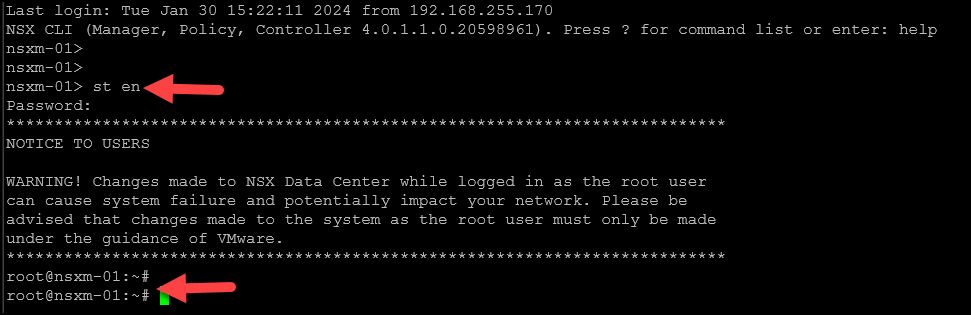
    There is a way to change from “admin” to the “root”. You can type the bellow command in the NSX command line logged in with the “admin” user:

    st en

    Type the “admin” password:

    That’s it 🙂

    Now we are in the root privilege command line. We can check the service status, see log files, and other tasks related to this mode.

    In the following picture, for instance, we are checking the “nsx-ccp” (NSX Central Control Plane) service status:
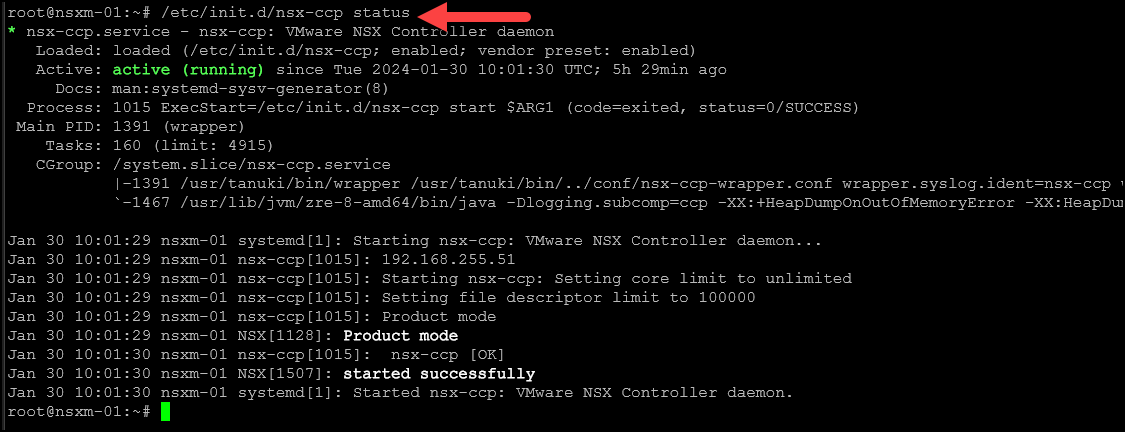
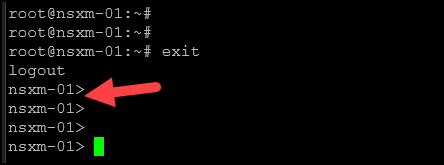
    If necessary go back to the “admin” command prompt, we can type exit to do that:

    exit
    Share. Facebook Twitter Pinterest LinkedIn Tumblr Email
    Previous ArticleDeploying the VMware Aria Operations for Networks
    Next Article Routing Down on Tier-0 Service Router
    Danilo

    Infrastructure Engineer with experience in Virtualization, Linux, Windows Server and learning automation using Python. DPC Virtual Tips was created to share practical tutorials, lab experiences and troubleshooting guides focused on enterprise infrastructure technologies.

    Related Posts

    How to Troubleshoot Packet Drops on an ESXi Host

    August 16, 2026

    VM Replication with vSphere Replication and Site Recovery Manager

    June 16, 2025

    Changing DNS Settings on ESXi Hosts

    May 20, 2025

    Comments are closed.

    Search
    Categories
    • HPC (12)
    • Operating Systems (85)
    • PowerFlex (22)
    • Virtualization (130)
    Read More
    Virtualization

    How to Troubleshoot Packet Drops on an ESXi Host

    By DaniloAugust 16, 20260
    HPC

    SlurmDBD Is Down: What Continues Working and What Does Not

    By DaniloAugust 15, 20260
    HPC

    How to Investigate Jobs Stuck in COMPLETING State on Slurm

    By DaniloAugust 14, 20260
    Operating Systems

    Linux Server Has Free Memory but Is Swapping: Why?

    By DaniloAugust 13, 20260
    Operating Systems

    How to Determine Whether Packet Loss Is Local or Network Related on Linux

    By DaniloAugust 12, 20260
    Latest Posts

    How to Troubleshoot Packet Drops on an ESXi Host

    August 16, 2026

    SlurmDBD Is Down: What Continues Working and What Does Not

    August 15, 2026

    How to Investigate Jobs Stuck in COMPLETING State on Slurm

    August 14, 2026
    Images from Gallery
    hpc main commands
    linux commands
    install rock linux
    lustre fs
    shell scripting
    vSAN Trace Files
    Categories
    • HPC
    • Operating Systems
    • PowerFlex
    • Virtualization
    • Home
    • About Us
    • Contact
    • Cookie Policy
    • Comment Policy
    • Privacy Policy
    • Terms of Use
    • Disclaimer
    Copyright © 2026, DPC Virtual Tips. All rights reserved.

    Type above and press Enter to search. Press Esc to cancel.

    We use cookies to ensure your best experience on our website. If you continue using our website, we'll assume you agree to our cookie policy