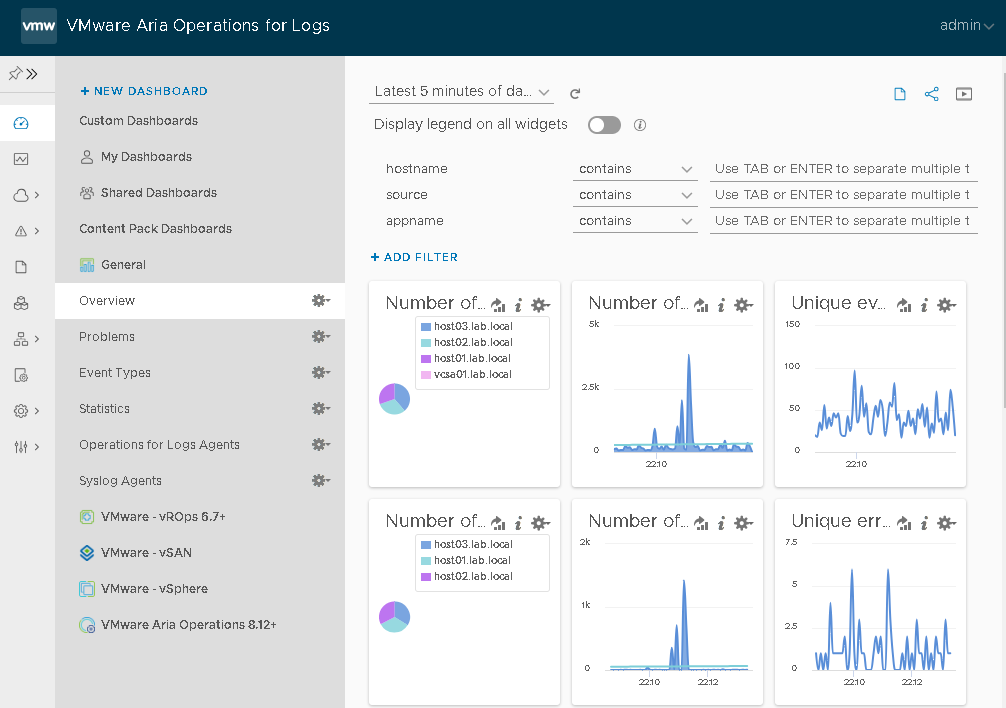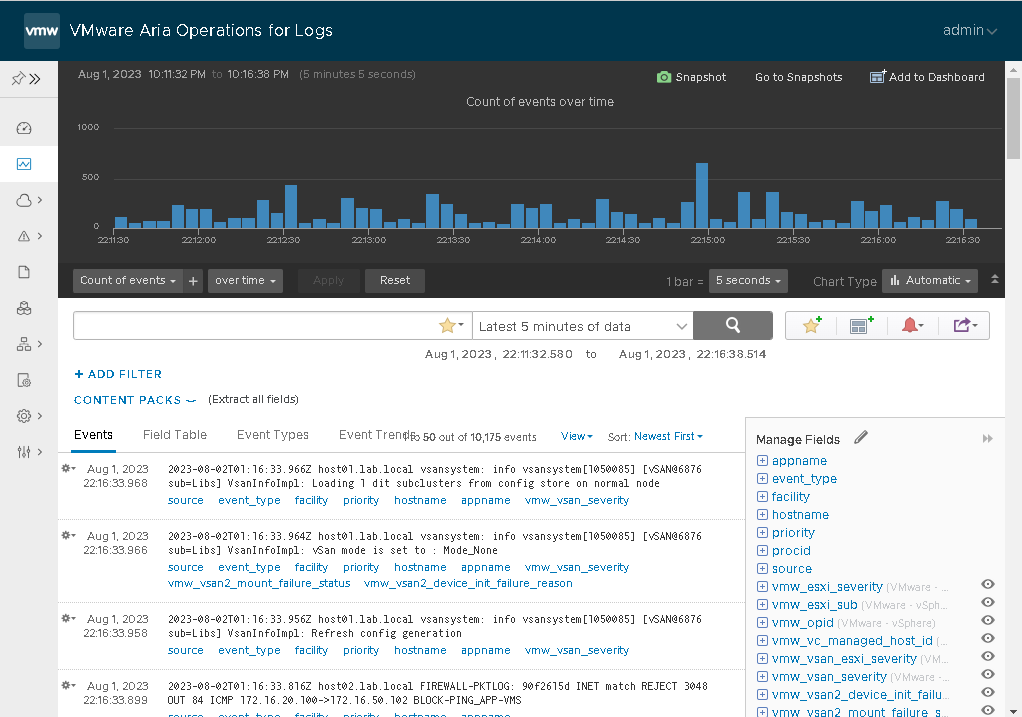
Clustering VMware Aria Operations for Logs is an article that explains how to create a cluster with VMware Aria Operations for Logs.
Single Nodes
A basic VMware Aria Operations for Logs configuration includes a single node. Log sources can be applications, Operating Systems logs, virtual machine logs, hosts, the vCenter Server, virtual or physical switches, routers, storage hardware, etc.
Log streams are transported to the VMware Aria Operations for Logs node using syslog (UDP, TCP, TCP+SSL) or CFAPI (the VMware Aria Operations for Logs native ingestion protocol over HTTP or HTTPS).
As a best practice, do not use single nodes for product environments.
Clusters
Production environments generally require the use of clusters. Clusters must meet the following requirements:
- Nodes (appliances) in clusters must all be of the same size and in the same data center;
- The ILB (Integrated Load Balancer) used with clusters requires that nodes be in the same L2 network;
- VMware Aria Operations for Logs VMs must be excluded from VMware NSX DFW – This is because virtual IPs for Clusters use a Linux Virtual Server in Direct Server Return Mode (LVS-DR) for load balancing. Direct Server Return is more efficient than routing all response traffic through a single cluster member. However, it also resembles spoofed traffic, which NSX DFW blocks.
About our lab environment
So, here our goal is to create a VMware Aria Operations for Logs cluster with 3 nodes. Below, it is possible to see the IP address plan for our configuration:
- syslog1.lab.local = 192.168.200.6 (Node 1)
- syslog2.lab.local = 192.168.200.7 (Node 2)
- syslog3.lab.local = 192.168.200.8 (Node 3)
- syslog-vip.lab.local = 192.168.200.9 (Virtual IP)
The first thing here is to deploy and set up the first node of VMware Aria Operations for Logs. We have an article that explains how to do that. Click here to read this article.
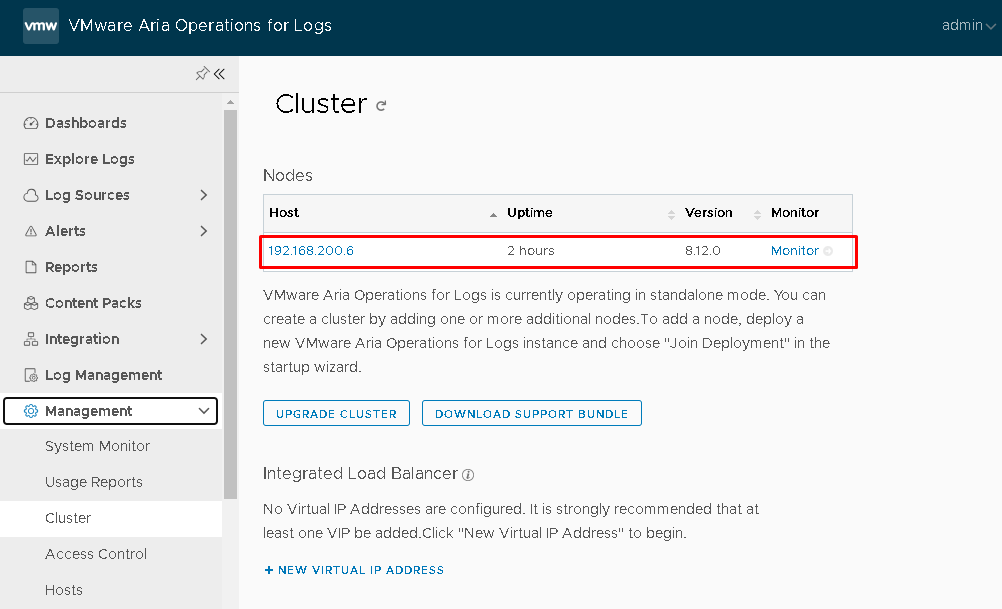
After the deployment of the first node, access it by GUI –> Management Menu –> Cluster. We can see details about cluster configuration – In this example, our first node is “syslog1.lab.local” with the IP address “192.168.200.6”:
Join an Existing Deployment
As we said before, the first step is deploying the first VMware Aria Operations for Logs node.
After that, deploy the additional nodes.
Access the additional node by Web and click and NEXT to continue:
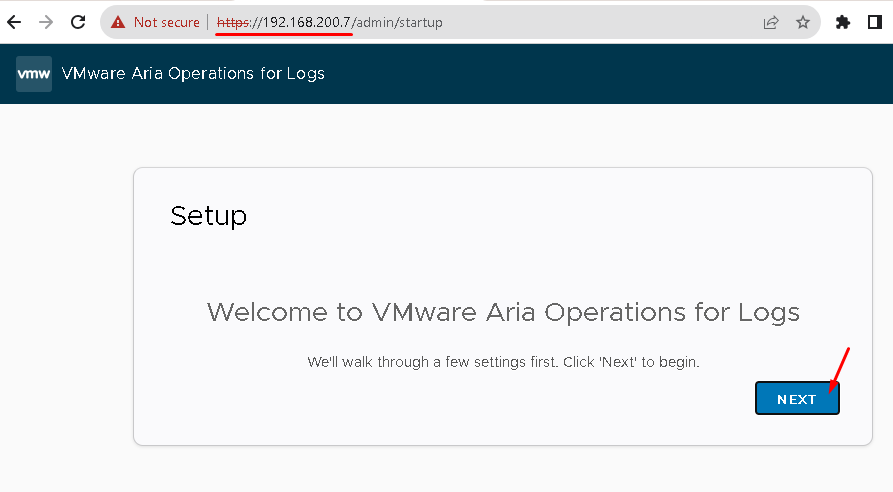
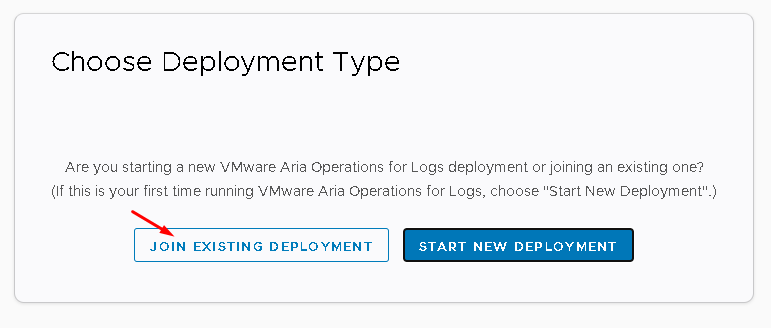
Pain attention here: Click on “JOIN EXISTING DEPLOYMENT” to join this new node to an existing deployment for creating a cluster:
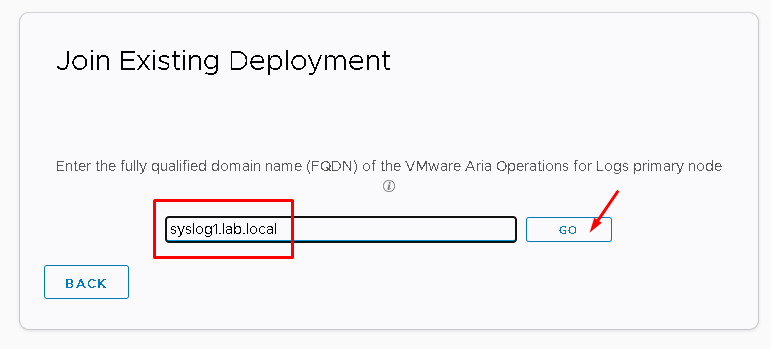
Type the IP address or the FQDN of the VMware Aria Operations for Logs primary node.
In this example, our primary FQDN node is syslog1.lab.local:
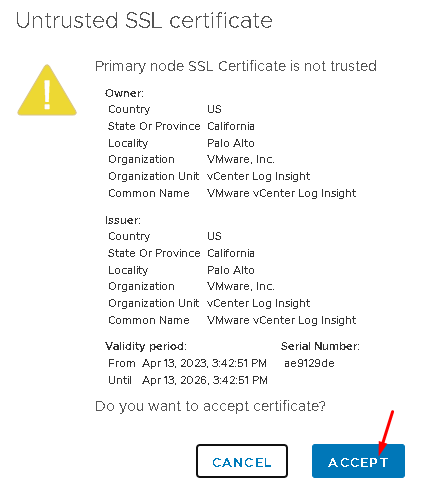
Accept the SSL certificate:
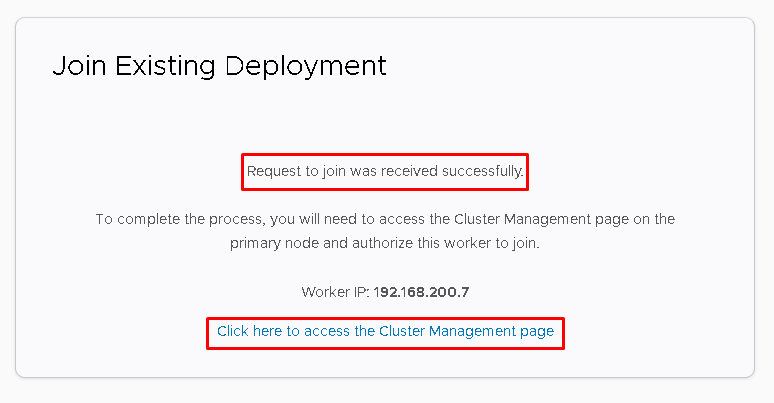
After that, we will receive a message explaining that the join request was done. We need to access the cluster management page to allow this new node to join this cluster:
After that, access the Management menu –> Cluster –> Click on ALLOW to approve the new node:
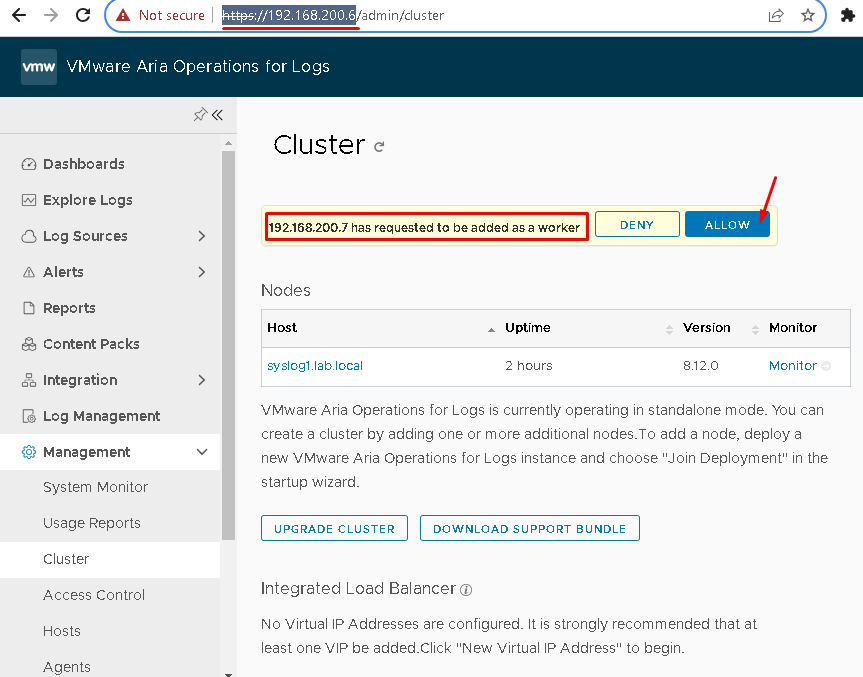
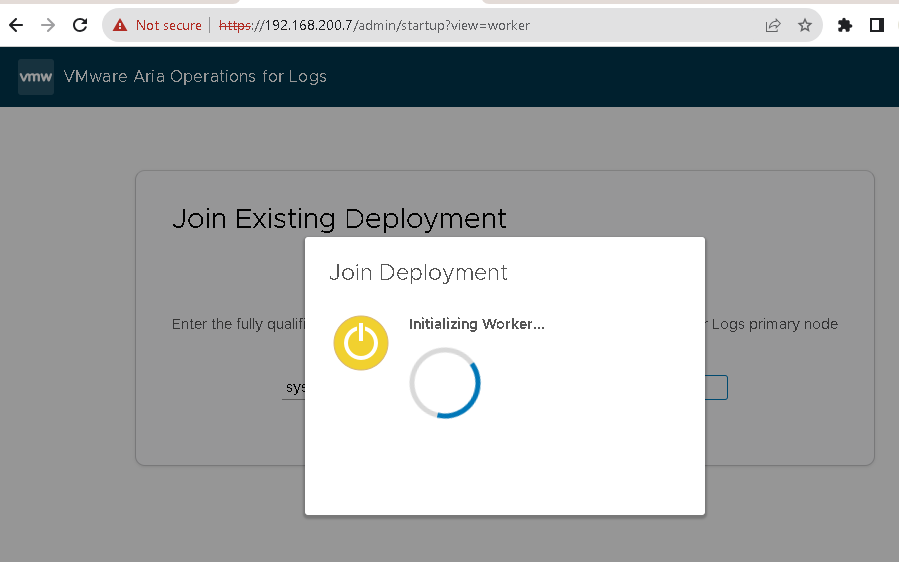
The join deployment to the new node is running:
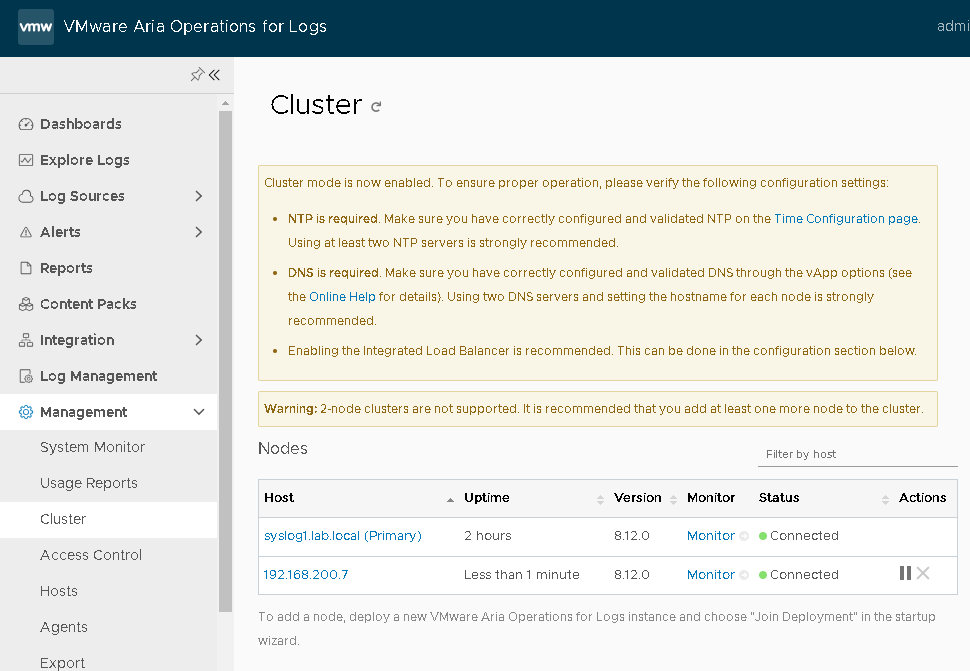
After a few minutes, the new node will be joined in this cluster:
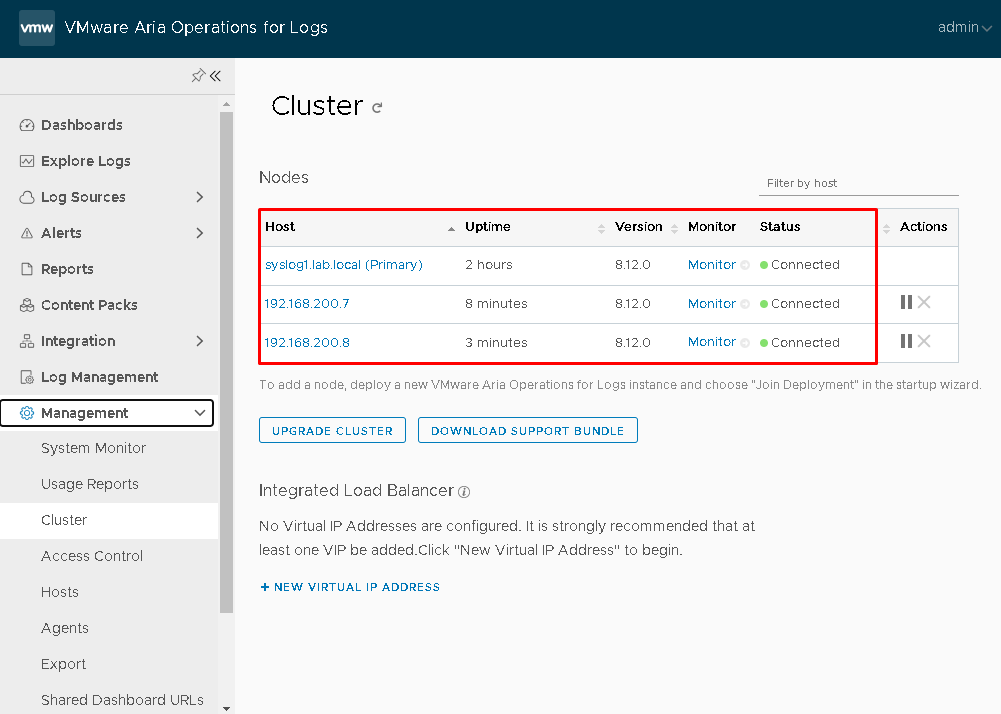
Do the same for the other node. Now, we have a cluster with 3 nodes:
Configuring the Integrated Load Balancer
An external load balancer is not supported. So, we need to use the ILB (Integrated Load Balancer) provided by the VMware Aria Operations for Logs.
VMware Aria Operations for Logs features an Integrated Load Balancer (ILB) which supports one or more Virtual IP Addresses (VIPs). Each VIP balances incoming ingestion and query traffic fairly among available Operations for Logs nodes.
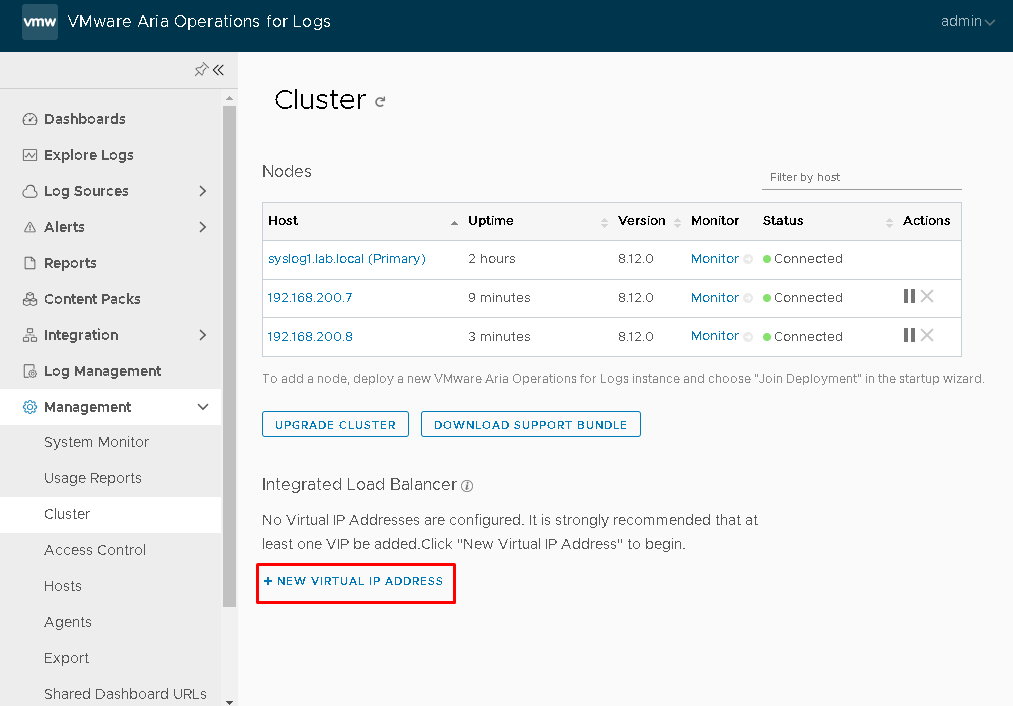
Click on “+NEW VIRTUAL IP ADDRESS” to create the VIP address:
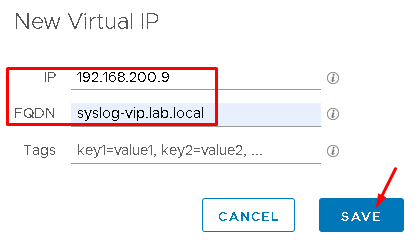
Type the IP and the FQDN for the Virtual IP. Click on SAVE to continue:
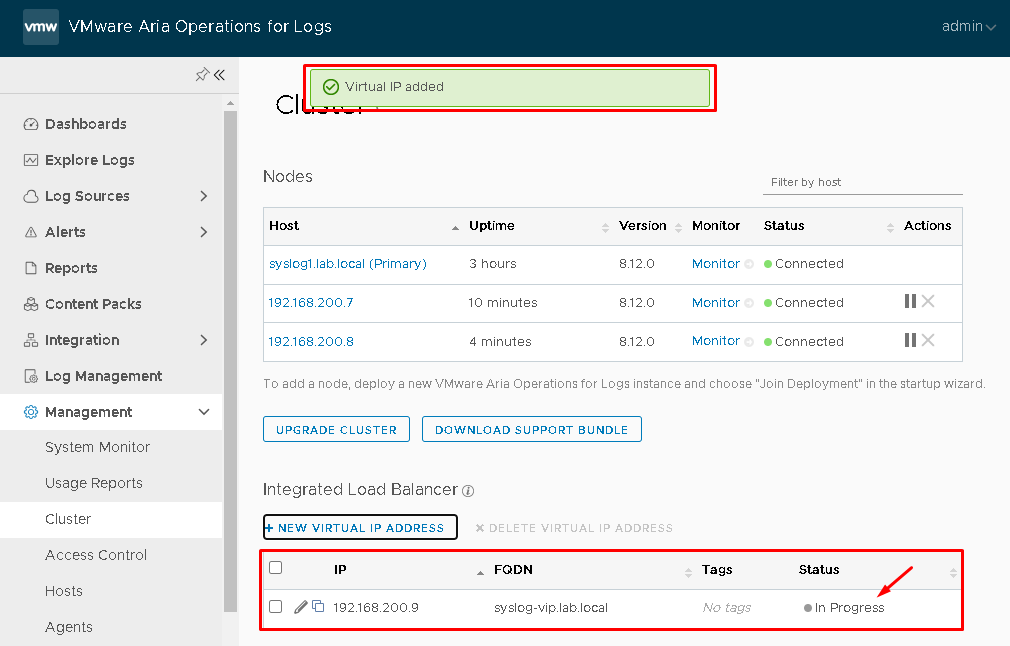
Wait a few seconds while the VIP configuration is in progress:
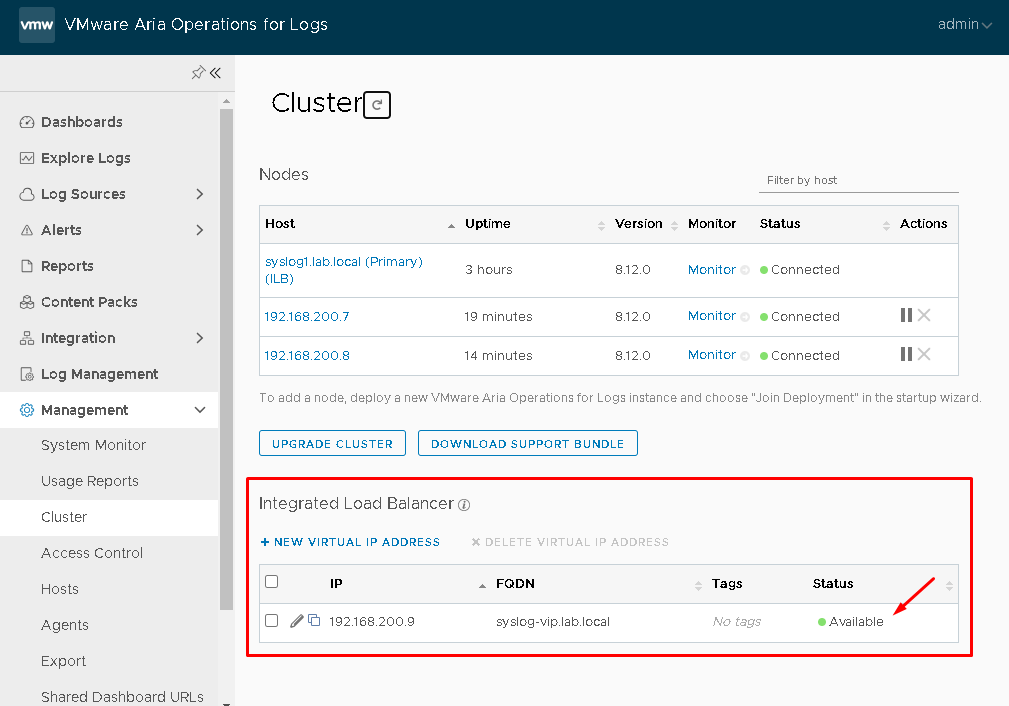
When the VIP configuration is finished, the status will be Available:
To confirm, we can access the management console using the VIP FQDN or IP address. In this case:
https://192.168.200.9 –> This is the VIP address for our environment/cluster
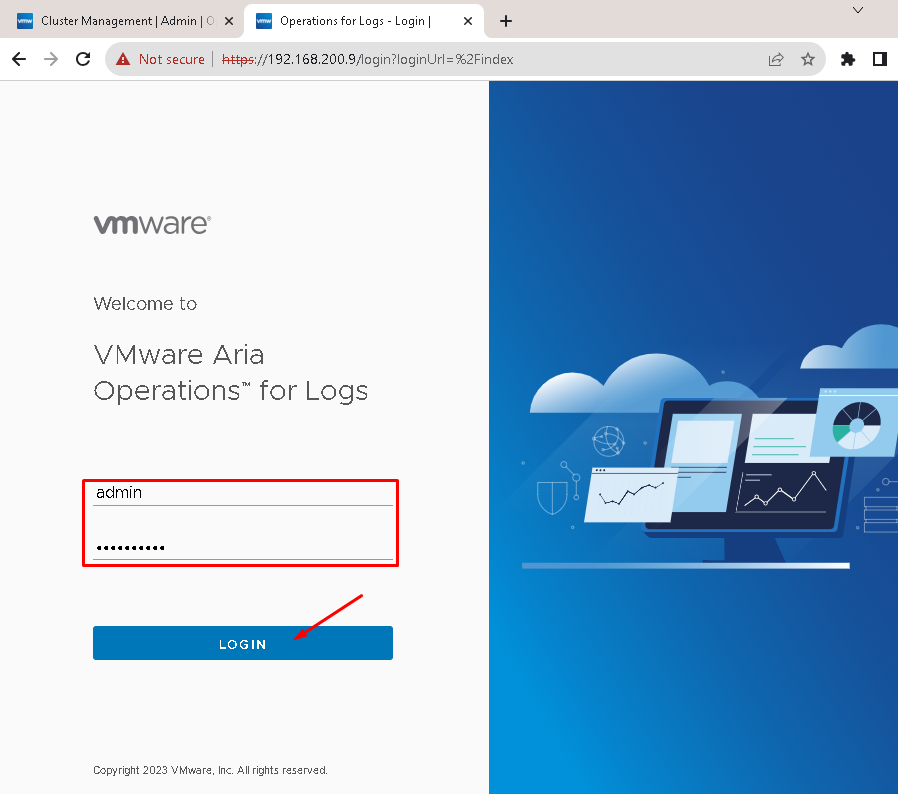
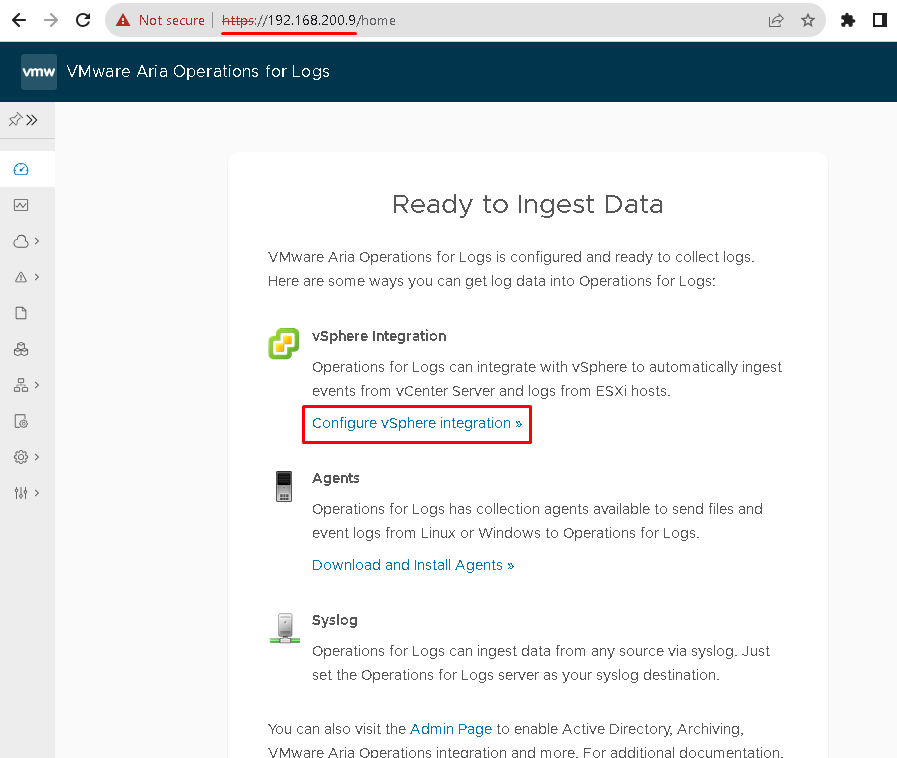
Click on “Configure vSphere integration” to configure the integration between the Aria Operations for Logs and the vCenter/ESXi hosts:
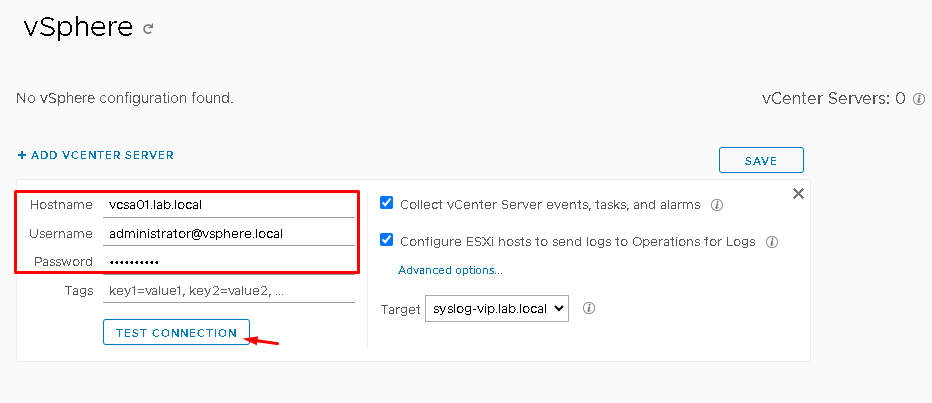
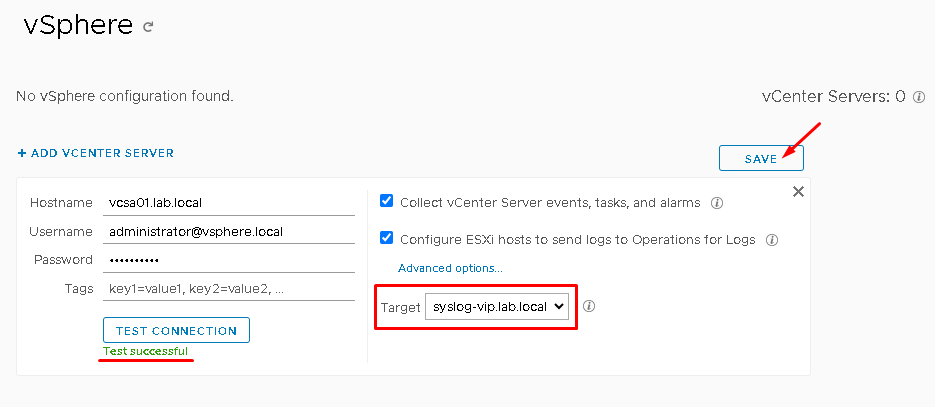
Type the details about the vCenter Server and click on “TEST CONNECTION”:
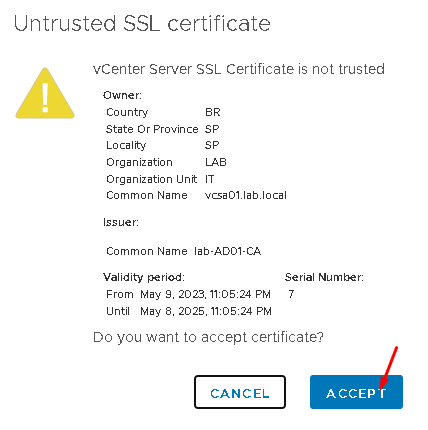
Accept the vCenter Server SSL certificate:
Look at the Target configuration. We are sending the VIP address for the vCenter Server and all ESXi hosts. Click on SAVE to continue:
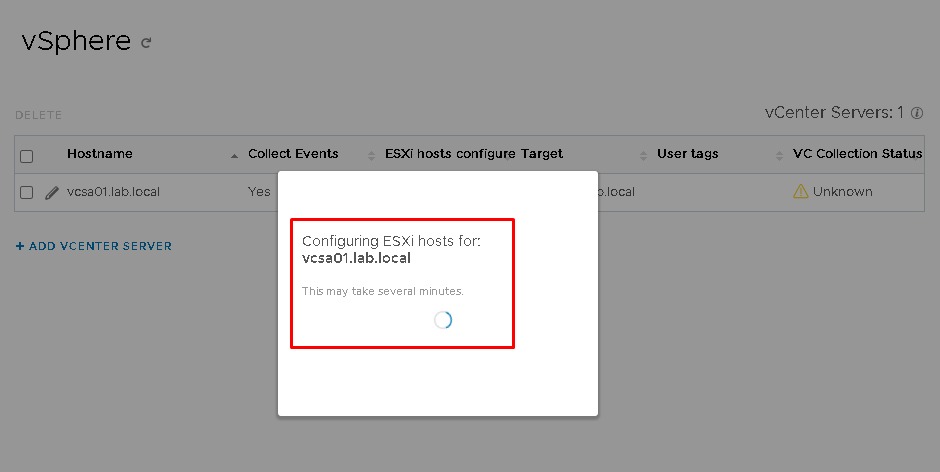
Wait a few seconds while the configuration is taking place:
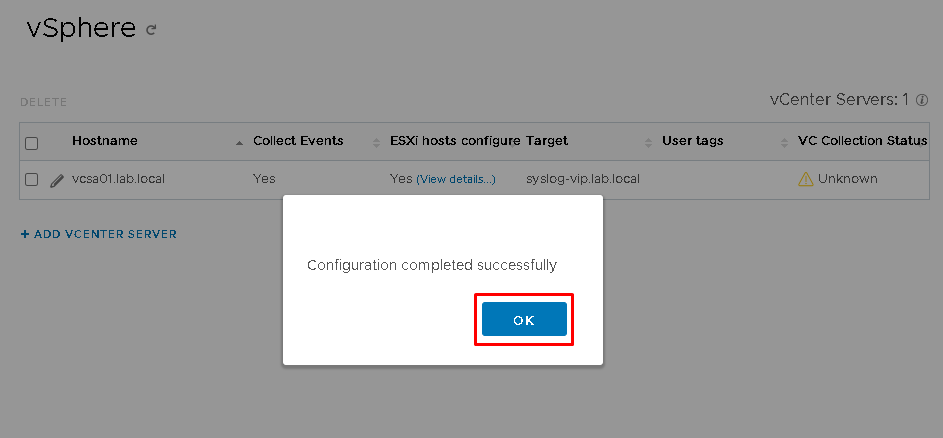
When the configuration is finished, click on OK:
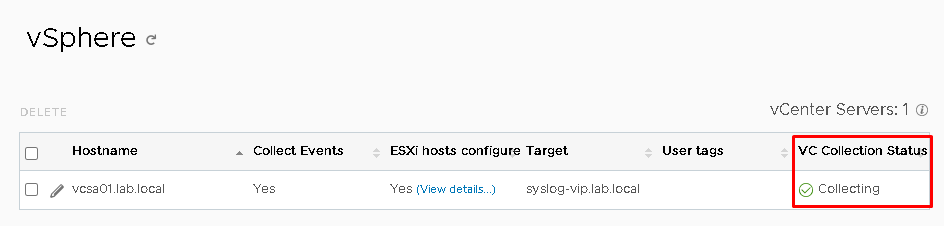
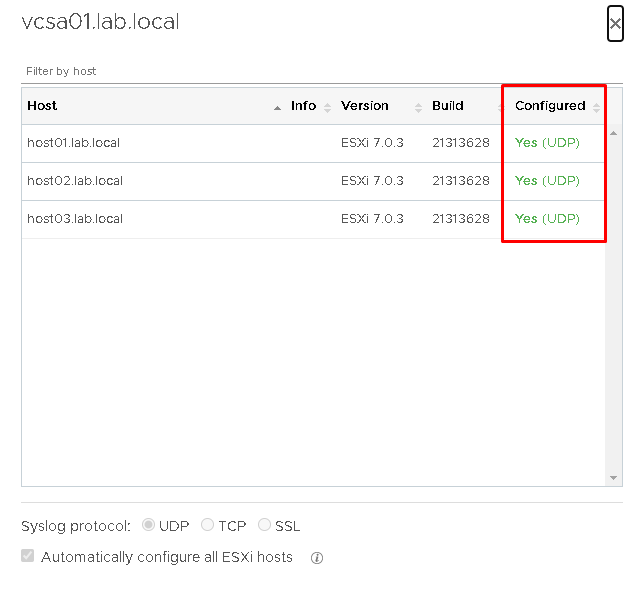
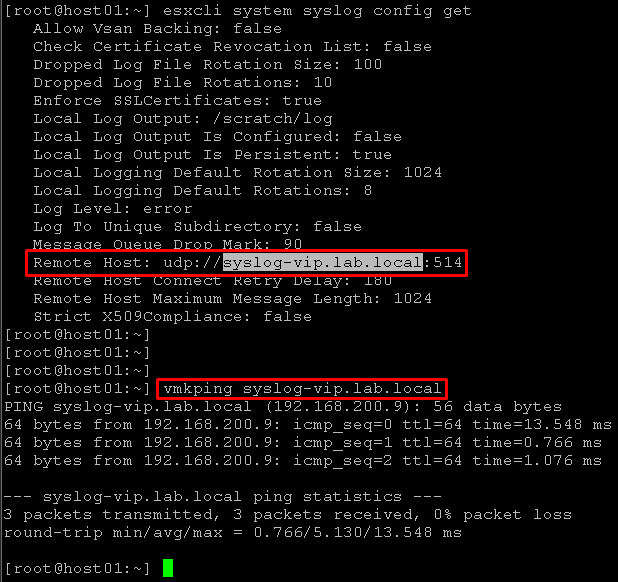
Accessing the ESXi host by SSH, we can see the Syslog remote host configuration:
esxcli system syslog config getImportant: To remember, the remote host “syslog-vip.lab.local” is the VIP address:
Now, our VMware Aria Operations for Logs is ready 😉