Close Menu
DPC Virtual Tips
    Read More

    How to Troubleshoot Packet Drops on an ESXi Host

    August 16, 2026

    SlurmDBD Is Down: What Continues Working and What Does Not

    August 15, 2026

    How to Investigate Jobs Stuck in COMPLETING State on Slurm

    August 14, 2026
    • Home
    • About Us
    • Contact
    • Cookie Policy
    • Comment Policy
    • Privacy Policy
    • Terms of Use
    • Disclaimer
    Tuesday, August 25
    DPC Virtual Tips
    • Home
    • Operating Systems
    • PowerFlex
    • HPC
    • Virtualization
    • About the Author
    • About Us
    • Contact
    DPC Virtual Tips
    Home » Creating a Custom vSphere Alarm
    Virtualization

    Creating a Custom vSphere Alarm

    DaniloBy DaniloMay 10, 2024Updated:July 31, 2026No Comments3 Mins Read
    Facebook Twitter Pinterest LinkedIn Tumblr Email
    vSphere custom alarm
    Share
    Facebook Twitter LinkedIn Pinterest Email

    Creating a Custom vSphere Alarm will show all the necessary steps to create a custom vSphere Alarm to monitor the CPU usage of all virtual machines.

    First Things First, What is an Alarm?

    An alarm is a notification sent in response to an event or condition with an object in the inventory. When we install the vCenter Server, we have hundreds of alarms by default. However, custom alarms can be created to satisfy specific monitoring situations.

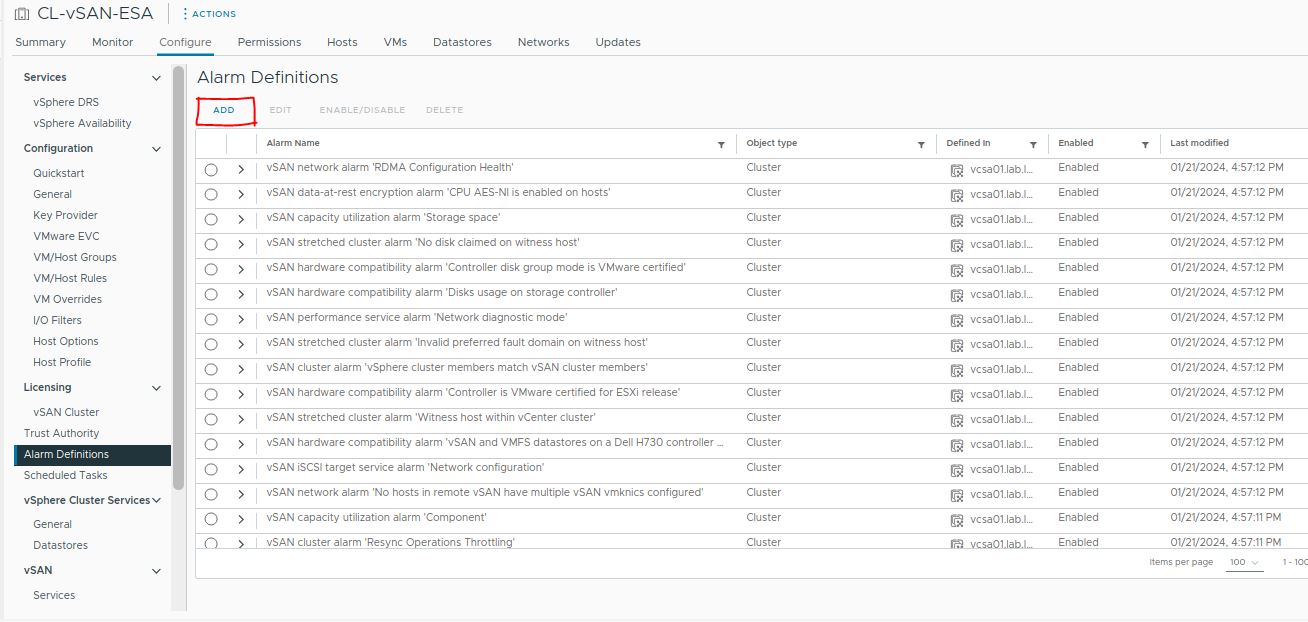
    Selecting the vCenter server object, click on Configure –> Alarm Definitions. On this page, it is possible to see all predefined alarms, as we can see in the following picture:
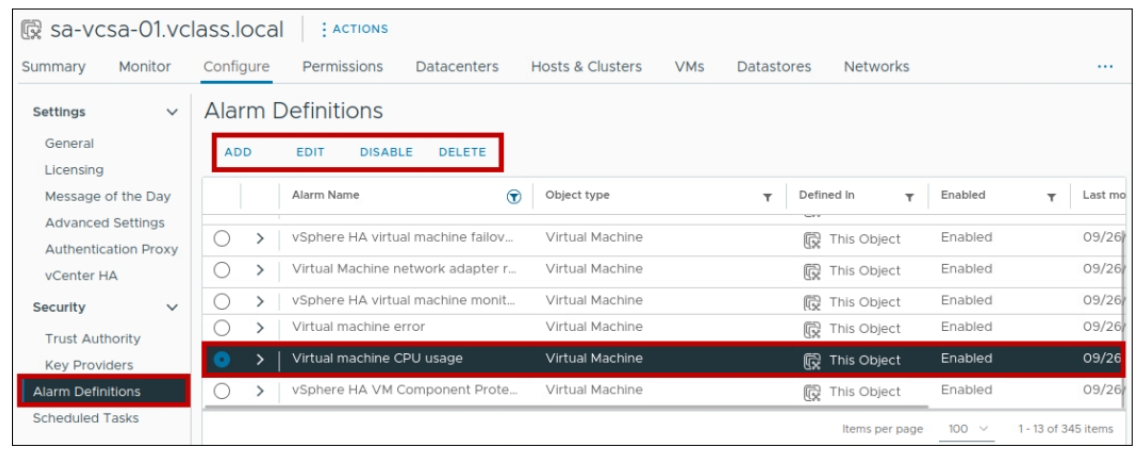
    As we can see in the picture, it is possible to add new alarms, edit existing ones, disable them, and delete them.

    Creating a Custom Alarm

    In addition to using predefined alarms, we can create custom alarms on the vSphere Client to match specific monitoring situations.

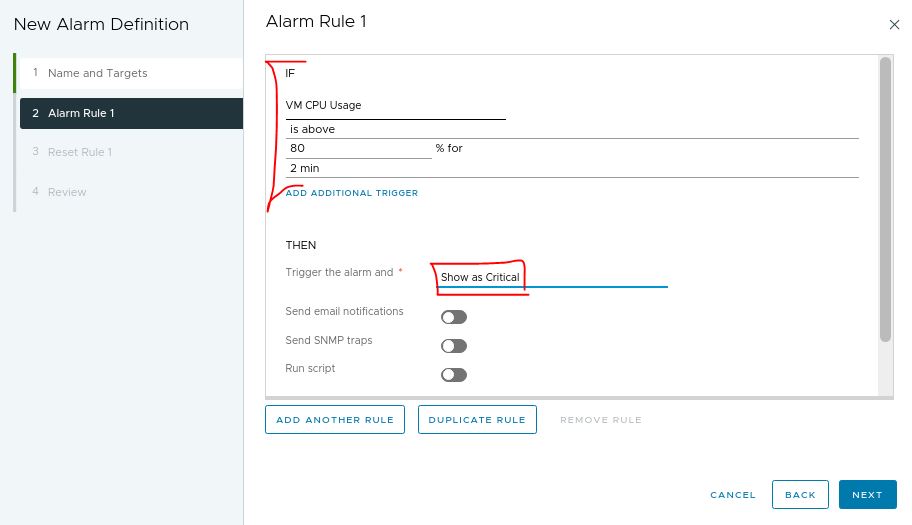
    For instance, we can create an alarm to show us when a virtual machine’s CPU usage is more than 80% for 2 minutes. If the condition matches, an alarm will appear on the vSphere Client (or an email will be sent, etc.).

    In this example, we will create two custom alarms:

    • If the VM CPU usage is higher than 80% for more than 2 minutes, trigger an alarm and show it as a Critical.
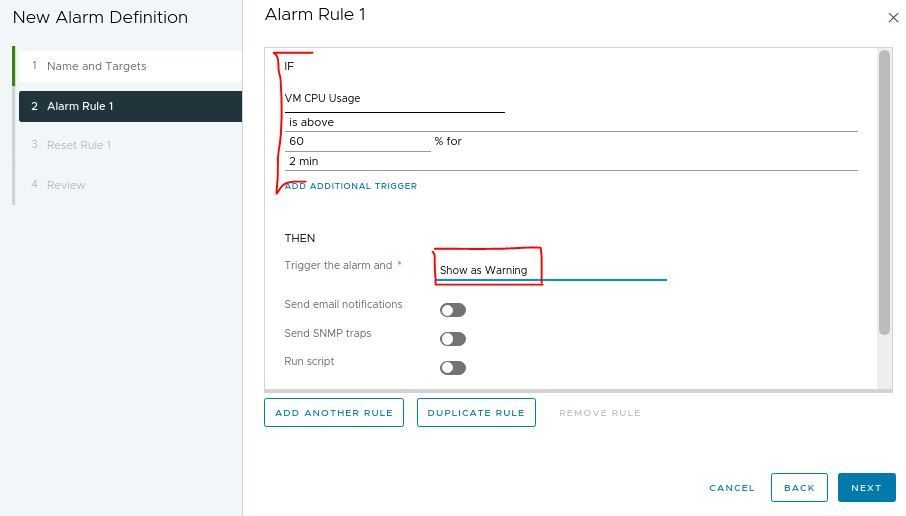
    • If the VM CPU usage is higher than 60% for more than 2 minutes, trigger an alarm and show it as a Warning.

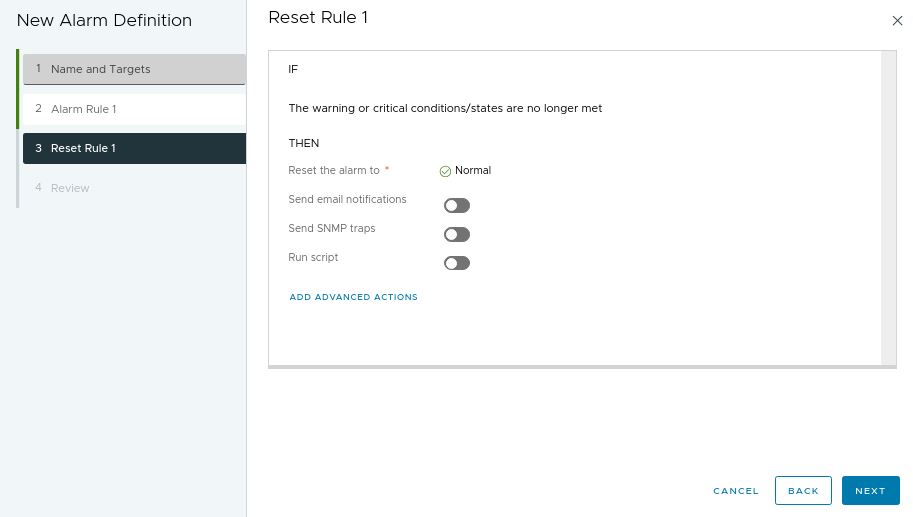
    For both alarms, when the condition/states are no longer met, trigger an alarm and reset it to normal (green).

    Alarm for VM CPU High Usage

    Open the vSphere Client interface, select the cluster object, and under Alarm Definitions click on ADD:
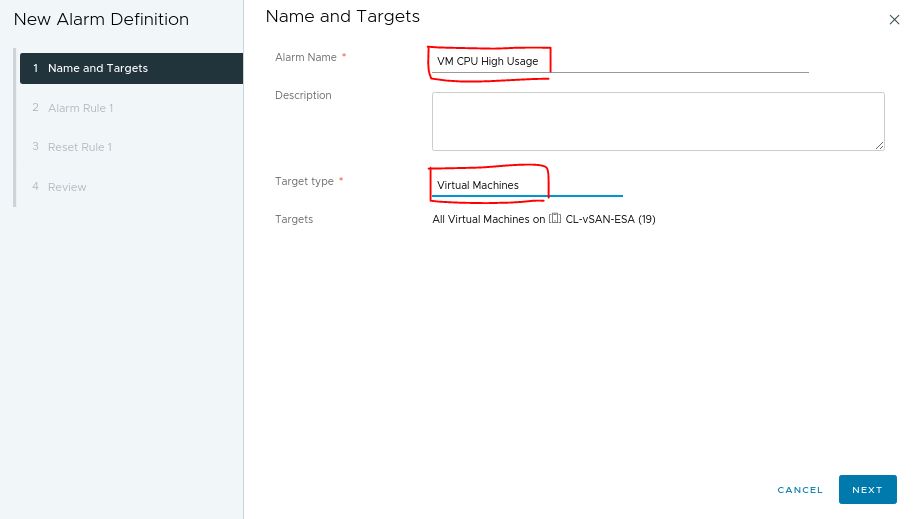
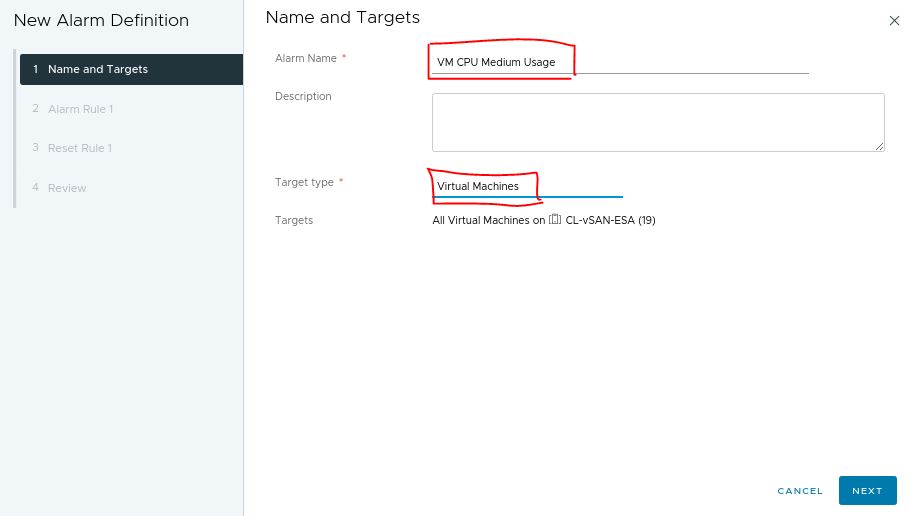
    On the Alarm Name, type a name. Our example’s alarm is “VM CPU High Usage.”
    On the Target type, we need to select the object level at which this alarm will be applied. Since this alarm is to monitor a VM CPU usage, we must choose “Virtual Machines”:
    Under alarm rule 1, we will configure all conditions that will be monitored to trigger the alarm:
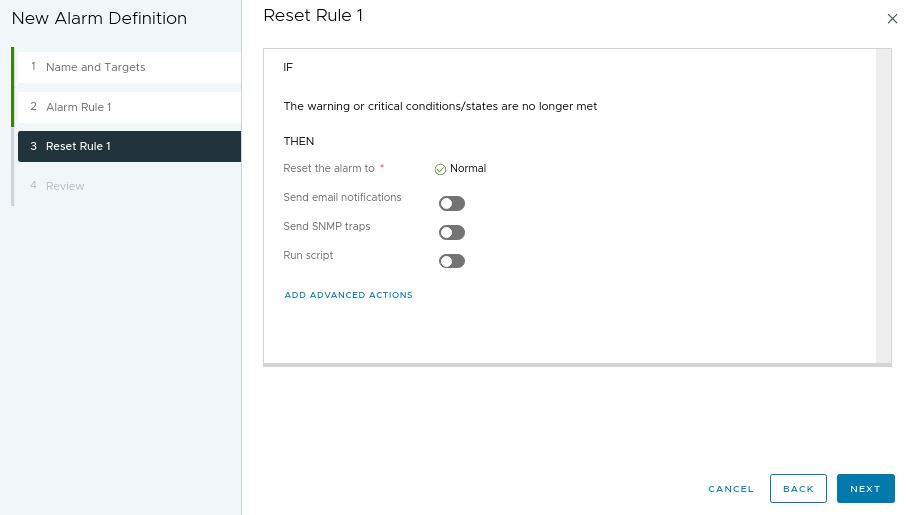
    Under the reset rule, the default action is to reset the alarm to normal when this condition is no longer met. Look at what we have other possibilities, like sending an email, sending an SNMP trap, running a script, or choosing an advanced action:
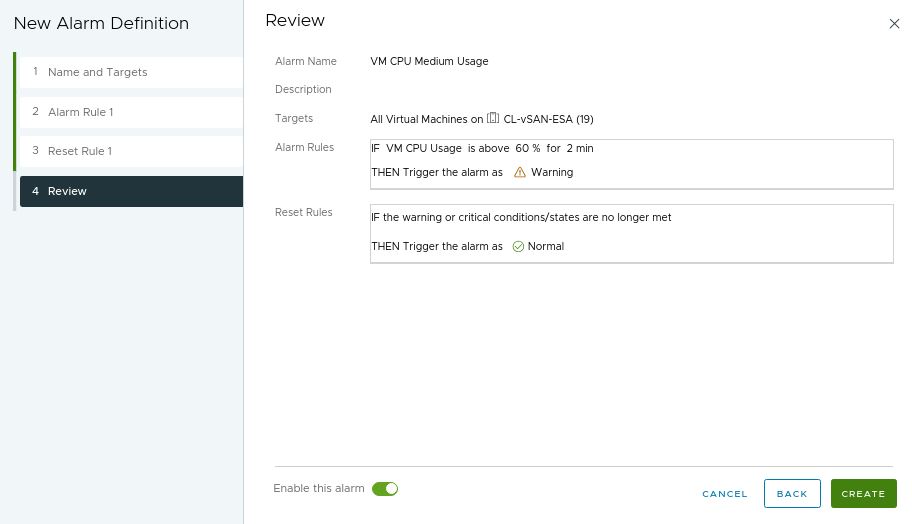
    Under the review page, we can see a review of all the options we decided on. Click on CRATE to create the alarm:
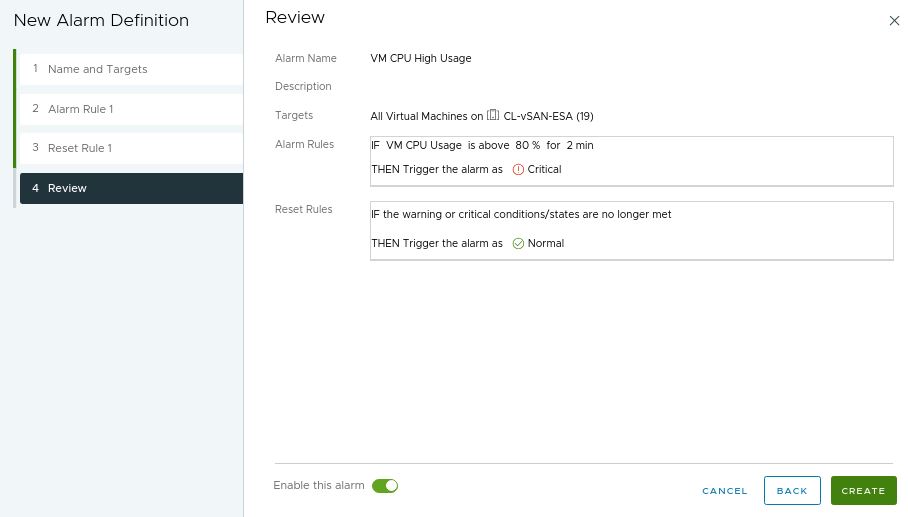
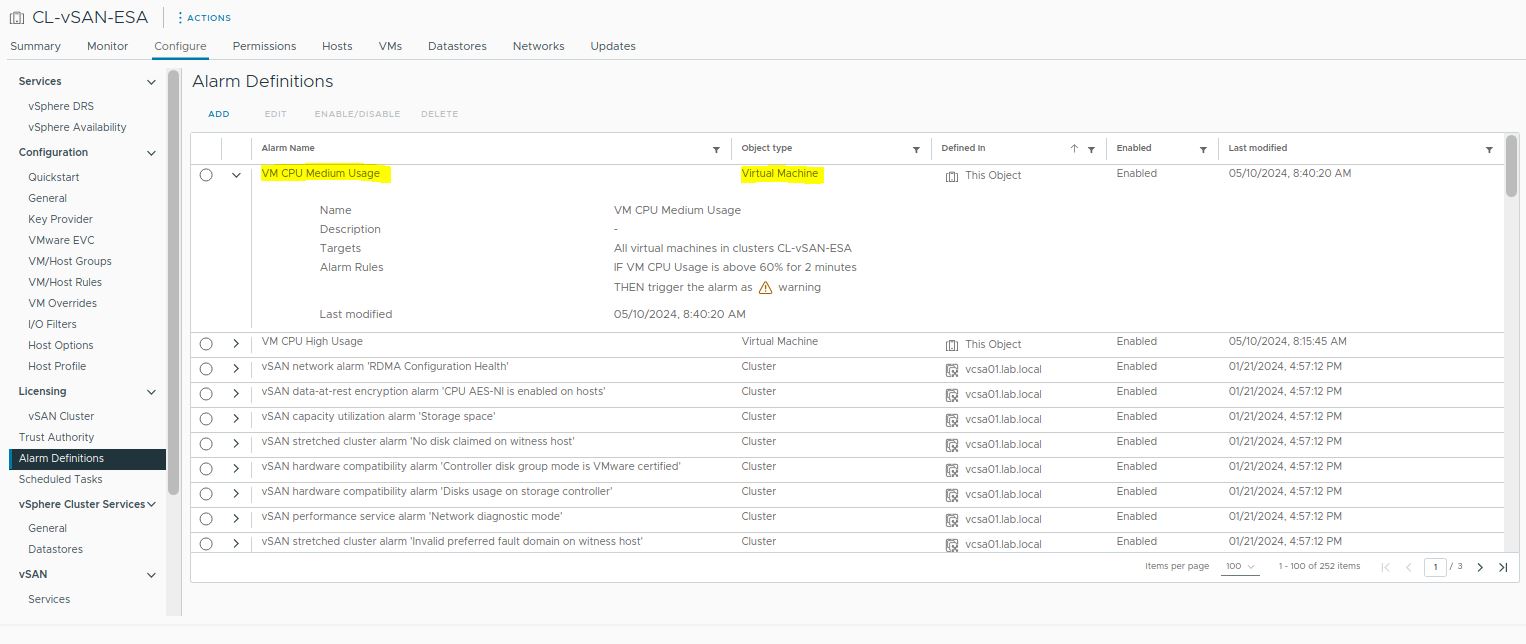
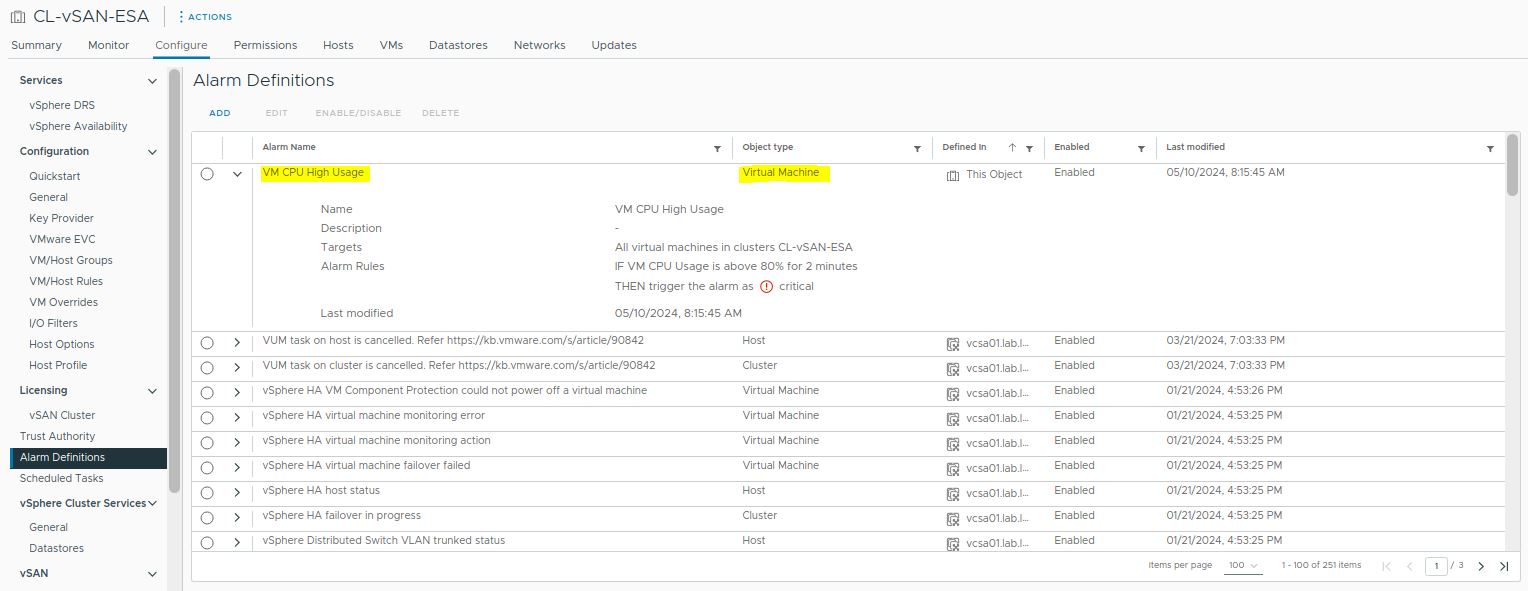
    After creating the alarm, it is possible to see it under the alarm definitions list, as we can see in the following picture:
    Now, we will create the next alarm to detect and trigger an alarm when the VM CPU usage is higher than 60% for more than 2 minutes:
    Checking the Triggered Alarms

    We can see all triggered alarms under the “Triggered Alarms” at the cluster level.
    In the following pictures, we can see the triggered alarm:

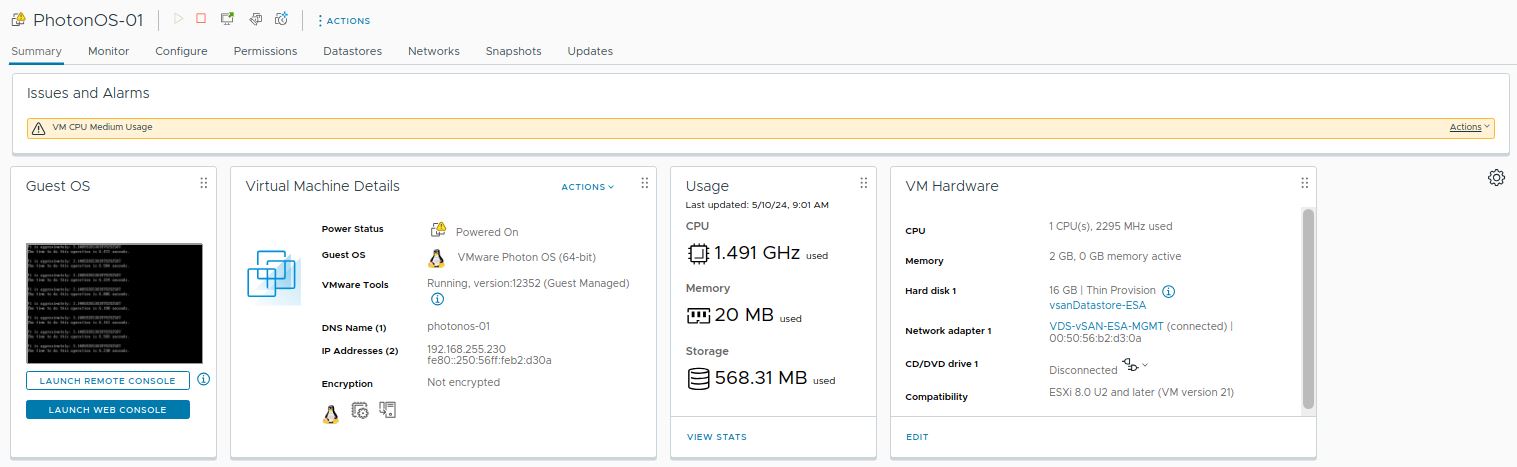
    Accessing the VM object in the vCenter inventory, we can also see the alarm name and its severity (Warning or Critical):
    To Wrapping This Up

    The alarm is an excellent way to monitor your cluster’s behavior and act proactively to avoid further negative impacts on your infrastructure or critical workloads.

    I highly recommend you explore all alarms under the “Alarm Definition” section to become more familiar with them. Also, create your own alarms to understand how powerful this tool is.

    Share. Facebook Twitter Pinterest LinkedIn Tumblr Email
    Previous ArticleWorking with a vSphere Resource Pool
    Next Article Creating an NFS Share in the vSAN File Services
    Danilo

    Infrastructure Engineer with experience in Virtualization, Linux, Windows Server and learning automation using Python. DPC Virtual Tips was created to share practical tutorials, lab experiences and troubleshooting guides focused on enterprise infrastructure technologies.

    Related Posts

    How to Troubleshoot Packet Drops on an ESXi Host

    August 16, 2026

    VM Replication with vSphere Replication and Site Recovery Manager

    June 16, 2025

    Changing DNS Settings on ESXi Hosts

    May 20, 2025

    Comments are closed.

    Search
    Categories
    • HPC (12)
    • Operating Systems (85)
    • PowerFlex (22)
    • Virtualization (130)
    Read More
    Virtualization

    How to Troubleshoot Packet Drops on an ESXi Host

    By DaniloAugust 16, 20260
    HPC

    SlurmDBD Is Down: What Continues Working and What Does Not

    By DaniloAugust 15, 20260
    HPC

    How to Investigate Jobs Stuck in COMPLETING State on Slurm

    By DaniloAugust 14, 20260
    Operating Systems

    Linux Server Has Free Memory but Is Swapping: Why?

    By DaniloAugust 13, 20260
    Operating Systems

    How to Determine Whether Packet Loss Is Local or Network Related on Linux

    By DaniloAugust 12, 20260
    Latest Posts

    How to Troubleshoot Packet Drops on an ESXi Host

    August 16, 2026

    SlurmDBD Is Down: What Continues Working and What Does Not

    August 15, 2026

    How to Investigate Jobs Stuck in COMPLETING State on Slurm

    August 14, 2026
    Images from Gallery
    hpc main commands
    linux commands
    install rock linux
    lustre fs
    shell scripting
    vSAN Trace Files
    Categories
    • HPC
    • Operating Systems
    • PowerFlex
    • Virtualization
    • Home
    • About Us
    • Contact
    • Cookie Policy
    • Comment Policy
    • Privacy Policy
    • Terms of Use
    • Disclaimer
    Copyright © 2026, DPC Virtual Tips. All rights reserved.

    Type above and press Enter to search. Press Esc to cancel.

    We use cookies to ensure your best experience on our website. If you continue using our website, we'll assume you agree to our cookie policy