

Dell PowerFlex File Services extends block storage with file-based access for clients. In this walkthrough, I create an SMB-enabled NAS server and file system, publish an SMB share, configure access for Active Directory users, map the share through Group Policy, and apply directory-tree quotas. The procedure is demonstrated in a nested lab using PowerFlex software version 4.5.2.
This is a lab walkthrough, not a production reference design; verify the supported hardware, software, network design, and security requirements for your own environment before implementation.
Before following this SMB walkthrough, see Deploy PowerFlex File Services 4.5.2: SMB and NFS Shares. That article covers the File Services deployment workflow, including resource discovery, template preparation, Resource Group deployment, NAS Server creation, and basic client access.
Before creating the SMB share
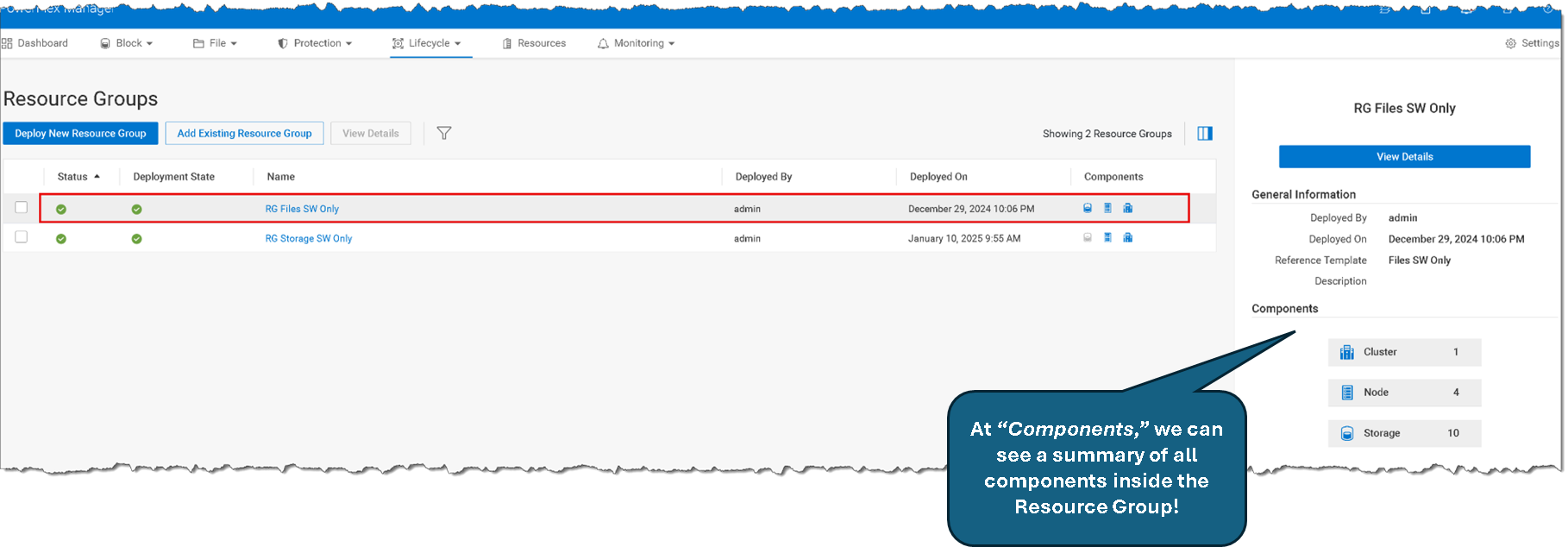
PowerFlex File Services runs on PowerFlex File Nodes and provides file access through NAS Servers, file systems, and shares. In this walkthrough, I use PowerFlex Manager to deploy the file-services infrastructure from a published template and manage the resulting deployment as a Resource Group. The Resource Group is a management object; it is not itself the cluster, NAS Server, file system, or SMB share. A template must be published before it can be used to deploy a Resource Group.
PowerFlex Manager separates PowerFlex Management, NAS File Management, and NAS File Data network roles. The client-facing NAS Server interface belongs to the NAS File Data network. Do not use a management-network address as the SMB client address unless that is explicitly how the lab was configured and verified.
Lab environment note
This walkthrough was performed in a nested lab. The PowerFlex software version is 4.5.2. The nested environment is described only to document the lab setup; it should not be interpreted as a supported production design. Check Dell’s current support matrix and release documentation before selecting a deployment platform.
File Server Structure
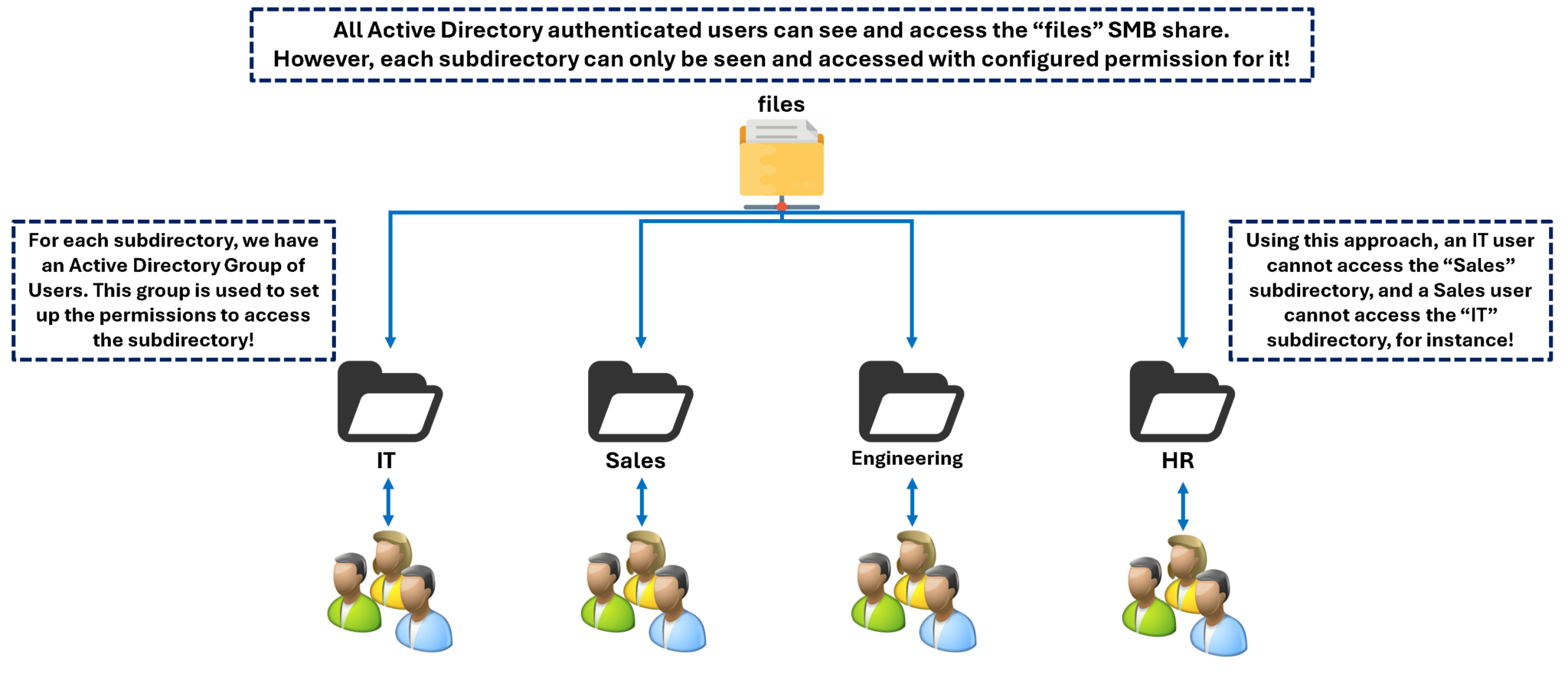
The diagram below shows the Active Directory users and security groups used in this lab. The group names and permission assignments are examples; replace them with the groups and access model used in your environment:
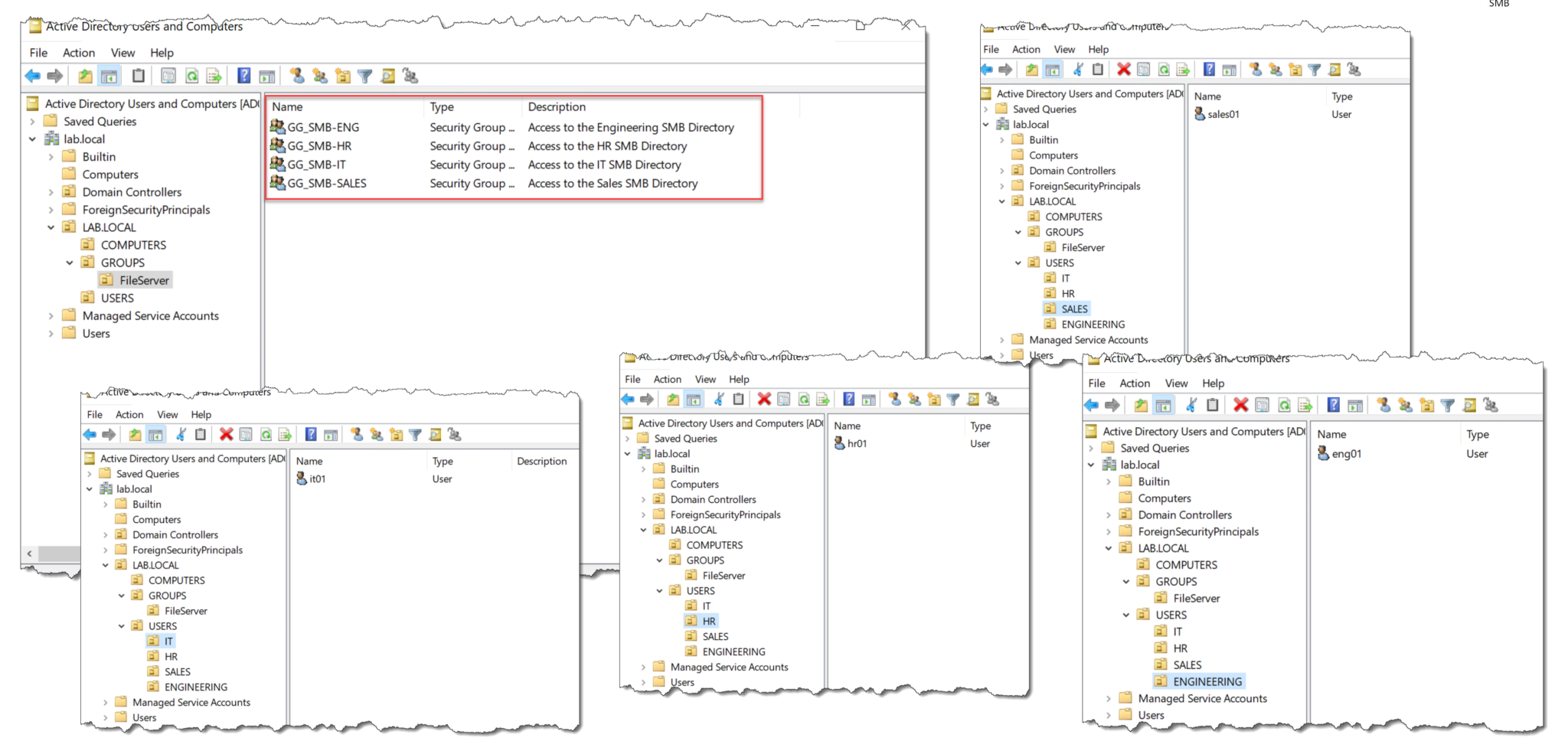
In the following pictures, we can see all AD Users and Groups:
Creating a NAS Server
The first step is to create at least one NAS Server. The NAS Server is responsible for providing access to the file systems. When a NAS Server is made, a Docker container is created on a node. Each NAS Server has a Primary Node and a Secondary Node. Each node has a Docker container that provides access to the file system.
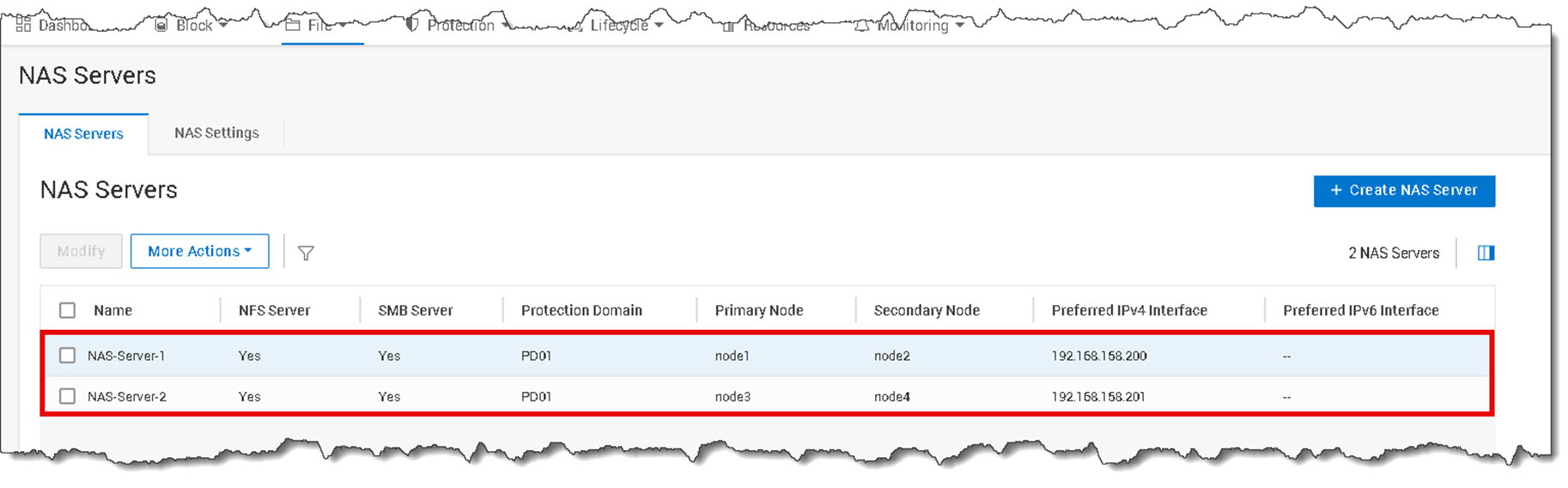
As the following picture shows, both NAS Servers have been created. The IP address shown in the column “Preferred IPv4 Interface” is set up inside the Docker container (… and this is the IP address that will be used to access the share):
Creating a File System and an SMB Share
The next step is creating a File System. Log in on the PowerFlex Manager UI –> File –> File Systems –> + Create File System.
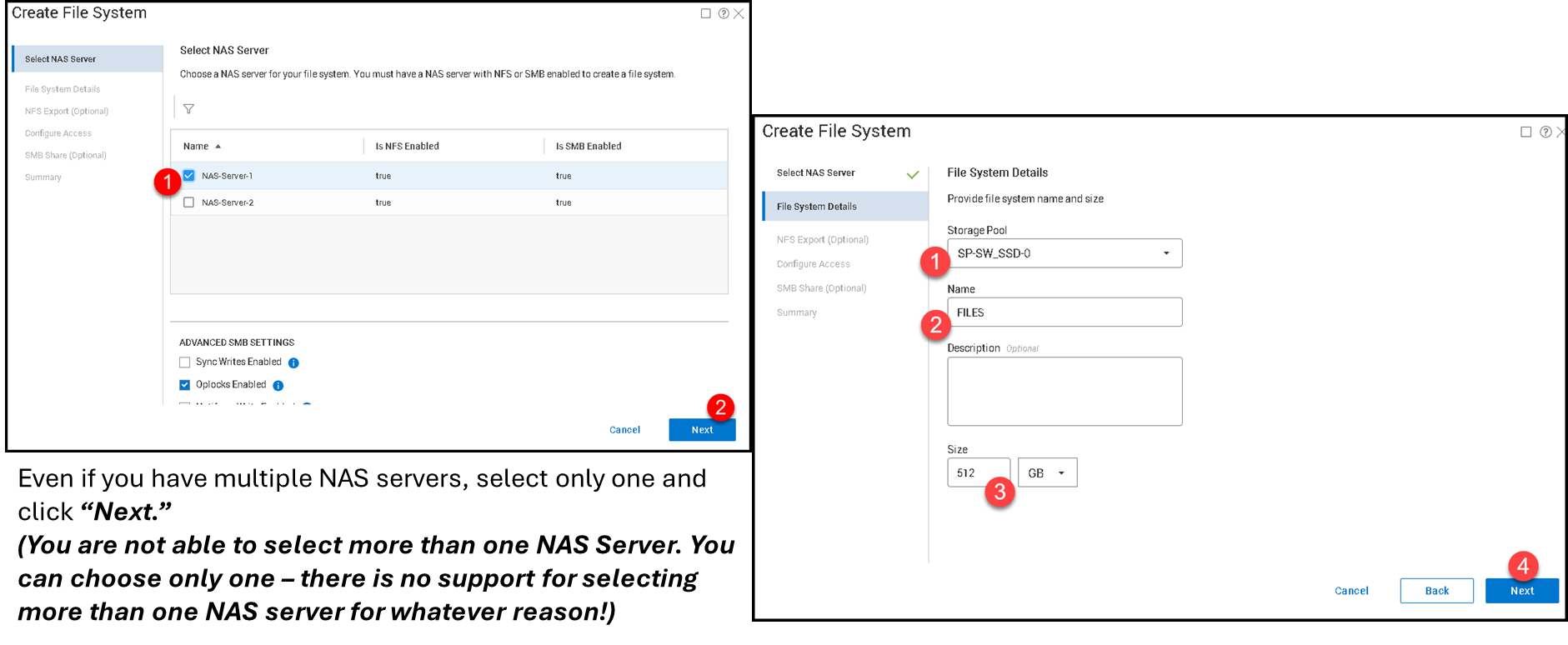
The first step in the creation wizard is to specify the NAS Server:
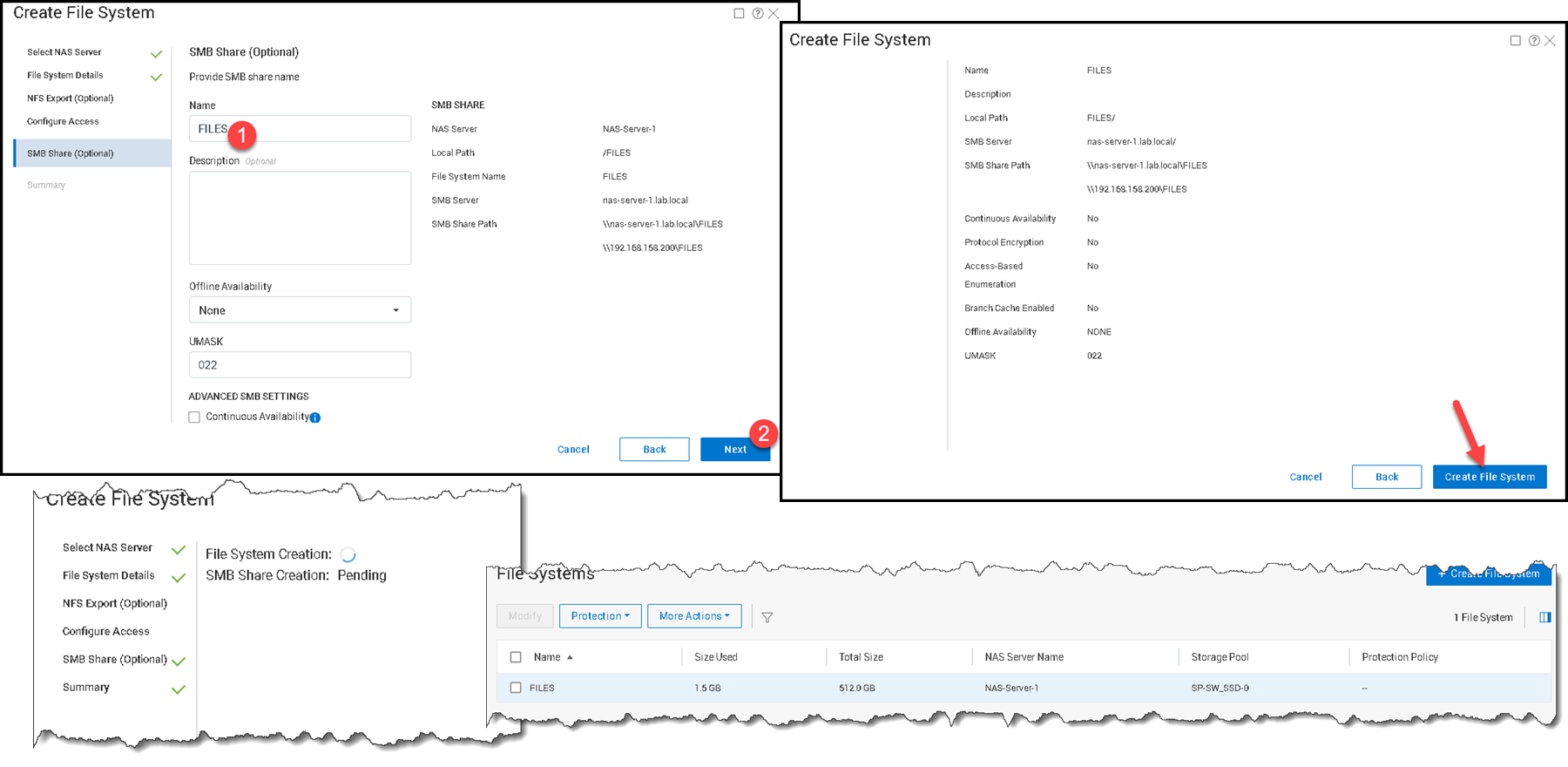
During the File System creation wizard, we can create an SMB share. We are doing it (in this case, for instance, the SMB share has the same name as the File System):
Testing access from Windows
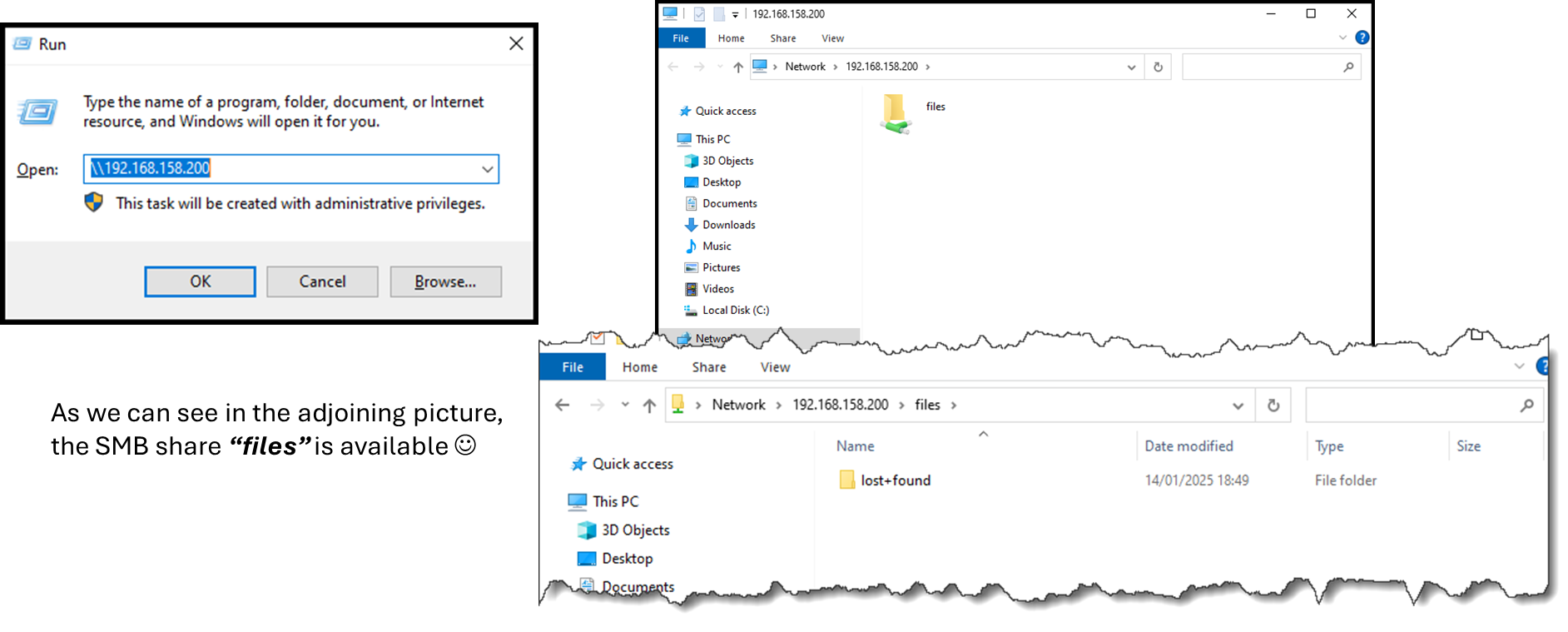
From a Windows-joined station, try accessing the created SMB share:
Start –> Run –> \\192.168.158.200 (To remember, this is the IP address of the NAS Server)
Configuring share and folder permissions
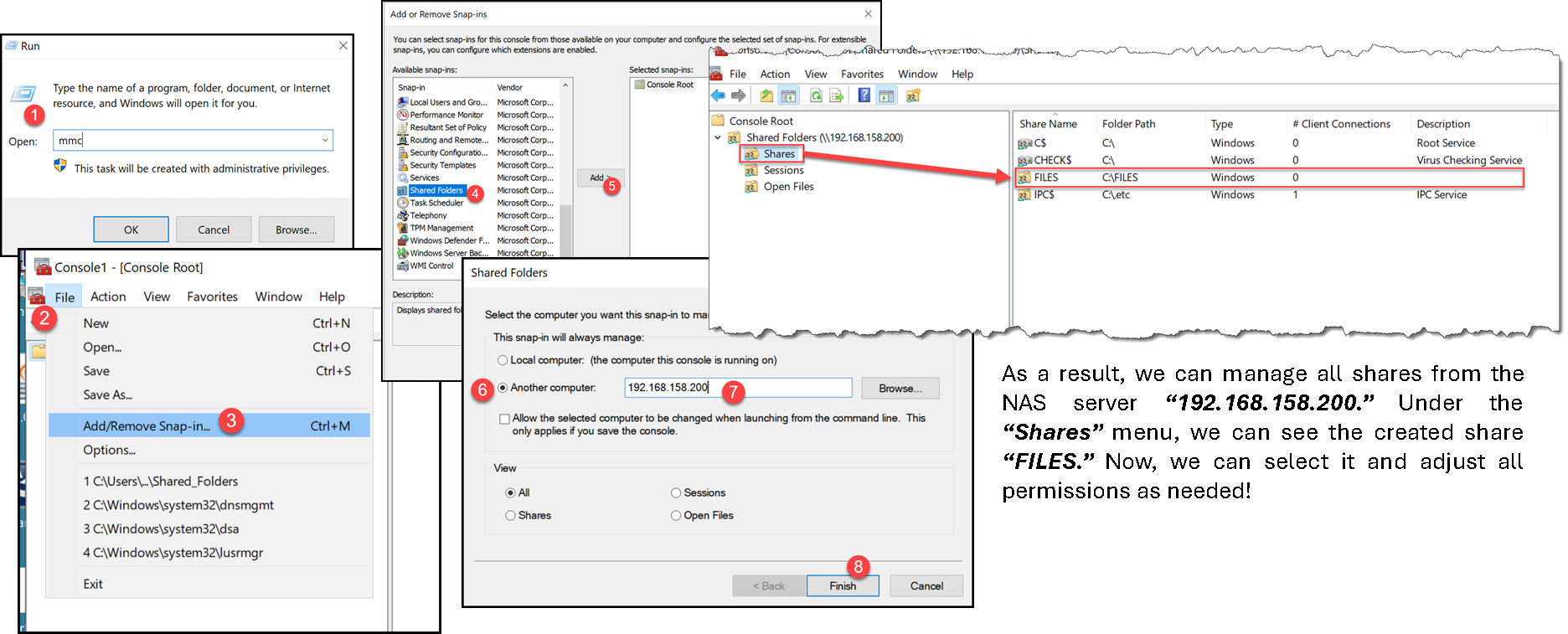
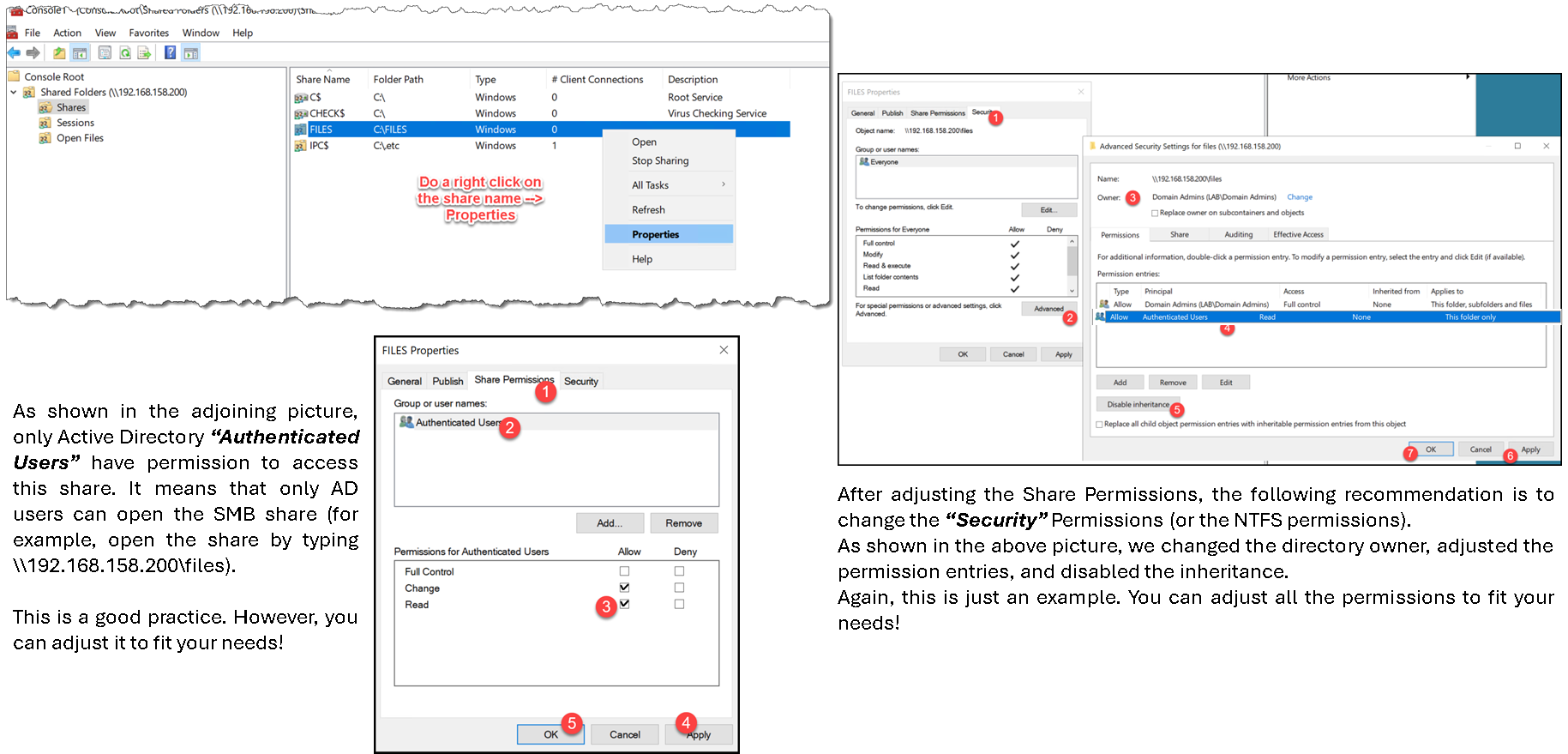
Looking forward, the next step is to adjust the “Sharing” and “NTFS” permissions of our SMB share. Access a joined Active Directory machine and follow the steps below – in this case, we have joined with the domain administrator account to adjust these permissions:
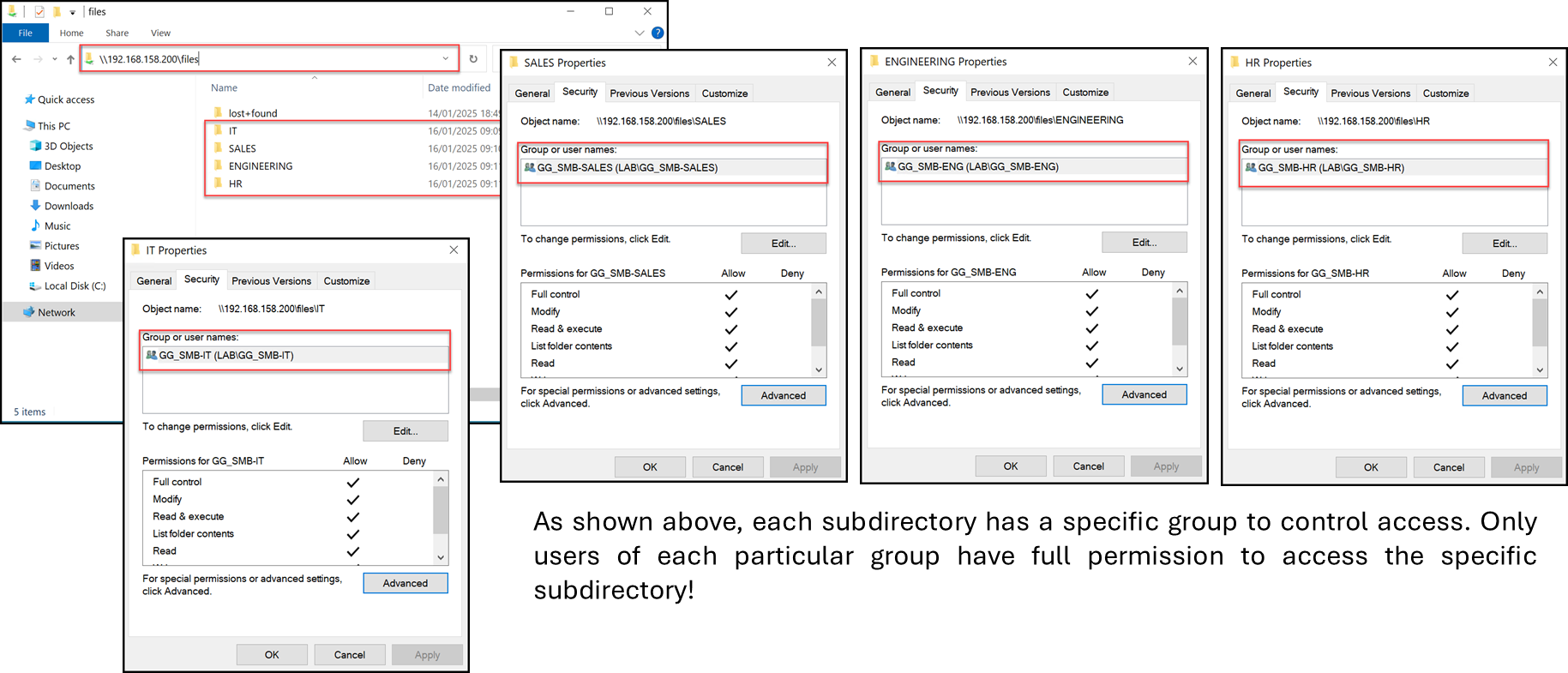
The next step is to create all subdirectories and adjust their permissions:
Enabling Access-Based Enumeration
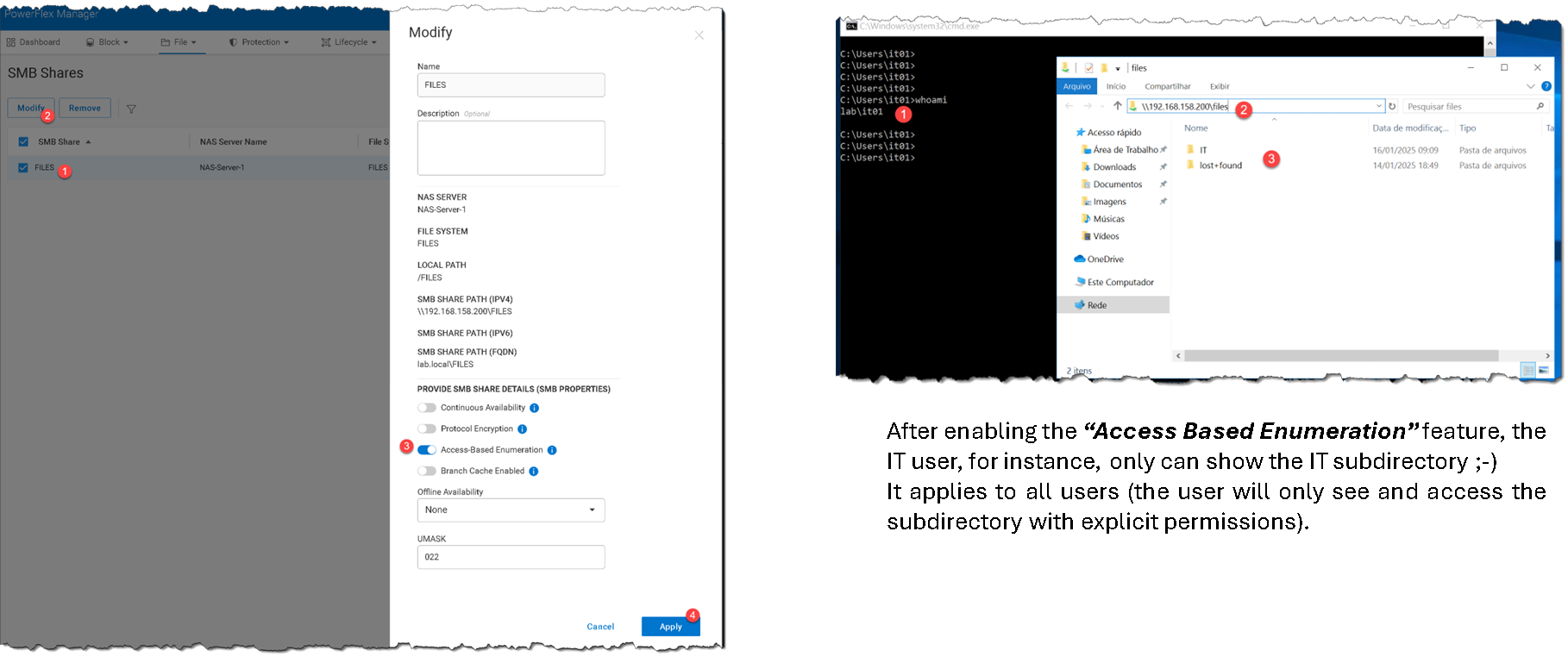
Access-Based Enumeration (ABE) filters the directory listing so users see only files and directories for which they have read access. In PowerFlex Manager, edit the SMB share and enable its Access-Based Enumeration advanced property. ABE affects what is displayed during enumeration; it does not replace SMB share permissions or file and directory ACLs. Verify the result using test accounts with different permissions.
On the PowerFlex UI, edit the “files” SMB share and enable the “Access Based Enumeration”:
Mounting the SMB Share Through GPO
To map the SMB share for users with Group Policy Preferences, edit a domain GPO and create a Drive Maps item under User Configuration > Preferences > Windows Settings > Drive Maps. Set the drive letter, the complete UNC path, and the appropriate action (Create, Update, or Replace).
Enable Reconnect if the mapping should be saved and Windows should attempt to restore it at later logons. Link the GPO where the intended user accounts are in scope, then review inheritance, security filtering, and any item-level targeting.
At sign-in, Group Policy processes user settings, although the desktop can appear before asynchronous policy processing finishes. Confirm the mapping with a representative user rather than assuming that creating or linking the GPO guarantees success:

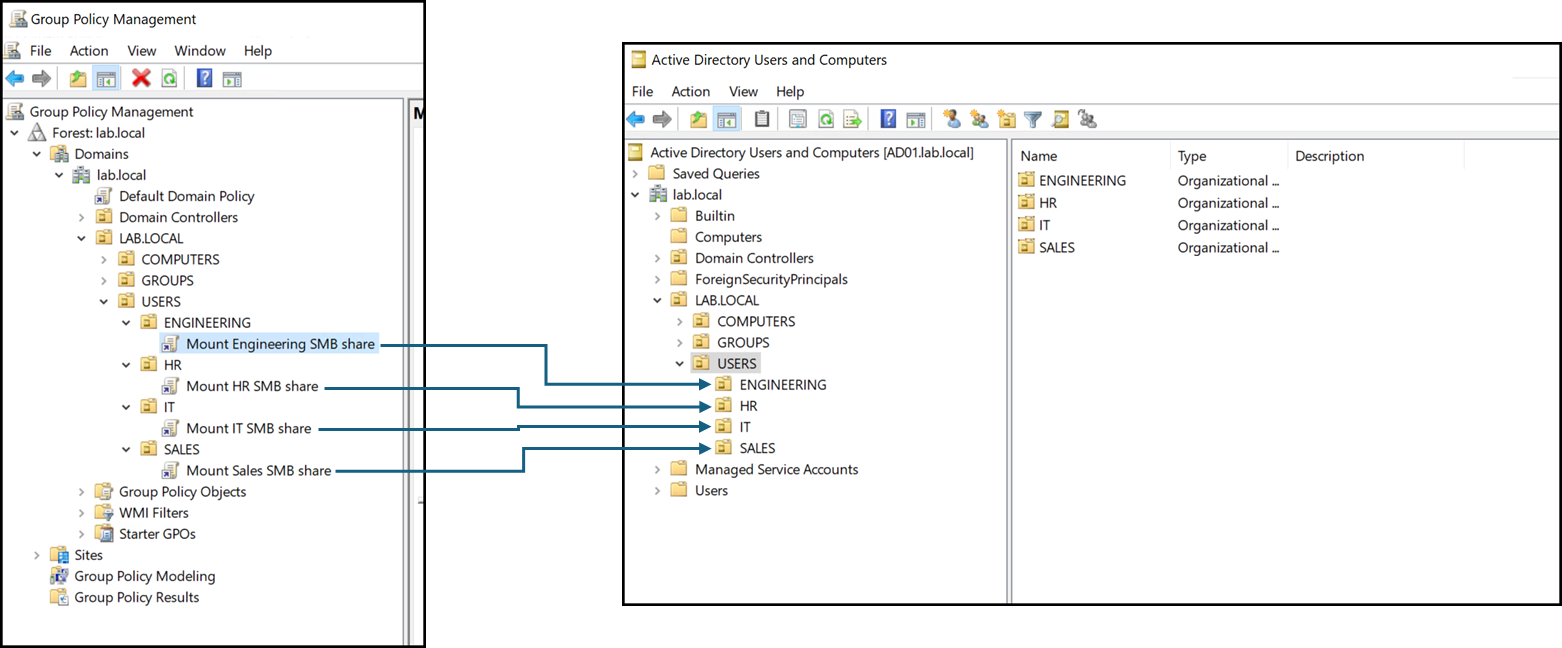
We have created one Group Policy Object (GPO) for each Organizational Unit (OU) used to group users for the same department. Making the correct OUs in Active Directory Users and Computers (ADUC) is essential because the GPOs will be created and applied using this structure!
Using Quotas
What is Quotas?
PowerFlex includes quota support, allowing administrators to limit how much space users can consume in a file system. User quota, quota trees, and user quotas on trees are supported. All three types of quotas can co-exist on the same file system and may be used in conjunction to achieve grained control over storage usage.
User Quotas
User quotas in PowerFlex Manager limit a user’s file system space usage. Default quotas apply to all users but can be customized for specific users, with options to allow unlimited access or inherit default limits.
Tree Quotas
Tree quotas in PowerFlex Manager limit the size of directories on a file system and can be applied to new or existing directories. If a non-existent directory is specified, it is created automatically; existing directories with data can also have quotas applied. Tree quotas cannot be nested within the same directory, and each tree quota has its customizable grace period, defaulting to 7 days.
User Quotas on Tree Quotas
Once a quota tree is created, user quotas can be enforced within the directory. When multiple limits apply, users are restricted by the first limit reached. For example, a user may have a 25 GB file system quota and a 10 GB quota within a specific directory, and all users combined in that directory are limited to 100 GB. The other limits do not occur when the first limit is reached (in simple words, when the first limit is reached, the other limits do not matter anymore!)
Quotas Limits:
All quotas consist of three major parameters that determine the amount of space that can be consumed on a file system and define the behavior when a limit is being reached or exceeded. These parameters are:
- Soft Limit (GB)
- Grace Period (time)
- Hard Limit (GB)
The soft limit is a capacity threshold that triggers the grace period timer to start. The grace period continues to count down as long as the soft limit is exceeded. If the soft limit remains exceeded long enough for the grace period to expire, no new data may be added by the user or to the directory. However, suppose enough data is removed from the file system or directory to reduce the utilization below the soft limit before the grace period expires. In that case, data can continue to be written normally.
The grace period has a minimum value of 1 minute and a maximum value of unlimited.
A hard limit is also set for each quota configured. Upon reaching a hard limit, the user cannot add new data to the directory. When this happens, the quota must be increased, or data must be removed from the file system before additional data can be written.
Quota Planning
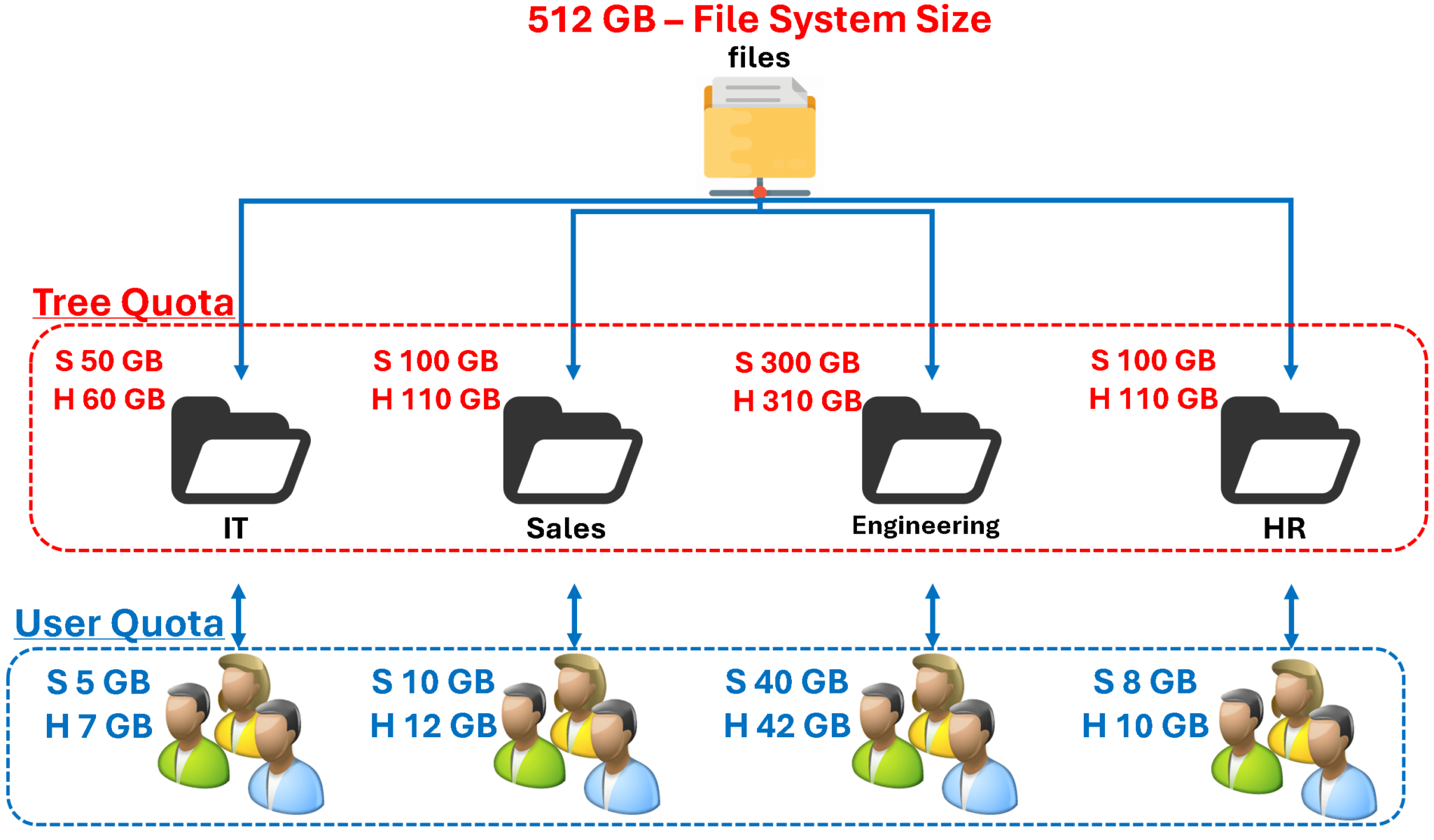
In this case, for instance, our quota planning is shown in the following picture.
As we can see, we can apply the quota at the “Tree” level (directory level) or the “User” level (or a combination of both):
S = Soft Limit
H = Hard Limit
Applying Quotas
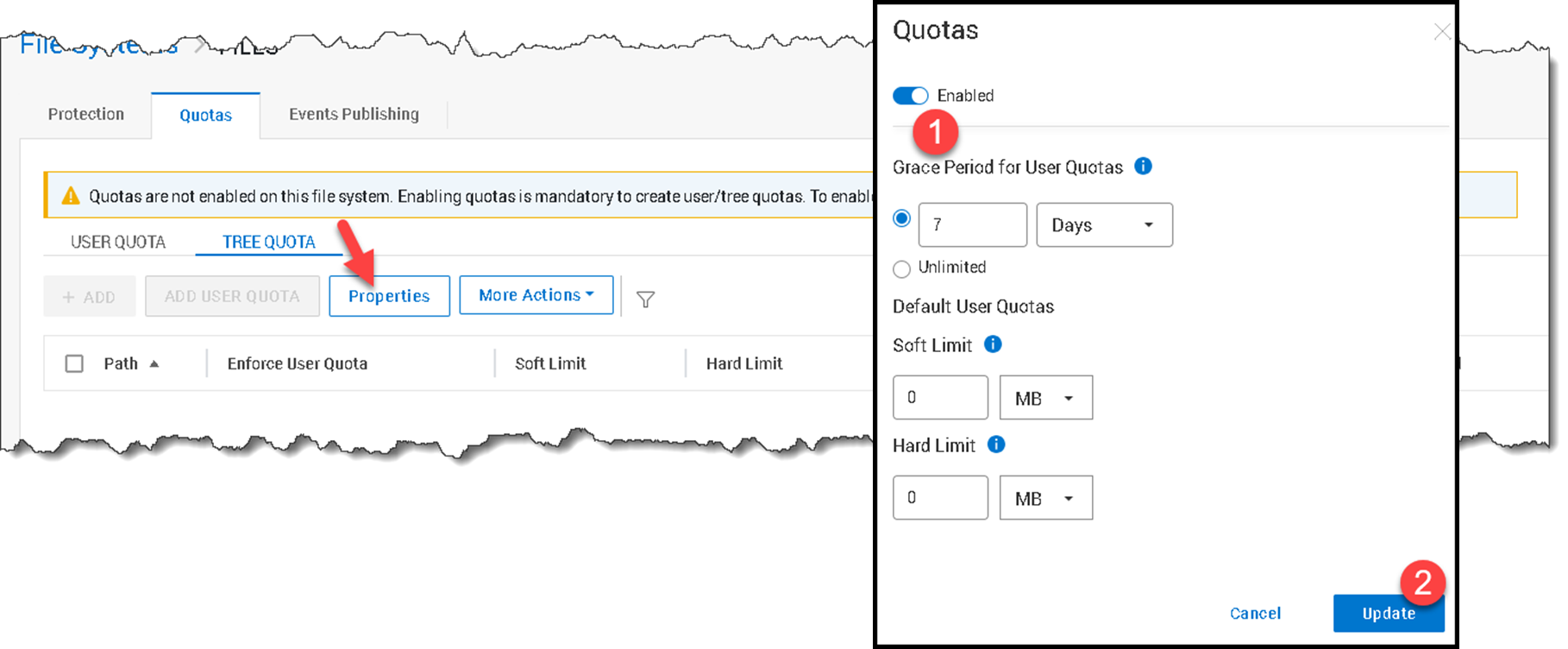
To apply Tree Quotas, select the File System –> Click “View Details” –> Quotas:

Since the Quotas are not enabled, click “Properties” to enable it:
Under “Tree Quota” click “+Add”:
We will add the Tree Quota for the subdirectory “IT”:
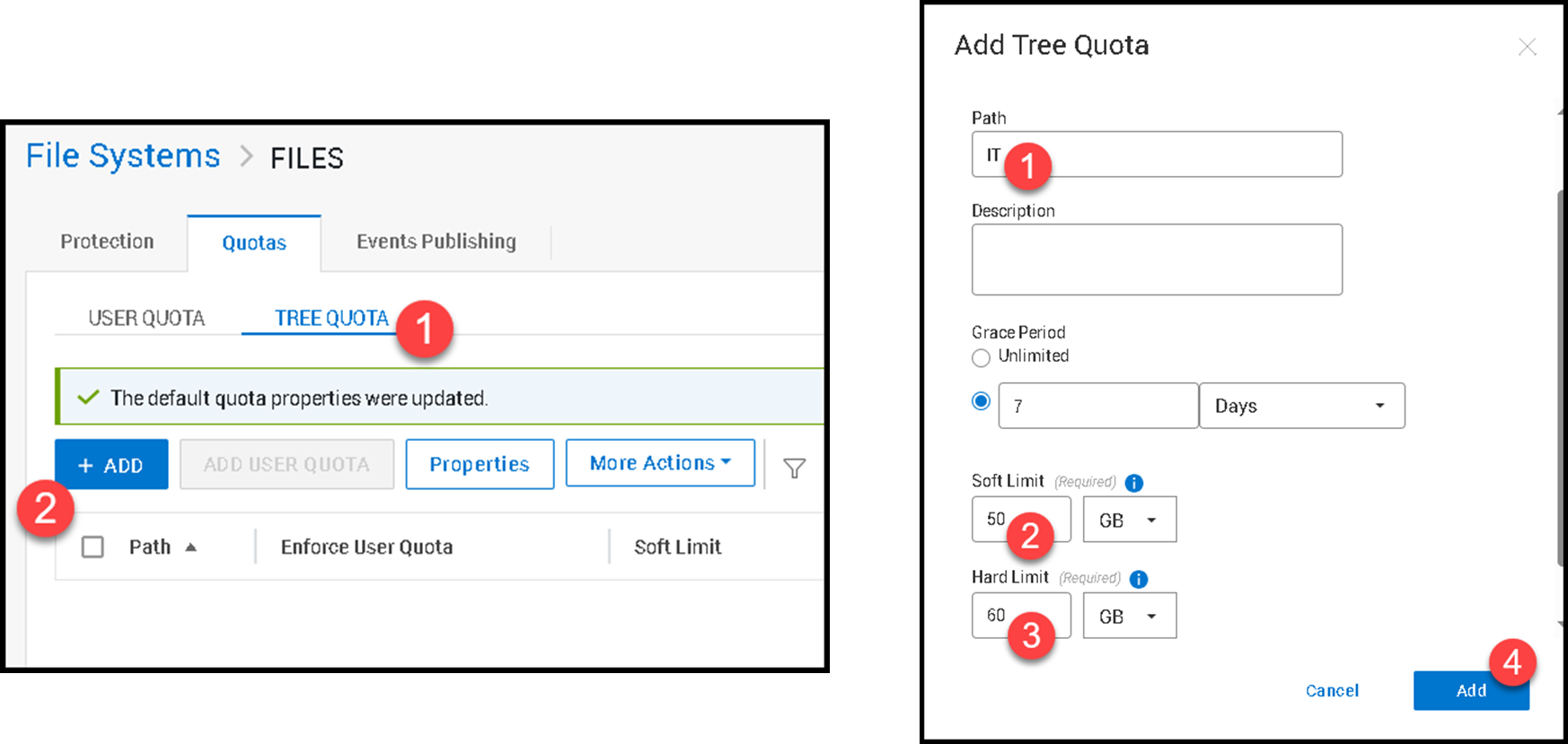
Note: Create each Tree quota based on your needs!
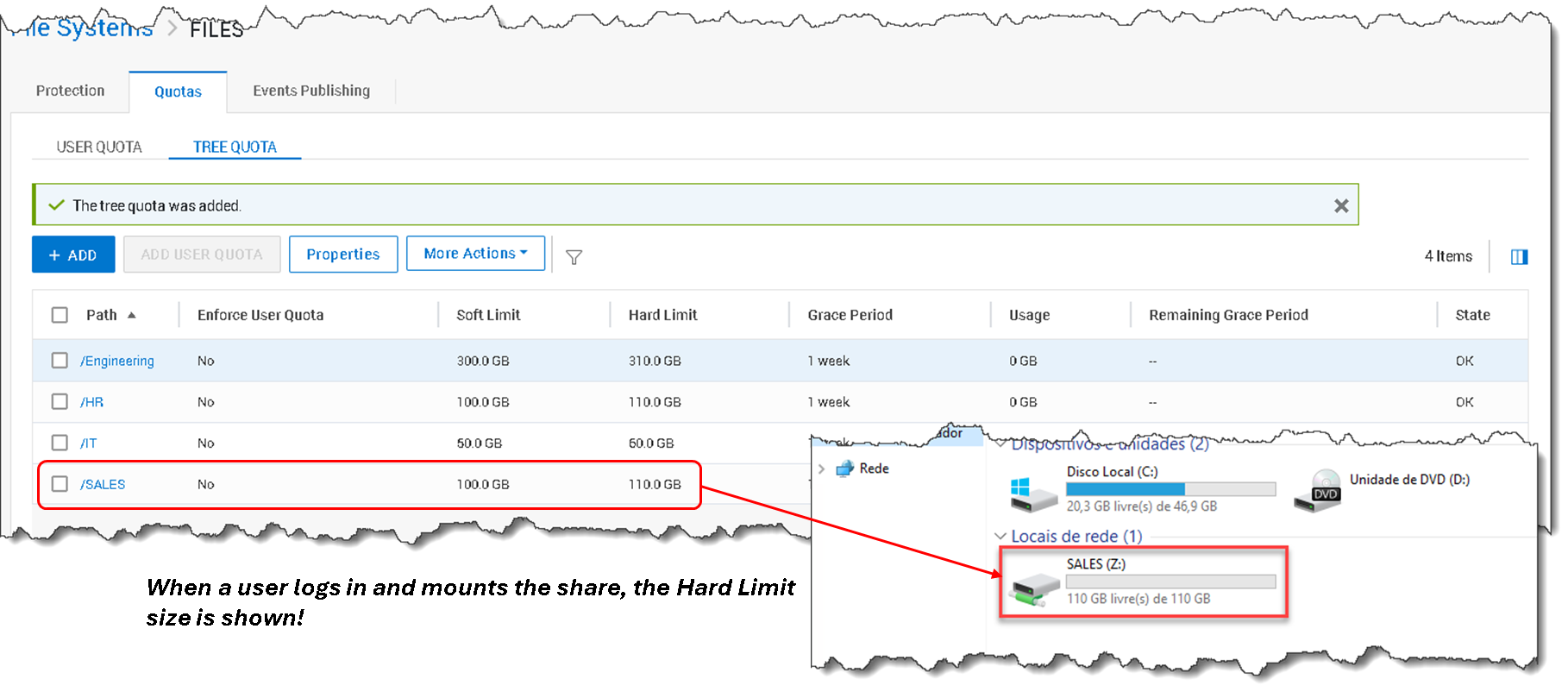
In the following picture, we can see all the Tree Quotas based on our quota planning:
External References
- Dell — Deploying PowerFlex File Nodes Official PowerFlex deployment guide covering File Nodes, File Services terminology, supported protocols, and file-cluster requirements.
- Dell — Deploying a Resource Group Explains template-based Resource Group deployment and states that a template must be published before it can be used.
- Dell — Define Networks for PowerFlex Manager Describes the distinct PowerFlex Management, NAS File Management, and NAS File Data network roles.
- Dell — About File System Storage Defines NAS Servers, file systems, shares, and how clients use a NAS Server address together with a share name to access files.
- Dell — NAS Servers Documents NAS Server protocol selection, automatic node placement, and primary/secondary role management.
- Dell — Create a NAS Server for SMB File Systems Lists PowerFlex 4.5.x prerequisites for SMB, including AD join information, DNS, and the required NTP preparation.
- Dell — Create an SMB Share Explains how to create a share on an SMB-enabled file system and configure its name, local path, and advanced SMB properties.
- Dell — Advanced SMB Share Properties Describes Access-Based Enumeration and explains that it filters directory listings according to users’ read access.
- Dell — File System Quotas Defines user quotas, tree quotas, user quotas on quota trees, hard and soft limits, and grace-period behavior for PowerFlex 4.5.x.
- Dell — PowerFlex 4.x Quotas Provides additional quota details, including tree-quota nesting, the default tree grace period, and examples of overlapping quota scopes.
- Microsoft — Drive Maps Preference Item Documents Group Policy Preferences Drive Maps, UNC paths, mapping actions, drive letters, and the Reconnect option.
- Microsoft — Group Policy Processing Explains user logon policy processing, inheritance, OU scope, security filtering, asynchronous processing, and item-level targeting.
- Microsoft — Share and NTFS Permissions Provides Windows guidance for configuring network-share permissions separately from file-system permissions on folders.
- Microsoft — Least-Privilege Administrative Models Recommends limiting highly privileged Active Directory accounts to tasks that require those privileges rather than routine administration.
