


Understanding and explaining vSAN’s free capacity is essential to maintain a healthy vSAN cluster and ensure enough space for internal operations. In this article, we will explain how vSAN uses available capacity, the concept of Slack Space, and the importance of reserve capacity.
vSAN requires free space for several internal activities, including data evacuation during host maintenance mode, component rebuilds, rebalancing operations, and virtual machine snapshot processes. VMware recommends maintaining a percentage of available capacity to support these operations and avoid potential issues during cluster activities.
When performing operations such as changing storage policies, vSAN may temporarily require additional raw capacity to create new data components before removing old ones. Understanding how free capacity is consumed helps administrators plan storage resources and maintain cluster reliability.
What is vSAN Slack Space?
vSAN Slack Space is a free space or a free area in the vSAN Datastore reserved for vSAN’s internal operations such as host maintenance mode data evacuation, component rebuilds, rebalancing operations, and VM snapshots. Vmware recommends 25-30% of free space for Slack Space.
For example:
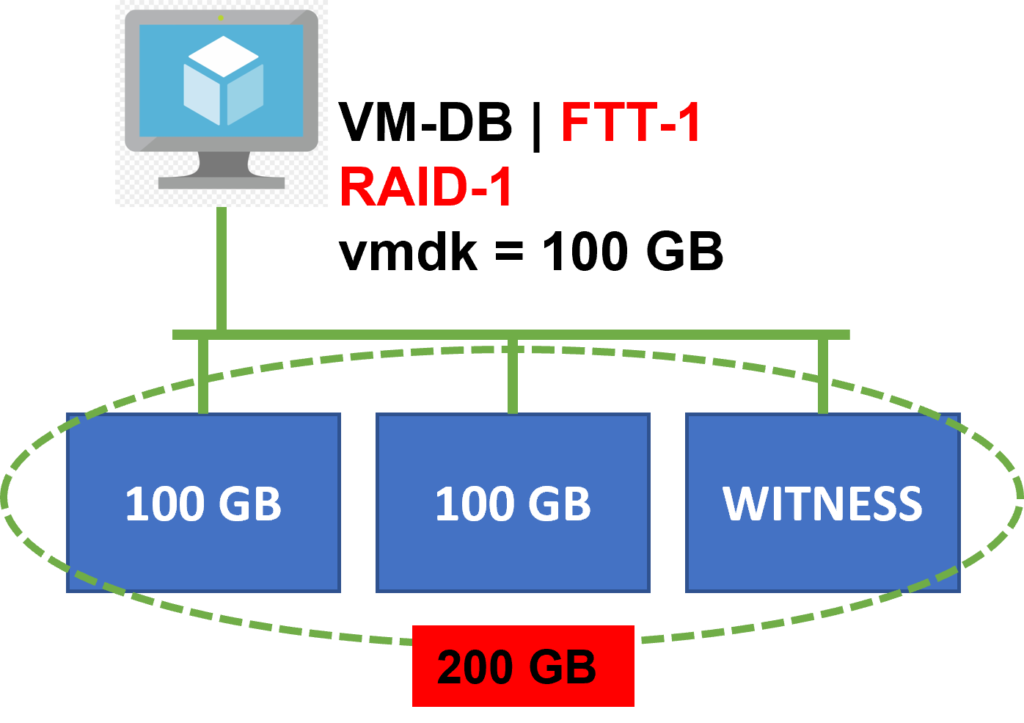
If your database VM has a vSAN Storage Policy with FTT=1 RAID-1 and you decide to change this policy to FTT=1 RAID=5, vSAN will need to use extra space to perform this type of change. vSAN will create new RAID=5 objects and, when this process finishes, vSAN will redirect the I/O for the new RAID-5 objects and will delete the old vSAN RAID-1 objects.
So, to perform these operations, vSAN needs extra raw space. It is a practical example of the importance of Slack Space.
In the below picture, we have a 100 GB vmdk with vSAN policy FTT-1 RAID-1:
In the same way, by changing the vSAN Policy to FTT-1 RAID-5:
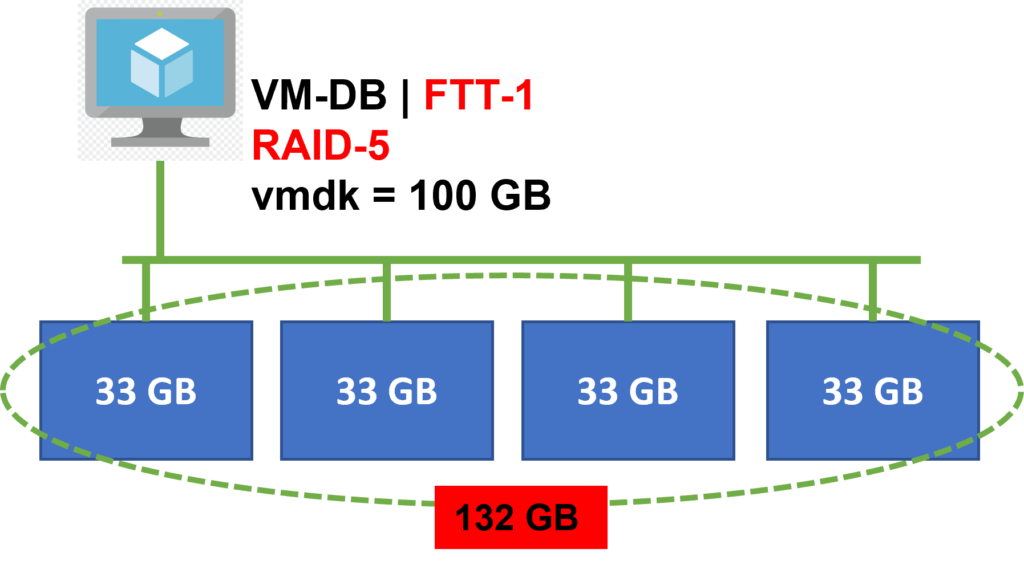
Note: Based on this example, if you plan to change VM policy on multiple VMs concurrently could cause a considerable amount of additional raw capacity to be consumed. Also, to perform the changed policy, a vSAN resync operation will start, and a lot of additional I/O operations will be necessary to do that. So, it is a good idea to plan the best moment to start this type of operation or not do that on all VMs at the same time. Example: If you have 10 VMs and need to change the vSAN policy for all VMs, start the process with 3 VMs, wait for the process to finish, and start the process with more than 3 VMs. Do the same process for other VMs.
To be more specific, free space in vSAN servers has two very important functions:
1) Transient Activities: These transient activities use free space temporarily to move or create new copies of data as a result of storage policy changes, host evacuations, rebalancing operations, or repair operations. When Vmware documentation refers to “slack space” it is generally referring to the temporary space used for these tasks.
2) Event of Failures: Since each ESXi host contributes storage capacity resources, a host outage means that the data will eventually need to be placed somewhere else in the cluster. Cluster designs of any type should have enough resources to absorb at least one host failure. With traditional three-tier architectures, this applied to just compute and memory, but with vSAN, it also applies to storage capacity.
Increase Effective Capacity
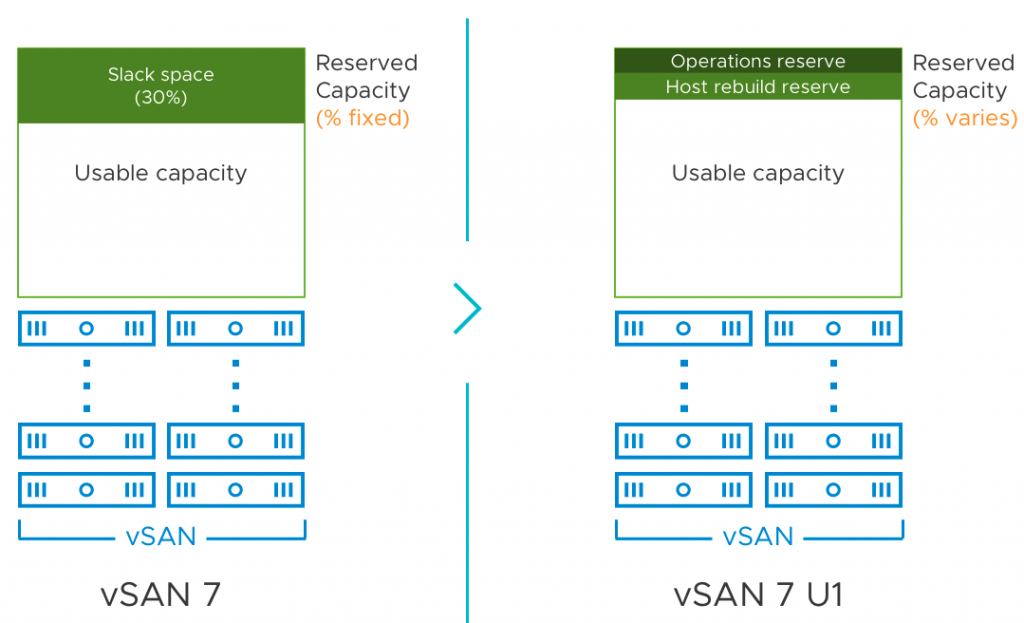
From vSAN 7 Update 1, the fixed ratio of reserve capacity called as Slack Space is effectively replaced with Capacity Reserve to reflect the methodical and improved approach to computing reserve capacity.
Capacity Reserve comprises Operations reserve and Host rebuild reserve.
Operations reserve focuses on transient operations and Host rebuild reserve focuses on reserving capacity to tolerate a single host failure.
In the below picture we can see both ways “to reserve” vSAN space for these types of operations:
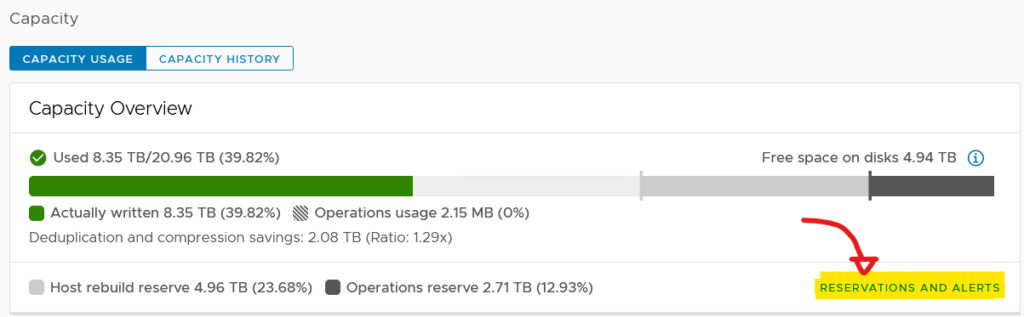
So, based on it, it is possible to enable or disable the Operations reserve or Host rebuild reserve from vSphere Client UI. Selecting the vSAN Cluster à Monitor à vSAN à Capacity, under Capacity Overview we have an option called “Reserve and Alerts”. Click on this option to change these options based on your needs:
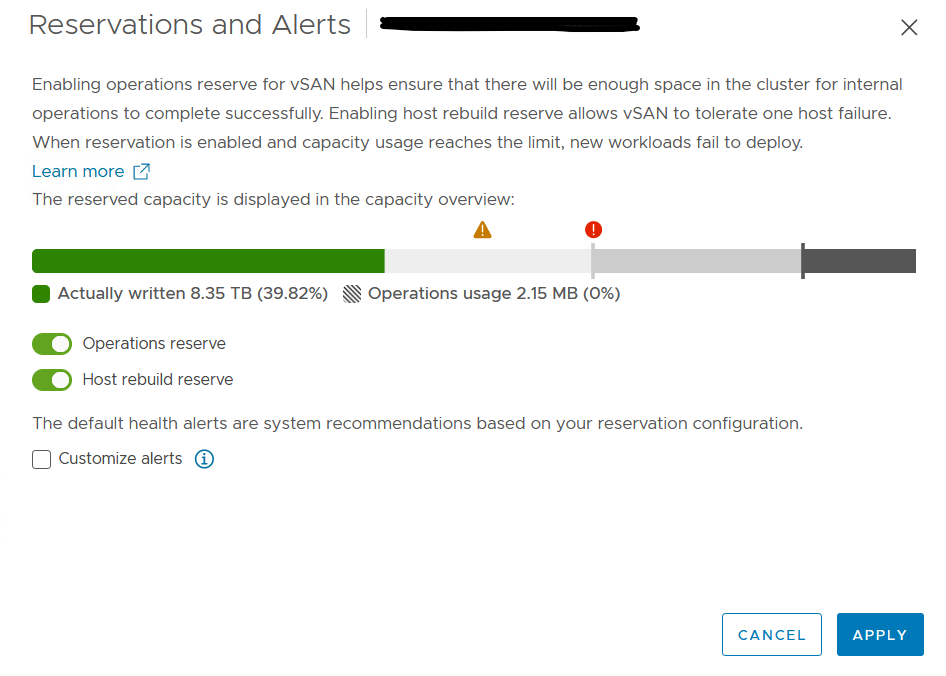
So, Can I use a Host rebuild reserve in my cluster?
Enabling Host rebuild reserve demarcates one host’s value of capacity in the cluster.
Host rebuild reserve works on the principle of N+1. For example:
In a vSAN cluster with 12 ESXi hosts with identical hardware configurations, the host rebuild reserve requires approximately 8% of free space to ensure sufficient rebuild capacity. In the same way of think, in a vSAN cluster with 4 ESXi hosts with identical hardware configuration, the host rebuild reserve requires approximately 25% of free space to ensure sufficient rebuild capacity.
But, in a heterogenous cluster where each host has different capacity configurations, the percent of free space needs to ensure sufficient rebuild capacity can be different. So, this is a good point to plan the cluster with the same type of hosts and hardware configuration (in this type of situation, the host with the maximum capacity can be used/considered).
Based on it, as the number of nodes in a cluster size increases, the required reserve capacity decreases.
To effectively use the Host Rebuild Reserve at least 4-nodes in the cluster are necessary.
Important: When the reserve capacity threshold is reached, vSAN prevents newer provisioning tasks and invokes a health check. There is no impact on existing VM I/O, power-on tasks, and maintenance mode tasks continue to function as usual.
Understanding Operations Reserve and Host Rebuild Reserve in a practical example
In this example, our vSAN cluster has 4 ESXi hosts. Each ESXi host has approximately 5TB of storage. So, the vSAN datastore has approximately 20TB, as shown in the below picture:
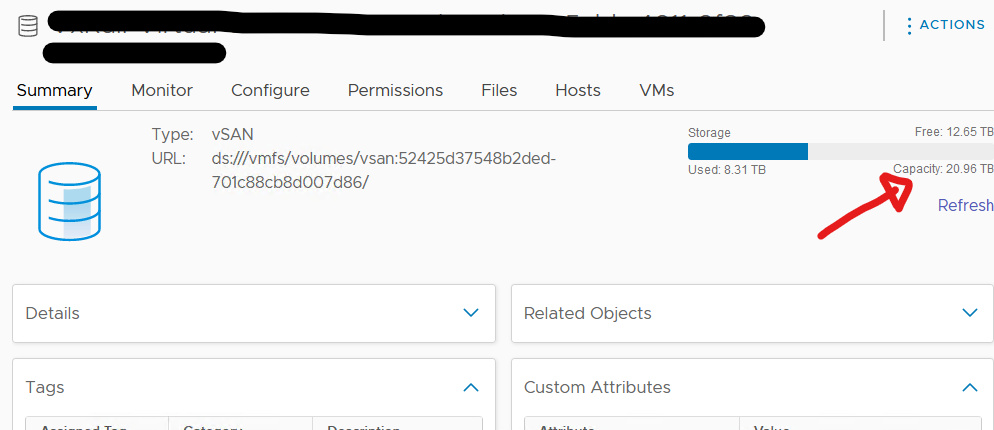
The host rebuild reserve is 4.96 TB. It represents 23.68%.
The operations reserve is 2.71 TB. It represents 12.92%.
So, the free (raw) space is 4.99 TB. This free space can be used for new virtual machines, containers, etc:
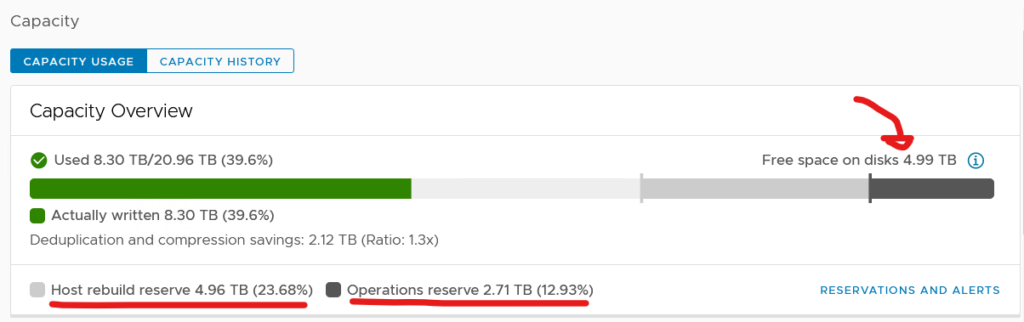
So, we can calculate it to verify if it is correct. Below is the mathematical formula to verify that:
Used Space + Host rebuild reserve + Operations reserve + Free space = Value of vSAN Datastore
For example:
Used Space (8.30 TB) + Host rebuild reserve (4.96 TB) + Operations reserve (2.71 TB) + free space (4.99) = vSAN Datastore (20.96 TB).
I believe with these details you can understand a bit this important topic when we talked about vSAN Cluster. In addition, I would like to share some excellent external links when it is possible to read more detail about this topic.
External links:
- –> vSAN Operations: Maintain Slack Space for Storage Policy Changes:
- –> Revisiting vSAN’s Free Capacity Recommendations:
- –> Effective Capacity Management with vSAN 7 Update 1:
