

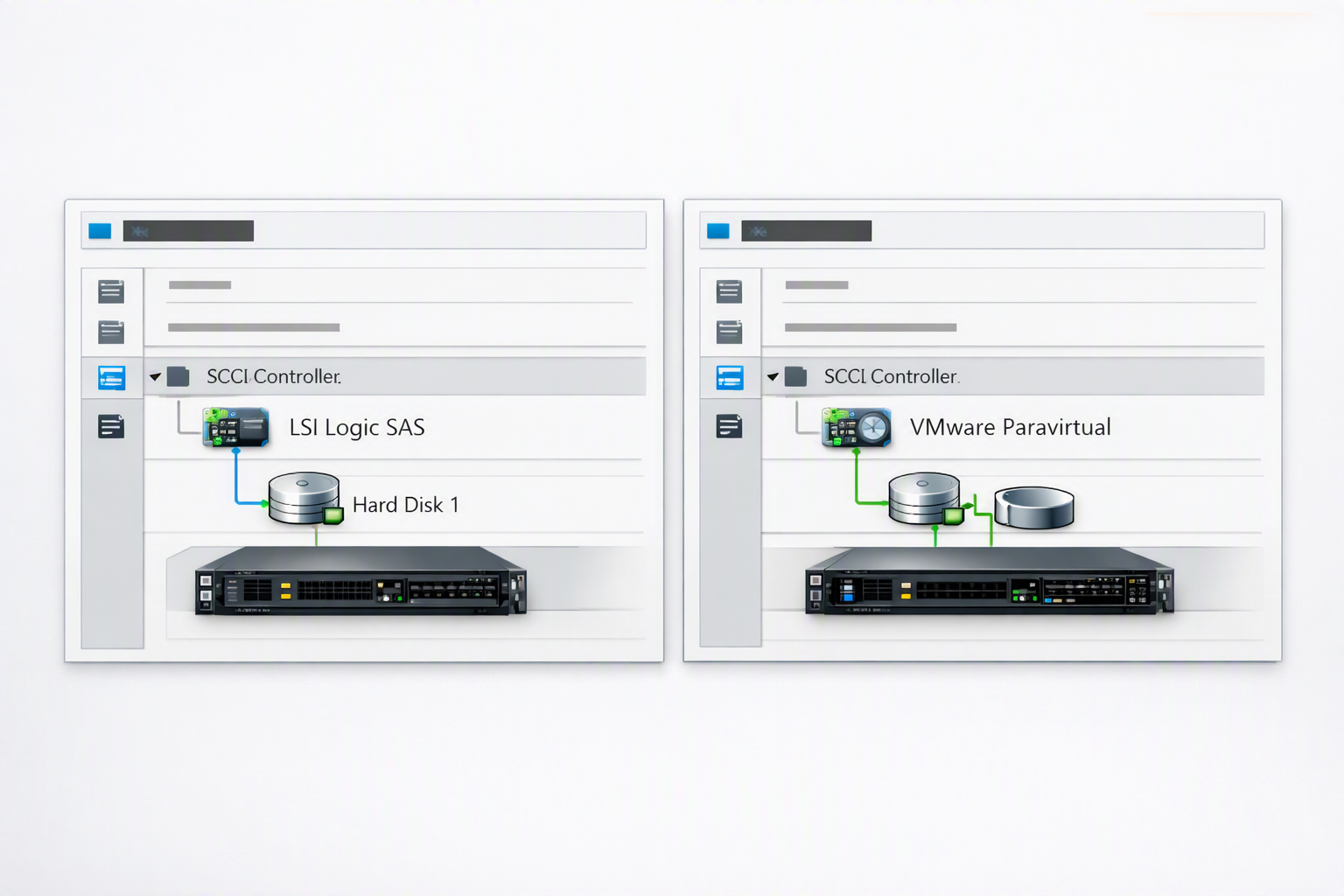
How to change a virtual SCSI controller for a VM is an article that explains how to change an LSI Logic SAS SCSI disk controller to a VMware Paravirtual disk controller.
About LSI Logic SAS SCSI Controller
By default, when you create your VM (Virtual Machine) in a vSphere environment, the default disk controller probably will be the LSI Logic SAS SCSI controller. This type of controller is supported by a lot of operating systems (Guest OS) without the need to install additional drivers or software.
Therefore, you probably see this type of controller very often used for the boot drive of the operating system (Windows, Linux, FreeBSD, etc).
Unfortunately, this controller does not provide a good performance or throughput regarding IOPS (Input/Output Operations per Second), and it introduces a higher CPU utilization when compares with the VMware Paravirtual controller (PVSCSI controller).
About VMware Paravirtual SCSI Controller
This virtual SCSI controller is virtualization-aware and was designed to support very high throughput with minimal processing cost and is, therefore, the most efficient driver.
Many operation systems (primarily older operating systems) do not support this type of controller out of the box or automatically. The driver must be installed manually to make the operating system work with this PVSCSI controller.
Important: Disks on such controllers might not experience optimal performance gains if they have a snapshot or if the memory on the ESXi host is overcommitted.
Our Lab Environment
So, our goal here is to demonstrate the necessary steps to change the LSI SAS controller type to the VMware Paravirtual controller type.
We will talk about two scenarios:
Scenario 1: Change the disk controller for the data disks
Scenario 2: Change the disk controller for the boot disk of the operating system
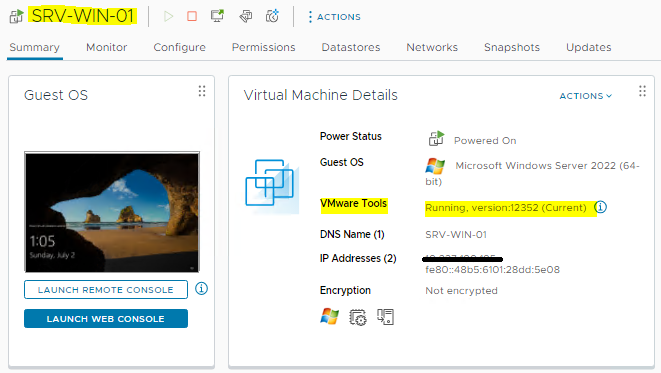
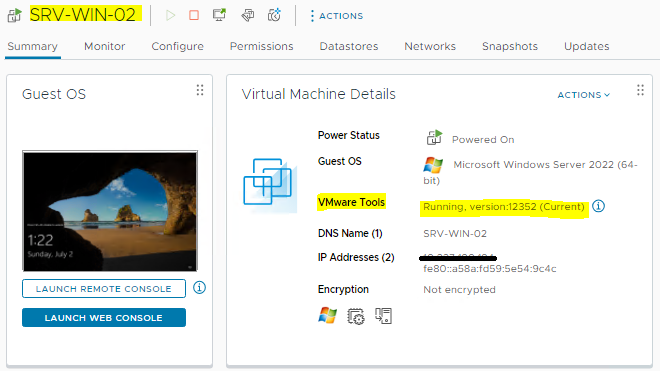
We have two Windows Virtual Machines (Guest OS) to show the steps:
SRV-WIN-01
SRV-WIN-02
Virtual Hardware configuration for each VM:
OS: Windows Server 2022
vCPU: 2
Memory: 4 GB
Hard Disks:
— 90 GB (boot disk)
— 160 GB (data disk)
— 200 GB (data disk)
Notes:
— All disks are using the LSI SAS SCSI controller;
— The latest available VMware Tool version is installed on each VM:
Disclaimer: Before following these steps, be careful. If the VM you plan to change the disk controller is important for your environment, do a backup or a clone for this VM before anything!
Scenario 1 – Changing the disk controller for the data disk
First, we are showing the situation when we need to change the disk controller for the data disk. In other words, data disks are disks that we can use to store our data, applications, or something like that (here we do not have the operating system boot disk).
Below, we will talk about all the necessary steps to achieve this goal for the first scenario:
1- Check if the latest VMware Tools version is installed in the VM. In the negative case, update the VMware Tools before following the next steps;
2- Power off the VM (On the vSphere Client, select the VM –> Right Click –> Power –> Shut Down Guest OS);
3- Edit the VM and add a new disk SCSI controller. Select the VM –> Edit Settings –> ADD NEW DEVICE, and then, add a new SCSI Controller:
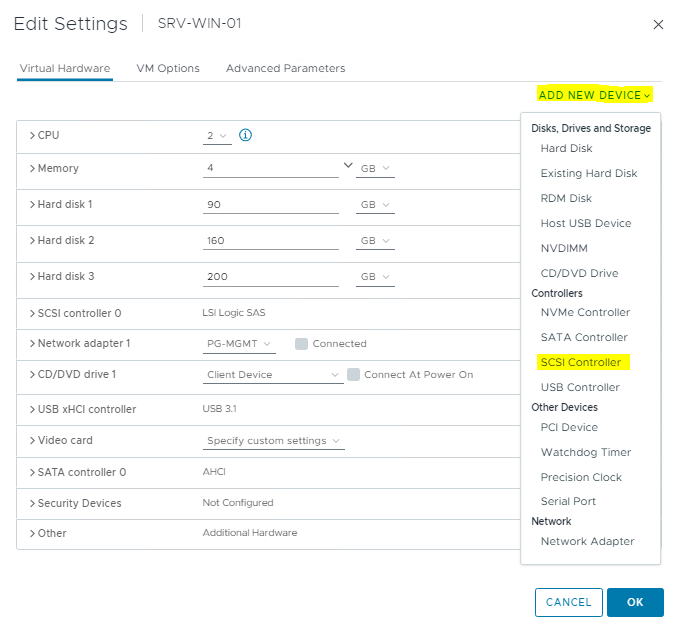
Under the new SCSI controller, change the type to VMware Paravirtual:
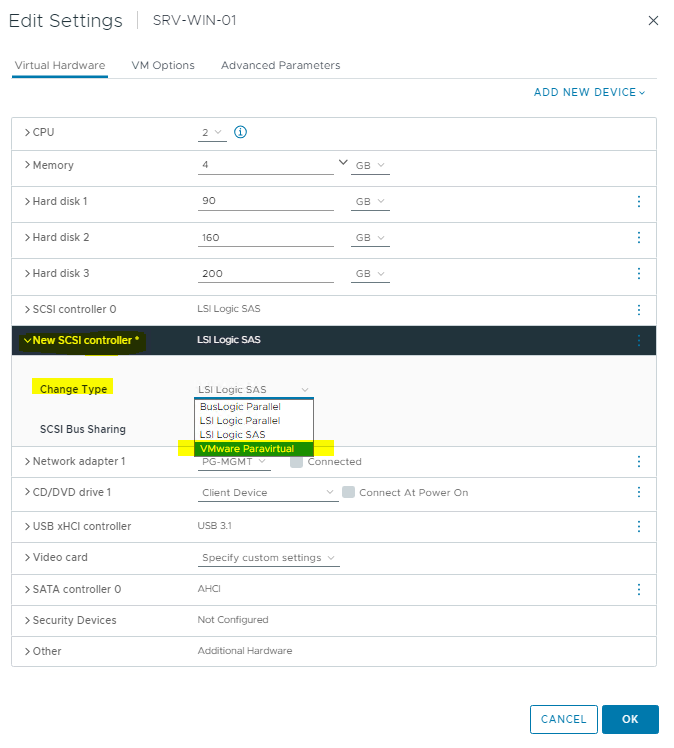
4- Add a new disk (a small disk with 2 GB, for example), and configure this new disk to use the new VMware Paravirtual controller. The purpose to add this new disk is for adding the controller driver in the operating system:
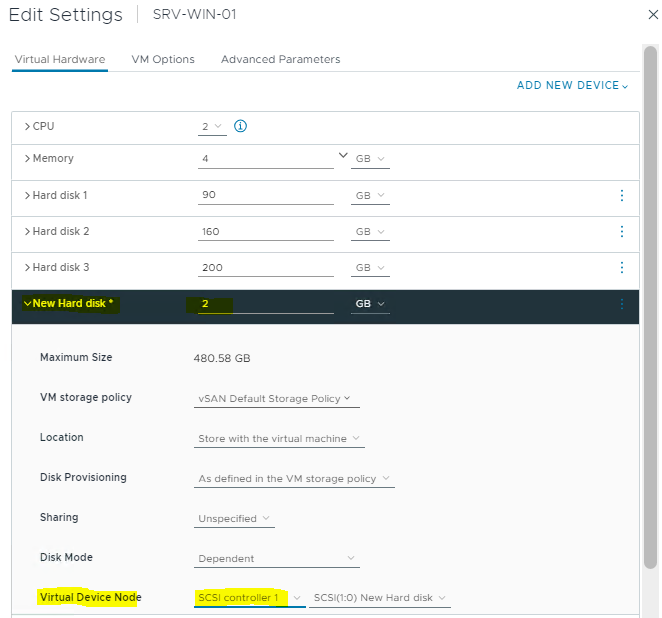
Note: VMware Paravirtual controller was recognized as “SCSI controller 1” in this example.
5- Power on the VM and initialize the new disk normally. Also, create the disk partition and reboot the VM:
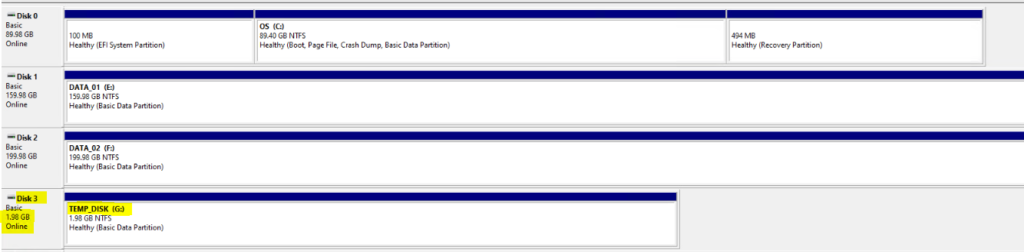
6- Power off the VM and change the controller for data disks 1 and 2 (set up the new disk controller for both data disks).
For the first data disk:
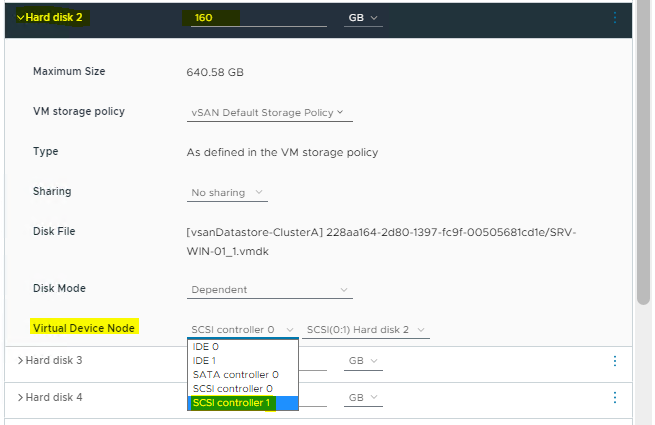
For the second data disk:
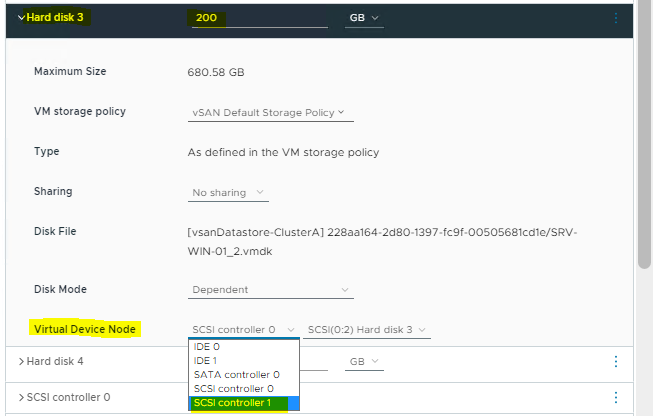
7- Power on the VM and check if both volumes (for the first and the second data disks) are available.
If both disks are not available, access Disk Management and put each one to Online status:
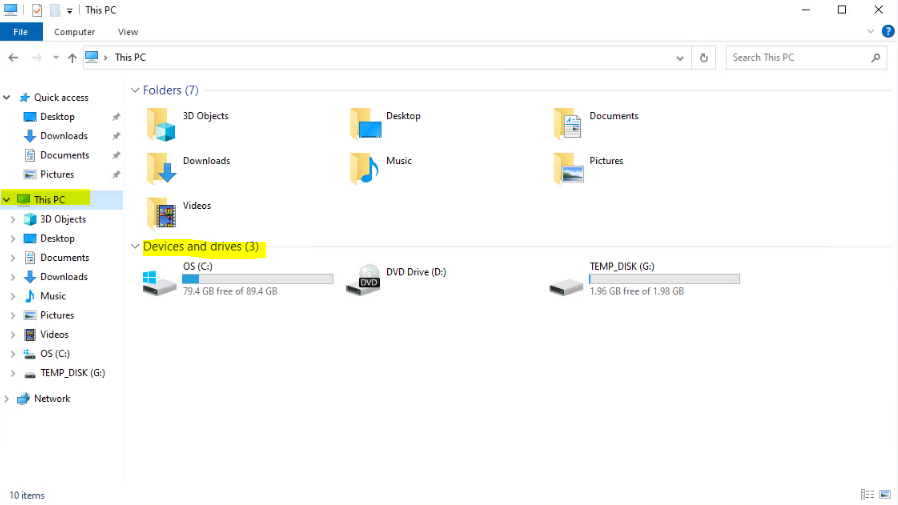
For the first data disk:
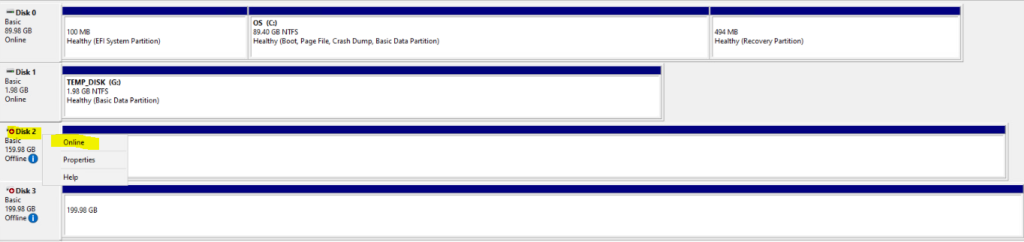
For the second data disk:
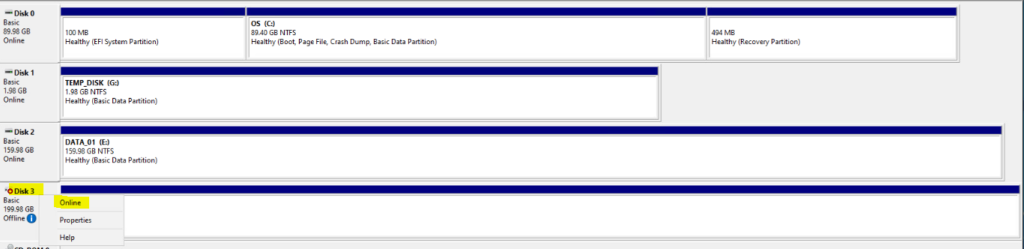
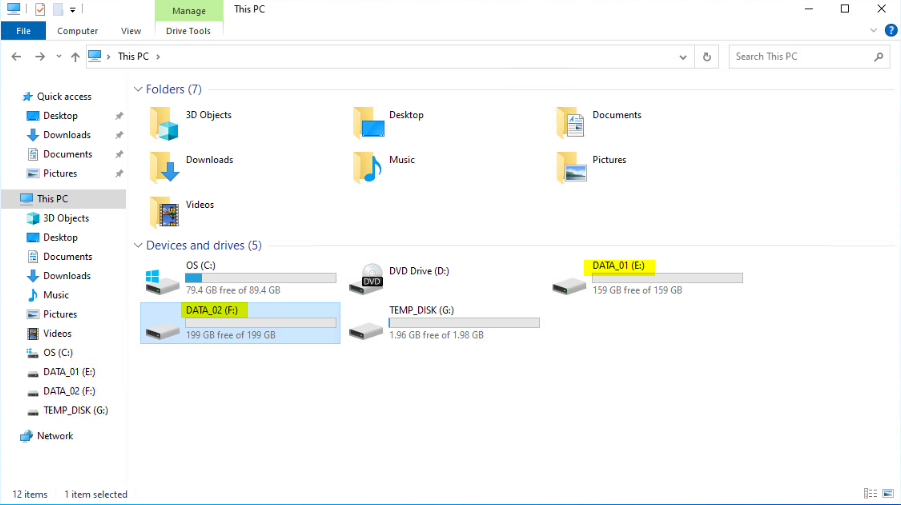
After that, both disks are available again 🙂 :
Scenario 2 – Changing the disk controller for the boot disk
Secondly, the same procedure described in scenario 1 should be used to change the disk controller for the boot disk.
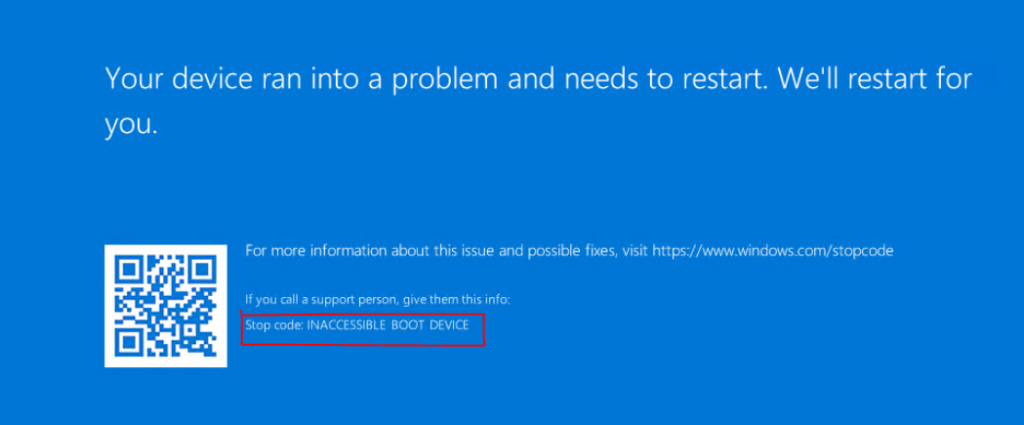
If you do not follow the procedures described in scenario 1, in the next VM power on you will probably have an error and the operating system will not be loaded.
**** Important: This step is only to show you what will happen if you do not follow the steps in scenario 1 – You do not need to reproduce it in your environment if you do not want it ****
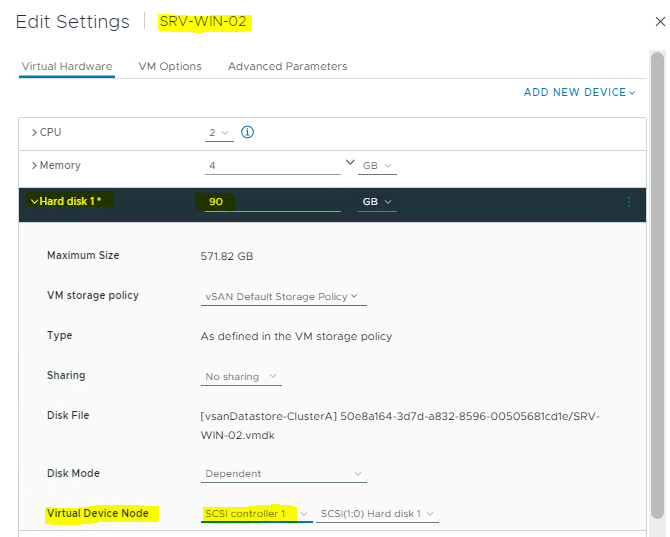
In this example, we added the new disk controller (VMware Paravirtual controller) and set up the boot disk to use this new disk controller:
But the boot device was not found and the operating system was not loaded:
How can we solve it?
1- Power down the VM;
2- Change the disk controller for the boot disk to the previous disk controller (LSI Logic SAS) – To remember, the LSI Logic SAS SCSI controller is the default controller. As I changed the default controller before, I needed to go back to this controller for the VM can load the operating system;
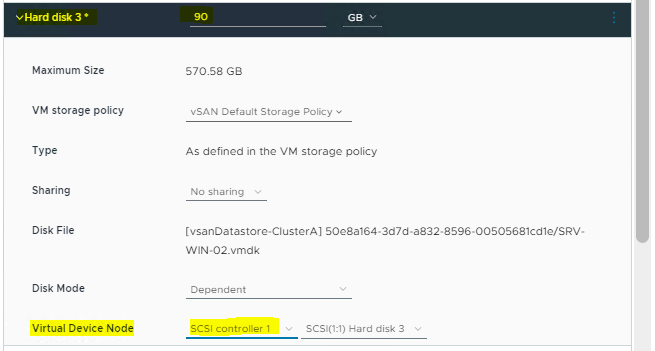
3- Follow all steps described in scenario 1 and change the disk controller for the boot disk – In this case, we need to select the VMware Paravirtual Controller – In our lab, this controller is the “SCSI controller 1”:
After that, the operating system will load normally 🙂
So, the act to change a virtual SCSI controller for a VM can be util in some situations!
