Close Menu
DPC Virtual Tips
    Read More

    Linux Process Resource Usage: How to Find Heavy Processes

    August 6, 2026

    Lustre Filesystem Commands: A Practical Admin Guide

    August 5, 2026

    Linux ss, lsof, and fuser Commands: A Practical Guide

    August 4, 2026
    • Home
    • About Us
    • Contact
    • Cookie Policy
    • Comment Policy
    • Privacy Policy
    • Terms of Use
    • Disclaimer
    Thursday, August 6
    DPC Virtual Tips
    • Home
    • Operating Systems
    • PowerFlex
    • HPC
    • Virtualization
    • About Us
    • Contact
    DPC Virtual Tips
    Home » Installing Python on Windows
    Operating Systems

    Installing Python on Windows

    DaniloBy DaniloJanuary 12, 2026Updated:August 2, 2026No Comments1 Min Read
    Facebook Twitter Pinterest LinkedIn Tumblr Email
    Installing Python on Windows
    Share
    Facebook Twitter LinkedIn Pinterest Email

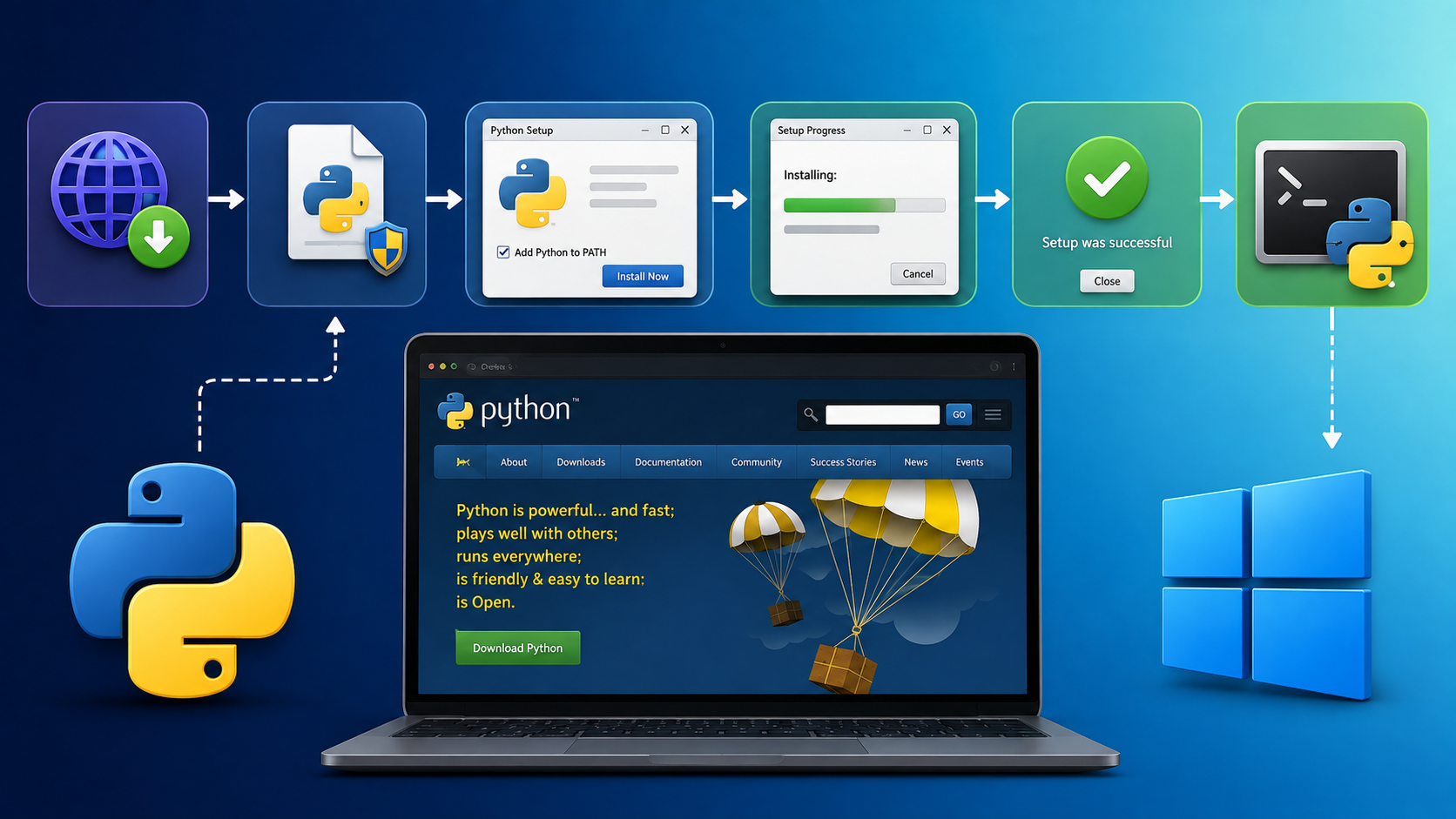
    Installing Python on Windows shows how to install Python step-by-step.

    I’ve been using Python on Linux, and I’d like to run it on Windows. So, I decided to create this simple article showing all the necessary steps to install Python on Windows. In this case, I’m running Windows 11 (I did not test it on previous Windows releases).

    Downloading Python Installer

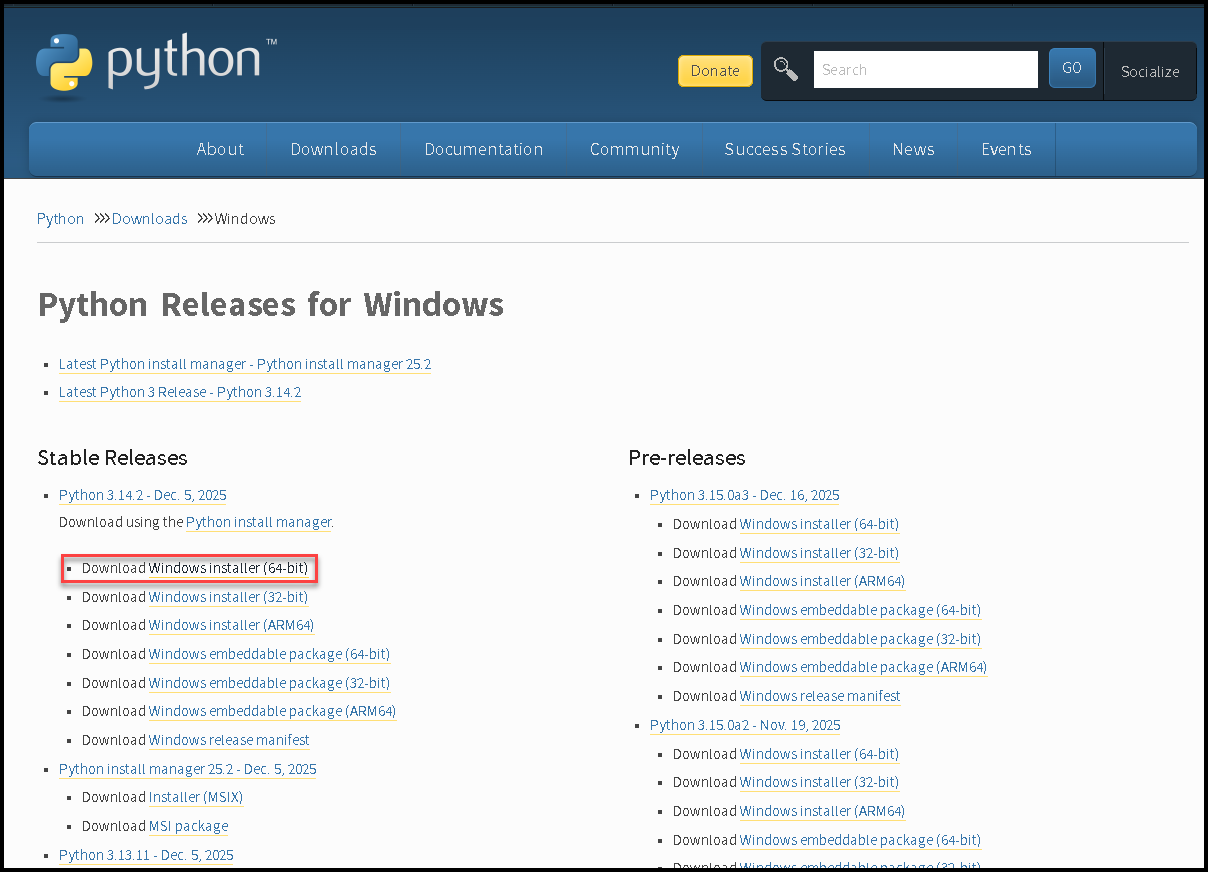
    The first step is to download the Python installer:

    • https://www.python.org/downloads/windows

    In my case, I’m using the 64-bit version (choose the best version for you):
    Installing Python on Windows

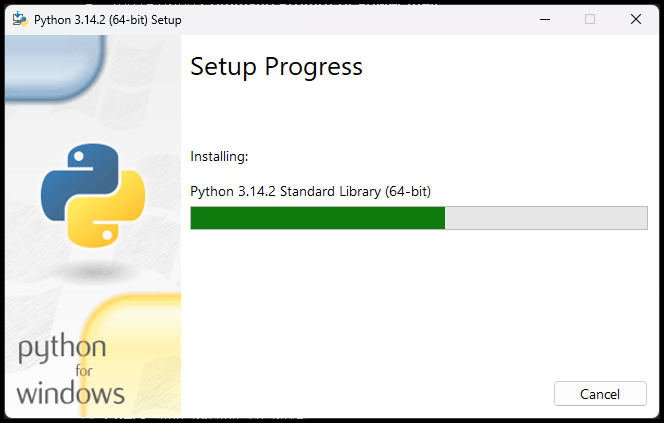
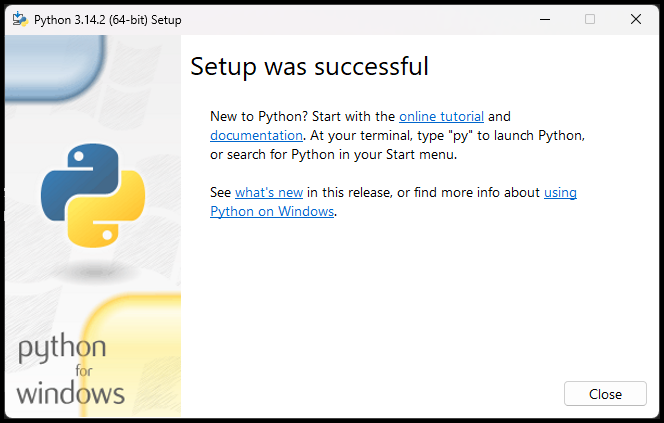
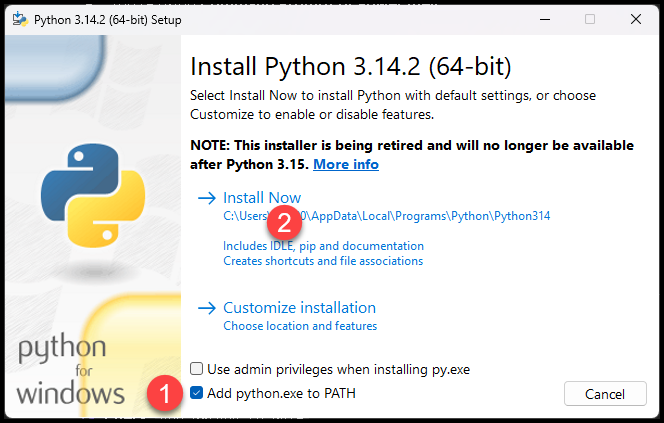
    Installing Python on Windows is straightforward. Double-click the Python installer and follow the installation wizard as shown in the following pictures.

    Note: Mark the option “Add python.exe to PATH” – it avoids the most Python issues on Windows!
    Validating Python Installation

    After installing, we can check the Python and Pip versions:

    1. Open the command-line (cmd).
    2. Execute the following commands:
    python --version
    pip --version
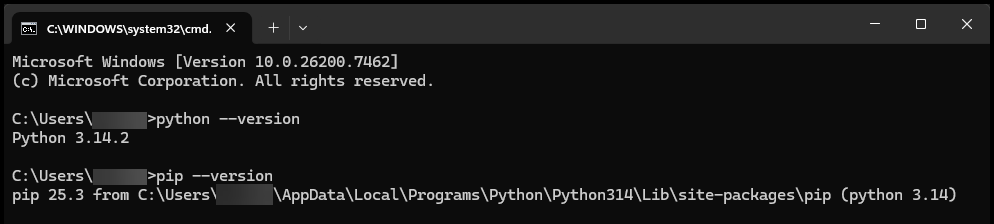
    If you see Python and Pip versions, your Python installation was successful!

    That’s it for now 🙂

    Share. Facebook Twitter Pinterest LinkedIn Tumblr Email
    Previous ArticleSetting Up a Slurm Cluster in a Lab Environment
    Next Article Working with Python Virtual Environments on Windows
    Danilo

    Infrastructure Engineer with experience in Virtualization, Linux, Windows Server and learning automation using Python. DPC Virtual Tips was created to share practical tutorials, lab experiences and troubleshooting guides focused on enterprise infrastructure technologies.

    Related Posts

    Linux Process Resource Usage: How to Find Heavy Processes

    August 6, 2026

    Linux ss, lsof, and fuser Commands: A Practical Guide

    August 4, 2026

    Linux Commands to Investigate High Disk Partition Usage

    July 20, 2026

    Comments are closed.

    Search
    Categories
    • HPC (8)
    • Operating Systems (82)
    • PowerFlex (22)
    • Virtualization (129)
    Read More
    Operating Systems

    Linux Process Resource Usage: How to Find Heavy Processes

    By DaniloAugust 6, 20260
    HPC

    Lustre Filesystem Commands: A Practical Admin Guide

    By DaniloAugust 5, 20260
    Operating Systems

    Linux ss, lsof, and fuser Commands: A Practical Guide

    By DaniloAugust 4, 20260
    Operating Systems

    Linux Commands to Investigate High Disk Partition Usage

    By DaniloJuly 20, 20260
    HPC

    Essential Slurm Administration Commands Every HPC Administrator Should Know

    By DaniloJuly 15, 20260
    Latest Posts

    Linux Process Resource Usage: How to Find Heavy Processes

    August 6, 2026

    Lustre Filesystem Commands: A Practical Admin Guide

    August 5, 2026

    Linux ss, lsof, and fuser Commands: A Practical Guide

    August 4, 2026
    Images from Gallery
    hpc main commands
    linux commands
    install rock linux
    lustre fs
    shell scripting
    vSAN Trace Files
    Categories
    • HPC
    • Operating Systems
    • PowerFlex
    • Virtualization
    • Home
    • About Us
    • Contact
    • Cookie Policy
    • Comment Policy
    • Privacy Policy
    • Terms of Use
    • Disclaimer
    Copyright © 2026, DPC Virtual Tips. All rights reserved.

    Type above and press Enter to search. Press Esc to cancel.

    We use cookies to ensure your best experience on our website. If you continue using our website, we'll assume you agree to our cookie policy