

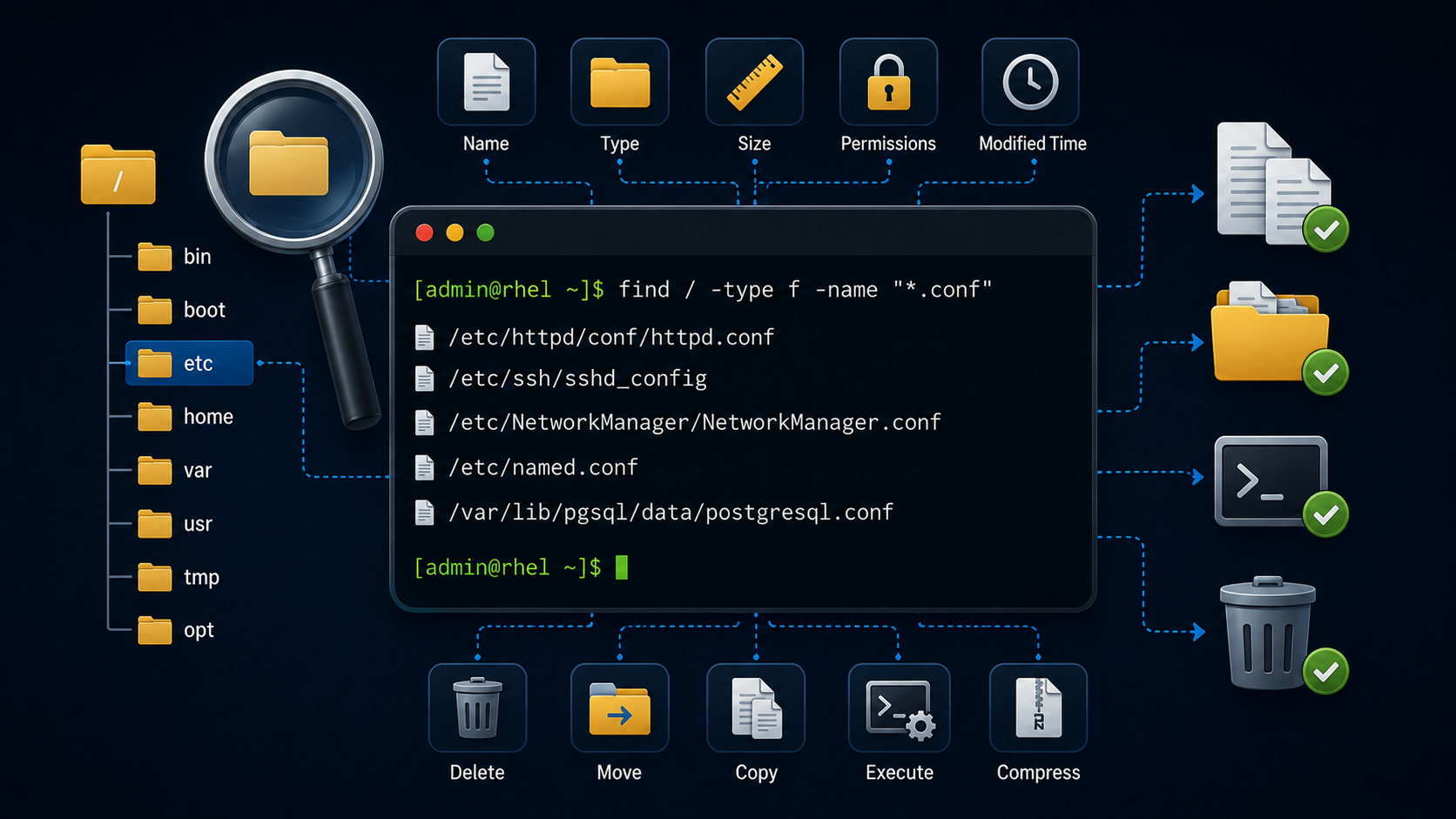
The find command on Linux is one of the most powerful utilities for locating files and directories across a file system. It allows administrators to search based on multiple conditions, including file name, type, size, permissions, and modification time.
Unlike simple search tools, the find command can perform recursive searches through directory structures and execute actions on the results. This makes it an essential tool for Linux administrators managing servers and troubleshooting file-related issues.
In this guide, we will explore the basic syntax of the find command and several practical examples. You will learn how to search files by different attributes and use common options to improve your Linux command-line workflow.
The basic syntax of the find command
The find searches recursively through directories and lists files or directories that match given conditions. Its basic syntax is:
find [path] [options] [expression] [action]path = Where to start searching (e.g.,/usr/share, /, /var, etc.).
options/expression = Criteria like name, size, type, time, etc.
action = What to do with found files (the default action is to print them).
Let’s provide an example of that:
find /home -name "file.txt"Searches for file.txt inside /home and all its subdirectories.
Common Options and Examples
1- Search by name: Find files that contain “hosts” under /etc:
find /etc -name "hosts"Output’s example:
[root@rhel10-01 ~]# find /etc -name "hosts"
/etc/hosts
/etc/avahi/hosts
2- Search by name with a case-insensitive search: We’ll repeat the same search as the previous example; however, the “-iname” option will not be case-sensitive (for example, it will consider “Hosts” and “hosts”):
find /etc -iname "hosts"Output’s example:
[root@rhel10-01 ~]# find /etc -iname "hosts"
/etc/hosts
/etc/avahi/hosts
3- Search by file type:
The find command -type option limits the search scope to a given file type. Use the following flags to limit the search scope:
- For regular files, use the
fflag. - For directories, use the
dflag. - For soft links, use the
lflag. - For block devices, use the
bflag.
3.1- Search all regular files under /var/log:
find /var/log -type fOutput’s example:
[root@rhel10-01 ~]# find /var/log -type f
/var/log/wtmp
/var/log/lastlog
/var/log/audit/audit.log
/var/log/sssd/sssd_kcm.log-20250930
/var/log/sssd/sssd_kcm.log
/var/log/rhsm/rhsmcertd.log
/var/log/rhsm/rhsm.log
/var/log/rhsm/rhsmcertd.log-20250930
/var/log/rhsm/rhsm.log-20250930
/var/log/insights-client/insights-client.log
/var/log/insights-client/insights-client.log-20250930
/var/log/tuned/tuned.log
/var/log/tuned/tuned-ppd.log
(Omitted output...)
3.2- Search all directories under /etc:
find /etc -type dOutput’s example:
[root@rhel10-01 ~]# find /etc -type d
/etc
/etc/lvm
/etc/lvm/devices
/etc/lvm/archive
/etc/lvm/backup
/etc/lvm/cache
/etc/lvm/profile
/etc/nvme
/etc/dnf
/etc/dnf/modules.d
/etc/dnf/protected.d
/etc/dnf/aliases.d
/etc/dnf/modules.defaults.d
/etc/dnf/plugins
/etc/dnf/plugins/copr.d
/etc/dnf/vars
/etc/fonts
/etc/fonts/conf.d
/etc/skel
/etc/skel/.mozilla
/etc/skel/.mozilla/extensions
/etc/skel/.mozilla/plugins
/etc/rhsm
(Omitted output...)
3.3- Search all symbolic links under /usb/bin:
find /usr/bin -type lOutput’s example:
[root@rhel10-01 ~]# find /usr/bin -type l
/usr/bin/gsoelim
/usr/bin/ld.so
/usr/bin/sg
/usr/bin/bashbug
/usr/bin/sh
/usr/bin/gpic
/usr/bin/zsoelim
/usr/bin/unxz
/usr/bin/geqn
/usr/bin/gneqn
/usr/bin/gnroff
/usr/bin/lz
/usr/bin/awk
/usr/bin/mcat
/usr/bin/gtar
/usr/bin/gtbl
/usr/bin/soelim
/usr/bin/mcd
/usr/bin/gtroff
/usr/bin/minfo
/usr/bin/mlabel
(Omitted output...)
4- Search by size:
The find command -size option is followed by a numeric value, and the unit looks up files that match a specified size. Use the following list for the units with the find command -size option:
- For kilobytes, use the
kunit withkalways in lowercase. - For megabytes, use the
Munit withMalways in uppercase. - For gigabytes, use the
Gunit withGalways in uppercase.
4.1- Find all files larger than 100 MB under / (root):
find / -size +100MOutput’s example:
[root@rhel10-01 ~]# find / -size +100M
/boot/initramfs-0-rescue-abac9cbb9dff40989b6b668217fde8fd.img
/proc/kcore
find: ‘/proc/4475/task/4475/fd/6’: No such file or directory
find: ‘/proc/4475/task/4475/fdinfo/6’: No such file or directory
find: ‘/proc/4475/fd/5’: No such file or directory
find: ‘/proc/4475/fdinfo/5’: No such file or directory
find: ‘/run/user/42/doc’: Permission denied
/sys/devices/pci0000:00/0000:00:0f.0/resource1
/sys/devices/pci0000:00/0000:00:0f.0/resource1_wc
/usr/lib/locale/locale-archive
/usr/lib/locale/locale-archive.real
/usr/lib64/libLLVM.so.19.1
/usr/lib64/firefox/libxul.so
[root@rhel10-01 ~]#Tip: By default, the find command shows errors on the standard output (highlighted in red in the previous output). To redirect all errors to the special file /dev/null, we can:
find / -size +100M 2> /dev/nullOutput – much better now 🙂
[root@rhel10-01 ~]# find / -size +100M 2> /dev/null
/boot/initramfs-0-rescue-abac9cbb9dff40989b6b668217fde8fd.img
/proc/kcore
/sys/devices/pci0000:00/0000:00:0f.0/resource1
/sys/devices/pci0000:00/0000:00:0f.0/resource1_wc
/usr/lib/locale/locale-archive
/usr/lib/locale/locale-archive.real
/usr/lib64/libLLVM.so.19.1
/usr/lib64/firefox/libxul.so
[root@rhel10-01 ~]#
4.2- Find files smaller than 10 KB under the directory /usr/share. List only the first ten occurrences:
find /usr/share -size -10k | headOutput’s example:
[root@rhel10-01 ~]# find /usr/share -size -10k | head
/usr/share
/usr/share/licenses/libgcc
/usr/share/licenses/libgcc/COPYING.RUNTIME
/usr/share/licenses/libgcc/COPYING3.LIB
/usr/share/licenses/google-noto-fonts-common
/usr/share/licenses/redhat-text-vf-fonts
/usr/share/licenses/redhat-text-vf-fonts/LICENSE
/usr/share/licenses/linux-firmware-whence
/usr/share/licenses/hwdata
/usr/share/licenses/tzdata
[root@rhel10-01 ~]#Note: To list all occurrences, remove the ” | head “.
4.3- Find files with exactly 50 MB:
find / -size 50MOutput’s example:
[root@rhel10-01 ~]# find / -size 50M
find: ‘/proc/4489/task/4489/fd/6’: No such file or directory
find: ‘/proc/4489/task/4489/fdinfo/6’: No such file or directory
find: ‘/proc/4489/fd/5’: No such file or directory
find: ‘/proc/4489/fdinfo/5’: No such file or directory
find: ‘/run/user/42/doc’: Permission denied
[root@rhel10-01 ~]#
In this case, for instance, there are no files with 50MB.
5- Search by modification time:
5.1- Search for files modified in the last 7 days under /var/log:
find /var/log -mtime -7Output’s example:
[root@rhel10-01 ~]# find /var/log -mtime -7
/var/log
/var/log/wtmp
/var/log/lastlog
/var/log/audit/audit.log
/var/log/sssd
/var/log/sssd/sssd_kcm.log
/var/log/rhsm
/var/log/rhsm/rhsmcertd.log
/var/log/rhsm/rhsm.log
/var/log/rhsm/rhsmcertd.log-20250930
/var/log/rhsm/rhsm.log-20250930
/var/log/insights-client
/var/log/insights-client/insights-client.log
/var/log/insights-client/insights-client.log-20250930
/var/log/tuned/tuned.log
/var/log/boot.log
(Omitted output...)
5.2- Search for files modified more than 30 days under /etc – List only the first ten occurrences:
find /etc -mtime +30 | headOutput’s example:
[root@rhel10-01 ~]# find /etc -mtime +30 | head
/etc/mtab
/etc/lvm/devices
/etc/lvm/cache
/etc/lvm/profile/cache-mq.profile
/etc/lvm/profile/cache-smq.profile
/etc/lvm/profile/command_profile_template.profile
/etc/lvm/profile/lvmdbusd.profile
/etc/lvm/profile/metadata_profile_template.profile
/etc/lvm/profile/thin-generic.profile
/etc/lvm/profile/thin-performance.profile
[root@rhel10-01 ~]#
5.3- Search for files accessed in the last 24 hours under /tmp – List only the first ten occurrences:
find /tmp -atime -1 | headOutput’s example:
[root@rhel10-01 ~]# find /tmp -atime -1 | head
/tmp
/tmp/.X11-unix
/tmp/.X11-unix/X1024
/tmp/.X11-unix/X1025
/tmp/.ICE-unix
/tmp/.ICE-unix/1286
/tmp/systemd-private-b74c2c4717a84ad68e806f509ad463c9-ModemManager.service-DTsqHF
/tmp/systemd-private-b74c2c4717a84ad68e806f509ad463c9-ModemManager.service-DTsqHF/tmp
/tmp/dbus-NC6fXUq9cT
/tmp/passwd-symlink.txt
[root@rhel10-01 ~]#
6- Search by owner or group:
6.1- Find all files that the owner is the user thor under /home:
find /home -user thorOutput’s example:
[root@rhel10-01 ~]# find /home -user thor
/home/thor
/home/thor/.mozilla
/home/thor/.mozilla/extensions
/home/thor/.mozilla/plugins
/home/thor/.bash_logout
/home/thor/.bash_profile
/home/thor/.bashrc
/home/thor/.cache
/home/thor/.cache/mesa_shader_cache
/home/thor/.cache/mesa_shader_cache_db
/home/thor/.cache/mesa_shader_cache_db/marker
/home/thor/.cache/mesa_shader_cache_db/index
/home/thor/.cache/mesa_shader_cache_db/part0
(Omitted output...)
6.2- Find all files that the group owner is “wheel” under / (root):
find / -group wheelOutput’s example:
[root@rhel10-01 ~]# find / -group wheel
find: ‘/proc/4522/task/4522/fd/6’: No such file or directory
find: ‘/proc/4522/task/4522/fdinfo/6’: No such file or directory
find: ‘/proc/4522/fd/5’: No such file or directory
find: ‘/proc/4522/fdinfo/5’: No such file or directory
find: ‘/run/user/42/doc’: Permission denied
/run/cockpit/inactive.issue
/run/cockpit/active.issue
[root@rhel10-01 ~]#
7- Search by permission:
The find command -perm option looks for files with a particular permission set. The octal values define the permissions with 4, 2, and 1 for read, write, and execute. Permissions are preceded by a forward slash (/) or a dash (-) to control the search results.
A forward slash (/) before the octal permission matches files where at least one permission is set for user, group, or others for that permission set. A /222 permission search does not match a file with r--r--r-- permissions, but does match a file with rw-r--r-- permissions.
A dash (-) before the permission means that all three parts of the permissions must match. For the previous example, files with the rw-rw-rw- permissions match. You can also use the find command -perm option with the symbolic method for permissions.
For example, the following commands match any file in the /home directory for which the owning user has read, write, and execute permissions, and members of the owning group have read and write permissions, and others have read-only access. Both commands are equivalent; the first one uses the octal method for permissions, whereas the second one uses the symbolic method:
find /home -perm 764

find /home -perm u=rwx,g=rw,o=r
Output’s example:
[root@rhel10-01 ~]# find /home -perm 764
/home/test
[root@rhel10-01 ~]#

[root@rhel10-01 ~]# find /home -perm u=rwx,g=rw,o=r
/home/test
[root@rhel10-01 ~]#
8- Executing actions on found files:
8.1- Delete files: search for regular files ending with “.log” under /tmp and delete them if found. First, we’ll list them using “ls”:
find /tmp -type f -name "*.log" -ls

[root@rhel10-01 ~]# find /tmp -type f -name "*.log" -ls
  8991928      0 -rw-r--r--   1 root     root            0 Oct  6 15:32 /tmp/test1.log
  8991932      0 -rw-r--r--   1 root     root            0 Oct  6 15:32 /tmp/test2.log
  8991934      0 -rw-r--r--   1 root     root            0 Oct  6 15:32 /tmp/test3.log
  8991935      0 -rw-r--r--   1 root     root            0 Oct  6 15:32 /tmp/test4.log
  8991938      0 -rw-r--r--   1 root     root            0 Oct  6 15:32 /tmp/test5.log
  8991939      0 -rw-r--r--   1 root     root            0 Oct  6 15:32 /tmp/test6.log
  8991941      0 -rw-r--r--   1 root     root            0 Oct  6 15:32 /tmp/test7.log
  8991942      0 -rw-r--r--   1 root     root            0 Oct  6 15:32 /tmp/test8.log
  8991943      0 -rw-r--r--   1 root     root            0 Oct  6 15:32 /tmp/test9.log
  8991944      0 -rw-r--r--   1 root     root            0 Oct  6 15:32 /tmp/test10.log
Now, we’ll delete them:
find /tmp -type f -name "*.log" -delete8.2- Execute a command (e.g., list details): In this case, for instance, search for files ending with “.conf” and execute the “ls -l” command:
find /var/lib -name "*.conf" -exec ls -l {} \;

[root@rhel10-01 ~]# find /var/lib -name "*.conf" -exec ls -l {} \;
-rw-r--r--. 1 root root 939 Sep 22 08:52 /var/lib/NetworkManager/NetworkManager-intern.conf
9- Combine multiple actions:
In this case, for instance, we’re searching for regular files ending with “.log” under /var larger than 1 MB:
find /var -type f -name "*.log" -size +1M

/var/log/audit/audit.log
/var/log/anaconda/journal.log
10- Search empty files or directories:
find /tmp -type f -empty
find /var -type d -empty
Summary Table
| Purpose | Example |
|---|---|
| Find files by name | find / -name file.txt |
| Find directories | find / -type d -name config |
| Find files >100MB | find / -size +100M |
| Find recent files (7 days) | find / -mtime -7 |
| Find empty files | find / -type f -empty |
| Find and delete logs | find /var/log -name "*.log" -delete |
| Find by owner | find /home -user thor |
| Find by group owner | find /home -group wheel |
| Find by user ID (UID) | find -uid 1000 |
| Find by group ID (GID) | find -gid 1000 |
| Find with permissions 777 | find / -perm 777 |
| Find and execute command | find /tmp -name "*.tmp" -exec rm {} \; |
That’s it for now 🙂
