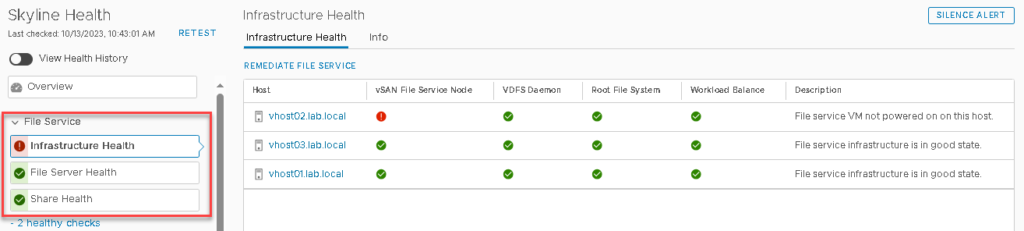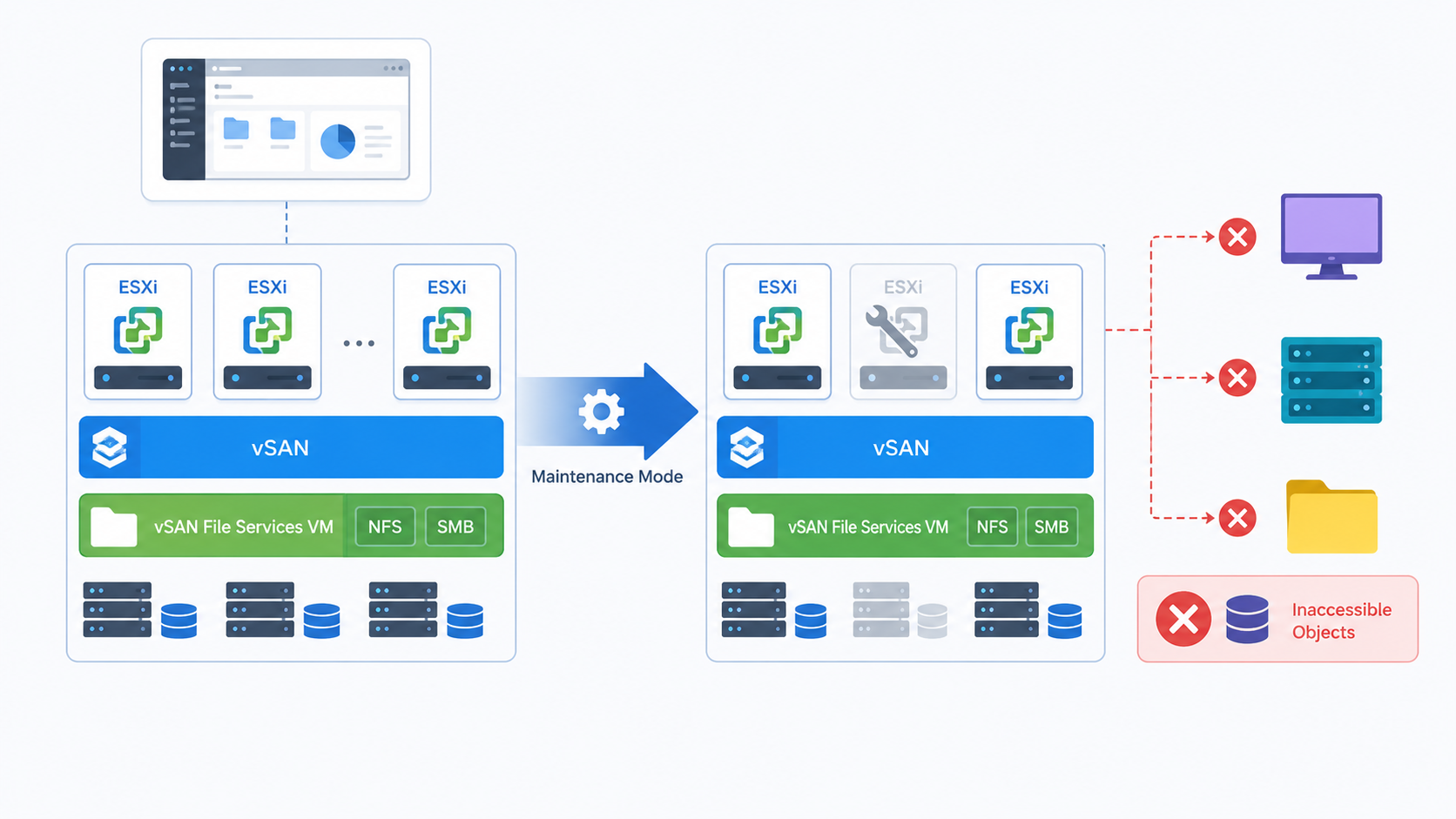
“Why does the vSAN File Services VM become inaccessible objects during MM” is an article that explains what is the reason for the vSAN File Service VM to stay with inaccessible objects during ESXi’s maintenance mode operation.
First things first, so, vSAN is a VMware technology for creating an Object-Based Datastore, totally configurable and manageable by software (SDS – Software-Defined Storage). Inside the vSAN, we have the possibility to configure some additional services, such as vSAN File Services.
Basically, the vSAN File Services feature enables you to create a File Server through the vSAN. When you enable the vSAN File Services, for example, you can create NFS and SMB shares from the vSphere Client and share these shares with your network. This is an interesting approach because the infrastructure necessary to support this feature runs inside the cluster (it is provided by the vSAN Layer).
Of course, we have a lot of requisites and caveats for it, so, it’s necessary to check the official documentation about it. If you wish to read more about the vSAN File Services, I highly recommend you to access the below website:
vSAN File Services | VMware
And also we have written some articles on vSAN. In the below link you can see the list of all vSAN articles that we have written:
vSAN Archives – DPC Virtual Tips
About Our Lab Environment
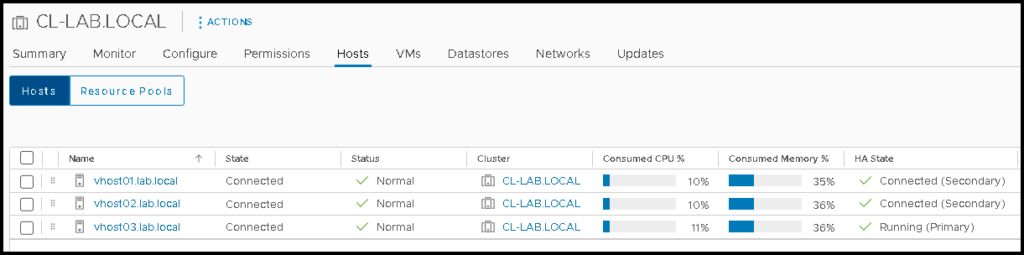
Here, we have a lab cluster composed of 3 ESXi hosts. We already enabled the vSAN and enabled vSAN File Services as well:
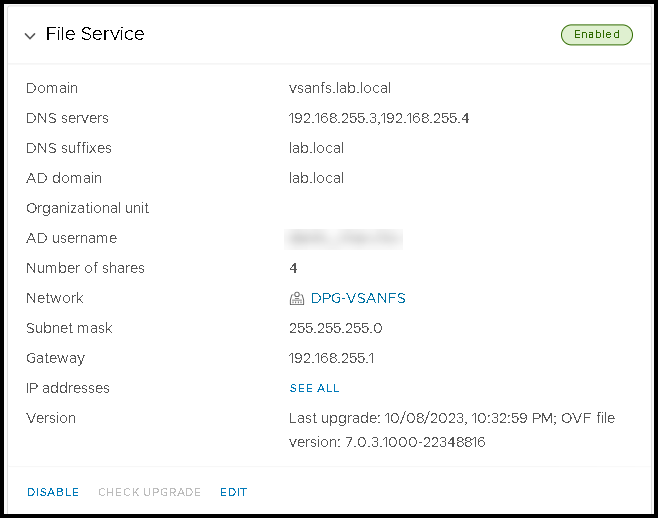
Below, we can see details of the vSAN File Services configuration:
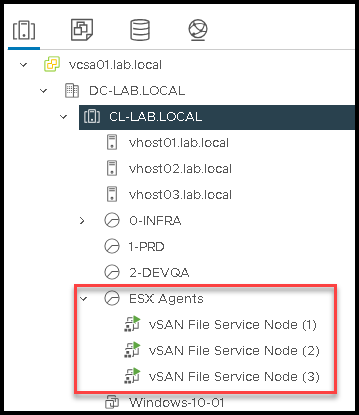
By default, when we enabled the vSAN File Services, one FSVM (File Service VM) is created on each ESXi host. So, in this case, our cluster has 3 ESXi hosts and it was created 3 FSVMs. A resource pool called “ESX Agents” is created to store or to group these FSVMs, as we can see in the below picture:
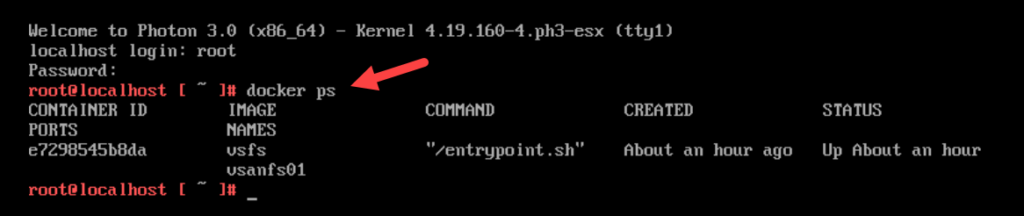
Inside each vSAN File Service Node (FSVM), we have some containers. Basically, inside each container, we have the NFS or SMB share that is available for the network. Just to show you, if we access the FSVM console and apply the command “docker ps”, we can see all containers that are running on this FSVM:
What does happen if we need to reboot or shut down the ESXi host?
So, if we need to take some maintenance process on the ESXi host that is part of a vSAN cluster (and with the vSAN File Services enabled), it is a good idea to put this host in maintenance mode.
First and foremost, it is important to execute the “pre-check” process before putting the ESXi host in maintenance mode. The “pre-check” option can be accessed inside the maintenance mode page, as we can see in the below picture:
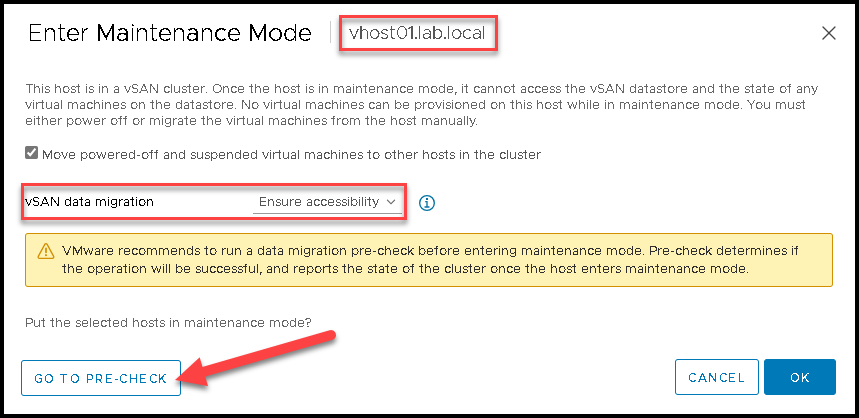
After clicking on “GO TO PRE-CHECK” we will be redirected to the pre-check page.
On this page, we just need to select the vSAN data migration option and click on “PRE-CHECK” to start the validation:
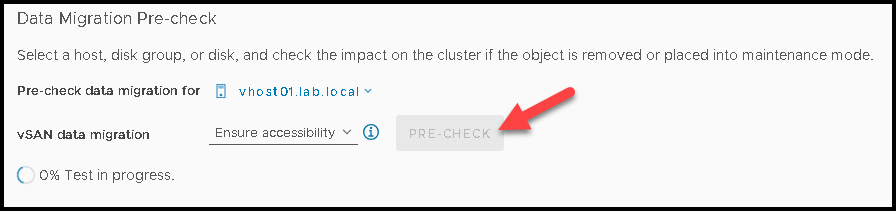
After some moments, we will have the pre-check result. In this example, the pre-check shows us that we will have 8 inaccessible objects if we put this ESXi host in maintenance mode with the vSAN data migration mode “Ensure accessibility”:
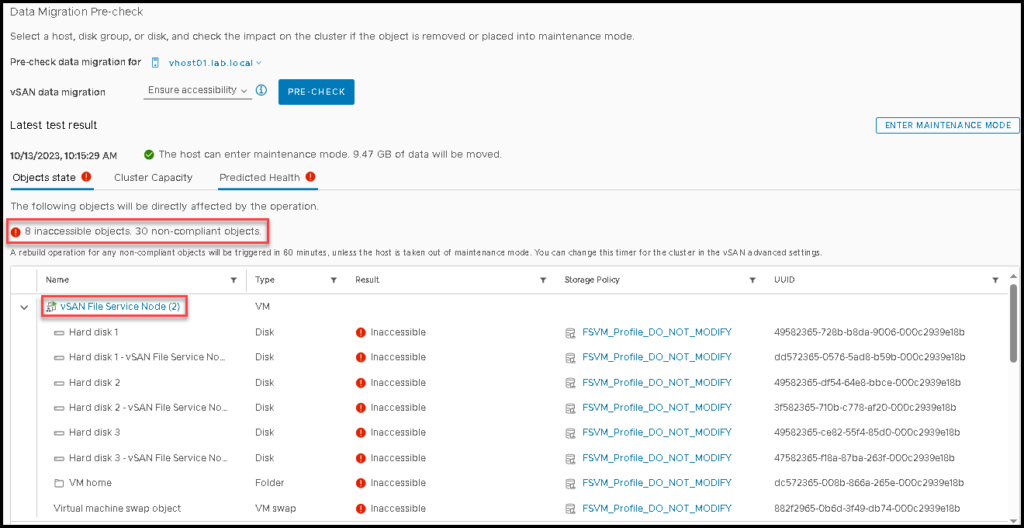
But here is the main goal of this article 🙂
It happens because each vSAN FSVM uses a specific vSAN Storage Policy called “FSVM_Profile_DO_NOT_MODIFY”. If we look inside this vSAN Policy, we will show that this vSAN Policy implements “host affinity” for the storage objects. In other words, the data of the FSVM is “forced” to stay on the specific ESXi host when the FSVM is running.
In the below picture, we can see details of the vSAN Storage Policy “FSVM_Profile_DO_NOT_MODIFY”:
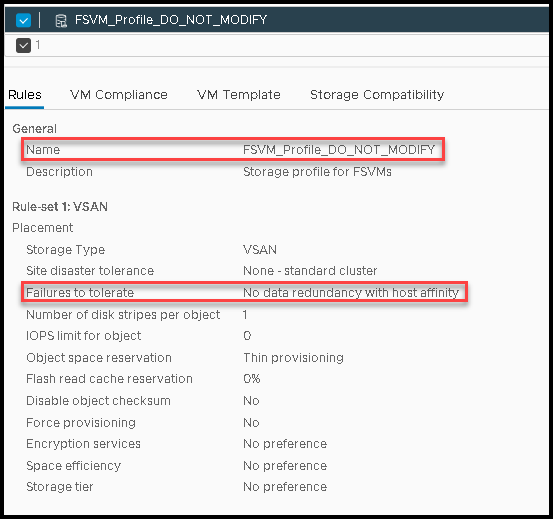
Important: This vSAN Storage Policy is created automatically and is used only for this purpose. You cannot use this vSAN Storage Policy for your workloads.
So, this behavior of the vSAN File Service VM is normal and you can proceed and put your ESXi in maintenance mode normally (of course, you need to analyze if you have other issues before putting your ESXi host in maintenance mode).
What does happen with the container inside the FSVM when we put the ESXi host in MM?
So, the vSAN File Services will migrate the container automatically to another FSVM when the host goes into maintenance mode.
In the below picture, we can see that the “vSAN File Service Node (1)” is running on the ESXi host “vhost02”:
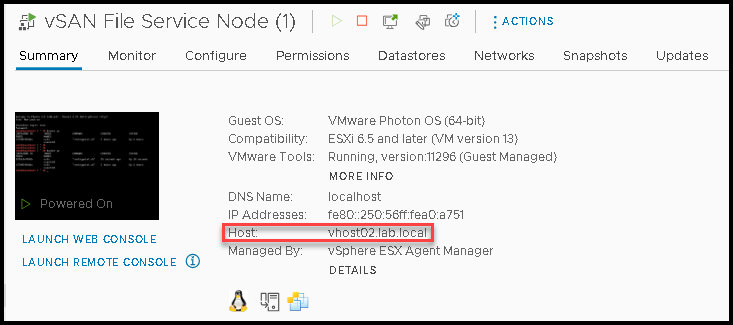
Inside this FSVM, we have 2 containers running:

After putting the ESXi host into maintenance mode, these containers have migrated automatically to another FSVM, as we can see in the picture below – look at the column “status” – we can see that both containers have started in a few seconds:

Note: The vSAN File Services migrated the containers just to maintain all shares accessible for your network 🙂
On the vSAN Skyline Health, we can check the File Service status. I highly recommend you check the status after each change in your environment – in some situations, you can fix some issues proactively related to the vSAN File Server on this page: