

Checking VMware Hardware Compatibility Error on Debian 11 is an article that explains how to resolve a VMware Update Manager compatibility issue when checking a Debian 11 virtual machine. In this scenario, the Guest OS was installed with open-vm-tools, but the hardware compatibility check failed during the update process.
A Brief Description Of the Issue
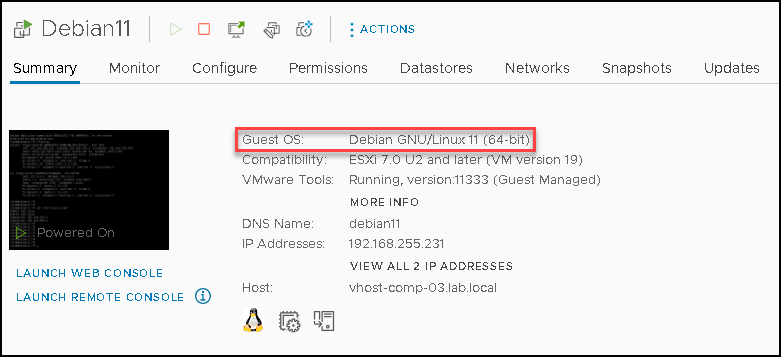
I have installed Debian 11 as a Guest OS. During the installation process, I have installed the “open-vm-tools” too, as we can see in the below picture:
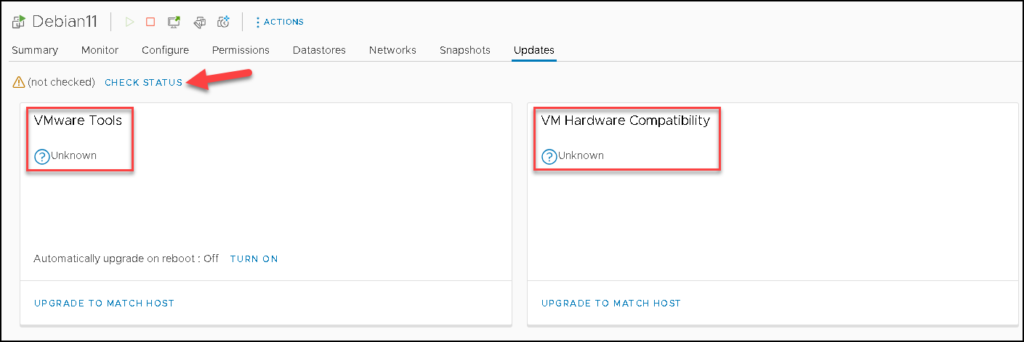
When I tried to run the “CHECK STATUS” under the Updates tab, the task failed:
Under Recent Tasks on the vSphere Client, we have the evidence of the error:

Additionally, we can see more details of the error by accessing the VM Tasks tab.
In this case, the error is:
Scan or remediation is not supported on Debian11 because of unsupported OS Debian GNU/Linux 11 (64-bit).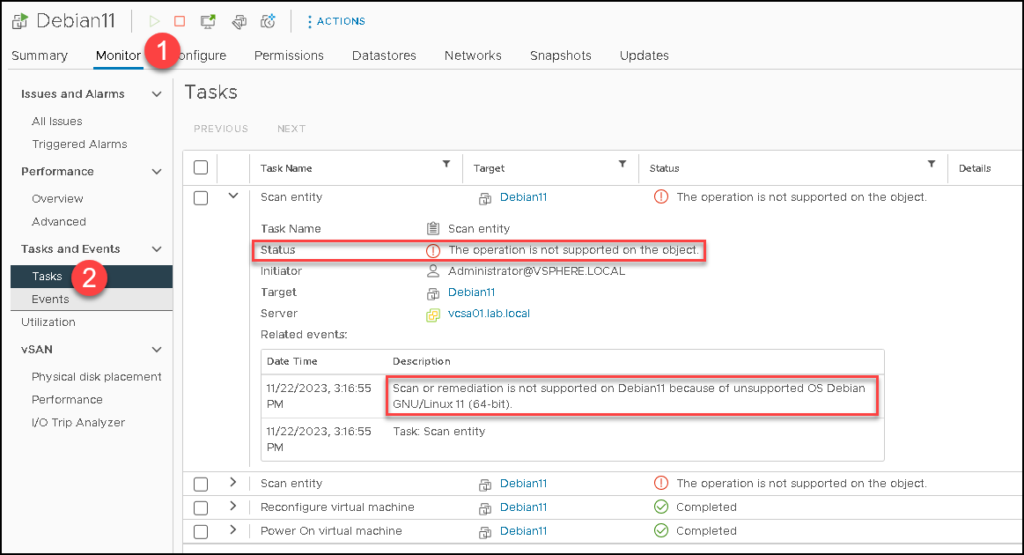
Checking the VMware Update Manager Servers Logs
For troubleshooting purposes, we can access the vCenter Server by SSH and check the VMware Update Manager Server Logs, to understand what the problem is.
Our vCenter Server version is 7.0.3 and build 22357613.
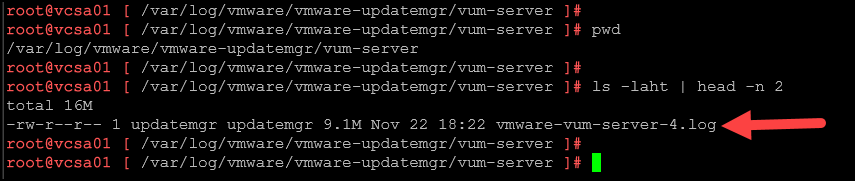
To access the log folder and check the most recent updated log file:
cd /var/log/vmware/vmware-updatemgr/vum-server
ls -laht | head -n 2
Example:
In our example, the most updated file is “vmware-vum-server-4.log”. But, in your environment, the file name can be different:
We can find messages or strings that indicate the possible issue or something like that:
grep -i "is not supported" vmware-vum-server-4.log
As we can see in the above picture, there are some entries in the log indicating that Debian 11 is a Guest OS not supported.
How can we solve this issue?
So, based on VMware’s KB https://kb.vmware.com/s/article/87660, this issue happens due to the Guest OS type is missing on the pre-populated list of supported OS versions by VMware Update Manager.
However, VMware provided a workaround to fix that:
1- Access the vCenter Server by SSH;
2- Create a backup of the “vci-integraty.xml” file:
mkdir /backup && cp /usr/lib/vmware-updatemgr/bin/vci-integrity.xml /backup/Check the backup file just to confirm if the file is there – Here, expect to see a copy of the file vci-integrity.xml:
ls /backup3- Modify the vci-integrity.xml file by opening the file using your preferred text editor. In this example, we are using the vi:
vi /usr/lib/vmware-updatemgr/bin/vci-integrity.xml4- Now, be careful and understand it before continuing.
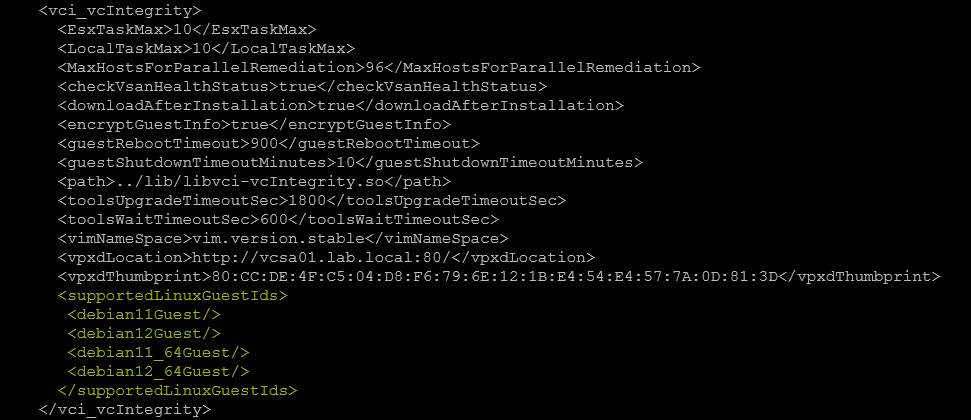
Before the </vci_vcIntegrity> line, add the following lines, depending on the operating system configured in your virtual machine. Look like the below example. We are adding the following entries just to add the support for Guest OS Debian 11 and 12, both versions supporting the x86 and x64 architectures:
<supportedLinuxGuestIds>
 <debian11Guest/>
 <debian12Guest/>
 <debian11_64Guest/>
 <debian12_64Guest/>
</supportedLinuxGuestIds>
In the below picture, we can see the exact place inside the file where we need to add these lines – lines highlighted in yellow:
5- Save the file and exit:
ESC
:wq!
6- Restart the VMware Update Manager service:
vmon-cli -r updatemgr
Testing the Check Status Under the Virtual Machine
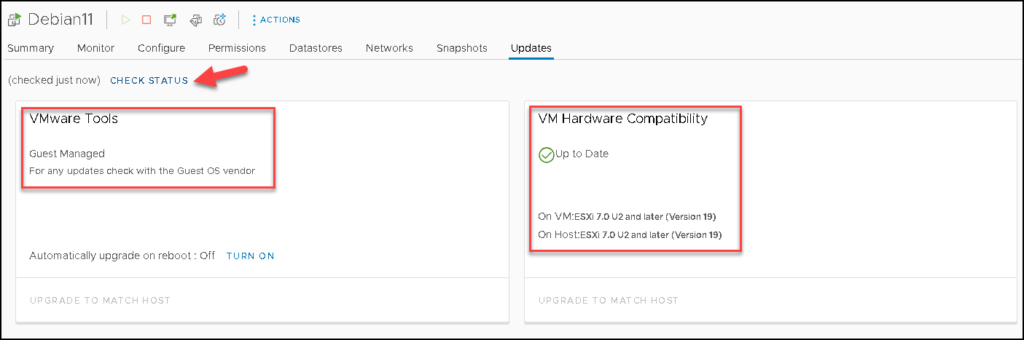
So, we can check the status again and now we can see that it works fine 🙂
Both VMware Tools and VMware Hardware Compatibility were checked and the results were populated correctly, as we can see in the below picture:
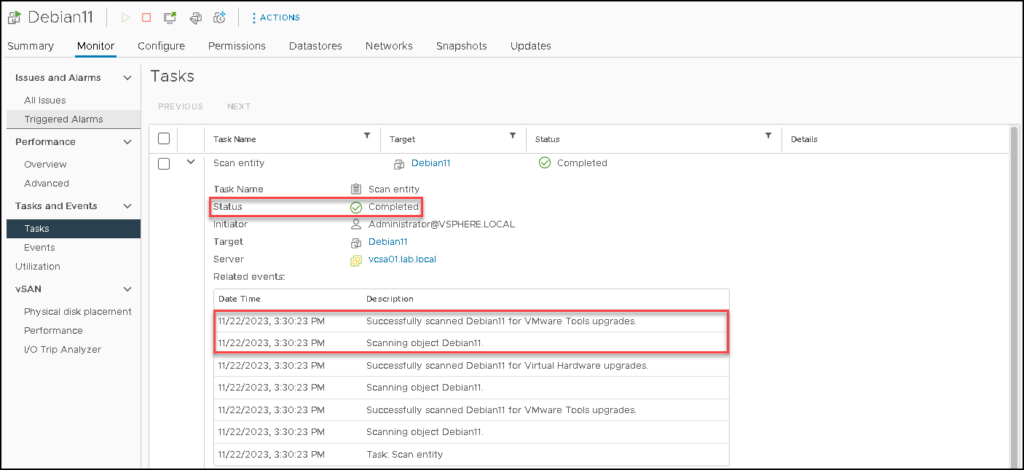
Under VM Tasks, we can see the evidence that the process worked fine 🙂
Wrapping This Up
In this example, we saw how to add Debian 11 and Debian 12 to the supported Guest OS list used by the VMware Update Manager service.
If you need more detail about that or need to know how to add support for other OS (like Windows Server 2012, for example), I recommend you to check it on the VMware KB:
