

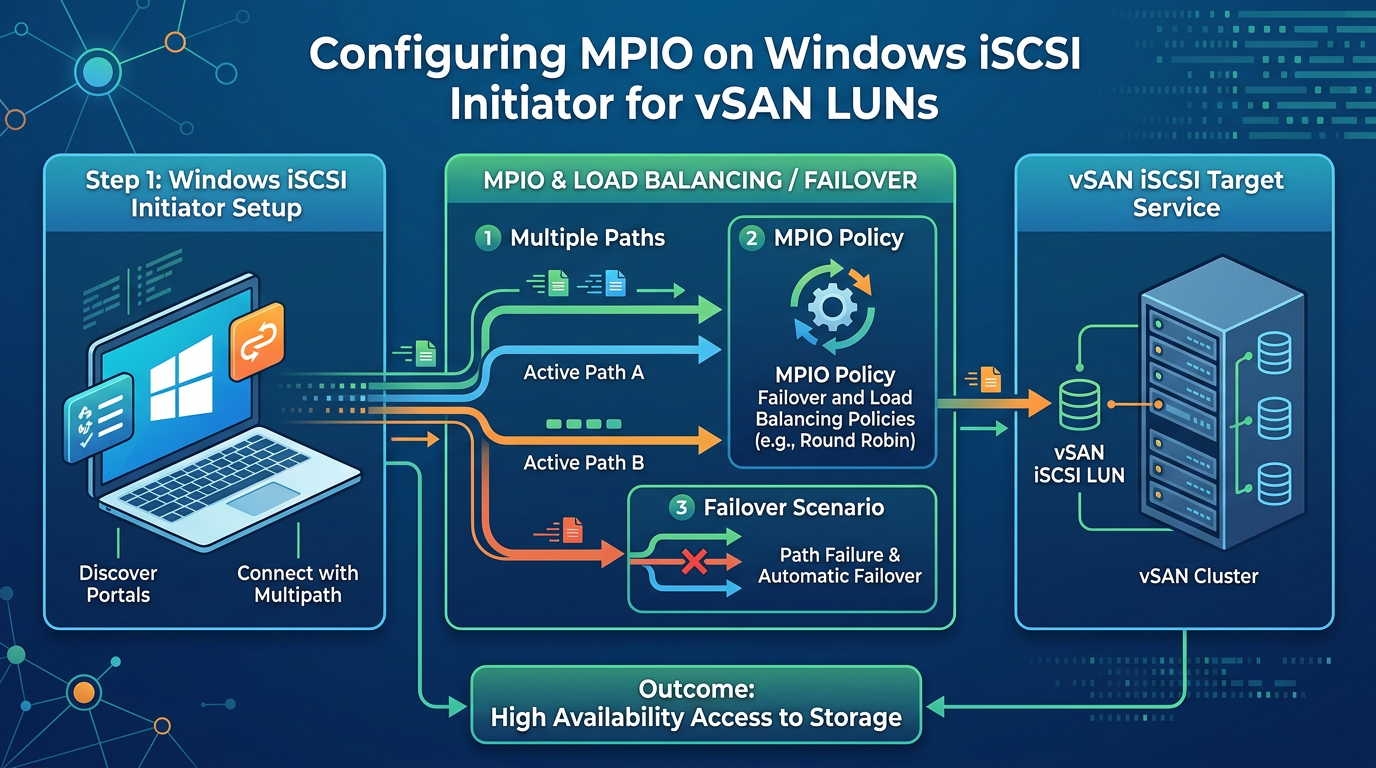
Configuring MPIO on Windows iSCSI Initiator is an article that explains how to configure the MultiPath Input Output in a Windows Client to provide load balancing and failover process to access an iSCSI LUN provided by the vSAN iSCSI Target Service feature.
First and foremost, What is MPIO?
MultiPath Input Output (MPIO) is a feature or framework that allows administrators to configure load balancing and failover processes for connections to storage devices.
Most storage arrays offer this in the form of multiple controllers, but the servers still need a way to spread the I/O load and handle internal failover from one path to another available one. This is where MPIO plays a key function because servers would see multiple instances of the same disk without it.
Multipathing solutions use redundant paths from the client device to the storage device. In the event of failure, causing the path to fail, multipathing selects an alternative path for I/O operations, transparently for the users and applications.
Source: https://www.dell.com/support/kbdoc/en-us/000131854/mpio-what-is-it-and-why-should-i-use-it
About Our Lab Environment
We are using a vSAN cluster with the enabled service iSCSI Target Service. With this service, we can provide iSCSI LUNs for our network.
We have written an article about how to enable and configure the vSAN iSCSI Target Service:
Using the vSAN iSCSI Target Service – DPC Virtual Tips
To access a share provided by the vSAN iSCSI Target Service, we are using a Windows Server 2022 with MPIO and iSCSI Initiator software.
Installing the MPIO Feature
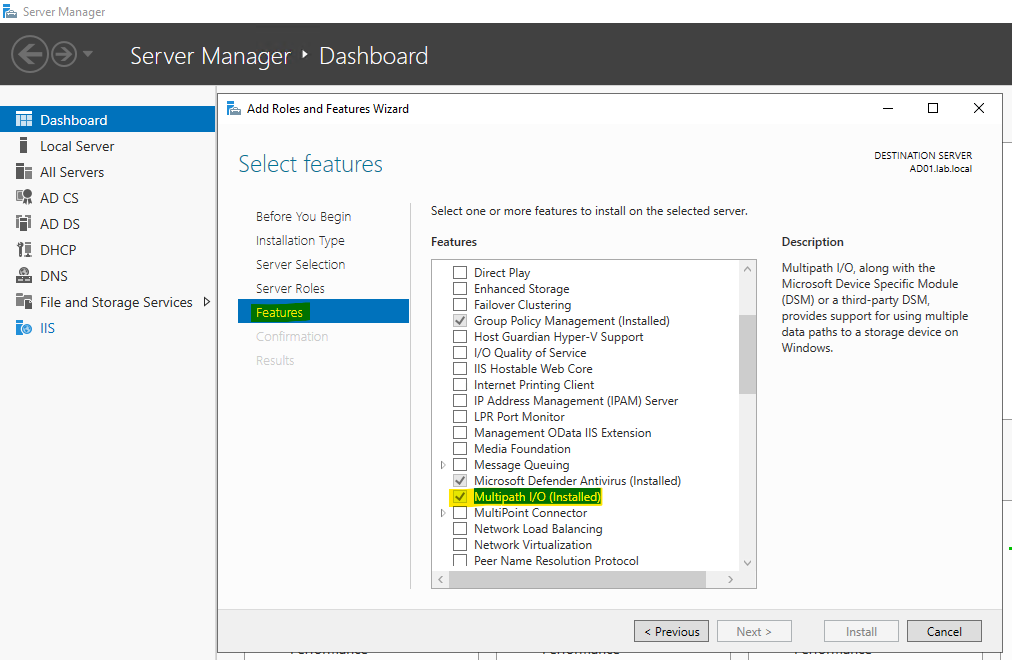
First, we must install the Multipath I/O feature in the Windows Server. This is a straightforward task. Open the Server Manager and add the “Multipath I/O”. In the following figure, we already installed this feature:
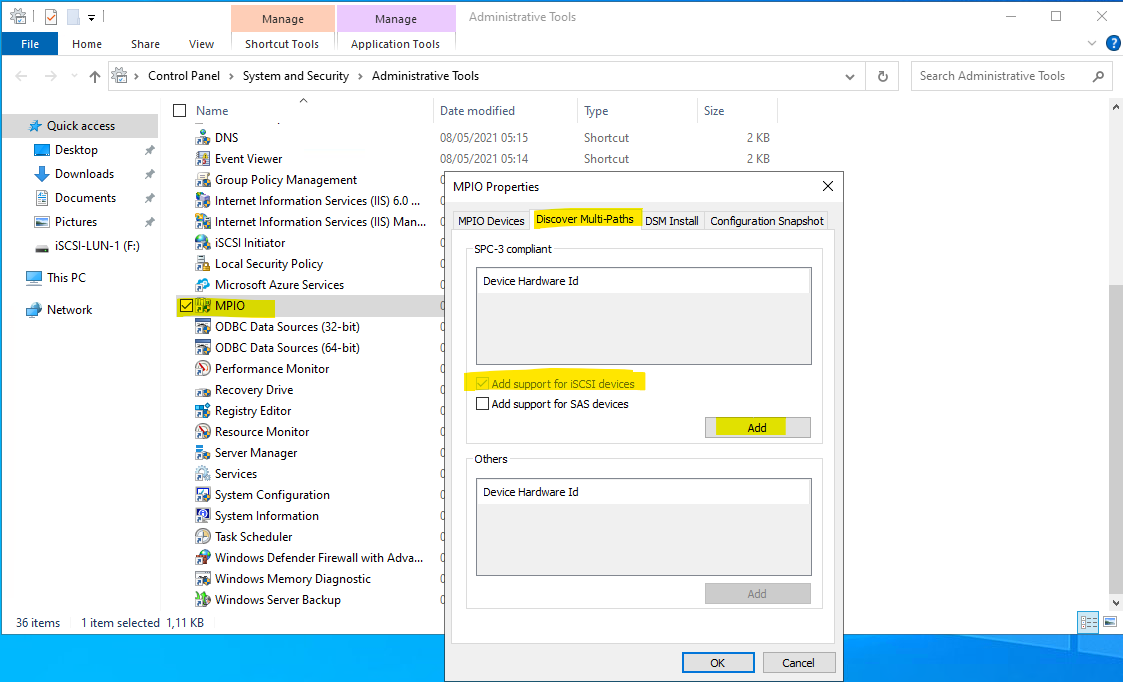
After that, open the MPIO application through the Administrative Tools and “Add support for iSCSI devices”. After that, restart the Windows to apply this new configuration:
Configuring the iSCSI Initiator Software on Windows Server
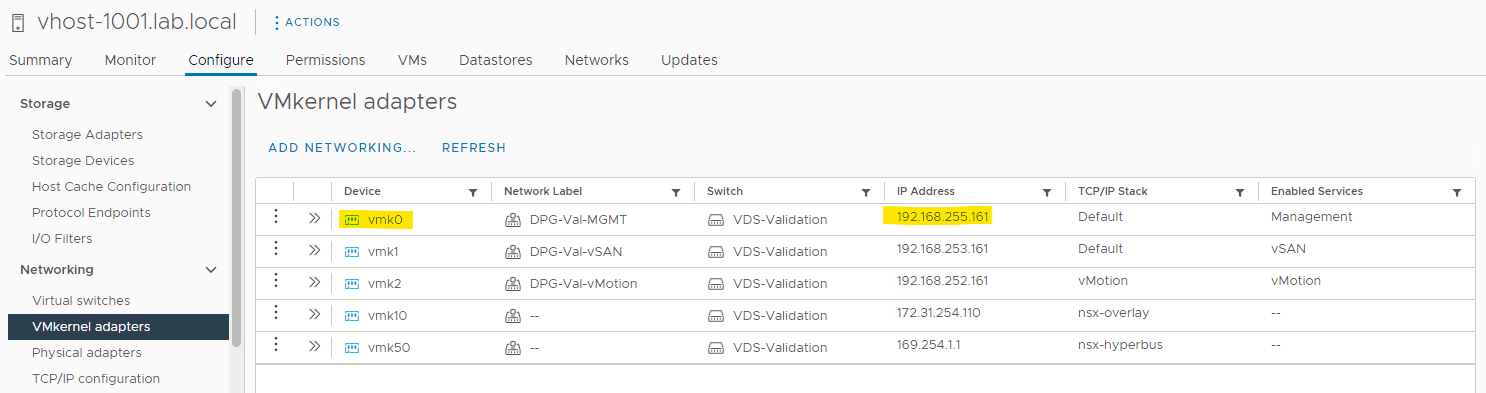
The vSAN iSCSI Target Service has the vmk0 as the default iSCSI network, as we can see in the following figure:
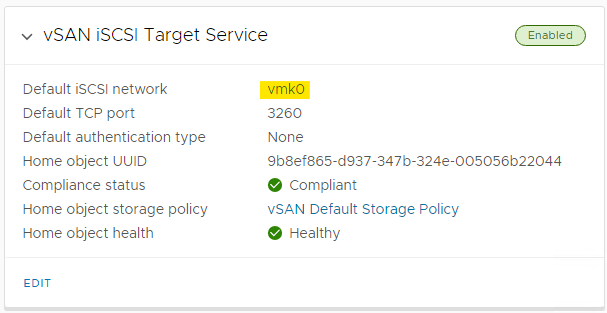
So, we need to get the vmk0 IP address for all ESXi hosts in this vSAN cluster. The following figure is an example of getting this IP address for the first ESXi host. In our example, we have a five-node cluster and the IP addresses started from 192.168.255.161 to 192.168.255.165:
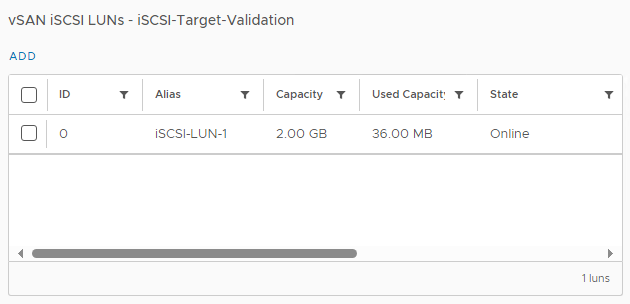
Additionally, we already created an iSCSI LUN to be shared with the iSCSI clients:
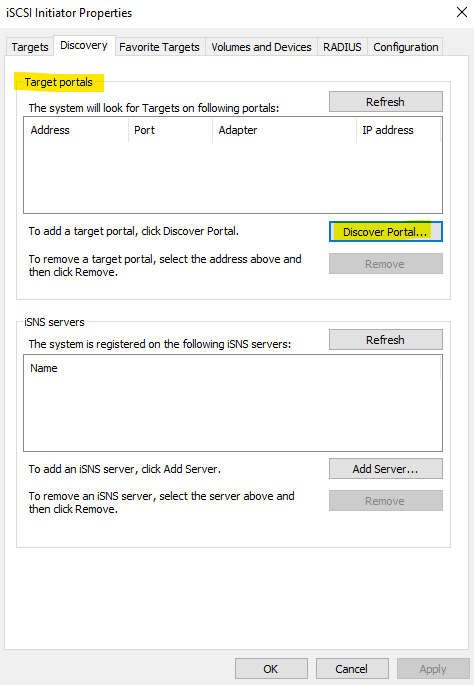
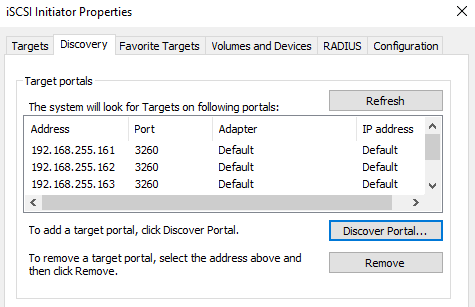
Open the iSCSI Initiator software on the Windows Server, go to the Discovery tab, and click on Discover Portal:
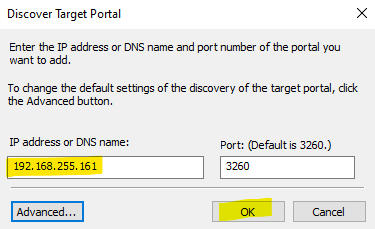
In this step, we need to add the vmk0 IP address for each ESXi host:
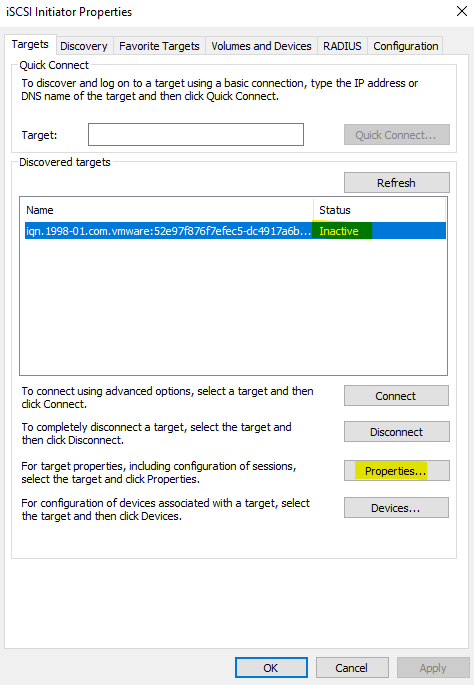
Go to the Targets tab. Under the Discovered Targets, the connection status is “Inactive”. Click on Properties to configure this connection:
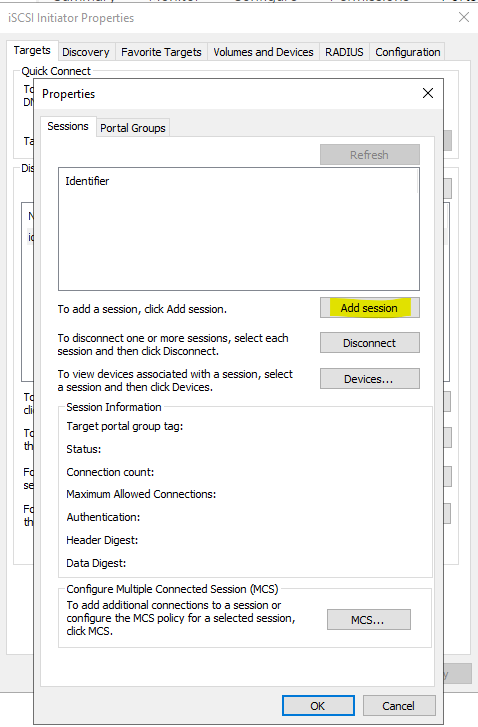
Click on Add session:
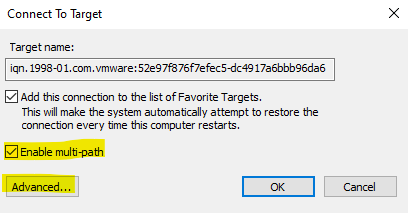
Mark the option “Enable multi-path” and click on Advanced:
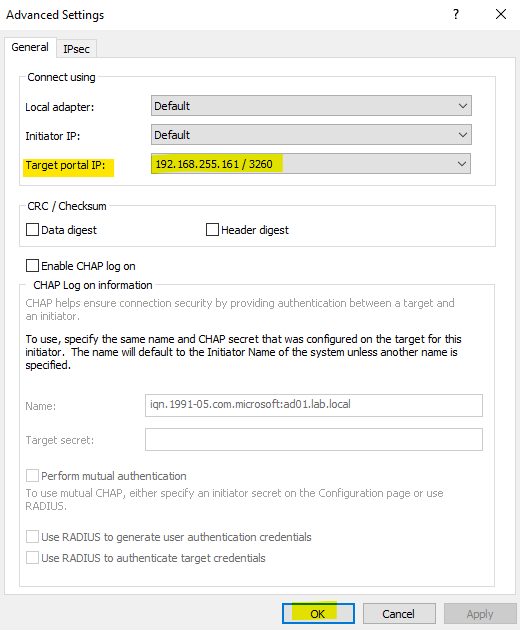
On the Target portal IP, we can see all the IP addresses. Select the first one and click on OK:
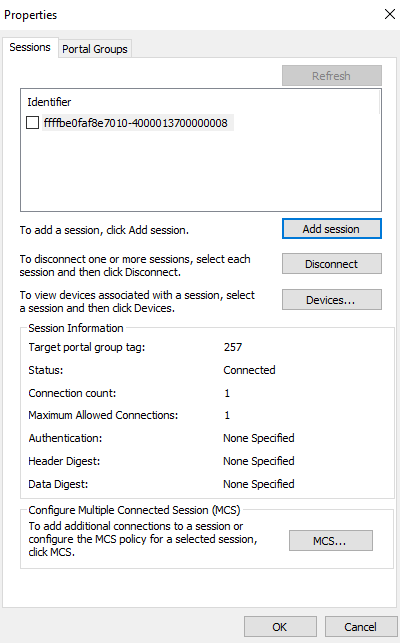
The session was added and its status is connected, as we can see in the following figure:
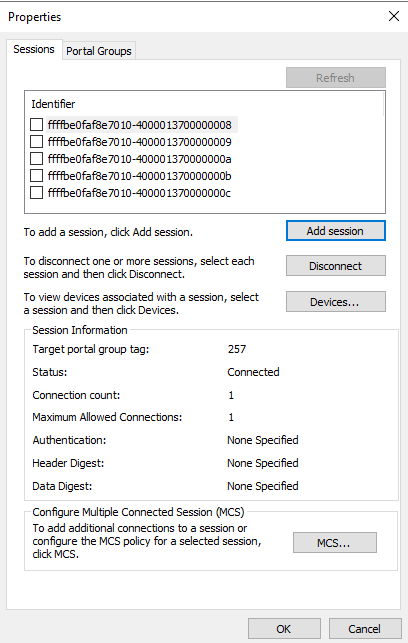
Repeat the same process to add the other sessions for each IP address (remember that our vSAN cluster has 5 ESXi hosts. We have 5 IP addresses and should create 5 sessions here).
The following figure shows that all sessions have been created successfully:
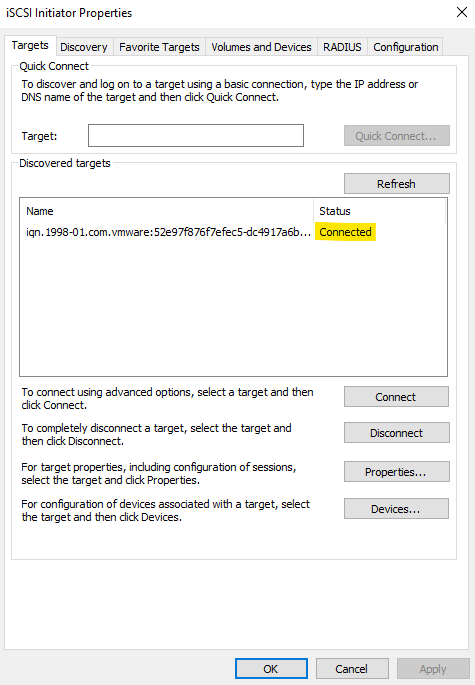
Go to the Targets tab. The connection now is Connected:
Go to the Volumes and Devices tab and click on Auto Configure:
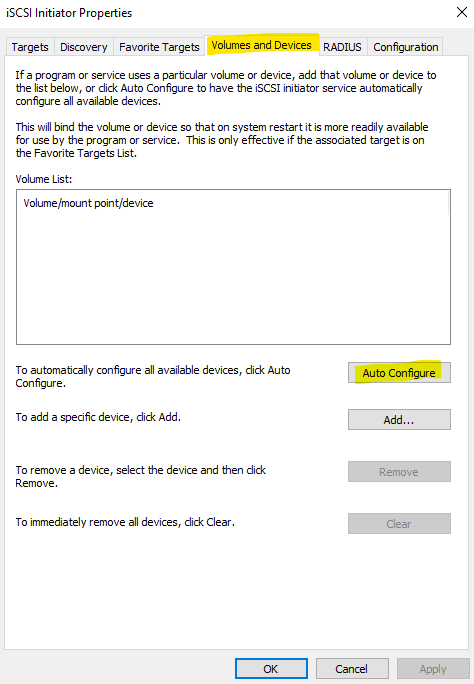
In this case, as we can see in the following figure, an “F:\” volume appeared because we already used it before. If this is the first time that you are mounting the iSCSI LUN, you should see the device identification or something like that.
Note: In your case, you may need to go on the Device Manager, bring the disk online, create a partition, assign a letter, and then use the volume.
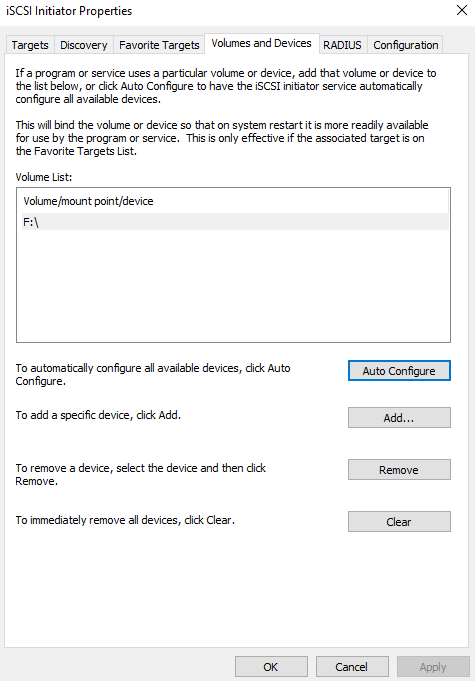
You can click on OK and close the iSCSI Initiator software.
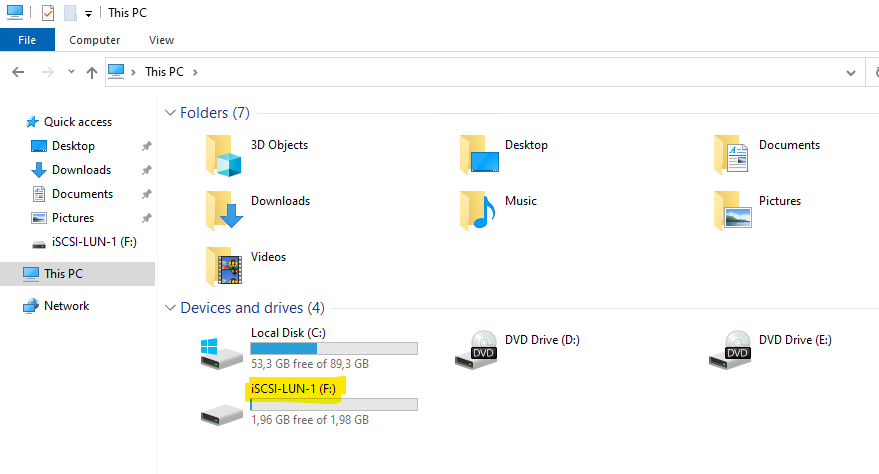
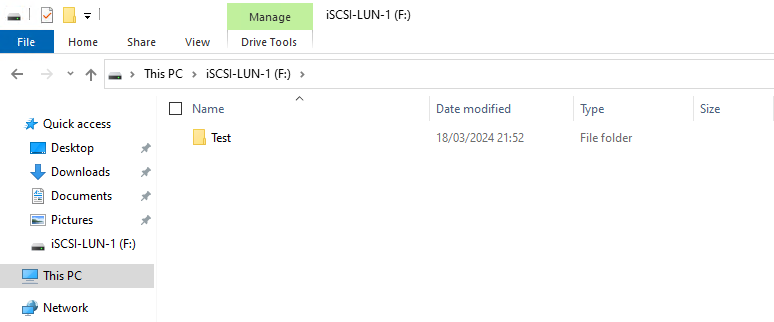
As we already used this iSCSI LUN, we created the NTFS file system through it and mapped it into our Windows Server system. So, we can go to the My Computer and access this volume through the “F:\” letter, as we can see in the following figure:
Testing the MPIO Configuration
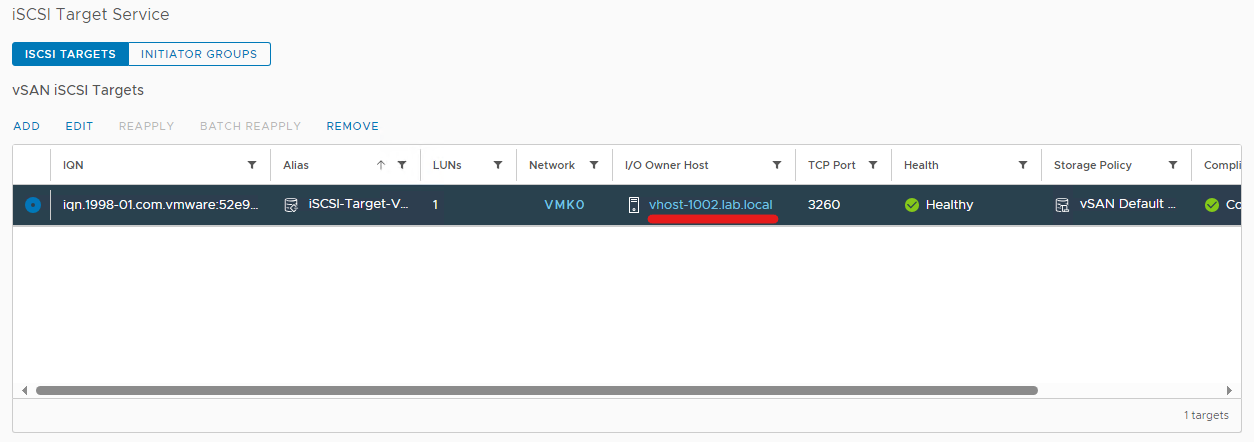
The vSAN iSCSI Target Service selects one ESXi host responsible for all I/O operations for a specific iSCSI Target. In this case, for instance, the I/O Owner host is “vhost-1002”:
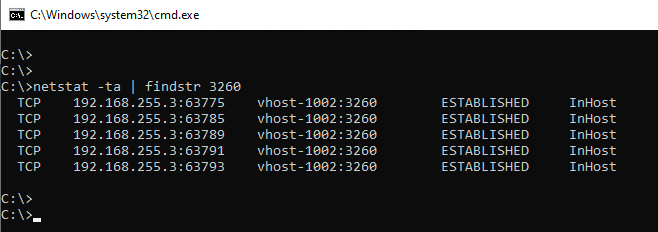
From the Windows perspective (iSCSI Client), we can see all established connections pointing to this ESXi host:
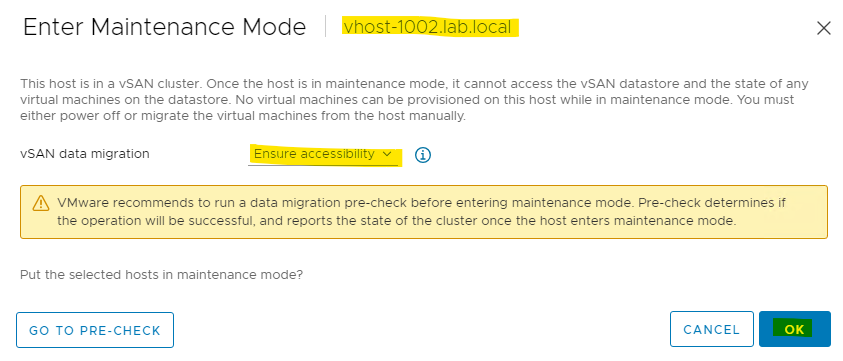
Firstly, to simulate the I/O Owner host failure, we will put it in maintenance mode:
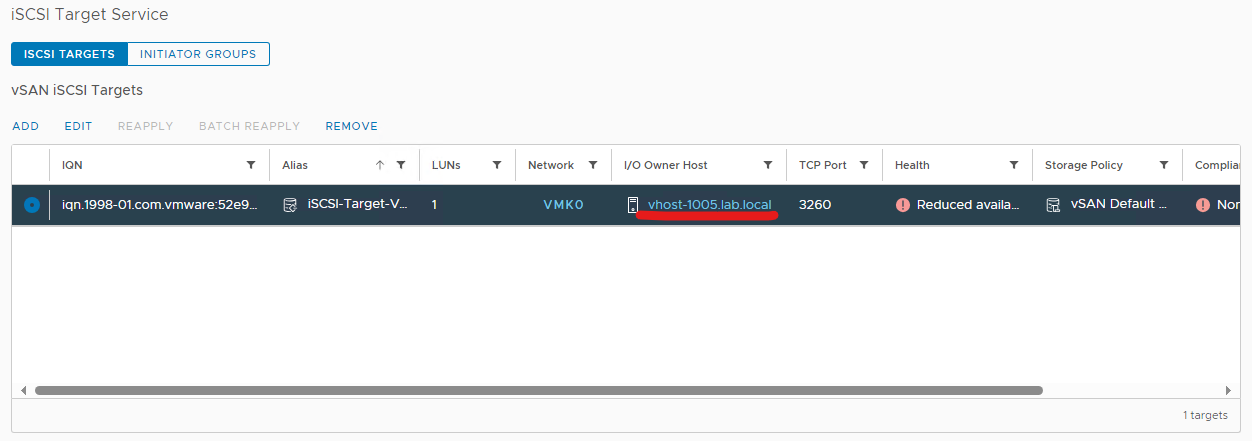
Look that the I/O Owner host was changed:
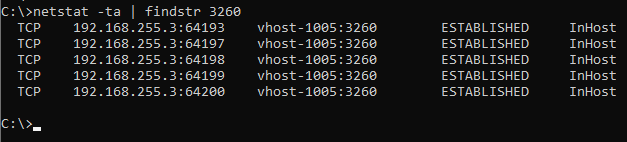
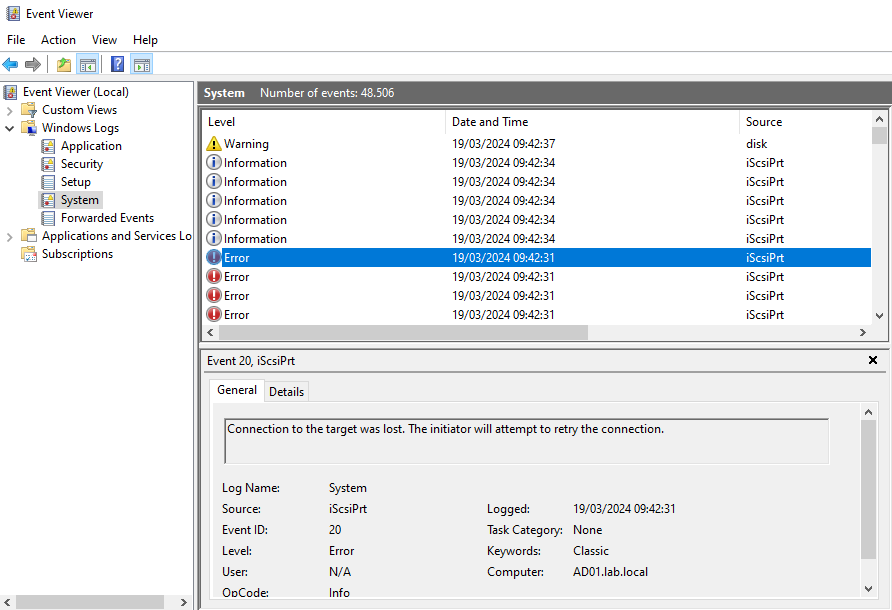
On the Windows Server, open the Event View and go to the System logs.
Consequently, we can confirm that we had an iSCSI failure:
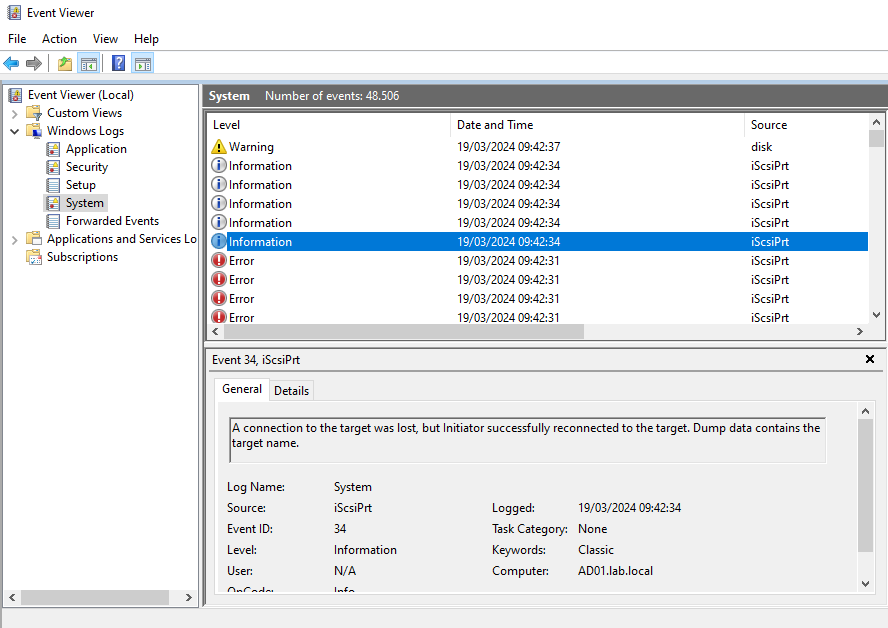
After a few seconds, we can confirm that the connection was reconnected successfully:
As a result, the I/O operation for the affected iSCSI LUN was retried:
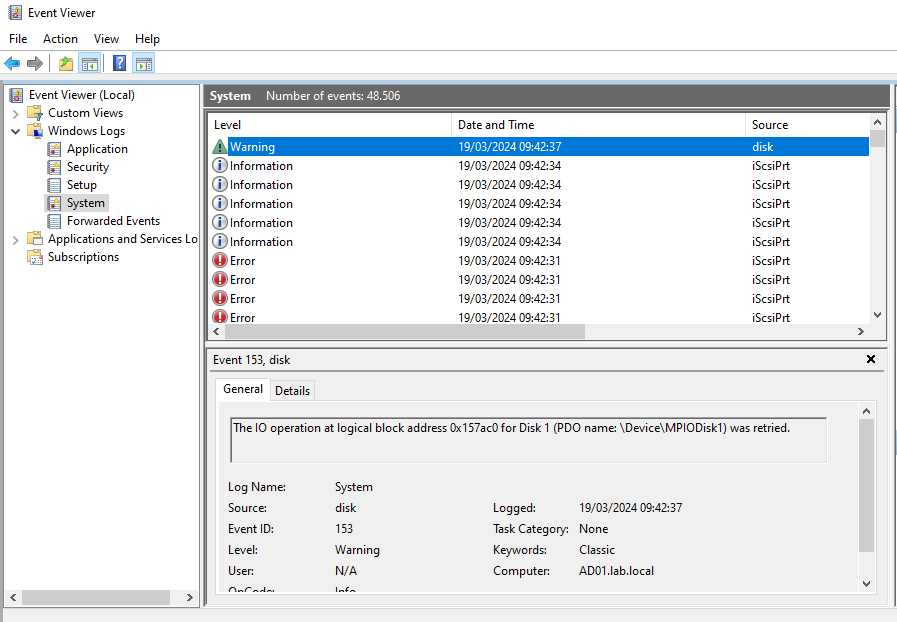
So, based on this evidence, the MPIO worked as expected 🙂
However, I’m not certain if those few seconds from the failure to reconnect are sufficient to damage some application or something like that!
To Wrap This Up
The MultiPath Input Output is an excellent solution to provide load balancing and failover for clients that are using storage LUNs. However, before putting an application in production using the MPIO, I believe it is a good idea to validate if the application can work with it, and if possible, test the application in a lab environment first!
