


This provoking question “Do you know how systemd-resolved works on the vCenter Server?” aims to show, in a basic way, how the daemon “systemd-resolved” works on the vCenter Server.
This article explains how systemd-resolved works on the vCenter Server Appliance and shows the basic concepts behind this service. Understanding how DNS resolution is handled internally can help administrators troubleshoot name resolution issues in VMware environments.
The systemd-resolved service is responsible for providing network name resolution to local applications. It works as a local DNS resolver, using configured DNS servers and maintaining information to process name resolution requests efficiently.
In this article, we will explore how systemd-resolved interacts with files such as /etc/resolv.conf on the vCenter Server Appliance. We will also demonstrate how to check the resolver status and how DNS settings can be managed correctly without directly modifying generated configuration files.
First and foremost, what is the “systemd-resolved”?
This is a system service that provides network name resolution to local applications. It implements a caching and validating DNS/DNSSEC stub resolver, as well as an LLMNR and MulticastDNS resolver and responder. In simple words, this service performs tasks such as a “local name resolver”, checking its local cache and, if necessary, sending new queries to external name servers.
I believe in the below link, you can read more about this service:
https://man.archlinux.org/man/systemd-resolved.8
What is the purpose of the /etc/resolv.conf configuration file?
In our case, our vCenter Server has the below version and build:
root@vcsa01 [ ~ ]# vpxd -v
VMware VirtualCenter 8.0.2 build-22385739
The /etc/resolv.conf is the file used by the vCenter Server to perform network name resolution tasks. If we see the file content, it’s possible to see several commented lines. These lines are just to avoid editing directly this file – instead, we need to use the “systemd-resolved” to adjust this file content:
root@vcsa01 [ ~ ]# cat /etc/resolv.conf
# This is /run/systemd/resolve/resolv.conf managed by man:systemd-resolved(8).
# Do not edit.
#
# This file might be symlinked as /etc/resolv.conf. If you're looking at
# /etc/resolv.conf and seeing this text, you have followed the symlink.
#
# This is a dynamic resolv.conf file for connecting local clients directly to
# all known uplink DNS servers. This file lists all configured search domains.
#
# Third party programs should typically not access this file directly, but only
# through the symlink at /etc/resolv.conf. To manage man:resolv.conf(5) in a
# different way, replace this symlink by a static file or a different symlink.
#
# See man:systemd-resolved.service(8) for details about the supported modes of
# operation for /etc/resolv.conf.

nameserver 127.0.0.1
nameserver 192.168.255.3
nameserver 192.168.255.4
search lab.local
The /etc/resolv.conf file is a symbolic link to the file used by the “systemd-resolved” service. We can check it using the below command:
root@vcsa01 [ ~ ]# ls -lad /etc/resolv.conf
lrwxrwxrwx 1 root root 32 Oct 23 00:53 /etc/resolv.conf -> /run/systemd/resolve/resolv.conf
What is the way to edit the /etc/resolv.conf file, considering that this file is managed by the service systemd-resolved?
So, as we saw before, we cannot edit directly the /etc/resolv.conf and neither the file /run/systemd/resolve/resolv.conf.
If we need to change something, we need to edit the configuration file:
/etc/systemd/resolved.confBased on this information, you should edit the file /etc/systemd/resolved.conf to perform modifications on the /etc/resolv.conf file. In our lab, the content of the file /etc/systemd/resolved.conf is:
root@vcsa01 [ ~ ]# cat /etc/systemd/resolved.conf

[Resolve]
FallbackDNS=
DNSSEC=no
DNSOverTLS=no
LLMNR=false
DNS=127.0.0.1 192.168.255.3 192.168.255.4
Domains=lab.local
Where:
DNS= –> This instruction specifies the DNS servers that the vCenter Server will use for name resolution tasks. Look, there is a blank space between each DNS server.
After editing this file (you can edit this file using the “vi” or your preferred text editor), restart the “systemd-resolved” service with the below command:
systemctl restart systemd-resolved.serviceTo check the service status:
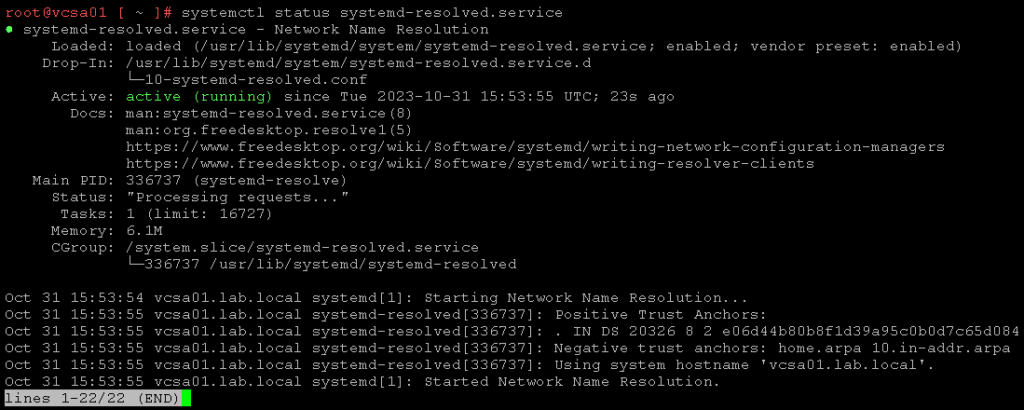
systemctl status systemd-resolved.serviceExample:
How can I check the resolver status?
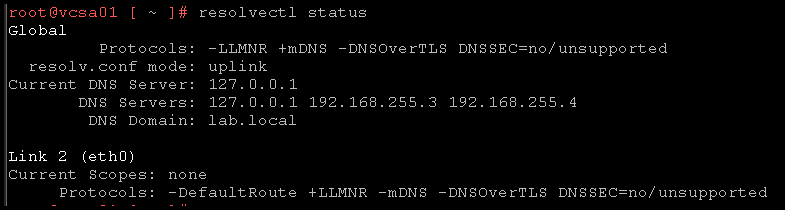
We can use the below command to check the resolver status:
resolvectl statusExample:
Can I change the DNS Server information using the VAMI (vCenter Server Appliance Management Interface)?
Yes!
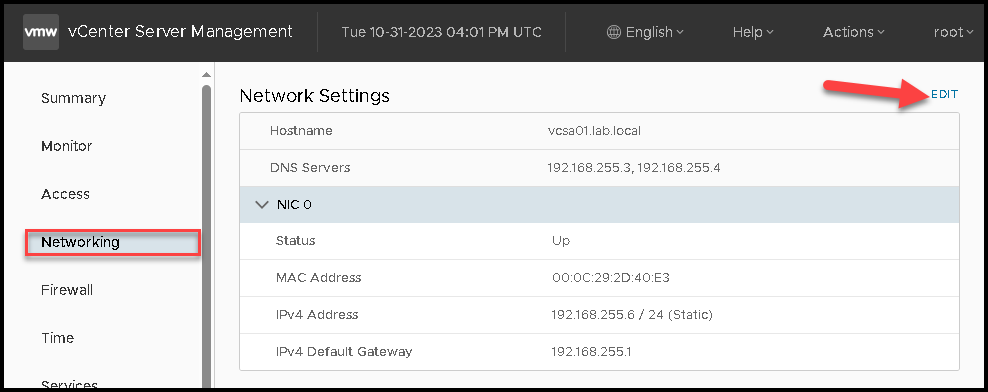
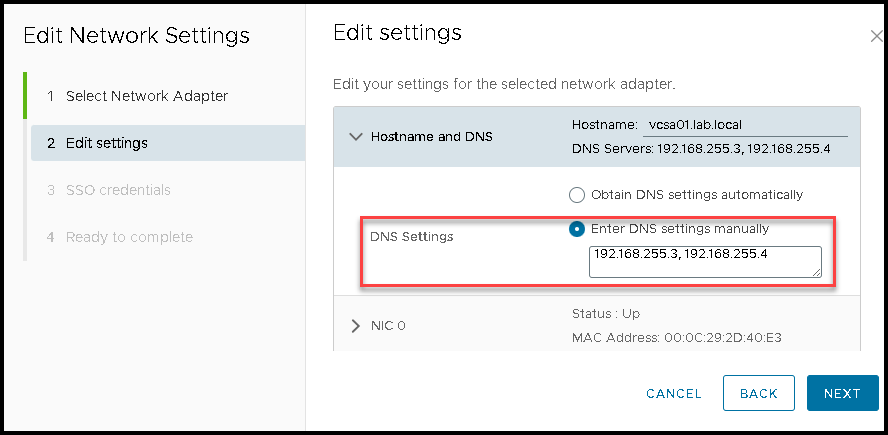
You can use the VAMI to change the DNS Server used by the vCenter Server:
That’s it for now 🙂
