

Getting Useful vSAN Details with PowerCLI aims to get useful vSAN details or information in a vSAN-enabled cluster.
Powershell is a powerful tool embedded in the majority of Windows installations. VMware PowerCLI is a command-line and scripting tool built on Windows PowerShell. It provides more than 800 cmdlets for managing and automating VMware vSphere, VMware Cloud Director, vRealize Operations Manager, vSAN, VMware NSX-T Data Center, VMware Cloud Services, VMware Cloud on AWS, VMware HCX, VMware Site Recovery Manager, and VMware Horizon environments.
We have written some articles explaining how to install the PowerCLI. You are more than welcome to check with one by accessing the following links:
https://dpcvirtualtips.com/introduction-to-the-vmware-powercli/
https://dpcvirtualtips.com/install-vmware-powercli-offline/
Connecting to the vCenter Server through PowerCLI
The first step is to connect to the vCenter Server. Before executing each command, we need to connect to the vCenter Server:
connect-VIServer -Server VC_FQDN

#change VC_FQDN to your vCenter FQDN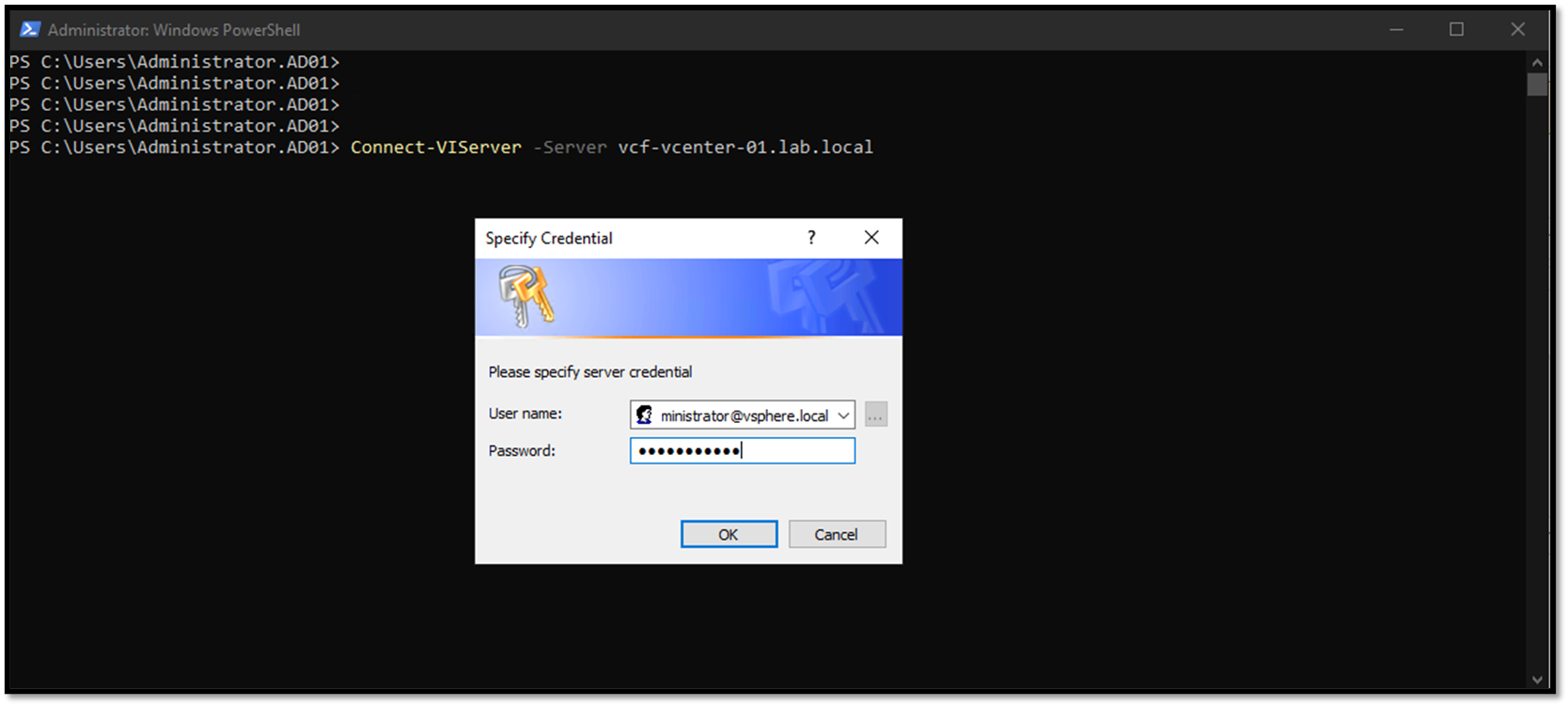
If the connection has been done successfully, a message like the following image will appear:
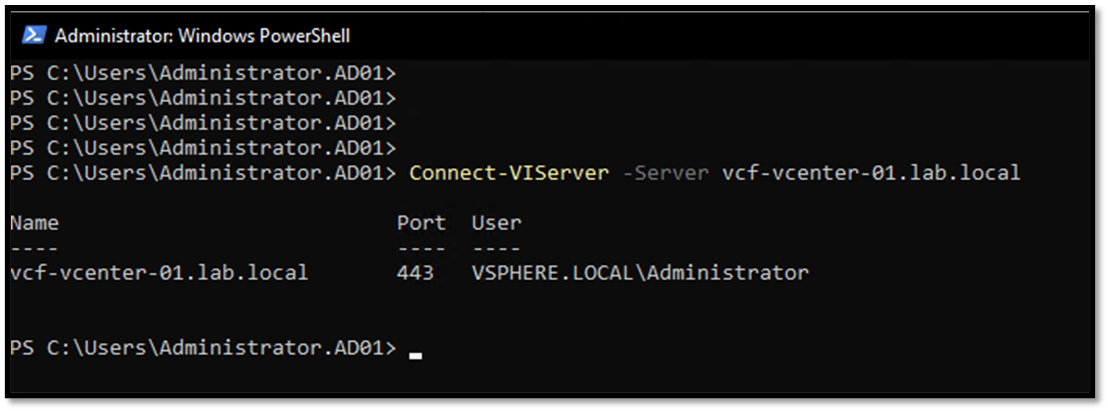
Now, we can execute PowerCLI commands to retrieve whatever details we need!
Getting the vSAN-Enabled, Guest TRIM/Unmap, and vSAN Object Repair Time Values
Checking if the vSAN is enabled at the cluster level:
(Get-VsanClusterConfiguration -Cluster "vcf-cl01").VsanEnabled

#replace vcf-cl01 to your cluster name
#you can run Get-Cluster to get all available cluster under the vCenter Server
Checking if the vSAN Guest TRIM/Unmap feature is enabled at the cluster level:
(Get-VsanClusterConfiguration -Cluster "vcf-cl01").GuestTrimUnmap

#replace vcf-cl01 to your cluster name
#you can run Get-Cluster to get all available cluster under the vCenter Server
Getting the vSAN Object Repair Time (The default value is 60 minutes):
(Get-VsanClusterConfiguration -Cluster "vcf-cl01").ObjectRepairTimerMinutes

#replace vcf-cl01 to your cluster name
#you can run Get-Cluster to get all available cluster under the vCenter Server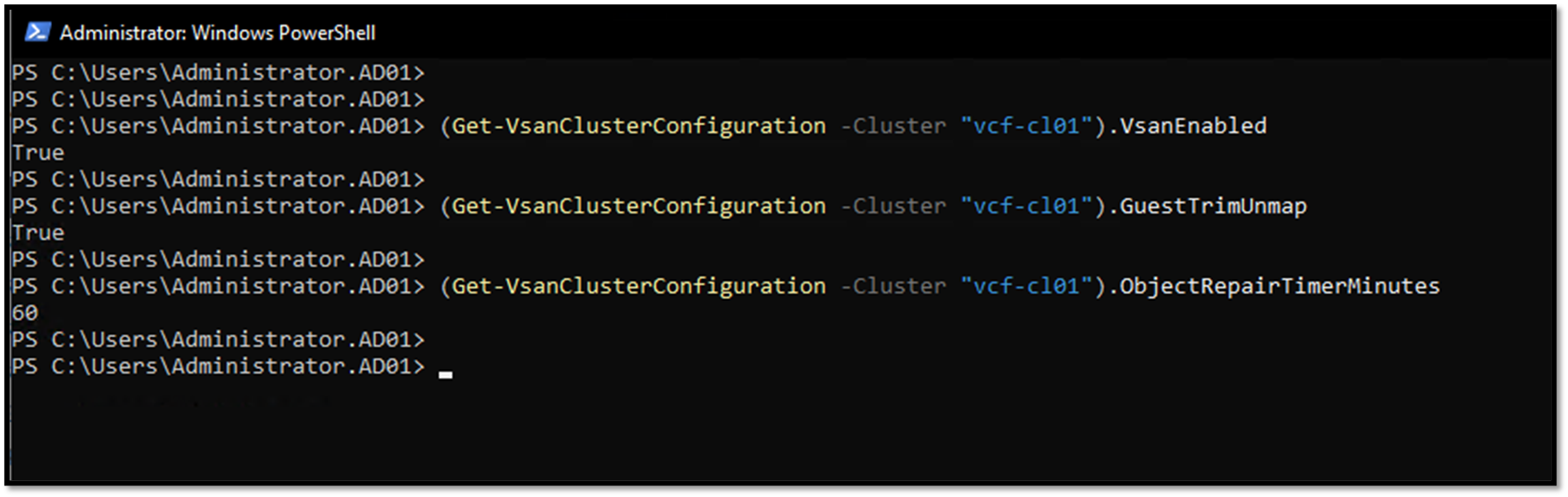
For instance, based on the image above, vSAN is enabled, TRIM/Unmap is enabled, too, and the vSAN Object Repair Time has its default value (60 minutes).
Getting vSAN Disk Group Details
As we can see in the following image, our vSAN cluster has four ESXi hosts, and each one has one vSAN Disk Group, as we can confirm in the following image:
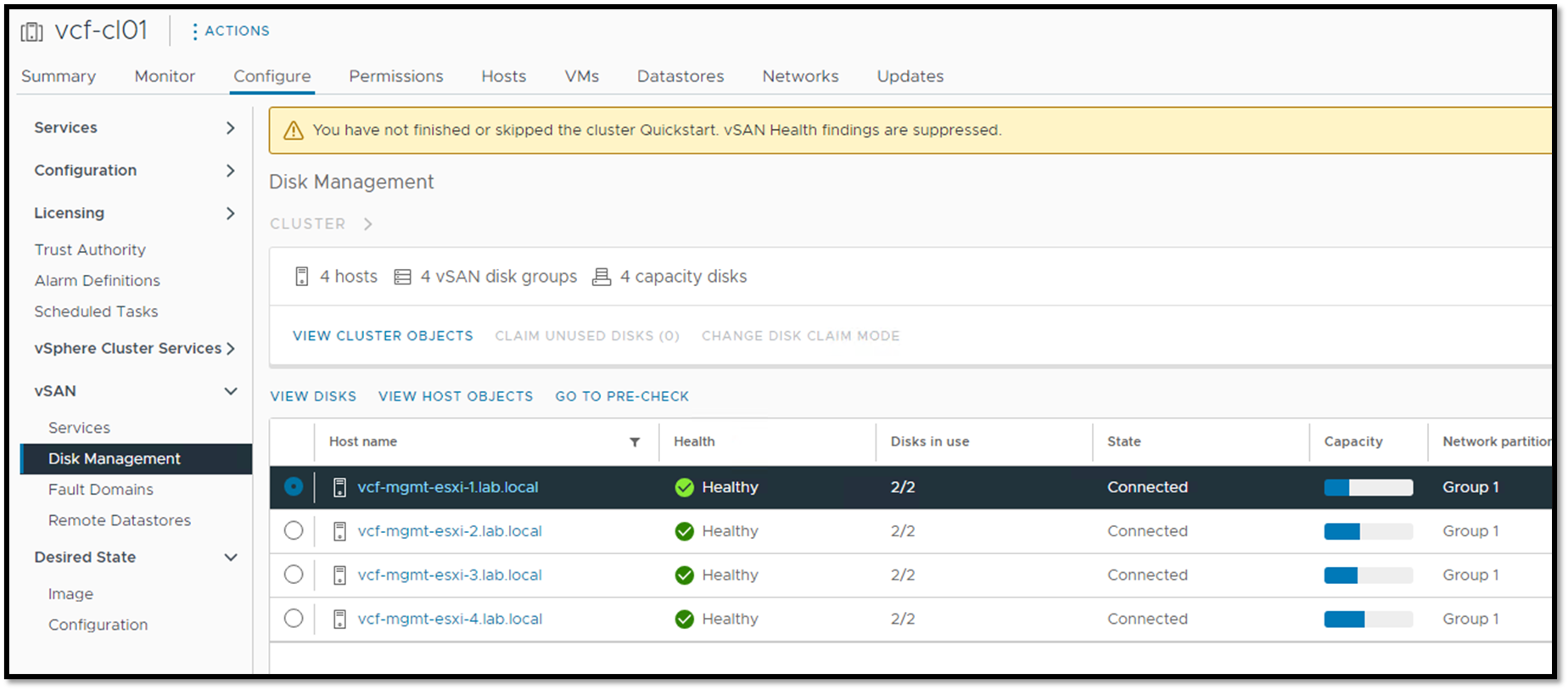
To get all vSAN Disk Groups from PowerCLI, the following command can be used:
Get-VsanDiskGroup -Cluster "vcf-cl01" | ft -Wrap -Autosize

#replace vcf-cl01 to your cluster name
#you can run Get-Cluster to get all available cluster under the vCenter Server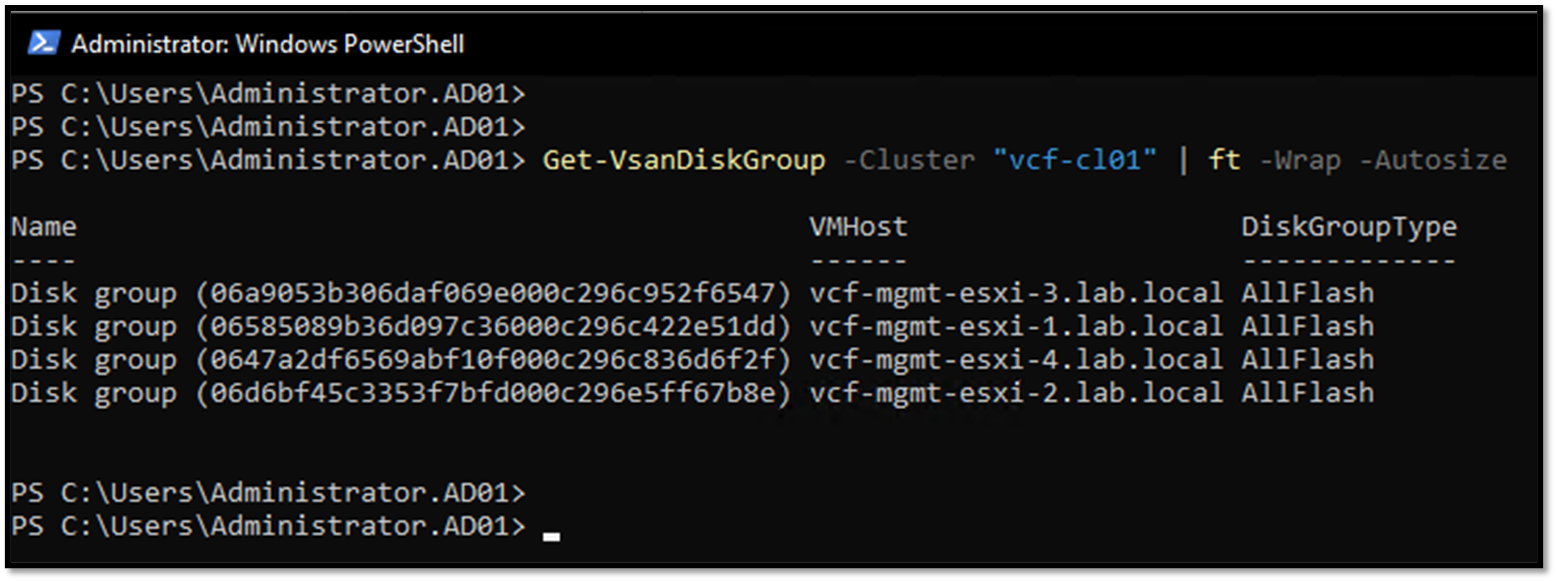
To get more details of each one:
Get-VsanDiskGroup -Cluster "vcf-cl01" | fl

#replace vcf-cl01 to your cluster name
#you can run Get-Cluster to get all available cluster under the vCenter Server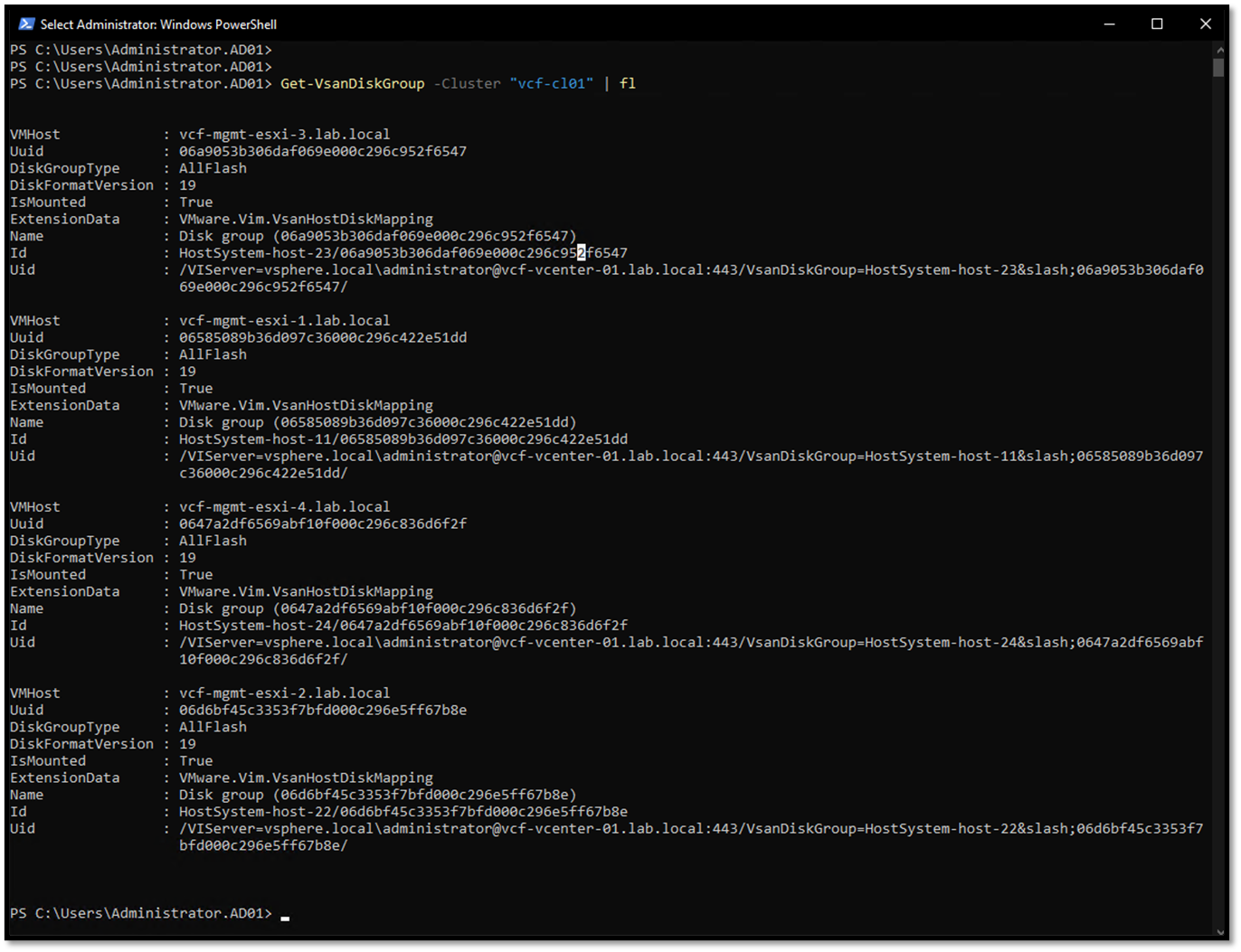
Getting vSAN Objects Details
To get all vSAN Objects, execute the following command:
Get-VsanObject -Cluster "vcf-cl01"

#replace vcf-cl01 to your cluster name
#you can run Get-Cluster to get all available cluster under the vCenter Server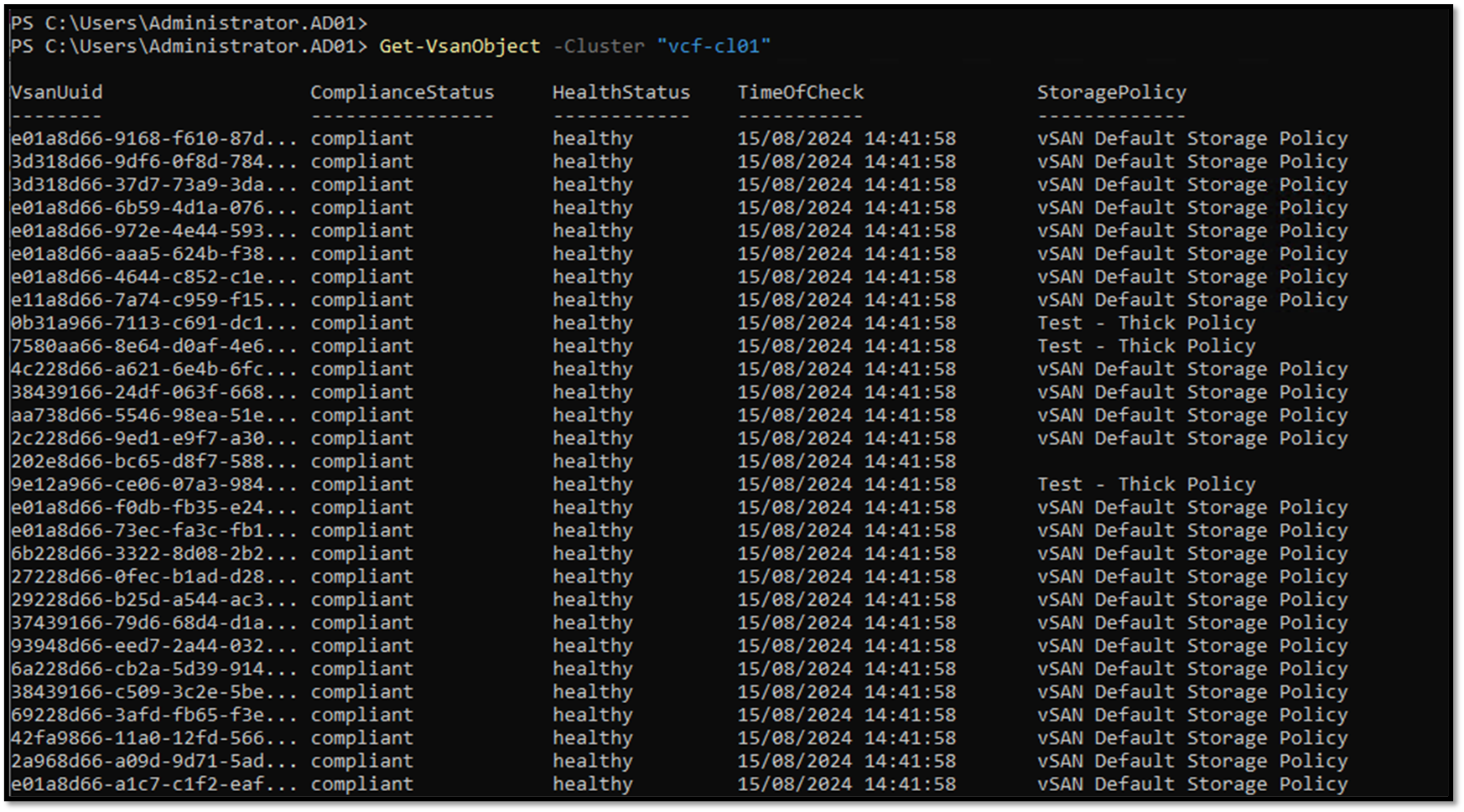
Look at the previous command; the “vSanUuid” field did not show its entire value. We can use the following command to solve it:
Get-VsanObject -Cluster "vcf-cl01" | Format-Table -Property VsanUuid, ComplianceStatus, VsanHealth, StoragePolicy -Wrap -AutoSize

#replace vcf-cl01 to your cluster name
#you can run Get-Cluster to get all available cluster under the vCenter Server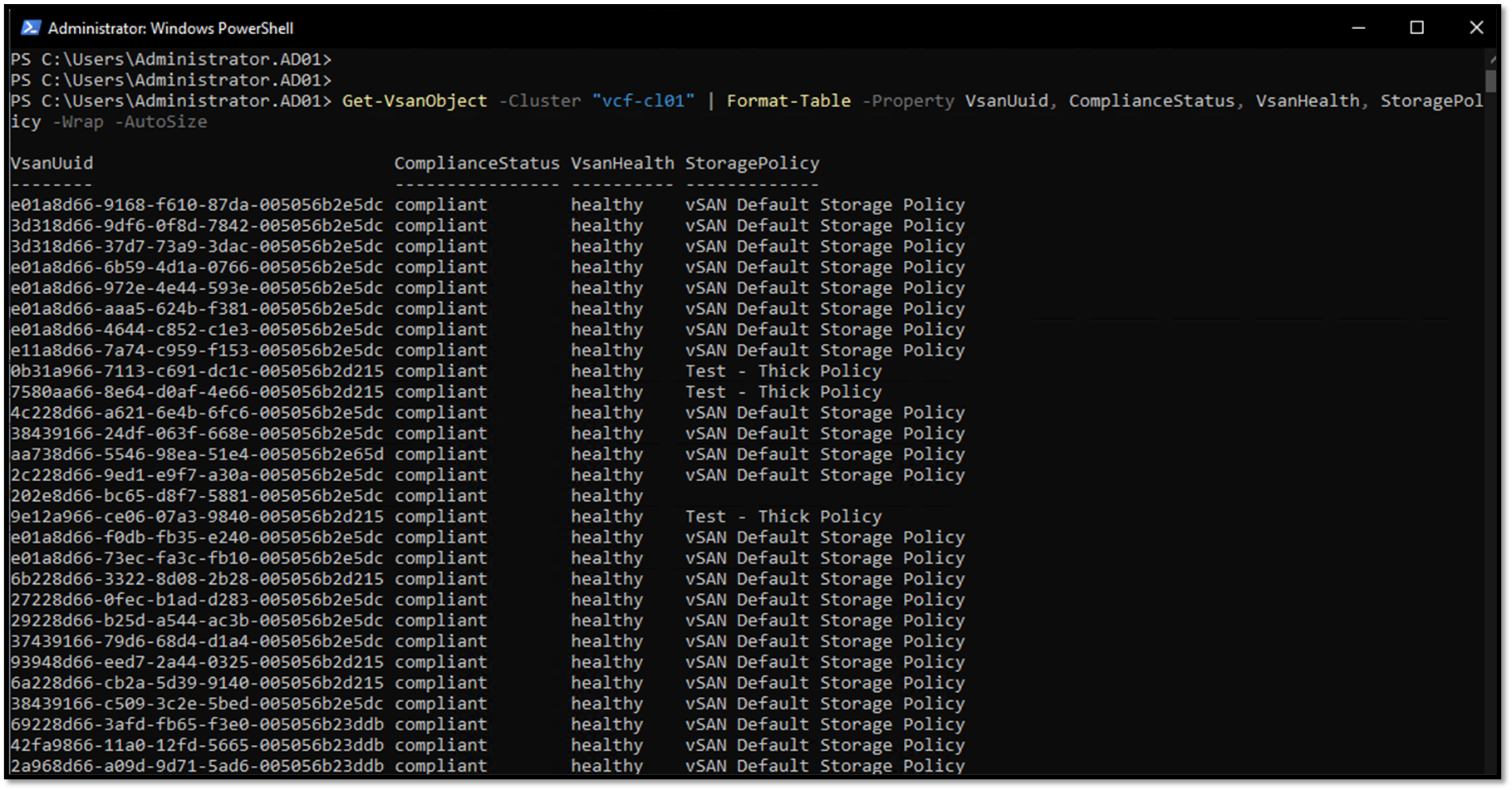
To get all vSAN Objects with a “vSanHealth” value different from “healthy”:
Get-VsanObject -Cluster "vcf-cl01" | Where-Object { $_.VsanHealth -ne "healthy" }

#replace vcf-cl01 to your cluster name
#you can run Get-Cluster to get all available cluster under the vCenter Server
To get details of a specific vSAN Object, execute the following command:
Get-VsanObject -Cluster "vcf-cl01" | Where-Object { $_.VsanUuid -eq "202e8d66-bc65-d8f7-5881-005056b2e5dc" } | Format-List *

#replace vcf-cl01 to your cluster name
#you can run Get-Cluster to get all available cluster under the vCenter Server

#replace "202e8d66-bc65-d8f7-5881-005056b2e5dc" to your vSAN Object UUID
Getting vSAN Cluster Health Status
To get the vSAN Health status, we can execute the following command:
# Retrieve and store the health report
$healthReport = Test-VsanClusterHealth -Cluster "vcf-cl01"

# Inspect detailed properties
$healthReport | Format-List *

#replace vcf-cl01 to your cluster name
#you can run Get-Cluster to get all available cluster under the vCenter Server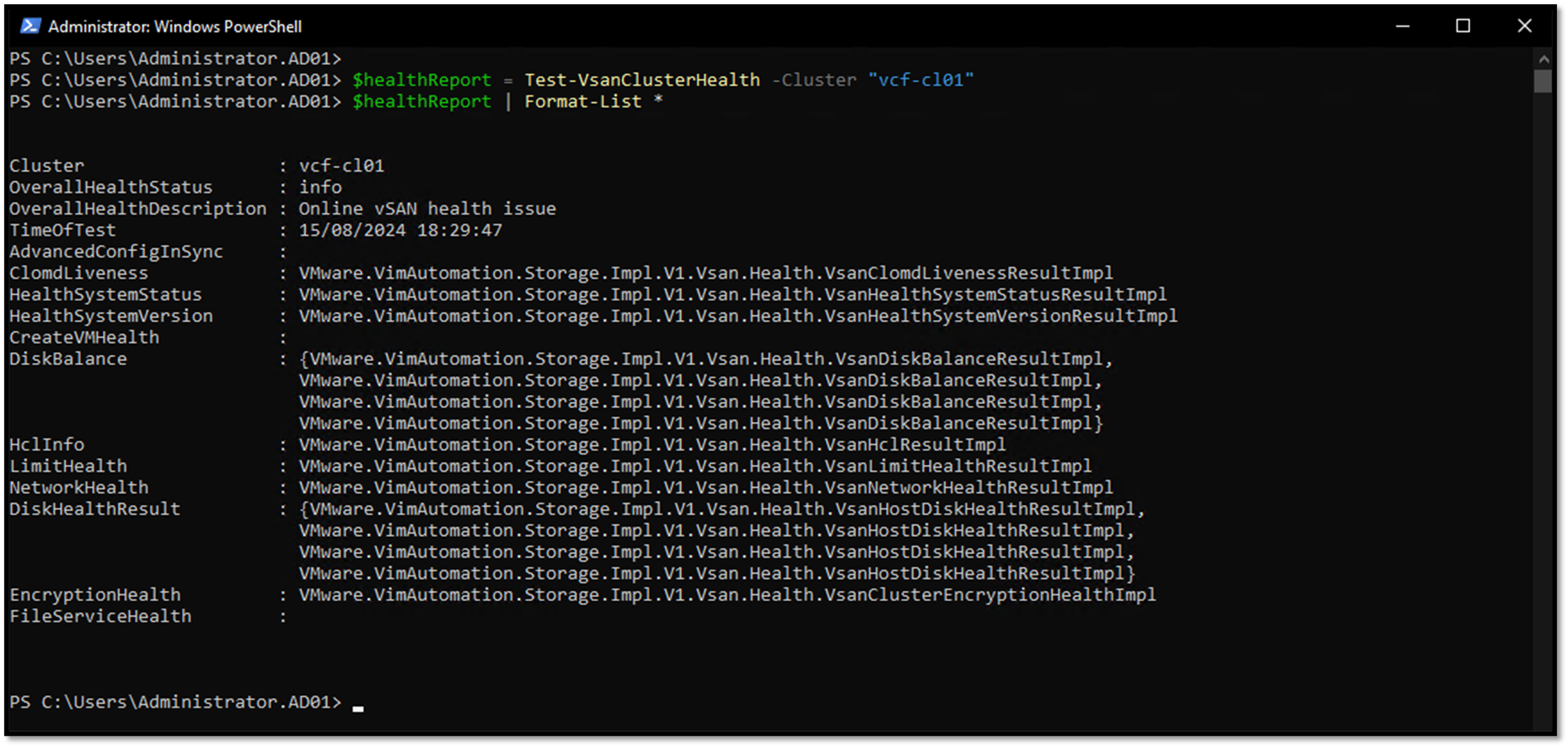
As we can see in the above image, the “OverallHealthStatus” is “info.” It is possible to get specific health results for each item, for example:
$healthReport.HealthSystemStatus | Format-List *
$healthReport.DiskHealthResult | Format-List *
$healthReport.NetworkHealth | Format-List *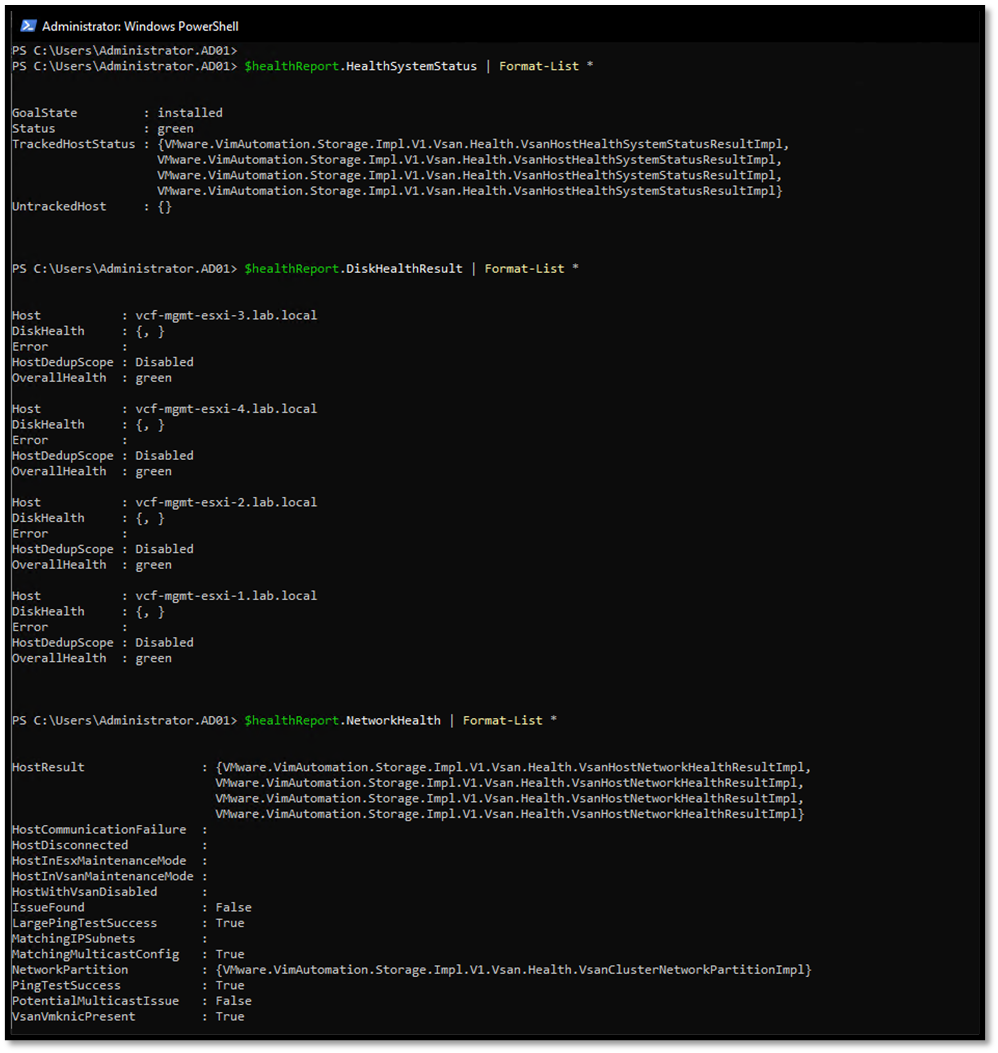
To Wrapping This Up
The PowerCLI is a powerful tool that helps automate many tasks on an administrator’s day. We showed some examples of how to get vSAN details. However, feel free to explore more and more to make your day as easy as possible 🙂
