
Close Menu
DPC Virtual Tips
    Read More

    How to Investigate TCP Retransmissions on Linux

    August 11, 2026

    Slurm Node Is DRAINED: How to Find the Exact Reason

    August 10, 2026

    Why Is My Slurm Job Pending? How to Decode Every Common Reason

    August 9, 2026
    • Home
    • About Us
    • Contact
    • Cookie Policy
    • Comment Policy
    • Privacy Policy
    • Terms of Use
    • Disclaimer
    Tuesday, August 11
    DPC Virtual Tips
    • Home
    • Operating Systems
    • PowerFlex
    • HPC
    • Virtualization
    • About the Author
    • About Us
    • Contact
    DPC Virtual Tips
    Home » Managing the vCenter Server Services
    Virtualization

    Managing the vCenter Server Services

    DaniloBy DaniloNovember 4, 2022Updated:July 31, 2026No Comments2 Mins Read
    Facebook Twitter Pinterest LinkedIn Tumblr Email
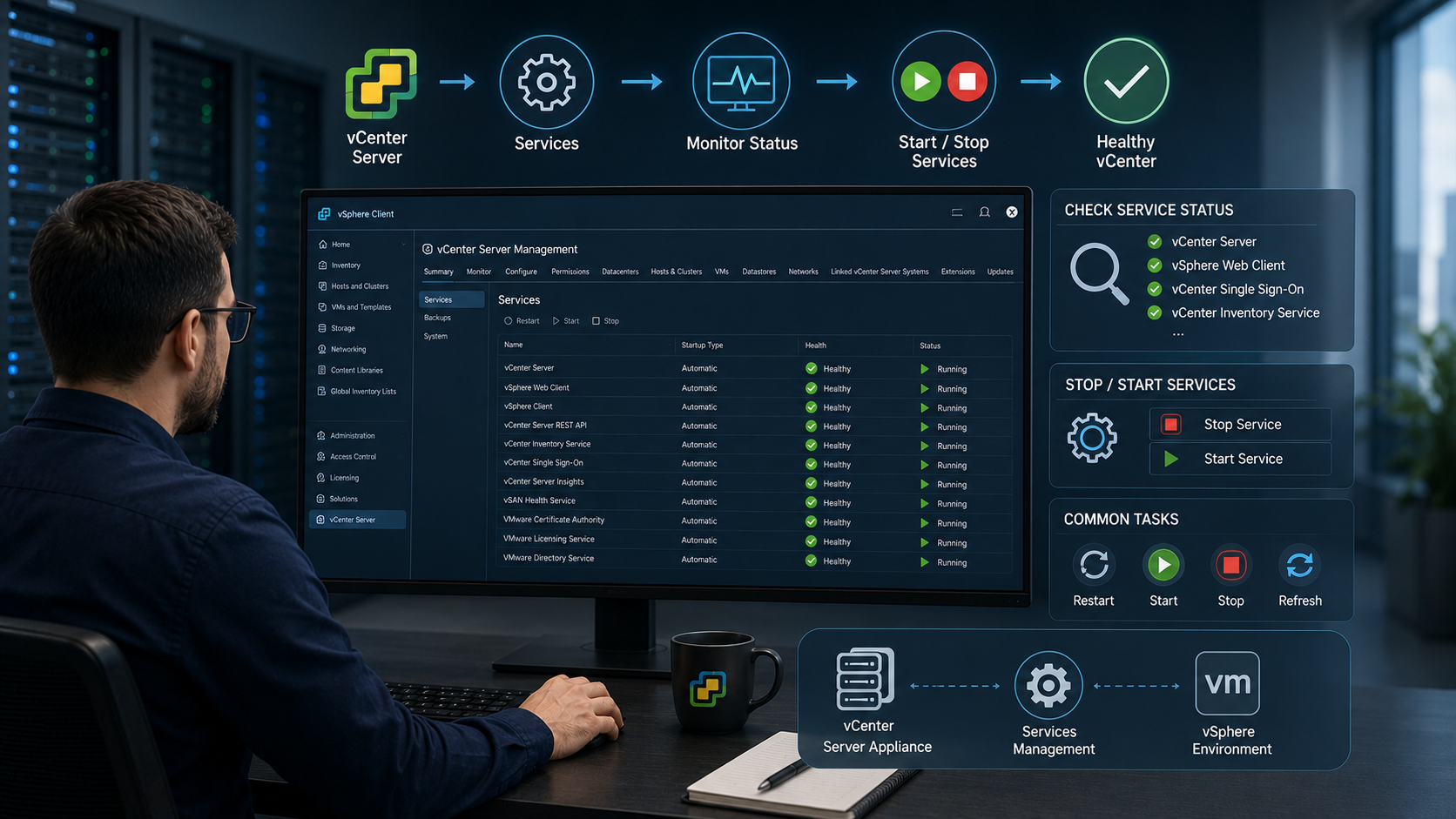
    vCenter Server services
    Share
    Facebook Twitter LinkedIn Pinterest Email

    Managing the vCenter Server Services is a very important task for all vSphere Administrators. In this article, we will show how to see the status of all services and, if necessary, how to stop and start these services.

    Access the vCenter Server by SSH

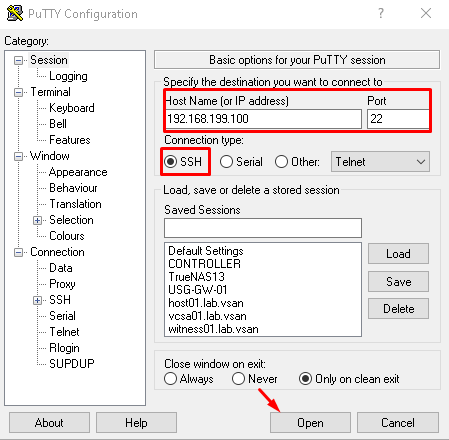
    The first step for Managing the vCenter Server Services is to access the vCenter Server by SSH. You can use your first SSH client, but, in this lab, we are using Putty to access the vCenter Server. To download Putty, click HERE.

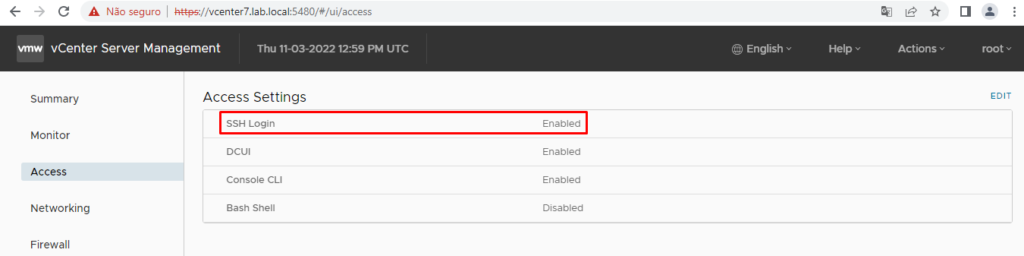
    Before, access the VAMI interface and check if SSH service is enabled. On the Access menu, check if the SSH Login is Enabled. If not, click on Edit and enabled it.

    In this lab, for instance, the SSH Login is already enabled:
    Open the Putty application and access the vCenter Server by SSH. In this lab, for instance, the vCenter Server IP is 192.168.199.100:
    Type the root username and password:
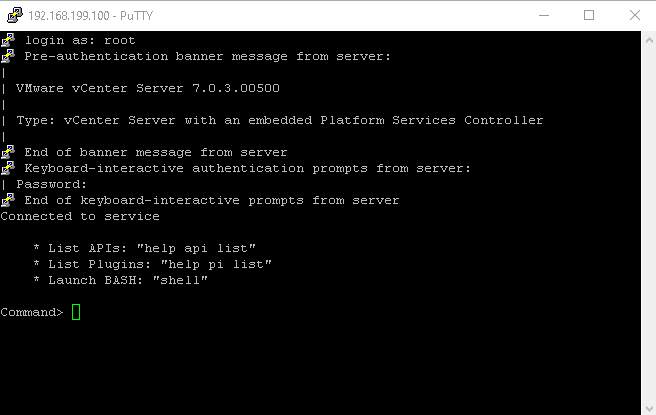
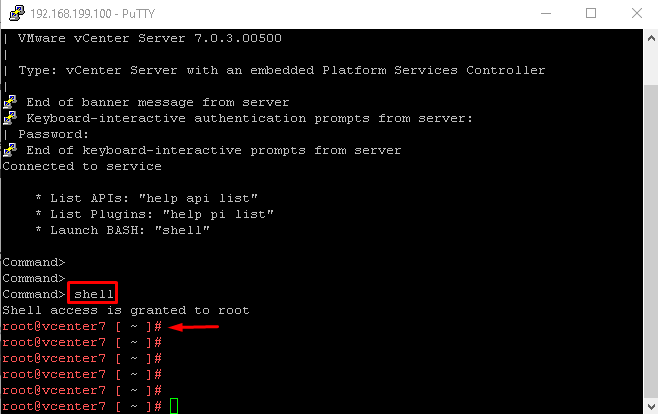
    By default, the default shell for the root user is not a “bash” shell. So, to gain access to the bash shell is necessary to type “shell” and press ENTER:
    Check the vCenter Services’ status

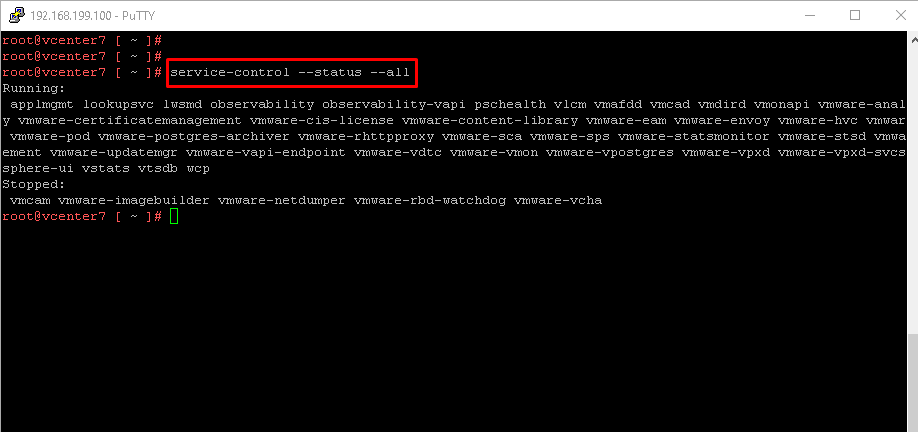
    As I said, the vCenter Server has a lot of services. To check these services’ status by CLI, the command below can be used:

    service-control –status –all
    To stop all services, for instance, we can execute the command below:

    service-control –stop –all

    To start all services:

    service-control –start –all

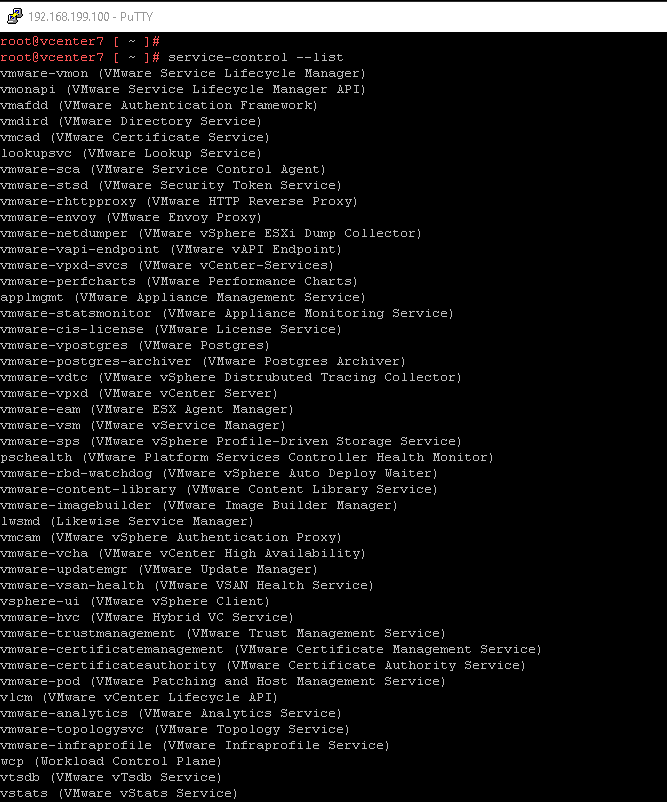
    Note: To see all the vCenter Server names, we can execute the command below:

    service-control –list
    Note: It is possible to apply the “stop” or “start” in a specific service. If you want to stop and start the service called “wcp”, for instance, you can use the command:

    service-control –stop wcp
    service-control –start wcp

    To get more details about it, check the link below:

    https://kb.vmware.com/s/article/2109887

    Share. Facebook Twitter Pinterest LinkedIn Tumblr Email
    Previous ArticleCreating a Backup of vCenter Data
    Next Article Configure Time Sync by NTP for the vCenter
    Danilo

    Infrastructure Engineer with experience in Virtualization, Linux, Windows Server and learning automation using Python. DPC Virtual Tips was created to share practical tutorials, lab experiences and troubleshooting guides focused on enterprise infrastructure technologies.

    Related Posts

    VM Replication with vSphere Replication and Site Recovery Manager

    June 16, 2025

    Changing DNS Settings on ESXi Hosts

    May 20, 2025

    Changing NTP Settings on ESXi Hosts

    May 19, 2025

    Comments are closed.

    Search
    Categories
    • HPC (10)
    • Operating Systems (83)
    • PowerFlex (22)
    • Virtualization (129)
    Read More
    Operating Systems

    How to Investigate TCP Retransmissions on Linux

    By DaniloAugust 11, 20260
    HPC

    Slurm Node Is DRAINED: How to Find the Exact Reason

    By DaniloAugust 10, 20260
    HPC

    Why Is My Slurm Job Pending? How to Decode Every Common Reason

    By DaniloAugust 9, 20260
    Operating Systems

    Linux Process Resource Usage: How to Find Heavy Processes

    By DaniloAugust 6, 20260
    HPC

    Lustre Filesystem Commands: A Practical Admin Guide

    By DaniloAugust 5, 20260
    Latest Posts

    How to Investigate TCP Retransmissions on Linux

    August 11, 2026

    Slurm Node Is DRAINED: How to Find the Exact Reason

    August 10, 2026

    Why Is My Slurm Job Pending? How to Decode Every Common Reason

    August 9, 2026
    Images from Gallery
    hpc main commands
    linux commands
    install rock linux
    lustre fs
    shell scripting
    vSAN Trace Files
    Categories
    • HPC
    • Operating Systems
    • PowerFlex
    • Virtualization
    • Home
    • About Us
    • Contact
    • Cookie Policy
    • Comment Policy
    • Privacy Policy
    • Terms of Use
    • Disclaimer
    Copyright © 2026, DPC Virtual Tips. All rights reserved.

    Type above and press Enter to search. Press Esc to cancel.

    We use cookies to ensure your best experience on our website. If you continue using our website, we'll assume you agree to our cookie policy