


Monitoring vCenter Server Certificate Status is an article that shows some ways to monitor vCenter Server Certificate status.
Managing certificates can become challenging, especially in environments with multiple vCenter Servers. In this article, we will explore some methods to verify certificate status and configure notifications to help administrators identify certificate expiration issues before they impact the environment.
VMware provides detailed documentation about vCenter Server certificates and their management process. Before configuring monitoring and email notifications, it is important to understand how certificate information is displayed and managed inside the vSphere Client and through the vCenter Server command line:
- https://kb.vmware.com/s/article/68171
- https://kb.vmware.com/s/article/79248
- https://kb.vmware.com/s/article/76719
- https://kb.vmware.com/s/article/83558
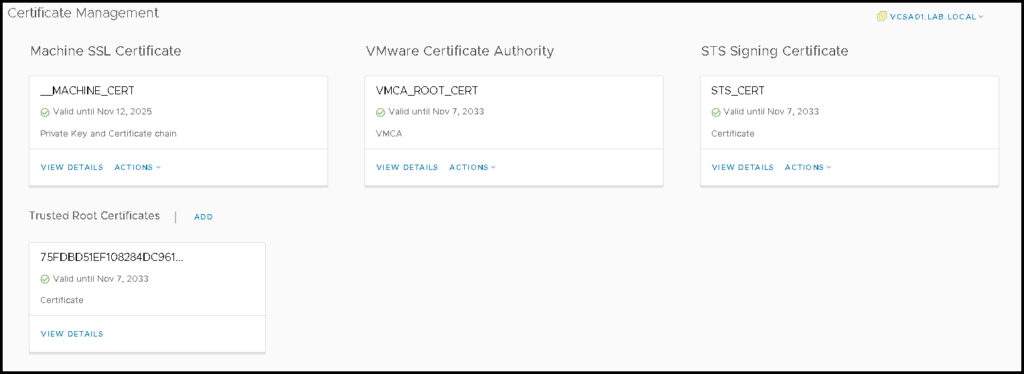
In this context, we can access the vSphere Client interface and check the status of some certificates under Certificate Management, as we can see in an example from our lab:
We can achieve the same aim from the vCenter command line. But, our aim here is to configure our vCenter Server to send email notifications when we have an alert related to the Certificate Expiration 🙂
First and Foremost, Configure your vCenter to talk with your Mail Server
To achieve it, our vCenter Server needs to be able to communicate with a valid mail server. In our example, we are configuring our vCenter Server to use our local mail server, as we can see in the below pictures:
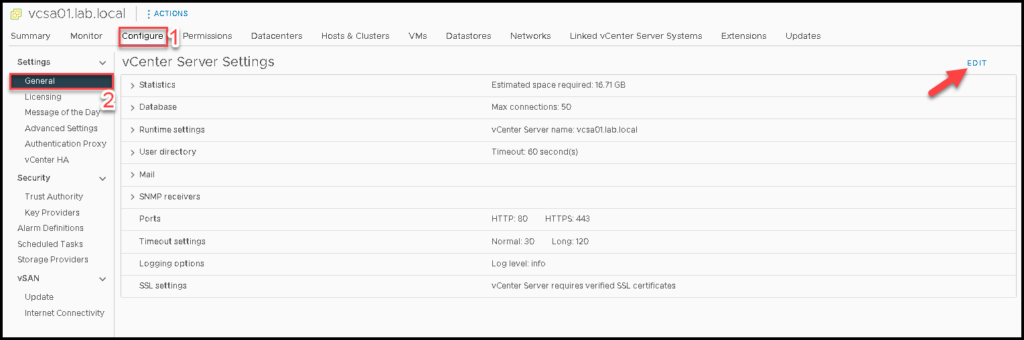
In this example, the mail server is “192.168.255.130” and the mail sender address is “vcenter_xyz@your_business.com” – this is the source address that vCenter will use to send email notifications.
Note: In this case, your mail server needs to permit the vCenter Server sends email messages wihtout authentication.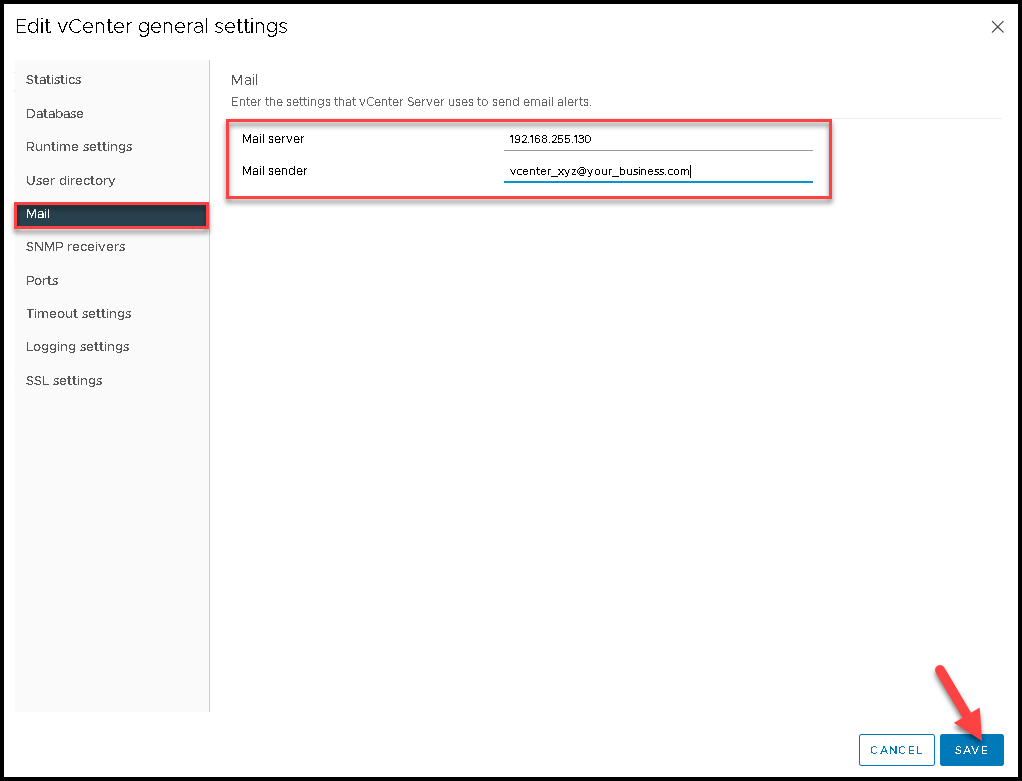
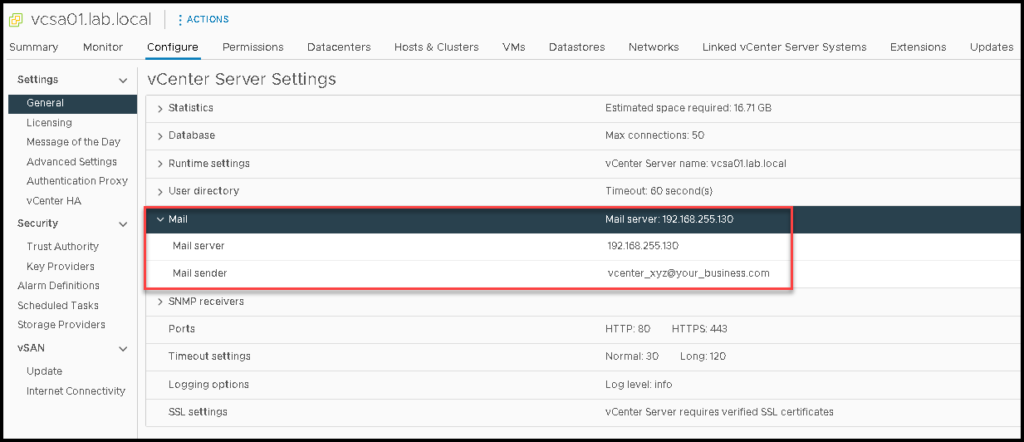
After saving, we can see the configurations on the General tab, as we can see below:
Certificate Status Alarm
By default, the vCenter Server has a lot of pre-defined alerts. One of them is the “Certificate Status” alert:
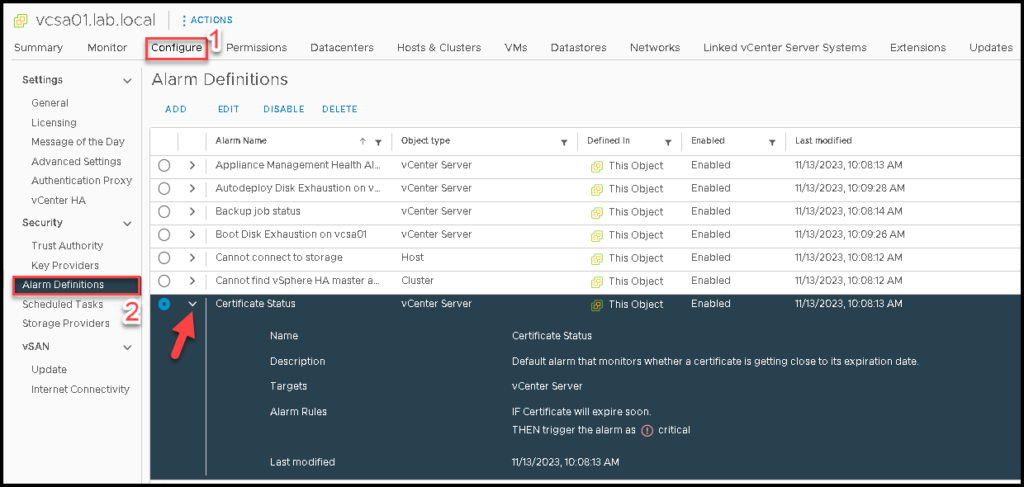
The aim of this alert is to alert the vCenter administrator that there are certificates close to their expiration date. By default, when the administrator accesses the vSphere Client, an alert will show in this console.
An example of this critical alert on the vSphere Client:
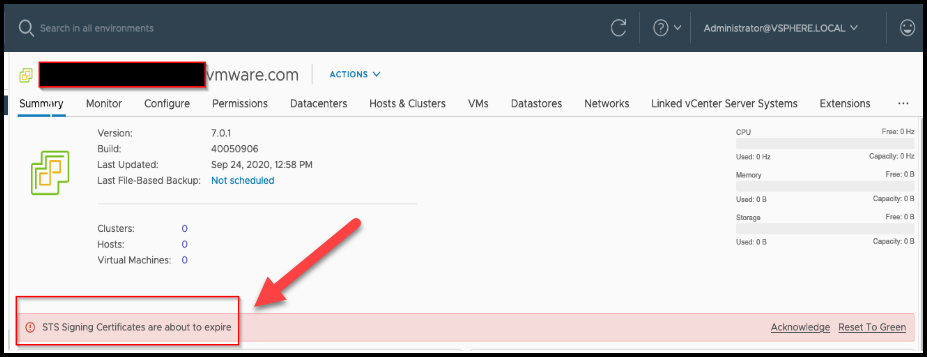
But, additionally, we can configure it to send an email as well 🙂
We will show the necessary steps to achieve this aim.
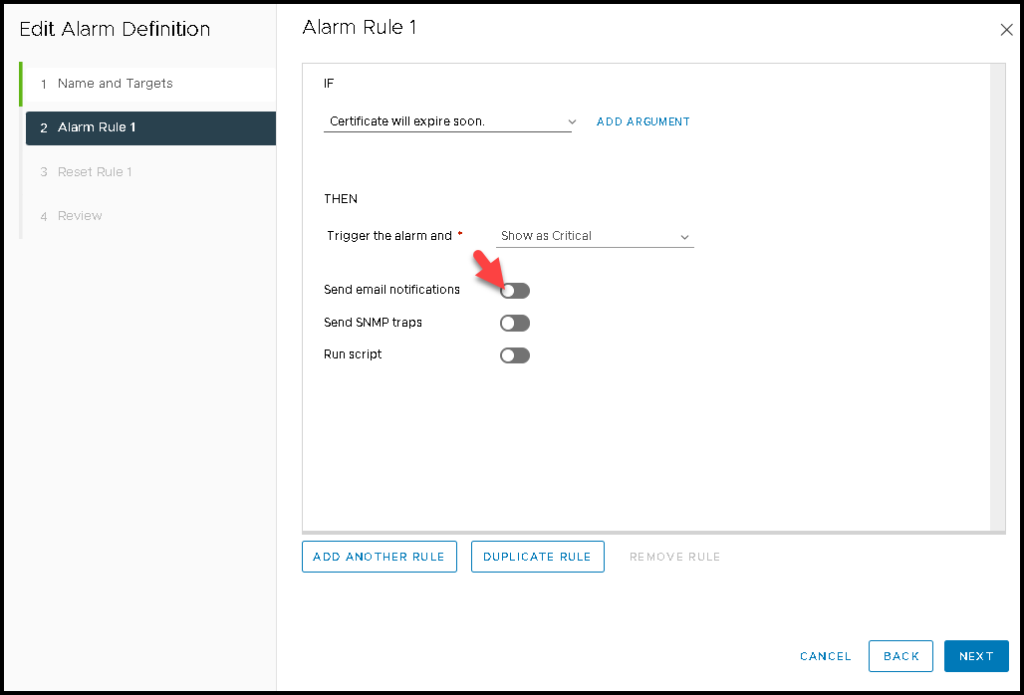
To do it, follow the below pictures:
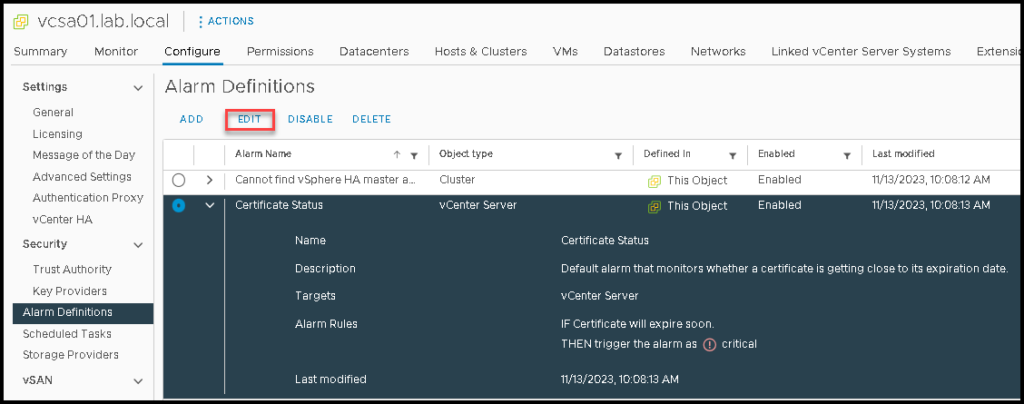
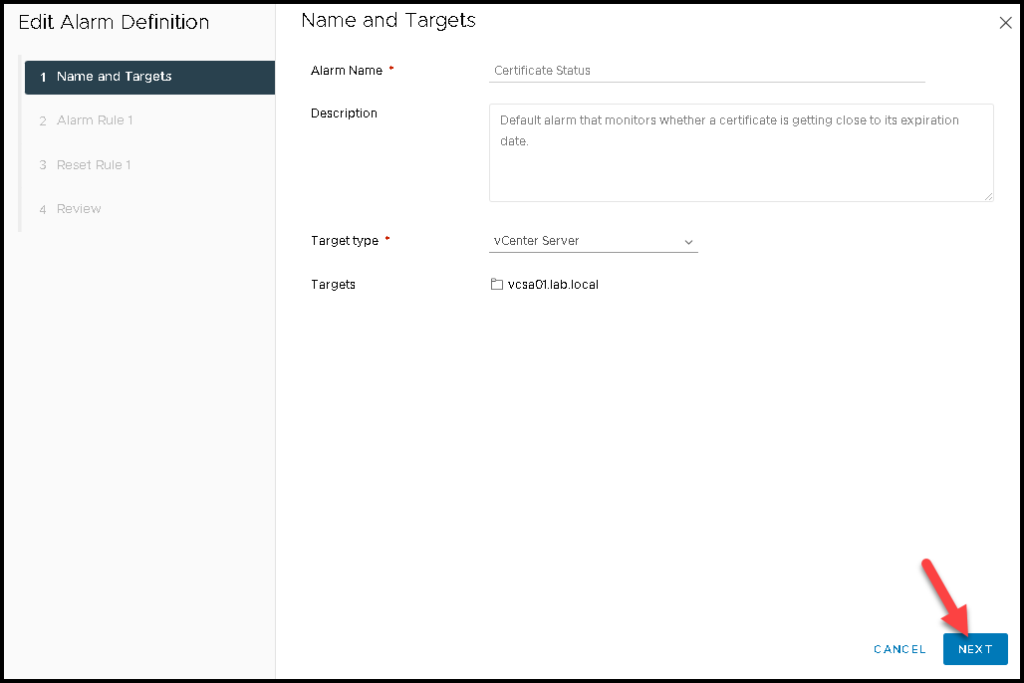
On “Send email notifications”, toggle to enable this option:
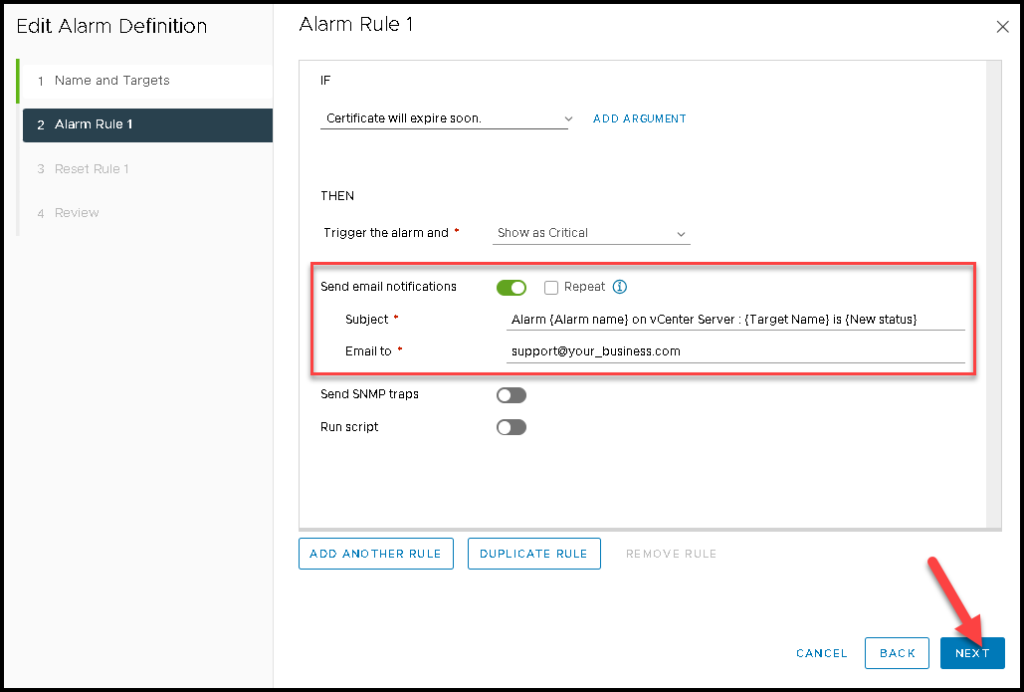
You can configure the email “Subject” as you want.
Under “Email to”, you need to specific what is the email address that will receive this notification:
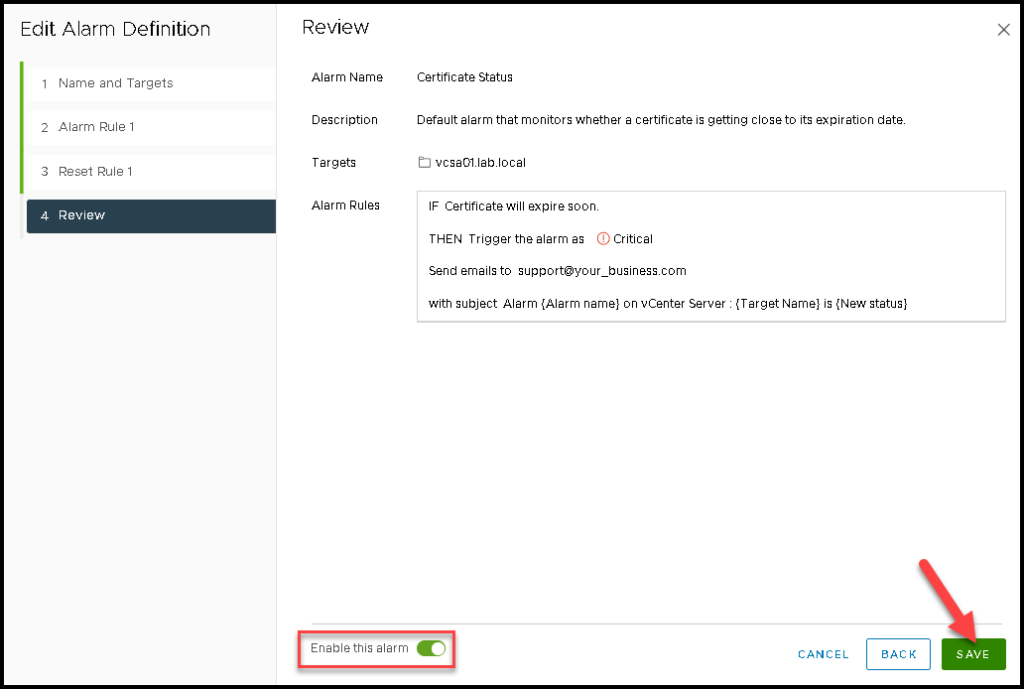
Check if this alarm remains enabled and click on “SAVE” to finish:
That’s it 🙂
