
Close Menu
DPC Virtual Tips
    Read More

    How to Troubleshoot Packet Drops on an ESXi Host

    August 16, 2026

    SlurmDBD Is Down: What Continues Working and What Does Not

    August 15, 2026

    How to Investigate Jobs Stuck in COMPLETING State on Slurm

    August 14, 2026
    • Home
    • About Us
    • Contact
    • Cookie Policy
    • Comment Policy
    • Privacy Policy
    • Terms of Use
    • Disclaimer
    Monday, August 24
    DPC Virtual Tips
    • Home
    • Operating Systems
    • PowerFlex
    • HPC
    • Virtualization
    • About the Author
    • About Us
    • Contact
    DPC Virtual Tips
    Home » Creating a Simple Python Project Using a Virtual Environment
    Operating Systems

    Creating a Simple Python Project Using a Virtual Environment

    DaniloBy DaniloJanuary 12, 2026Updated:August 2, 2026No Comments2 Mins Read
    Facebook Twitter Pinterest LinkedIn Tumblr Email
    Python project using virtual environment
    Share
    Facebook Twitter LinkedIn Pinterest Email

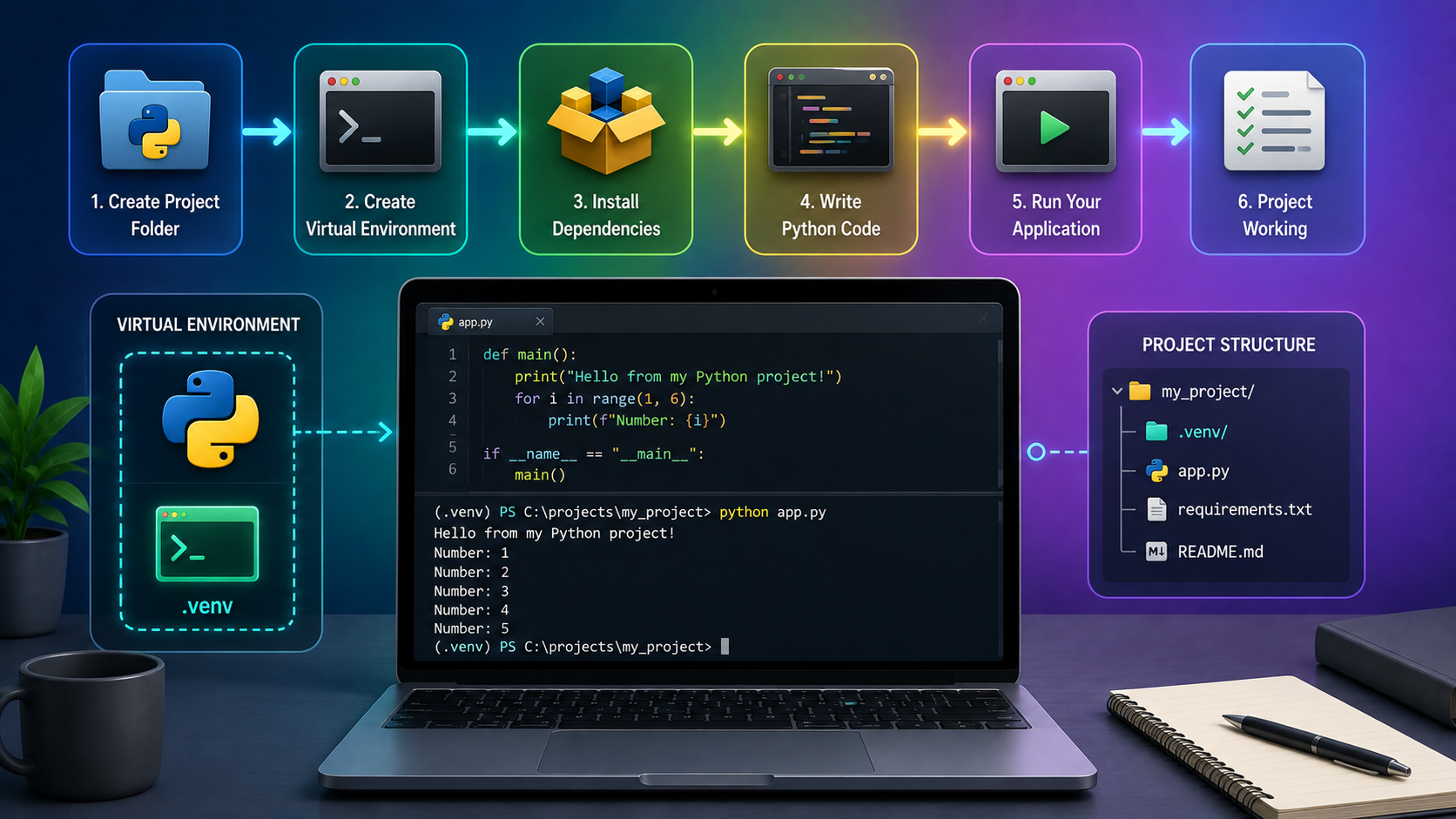
    Creating a Simple Python Project Using a Virtual Environment demonstrates, in practice, how to use a virtual environment.

    First and foremost, we’ve written an article to explain how to install Python on Windows. Click here to access this article.

    Additionally, if you’re not familiar with Python virtual environment (venv), there is an article to explain it a bit. Click here to access this article.

    Important note: We're running Python on Windows. However, I thing that all the steps can work on Linux (feel free to test it on Linux)!

    Let’s Get Started: The Python Directory

    After installing Python (on Windows, Linux, or any operating system), a good practice is to create a directory to store your Python projects. In our case, for instance, since we’re on Windows, a Python directory could be:

    C:\python

    To create it, open the cmd and execute the following command:

    mkdir C:\python

    Creating the Project

    So, now, let’s create our project from scratch. In this case, for instance, we’ll create an SSH runner project to run commands on a remote host through an SSH connection:

    1. Create the project directory inside the Python directory:

    mkdir C:\python\py-ssh-runner
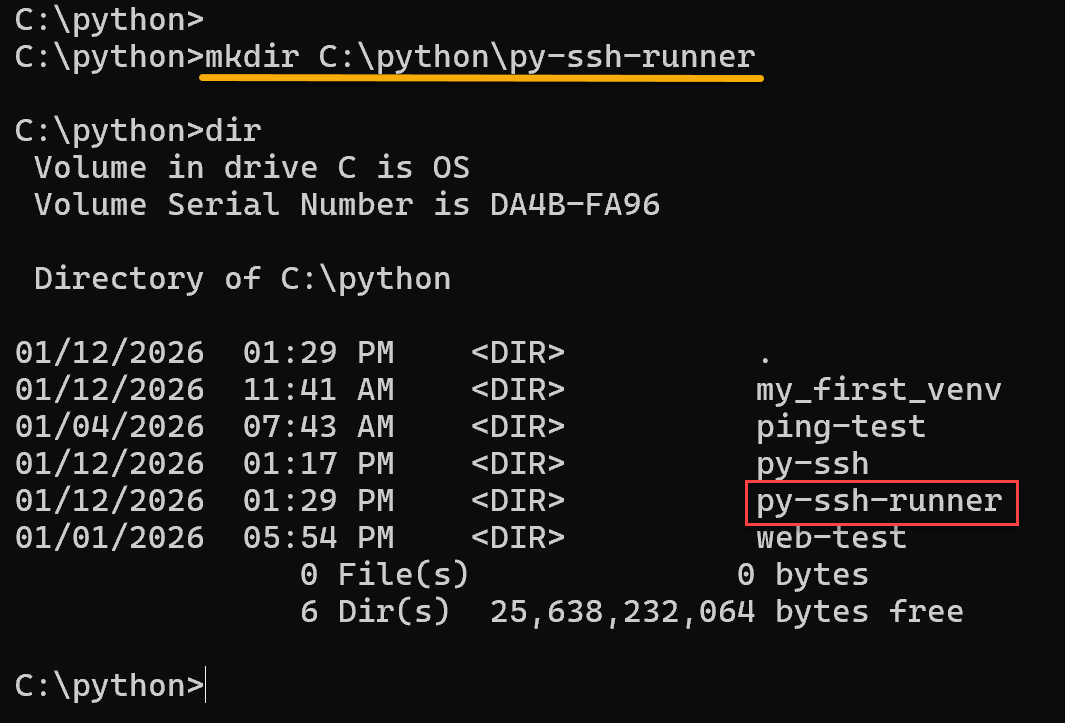
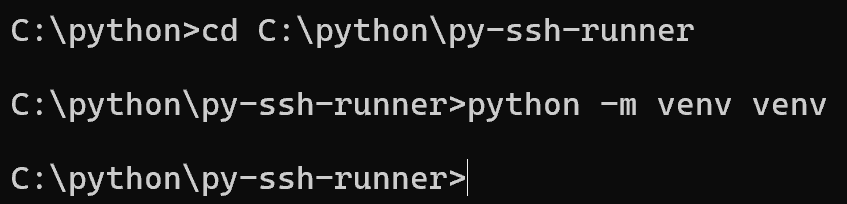
    2. Access the project directory and create the Python virtual environment (venv):

    cd C:\python\py-ssh-runner
    python -m venv venv
    3. Activate the virtual environment:

    venv\Scripts\activate

    Note: Look at the command prompt. The “venv” name must be shown!

    4. Install SSH Module/Library (paramiko):

    pip install paramiko
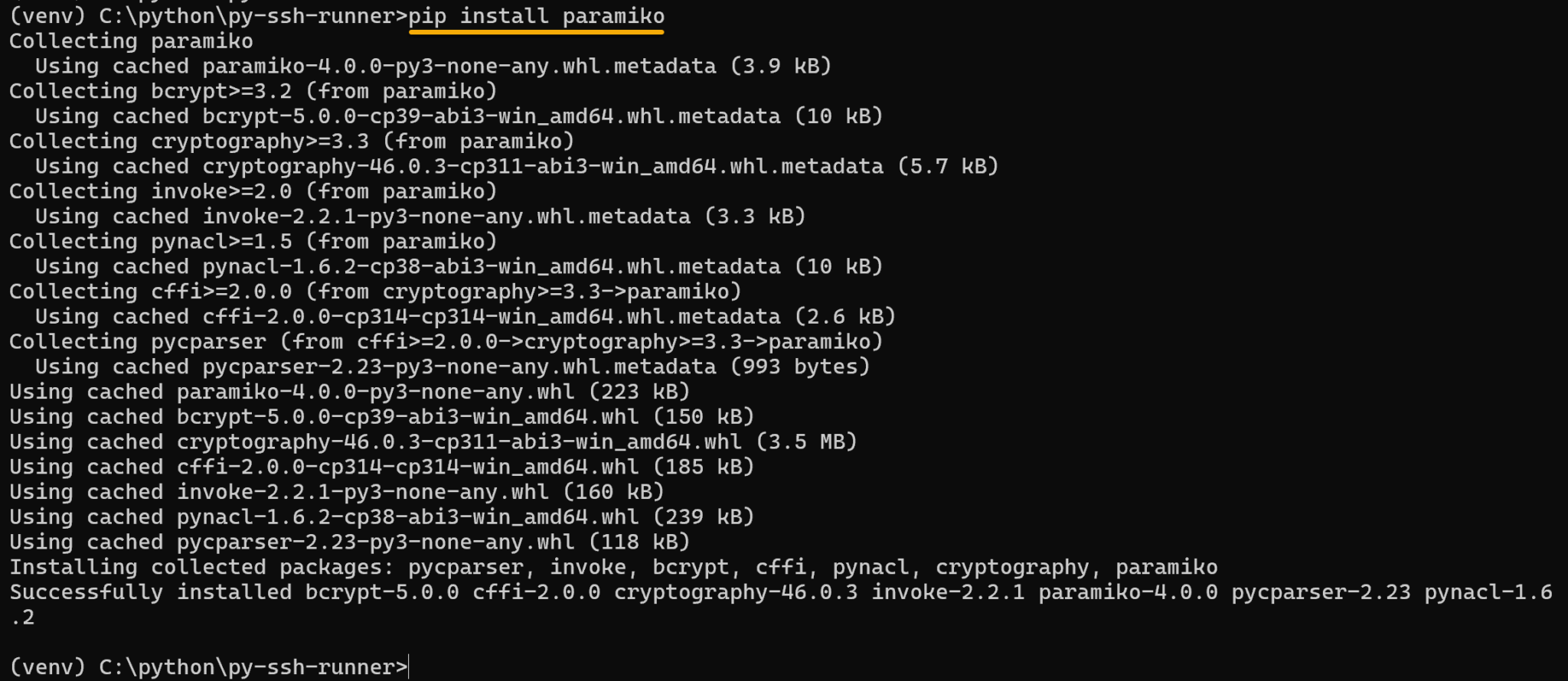
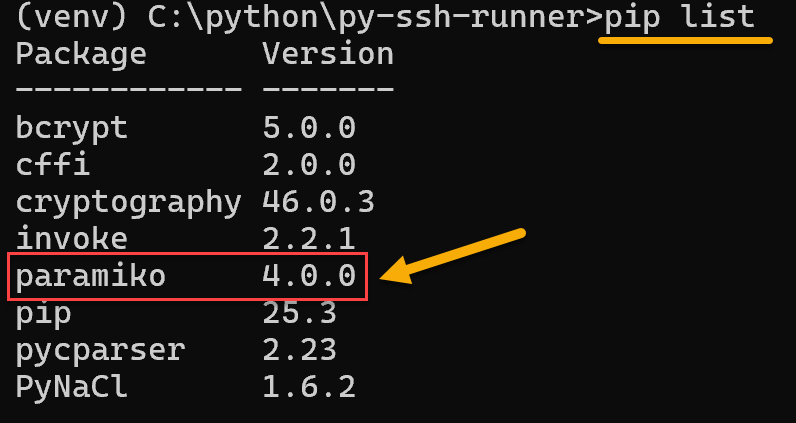
    To confirm it paramiko was installed successfully:

    pip list
    5. Create the SSH script:

    notepad ssh_runner.py

    And add the following content. After that, save the file and close the notepad application:

    import paramiko
    from getpass import getpass
    
    host = input("Host: ")
    user = input("User: ")
    password = getpass("Password: ")
    command = input("Command: ")
    
    ssh = paramiko.SSHClient()
    ssh.set_missing_host_key_policy(paramiko.AutoAddPolicy())
    ssh.connect(hostname=host, username=user, password=password)
    
    stdin, stdout, stderr = ssh.exec_command(command)
    
    print(stdout.read().decode())
    print(stderr.read().decode())
    
    ssh.close()

    6. Execute the SSH script:

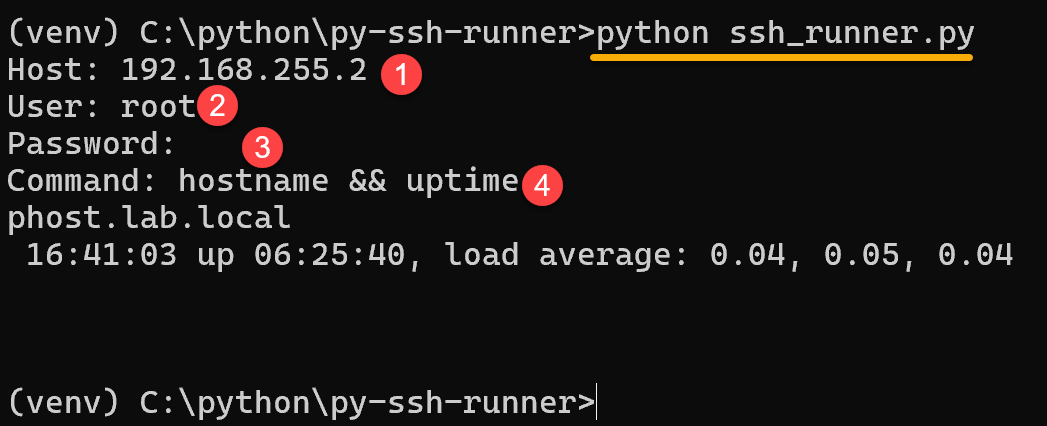
    python ssh_runner.py

    The script will ask for hostname or IP, username, password, and the command that you wanna to run on the remote host. For example:
    7. To correctly exit the virtual environment:

    deactivate

    That’s it for now 😉

    Share. Facebook Twitter Pinterest LinkedIn Tumblr Email
    Previous ArticleWorking with Python Virtual Environments on Windows
    Next Article Slurm srun Invalid account or account/partition combination specified
    Danilo

    Infrastructure Engineer with experience in Virtualization, Linux, Windows Server and learning automation using Python. DPC Virtual Tips was created to share practical tutorials, lab experiences and troubleshooting guides focused on enterprise infrastructure technologies.

    Related Posts

    Linux Server Has Free Memory but Is Swapping: Why?

    August 13, 2026

    How to Determine Whether Packet Loss Is Local or Network Related on Linux

    August 12, 2026

    How to Investigate TCP Retransmissions on Linux

    August 11, 2026

    Comments are closed.

    Search
    Categories
    • HPC (12)
    • Operating Systems (85)
    • PowerFlex (22)
    • Virtualization (130)
    Read More
    Virtualization

    How to Troubleshoot Packet Drops on an ESXi Host

    By DaniloAugust 16, 20260
    HPC

    SlurmDBD Is Down: What Continues Working and What Does Not

    By DaniloAugust 15, 20260
    HPC

    How to Investigate Jobs Stuck in COMPLETING State on Slurm

    By DaniloAugust 14, 20260
    Operating Systems

    Linux Server Has Free Memory but Is Swapping: Why?

    By DaniloAugust 13, 20260
    Operating Systems

    How to Determine Whether Packet Loss Is Local or Network Related on Linux

    By DaniloAugust 12, 20260
    Latest Posts

    How to Troubleshoot Packet Drops on an ESXi Host

    August 16, 2026

    SlurmDBD Is Down: What Continues Working and What Does Not

    August 15, 2026

    How to Investigate Jobs Stuck in COMPLETING State on Slurm

    August 14, 2026
    Images from Gallery
    hpc main commands
    linux commands
    install rock linux
    lustre fs
    shell scripting
    vSAN Trace Files
    Categories
    • HPC
    • Operating Systems
    • PowerFlex
    • Virtualization
    • Home
    • About Us
    • Contact
    • Cookie Policy
    • Comment Policy
    • Privacy Policy
    • Terms of Use
    • Disclaimer
    Copyright © 2026, DPC Virtual Tips. All rights reserved.

    Type above and press Enter to search. Press Esc to cancel.

    We use cookies to ensure your best experience on our website. If you continue using our website, we'll assume you agree to our cookie policy