


Sharing a Nutanix Volume Group with Windows explains how to create a Nutanix Volume Group and present its storage to a Windows Server system using iSCSI connectivity.
In a Nutanix environment, Volume Groups provide block-level storage volumes that can be accessed by external systems, applications, or bare-metal servers. This feature is commonly used when workloads require direct storage access through protocols such as iSCSI.
This article demonstrates the required steps to configure the iSCSI Data Services IP, create a Volume Group on Prism Element, and connect a Windows Server to the shared Nutanix storage.
What is a Storage Pool?
Definition: A collection of physical storage resources (disks across all nodes in the cluster) aggregated into a single pool.
Purpose: It acts as a raw storage capacity that can be allocated to various storage containers or used for volume groups.
Features: It provides redundancy and scalability; the Nutanix Distributed Storage Fabric (DSF) manages the underlying resources.

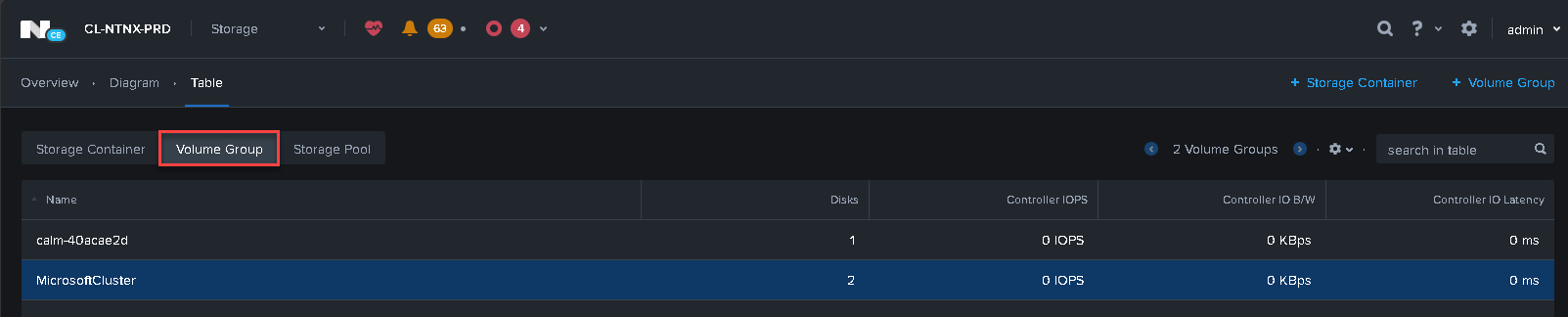
What is a Volume Group?
Definition: A set of virtualized storage volumes (LUNs) presented to external systems or applications.
Purpose: Designed to provide block-level storage for workloads such as databases or bare-metal servers that need iSCSI connectivity.
Usage: Accessed using protocols like iSCSI; supports advanced features like snapshots and replication.
Example use case: Hosting Oracle databases on a bare-metal server (Oracle systems are running on bare-metal servers, and the Nutanix Cluster provides their database).
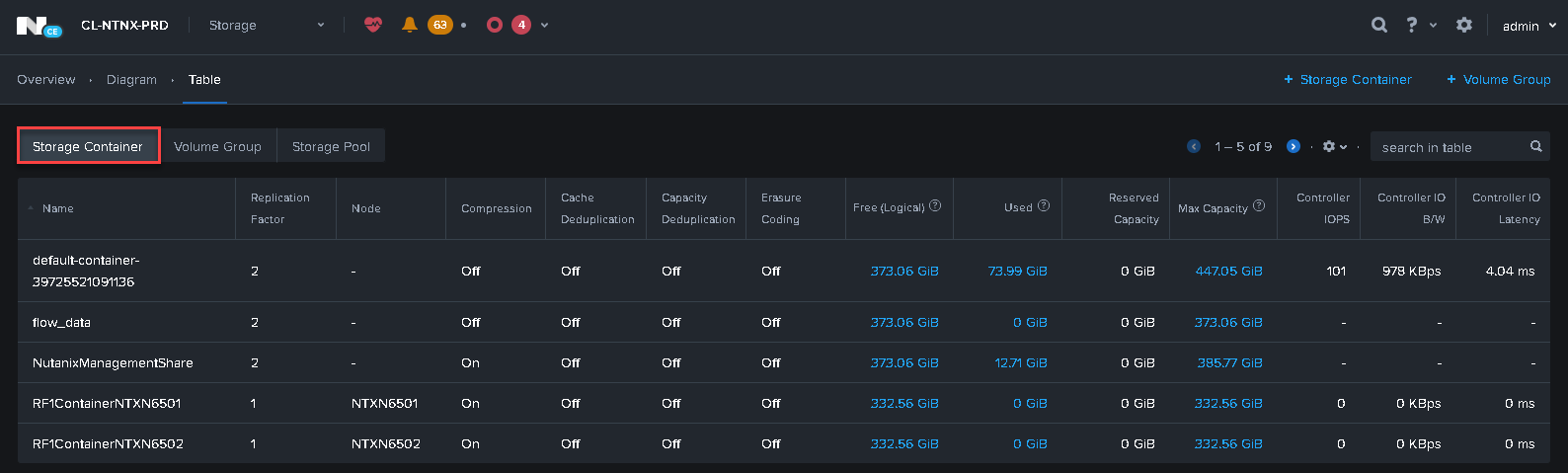
What is a Storage Container (or simply Container)?
Definition: A logical partition within a Storage Pool that provides shared storage for Nutanix-managed VMs and applications.
Purpose: Manages file system-level storage for VMs and applications, leveraging Nutanix’s features like deduplication, compression, and erasure coding. For example, we specify the replication factor on a storage container.
Features: Policies like QoS, data replication, and snapshot schedules can be applied.
Example Use Case: Hosting VMs’ virtual disks (vDisks).
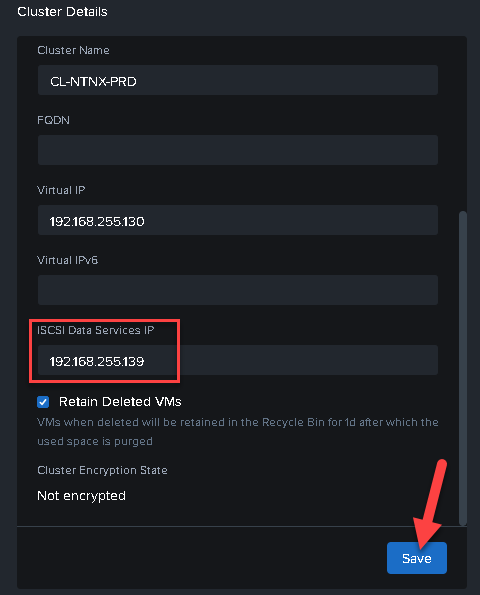
Setting iSCSI Data Services IP Up
The first step is to set up the iSCSI Data Services IP. This can be a new IP on the same subnet of the cluster Virtual IP. All client devices will access the shared volume through this address.
Access the Prism Element UI –> Settings –> Cluster Details –> ISCSI Data Services IP:
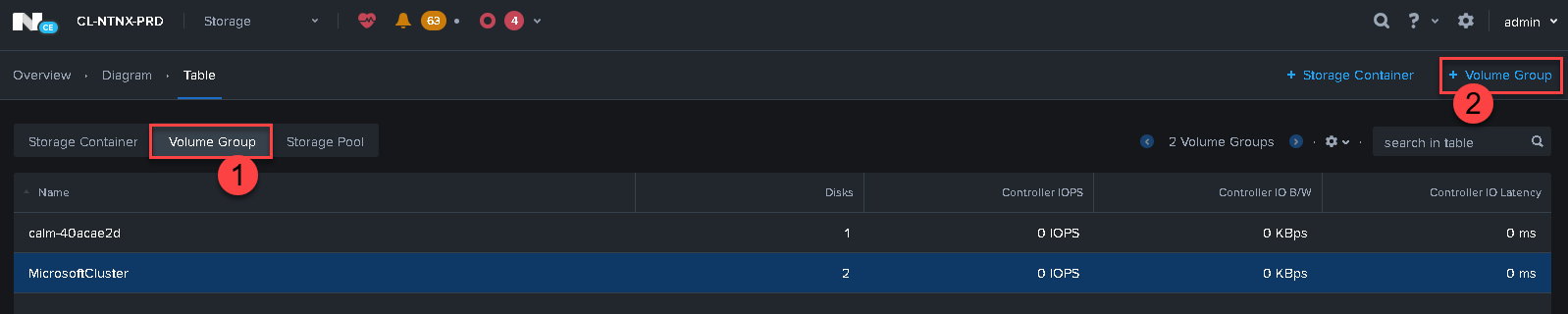
Creating a Volume Group on Prism Element
The next step is to create a volume group. On the Prism Element UI, access Storage –> Volume Group –> + Volume Group:
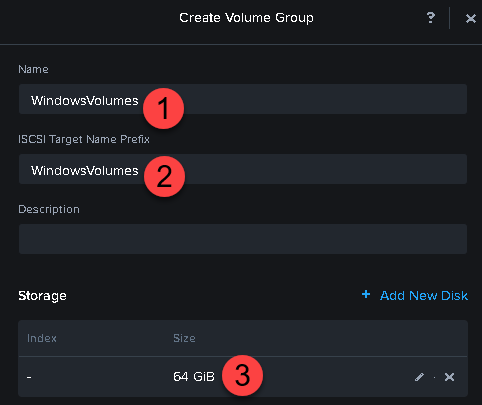
Type the Volume Group Name. This example is called “Windows Volumes.” The ISCSI Target Name Prefix will be filled automatically (you can change it if necessary).
Under Storage, we need to add disks. We have added a 64GB disk:
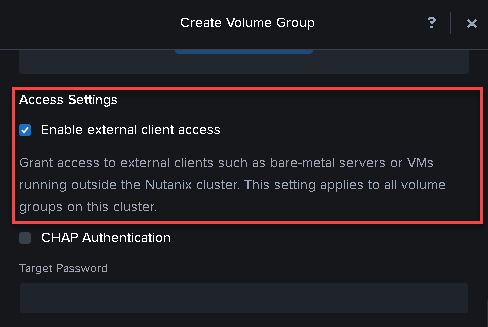
Scroll down the configuration page and select the option “Enable external client access” to allow that external client, such as bare-metal servers or VMs, to access this volume:
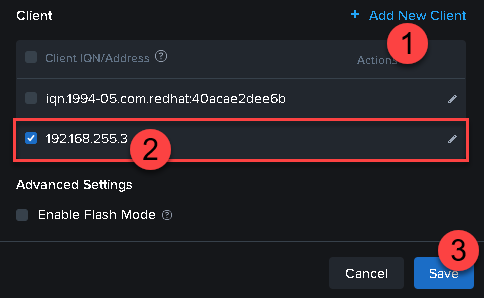
Under Client, add the IP address of the client that will access the volume. In this case, for instance, the Windows IP is 192.168.255.3:
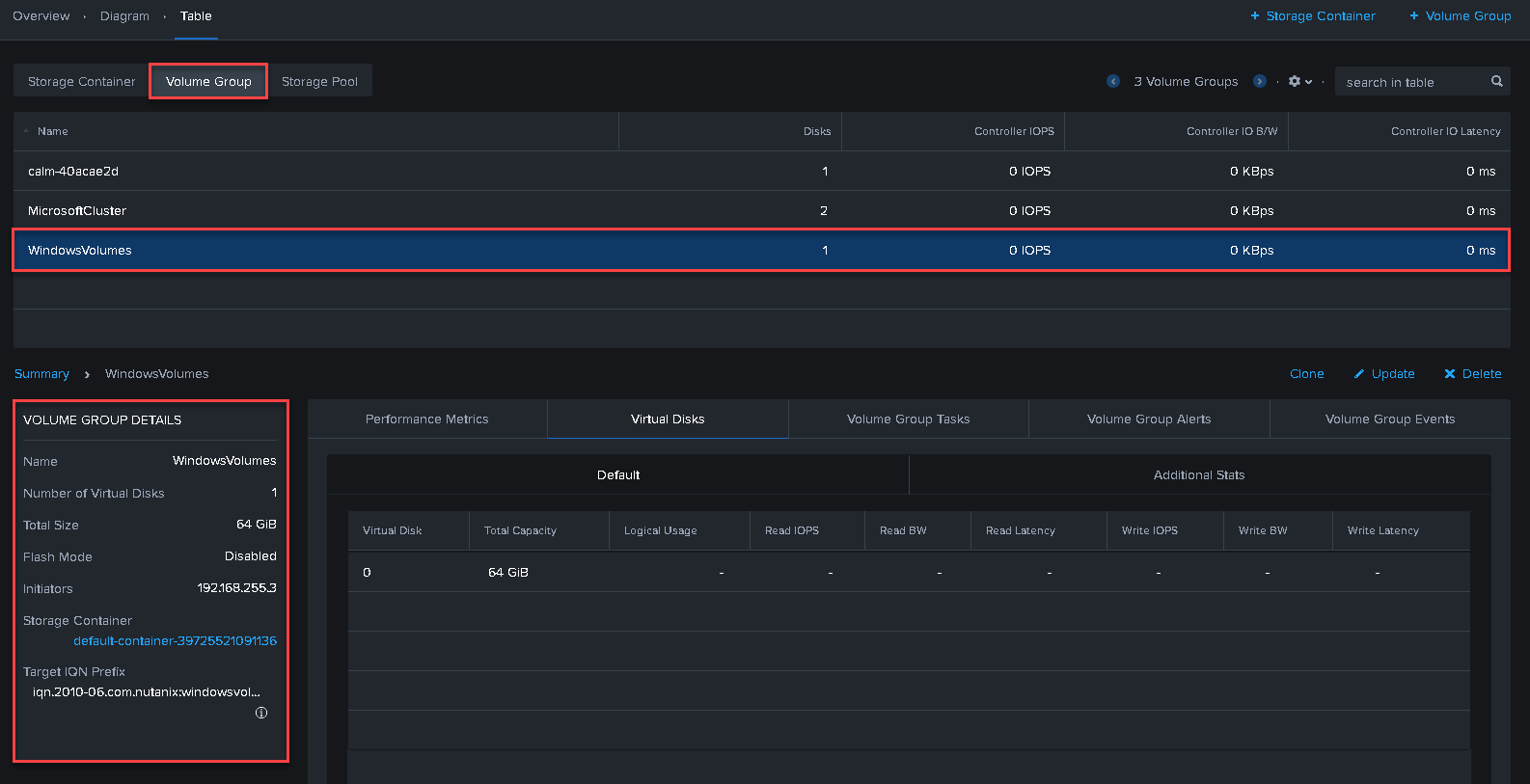
Mapping the Nutanix Volume on Windows
We are using a Windows Server with the iSCSI Initiator software to access the Volume Group shared by the Nutanix Cluster.
After accessing the Windows Server through the console or remote desktop, open the iSCSI Initiator.
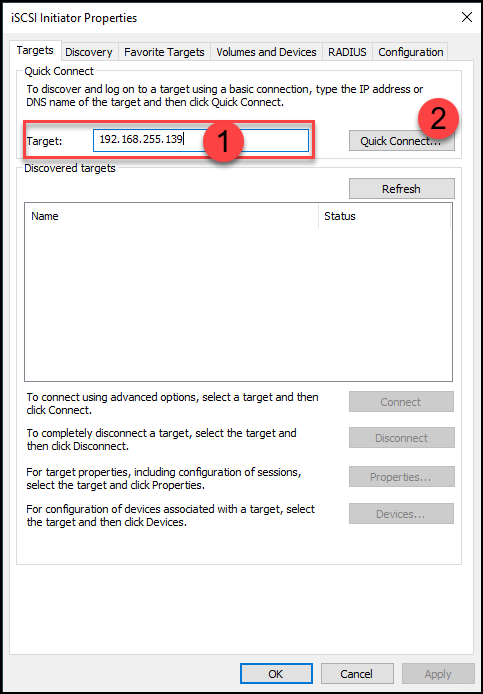
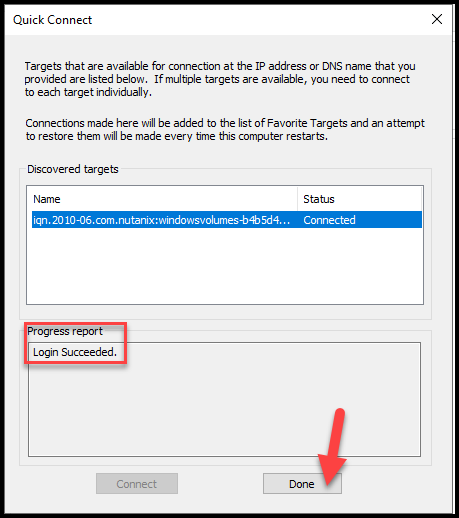
Under Target, type the Nutanix iSCSI Data Services IP and click on “Quick Connect”:
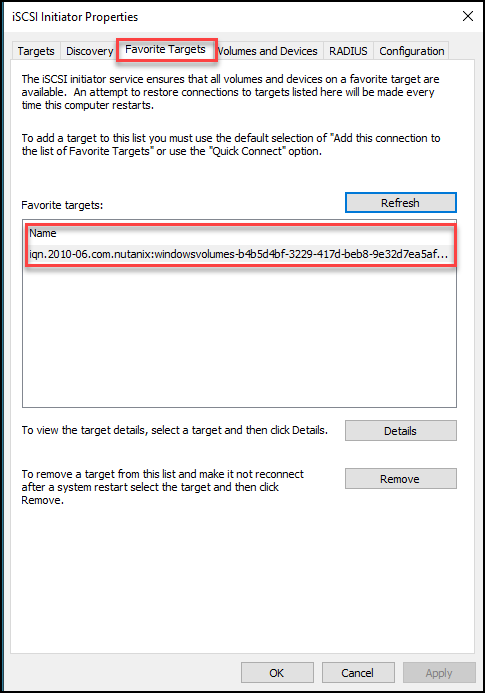
Under “Favorite Targets,” we can see the Nutanix target “WindowsVolumes”:
Open the Disk Management. A new 64GB disk will be available:
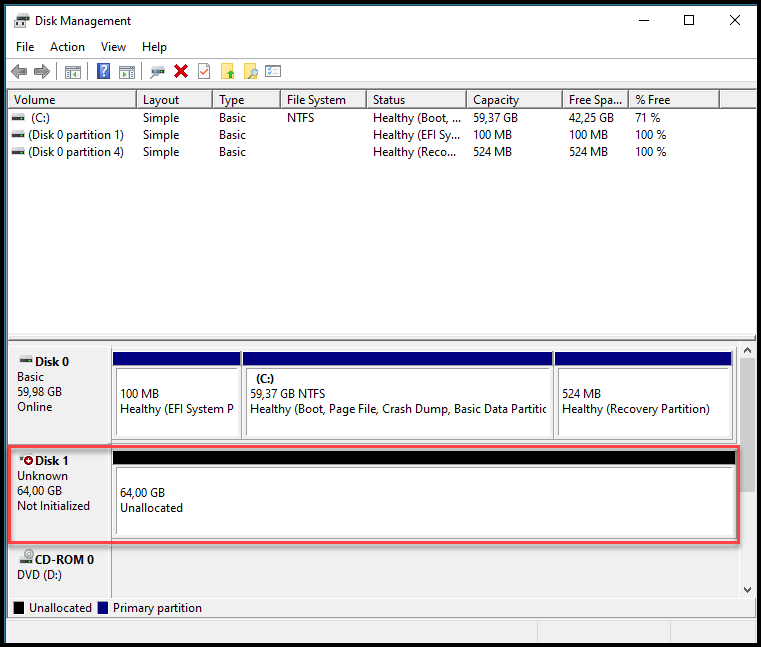

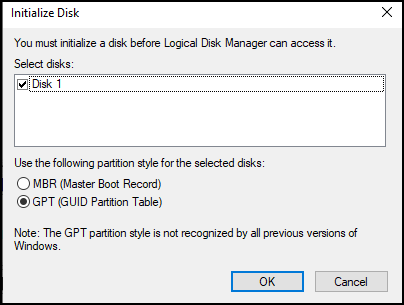
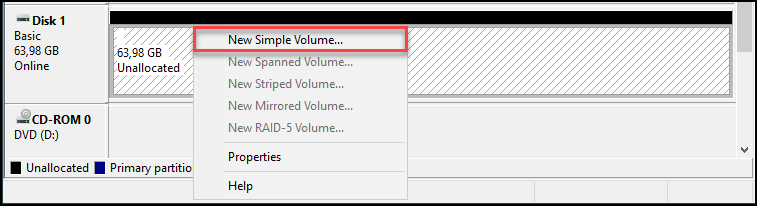
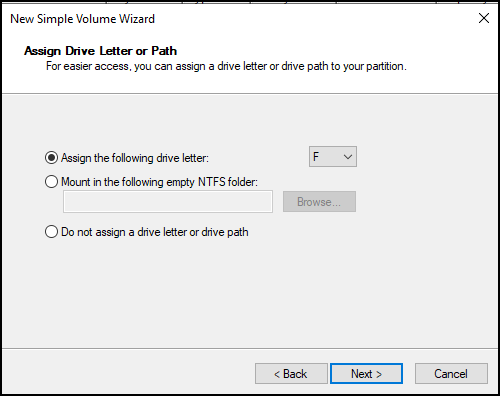
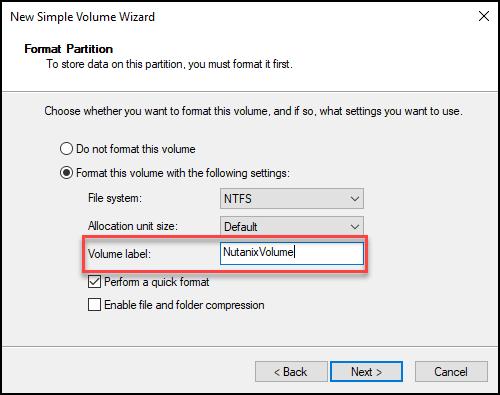
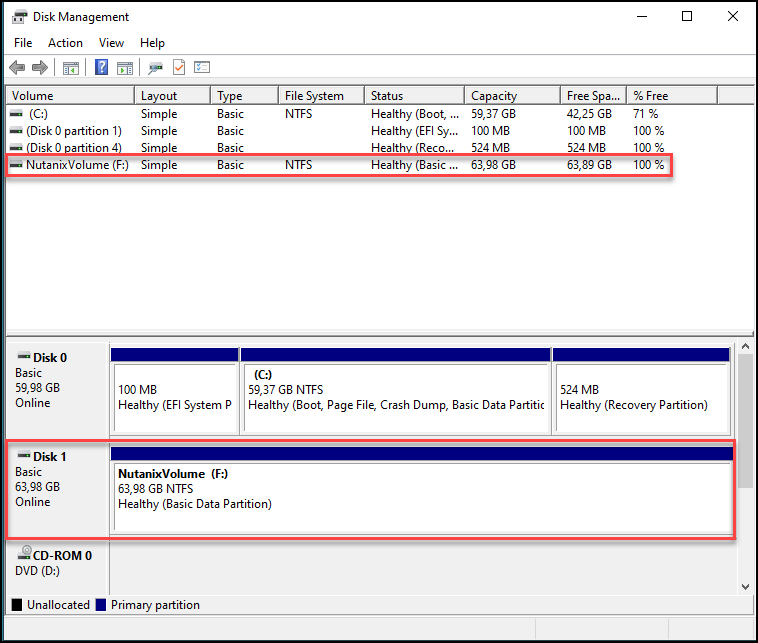
As we can see, the Nutanix Volume has been mapped successfully on a Windows Server:
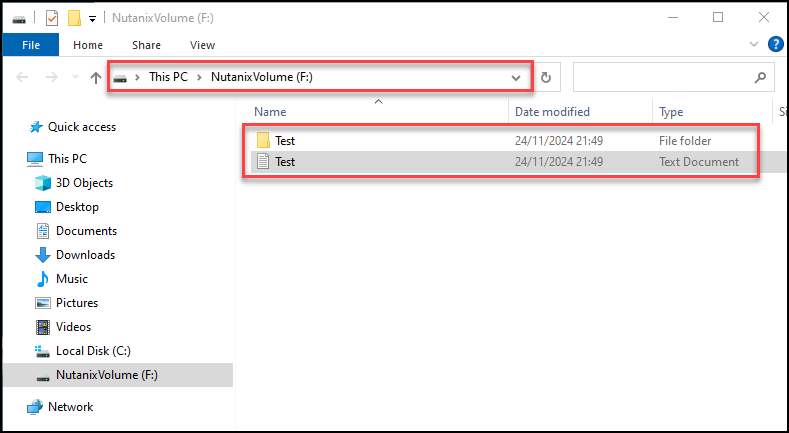
That’s it 😉
