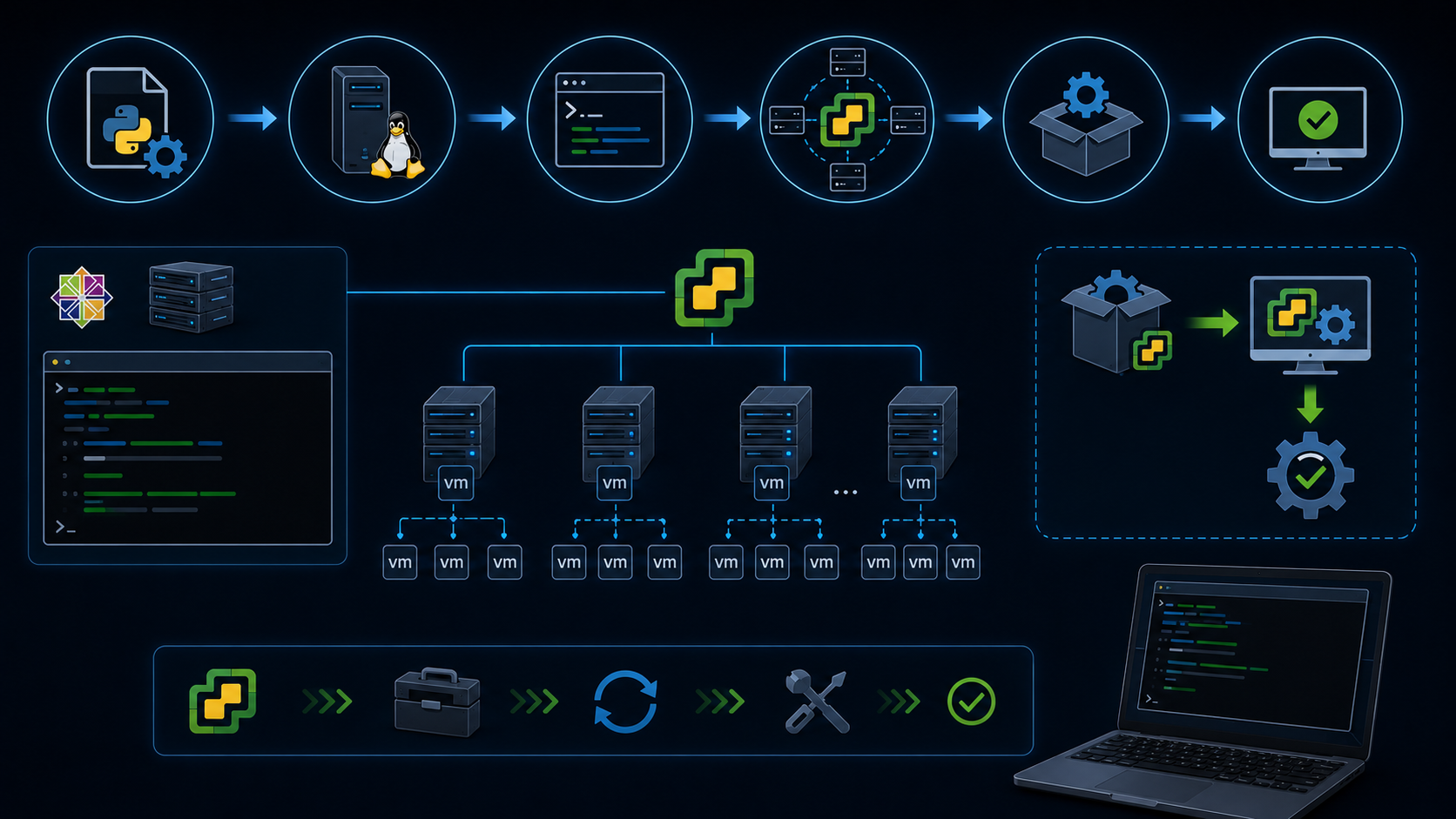
Upgrading VMware Tools on ESXi hosts is an article that shows an automated approach to upgrading the VMware Tools version on an ESXi host, using a Python script.
The idea is to use a Linux CentOS 9 as a script server. We’ll execute a Python script from this server to connect to each ESXi host and upgrade the VMware Tools.
Upgrade VMware Tools on Standalone or Manually Specified Hosts
If you want to upgrade the VMware Tools version on Standalone hosts or want to specify the hosts to be upgraded manually, let’s get started:
1- Install CentOS 9 (without GUI) – We have tested it with CentOS 9, but feel free to install a different Linux flavor and adjust the script to run on it.
2- Access it by SSH with root rights and install Python:
curl -O https://raw.githubusercontent.com/danchiacchio/scripts/refs/heads/main/sh_PythonInstall/install-python.sh

chmod +x install-python.sh

./install-python.sh
Grab a coffee and wait for a while. The automated Python install takes a while to complete!
3- Download the VMware Tools Offline VIB Bundle (.zip) and copy it to the CentOS machine (using WinSCP, Powershell, or your preferred method for copying).
4- Download the Python script to check the VMware Tools version and upgrade it:
curl -O https://raw.githubusercontent.com/danchiacchio/scripts/refs/heads/main/py_vESXiTools/py_vESXiTools.py

pip install paramiko prettytable

chmod 700 py_vESXiTools.py
5- Create a file named “esxi_hosts.txt” in the same directory and place the ESXi management IPs of all target ESXi hosts, one IP per line.
Example:
[root@infra-tools-2 ~]# cat esxi_hosts.txt
172.16.90.11
172.16.90.12
172.16.90.13
6- Run the Python script:
python3 py_vESXiTools.py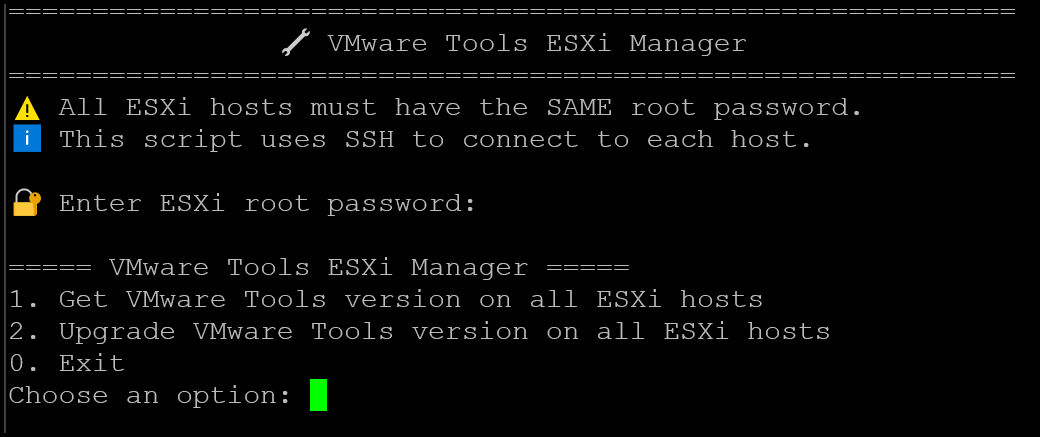
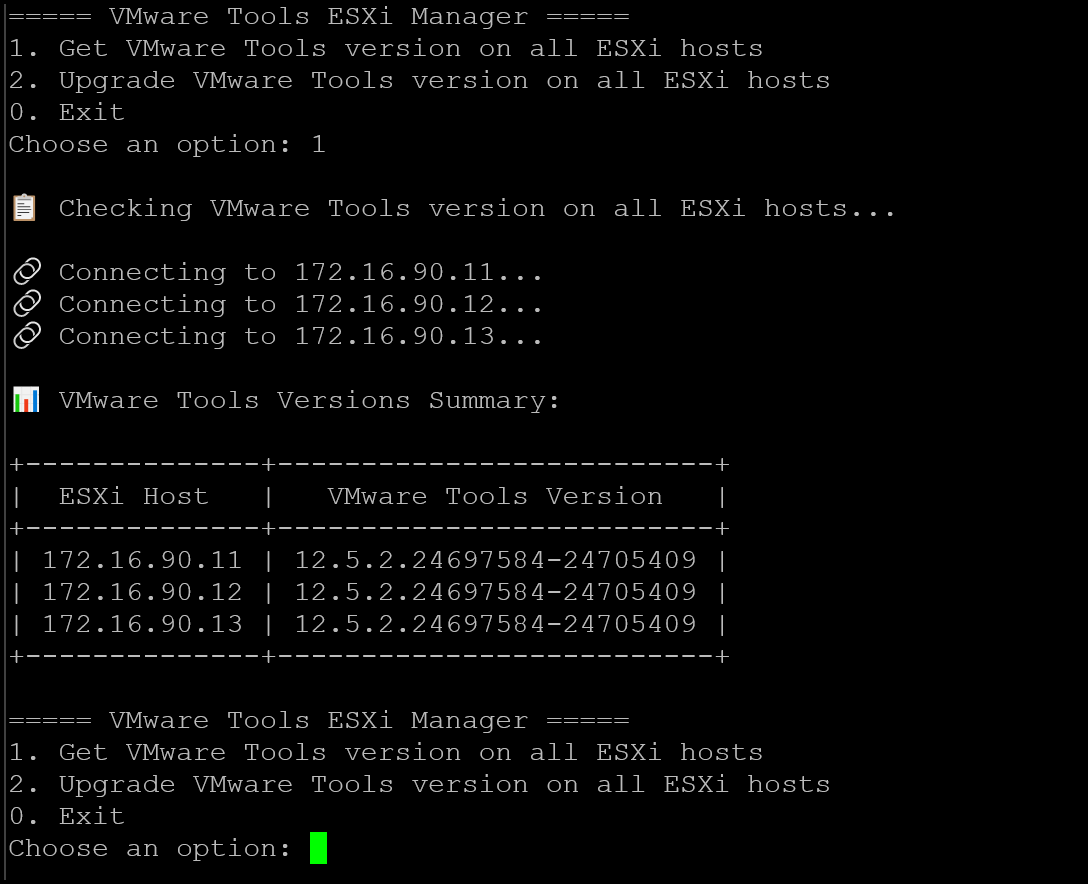
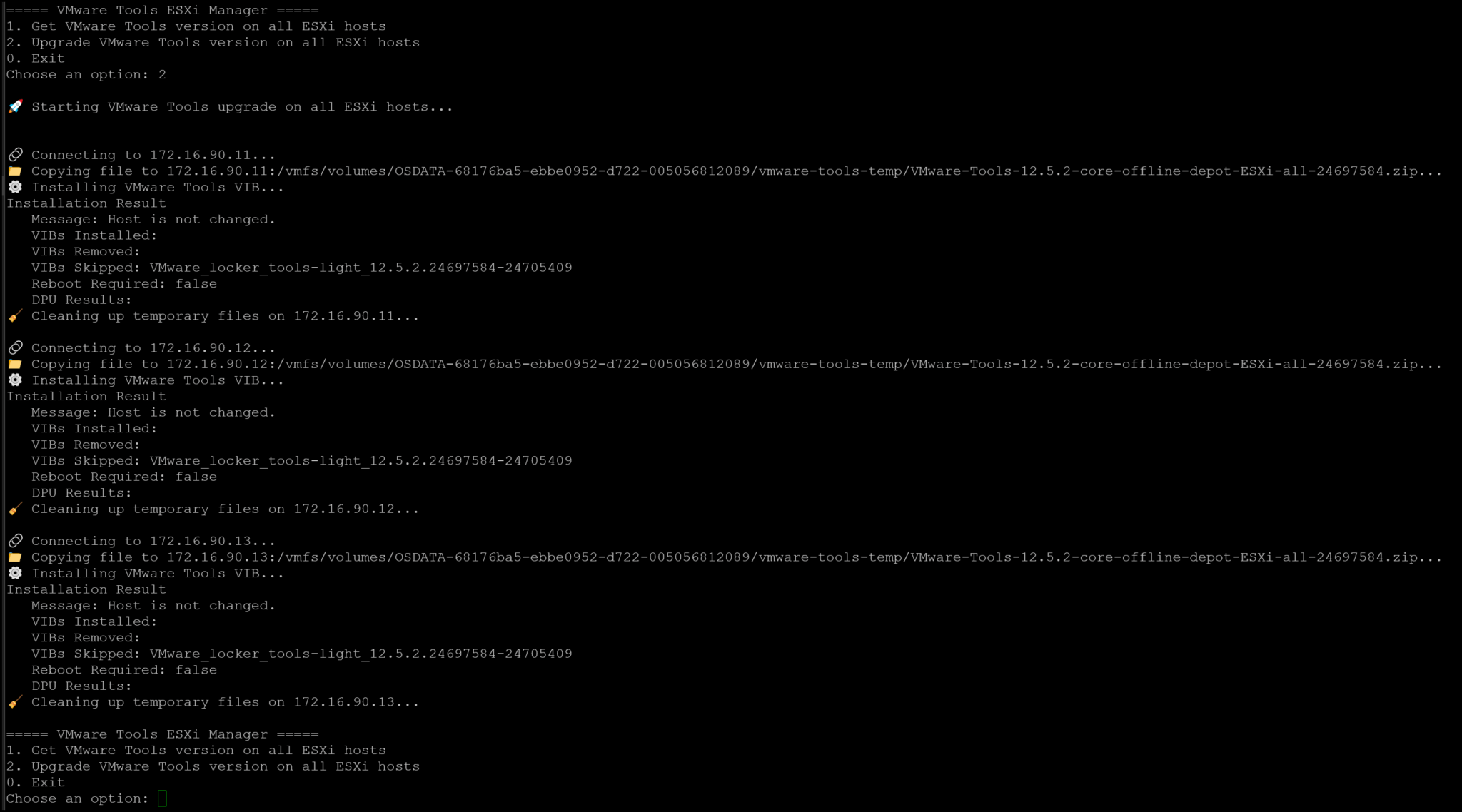
When choosing option 2, the script will copy and install the VMware Tools Offline VIB Bundle (.zip). Afterward, a cleaning task will be executed to remove this file. In the following example, I previously executed ii and upgraded it:
Executing the script in a different cluster, we can see the upgrading process happening:
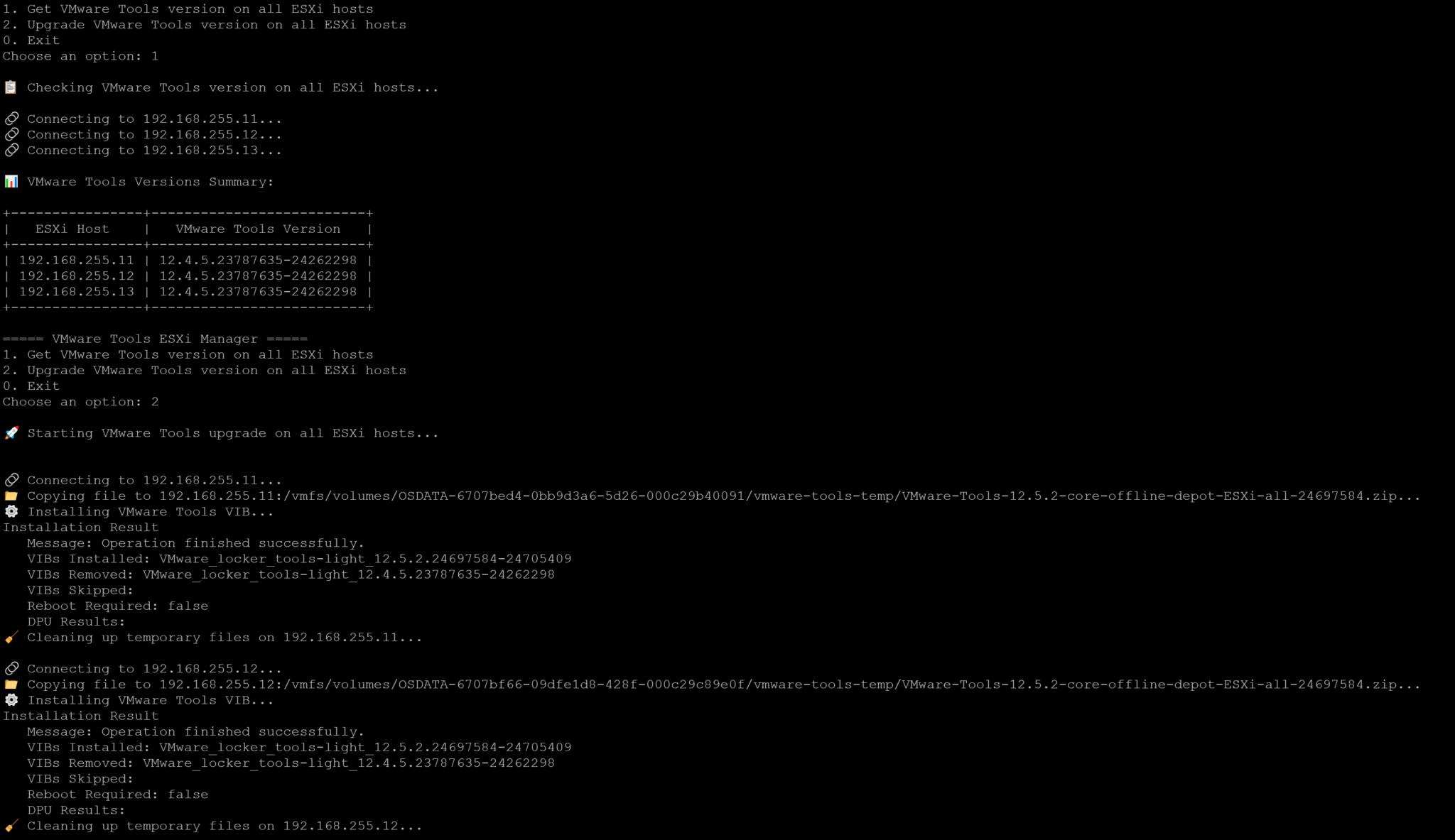
Look, we can see details of the removed VIB and the installed VIB:
Installation Result
   Message: Operation finished successfully.
   VIBs Installed: VMware_locker_tools-light_12.5.2.24697584-24705409
   VIBs Removed: VMware_locker_tools-light_12.4.5.23787635-24262298
   VIBs Skipped:
   Reboot Required: false
   DPU Results:
🧹 Cleaning up temporary files on 192.168.255.11...
Upgrade VMware Tools on Cluster-Based Hosts
If you have one or more vSphere clusters and want to upgrade the VMware Tools version on these hosts, follow the instructions below:
1- Ensure that you have Python installed correctly.
2- Download the VMware Tools Offline VIB Bundle (.zip) and copy it to the CentOS machine (using WinSCP, Powershell, or your preferred method for copying).
3- Download the Python script to check the VMware Tools version and upgrade it:
curl -O https://raw.githubusercontent.com/danchiacchio/scripts/refs/heads/main/py_vESXiTools/py_vESXiTools-auto.py

pip install paramiko prettytable

chmod 700 py_vESXiTools-auto.py
4- Run the Python script:
python3 py_vESXiTools-auto.py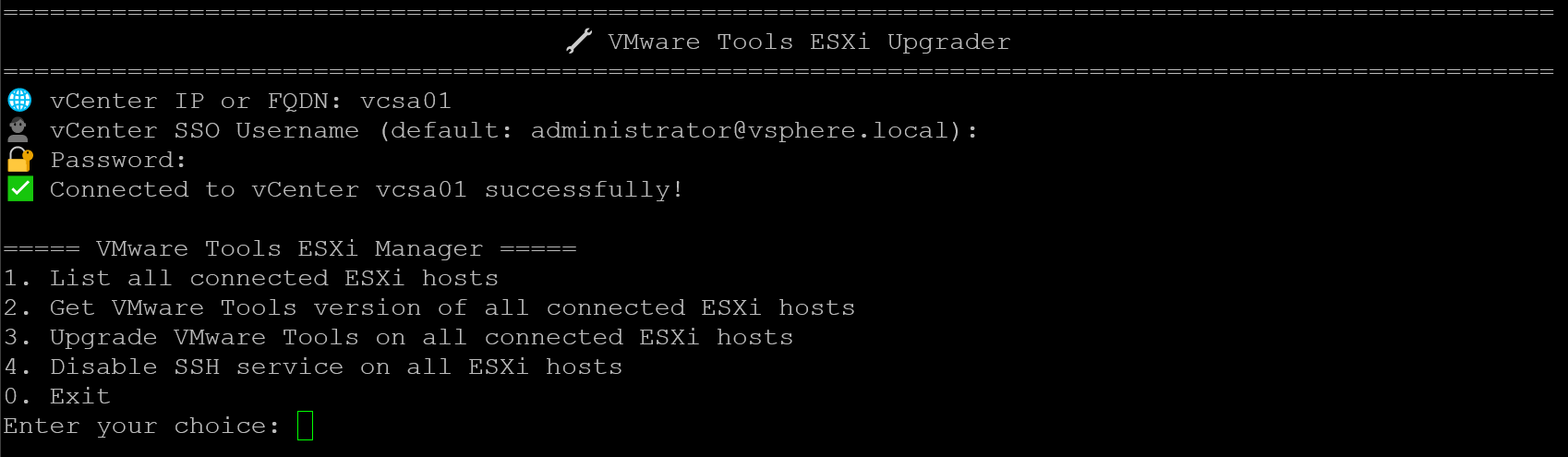
This is a menu-based script. Just explore the options to learn how to use the script. Feel free to contact me in case of doubts or improvements 😉
To Wrap This Up
So, I tested it several times in a lab environment, and it worked as expected. However, be careful when executing it in a production environment. We’ll not be responsible for downtime or weird behavior in your environment.
By default, it will not upgrade the VMware Tools inside the GuestOS VMs. So, you need to upgrade the VMware Tools version on each GuestOS VM!
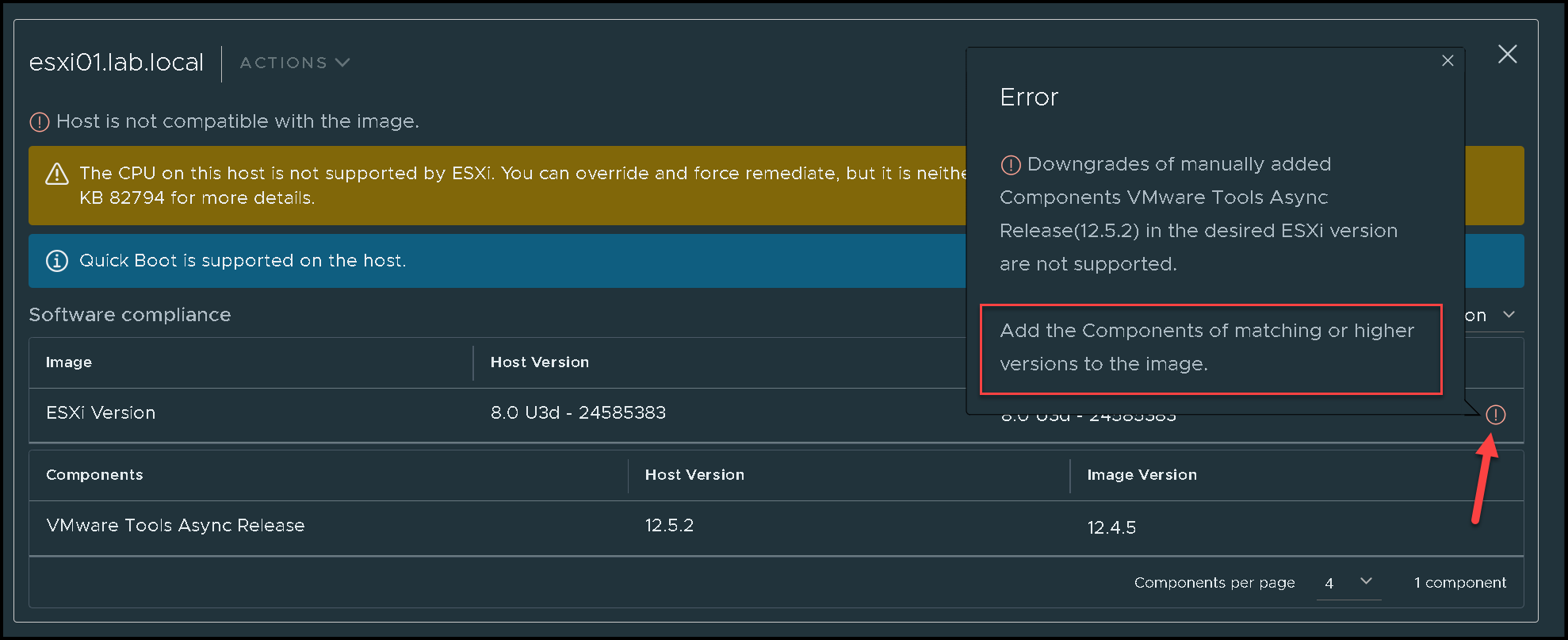
An additional warning, if you are using a cluster image, after upgrading the VMware Tools on all ESXi hosts, they will not be compliant with the image configuration (it is expected to happen):
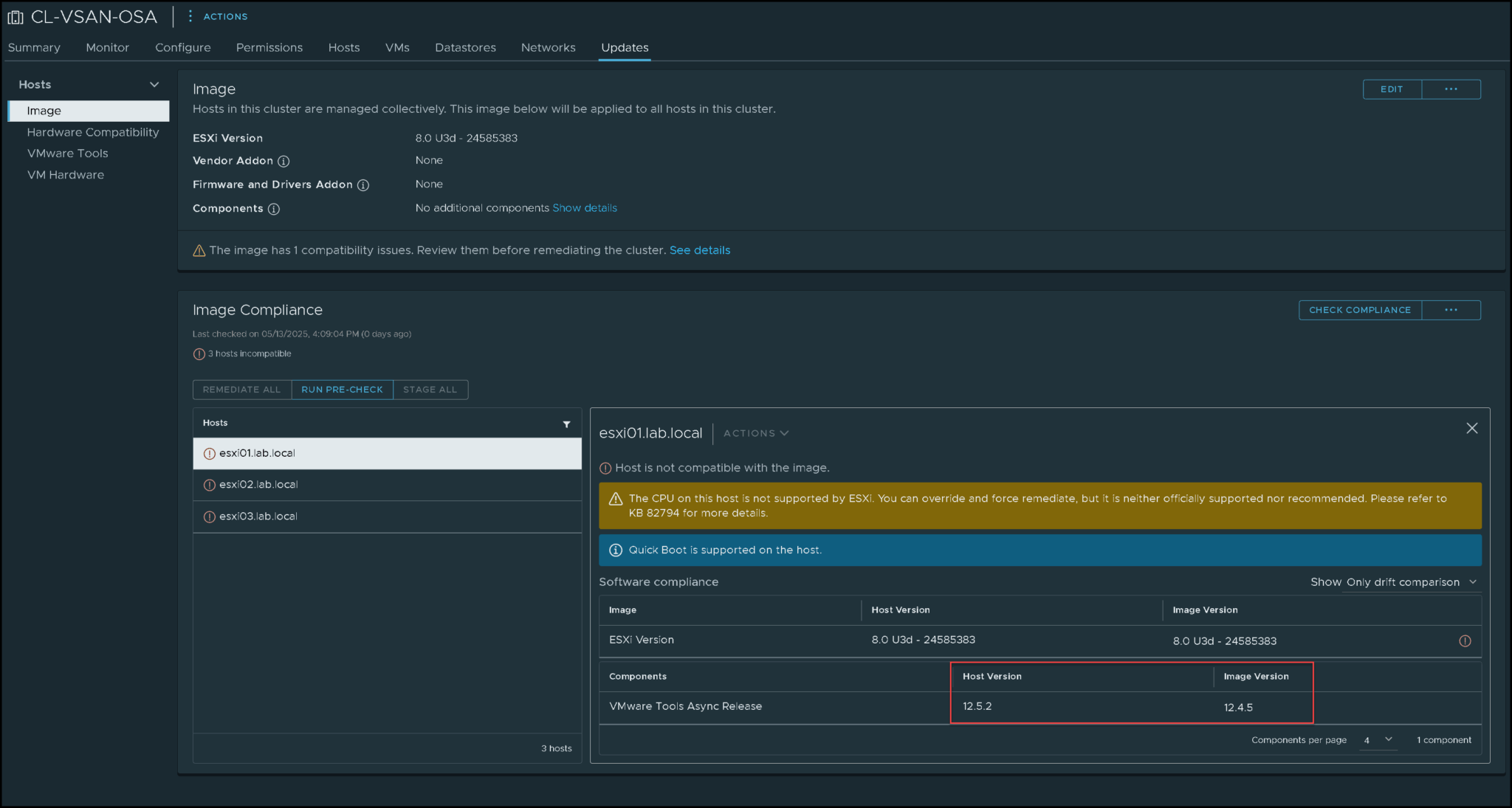
If you’d like to fix this image error: