


Shut Down the vSAN Cluster is a practical guide that explains how to correctly power off a VMware vSAN environment during scheduled maintenance activities. The article demonstrates the shutdown procedure using the vSAN Cluster Shutdown Wizard available in vSAN 7.0 Update 3 and later versions.
The vSAN Cluster Shutdown Wizard simplifies the process by automating several required tasks before powering off the cluster. For older vSAN versions where this wizard is not available, additional manual steps are required to complete the shutdown process safely.
In this article, we will show step-by-step how to apply the vSAN Cluster Shutdown procedure in a lab environment. The same concepts can be applied to different vSAN Cluster configurations, including Standard Clusters, Stretched Clusters, and Two-Node Clusters.
Firstly, if you are running vSAN 7.0 Update 3 or later, there is a wizard that helps in this task. The Wizard calls “Shut Down Cluster Wizard” and it automates the vSAN Cluster Shut Down. To see more details about it, check the below link:
However, if you are running older vSAN versions, for instance, this Wizard is not available yet. There are necessary to execute a lot of manual steps to power off correctly the vSAN Cluster. I highly recommend the link below for these situations:
So, here the goal is to show step-by-step how to apply the vSAN Shut Down Cluster using the “Cluster Shut Down Wizard”.
Considerations about our vSAN Cluster
Our vSAN Cluster is a vSAN Stretched Cluster. So, this procedure can be used for Standard Clusters, Stretched Clusters, and Two-Node Cluster. If you are running a VMware VCF Cluster, Tanzu Cluster, or something like that, I highly recommend checking the related documentation to see if the vSAN Cluster Shutdown Wizard is totally applicable to that.
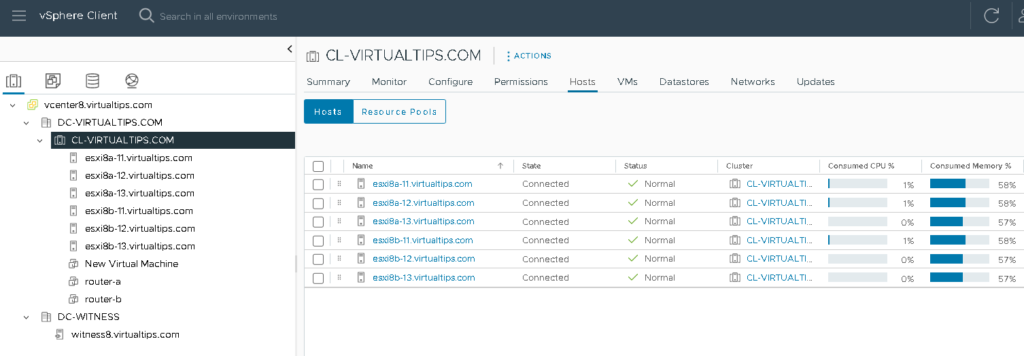
In the picture below, it is possible to see our Stretched Cluster. We have six ESXi hosts + the Witness Appliance:
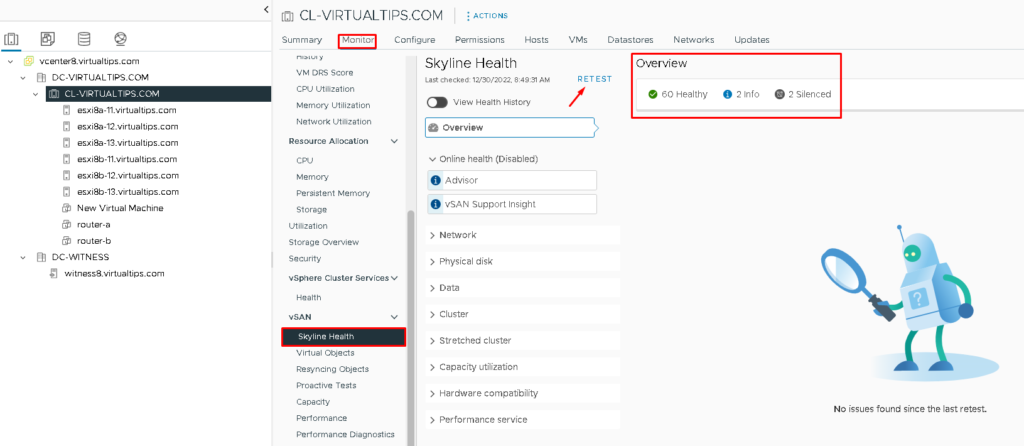
On vSAN Skyline Health, we don’t have any issues or something like that. It is important to check it before applying the Shut Down Cluster:
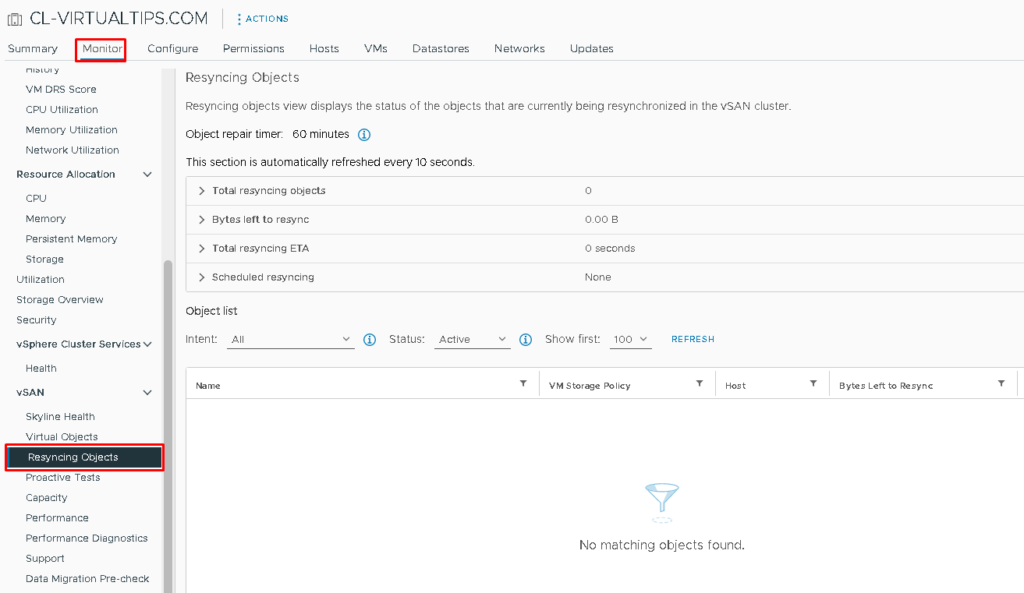
Also, it is important to check if there is an active vSAN Resync process. In this example, we don’t have any running Resync process:
Applying the vSAN Shut Down Cluster
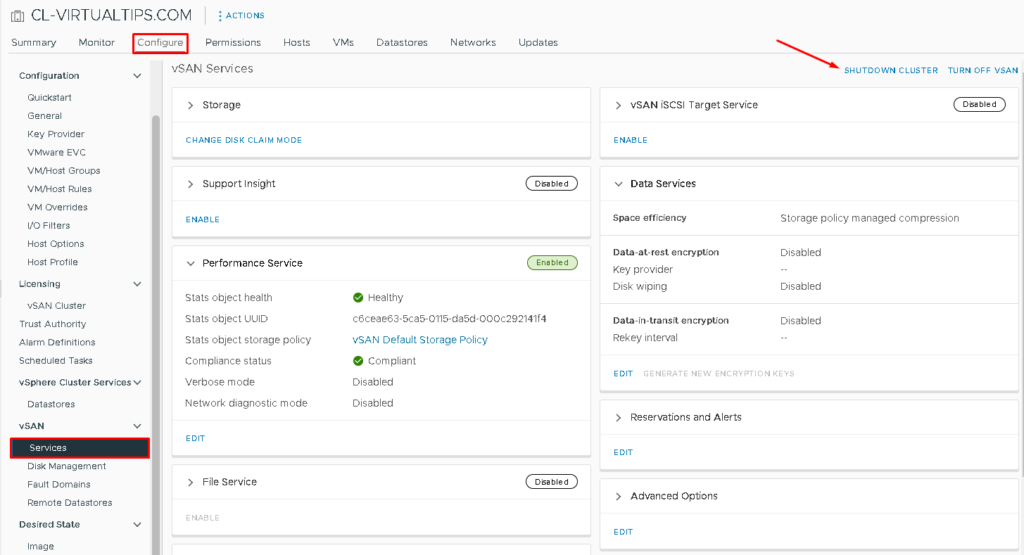
Select the Cluster Name –> Configure –> vSAN –> Services –> SHUTDOWN CLUSTER:
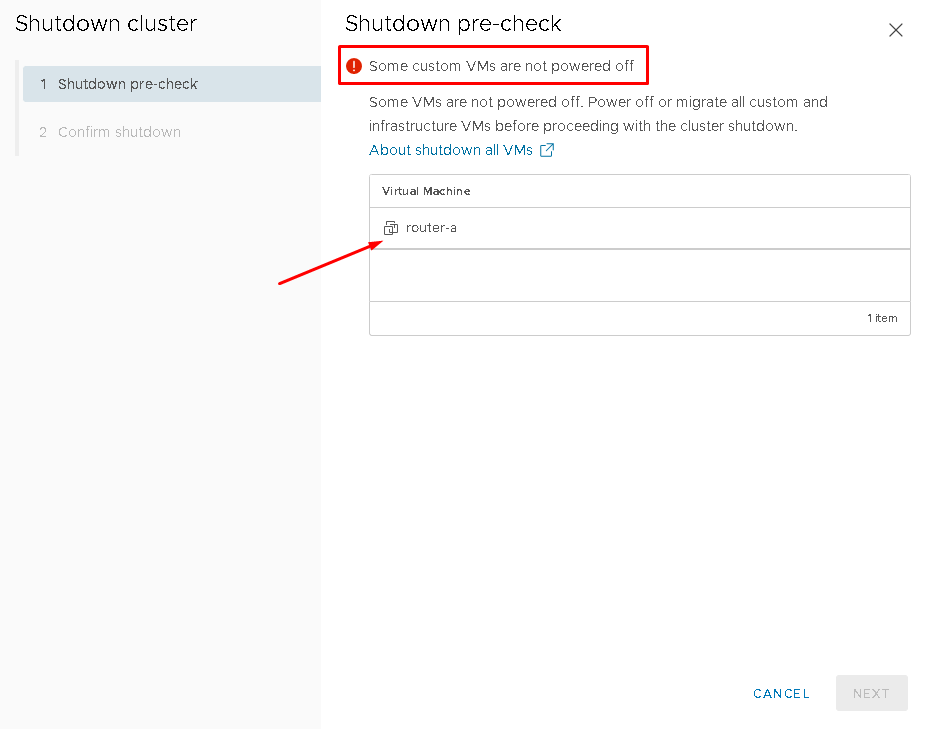
However, all custom VMs will need to power off first, as shown in the picture below – Cannot have any virtual machine running at this time:
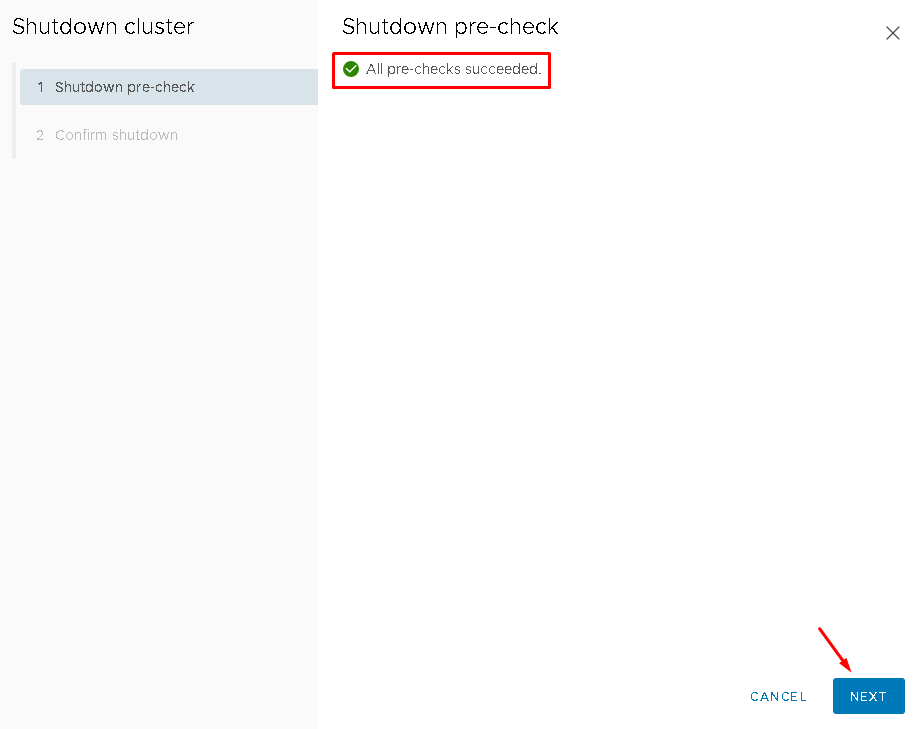
After applying shutdown on all VMs, click on “SHUTDOWN CLUSTER” again. In this example, all pre-checks succeeded. Click on NEXT to continue:
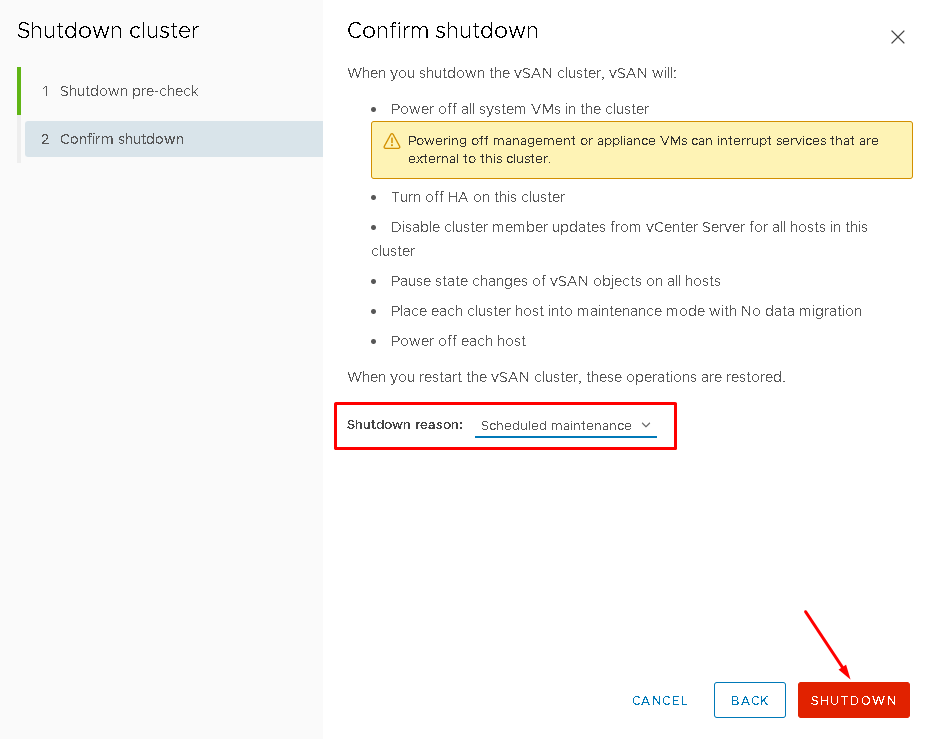
On Confirm shutdown, it is necessary selecting the Shutdown reason. Select it and then, click on SHUTDOWN for stating the Shut Down process:
On the same screen, it is possible to follow the Shut Down process:
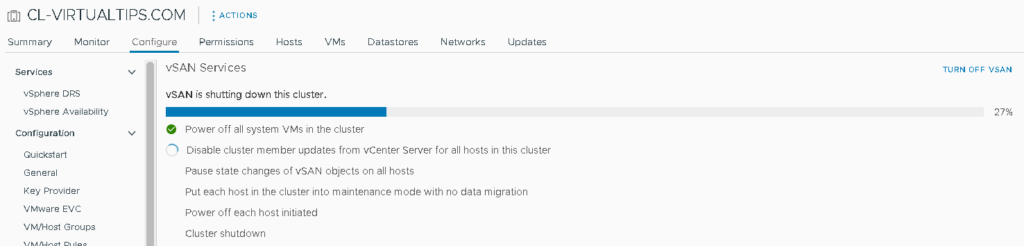
The process is putting each ESXi host in maintenance mode before shutting down the hosts:
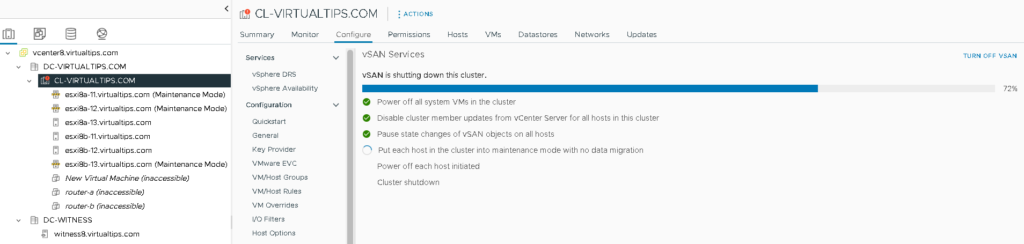
After all ESXi hosts are in maintenance mode, the Power off on each ESXi host is started:
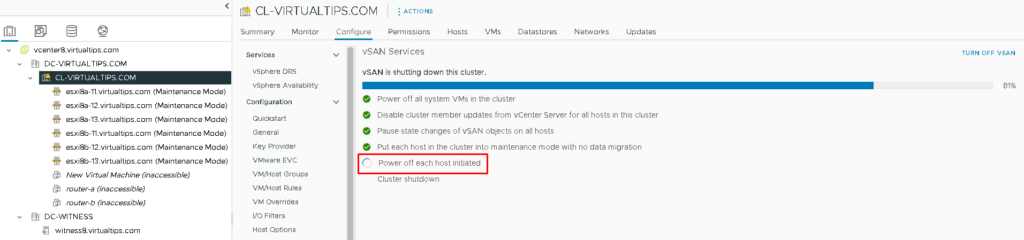
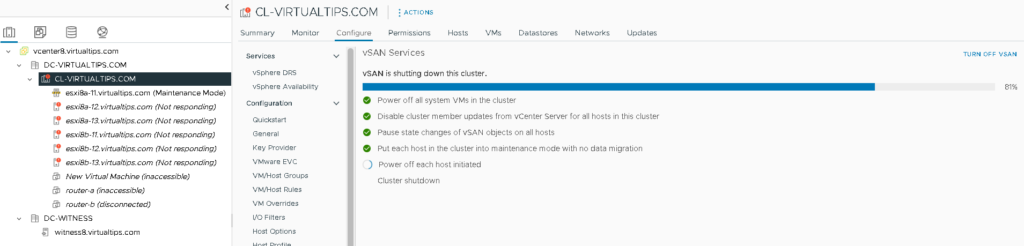
After a lot of minutes, all ESXi hosts will be powered off and the wizard was completed:
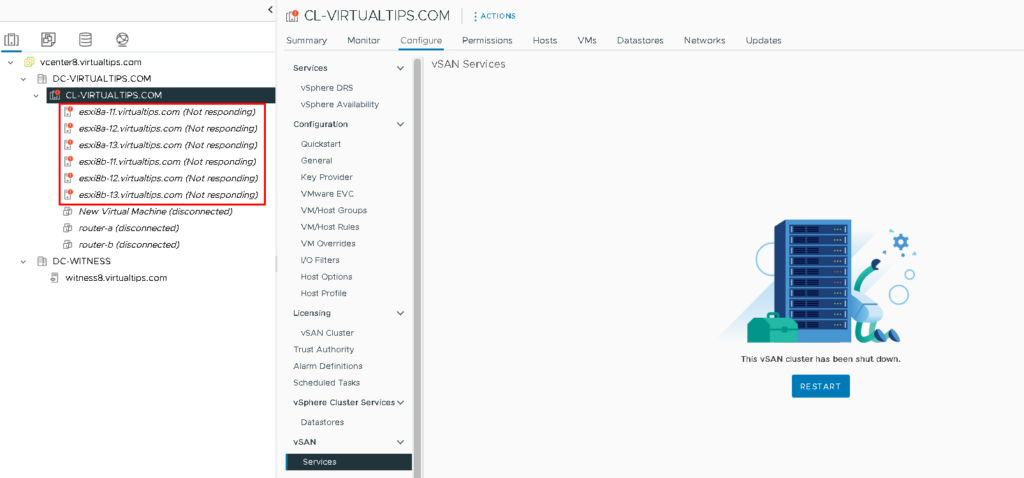
Note: In this case, for instance, we have a Witness Appliance. So, this process will not shut down the Witness Appliance. So, if necessary, you can shut down the Witness Appliance manually.
Powering On the vSAN Cluster
To power on the vSAN Cluster, access the vSAN Services menu and then, click on RESTART:
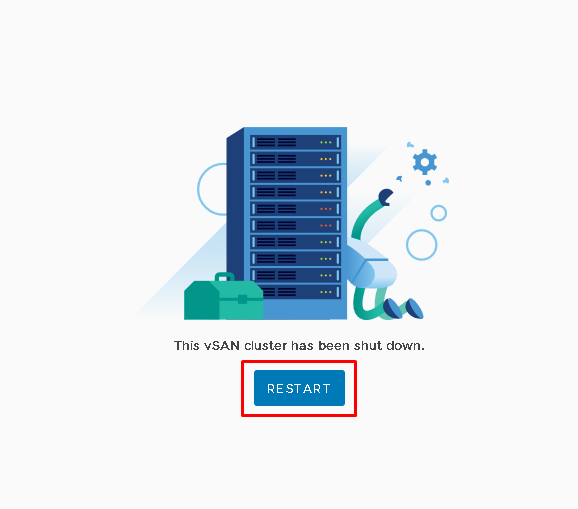
Obviously, it is necessary to power each ESXi host first. If you don’t have it before, you will receive an error like the picture below:
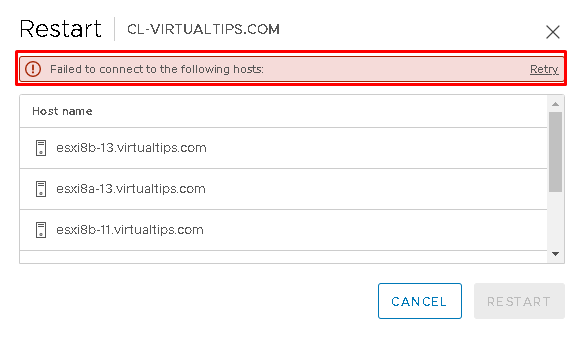
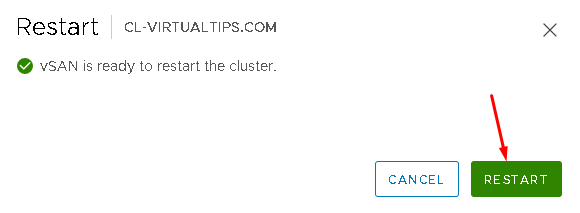
After powering on each ESXi host, click on RESTART again:
vSAN is restarting this cluster – In this context, restarting is powering up the vSAN Cluster 🙂 :
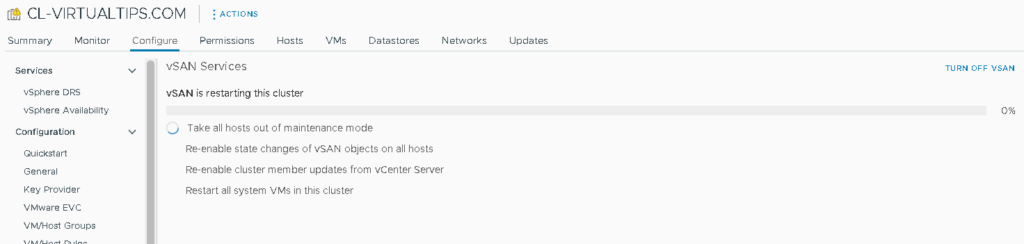
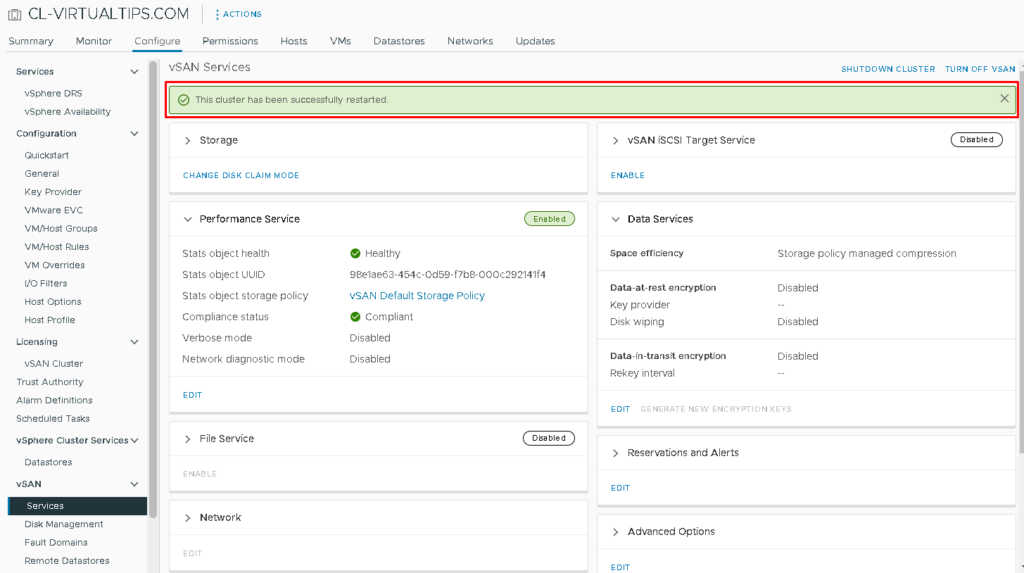
After a few minutes, the cluster will be ready, as shown in the picture below:
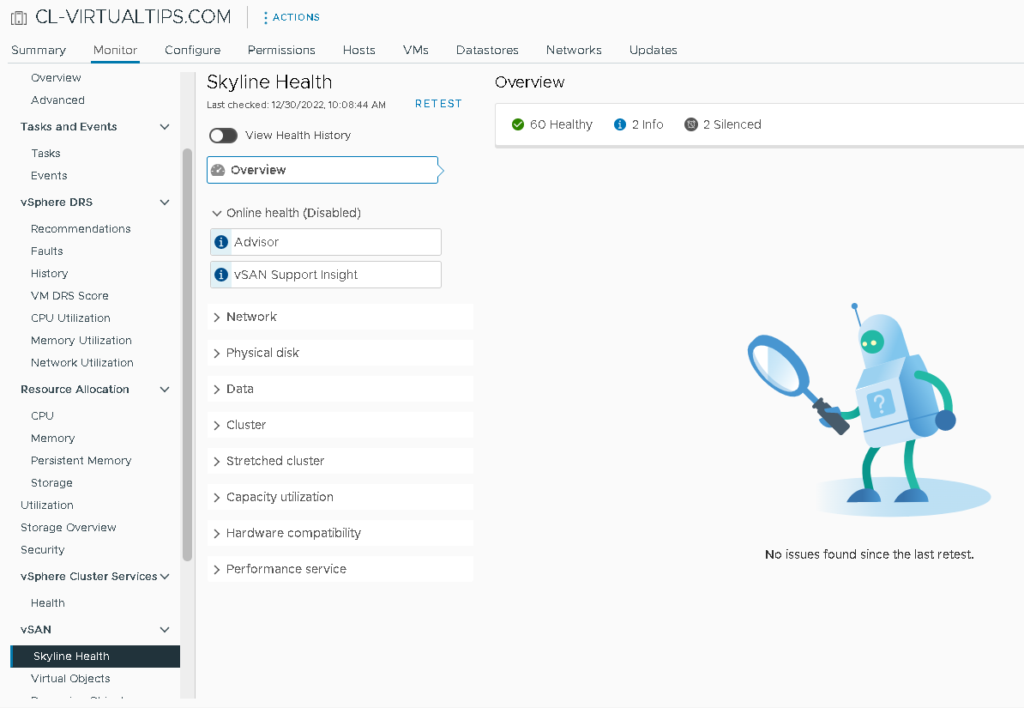
On vSAN Skyline Health, it is possible to confirm that the cluster is healthy:
At this point, the cluster is ready to run VMs again 🙂
